Apps
Reports, decks, threads and briefs
Four ready-made layouts for apps: a printable report, a slide deck that downloads as PowerPoint, a chat thread you can share, and a brief you read first thing.
A template gives an app a finished layout: printed sheets, widescreen slides, a chat or a brief. Ask your agent for a report, a deck, a chat thread or a brief, and it names the template on the page. Kater supplies the layout, so a fix reaches every app that uses it.
<html lang="en" kater-template="pdf">Select a template
| Template | What it makes | File › Export | Example |
|---|---|---|---|
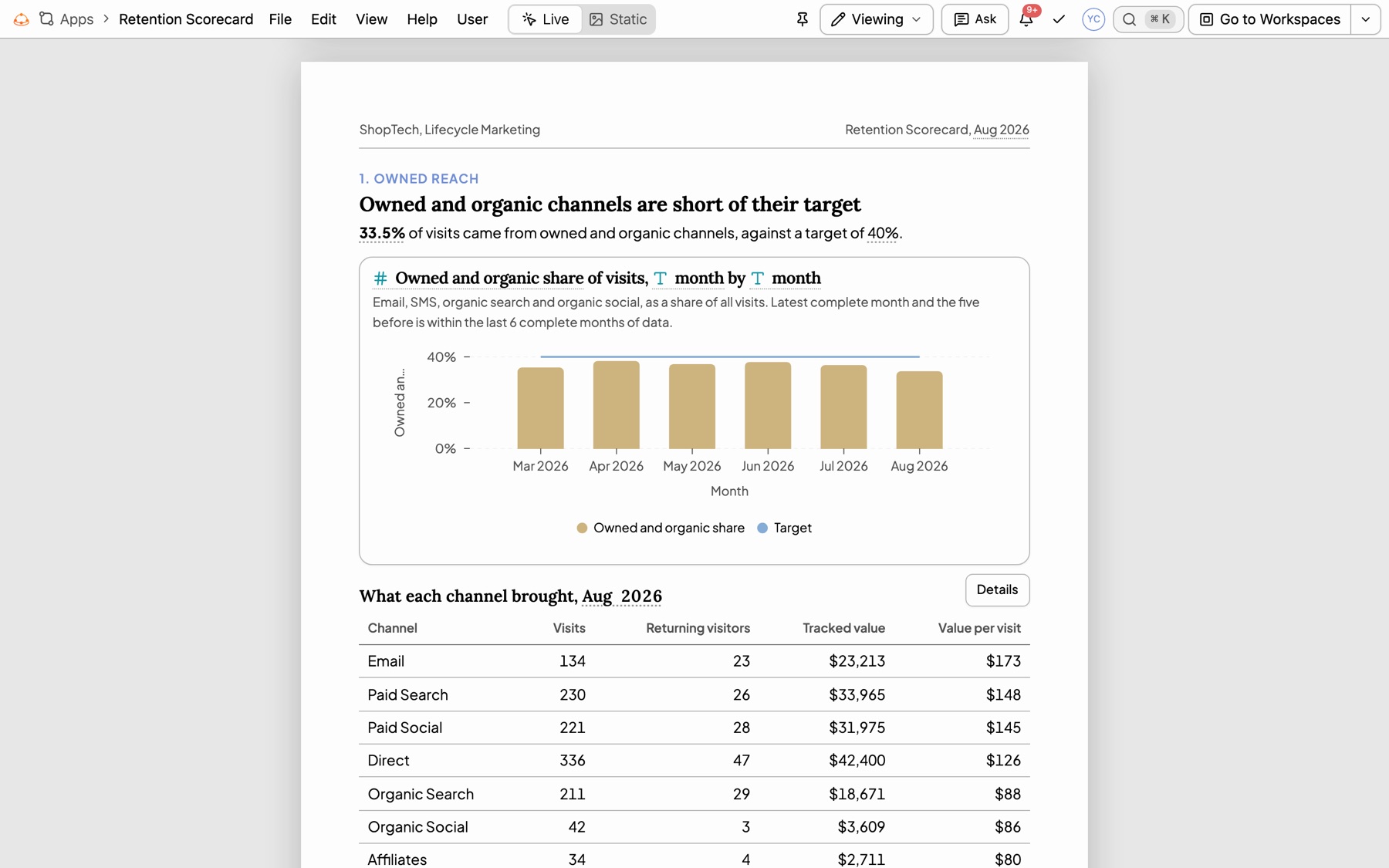
pdf | Printable sheets with headline figures, tables and the sources list on the last sheet | PDF, Word, Markdown, Excel | Retention Scorecard |
powerpoint | 16:9 slides with speaker notes | PowerPoint, PDF, Markdown, Excel | Marketing Channel Performance and Forecast |
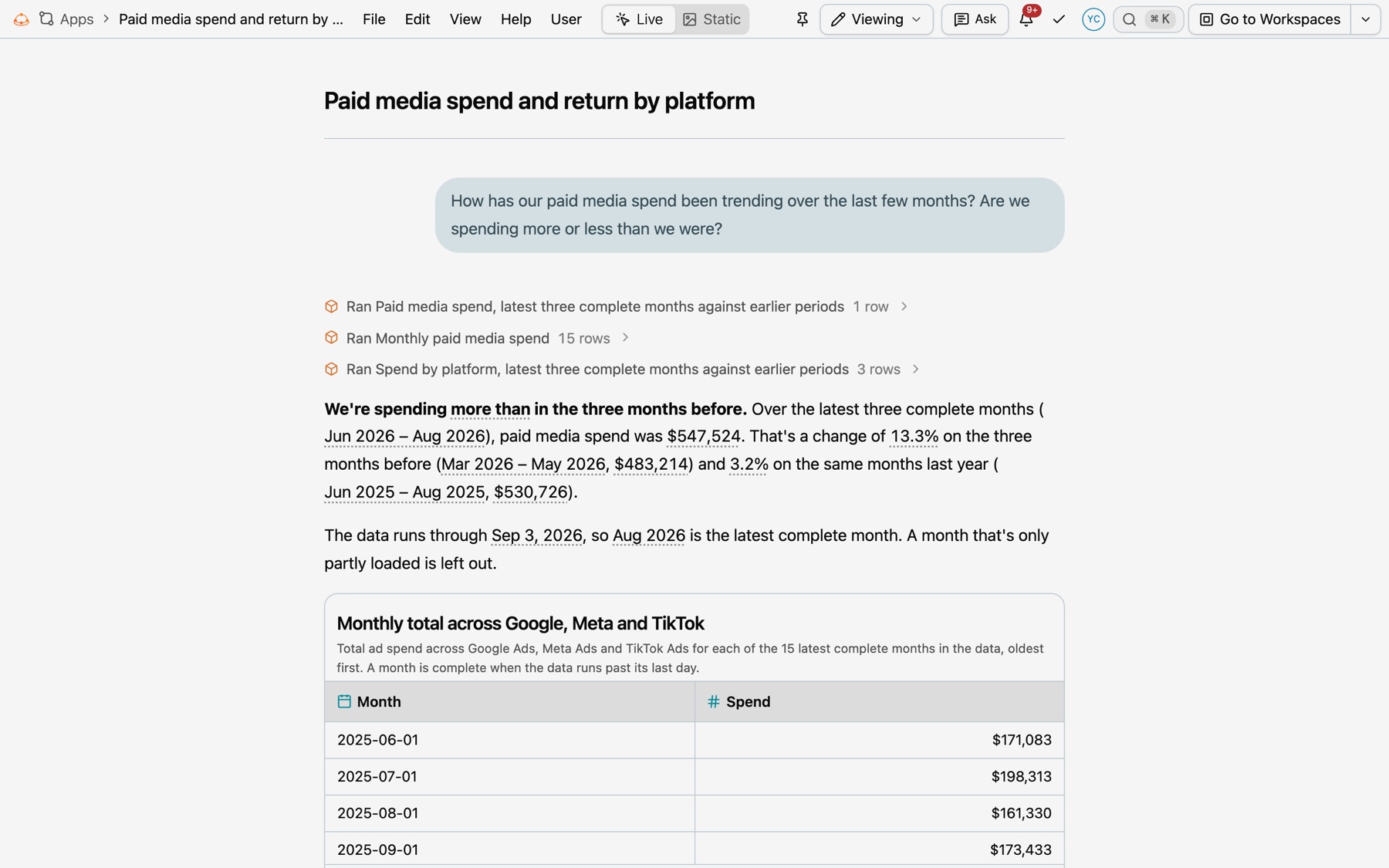
chat | A conversation with the data assistant, with its live figures | PDF, Word, Markdown, Excel | Paid media spend and return by platform |
digest | A brief read first thing, insight first: the one thing, the week in figures, what moved and what to do | PDF, Word, Markdown, Excel | Monday Brief |
| None | Any layout, with filters | PDF, Markdown, Excel | User Journeys |
PDF report
A report is a stack of printable sheets. On screen each sheet is a piece of paper. Printed or saved, each sheet is one page.
- Paper. Letter by default, or A4. Sheets can turn to landscape.
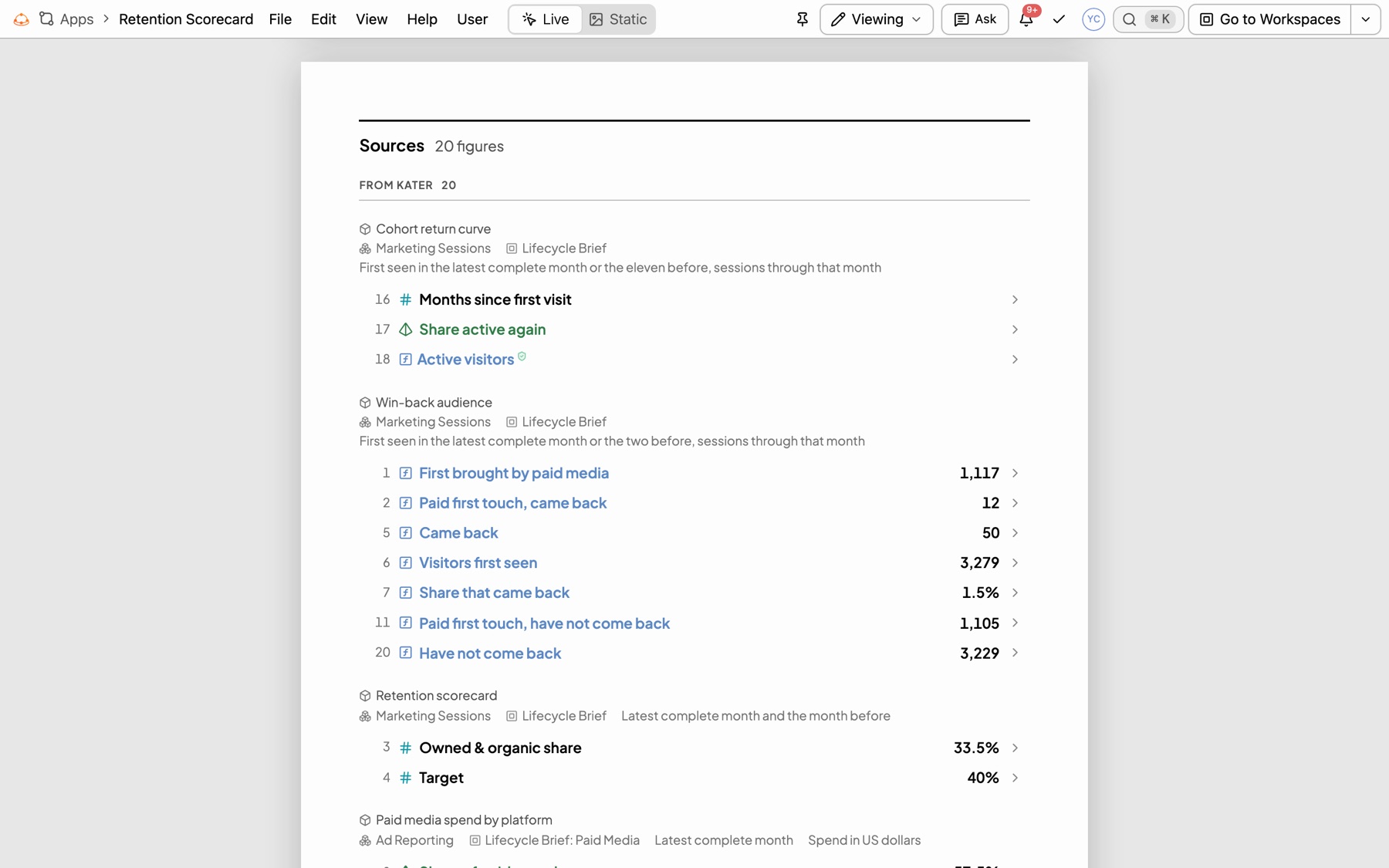
- Sources. The last sheet is the sources list. Each figure is listed under its query, with its model and workspace, and its formula or definition is printed under it. The shield prints, and a link prints as text.
- Citations. A report shows citation numbers by default. Each number matches a line in the sources list.
- Word export. Each sheet starts a page, each chart is a native Word chart and each table a native table.
- PDF export. Opens your browser’s print dialog, one sheet per page.
PowerPoint deck
A deck is a set of 1280 by 720 slides, each with its speaker notes under it. File › Export › PowerPoint (.pptx) writes a file that opens in PowerPoint, Keynote and Google Slides.
- Editable. Every word is a text box. Line, bar, area, composed and pie charts are native charts, and in PowerPoint Edit Data opens their figures in Excel. Tables are native tables. Google Slides imports a native chart as a picture.
- Speaker notes. Each slide’s notes hold its talking points, then the slide’s sources, folded under one Sources line with the number of figures. Select it to see every figure on the slide under the query it came from.
- Citations. A deck hides citation numbers by default, since it is presented. The MOCK DATA badge shows on a slide either way.
- Always this week. A weekly deck reads the latest complete week from the rows, so it is current each Monday with no input. A scenario, such as a 15% spend change, runs at its parameter’s default.
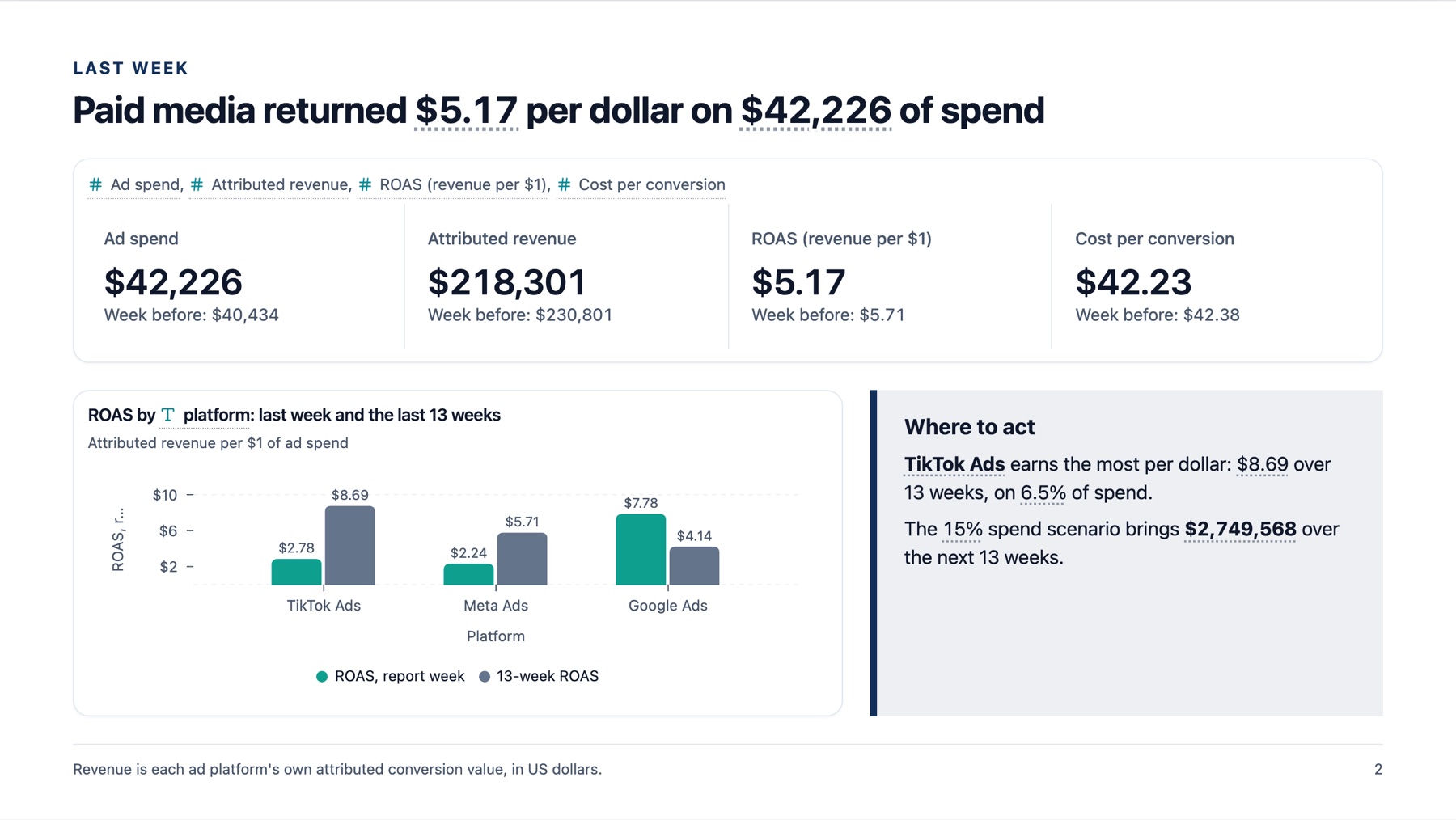
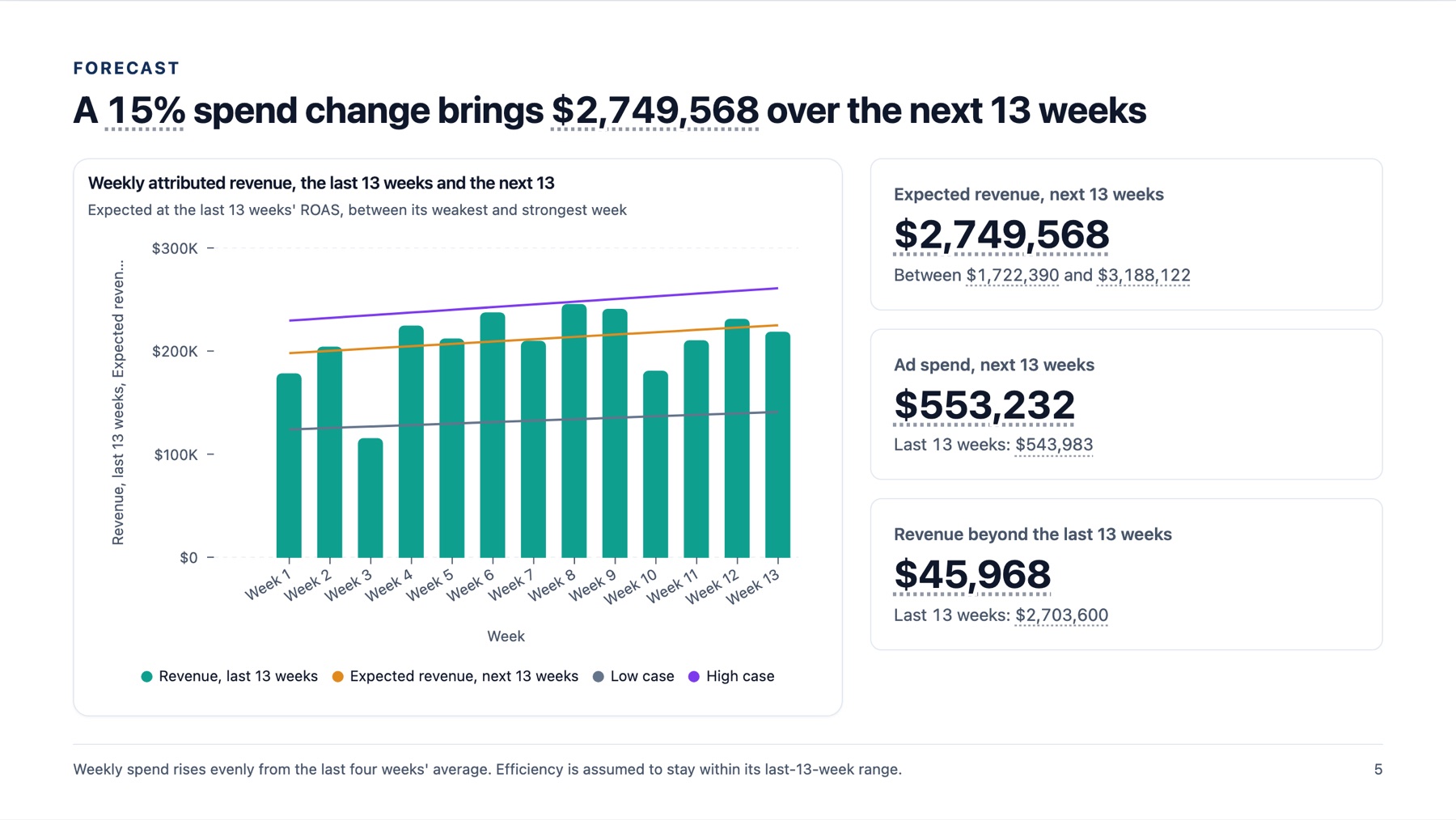
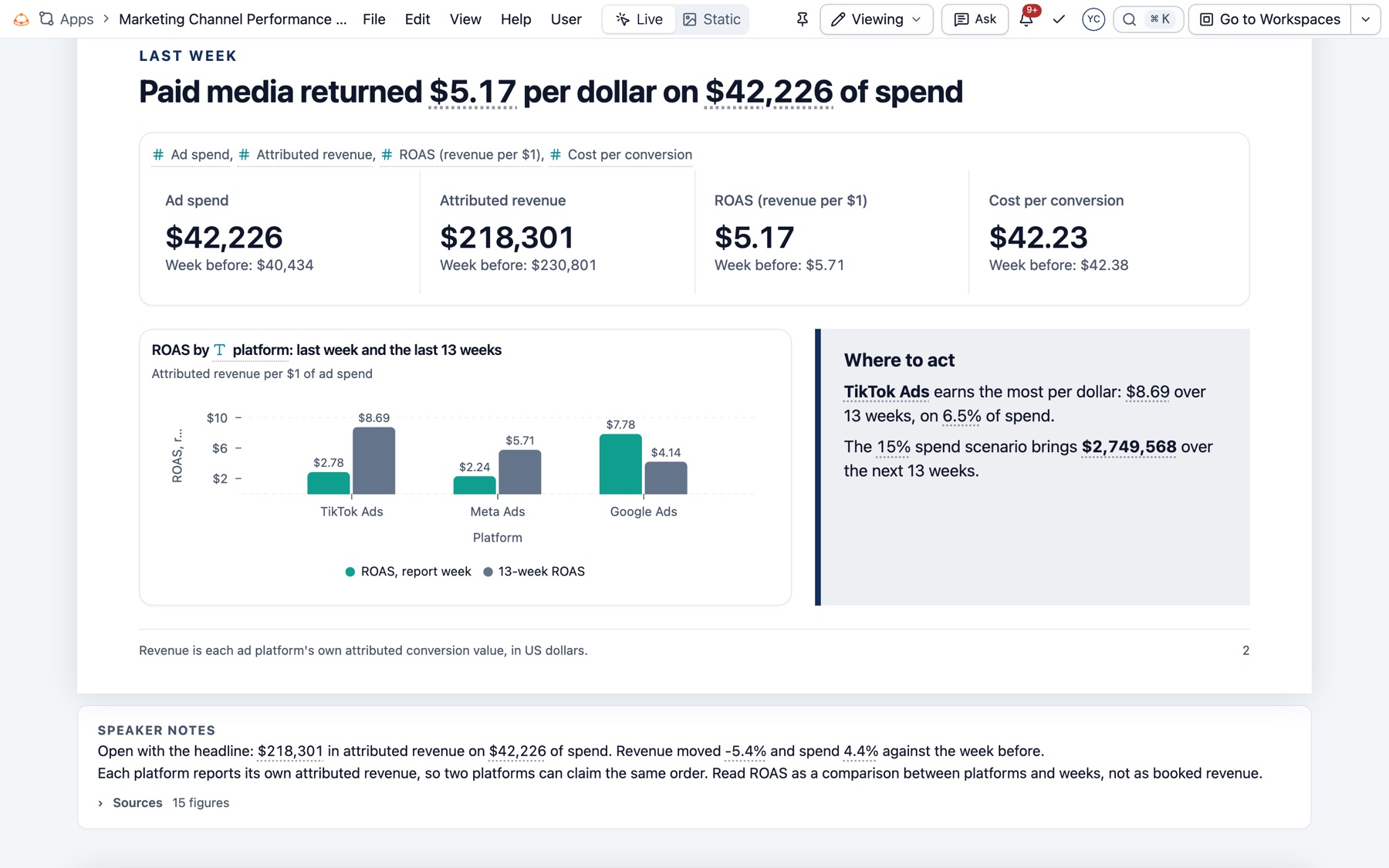
The Marketing Channel Performance and Forecast deck has eight slides: the title with the week; KPIs and ROAS by platform; 13-week ROAS trend; share of spend against share of revenue; the budget scenario; the top campaigns; GA4 visits by channel; and decisions.
Chat thread
A chat thread keeps a conversation with the data assistant as a page that someone who was not in it can read and use. Ask for one in your own words: “Document this in a chat thread so I can share it with the team.”
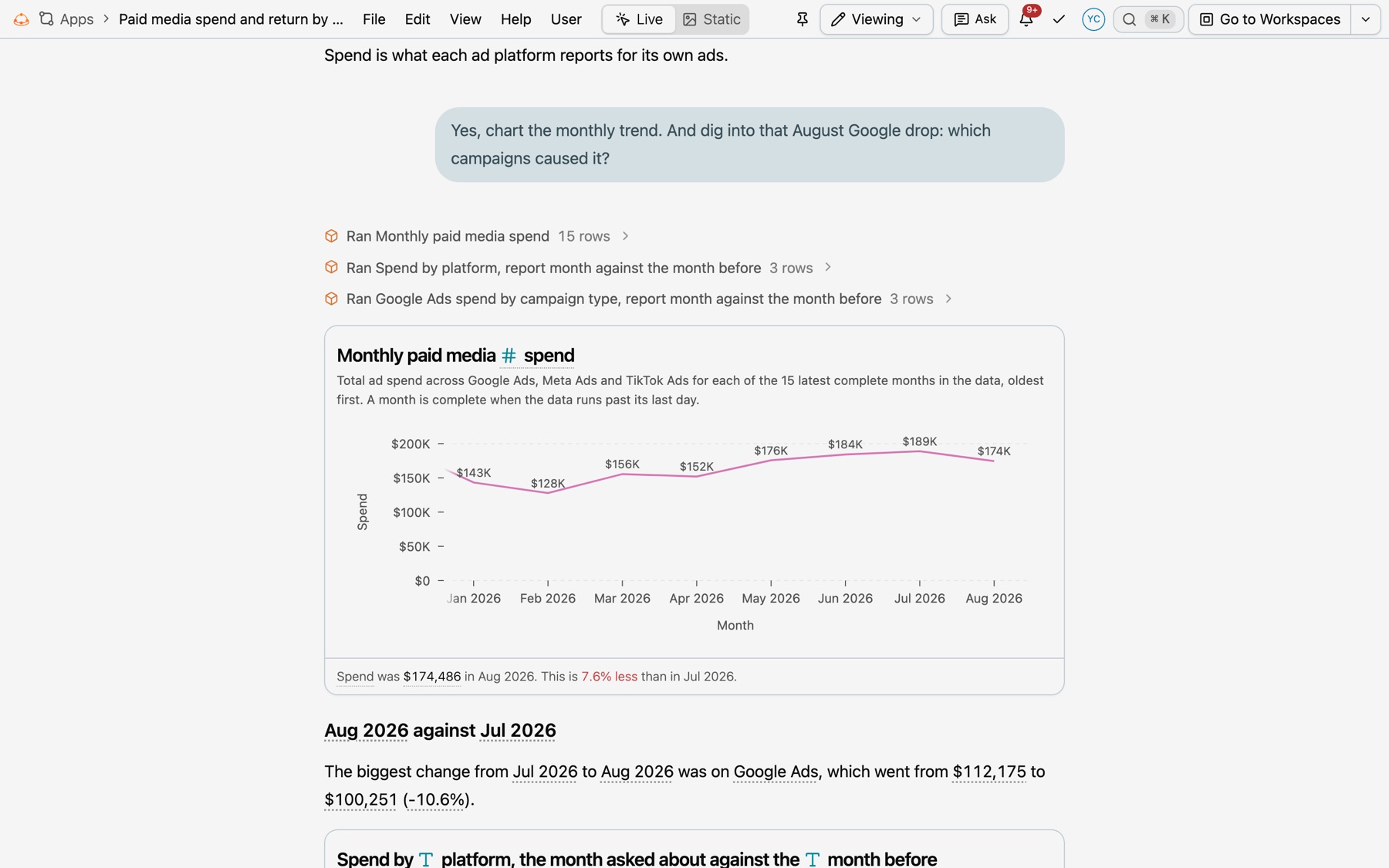
- Reads like the chat. Each question sits in a bubble on the right. Each answer keeps the charts, tables and figures it showed.
- Query lines. Above each answer, one line per query says it is running, then how many rows came back. Open a line to see the workspace, model, filters, rows, Kater SQL and Open query.
- Live for every reader. The thread runs its queries again whenever it opens, with the reader’s own access.
- Ask again for another value. A thread can have one filter in its header. Changing it runs every answer again.
- Sources. The thread ends with its sources, folded under one Sources line.
- Carry it on. Edit › Copy as Markdown copies the thread for another chat, with each question as a heading.
Brief
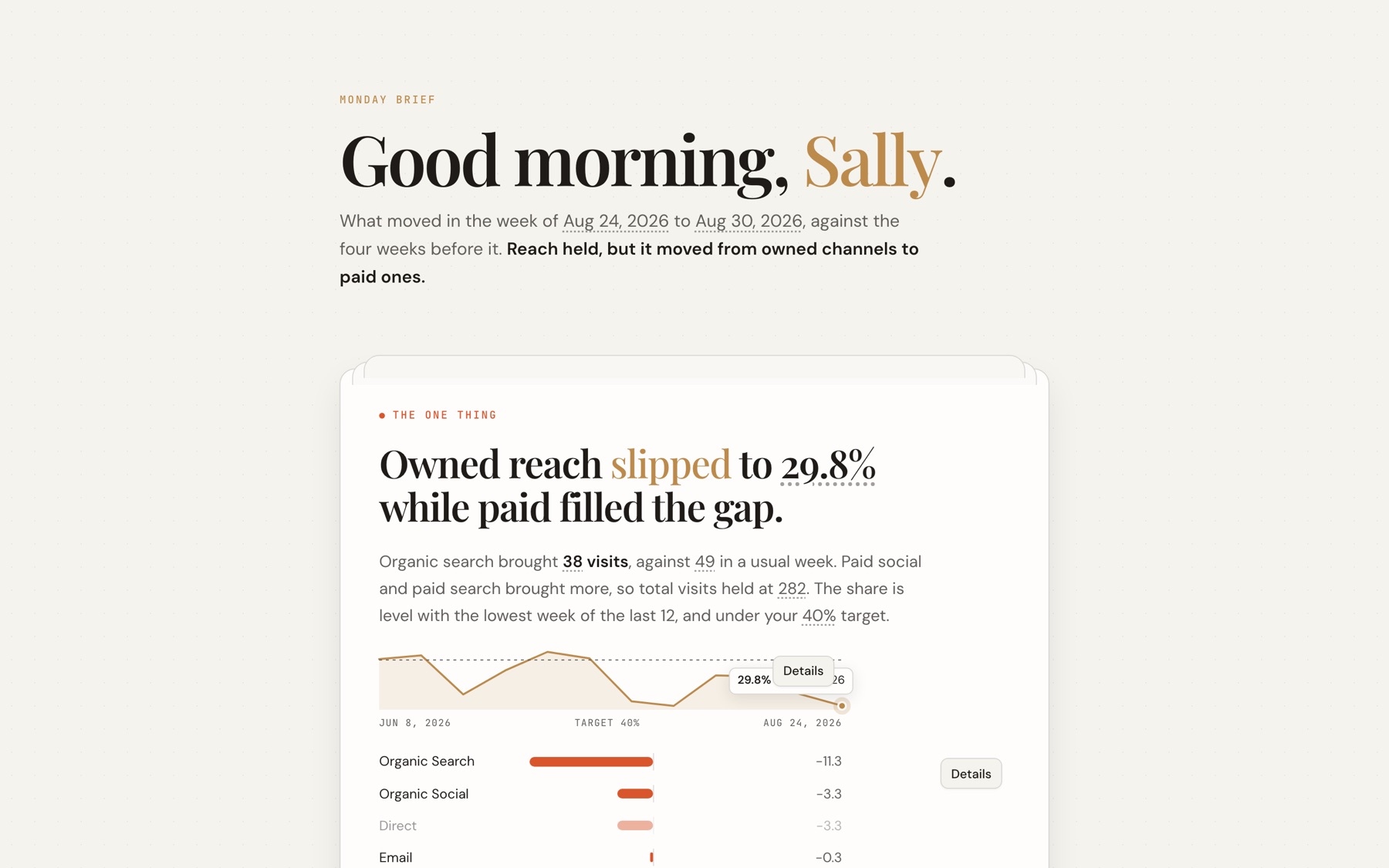
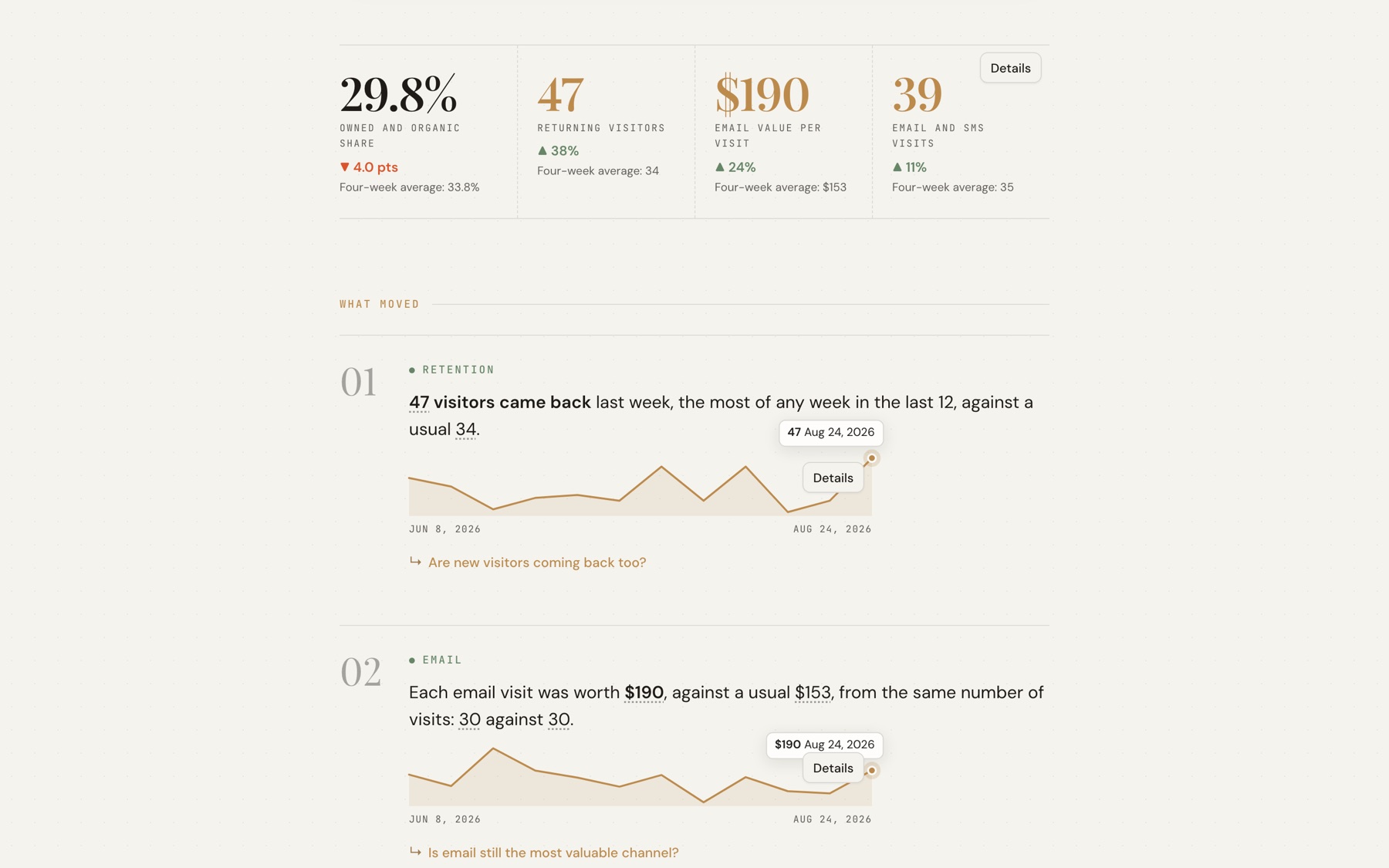
A brief is what you read first thing, such as on a Monday morning: what moved since last time, the one thing that matters most, and what to do about it. The Monday Brief scheduled workflow writes one for you every week. Ask for one in your own words: “Brief me on last week as a page I can open.”
- Insight first. The page opens on the one thing that matters most, as a sentence with its figures, the weeks behind it and what moved it.
- The week in figures. Big figures, each against its usual, such as the average of the four weeks before.
- What moved. Each insight is a sentence with its figures, a small chart of the last weeks, and follow-up questions answered from the same run. Point at a chart to read each week.
- What to do. Steps for the week that you check off, each with the starter to run next, such as
/deep-analysis. - Live for every reader. Every figure is a Kater tag, so the brief runs its queries again whenever it opens. It reads best in the Journal theme.
- Sources. The footer folds the brief’s sources under one Sources line. A scheduled run reads every Kater figure again. It cannot read another system, so it keeps a figure from one with the date it was read.
What every page shares
- Live in Kater, a snapshot in a file. Every export draws the page as a snapshot. Select Static to see it on screen first.
- One sources list. Every page ends with the same sources list: open on a report’s last sheet, folded in a deck’s notes, a thread and a brief. See Where each figure comes from.
- Sources go with it. Each citation number in a file links back to its source: a query in Kater, or a link at its own address.
- Mock data stays. The MOCK DATA badge shows in every template and in every file.
- Copies say when. Each copy holds the figures on screen and says when it was made and which filters were on.
- Chart menus. A chart’s own menu has Download CSV and Copy as image.