Integrations Slack
Messages from Kater
Kater DMs you in Slack: answers your agent sends, figures on a schedule and requests that wait on you, each checked against what you can read.
Kater sends you DMs in Slack by itself. Your agent can send you or a colleague an answer, a schedule brings you fresh figures every week, and Kater tells you when a request waits on you. Before Kater posts any DM, it checks that the recipient can read everything in it.
What Kater sends
| Message | Who starts it | What it has |
|---|---|---|
| An answer | You or a colleague, through an agent | The title, the figures, the chart, a note, Open and Ask about this |
| A scheduled DM | A schedule you set up | Fresh figures and the chart, Open, Ask about this and Stop |
| A request | A colleague’s promotion request | Who asked, which field, why, and Open request |
You cannot reply to Kater in Slack. To ask a follow-up question, select Ask about this.
Send an answer
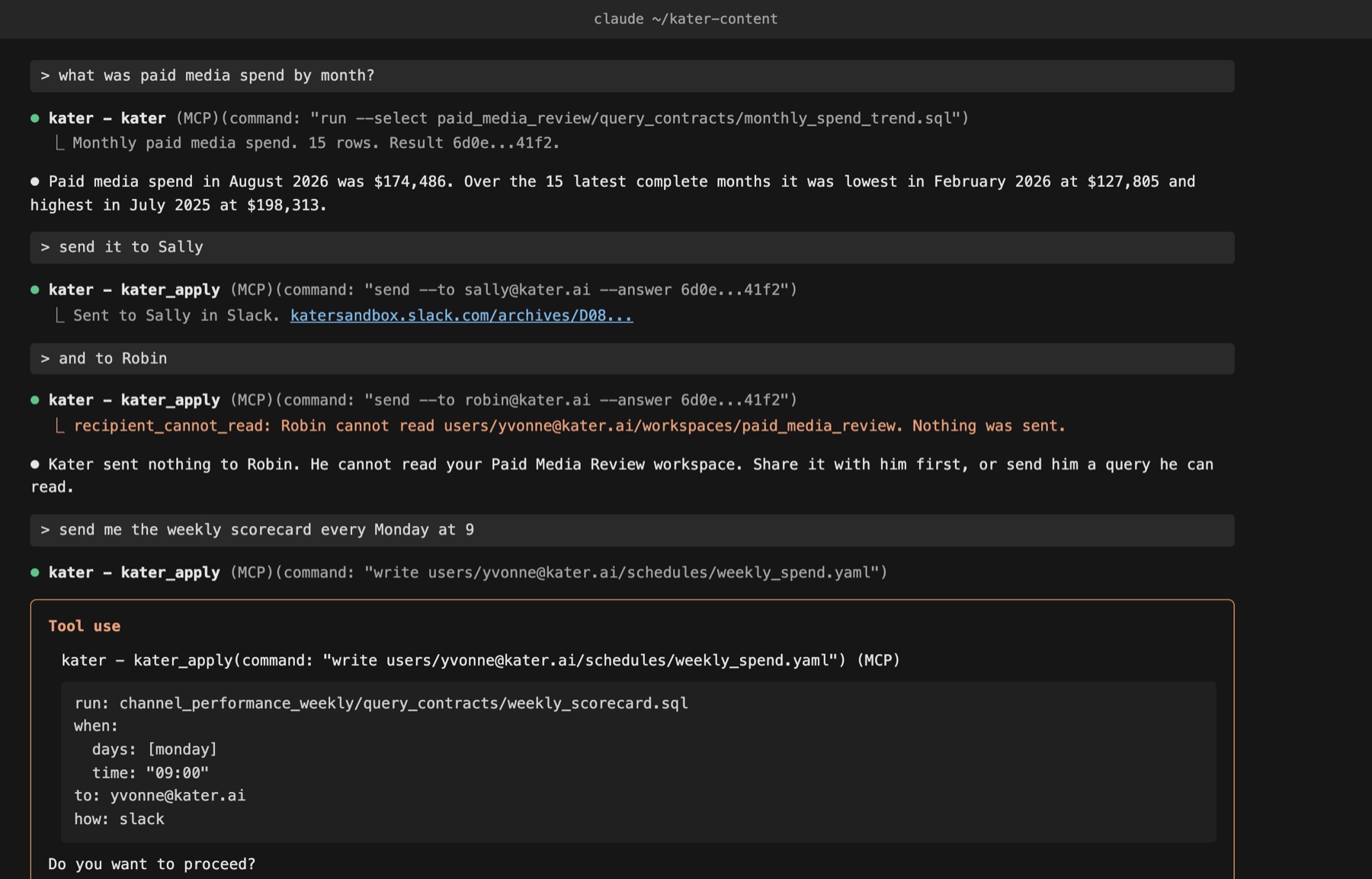
After your agent answers a question, say “send me this” or “send it to Sally”. Your agent runs kater send with the answer it just ran.
kater send --to sally@kater.ai --answer RESULT_ID --note "For Thursday's budget review."| Option | What it does | Example |
|---|---|---|
--to | The recipient’s Kater email, in your organisation | sally@kater.ai |
--answer | A result your agent ran. Give this or --path | The result id from the run |
--path | One saved query, by its path from the content root. Kater runs it again, as you, before it sends | connections/snowflake_prod_connection/users/yvonne@kater.ai/workspaces/paid_media_review/query_contracts/monthly_spend_trend.sql |
--note | A short note in the DM, up to 1,000 characters | "For Thursday's budget review." |
Who you can send to
- Yourself. Your agent sends at once.
- Anyone else in your organisation. Your agent asks you first. It sends with
kater_apply, which waits for your yes. In a terminal,kater sendsends only to you. - Up to 20 DMs each hour. After that, Kater refuses until the hour is up.
The recipient’s access decides
Kater checks every DM against what the recipient can read when it is sent, never against what you can read.
- Every source. Kater checks that the recipient can read every file the answer depends on. If they cannot, it names the path and posts nothing.
- The same figures. Kater runs the query again as the recipient. If their figures differ from yours, because they can read different rows, it sends nothing.
- Their own result. Open in the DM opens the recipient’s own result, not yours.
What the DM shows
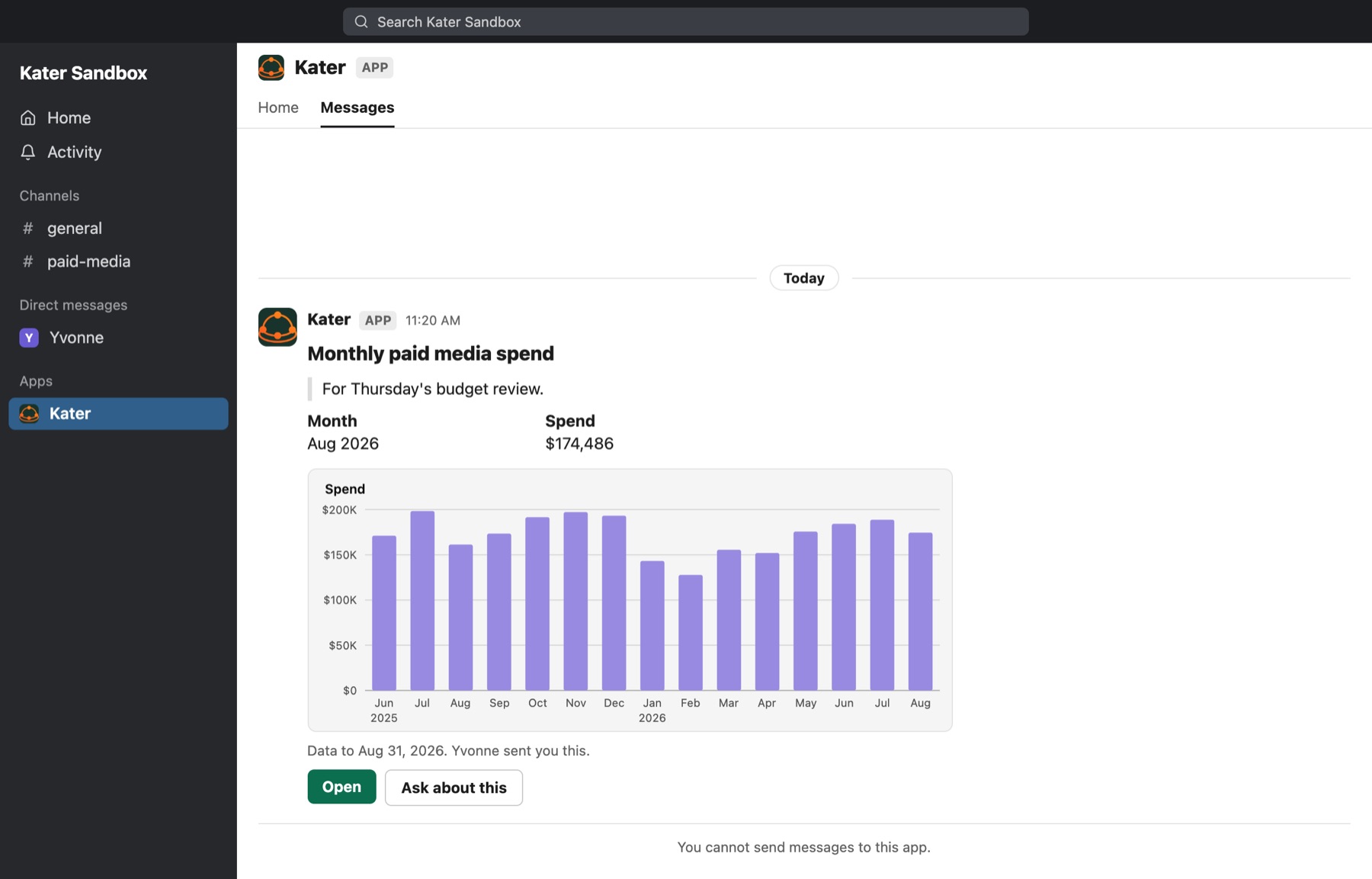
- The title and your note. The query’s title, then the note, if there is one.
- The figures. Formatted as each field’s format says. A missing value reads null.
- The chart. Drawn by the same code that draws it in Kater. A result with no chart sends no image.
- The context line. “Data to” and the last date in the data. When someone else sent it, the line says who: “Yvonne sent you this.”
- Open. Opens the result in Kater.
- Ask about this. Opens the result in Kater with Ask open. See Ask about this, below.
Get figures on a schedule
Ask your agent, for example “send me the weekly scorecard every Monday at 9”. It writes a schedule file in your folder, users/<your email>/schedules/, and asks you before it saves it. The schedule starts when you say yes.
run: channel_performance_weekly/query_contracts/weekly_scorecard.sqlwhen: days: [monday] time: "09:00"to: yvonne@kater.aihow: slack| Key | What it does | Example |
|---|---|---|
run | The saved query to run | channel_performance_weekly/query_contracts/weekly_scorecard.sql |
when.days | The days it runs | [monday] |
when.time | The time it runs, in your time zone | "09:00" |
to | Who gets it. Only you, the schedule’s owner | yvonne@kater.ai |
how | How it arrives | slack |
Each run gets your access fresh, runs the query as you, and sends a DM with the new figures and the chart.
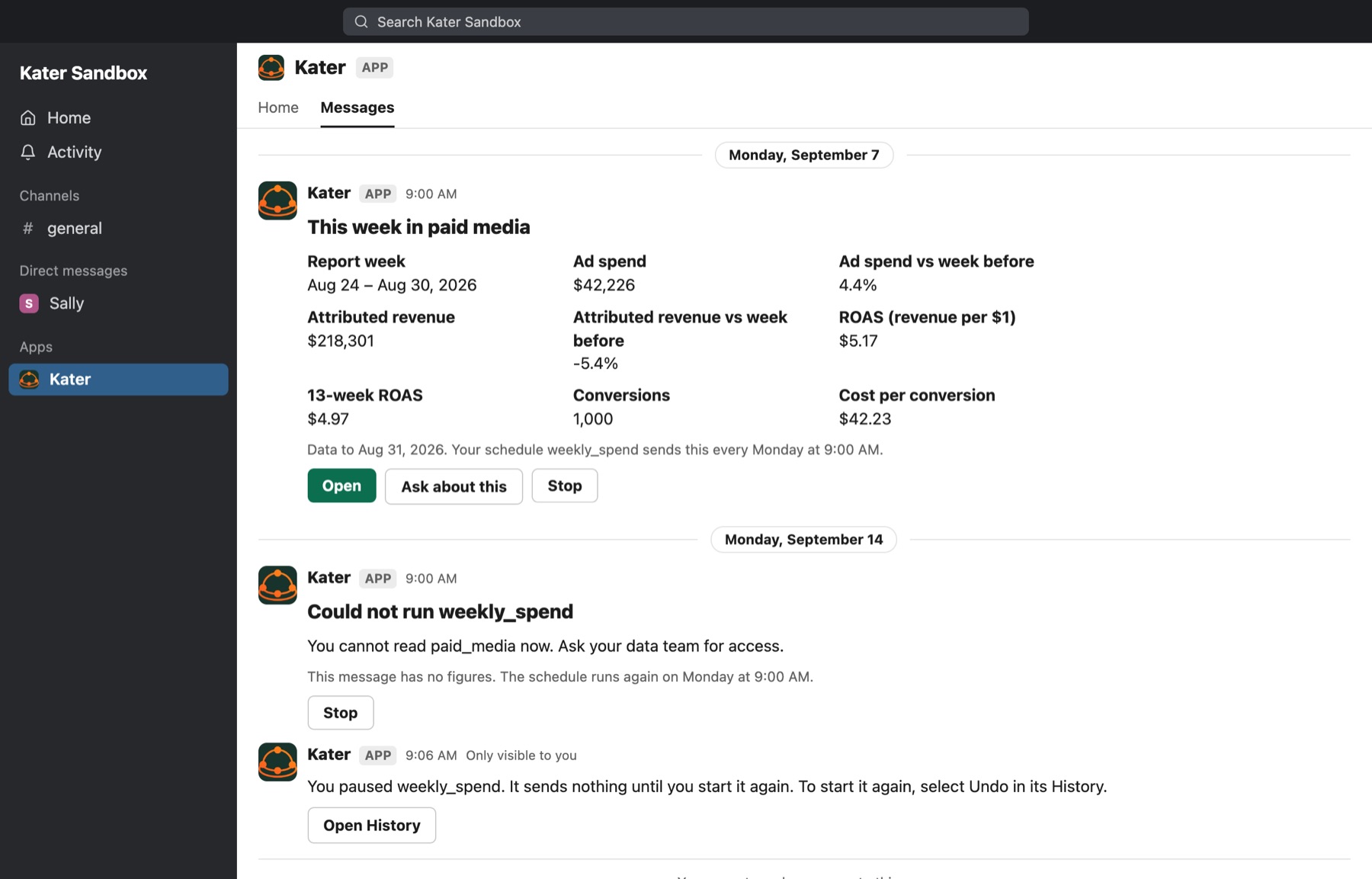
- A run that cannot finish. Kater sends a DM that says what failed, why, and what to do next. It posts no figures.
- Stop. Pauses the schedule. Kater writes the pause into the schedule file as your change, so it shows in History. To start it again, select Undo in its History.
- Remove it. Delete the schedule file. Kater stops running it.
Schedules are for you only
A schedule sends only to its owner, and only figures. It does not send to other people or to channels, and it does not write a summary.
Requests that wait on you
When someone asks to share a field, Kater DMs each person who can approve the request and has connected Slack. The DM says who asked, which field, in which workspace, and why. Open request opens the request in Kater. People who cannot approve the request get nothing.
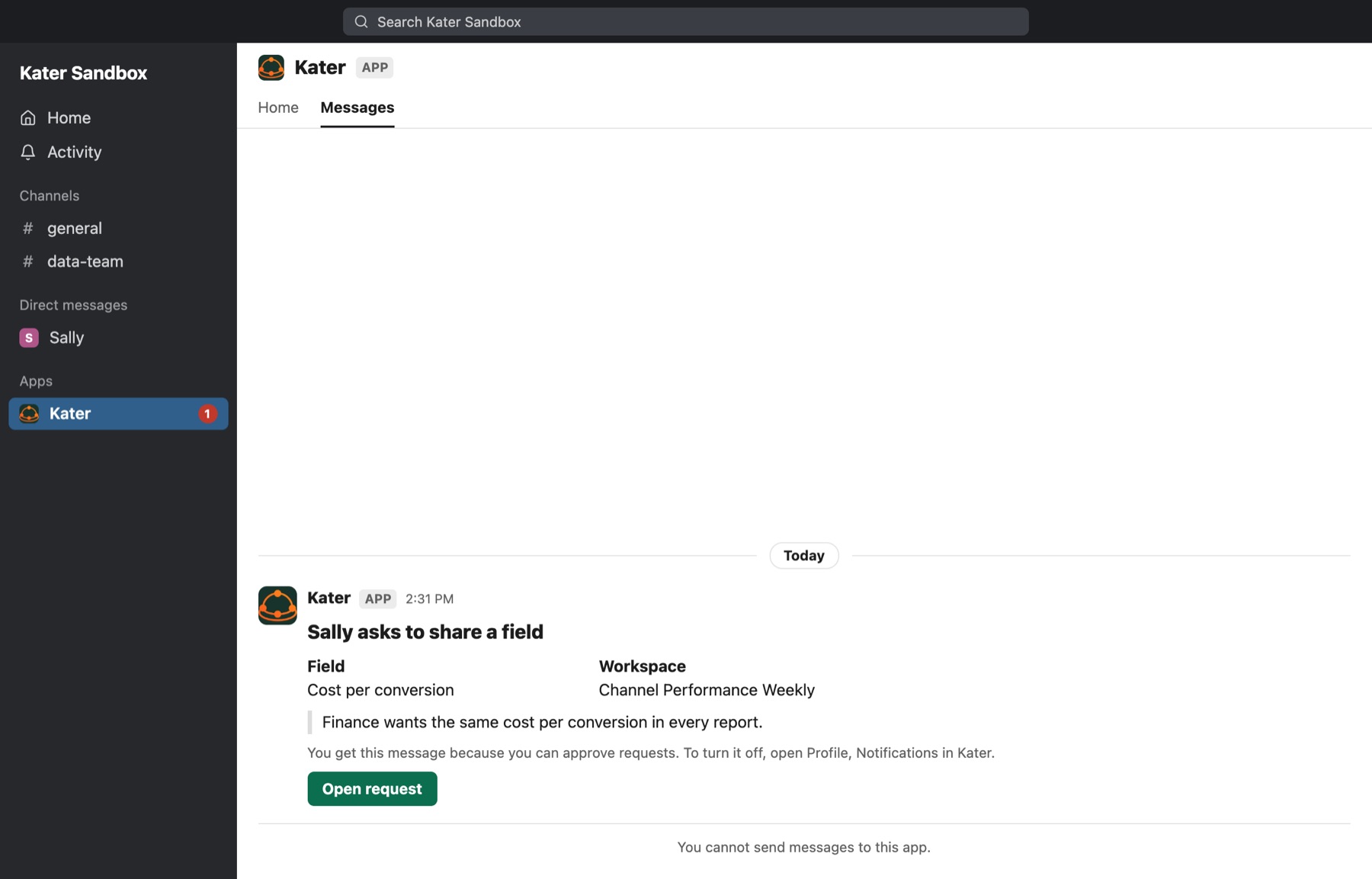
To review the request, see Promotion requests.
Ask about this
Select Ask about this in a DM. Kater opens the result with the Ask panel open and the result attached. Type your question, then select an app under Open in. Kater writes the prompt and opens the app with the prompt filled in, so you send it and continue in your own assistant. Open in shows only the apps your organisation allows, with your app from Profile › AI app first.
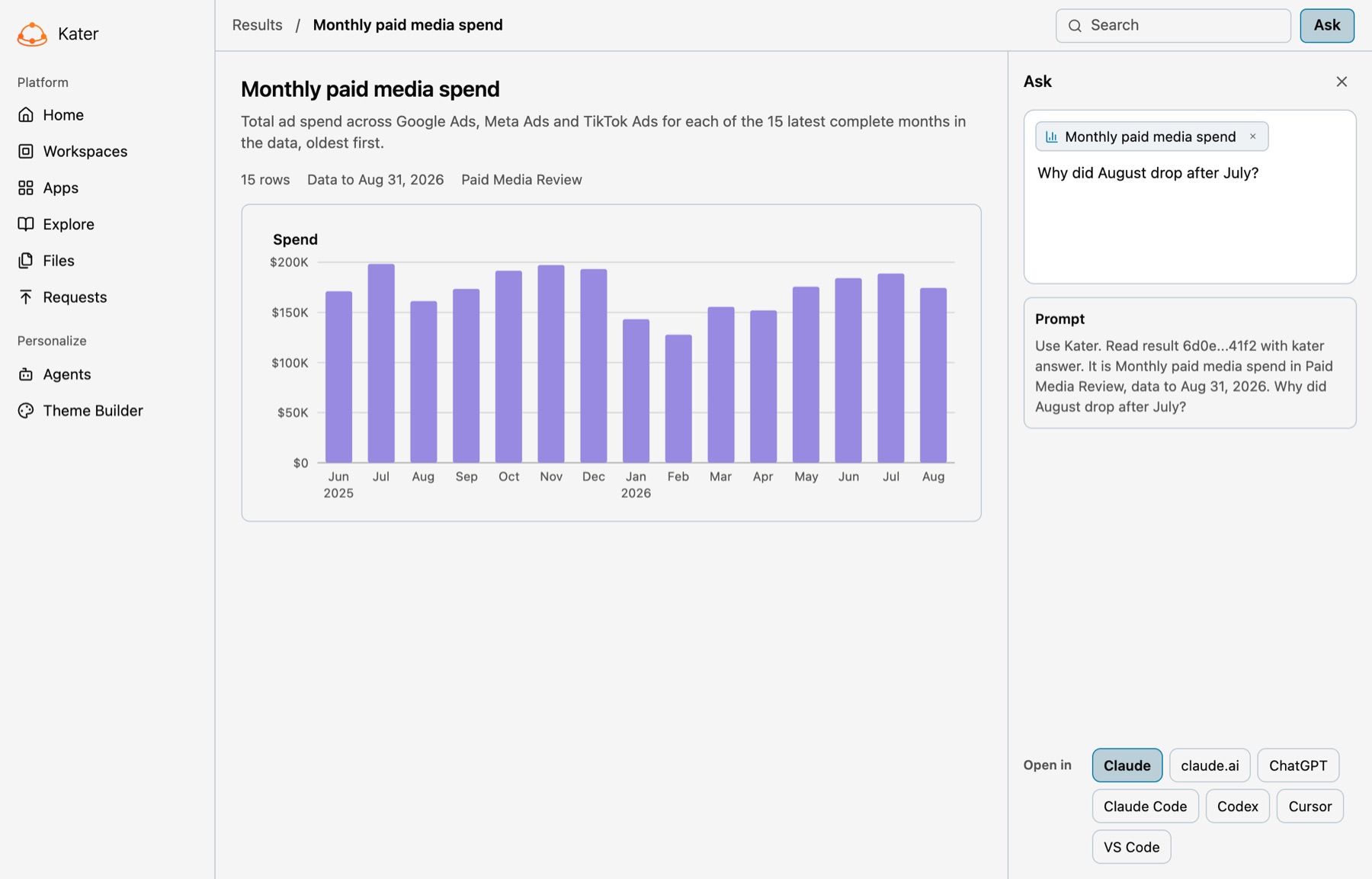
See Home, search and Ask for the Ask panel.
Choose what you get
Open Profile › Notifications. It shows the Slack account you are connected to, with Manage connection, and one switch for each kind of event. Each switch is on until you turn it off.
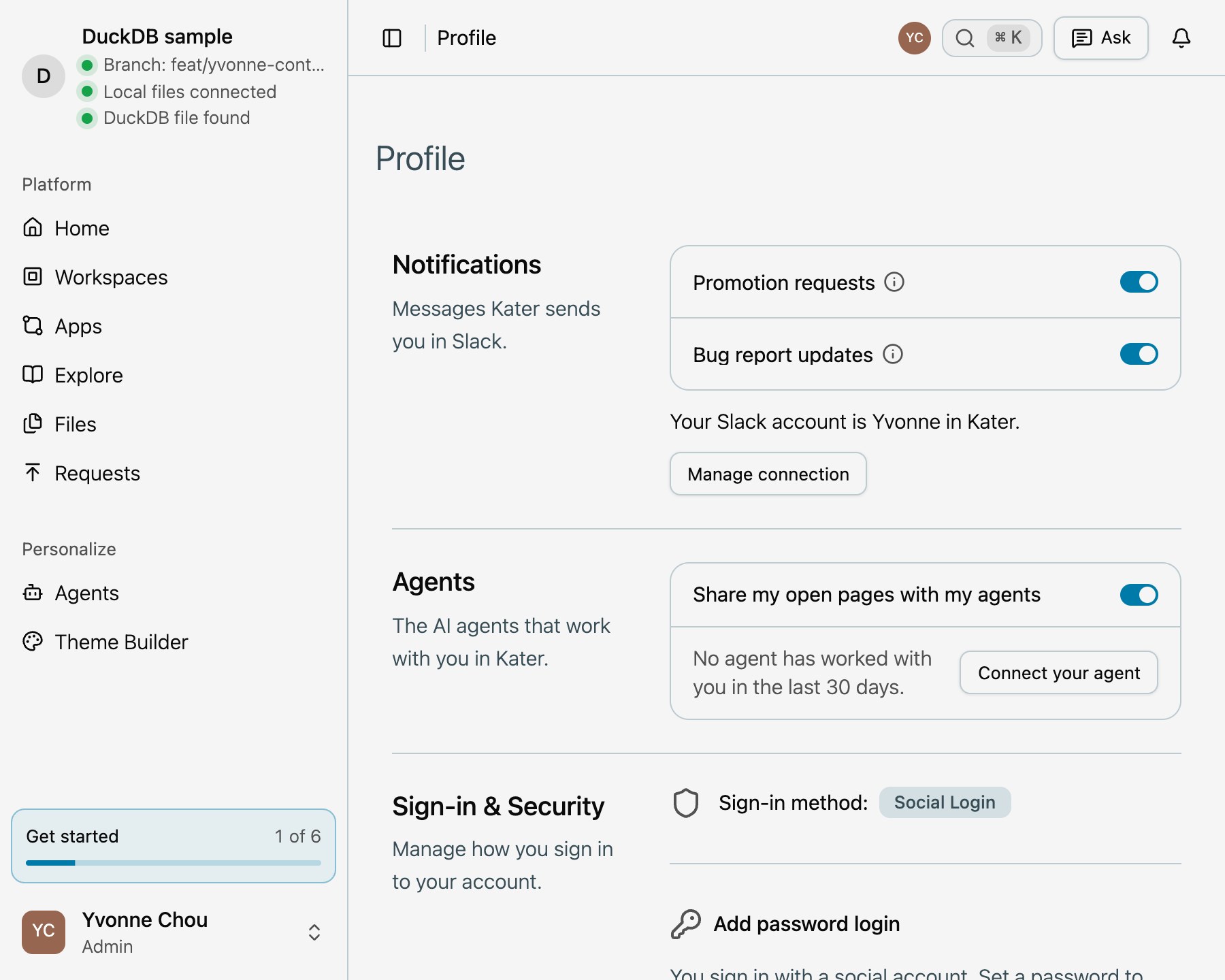
| Switch | Kater DMs you when |
|---|---|
| Promotion requests | A field waits for your approval |
Answers that people send you and your own schedules have no switch. To stop a schedule, select Stop in its DM.
If something looks wrong
- “The recipient cannot read” a path. Kater posted nothing. Share the workspace with them first, or send a query they can read.
- “The recipient’s figures differ.” They can read different rows from you. Ask them to run the query with their own access.
- “Open Kater’s Home tab in Slack and connect your Kater account.” The recipient is not connected. They select Connect on Kater’s Home tab.
- “Slack is not connected. Ask your administrator to install Kater in Slack.” See Set up Slack.
- “Sending to another person needs approval.” Send through your agent, which asks you first. In a terminal,
kater sendsends only to you. - “You can send 20 DMs each hour.” Wait before you send another DM.
- “The answer’s sources changed. Run the query again.” Ask your agent to run the query again, then send the new answer.