Admin
Admin console
See how much people use Kater, what they ask it and what needs attention, read each conversation people had with Kater, find stale and orphaned content and set your organisation's name and membership rules.
The Admin Console shows how much people use Kater, what they ask it, what your organisation builds and what needs attention. Use it to find failed connections and schedules, clean up stale and orphaned content, and manage people and access.
Open the console
Select Admin in the footer of the left sidebar. The console opens in a new tab. The link shows only to people who hold one of the admin permissions above.
| Section | Pages |
|---|---|
| Manage | Dashboard, Objects, Conversations, MCP |
| Settings | Connections, Integrations, Organization, Users, Permissions, Files & access |
Settings pages that show only a title
Repository, API Keys and Billing are in the sidebar but show only a title today. Manage GitHub write-back with the Kater CLI: see Content store and GitHub write-back. Connections lists your warehouse connections: see New connection and Schema sync. Integrations turns Slack on and off: see Set up Slack.
Dashboard
The Dashboard shows how much people use Kater, what they use, what they ask and what needs an admin. It needs audit:read.
Select Last 7 days, Last 30 days or Last 90 days at the top. Every tile and card shows that window. Select a tile, a row or a figure to open what it counts.
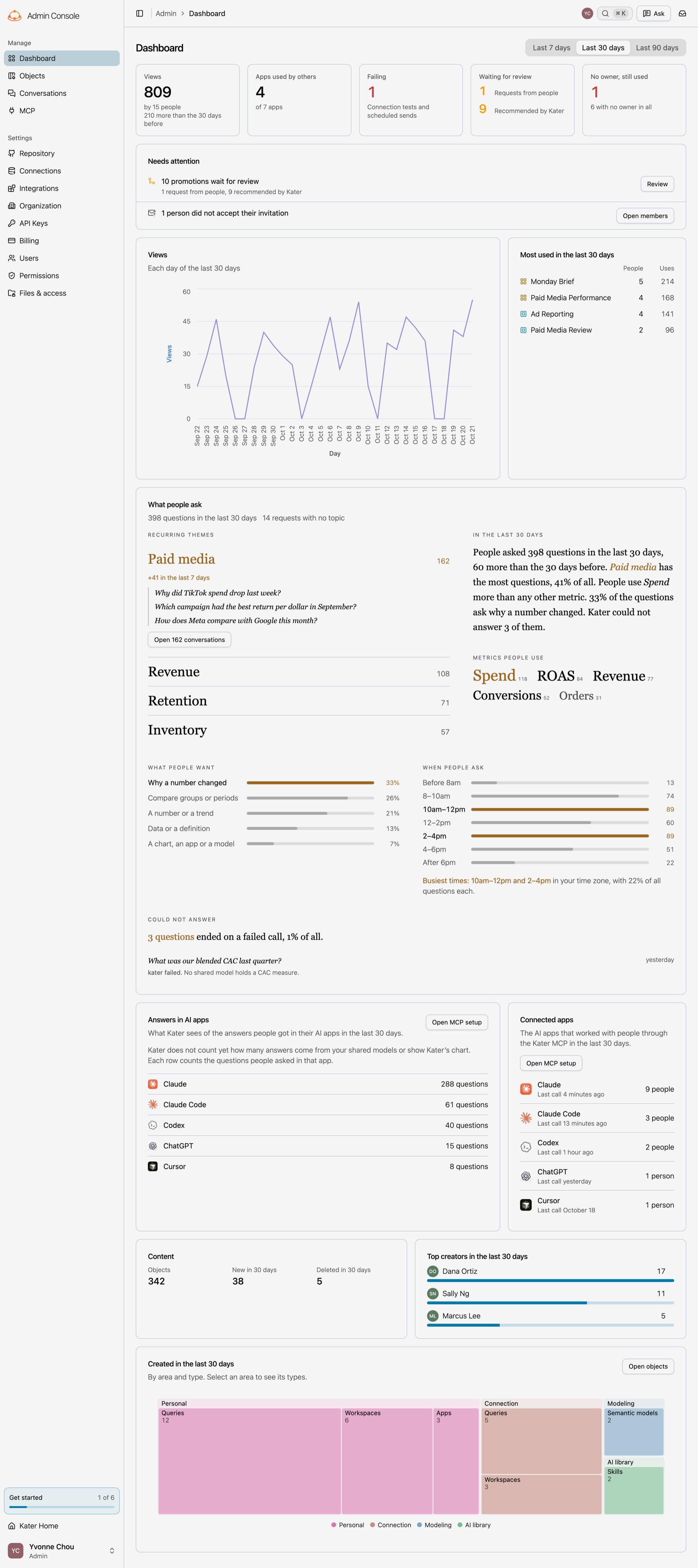
| Tile or card | What it shows |
|---|---|
| Views | How many times people opened an app, a dashboard or a workspace, and how many people did. It also shows the change from the window before. |
| Apps used by others | The apps that someone other than their creator used, of all apps. |
| Failing | The connections whose last test failed, and the schedules whose last send failed. |
| Waiting for review | The promotions that wait for the data team, in two parts: Requests from people and Recommended by Kater. Select a part to open the Promotions tab with only those promotions. |
| No owner, still used | The objects that have no owner and that people still use. |
| Needs attention | What to do next, with a button for each row. See the next table. |
| Views chart | The views on each day. For 90 days, on each week. |
| Most used | The eight objects that the most people used, then the most uses. |
| What people ask | The topics of the questions that people ask Kater. A theme opens its conversations. See What people ask. |
| Answers in AI apps | How many questions people asked Kater in each AI app, such as Claude or Codex. A later version also shows how many answers came from your shared models and showed Kater’s chart. |
| Connected apps | The AI apps that worked with people through the Kater MCP, with how many people each one worked for and when it last called. An app whose provider your organisation does not allow shows Not allowed. Open MCP setup opens the MCP page, for an admin. |
| Content | All objects, and the objects created and deleted in the window. |
| Top creators | Who created the most objects in the window. |
| Created | The objects created in the window, as a map of rectangles by area and type: the larger the rectangle, the more objects. Select an area to see its types. Select Open objects to see the newest objects first. |
Needs attention puts what is broken first, then what is at risk, then what waits, then cleanup.
| Row | What to do |
|---|---|
| A connection’s last test failed | Select Open connection and fix its sign-in. The row shows the warehouse’s error. Select the error to copy it. |
| A scheduled send failed | Select Open and fix the schedule. The row shows the error and how many sends failed. |
| An object has no owner, and people use it | Select Assign an owner. |
| Promotions wait for review | The row says how many people asked for and how many Kater recommends. Select Review to open the Promotions tab, on the requests first when there are any. |
| People did not accept their invitation | Select Open members to open Users. |
| Unused objects have no owner | One row for each creator. Select Review to see only those objects, then reassign them. |
| Objects are stale | One row for each creator. Select Review to see only those objects. Stale counts by Stale after on Objects. |
What people ask
What people ask shows the questions that people bring to Kater through their agents: the topics, the metrics they use, what they want, when they ask and what Kater could not answer. When an agent starts on a request, it gives Kater the person’s words and a short summary with the request’s topic, its intent and the metrics it is about. Kater counts these. No model of Kater’s reads the questions.
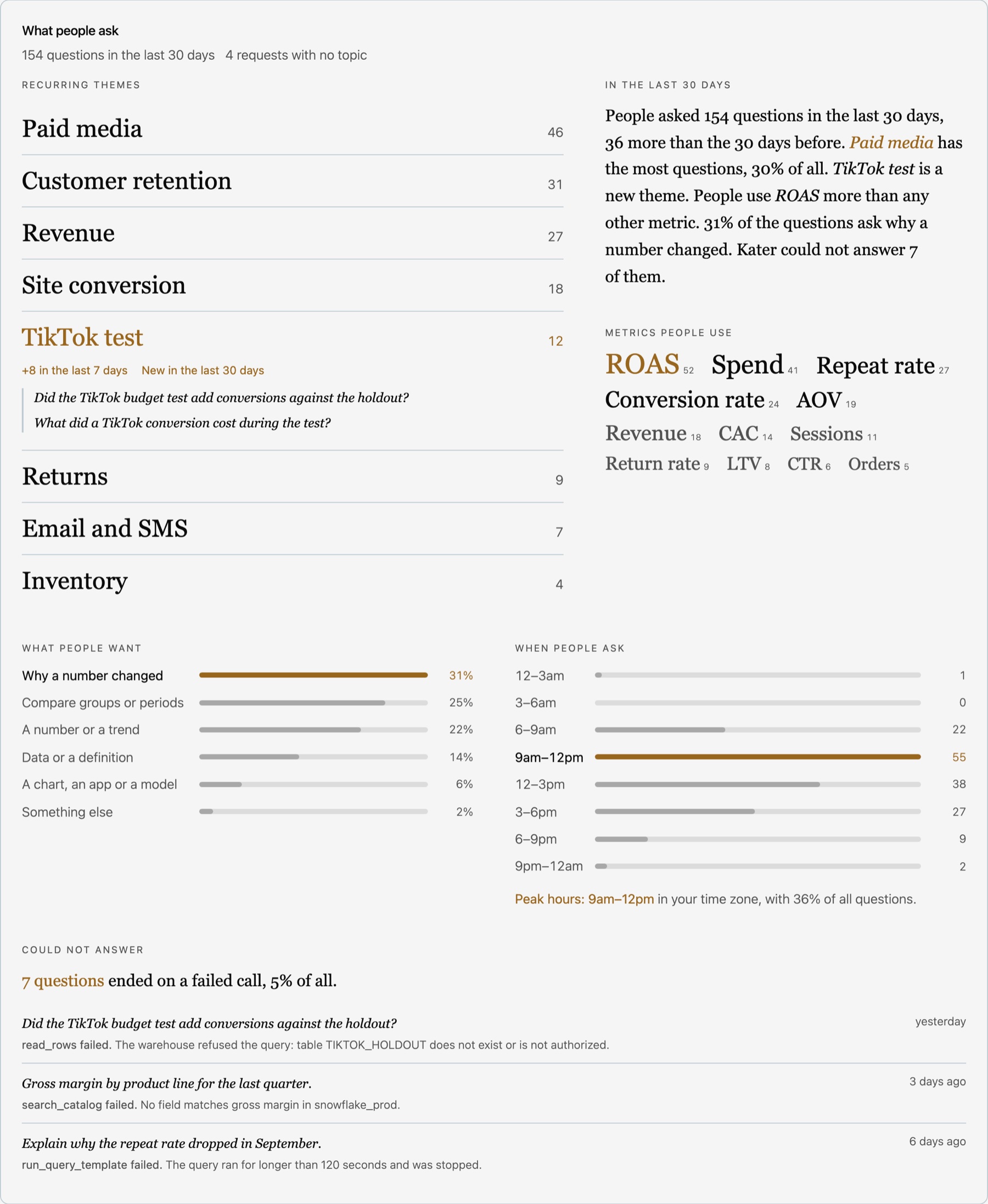
- Recurring themes. The topics with the most questions, each with its count. Select a theme to see how many questions came in the last 7 days, whether it is new in the window, and its newest questions. Select Open 26 conversations, with the theme’s count, to read them on Conversations for the same window.
- In the last 30 days. A short summary of the window: how many questions people asked, the largest theme, new themes, the metric people use most, what most questions ask for and how many Kater could not answer.
- Metrics people use. The measures that questions are about. The larger the word, the more questions use it.
- What people want. What each question asks for: why a number changed, a comparison of groups or periods, a number or a trend, data or a definition, or a chart, an app or a model.
- When people ask. The questions before the working day, in each two hours from 8am to 6pm, and after it, in your time zone, with the busiest time.
- Could not answer. The questions whose last call to Kater failed, with the newest ones and what the failed call said. Select a question to open its conversation. Select an error to copy it.
The examples are the person’s words. A question from an agent that sent no words shows the summary that the agent wrote. A topic counts in any case, so Paid media and paid media are one theme. A request with no topic, from an agent that gives none, shows only as a count in the header. Kater keeps the record of each call for 90 days.
Before there is a question to show, the section says what comes there, with Ask a question. When the window has no question and older ones exist, it offers Show the last 90 days.
Objects
Objects lists every workspace, query, chart, model, app and agent tool in the organisation. It shows who created each one, who owns it and how much people use it.
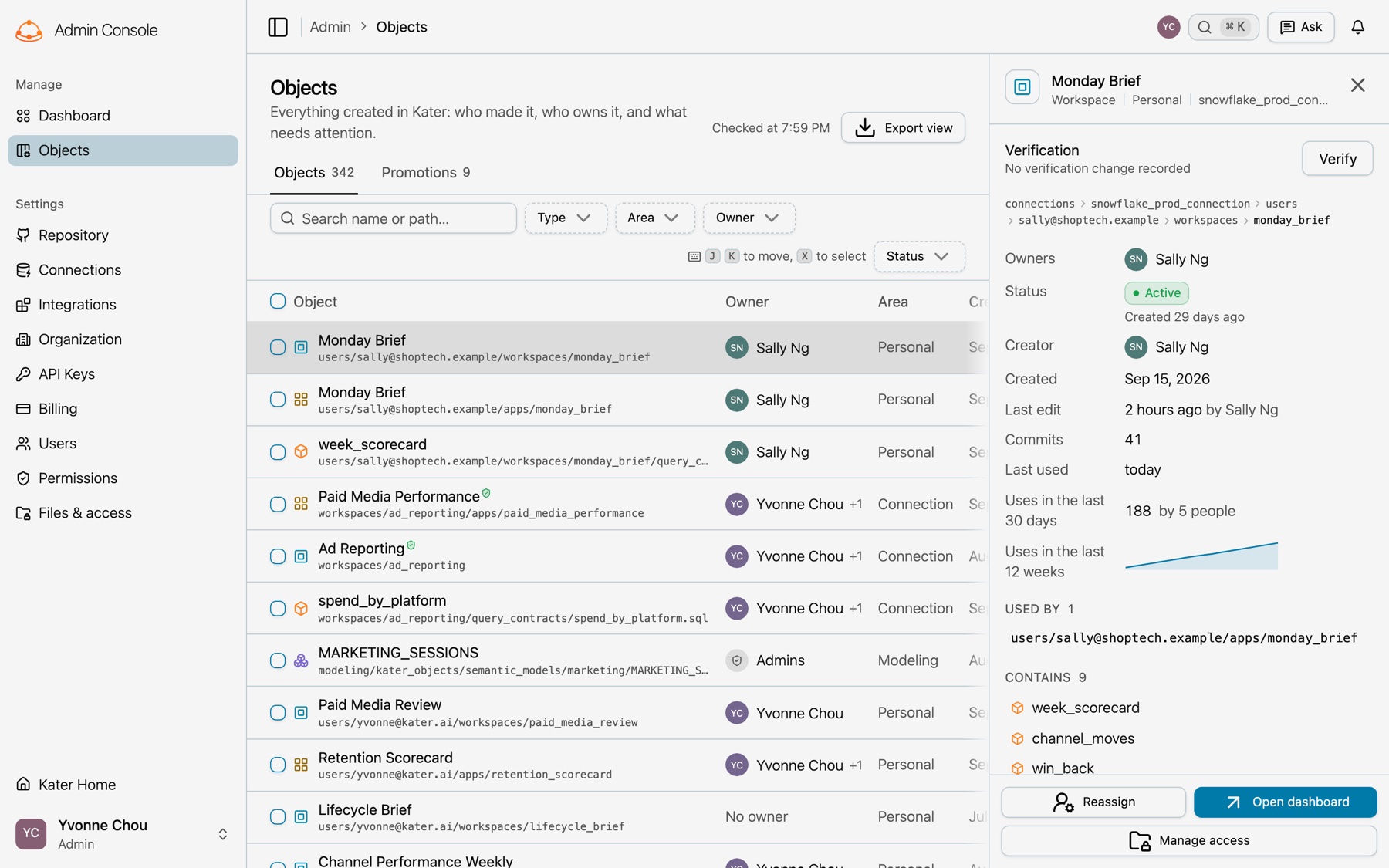
- Tabs. Objects lists the objects. Promotions is described in Promotion requests.
- Filters. Search name or path…, Type, Area, Connection when you have more than one, Owner and Status. Status shows the stale objects, the orphaned objects or both.
- Columns. Object, Owner, Area, Created, Last edit, Used by and Uses. Used by counts the objects that depend on it. Uses shows the uses each week for the last 12 weeks, and the uses in the last 30 days.
- Keyboard. J and K move between rows. X selects a row.
- Export view. Downloads the list as you see it, as a CSV file.
- Object details. Select a row to see Owners, Status, Creator, Created, Last edit, Commits, Last used, the uses in the last 30 days and 12 weeks, Used by, Contains and History. Its footer has Reassign, a button that opens the object, and Manage access.
Stale and orphaned objects
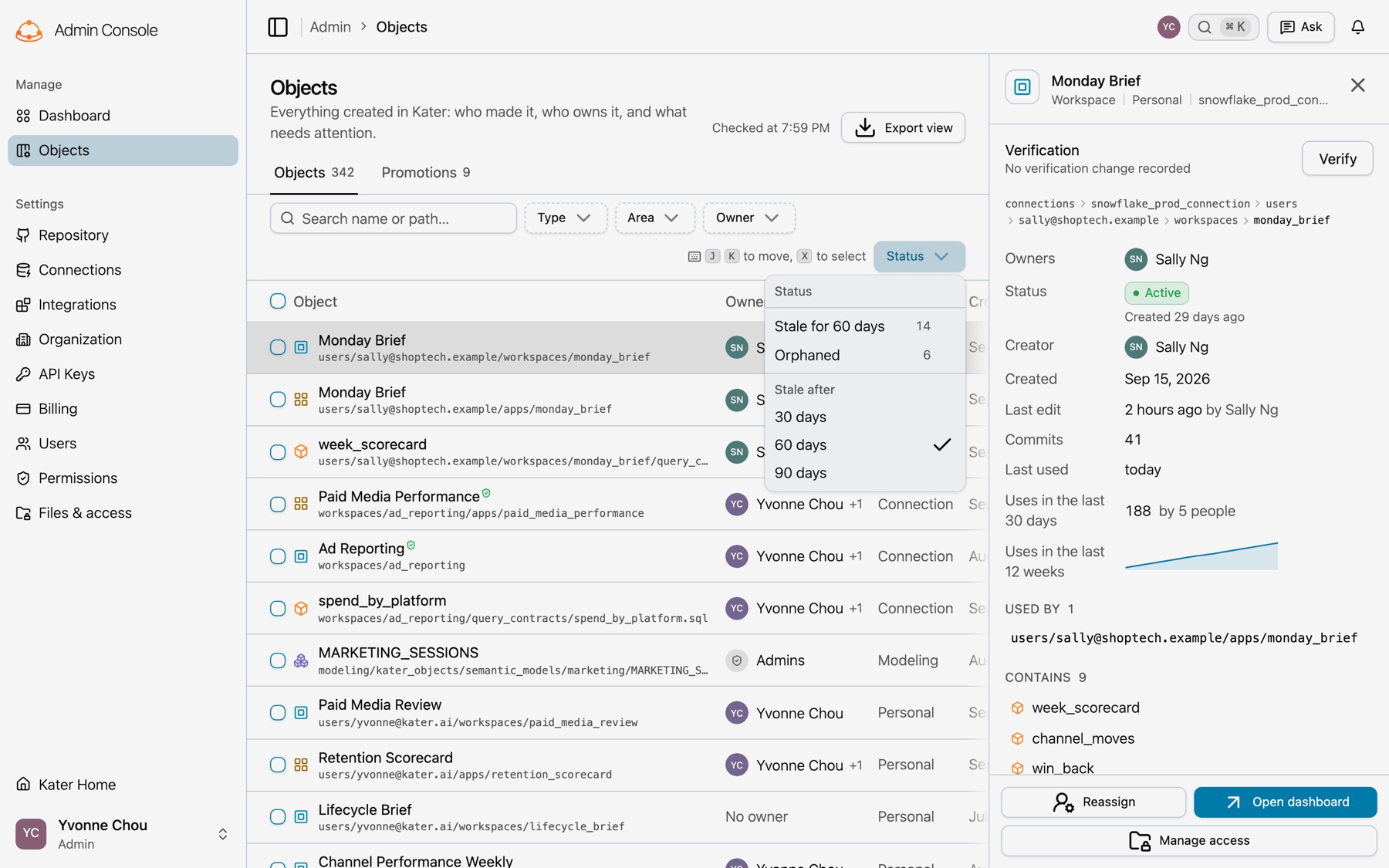
- Stale. No edits, no uses and no dependent in use for the Stale after days. A new object is never stale.
- Orphaned. No one holds a Manager grant on it. A dataset is never orphaned.
To change when an object is stale, open Status and select Stale after 30, 60 or 90 days. The default is 60 days. Your browser keeps your choice, and the Dashboard counts stale objects the same way.
Recommend an object
Only a field is verified: Kater marks it when the shared layer defines it. To mark a model, a query or a workspace as one the data team recommends, add curated: ["true"] to the tags in its frontmatter. See Structured model tags. A workspace field becomes verified when you approve its promotion request.
Reassign objects
When someone leaves, select their objects (Select all shown helps), then Reassign and select the people or groups who take them over. Reassign changes grants only, never the files. It needs access:administer.
When an admin removes a member and selects no one to get their work, the objects in the member’s folders are Orphaned. Their details say Left the organization in place of No owner, and the reason names the member’s email. Only admins can open it until you reassign it. See Remove a member.
Conversations
Conversations shows what each person asked Kater, conversation by conversation: their questions in their own words, what the agent did for each one, and where it failed. It needs audit:read.
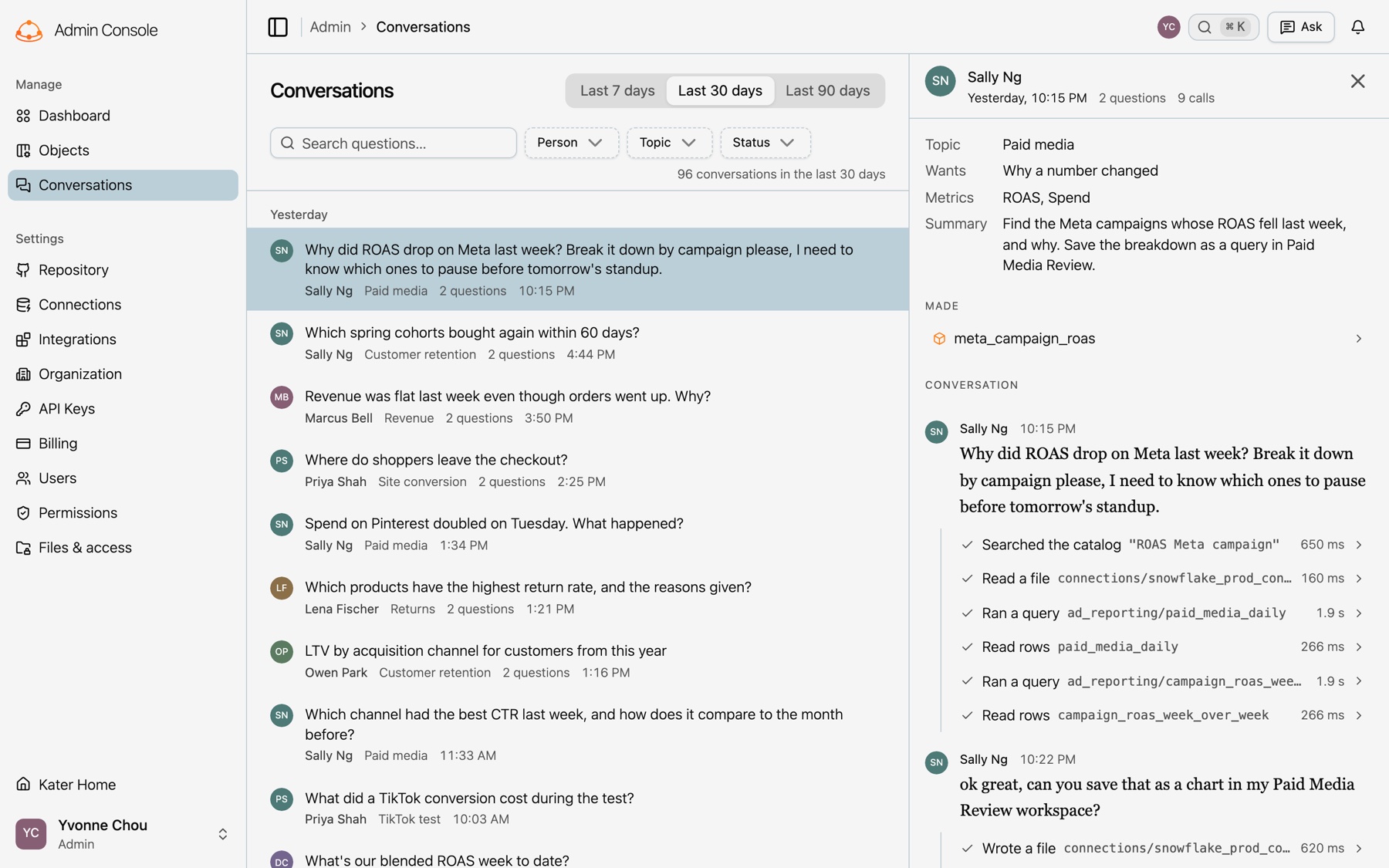
A conversation is everything an agent did for one person from its first call to Kater: their first question, each question that followed, and each call the agent made. Kater keeps a conversation for 90 days.
- The window. Select Last 7 days, Last 30 days or Last 90 days. A conversation is in the window when it started in it, as What people ask counts a question. So a theme’s count on the Dashboard is the number of conversations its link opens.
- Filters. Search questions… finds words in the questions and in the agent’s summary. Person, Topic and Status (Answered or Could not answer) each show how many conversations match. Clear takes the filters off.
- The list. The newest conversations first, by day. Each row has the person’s first question, their name, the topic and the time. It shows how many questions there were when there was more than one, and Could not answer when the last call failed. Show more shows the next 40 conversations.
Select a row to open the conversation beside the list. On a phone it takes the whole page, and Close goes back to the list.
- Who and when. The person, when the conversation started, how many questions and calls, and Could not answer. Select the person’s name to see only their conversations.
- Topic, Wants, Metrics and Summary. What the agent told Kater about the conversation. A value the agent did not give reads
null. - Made. The objects that the conversation made or changed. Select one to open it on Objects. An object that is gone says Deleted.
- Conversation. Each question, and under it each call the agent made for it: what the call did, what it was about and how long it took. A failed call shows its error. Select the error to copy it. Select a call to see its arguments and its result, as the audit log keeps them. A query’s rows are not kept.
A question in italics, labelled The agent’s summary, is not the person’s words: the agent sent only its summary.
Who reads people's words
A person with audit:read reads each person’s exact words, with their name, for 90 days. People get no notice. The agent’s replies are not here: they stay in the person’s agent. To read the same conversations in a terminal, use kater admin conversations.
Organization
The Organization page has two tabs, General and Bug reports.
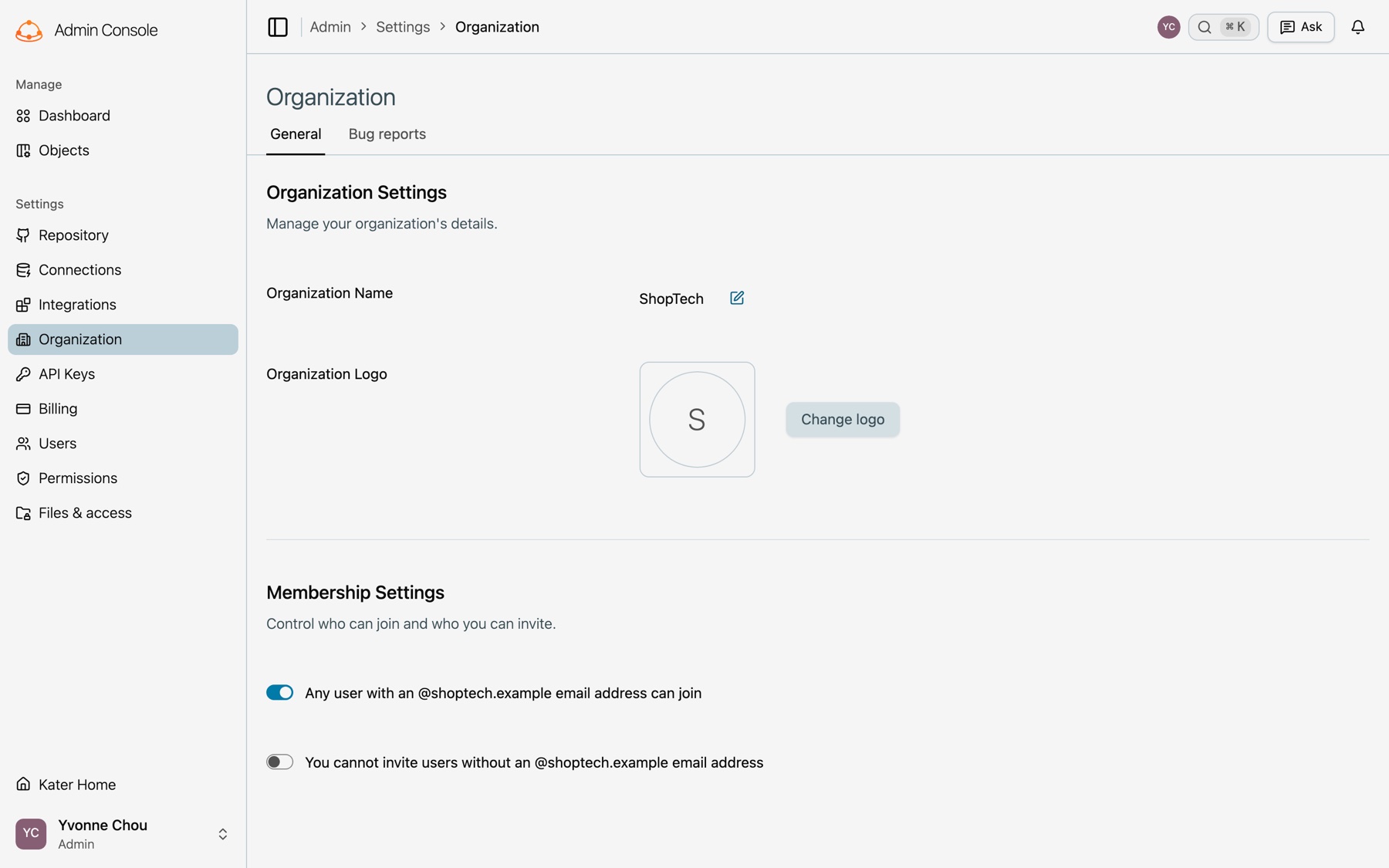
- Organization Settings. Select the edit button beside the Organization Name, type the new name and select Save. Change logo takes a square JPEG, JPG or PNG that is smaller than 2MB.
- Membership Settings. Each switch names your organization’s email domain. Turn on Any user with an @domain email address can join to let anyone with that domain join. Turn on You cannot invite users without an @domain email address to stop invites to other domains.
- Bug reports. Every bug report from your organization. See Report a bug.