Guides
Connect your warehouse
Connect Kater to your Snowflake warehouse, test its sign-in, and sync the schemas it reads, through your agent, the web app or the CLI.
New connection
A connection tells Kater which warehouse to read. Make one, and Kater tests its sign-in before it saves anything.
Before you start
Kater signs in to Snowflake as one user, with one role. Set these up in Snowflake first.
| You need | Example | What Kater does with it |
|---|---|---|
| The account identifier | myorg-myaccount | Finds your account. |
| A warehouse | COMPUTE_WH | Runs its queries there. Give the role USAGE on it. |
| A role | KATER_ROLE | Runs every query as this role. Give it read access to the data to model. Leave it out to use the user’s default role. |
| A user | KATER_SERVICE | Signs in as this user. |
| A key pair or a password | kater_key.p8 | Signs in with it. A key pair is recommended, and its key can have a passphrase. |
Kater stores the credential, encrypted for your organisation, and never writes it to your content. Every query runs on Kater’s server as that one role, also queries from the CLI, VS Code and agents. A DuckDB connection needs only the database file. See Connections and schema sync.
Make the connection
Your agent runs the Kater CLI in your own terminal, so use a coding agent there: Claude Code, Codex or Cursor. The Kater MCP cannot make a connection.
-
Copy the prompt.
In the admin console, open Settings › Connections and select New connection. On Prompt AI, copy the prompt.
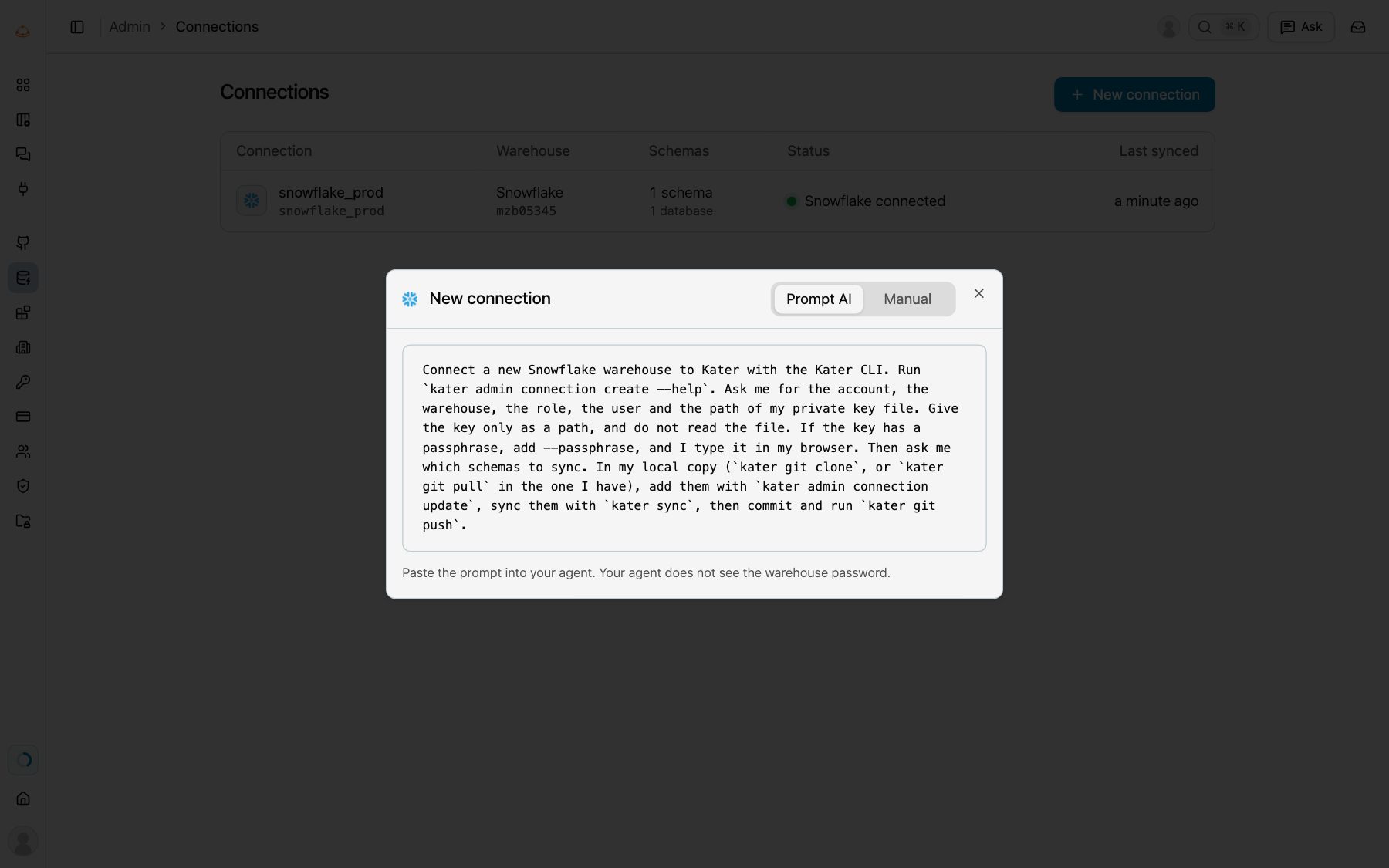
New connection, Prompt AI: the prompt for your agent. -
Paste it into your agent.
Your agent asks you for the account, the warehouse, the role, the user and the path of your private key file. It gives the key to the CLI as a path, and does not read the file.
-
Type the passphrase in your browser.
When the key has a passphrase, Kater opens a page on 127.0.0.1 in your browser. Type the passphrase there and select Test and connect. Your agent never sees it. A key with no passphrase opens no page.
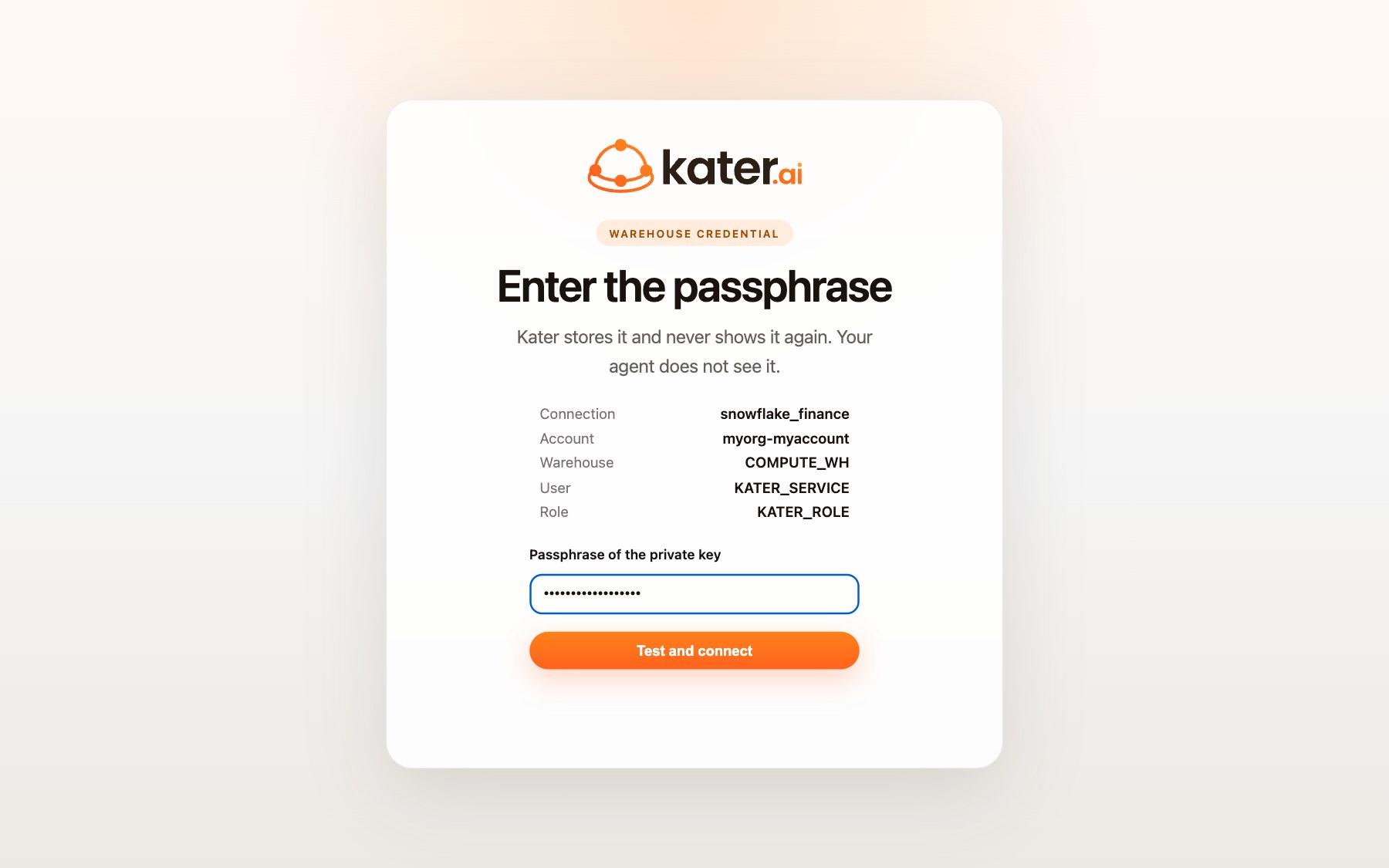
The page that takes the passphrase, so your agent never holds it. -
Read the answer.
Kater tests the sign-in, stores the credential and saves the connection. Your agent tells you what the CLI printed:
Connected snowflake_finance to myorg-myaccount as KATER_ROLE. Kater stores the credential and committed connections/snowflake_finance/connection.yaml; run `kater git pull` to see it.A failed test saves nothing. A wrong passphrase shows its error on the page, and you type it again.
-
Select New connection.
In the admin console, open Settings › Connections. The list shows each connection with its warehouse, its schemas, its status and its last sync. Select New connection.
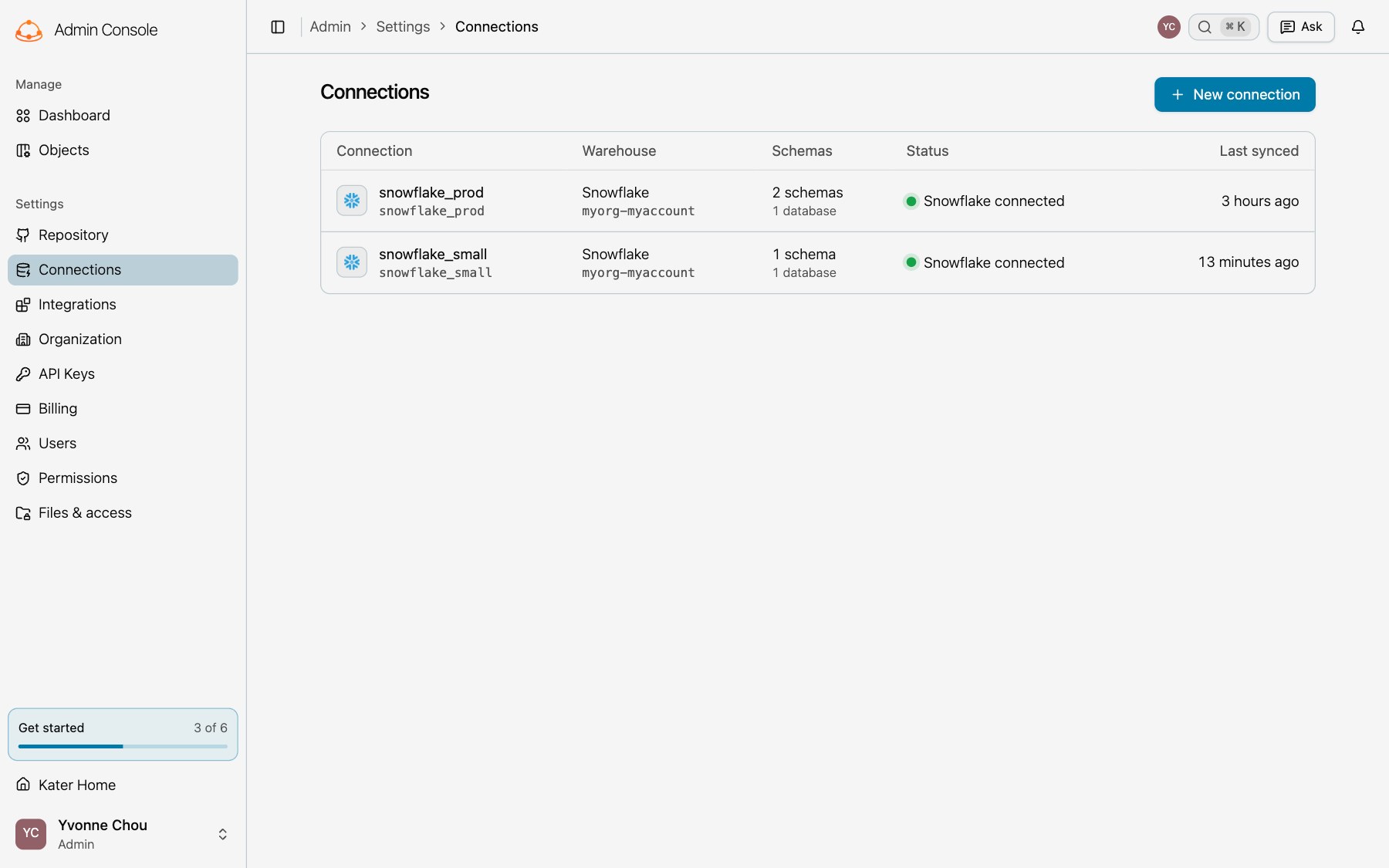
Settings › Connections. -
Fill in Connect.
Select Manual, then Snowflake. Enter the connection name, the account, the warehouse and the role. Select the sign-in method, Key pair or Password. Then enter the user, and select the private key file or enter the password. The ⓘ beside each field says what it takes.
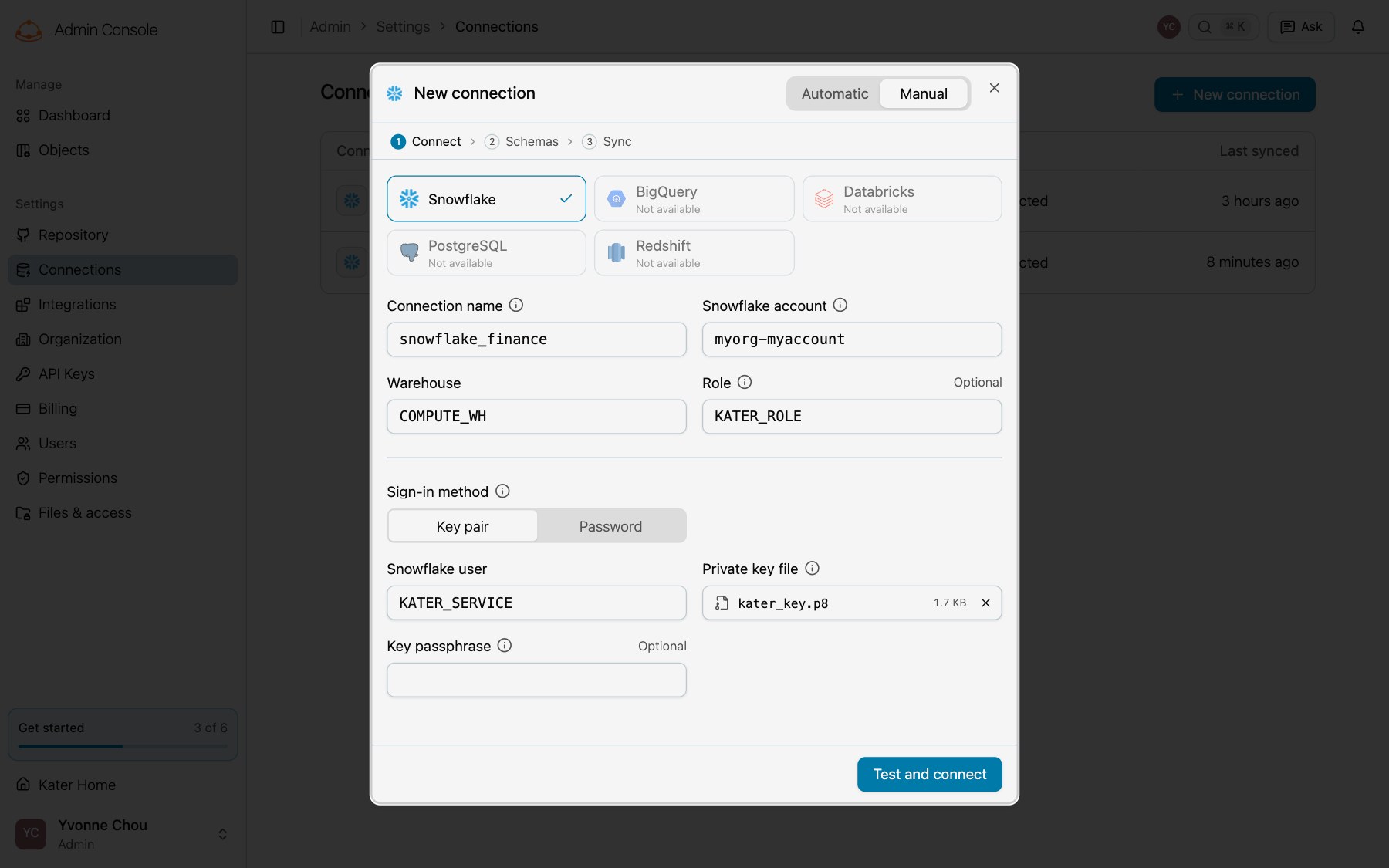
The Connect step, filled in for a key pair. -
Select Test and connect.
Kater tests each stage in turn: it finds the account, signs in, uses the warehouse and reads the role. When a stage fails, the dialog shows the error under it and keeps what you entered. When the test passes, Kater stores the credential, saves
connection.yamland goes on to Schemas. Continue with Schema sync, or select Skip for now. -
Open the connection.
Select the connection in the list. Its page shows the sign-in, whether the account, warehouse and role match
connection.yaml, the last test and the last sync. Select Test connection to test the stored sign-in again.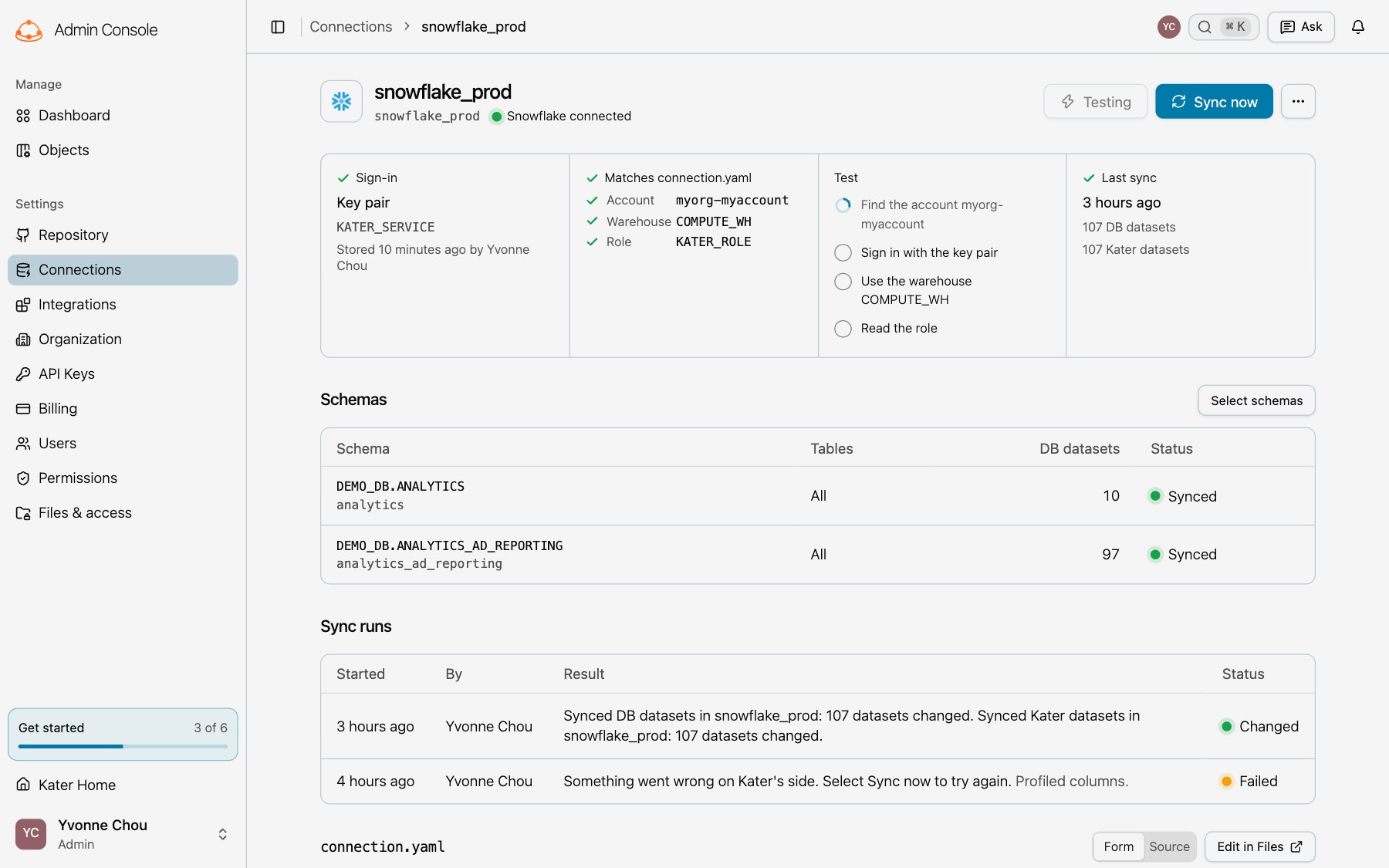
Test connection, on the connection’s page.
-
Make the connection.
Run
kater admin connection createin your own terminal, signed in withkater login.Terminal window kater admin connection create snowflake_finance \--account myorg-myaccount \--warehouse COMPUTE_WH \--role KATER_ROLE \--user KATER_SERVICE \--private-key-file ~/.ssh/kater_key.p8 \--passphraseWith
--passphraseor--password, Kater opens a page in your browser for the secret. Add--promptto type it in the terminal instead, such as on a machine you reach over SSH. A key with no passphrase needs no flag and opens no page.Connected snowflake_finance to myorg-myaccount as KATER_ROLE. Kater stores the credential and committed connections/snowflake_finance/connection.yaml; run `kater git pull` to see it. -
Test it.
kater admin connection testtests the sign-in that Kater stores, one stage at a time.Terminal window kater admin connection test snowflake_finance✓ Find the account myorg-myaccount✓ Sign in with the key pair✓ Use the warehouse COMPUTE_WH✓ Read the roleSigned in to myorg-myaccount as KATER_ROLE, with the warehouse COMPUTE_WH.This warehouse runs 8 queries at once, on 1 cluster. Kater runs at most 4.The last line compares the warehouse’s own limit with how many queries Kater runs on it at once. To change Kater’s number, see queries.
kater admin connection create makes only Snowflake connections. To connect a DuckDB file, use New connection in the web app and select DuckDB. A Kater server in production does not offer DuckDB.
See kater admin connection create for every option.
Replace the sign-in
When a key or a password changes, replace the sign-in. Kater tests the new sign-in with the account, the warehouse and the role in connection.yaml, and replaces the old one only when the test passes.
-
Select More, then Replace sign-in.
On the connection’s page, select More (⋯) at the top right, then Replace sign-in.
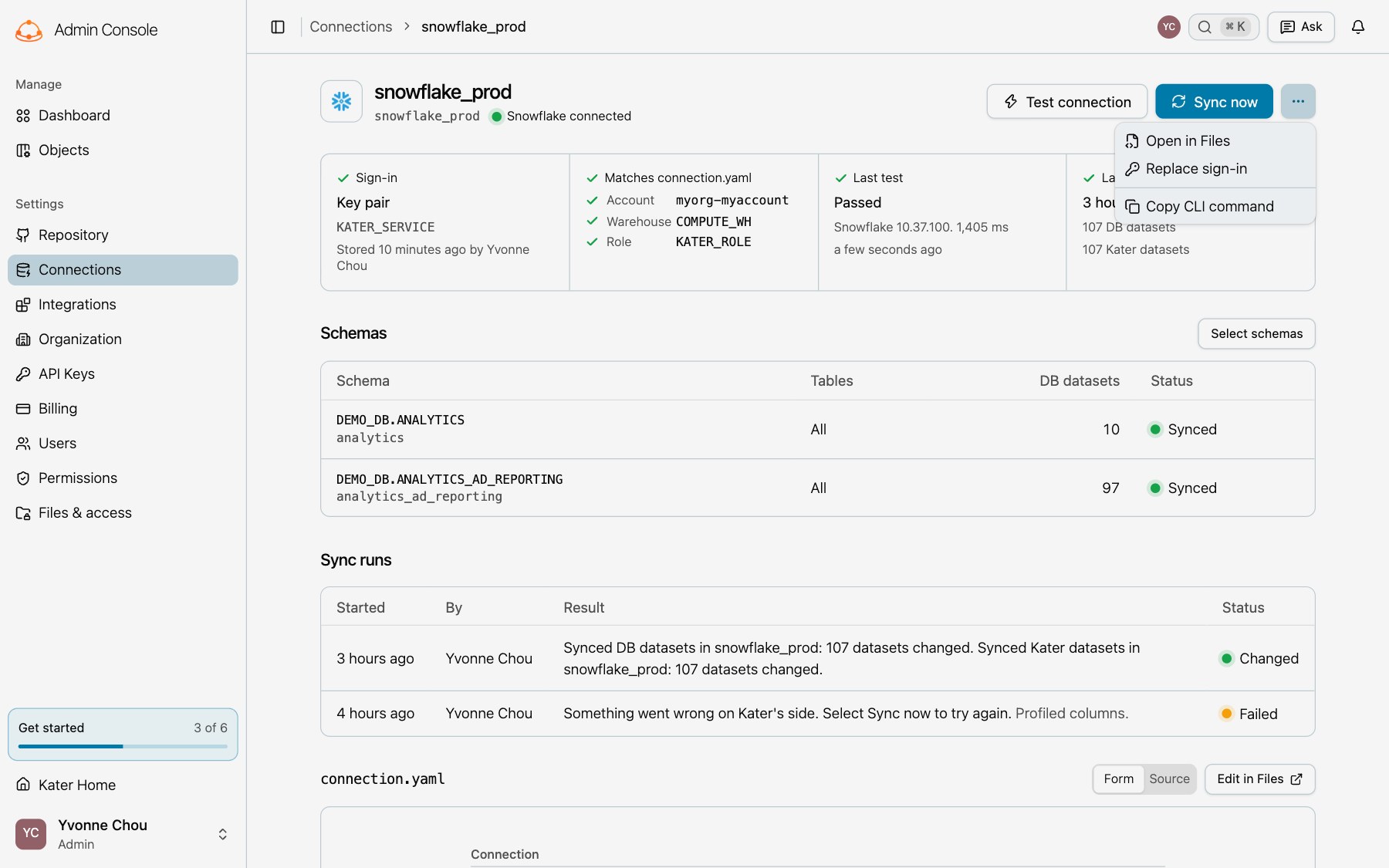
The More menu of a connection. -
Enter the new sign-in and select Test and save.
Select the method, then enter the user and the key file or the password.
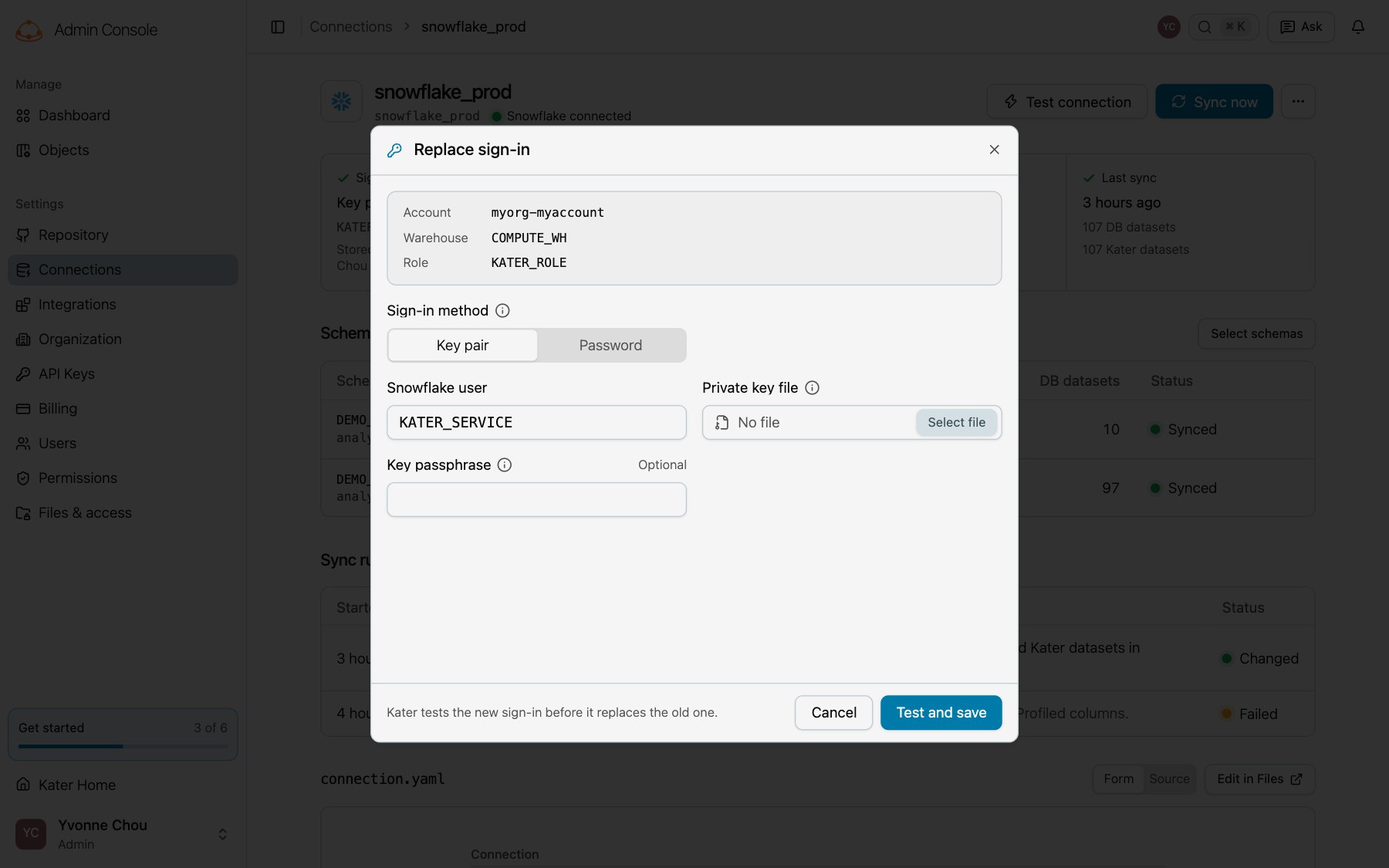
Replace sign-in.
kater admin connection sign-in snowflake_finance \ --user KATER_SERVICE \ --private-key-file ~/.ssh/kater_key_2.p8✓ Find the account myorg-myaccount✓ Sign in with the key pair✓ Use the warehouse COMPUTE_WH✓ Read the roleSigned in to myorg-myaccount as KATER_ROLE. Kater stores the new sign-in of snowflake_finance.Your agent can run this command too, with the same browser page for a passphrase or a password. See kater admin connection sign-in.
Check it worked
- Settings › Connections lists the connection, with its status Snowflake connected.
- Test connection on its page, or
kater admin connection test NAME, passes each stage. - The cell Matches connection.yaml shows a check beside the account, the warehouse and the role.
If something looks wrong
| What you see | What to do |
|---|---|
| The test stops at Find the account. | Check the account identifier, such as myorg-myaccount. |
| The test stops at the sign-in. | Check the user, and the key or the password. A key with a passphrase needs it. |
| The test stops at Use the warehouse or Read the role. | Give the role USAGE on the warehouse, and grant the role to the user. |
kater admin connection is refused. | Run it in your own terminal, not in the Files terminal or through the Kater MCP. See Commands agents and the Files terminal cannot run. |
| New connection is not there. | Ask an admin for the settings permission. See Users and roles. |
Schema sync
Select the schemas and tables that Kater reads. A sync then writes the source layer for you, and nothing else.
What a sync writes
| It writes | Where | What is in it |
|---|---|---|
| A DB dataset for each table | modeling/db_objects/datasets/DATABASE/SCHEMA/TABLE.sql | The table’s columns, as a generated CREATE TABLE. You edit only its label and description. |
| A Kater dataset for each DB dataset that has none | modeling/kater_objects/datasets/ | A dimension or a measure for each column, which you can change. A sync never rewrites what you wrote in it. |
| Its record of what it wrote | .kater/dataset-sync/ in the connection’s folder | What the next sync compares with. Keep it with your content. |
A sync reads only the schemas and tables that connection.yaml selects. See DB datasets and Kater datasets.
Select and sync
Use a coding agent in your own terminal, such as Claude Code, Codex or Cursor, in your local copy. The Kater MCP cannot change connection.yaml or run a real sync.
-
Ask which schemas Kater can read.
For example: “List the schemas that Kater can sync in snowflake_finance.” Your agent runs
kater admin connection objectsand shows each schema with its tables and columns. -
Say what to sync.
For example: “Sync DEMO_DB.SHOPTECH, but not the table SHOPTECH_REPLAY_STATE.” Your agent changes
connection.yamlwithkater admin connection update, then runskater sync --dry-runand shows you what the sync would write. -
Let it sync and publish.
When you agree, your agent runs
kater sync, commits the files and runskater git push. It tells you which DB datasets and Kater datasets the sync wrote, as the CLI prints them:15:42:14 Read 16 tables of DEMO_DB.SHOPTECH from the warehouse.15:42:19 Updating the Kater datasets over them.15:42:22 0 of 32 datasets are unchanged....15:42:22 Done. PASS=32 WARN=0 ERROR=0 SKIP=0 TOTAL=32
If you started from the New connection prompt, your agent asks which schemas to sync after it makes the connection.
-
Open Select schemas.
On the connection’s page, select Select schemas. The dialog draws the list of databases and schemas that Kater keeps, and says under the databases when Kater listed them. Select Reload to read the warehouse again: the line reads “Reading the warehouse” until the new list is in. Kater also reads it again by itself when the list is more than an hour old.
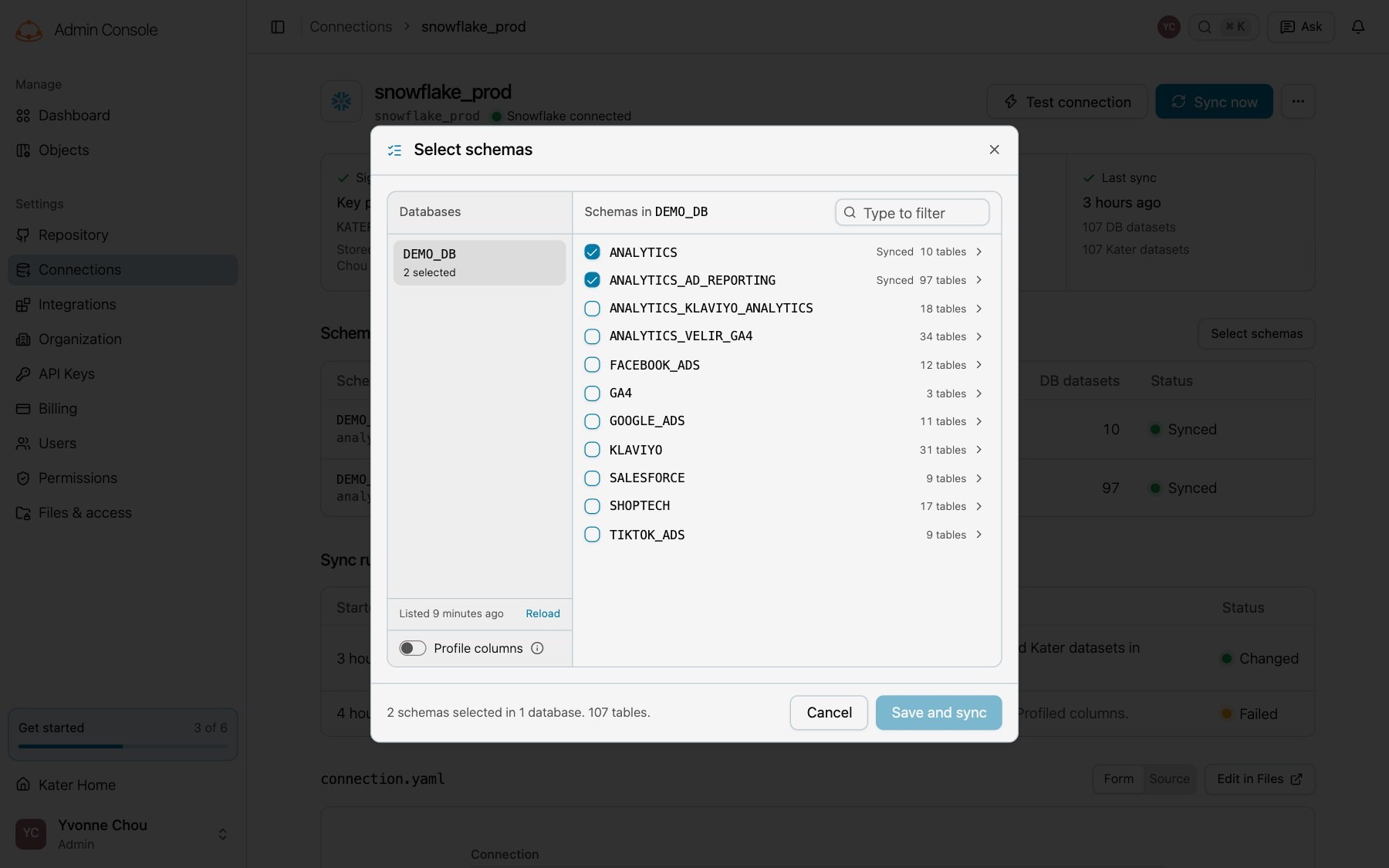
Select schemas, with the list that Kater keeps. -
Select the schemas.
Select a database, then its schemas. Each schema shows its number of tables, and Synced when Kater syncs it already. Type in the box to filter the schemas. The footer counts the schemas and the tables that you selected.
-
Clear single tables, if you must.
Select › at the end of a schema’s row to show its tables, then clear the tables that Kater must not read. The schema then reads, for example, “9 of 10 tables”. When the sync will delete the DB datasets of tables that you cleared, the footer says so.
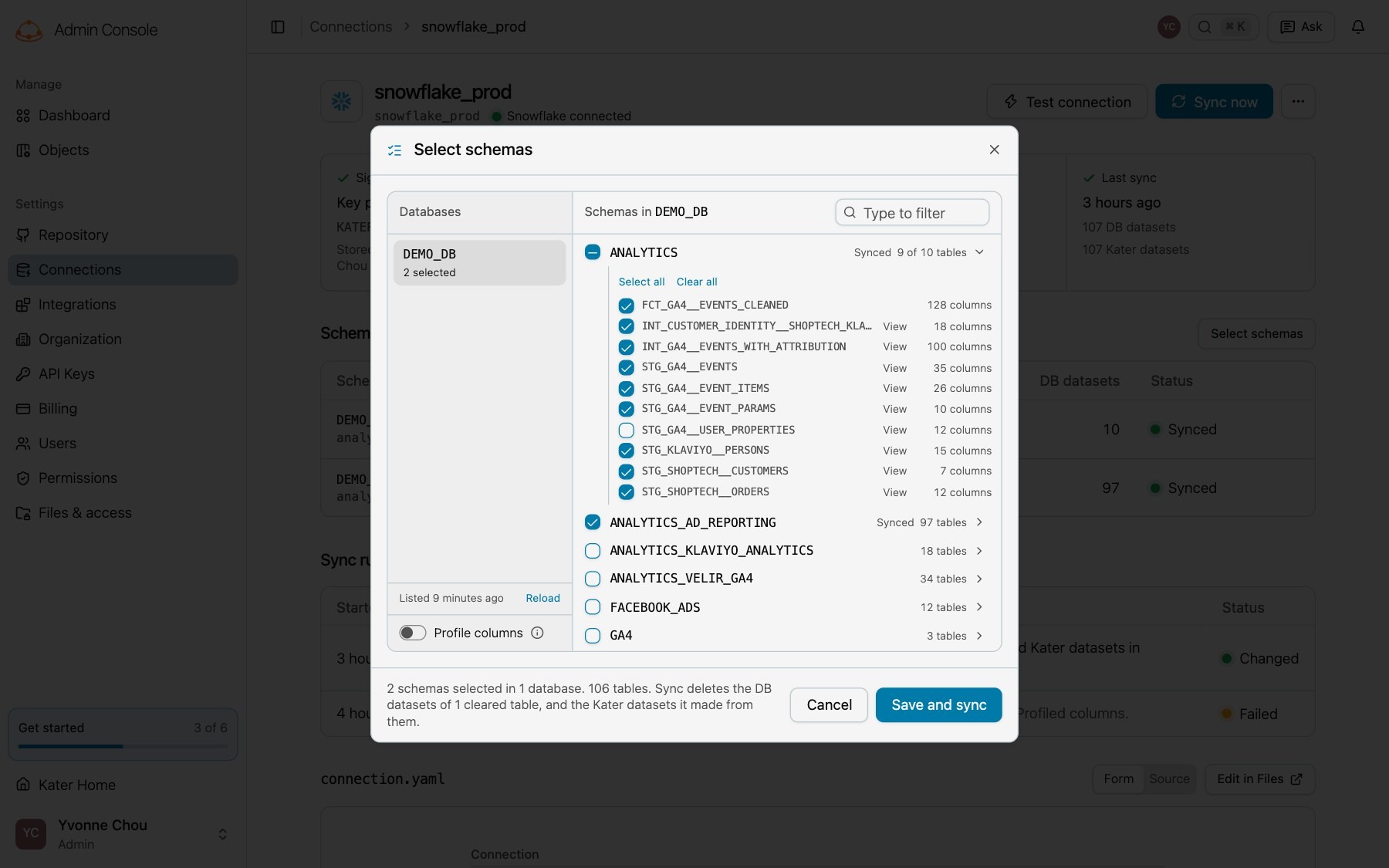
A schema with one table cleared. -
Select Save and sync.
Kater saves
connection.yaml, then starts the sync on its server. Turn on Profile columns first to have Kater read the values in each new column to describe it. That uses warehouse credits. In a new connection, the same picker is New connection’s Schemas step, with Sync 1 schema and Skip for now.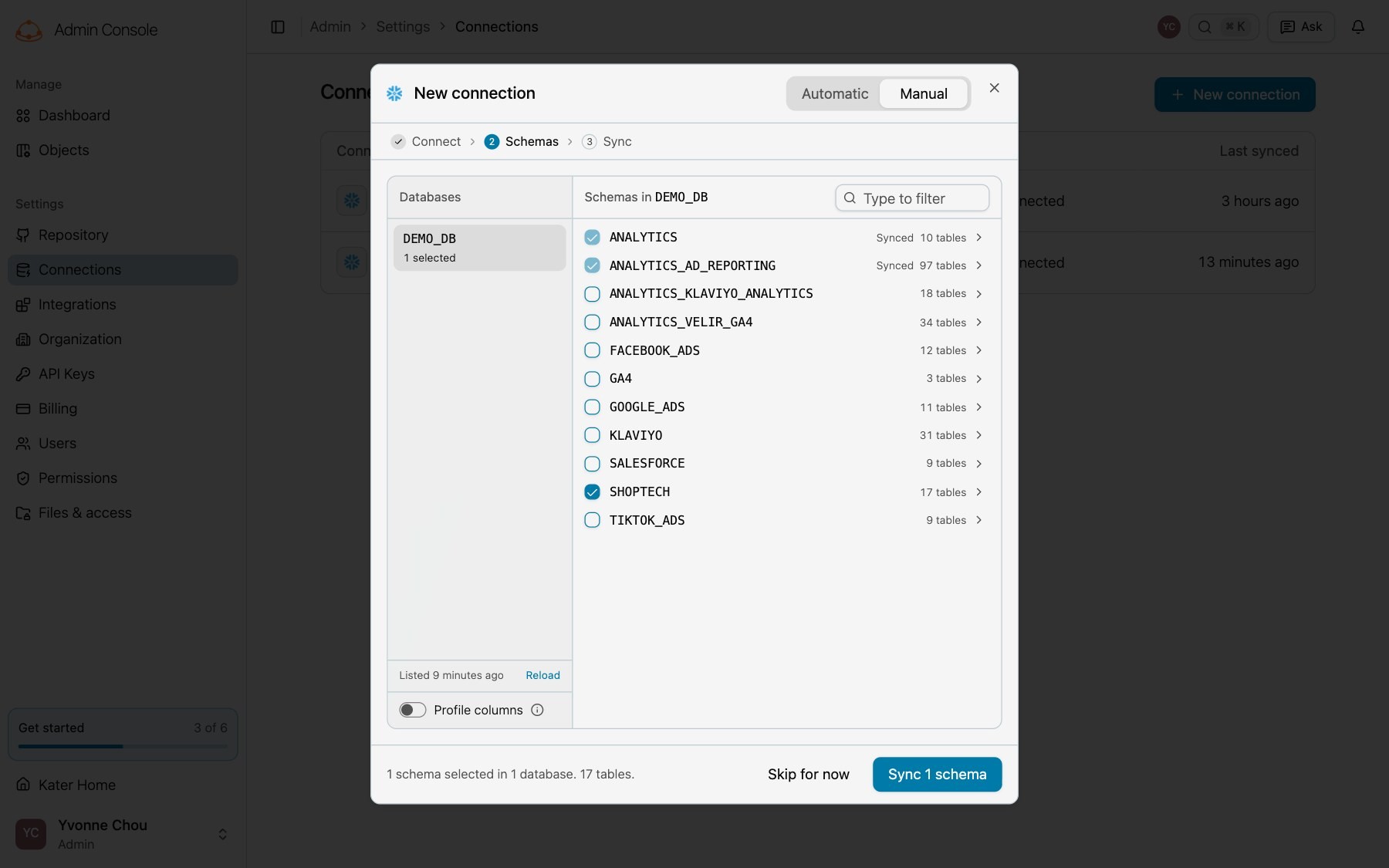
The Schemas step of New connection. -
Watch the sync.
A sync has three steps: Write the DB datasets, with the tables written in each schema, Write the Kater datasets and Save the changes. Nothing turns green before the run ends. You can close the dialog, and the sync goes on.
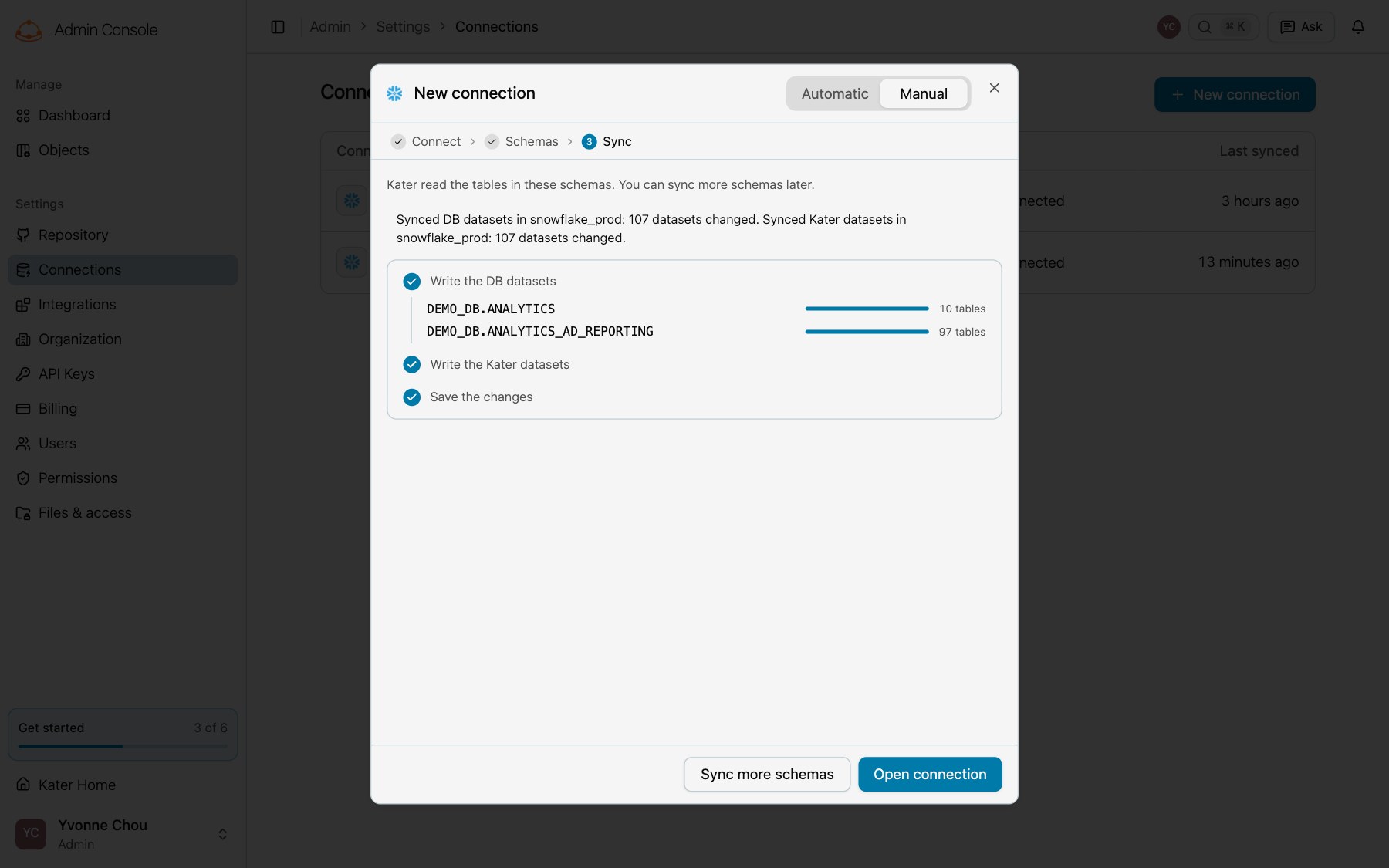
A finished sync, with its three steps.
-
List the schemas.
kater admin connection objectsreads the list that Kater keeps. When the list is not ready, it says “Kater is reading the warehouse.” and waits for it.Terminal window kater admin connection objects --connection snowflake_finance --all --database DEMO_DBDEMO_DB.ANALYTICS 10 tables, 363 columnsDEMO_DB.ANALYTICS_AD_REPORTING 97 tables, 1712 columnsDEMO_DB.FACEBOOK_ADS 12 tables, 143 columnsDEMO_DB.SHOPTECH 17 tables, 95 columnsLeave out
--databaseto list the databases. -
Select the schema in your local copy.
Make a local copy with
kater git clone, or runkater git pullin the one you have. Then add the schema, and clear a table that Kater must not read:Terminal window cd katerkater admin connection update snowflake_finance --add-schema DEMO_DB.SHOPTECHkater admin connection update snowflake_finance --exclude-table DEMO_DB.SHOPTECH.SHOPTECH_REPLAY_STATE--add-tableand--remove-tableselect single tables.--remove-schemaand--include-tableundo a change. -
Plan the sync, then sync.
Terminal window kater sync --select connection:snowflake_finance --dry-runkater sync --select connection:snowflake_financeThe sync says what it waits for, then prints one line when each dataset starts and one when it ends, as dbt does (the output is cut here):
15:42:10 Running with kater=0.1.0, profile=kater, target=dev (Kater API at https://kater.example.com)15:42:11 Waiting for the sync of snowflake_finance. 1s15:42:14 Read 16 tables of DEMO_DB.SHOPTECH from the warehouse.15:42:19 Updating the Kater datasets over them.15:42:22 0 of 32 datasets are unchanged.15:42:22 1 of 32 START model db_dataset.COUNTRIES_REGIONS ......................... [RUN]15:42:22 1 of 32 OK model db_dataset.COUNTRIES_REGIONS .................... [OK in 0.00s]15:42:22 2 of 32 START model db_dataset.CURRENCIES ................................ [RUN]15:42:22 2 of 32 OK model db_dataset.CURRENCIES ........................... [OK in 0.00s]15:42:22 17 of 32 START model kater_dataset.countries_regions ..................... [RUN]15:42:22 17 of 32 OK model kater_dataset.countries_regions ................ [OK in 0.00s]15:42:2215:42:22 Finished running 32 models in 0h0m12.1s.15:42:2215:42:22 Completed successfully15:42:2215:42:22 Done. PASS=32 WARN=0 ERROR=0 SKIP=0 TOTAL=32Then it lists each file that it wrote: 16 DB datasets under
modeling/db_objects/datasets/DEMO_DB/SHOPTECH/, and 16 Kater datasets undermodeling/kater_objects/datasets/. -
Publish.
Terminal window git add -Agit commit -m "Sync DEMO_DB.SHOPTECH"kater git push
After you remove a schema or exclude a table, run the sync with --prune. It deletes the DB datasets of those tables, and the Kater datasets that sync made from them when nobody changed them and nothing reads them. See kater sync.
Read what it wrote
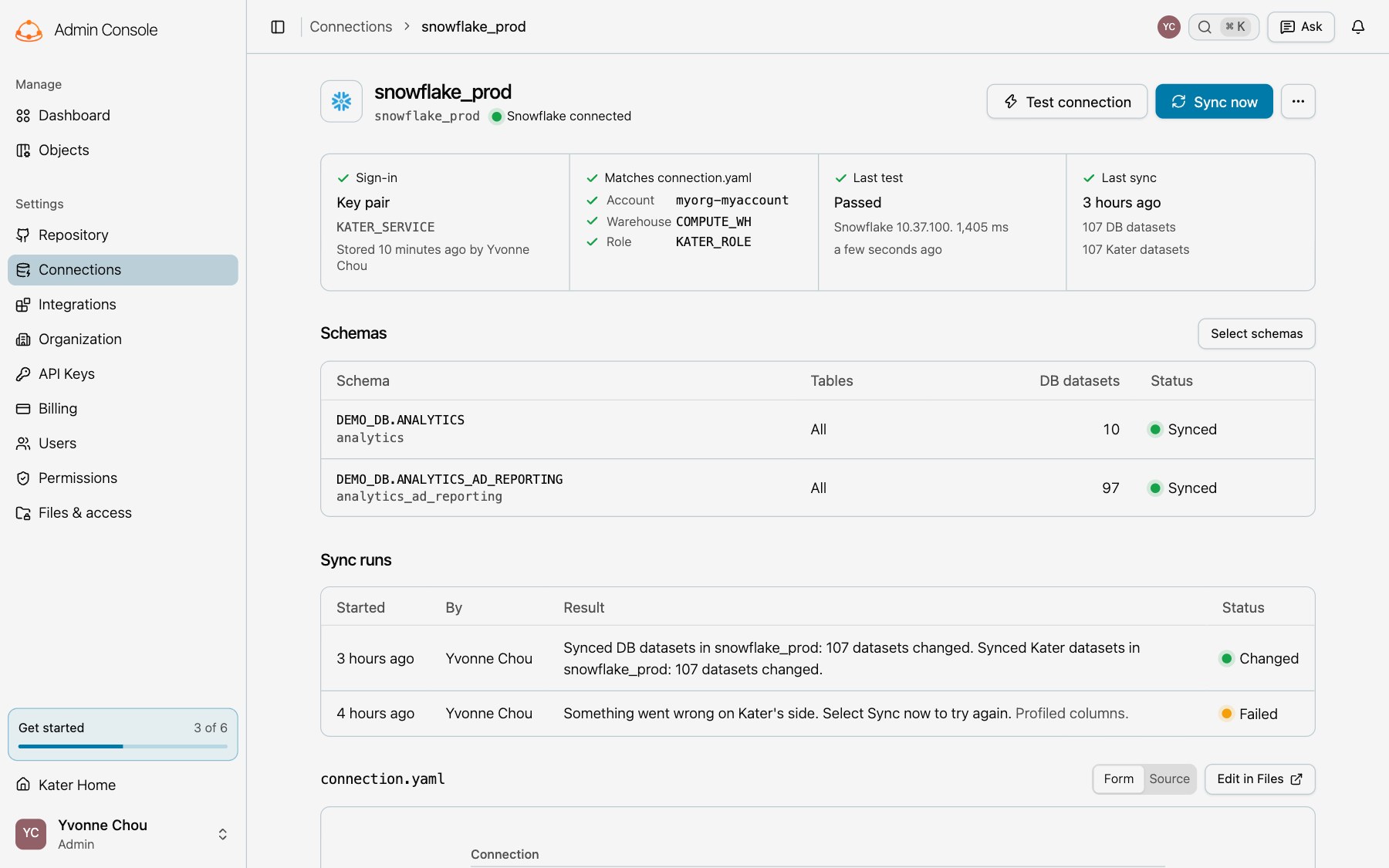
The connection’s page lists each schema with its number of DB datasets, and each sync under Sync runs. Select Sync now to sync again with the same selection, such as after the warehouse adds a table.
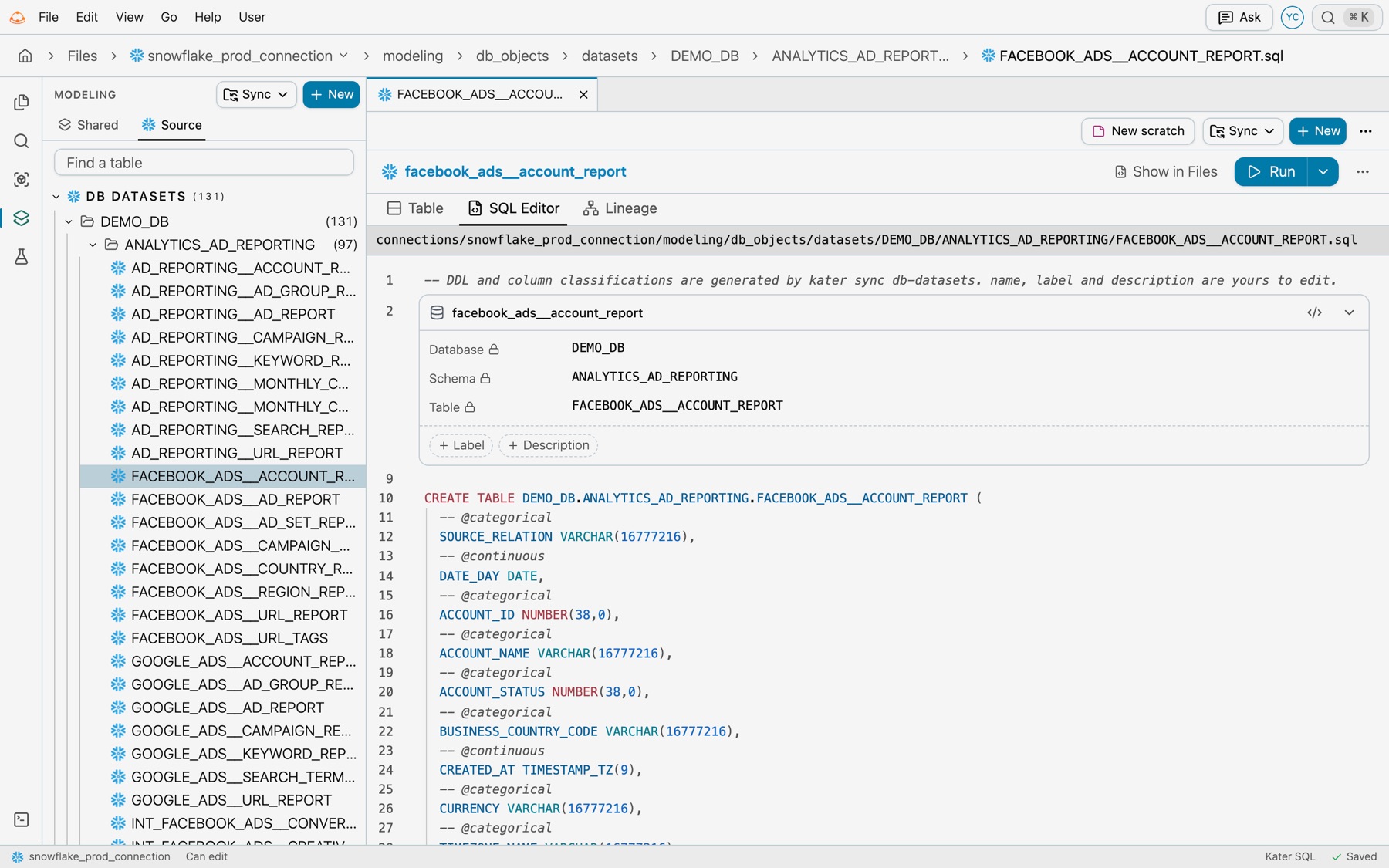
Open a DB dataset in Files › Modeling, on its Source tab, to see the columns that the sync read. Its Kater dataset is on the Shared tab.
Check it worked
- Each schema on the connection’s page reads Synced, with its number of DB datasets.
- The last sync run reads Changed, or says that nothing changed.
- Files › Modeling lists the tables by database and schema on its Source tab.
kater sync --checkexits 0 in your local copy.
Keep it in step with the warehouse
A sync reads the warehouse only when it runs. Select Sync now, run kater sync, or schedule a sync as a job in kater.config.yaml. See Scheduled jobs.
If something looks wrong
| What you see | What to do |
|---|---|
| A schema is not in the list. | Select Reload. If it is still not there, grant the role USAGE on the schema and SELECT on its tables. |
| A database shows an error over its schemas. | The role cannot read that database any more. Kater keeps the last list it read. |
| The sync stops on files of tables that are gone. | Sync again with --prune, or select Sync and remove on the connection’s page. |
| The sync stops on a Kater dataset that it did not make. | Run kater sync --adopt NAME to let sync keep it up to date. |
Next steps
- Data teams: model the datasets that the sync wrote.
- Connections and schema sync, for
connection.yamland every sync option.