Model Connect
Connections and schema sync
Point Kater at your warehouse, select the schemas to model, and keep database datasets in step with the warehouse.
A connection tells Kater which warehouse to read and which schemas to model. Schema sync then reads those schemas and writes the source layer for you: one database dataset per table, and a Kater dataset over each one.
Supported warehouses
| Warehouse | How Kater signs in |
|---|---|
| Snowflake | As one role you select, with a key pair (recommended) or a password. Give the role read access to the data to model, and USAGE on a warehouse. |
| DuckDB | Opens a database file, read-only. A file needs no sign-in. |
Kater stores the warehouse credential, encrypted for your organisation. It is never written to your content. Every query runs on Kater’s server as that one role, including queries started from the CLI, VS Code or an agent.
Create a connection
Make a connection through your agent, in the admin console’s Settings › Connections, or with kater admin connection create in your own terminal. The first one can also be part of onboarding, through kater init. New connection and Schema sync show each way, step by step.
kater admin connection create snowflake_prod --warehouse-type snowflake \ --account ACCOUNT --warehouse COMPUTE_WH --role ROLE \ --auth-method key_pair --user USER --private-key-file PATH_TO_KEY \ --database DEMO_DB --schema DEMO_DB.ANALYTICS_AD_REPORTINGkater admin connection create makes only Snowflake connections. To connect a DuckDB file, use New connection in the admin console’s Settings › Connections, select DuckDB and give the full path of the file, such as /data/shop.duckdb. A Kater server in production does not offer DuckDB.
The command does not write the folder in your local copy. The Kater API tests the sign-in, stores the credential and commits connection.yaml to the content store. Then run kater git pull in your local copy to get the connection’s folder. --dry-run prints connection.yaml and saves nothing.
Run connection commands in your own terminal
The Files terminal and agents refuse kater admin connection, as every kater admin command but admin conversations, along with kater init and kater job. Use a terminal where you signed in with kater login. See Commands agents and the Files terminal cannot run.
connection.yaml
Each connection folder holds one connection.yaml. It names the warehouse type, that warehouse’s settings and the databases and schemas to sync. It holds no secrets.
# Kater connection. Edit by hand or with kater admin connection update. Never change id.# After changing databases, schemas or tables, run kater sync --resource-type db_dataset.# Comments are not kept. Put notes in description.
id: d5c8ffbf-4c47-4195-b949-cc9fcd0186f2name: duckdb_samplewarehouse_metadata: warehouse_type: duckdb path: shop.duckdblabel: DuckDB sampledatabases:- db__database: shop name: shop timezone: UTC schemas: - db__schema: sales name: sales tables: [] exclude_tables: []query_timezone_conversion: do_not_convertquery_timeout: 300| Key | What it does | Example |
|---|---|---|
id | Written once by kater admin connection create. Never change it. | d5c8ffbf-… |
name | The connection’s name. It matches the folder name. | duckdb_sample |
warehouse_metadata | The warehouse type and its settings. Snowflake takes auth_method, snowflake_account_id, warehouse and role. DuckDB takes path. | warehouse_type: snowflake |
label, description | Display text. Put notes here, since comments are not kept. | DuckDB sample |
databases[] | Each database to read: db__database (its name in the warehouse), name, optional label and description, and an IANA timezone. | db__database: DEMO_DB |
schemas[] | Each schema to sync: db__schema, name, tables (empty means every table) and exclude_tables. | tables: [] |
query_timezone_conversion, query_timeout | Recorded, but not used yet. | 300 |
- Edit by hand or by command.
kater admin connection update NAMEtakes--add-schema,--remove-schema,--add-table,--remove-table,--exclude-table,--include-table,--timezone,--labeland--description. It changes only what you give, and keeps the other lines of the file. - Two lists narrow a schema.
tablesnames the only tables to sync, so a new table in the warehouse does not sync.exclude_tablesnames the tables never to sync, so a new table syncs.--add-tableand--remove-tablechangetables.--exclude-tableand--include-tablechangeexclude_tables. When you clear some tables of a schema in Select schemas, the admin console writesexclude_tables, or changestableswhen the schema already lists them. - Names follow the warehouse. Snowflake folds an unquoted name to upper case, so
analyticsandANALYTICSare one database and"Analytics"is another. DuckDB ignores case.
connection_context.md
This file holds what an agent should know about the connection before it answers or changes a model. Agents read it at the start of a conversation, with the organisation’s rules.md.
# Connection Context (duckdb_sample)
This connection reads shop.duckdb, a local DuckDB file in this folder: 240 customers, 3,000 orders from 2025-01-01 to 2026-09-30 and their order events, in schema sales. The data is generated, not a real shop's. Its SQL is DuckDB's.
Run schema sync
Schema sync reads the databases and schemas that connection.yaml selects, writes a database dataset for each table, then creates a Kater dataset for each database dataset that lacks one. It never rewrites what you added to a Kater dataset.
-
Select the schemas.
Add them to
connection.yaml, or runkater admin connection update NAME --add-schema DB.SCHEMA. -
Preview the change.
Run
kater sync --dry-run. It shows each file it would write, and saves nothing. -
Sync.
Run
kater sync. In the portal, you can sync from three places:- Settings › Connections. On the connection’s page, select Select schemas, then Save and sync, or select Sync now.
- Shared models. With a model open, select Model › Sync DB datasets or Model › Sync Kater datasets.
- Files. Select View › Modeling, then Sync, and Sync your DB Datasets or Sync your Kater Datasets.
Sync in the portal needs the settings permission.
-
Review the new files.
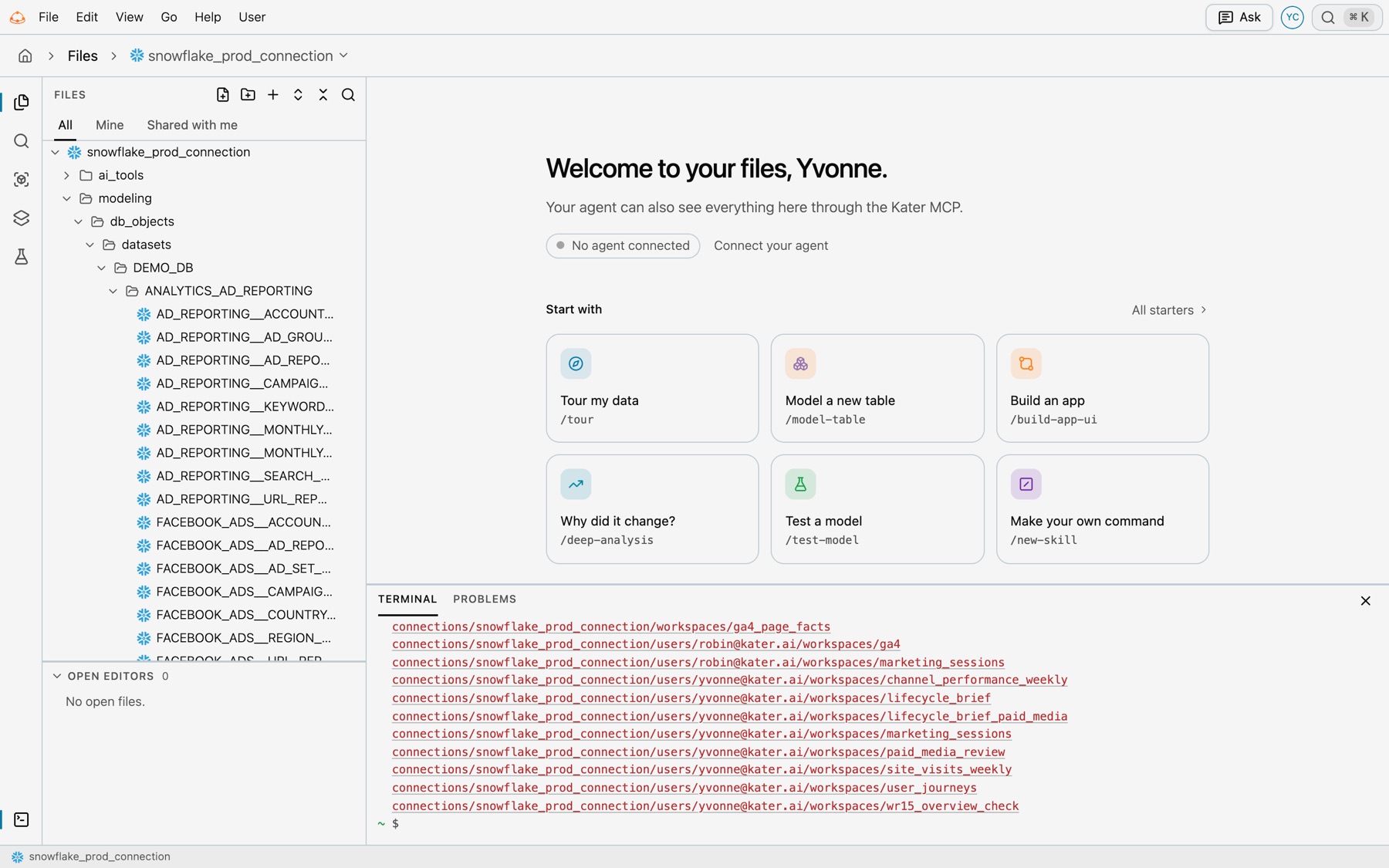
Database datasets show on the Source tab of Files › Modeling. Kater datasets show on its Shared tab, and under Kater datasets in the Model Selector of Shared models.
| Command | What it does |
|---|---|
kater sync --resource-type db_dataset | Updates database dataset files from the warehouse’s tables and columns. It profiles new columns once to mark them @categorical or @continuous. |
kater sync --resource-type kater_dataset | Creates or updates the standard Kater dataset over each database dataset, and keeps what you wrote on it. It reads the saved files, not the warehouse. |
kater sync | Runs both, in order. The second step runs only when the first applied cleanly. |
kater sync status | Shows when each dataset sync of the connection in scope last succeeded. It counts only the syncs that ran on this computer. |
| Option | What it does | Example |
|---|---|---|
--dry-run | Shows what would change, and saves nothing. | kater sync --dry-run |
--check | Exits 1 when something is out of date. Good for CI. | kater sync --resource-type db_dataset --check |
--select | Limits the sync to some datasets: a DB dataset by its name, source:NAME, a path or a tag. A Kater dataset by its name syncs the DB datasets that it reads. | --select source:ORDERS |
--sources | Adds a table that no DB dataset declares yet, as its exact DATABASE.SCHEMA.TABLE. | --sources DB.SCHEMA.TABLE |
--prune | Deletes the files of tables the warehouse no longer has, or that connection.yaml no longer selects. Without it they are only reported. | kater sync --resource-type db_dataset --prune |
--no-profile, --reprofile | Skips the column profile, or runs it again. Profiling reads each new column once and uses warehouse credits. | --no-profile |
--rename-map | A JSON file of renamed tables or columns, so the Kater datasets that read them follow. | --rename-map renames.json |
--adopt | Lets sync keep a Kater dataset it did not make up to date from now on. Everything written in it stays. | --adopt orders |
The Files terminal runs the same commands. There, a sync with no --scope works on the shared layer of the connection the terminal’s folder is in, and a real sync needs the settings permission.
- Sync state lives in
.kater/dataset-sync/. It keeps reruns stable. Keep it with your content, and never delete it to force a sync. - Custom SQL datasets are skipped. Sync changes only the Kater datasets it made or adopted.
Sync on a schedule
A job in kater.config.yaml at the content root keeps the connection current. This example schedules a sync at 02:00 UTC and runs the connection’s tests after each sync. The schedule stays off until you set enabled: true.
jobs: sync_snowflake: command: kater sync connection: snowflake_prod_connection deployment: production schedule: enabled: false cron: "0 2 * * *" timezone: UTC test_snowflake: command: kater test connection: snowflake_prod_connection deployment: production after: sync_snowflakeSee Scheduled jobs for how jobs run.
Check it worked
kater admin connection test NAMEopens a session and reports the account, warehouse and role. For Snowflake, it also says how many queries the warehouse runs at once, and how many Kater runs on it (queries).kater admin connection show NAMElists no problems.- The Source tab of Files › Modeling lists your tables by database and schema.
- The Model Selector in Shared models lists a Kater dataset for each table.
kater sync --resource-type db_dataset --checkexits 0.
If something looks wrong
| Symptom | Fix |
|---|---|
| A selected schema has no files. | Run kater sync. A change to connection.yaml never touches modeling/ on its own. |
| Files remain for a schema you removed. | Run kater sync --resource-type db_dataset --prune. |
| Sync stops on a possible rename. | Run it again with the --rename-map it prints. |
| Sync will not update a Kater dataset you wrote by hand. | Run kater sync --resource-type kater_dataset --adopt NAME. |
| You cannot sync from the portal. | Ask an admin for the settings permission. See Permissions and groups. |