On this page
Admin
Permissions and groups
Put people in groups so you can share with a whole team at once, and record attributes that describe them.
Groups let you give a whole team access in one step, such as everyone in Marketing. Attributes record named values about people, such as their department. Both live on the Permissions page of the Admin Console.
Where the permissions are set
Kater’s nine permissions come from each person’s role in PropelAuth. See Users and roles. This page holds attributes and user groups.
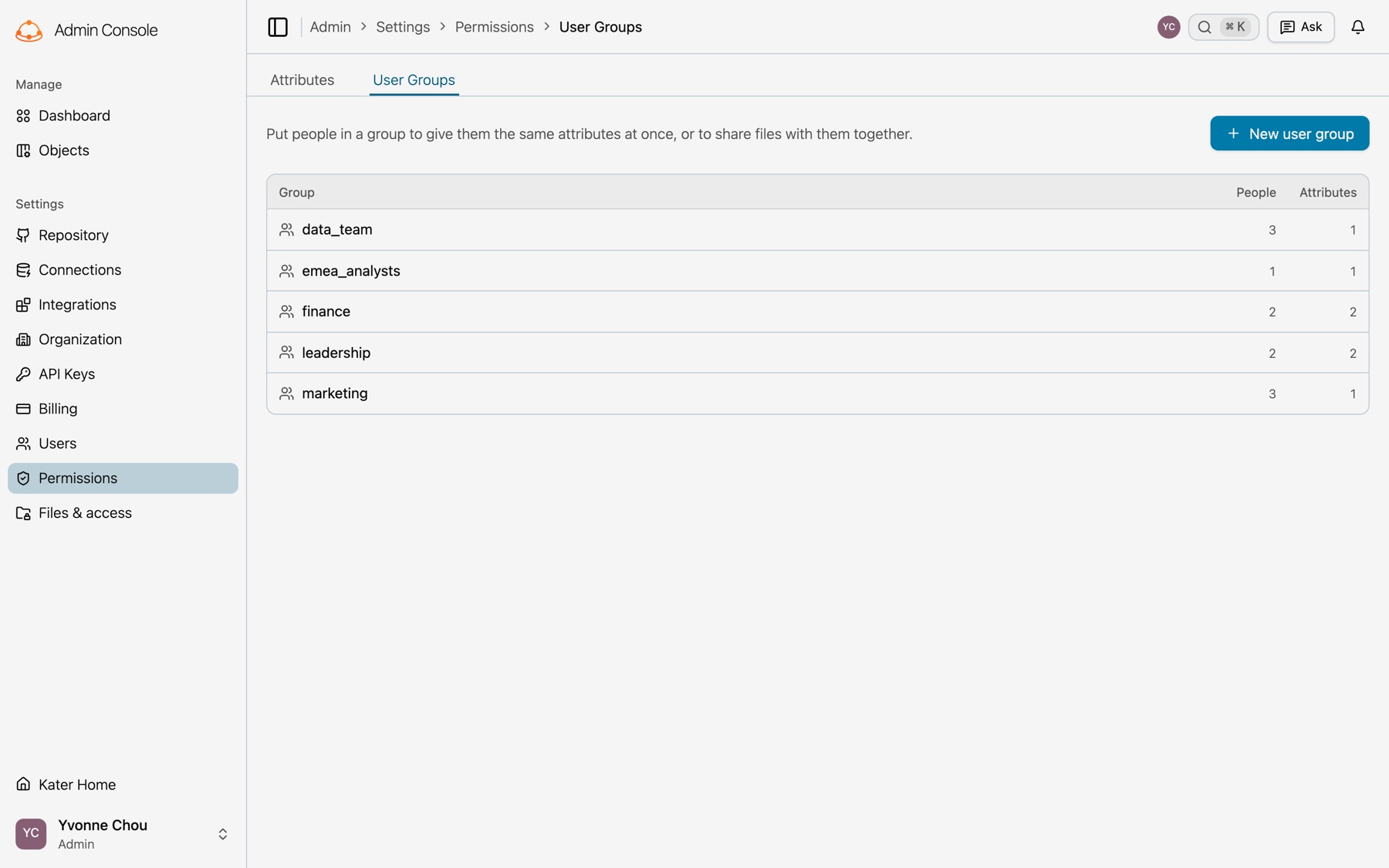
User groups
-
Make a group.
Open Permissions › User Groups. The list shows each group with its People and Attributes counts. Select New user group and give it a name.
-
Add members.
In the same dialog, select people in Users. You can also add them later under Members in the group’s panel.
-
Assign attributes.
Under Assigned attributes, select Assign and give the group attribute values. Everyone in the group inherits them.
Use groups
- Share with a group. Type its name in Add people or groups in any share dialog.
- Grant from the CLI.
kater admin access grant PATH --level viewer --group Marketing. - Invite into a group.
kater admin team invite EMAIL --group Marketing. - Delete with care. Members lose every attribute they get from the group, and grants that name the group are removed.
Attributes
-
Make an attribute.
Open Permissions › Attributes and select New attribute. Give it a name.
-
List its values.
Under Possible values, separate values with commas, such as Finance, Executive, Marketing, Sales. Assignments can use only the values in this list.
-
Assign it.
In the attribute’s panel, select Assign beside Users, who each get the values directly, or beside User groups, whose members inherit them.
- System attributes. Kater sets
user_emailfrom the signed-in identity. You cannot change it. - From a CSV.
kater admin team invite --csvcan set attributes as people join.