Admin
Manage users
Find the people in your organisation, see what each person owns and changes, change a role, invite a user and remove a user.
The Users page of the Admin Console lists the members of your organisation. Use it to find a person, see what they own, change their role, invite a user and remove a user. What each role allows is in Users and roles. Groups and attributes are in Permissions and groups.
The Users page
Open the Admin Console and select Users under Settings.
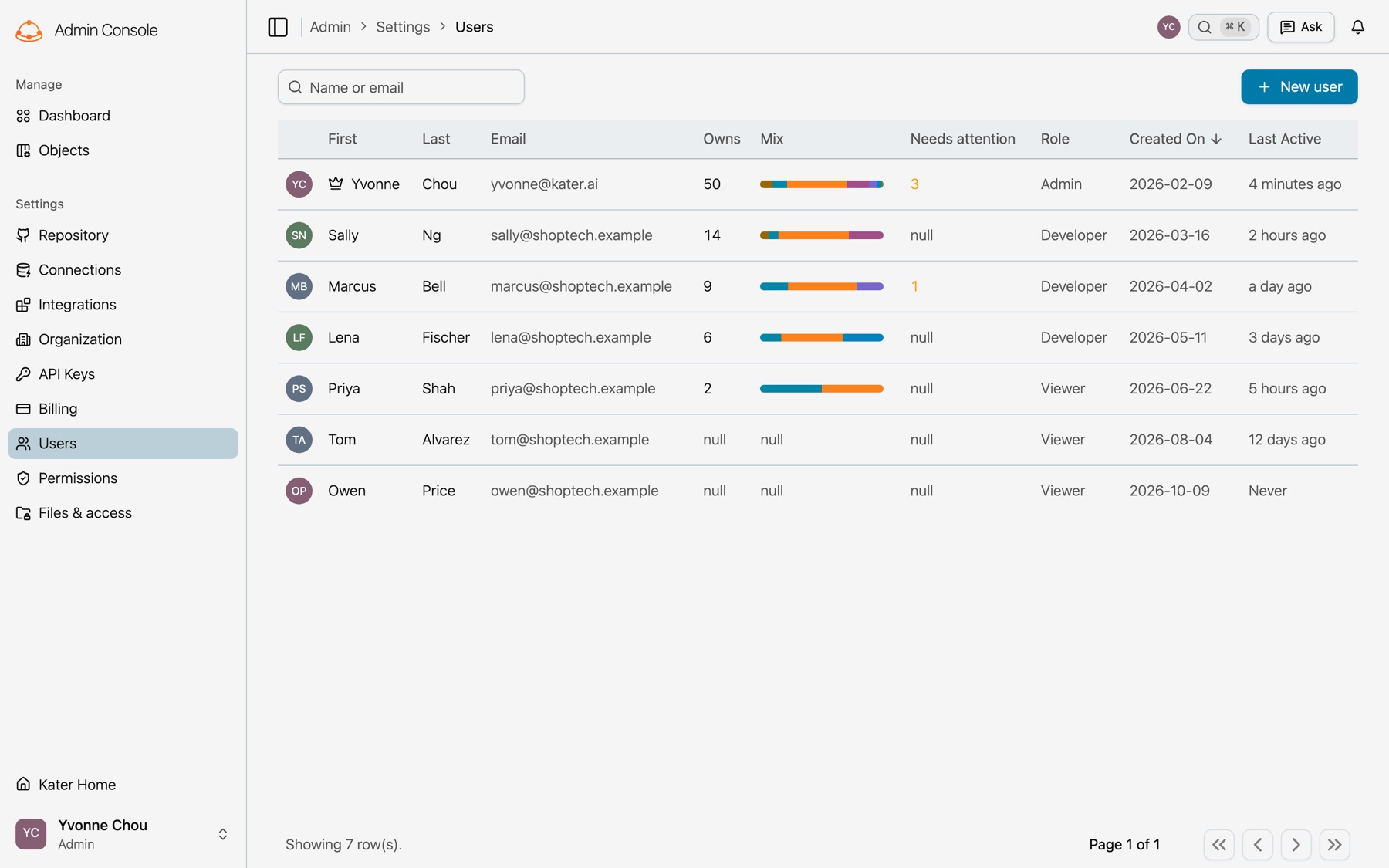
| Column | What it shows |
|---|---|
| First and Last | The person’s name. A crown marks your own row. |
| The address the person signs in with. | |
| Owns | How many objects the person owns. Select the number to see these objects in Objects. |
| Mix | One bar for the objects the person owns, with a colour for each kind of object. Hold the pointer on the bar to see how many of each kind there are. |
| Needs attention | How many of these objects are stale. |
| Role | Admin, Developer or Viewer. |
| Created On | The date the person’s account was created. |
| Last Active | When the person last used Kater. Never means that they did not sign in yet. Invited marks an invitation that nobody accepted yet. |
Owns, Mix and Needs attention show null when there is nothing to count. The page shows 30 people at a time. Use the arrows at the bottom to go to the next page.
Owns, Mix and Needs attention need audit:read
These three columns come from the object inventory. Without audit:read, the page does not show them. Without directory:manage, the page shows only “Only directory admins can manage users and groups”.
Find a person
Type part of a name or an email address in the search box above the list, such as sally or shoptech. The list shows each person whose name or address holds every word that you typed, from all the people in your organisation. To show everyone again, delete the words in the search box.
The page address holds the search (?q=), so a link to the page shows the same list.
See a person’s details
Select a row. The details panel opens beside the list, or below it in a narrow window. To close it, select the row again or select ×. The page address holds the person’s ID (?user=), so a link to the page opens the same panel.
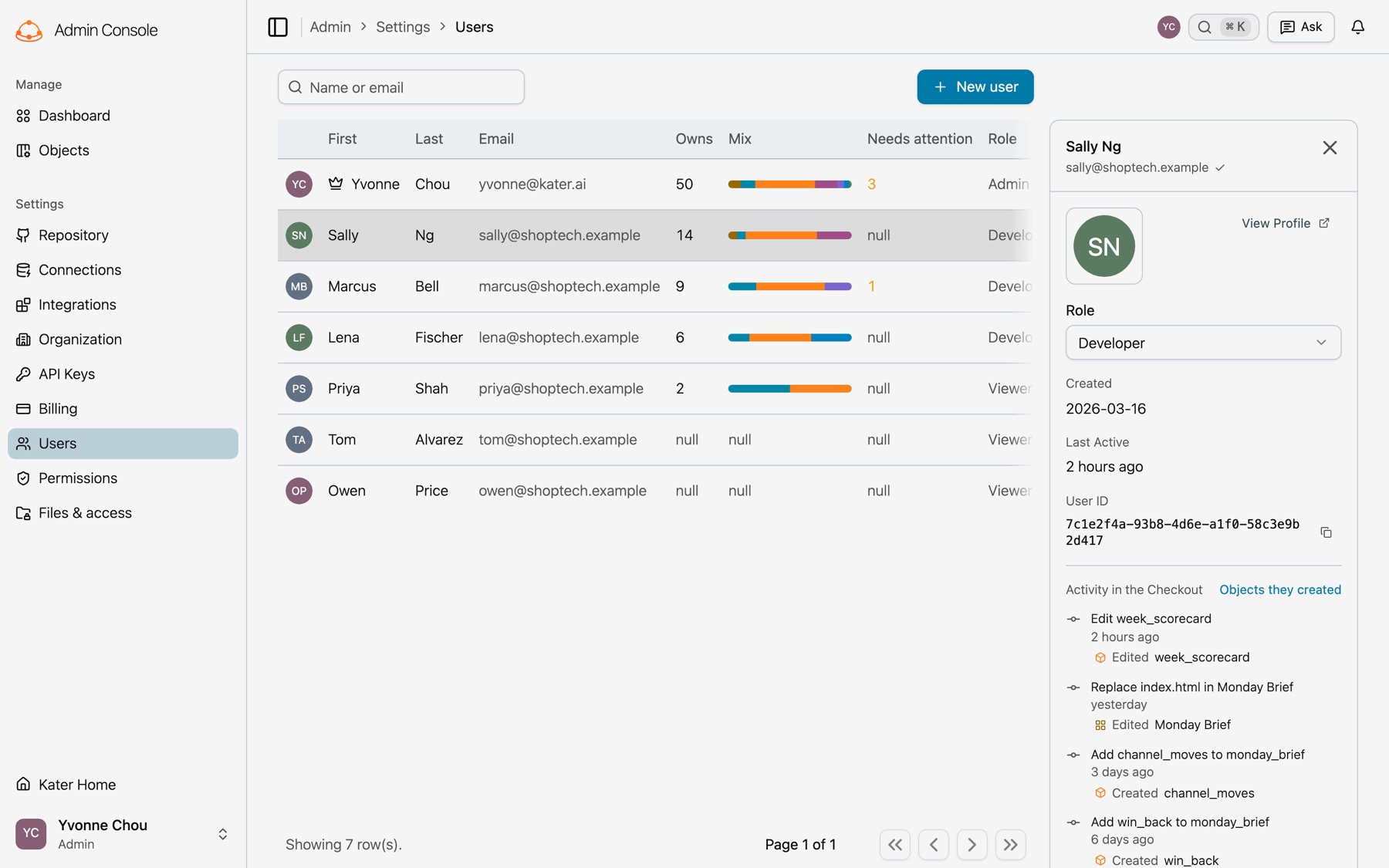
- Name and email. A check mark after the email shows that the person confirmed the address.
- View Profile. Opens the person’s profile in a new tab. On your own row, a crown shows in its place, and you can select your picture to change it.
- Role. The person’s role. See Change a role.
- Connections. The connections the person can use. The first is their default: their agent and the portal open on it. Admins use every connection. This part needs
access:administer. - Groups. Every member is in the group of their role: Admins, Developers or Viewers. It shows greyed out with a lock, and it changes when the role changes.
- Created and Last Active. The same dates as in the list.
- User ID. The person’s ID. Select the copy button to copy it.
- Check access as this person. Opens a tree of your content that shows what the person can read and change. This needs
access:administer. - Remove from organization. See Remove a user.
- Activity in the Checkout. The person’s latest changes to your content, newest first. Each change names the objects that it created, edited or deleted. Select an object to see it in Objects. Objects they created opens Objects with only the objects that the person made. Older commits shows more changes. This part needs
audit:read.
Change a role
-
Open the person’s details.
Select their row.
-
Select the new role.
Select Admin, Developer or Viewer in Role. Cancel and Save show at the bottom of the panel.
-
Save it.
Select Save. To keep the old role, select Cancel.
The person’s permissions follow their new role. If Kater could not save the role, the panel shows “Kater could not save the role.” with the reason, above Cancel and Save.
Invite a user
Select New user at the top right of the list. The New user dialog opens. The page address then holds ?new=user, so you can also open the dialog from a link.
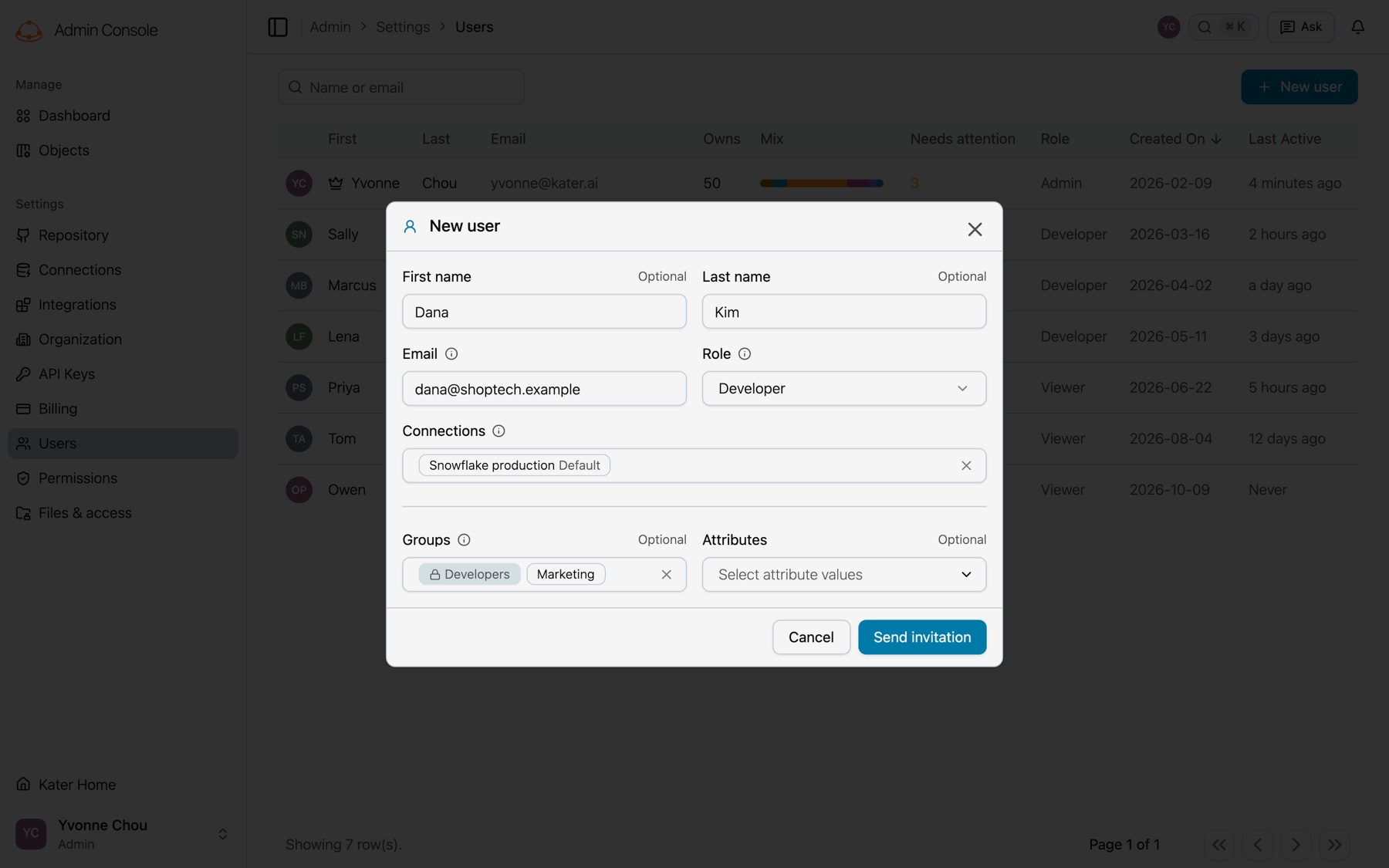
-
Enter the person.
Type the Email. The First name and the Last name are optional.
-
Select the role.
Role starts at Viewer, the role with the fewest permissions. Select a different role if the person needs more.
-
Select their connections.
A Viewer or a Developer sees no data without a connection, so select at least one. The first connection you select is their default. Admins use every connection, so an admin has no list.
-
Add groups and attributes if you want to.
Both are optional, and you can add them later.
-
Send it.
Select Send invitation. Kater sends an invitation email, and the invitation opens in the details panel. The person selects their own password when they accept it. Nobody sets a password for them.
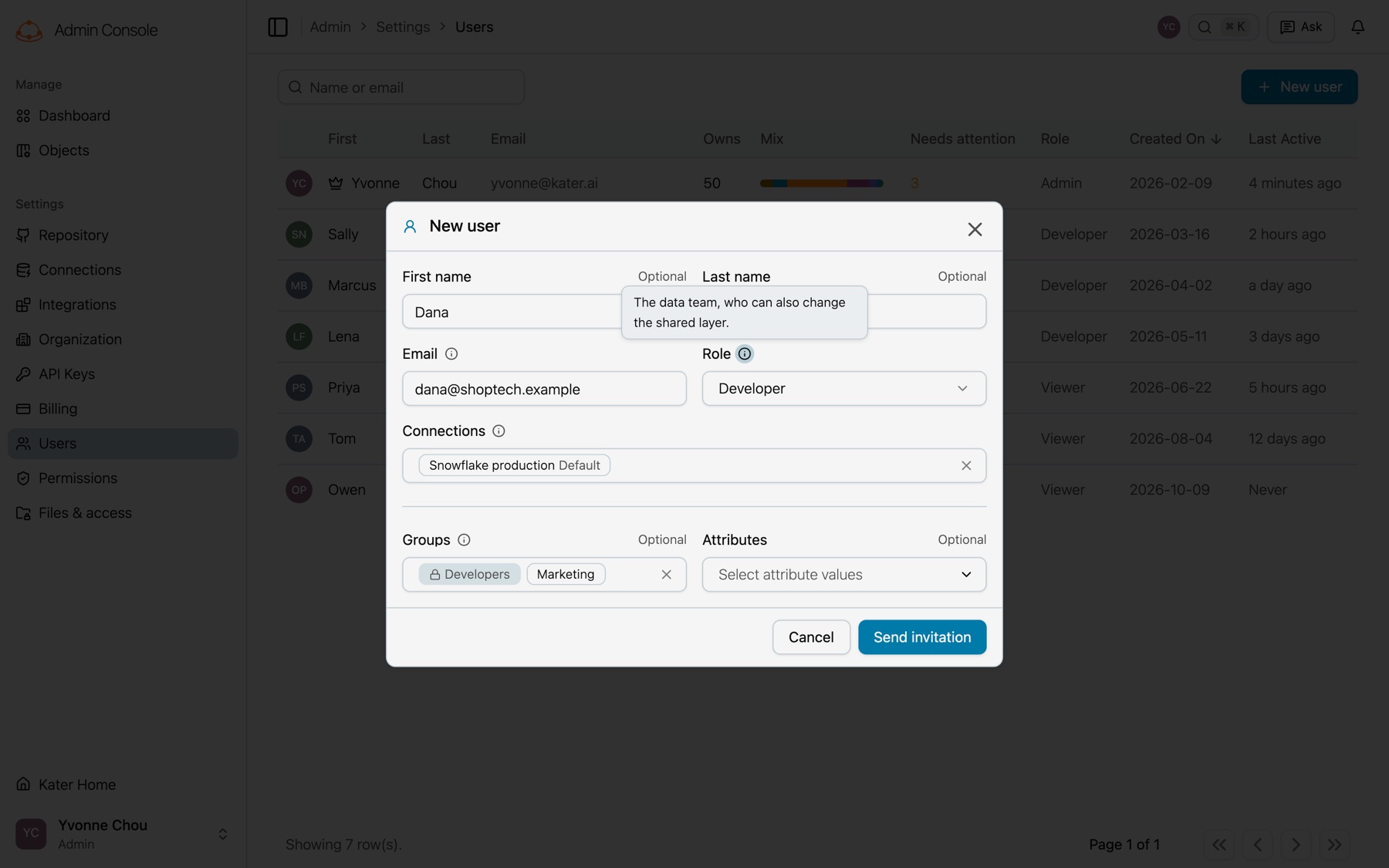
To read a field’s hint, hold the pointer on the ⓘ beside it, or tap the ⓘ on a phone. The hint of Role says what the selected role can do.
The invitation shows in the list as a row of its own until the person accepts it. Select it to see what it gives, then Send again or Cancel invitation. Kater cannot send an invitation again a short time after it sent it. Try again in a few minutes.
When the person accepts and signs in for the first time, Kater applies the invitation: their role, their connections, their groups and their attribute values. Their personal folder appears in each connection they can use, at that first sign-in.
To invite many people at once, use kater admin team invite.
A person can be a member of one organization only. Kater refuses an invitation to a person who is a member of another organization, and the alert names them. Ask them to leave that organization, or invite a different email address.
If Kater could not send the invitation
The dialog stays open and keeps what you typed. An alert at the top says that Kater could not send the invitation, and gives the reason that Kater or PropelAuth sent.
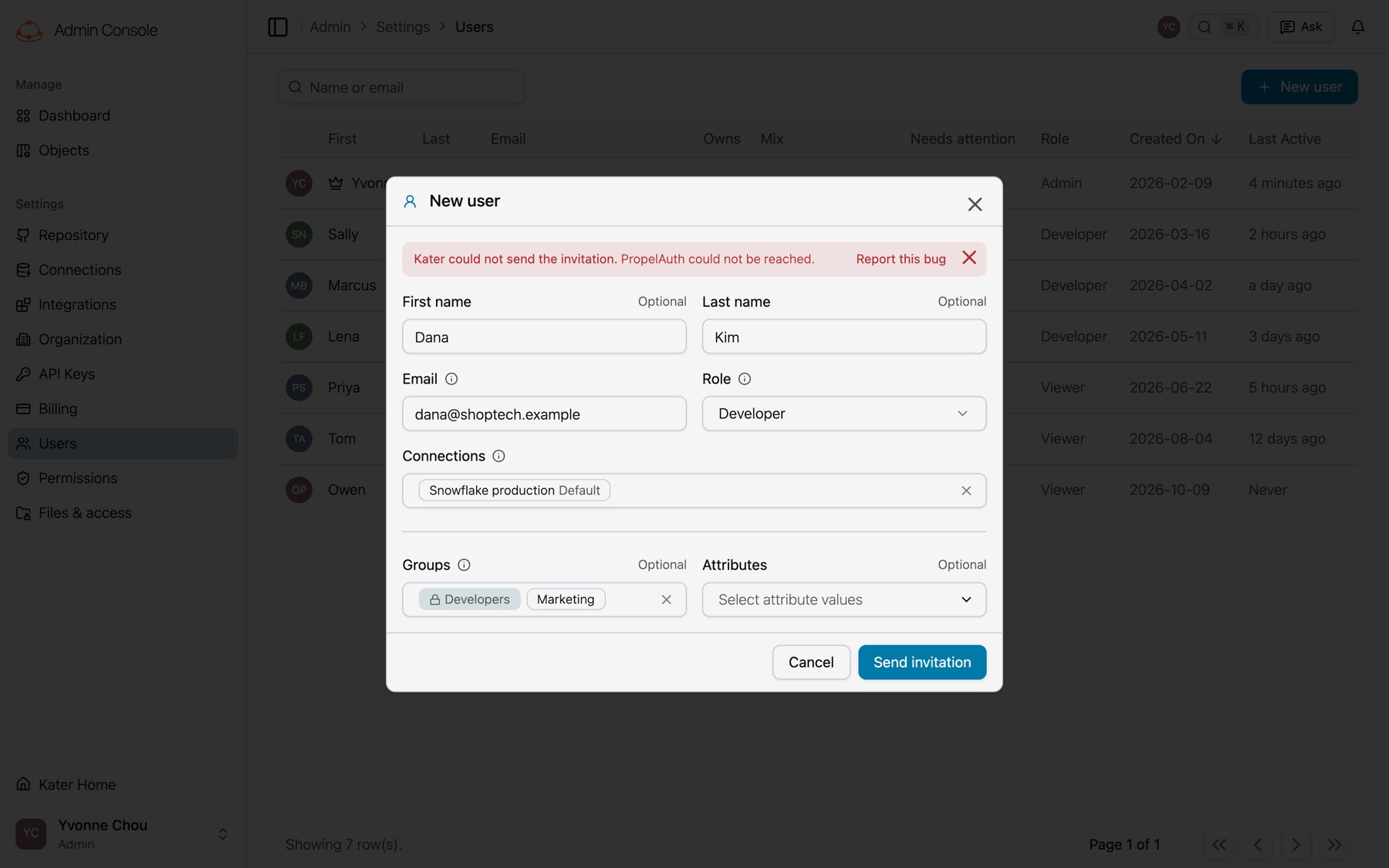
- Copy it. Select the alert to copy all of its text. Send it to a colleague or to Kater support.
- Report it. Select Report this bug to open Report a bug with the error attached.
- Try again. Correct what the alert names, then select Send invitation again. To close the alert, select ×.
Reset a password or change an email
Open the person’s profile from View Profile in their details.
- Reset password sets a password for one sign-in. Give it to the person. When they sign in with it, Kater asks them for a new password.
- Change email sends a confirmation to the new address. The email changes when the person confirms it. Then Kater moves their personal folders to the new address, with their grants, and changes every file that names the old folder.
You cannot do either for a person who is also a member of another organization: only they can change their own account. You cannot do either for yourself here. Use your own profile.
Remove a user
-
Open the dialog.
Select the person, then Remove from organization. The page address then holds
?remove=1. -
See what they own.
The dialog lists their personal folders, the workspaces and apps they manage alone, their schedules, and the checks that run as them.
-
Select who gets their work.
You are selected at first. Select another member, or No one. Only admins keep it.
-
Select what happens to their schedules.
Pause the schedules stops them. Move the schedules to a person moves them to that person’s folder, where they keep sending, from the new owner.
-
Remove them.
Select the button with their name, such as Remove Sam Lee.
What happens then:
- They can no longer sign in to the organization at once. Kater does not delete their account. When they are in no other organization, their sessions end.
- Nothing moves or is deleted. The person who gets their work becomes Manager, with execute, on their folders and on what they managed alone. With no one selected, only admins can open their folders, and the admin console lists them as Left the organization.
- Their grants go, and so do their group memberships and attribute values.
Add a removed person again with a new invitation. If nobody got their folders, they get them back at their first sign-in.
Changes made outside Kater
Changes made in your identity provider, by SCIM or in PropelAuth reach Kater too: a person added, removed, or given a new role or email. Kater records each change at once when PropelAuth tells it, and checks every organization each hour for a change it missed. A person removed there is offboarded as if an admin removed them in Kater, with no one selected to get their work.