Developers
MCP server and tools
Connect Claude, ChatGPT, Claude Code, Codex or Cursor to Kater, and see every tool, prompt and rule your agent gets.
The Kater MCP server gives your own AI agent governed access to your company’s data. Your agent answers questions from saved queries and shared models, builds apps and workspaces, and asks before it changes anything. Kater runs no chat of its own: you keep working in the agent you already use.
Find your address
Open Profile › AI app, or go to /profile#ai. Connect your agent there asks for your AI provider, when your organisation allows more than one, and the app to Open prompts in. Then it shows your organisation’s MCP address, with that app’s own button or command. The address ends in /mcp. Until an agent is connected, Ask covers its box with Connect your agent, and Connect in Profile opens this section.
In a Claude organisation or a ChatGPT workspace, an admin adds Kater for everyone first, and each person then only connects. Admins find the addresses, the AI providers your organisation allows and the steps for each provider on Set up the Kater MCP.
Connect your agent
-
Open Claude’s connectors.
Select Add to Claude. Claude’s connectors open, in Customize › Connectors, with the address copied.
-
Connect Kater.
Select Connect on Kater. If your admin has not added Kater, and you use a plan of your own, add a custom connector and paste the address.
-
Sign in.
Claude asks you to sign in to Kater. This works for claude.ai and the Claude desktop app.
-
Open ChatGPT’s plugins.
Select Add to ChatGPT. ChatGPT’s Plugins open, with the address copied.
-
Connect Kater.
Select Kater and connect. If your admin has not added Kater, and you use a plan of your own, add a custom MCP server and paste the address. You do not need to turn on Developer mode first. ChatGPT allows custom MCP servers on its Business, Enterprise and Edu plans, on the web only. On a Pro plan, ChatGPT uses only the tools that read.
-
Sign in.
Sign in to Kater with your own account when ChatGPT asks.
-
Add the server.
Run this in a terminal:
Terminal window claude mcp add --transport http kater <address> -
Sign in.
Run
/mcpin Claude Code to sign in. Claude Code in VS Code reads the same setting.
With a Claude Team or Enterprise account, Claude Code also gets your organisation’s Kater connector, with tools named mcp__claude_ai_Kater__<tool>. The Kater that you add with claude mcp add names them mcp__kater__<tool>.
-
Add the server.
Run this in a terminal:
Terminal window codex mcp add kater --url <address> -
Sign in.
If Codex does not ask you to sign in, run
codex mcp login kater. The Codex CLI, the Codex IDE extension and Codex in the ChatGPT desktop app share~/.codex/config.toml, so one command adds Kater to all three.
-
Add the server.
Select Add to Cursor. Cursor opens to add the Kater MCP.
-
Sign in.
Sign in when Cursor asks.
-
Open your local copy.
Go to the root of your local copy.
-
Start the agent.
Run
kater agent claudeorkater agent codex. It writes the MCP settings for that folder and starts the agent with Kater’s tools.
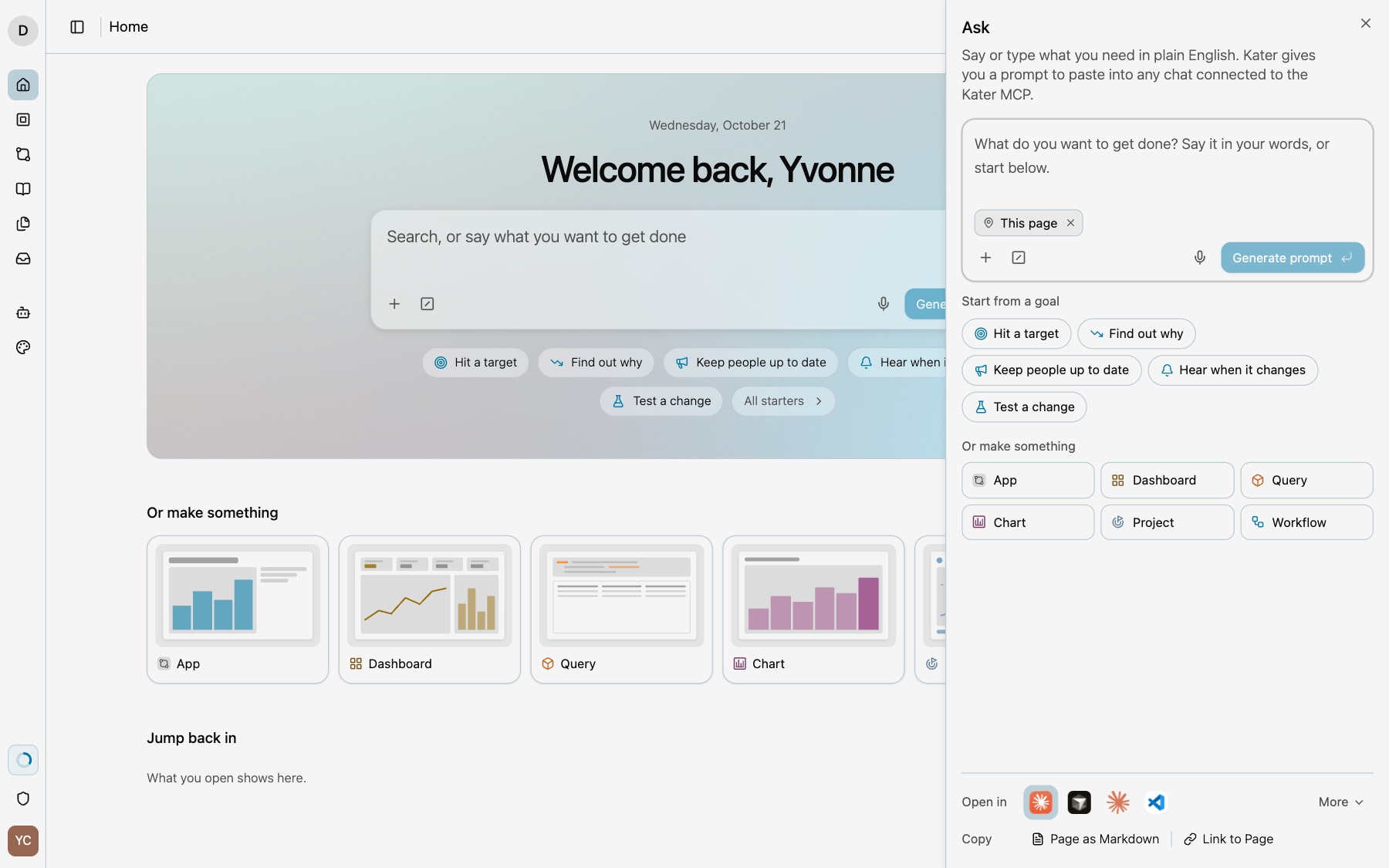
The status in Profile › AI app follows along: Waiting for Claude, then Claude connected. Ask opens its box as soon as an agent is connected.
Manage connected agents
Open Profile › Agents to see every agent that works with you.
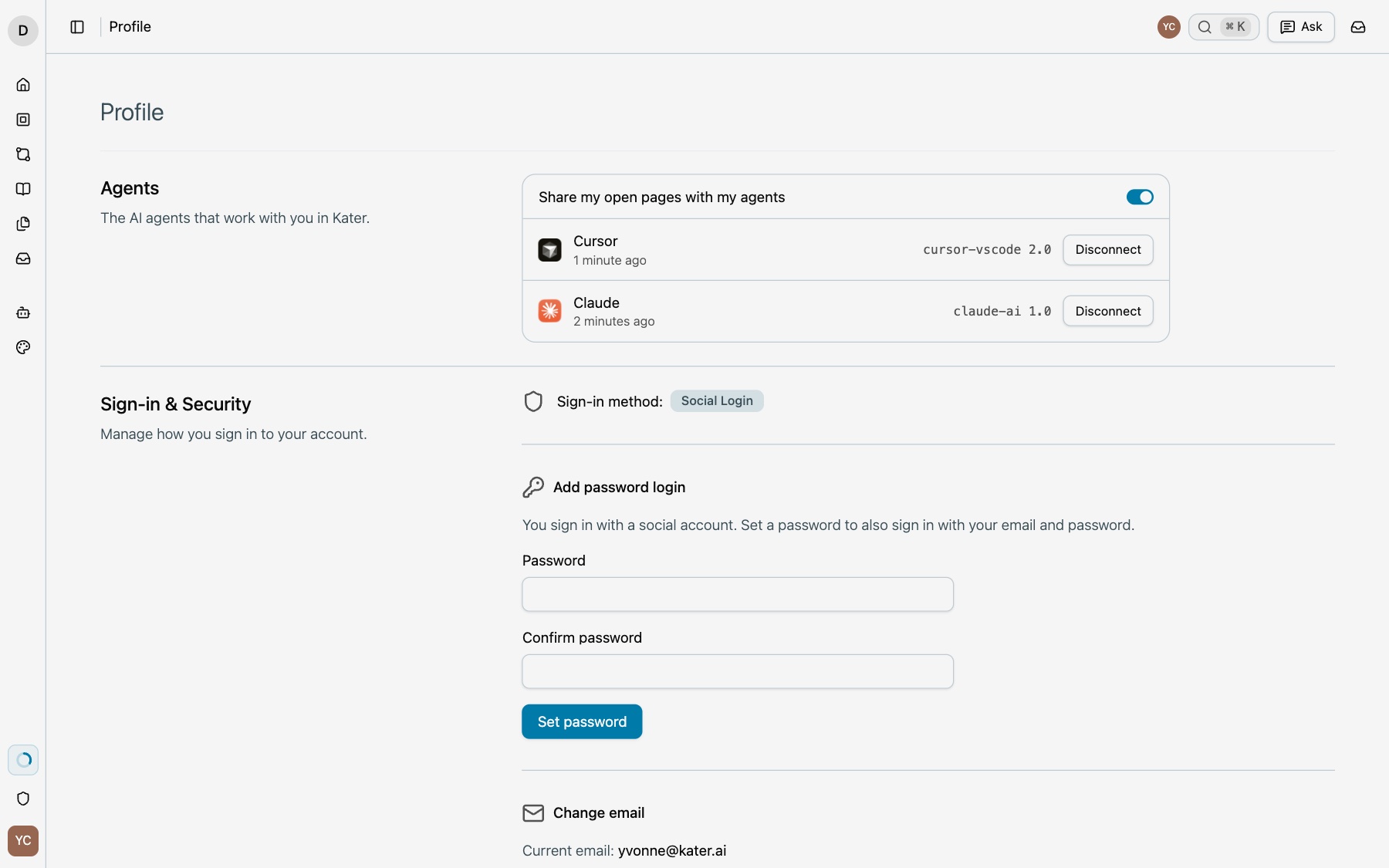
- Share my open pages with my agents. When on, your agent can see your Kater tabs, open a page in one and read the rows on screen.
- Disconnect. Kater then refuses that agent’s calls. Reconnect lets it back in.
Profile › AI app holds your AI provider, the app Kater opens your prompts in, and Connect your agent. See Change your AI app.
Hosted and local servers
| Hosted | Local | |
|---|---|---|
| Runs as | kater serve --mode remote, behind PropelAuth sign-in | kater serve, over stdio by default |
| Reads | The content store, through your access | Your local copy |
| Sign-in | Your agent signs in with OAuth. The token works only for /mcp and is never passed on. | Your kater login session |
| Warehouse queries | Run on the Kater server | Also run on the Kater server |
The hosted server checks access exactly as the portal does. For several local clients at once, kater serve --transport http serves on 127.0.0.1 behind the token in KATER_MCP_TOKEN.
Tools
| Tool | Title | What it does |
|---|---|---|
kater_start | Start | The first call of every conversation. The agent gives the person’s request word for word as question, and a summary of the request with its topic, its intent and the metrics it is about. The admin Dashboard counts them in What people ask, and admins read them in Conversations. Returns the audit thread id, Kater’s rules, the object index, the context files to read and the person’s front tab. |
update_audit_thread | Update Audit Thread | Replace the thread’s goal and context. For each new question the person asks in the same conversation, the agent gives its words as question. |
kater | Run a Command | Run one kater CLI command as the person. It writes only in their brainstorm folder. |
kater_apply | Run a Command That Changes Content | The same, for real changes after the person says yes. Every write returns its change and how to undo it. |
glob | Discover Files | Find files by path pattern. |
grep | Search File Contents | Search content and Kater’s guides in guides/. |
search_catalog | Search Model Metadata | Search labels, descriptions, tags and business questions. |
explain_field | Explain a Field | How a field is computed. |
read_file | Read a File | Read a known file or guide. |
read_rows | Read More Rows | Page through a run’s rows, held for 30 minutes. |
write_file | Write a File | Create or replace a file. Kater SQL is compiled first and refused on error. |
edit_file | Edit a File | One replacement, refused if the file changed since it was read. |
delete_file | Delete a File | Delete a file the person owns in their own folder. |
list_accessible_workspaces | List Accessible Workspaces | The person’s private workspaces and the connection workspaces they can read. |
create_workspace | Create Private Workspace | A new private workspace, optionally from a model. |
update_workspace_model | Update Workspace Model | Save a hand-written workspace.sql. |
validate_query_contract_draft | Validate Query Contract Draft | Compile an unsaved query. |
publish_query_contract | Publish Query Contract | Save a validated query. |
run_query_template | Run a Query Template | Run a legacy query template. |
run_insight_template | Run an Insight Template | Run a query, then an insight template over its rows. |
query_operational_logs | Query Operational Logs | Read Kater Logs. |
run_audit_query_template | Run an Audit Query Template | Run an allowlisted audit report over recorded MCP calls. |
The guide vfs://guides/content-layout.md explains the content layout and the safe way to change it. The agent reads it with read_file.
How your agent changes things
- Try first, then ask. With
kater, the agent writes only in your private brainstorm folder. Real changes go throughkater_apply, which your agent runs only after you say yes. - Every write can be undone. Each change returns an undo, and History shows it in the portal.
- Some commands stay in your terminal. The agent cannot run login, logout, auth, debug, serve, worker, git, job, init, agent, vscode, scope, parse, retry or execution, and of
adminit runs onlyadmin conversations. Fromnew, it makes workspaces, queries, charts, apps, fields, tests and scratch files, and not semantic models, DB datasets or Kater datasets. It can file a promotion request for you. - Every conversation is audited. Each one is an audit thread. People with
audit:readread them on the Conversations page or withkater admin conversations, and query the calls withkater logs audit.
Prompts are your starters
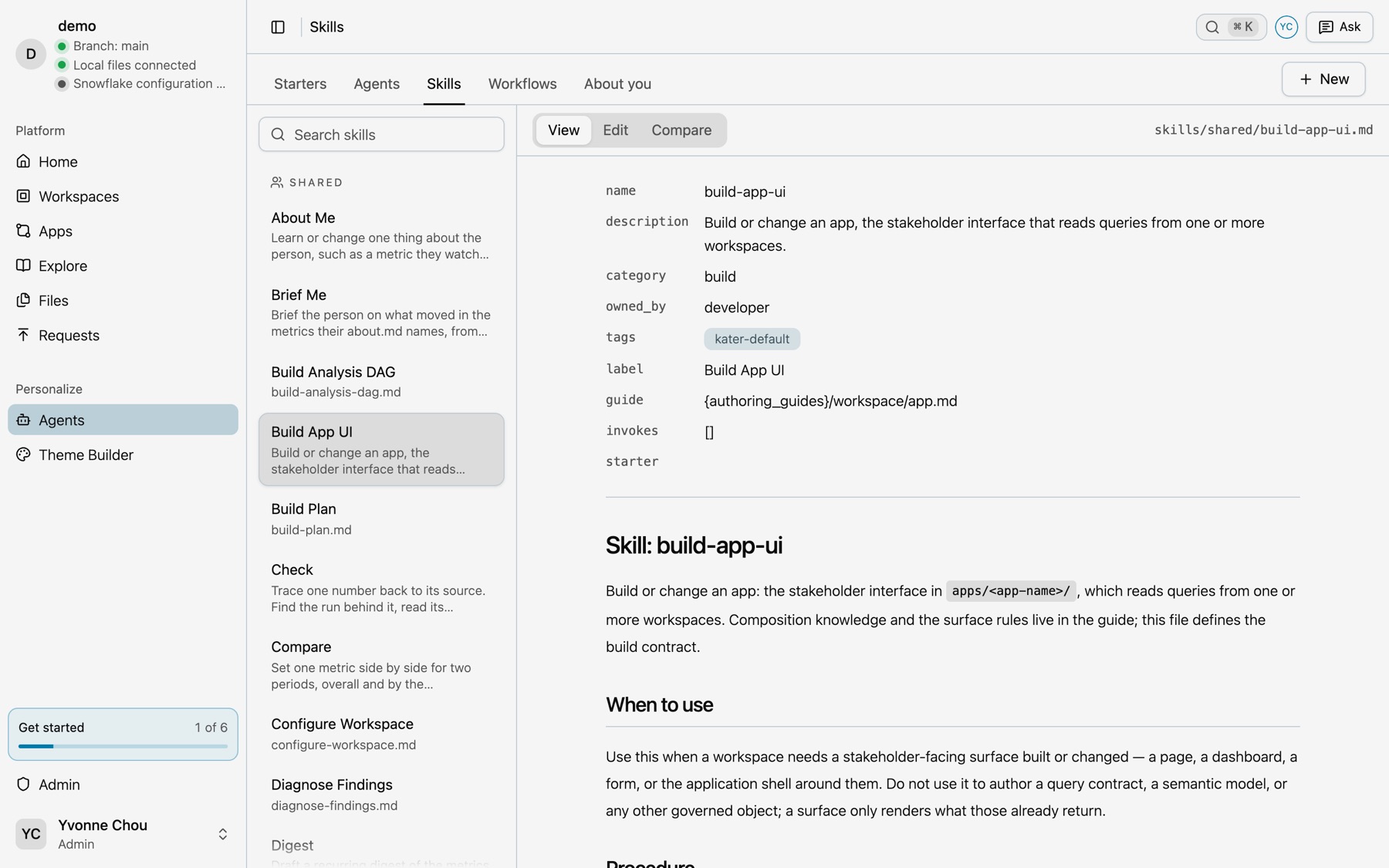
Every starter in your library is also an MCP prompt, so you can start it by name in your agent. In Claude Code, type /mcp__kater__ and the starter’s name.
| Starter | Claude Code prompt |
|---|---|
| Brief me | /mcp__kater__brief-me |
| Tour my data | /mcp__kater__tour |
| Build an app | /mcp__kater__build-app-ui |
| Why did it change? | /mcp__kater__deep-analysis |
Each starter is a skill or workflow under a connection’s ai_tools/, or under your own. Read and edit them in AI Tools › Skills and AI Tools › Workflows. See Starters for the full list.
The rules your agent reads first
Your agent calls kater_start first in every conversation. Most clients do not give an MCP server’s instructions to the model, so Kater puts nothing important there. The result of kater_start holds all that the agent needs:
| Field | What it holds |
|---|---|
audit_thread_id | The ID that every other tool needs. |
rules | Kater’s operating rules. They are the same for every organisation. |
objects | The object index: what a person asks for, the object that answers it, where it lives, and its guide. |
context | The paths of the context files that have content. The agent reads each one with read_file. |
warehouses | Each connection and its warehouse. |
Kater’s rules tell the agent to ground each figure, read the context first, read the guide before it makes an object, use one workspace, try things in brainstorm/ and ask before it changes anything else, search for a measure before it makes one, and compile before it says it is done.
Your own rules
rules.md at the content root holds your organisation’s own rules. When the file has content, context lists it and the agent reads it with read_file. Kater’s rules win on grounding figures and on asking before a change. Your rules win on everything else.
# Our rules
- Call yourself "your data assistant".- Revenue is net of refunds and tax.- Use finance's definition when two sources disagree, and say so.
context also lists these files when they have content:
about.mdat the content root, about the company.connection_context.mdandai_tools/skills/query-authoring.mdof each connection the person can read.- The person’s own
about.mdin each of those connections.
Keep rules.md short
rules.md has no size limit, but your agent follows a short file better. Move detail into connection_context.md or a skill.
Guides and paths
The agent reads a Kater guide with read_file and its vfs://guides/NAME.md path, such as vfs://guides/dashboard.md. The object index names the guide for each object. A path that starts with vfs:// is a file in your content. The guides are in guides/. They are Kater’s, the same for every organisation, and nobody can change them.
Each tool description is at most 2,048 characters, because clients cut it there. The server does not start when a description is longer.
The name your agent shows
The server calls itself Kater, with Kater’s mark, for every organisation. Your agent lists one Kater entry, whichever organisation you sign in to. When two Kater entries are on in one agent, such as two organisations or two stacks, a prompt that Kater writes names the portal it came from, and the agent uses the entry whose kater_start answers that portal. Tool titles name only the action, such as “Run a Command”.
If something looks wrong
- “This Kater has no MCP address set up yet.” Your Kater server has no MCP address. Ask your platform admin.
- The agent’s calls are refused. The agent was disconnected. Select Reconnect in Profile › Agents.
- “Your organisation does not allow Codex with Kater.” Your organisation does not allow that app’s AI provider. Ask an admin to allow it on Admin › MCP. See Set up the Kater MCP.
- The agent cannot see your page. In Profile › Agents, make sure Share my open pages with my agents is on.
- The agent ignores a rule. Check that the rule is in
rules.mdat the content root, and that the agent calledkater_start. Kater’s rules win on grounding figures and on asking before a change.