On this page
- How it works
- Syntax
- Window functions
- The Windows menu
- Examples
- A running total
- A moving average of the last 3 months
- The row before and the row after
- Each region’s top and bottom channel
- The change from the row before
- Rank and Row Number
- Each region’s share of all orders
- Each channel’s share within its region
- A running total of Revenue for each currency
- Where a window cannot go
- A rank filtered in HAVING
- Common errors
Model Fields Custom calculations
Running totals, ranks and windows
Add running totals, moving windows, ranks, row-to-row changes and shares of the total to a query.
A window works out a value for each result row from other rows of the result. The Windows menu adds running totals, moving averages and ranks. It also adds the value from the row before or after, the change from the row before, and shares of the total. In a query, each one is a custom calculation: it reads the query’s result rows, after the query groups them.
How it works
A window has three parts, which SQL writes in its OVER clause:
| Part | What it does | Example |
|---|---|---|
| Partition | The rows start over for each value. Without a partition, the window runs over every result row. | PARTITION BY shop.region |
| Order | The order the window reads the rows in. | ORDER BY shop.order_month ASC |
| Frame | The rows around this row that count. A running total counts from the first row, and a moving average counts the last few rows. | 'running', or 'trailing', 3 |
Syntax
KATER__FUNCTION(EVAL(measure), arguments) OVER (PARTITION BY dimension ORDER BY dimension ASC)| Part | What it does | Example |
|---|---|---|
KATER__FUNCTION | The window function. There is one for each item of the Windows menu. | KATER__WINDOW_AGGREGATION |
EVAL(measure) | The value the window reads: a measure at the query’s grouping, or a dimension. | EVAL(shop.sum__quantity) |
| Arguments | The function’s settings, after the value. | 'sum', 'running' |
PARTITION BY | Optional. The dimensions the window starts over for. | PARTITION BY shop.currency |
ORDER BY | The order. Rank, Row Number and Share of Total take none, because they order the rows themselves or need no order. | ORDER BY shop.order_month ASC |
- Give an order. A running total, a lag, a lead, a delta and a first or last value read the rows in order. Without an order, the warehouse reads them in any order.
- Break ties. When two rows can have the same order value, the order between them can change from run to run. For a row number, a lag or a moving window, add a second key so the order is stable.
RANKkeeps ties on purpose: equal values share a rank. - A frame counts rows, not periods. A trailing window of 3 reads this row and the two rows before it. When a month has no rows, the window reaches one more month back. To compare calendar periods, use a period comparison.
Window functions
| Function | Menu item | Gives | Format it gets |
|---|---|---|---|
KATER__WINDOW_AGGREGATION(x, 'function', 'running') | Window Aggregation | A running count, count_distinct, min, max, sum or avg, from the first row to this row | number(0) for a count, else the field’s format |
KATER__WINDOW_AGGREGATION(x, 'function', 'trailing', size) | Window Aggregation | The same over this row and the size - 1 rows before it. With no size, it is 3. | The same |
KATER__LAG(x, offset) | Lag | The value offset rows before this row. With no offset, it is 1. | The field’s format |
KATER__LEAD(x, offset) | Lead | The value offset rows after this row | The field’s format |
KATER__FIRST_VALUE(x) | First Value | The first value of the partition, in the window’s order | The field’s format |
KATER__LAST_VALUE(x) | Last Value | The last value of the partition, in the window’s order | The field’s format |
KATER__DELTA(x) | Delta | This value minus the value in the row before | The field’s format |
KATER__PERCENT_DELTA(x) | Percent Delta | The change from the row before, divided by the absolute value of the row before | percent(1) |
KATER__RANK(x, 'desc') | Rank | The position from the highest, 'desc', or from the lowest, 'asc'. Equal values share a rank. | number(0) |
KATER__ROW_NUMBER(x, 'desc') | Row Number | The position 1, 2, 3, with no shared positions | number(0) |
KATER__SHARE_OF_TOTAL(x) | Share of Total | The value divided by the sum of the values in its partition | percent(1) |
- Rank, Row Number and Share of Total take only a partition. Write
OVER ()orOVER (PARTITION BY …). The others take anORDER BYand an optionalPARTITION BY. - The menu writes the format. “The field’s format” is the format of the field the window reads. A field with no format gets
number(2)for an average, or for a value that is not a whole number, and no format otherwise. Acurrency(currency, 2)becomesnumber(2)when the SELECT has no Currency dimension. See Formats, descriptions and AI context. - The menu names the field. A window gets a name from its function and its field, such as
running_sum__sum__quantity, and a label such as “Units (Running Sum)”.
The Windows menu
Right-click a field in the field list, or on its column, and open Windows. A number offers Window Aggregation, Lag, Lead, Delta, Percent Delta, Rank, Row Number and Share of Total. A text or a date offers Lag, Lead, First Value and Last Value.
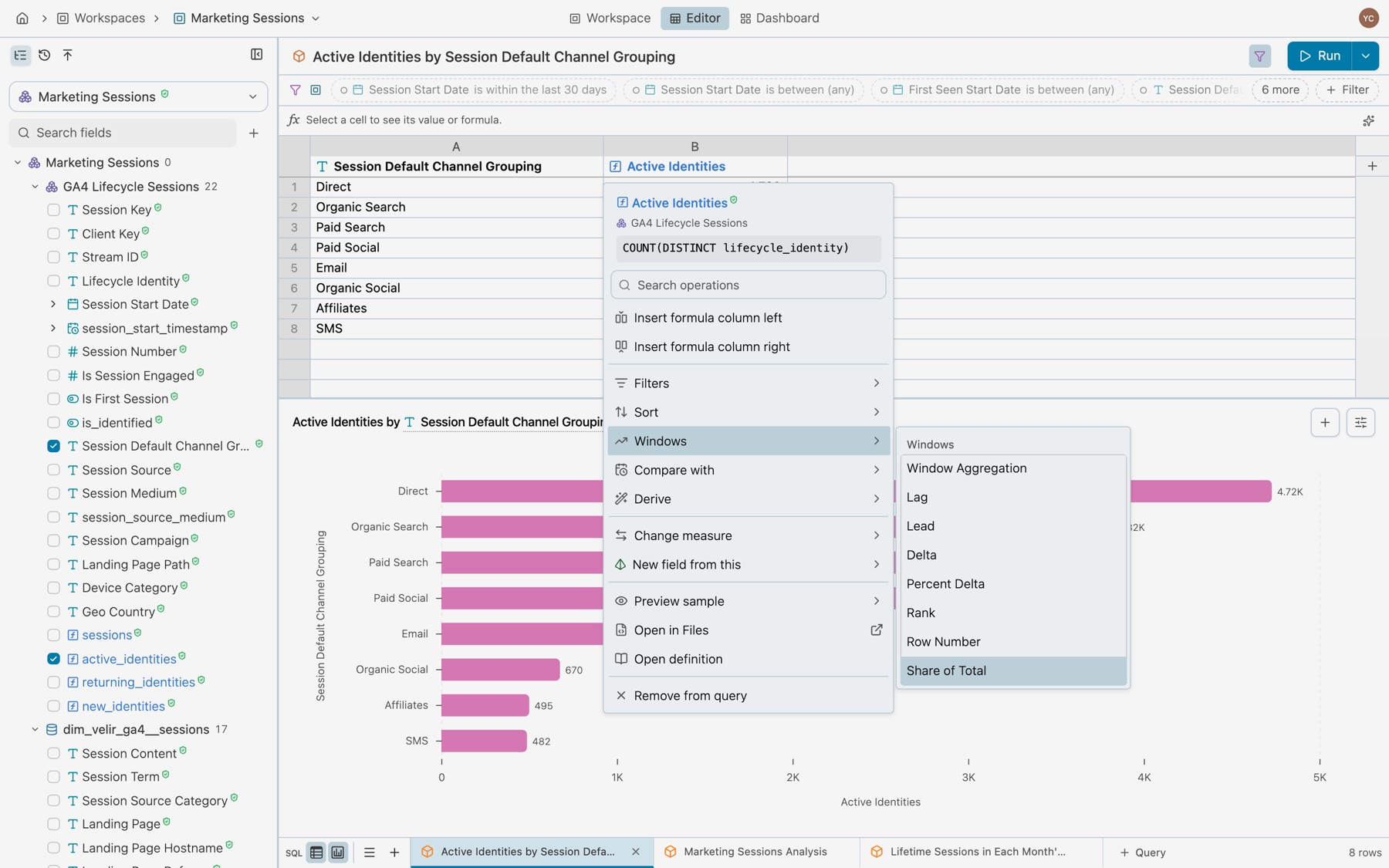
Each item opens the New calculation dialog, filled in. Turn it into names the window in plain words, such as Running total or Moving average. Under Settings, Along is the window’s order and Start over for each is its partition. For Share of Total, the partition is Out of the total for each. For Rank and Row Number, it is Rank within each. Select Create calculation to add the field to the query.
- Start over for each starts filled in. The dialog fills it with the query’s other dimensions, but not its dates. So a running total of Revenue by month and currency starts over for each currency. Empty it for one window across every row.
- Any window can be written by hand. Plain SQL such as
SUM(EVAL(shop.sum__quantity)) OVER (ORDER BY shop.order_month ROWS BETWEEN UNBOUNDED PRECEDING AND CURRENT ROW)is a custom calculation too. When it means the same as one of the functions above, its menu reopens it in that function’s form, here Window Aggregation. Without theROWSframe, SQL’s default frame is not the same, so it does not reopen.
Examples
A running total
How many units has the shop sold so far, month by month?
- In a query grouped by Order Month, right-click Units.
- Select Windows › Window Aggregation.
- Under Turn it into, select Running total. Check that Along is Order Month.
- Select Create calculation.
SELECT shop.order_month, EVAL(shop.sum__quantity), CUSTOM_CALCULATION( 'running_sum__sum__quantity', KATER__WINDOW_AGGREGATION(EVAL(shop.sum__quantity), 'sum', 'running') OVER (ORDER BY shop.order_month ASC) ) AS "Units (Running Sum)"FROM workspace.shop AS shopGROUP BY shop.order_monthORDER BY 1| Order Month | Units | Units (Running Sum) |
|---|---|---|
| 2025-01-01 | 455 | 455 |
| 2025-02-01 | 501 | 956 |
| 2025-03-01 | 406 | 1,362 |
| 2025-04-01 | 476 | 1,838 |
| 2025-05-01 | 442 | 2,280 |
The first 5 of 21 rows. Each row adds its month’s units to the total of the rows before it: 455 + 501 = 956. The last row, September 2026, reads 9,154, all the units the shop sold.
The shop’s monthly_revenue query declares its running total with CUSTOM_CALCULATION, as the menu does. A window declared with DIMENSION is published as a custom calculation anyway, with the warning custom_calculation_declared_as_dimension.
A moving average of the last 3 months
What is the average of this month’s units and the two months before?
- Right-click Units.
- Select Windows › Window Aggregation.
- Under Turn it into, select Moving average. It averages 3 rows unless you change it under Settings.
- Select Create calculation.
SELECT shop.order_month, EVAL(shop.sum__quantity), CUSTOM_CALCULATION( 'trailing_3_avg__sum__quantity', KATER__WINDOW_AGGREGATION(EVAL(shop.sum__quantity), 'avg', 'trailing', 3) OVER (ORDER BY shop.order_month ASC) ) AS "Units (Trailing 3 Average)" /* @format number(2) */FROM workspace.shop AS shopGROUP BY shop.order_monthORDER BY 1| Order Month | Units | Units (Trailing 3 Average) |
|---|---|---|
| 2025-01-01 | 455 | 455.00 |
| 2025-02-01 | 501 | 478.00 |
| 2025-03-01 | 406 | 454.00 |
| 2025-04-01 | 476 | 461.00 |
| 2025-05-01 | 442 | 441.33 |
The first 5 of 21 rows. The first two rows have fewer rows before them, so they average fewer months: (455 + 501) / 2 = 478 for February. From March on, each row averages three months: (501 + 406 + 476) / 3 = 461 for April. Units has no format, so the average gets number(2).
The row before and the row after
What were last month’s orders, and next month’s, beside this month’s?
- Right-click Orders.
- Select Windows › Lag. Under Turn it into, it is Value from the row before.
- Select Create calculation.
- Do the same with Windows › Lead, Value from the row after.
SELECT shop.order_month, EVAL(shop.count_distinct__order_id), CUSTOM_CALCULATION( 'lag__count_distinct__order_id', KATER__LAG(EVAL(shop.count_distinct__order_id)) OVER (ORDER BY shop.order_month ASC) ) AS "Orders (Lag)", CUSTOM_CALCULATION( 'lead__count_distinct__order_id', KATER__LEAD(EVAL(shop.count_distinct__order_id)) OVER (ORDER BY shop.order_month ASC) ) AS "Orders (Lead)"FROM workspace.shop AS shopGROUP BY shop.order_monthORDER BY 1| Order Month | Orders | Orders (Lag) | Orders (Lead) |
|---|---|---|---|
| 2025-01-01 | 141 | null | 155 |
| 2025-02-01 | 155 | 141 | 133 |
| 2025-03-01 | 133 | 155 | 152 |
| 2025-04-01 | 152 | 133 | 143 |
| 2025-05-01 | 143 | 152 | 150 |
The first 5 of 21 rows. January 2025 has no row before it, so its lag is null. In the same way, the last row, September 2026, has no row after it, and its lead is null. KATER__LAG(x, 12) reads 12 rows back.
A lag reads the row before, not the month before. When a month has no rows, the row before is an earlier month, and the lag reads it as if it were last month. A period comparison reads the calendar month before, and it stays empty when that month has no rows. See Missing periods.
Each region’s top and bottom channel
Which channel brings each region the most orders, and which the fewest? First Value and Last Value read a text or a date, so this window reads Channel, in the order of Orders.
SELECT shop.region, shop.channel, EVAL(shop.count_distinct__order_id), CUSTOM_CALCULATION( 'first_value__channel', KATER__FIRST_VALUE(shop.channel) OVER (PARTITION BY shop.region ORDER BY EVAL(shop.count_distinct__order_id) DESC) ) AS "Channel (First Value)", CUSTOM_CALCULATION( 'last_value__channel', KATER__LAST_VALUE(shop.channel) OVER (PARTITION BY shop.region ORDER BY EVAL(shop.count_distinct__order_id) DESC) ) AS "Channel (Last Value)"FROM workspace.shop AS shopWHERE shop.region IN ('APAC', 'LATAM')GROUP BY shop.region, shop.channelORDER BY 1, 3 DESC| Region | Channel | Orders | Channel (First Value) | Channel (Last Value) |
|---|---|---|---|---|
| APAC | 178 | paid | ||
| APAC | store | 174 | paid | |
| APAC | web | 170 | paid | |
| APAC | paid | 149 | paid | |
| LATAM | paid | 201 | paid | web |
| LATAM | store | 199 | paid | web |
| LATAM | 186 | paid | web | |
| LATAM | web | 174 | paid | web |
The window starts over for each region and reads its channels from the most orders to the fewest. In APAC, email comes first and paid comes last. Last Value reads the whole partition, not only the rows up to this row, so every row of a region shows the same value.
The change from the row before
How many more orders did each month have than the month before, and by what percent?
- Right-click Orders.
- Select Windows › Delta. Under Turn it into, it is Change from the row before.
- Select Create calculation.
- Do the same with Windows › Percent Delta, % change from the row before.
SELECT shop.order_month, EVAL(shop.count_distinct__order_id), CUSTOM_CALCULATION( 'delta__count_distinct__order_id', KATER__DELTA(EVAL(shop.count_distinct__order_id)) OVER (ORDER BY shop.order_month ASC) ) AS "Orders (Delta)", CUSTOM_CALCULATION( 'percent_delta__count_distinct__order_id', KATER__PERCENT_DELTA(EVAL(shop.count_distinct__order_id)) OVER (ORDER BY shop.order_month ASC) ) AS "Orders (Percent Delta)" /* @format percent(1) */FROM workspace.shop AS shopGROUP BY shop.order_monthORDER BY 1| Order Month | Orders | Orders (Delta) | Orders (Percent Delta) |
|---|---|---|---|
| 2025-01-01 | 141 | null | null |
| 2025-02-01 | 155 | 14 | 9.9% |
| 2025-03-01 | 133 | -22 | -14.2% |
| 2025-04-01 | 152 | 19 | 14.3% |
| 2025-05-01 | 143 | -9 | -5.9% |
The first 5 of 21 rows. February had 14 more orders than January, and 14 / 141 = 9.9%. January has no row before it, so both values are null. Percent Delta divides by the absolute value of the row before, so a rise from a negative value is positive. A row before that is 0 or null gives null. Percent Delta is a fraction, so never multiply it by 100: percent(1) shows 0.099 as 9.9%.
Rank and Row Number
How do the channels rank by orders in September 2026?
- Right-click Orders.
- Select Windows › Rank. Under Settings, #1 is the is Biggest.
- Select Create calculation.
- Do the same with Windows › Row Number.
SELECT shop.channel, EVAL(shop.count_distinct__order_id), CUSTOM_CALCULATION( 'rank__count_distinct__order_id', KATER__RANK(EVAL(shop.count_distinct__order_id), 'desc') OVER () ) AS "Orders (Rank)", /* @format number(0) */ CUSTOM_CALCULATION( 'row_number__count_distinct__order_id', KATER__ROW_NUMBER(EVAL(shop.count_distinct__order_id), 'desc') OVER () ) AS "Orders (Row Number)" /* @format number(0) */FROM workspace.shop AS shopWHERE shop.order_date BETWEEN '2026-09-01' AND '2026-09-30'GROUP BY shop.channelORDER BY 3, 4| Channel | Orders | Orders (Rank) | Orders (Row Number) |
|---|---|---|---|
| paid | 40 | 1 | 1 |
| web | 33 | 2 | 2 |
| 33 | 2 | 3 | |
| store | 31 | 4 | 4 |
Web and email both have 33 orders. RANK gives both of them 2, and the next channel gets 4. ROW_NUMBER gives them 2 and 3, in an order the warehouse sets, so the two can change places from run to run. For a stable order, write the row number in plain SQL with a second key, such as ROW_NUMBER() OVER (ORDER BY EVAL(shop.count_distinct__order_id) DESC, shop.channel).
Each region’s share of all orders
What share of the shop’s orders does each region have?
- Right-click Orders.
- Select Windows › Share of Total.
- Leave Out of the total for each empty, for one total across every row.
- Select Create calculation.
SELECT shop.region, EVAL(shop.count_distinct__order_id), CUSTOM_CALCULATION( 'share_of_total__count_distinct__order_id', KATER__SHARE_OF_TOTAL(EVAL(shop.count_distinct__order_id)) OVER () ) AS "Orders (Share of Total)" /* @format percent(1) */FROM workspace.shop AS shopGROUP BY shop.regionORDER BY 2 DESC| Region | Orders | Orders (Share of Total) |
|---|---|---|
| EMEA | 777 | 25.9% |
| LATAM | 760 | 25.3% |
| AMER | 728 | 24.3% |
| APAC | 671 | 22.4% |
| null | 64 | 2.1% |
Each row’s orders are divided by the sum of the five rows, 3,000 orders. EMEA has 777 / 3,000 = 25.9%. A share of a sum or a count can become a measure. Orders is a distinct count, so this one stays a custom calculation. See Convert to a measure.
Each channel’s share within its region
What share of each region’s orders comes from each channel? A partition makes each region’s channels add up to 100% on their own.
- In a query grouped by Region and Channel, right-click Orders.
- Select Windows › Share of Total.
- Set Out of the total for each to Region.
- Select Create calculation.
SELECT shop.region, shop.channel, EVAL(shop.count_distinct__order_id), CUSTOM_CALCULATION( 'share_of_total__count_distinct__order_id', KATER__SHARE_OF_TOTAL(EVAL(shop.count_distinct__order_id)) OVER (PARTITION BY shop.region) ) AS "Orders (Share of Total)" /* @format percent(1) */FROM workspace.shop AS shopWHERE shop.region IN ('AMER', 'EMEA')GROUP BY shop.region, shop.channelORDER BY 1, 3 DESC| Region | Channel | Orders | Orders (Share of Total) |
|---|---|---|---|
| AMER | paid | 197 | 27.1% |
| AMER | 191 | 26.2% | |
| AMER | store | 180 | 24.7% |
| AMER | web | 160 | 22.0% |
| EMEA | paid | 204 | 26.3% |
| EMEA | 202 | 26.0% | |
| EMEA | store | 186 | 23.9% |
| EMEA | web | 185 | 23.8% |
AMER has 728 orders, so paid has 197 / 728 = 27.1%. The WHERE keeps two regions so the result fits here. WHERE runs before the window, so the window sees only the rows the query keeps.
A running total of Revenue for each currency
Revenue cannot be added up across currencies. See Measures you cannot add up. So a running total of Revenue must start over for each currency.
- In a query grouped by Order Month and Currency, right-click Revenue.
- Select Windows › Window Aggregation, and under Turn it into, select Running total.
- Check that Start over for each holds Currency. The dialog puts it there.
- Select Create calculation.
SELECT KATER__MONTH(shop.order_date) AS "Order Month", shop.currency, EVAL(shop.sum__amount), CUSTOM_CALCULATION( 'running_sum__sum__amount', KATER__WINDOW_AGGREGATION(EVAL(shop.sum__amount), 'sum', 'running') OVER (PARTITION BY shop.currency ORDER BY KATER__MONTH(shop.order_date) ASC) ) AS "Revenue (Running Sum)" /* @format currency(currency, 2) */FROM workspace.shop AS shopGROUP BY KATER__MONTH(shop.order_date), shop.currencyORDER BY 2, 1| Order Month | Currency | Revenue | Revenue (Running Sum) |
|---|---|---|---|
| 2025-01-01 | EUR | €4,961.67 | €4,961.67 |
| 2025-02-01 | EUR | €4,727.40 | €9,689.07 |
| 2026-09-01 | EUR | €5,353.49 | €84,371.35 |
| 2025-01-01 | USD | $16,445.68 | $16,445.68 |
| 2025-02-01 | USD | $17,070.42 | $33,516.10 |
| 2026-09-01 | USD | $17,693.37 | $370,665.44 |
Six of the 42 rows. The euro total ends at €84,371.35, all of EMEA’s euro revenue. The dollar total ends at $370,665.44, the dollar revenue of every region. Without PARTITION BY shop.currency, the compiler refuses the query with not_additive_across: “Revenue cannot be added up across Currency, so a total of it along the rows has to start over for each Currency. Add Currency to Start over for each (its PARTITION BY), or filter Currency to one value.”
Where a window cannot go
WHERE, GROUP BY, HAVING and JOIN conditions run before the windows. So a window cannot be in them, and they cannot read a field of the same SELECT that runs a window.
| Clause | A window in it | A field of the same SELECT that runs a window | Write instead |
|---|---|---|---|
| WHERE | invalid_window_placement | sibling_not_visible_at_stage | Filter it in QUALIFY, or compute the window in a CTE and use its column. |
| GROUP BY | invalid_window_placement | invalid_grouping_field | Compute the window in a CTE and group by its column. |
| HAVING | invalid_window_placement | sibling_not_visible_at_stage | Filter it in QUALIFY. |
| A JOIN condition | invalid_window_placement | sibling_not_visible_at_stage | Compute the window in a CTE and join on its column. |
A rank filtered in HAVING
This query tries to keep the top three regions in HAVING:
SELECT shop.region, EVAL(shop.count_distinct__order_id), CUSTOM_CALCULATION( 'rank__count_distinct__order_id', KATER__RANK(EVAL(shop.count_distinct__order_id), 'desc') OVER () ) AS "Orders (Rank)" /* @format number(0) */FROM workspace.shop AS shopGROUP BY shop.regionHAVING rank__count_distinct__order_id <= 3The compiler refuses it with sibling_not_visible_at_stage: “HAVING can’t use ‘rank__count_distinct__order_id’, a field declared in this SELECT, because its window is computed after HAVING. Filter on it in QUALIFY instead.” QUALIFY runs after the window. Filters › Is At Most on the rank writes it there for you. See Regions whose rank is at most 3.
Common errors
| Code | Cause | Fix |
|---|---|---|
invalid_window_placement | A window in WHERE, GROUP BY, HAVING or a JOIN condition. | Filter it in QUALIFY, or compute it in a CTE first. |
sibling_not_visible_at_stage | WHERE or HAVING reads a field of the same SELECT that runs a window. | Filter it in QUALIFY. |
invalid_grouping_field | GROUP BY reads a field of the same SELECT that runs a window. | Compute the window in a CTE and group by its column. |
not_additive_across | A running total or a share of a measure such as Revenue runs across currencies. | Add Currency to Start over for each or Out of the total for each, its PARTITION BY. Or filter it to one value. |
measure_over_window | MEASURE over a window. | Declare it with CUSTOM_CALCULATION. See Wrappers. |
custom_calculation_declared_as_dimension | Warning. A DIMENSION over a window in a query. | Apply the fix Declare with CUSTOM_CALCULATION. |