AI
Make it yours
Write your own commands, agents and workflows, change the shared ones, and work on the files in your own editor.
The agents, skills and workflows Kater ships are a place to start. Your team knows its own work better than any default does. Make the defaults fit your team, add your own, and teach your agent as you go.
Ways to make it better
| You want to | Do this | Who sees it |
|---|---|---|
| Teach your agent about you | Tell it, or fill in About you | You |
| Run a task you do every week by name | Make your own command | You |
| Change how a shared skill or workflow works | Edit it on AI Tools | Everyone on the connection |
| Add a role with its own rules | Add an agent | You, or everyone when it is in the shared folder |
| Run a workflow on its own, every Monday | Add a schedule: block. See Scheduled workflows. | You |
| Teach every agent a business term | Add it to connection_context.md | Everyone on the connection |
Your own library
Your own agents, skills and workflows live in your own folder:
connections/<connection>/users/<you>/ai_tools/ agents/ skills/ workflows/- They are yours alone. Nobody else sees them, and nobody else’s agent runs them.
- They show first. On AI Tools, each list has a Personal part above the Shared part. Your own starters show under Yours on AI Tools › Starters.
- Yours wins. When your starter has the same name as a shared one, your agent gets yours. Copy a shared skill to your folder to try a change on yourself first.
- They reach your agent at once. A new starter shows in your agent as a prompt as soon as it is written, with no reconnect.
Make your own command
The quickest way is to ask. Run the Make your own command starter, /new-skill, and describe what you want: “Help me make my own command that briefs me on paid media by platform.” Your agent asks what it needs, writes the skill in your folder, and tells you its name.
To write it yourself:
-
Start it.
On AI Tools › Skills, select New. Give it a name, such as “Weekly ROAS by platform”. Kater shows the file it makes,
weekly-roas-by-platform.md, in your own folder. -
Create it, or let your agent write it.
Select Create to open the new file in the editor. Select Do it automatically to open the Ask panel and have your agent write it with you.
-
Write the procedure.
The new file has a
name, alabeland an emptydescription. In Edit, write the description, which says when to use it, and the steps it follows. Add astarter:block to start it by name. See What is in a skill. -
Use it.
Run
/weekly-roas-by-platform, or select it under Yours on the Starters tab.
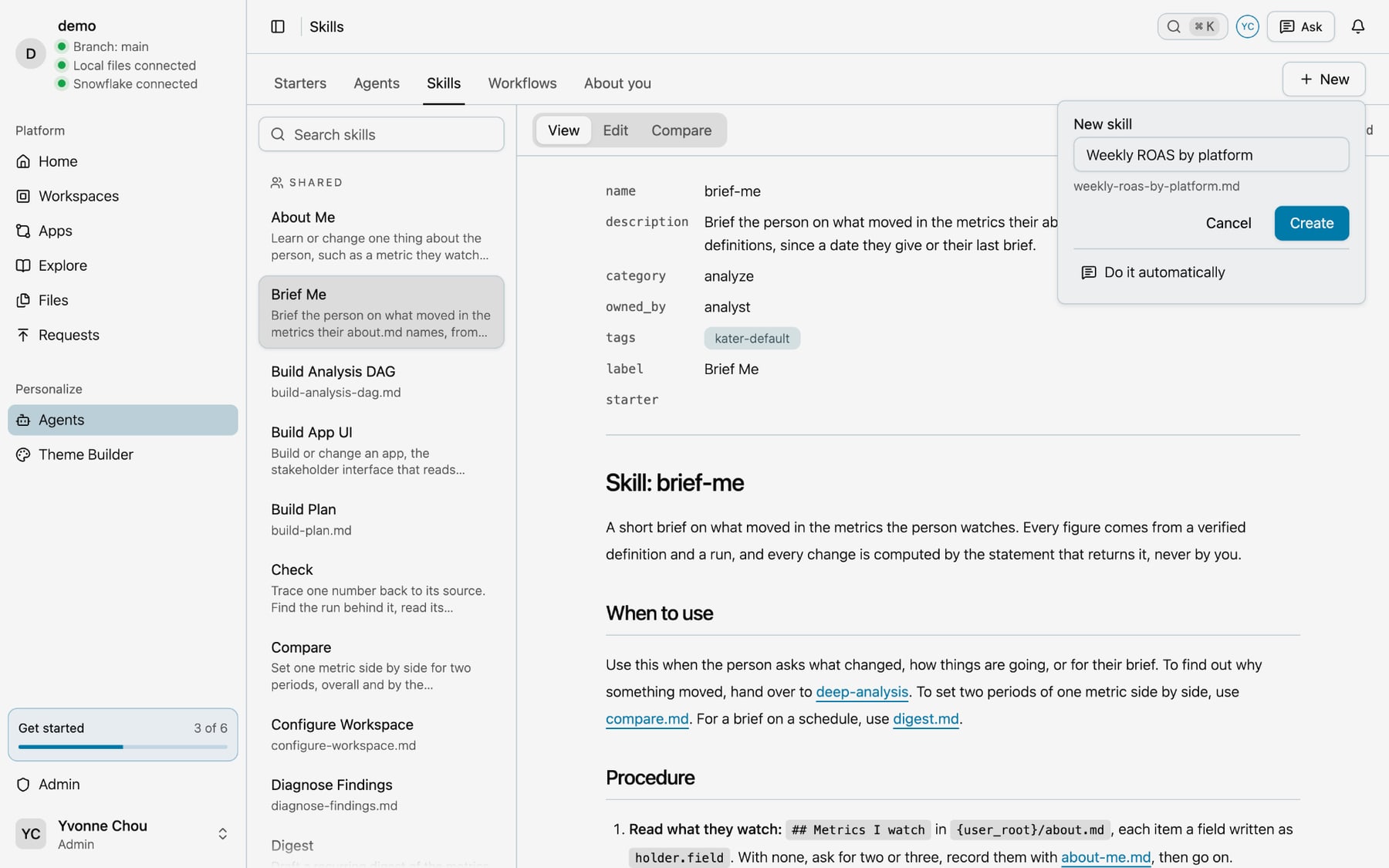
New on the Agents and Workflows tabs works the same way. Each new file goes in your own folder.
Change a shared one
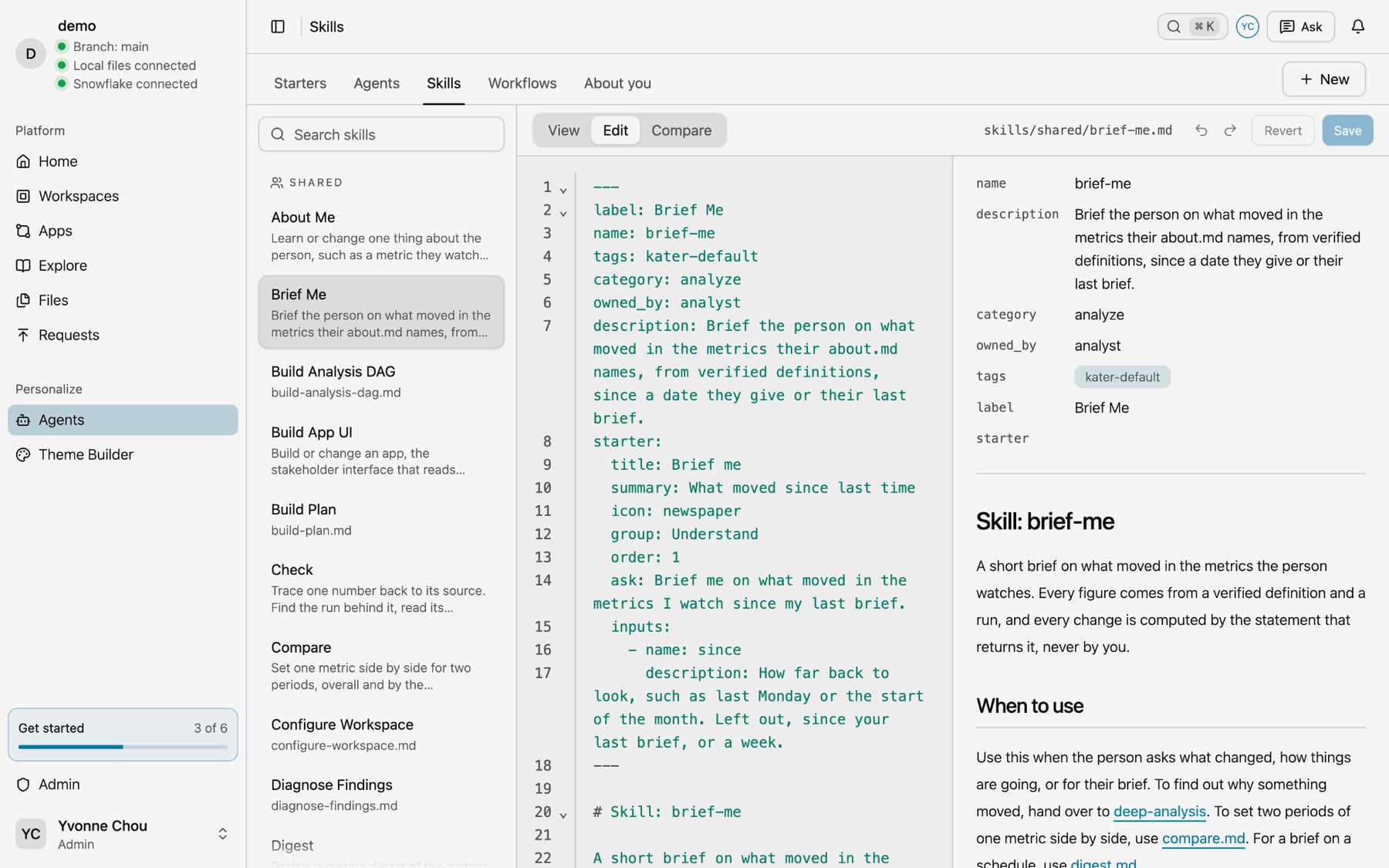
Open any agent, skill or workflow on AI Tools, and select Edit. The source is on the left and how it reads is on the right. Select Save to keep the change, or Revert to drop it. Compare shows your change beside the saved file.
- You need edit access. Edit shows only when your grants let you change the file. Kater checks again when you save. The data team usually holds edit access to the connection’s
ai_tools/folder. See Access. - Nobody’s change is lost. When someone else saved the file after you opened it, Kater keeps your draft and opens Compare, so you can see both before you save.
- A shared change reaches everyone. Every person’s agent follows the shared file. Try a change in your own folder first, under the same name, and move it to the shared folder when it works.
The Kater defaults are yours
Each file Kater ships has the tag kater-default, which shows as a badge on AI Tools. The tag says where the file came from. It does not lock it.
- Your changes stay. Kater never writes over a file that is already there, a default or not.
- New defaults come in when you ask. When a newer Kater ships a file your connection does not have,
kater admin connection scaffold <connection>adds it. It adds only what is missing, and--dry-runshows what it would add first. - A default you change does not update. Kater does not merge a newer version into a file you changed. Compare it with the newer version yourself when you want to.
Work in files
Everything on AI Tools is a Markdown file in your content. You can also work on the files in your own editor:
kater git clone # a local copy of what you can read, in ./katerkater library list --kind skills # every skill you can use, shared and your own# change or add files under ai_tools/ in your editorkater git push # publish your changeskater library list shows each file’s name, path and description, and marks your own as yours. Add --json for a script. Add --connection for one connection, and --kind agents, skills or workflows for one kind.
Write a good one
- Say when to use it in the description. Your agent reads the description to pick a skill, so start with the request it answers.
- One task for each skill. When a task has steps that need different roles, make it a workflow.
- Number the steps. Your agent follows them in order. Say where each result goes.
- Say when to stop. A “Stop conditions” section keeps your agent from guessing when something is missing.
- Name its inputs. For each input, say what happens when it is left out, such as “Left out, the last full week”. Then your agent asks only for what it cannot work out.
- Point to a guide, do not copy it. Write “Follow
vfs://guides/app.md” instead of its rules, so your skill stays right when the guide changes. - Keep work in the brainstorm folder. Have it draft there, and ask before it changes anything else.
- End with a next step. Point to the next starter, such as
/deep-analysisafter a brief.
Next steps
- Skills and workflows, what goes in each file
- Scheduled workflows, to run your own workflow on a schedule
- The Library, the starters and scheduled workflows Kater ships