Analyze More ways in
Explore
Start an analysis from a shared model's ready-made cards, then take the ones you want into a workspace.
Explore turns a shared model into a board of ready-made answers: headline figures, trends, leaders and patterns. Look through the cards, follow their next questions, and add the ones you want to a workspace, where you can keep building.
| If you want to… | Use |
|---|---|
| See what a model can answer, fast | Explore › Cards |
| Answer one business question step by step | Explore › Use Cases |
| Keep a card and change its query | Add to workspace |
| Try SQL on a card’s query | Open it in the Sandbox |
Read a model’s cards
-
Open Explore.
Select Explore in the sidebar. Workspaces › Make something new › Explore and New workspace open it too.
-
Select a model.
Open the Model picker, search, and select a model. Explore lists only shared models, and the board shows a Shared layer badge.
-
Read the cards.
Cards come in four sections: Headlines, Trends, Drivers and Patterns. Each card is a live chart over the model.
-
Follow a card’s next questions.
Open a card. Under Next questions, select Find next questions, and later Generate new questions, for follow-ups that fit its results.
What the cards answer
| Section | Card | Question it answers | Example |
|---|---|---|---|
| Headlines | Headline | The latest period against the one before | Conversions last month against the month before |
| Trends | Trend | How is a measure moving? | How is spend moving, by week? |
| Trends | Running total | How is a measure adding up? | How is spend adding up this quarter? |
| Drivers | Leaders | Which categories lead on a measure? | Which campaigns lead on conversions? |
| Drivers | Mix | What share comes from each category? | What share of spend comes from each platform? |
| Drivers | Side by side | A measure and related measures by category | Spend and conversion value by platform |
| Patterns | Segments | A measure for a segment and the rest, over time | Sessions for engaged and not, over time |
| Patterns | Rhythm | Which weekday is busiest? | Which weekday is busiest for purchases? |
| Patterns | Cohorts | How does each cohort hold up? | How do return visits hold up for each first-seen month? |
| Patterns | Details | The rows themselves | Show me the rows of Ad Reporting |
Answer a question with Use Cases
-
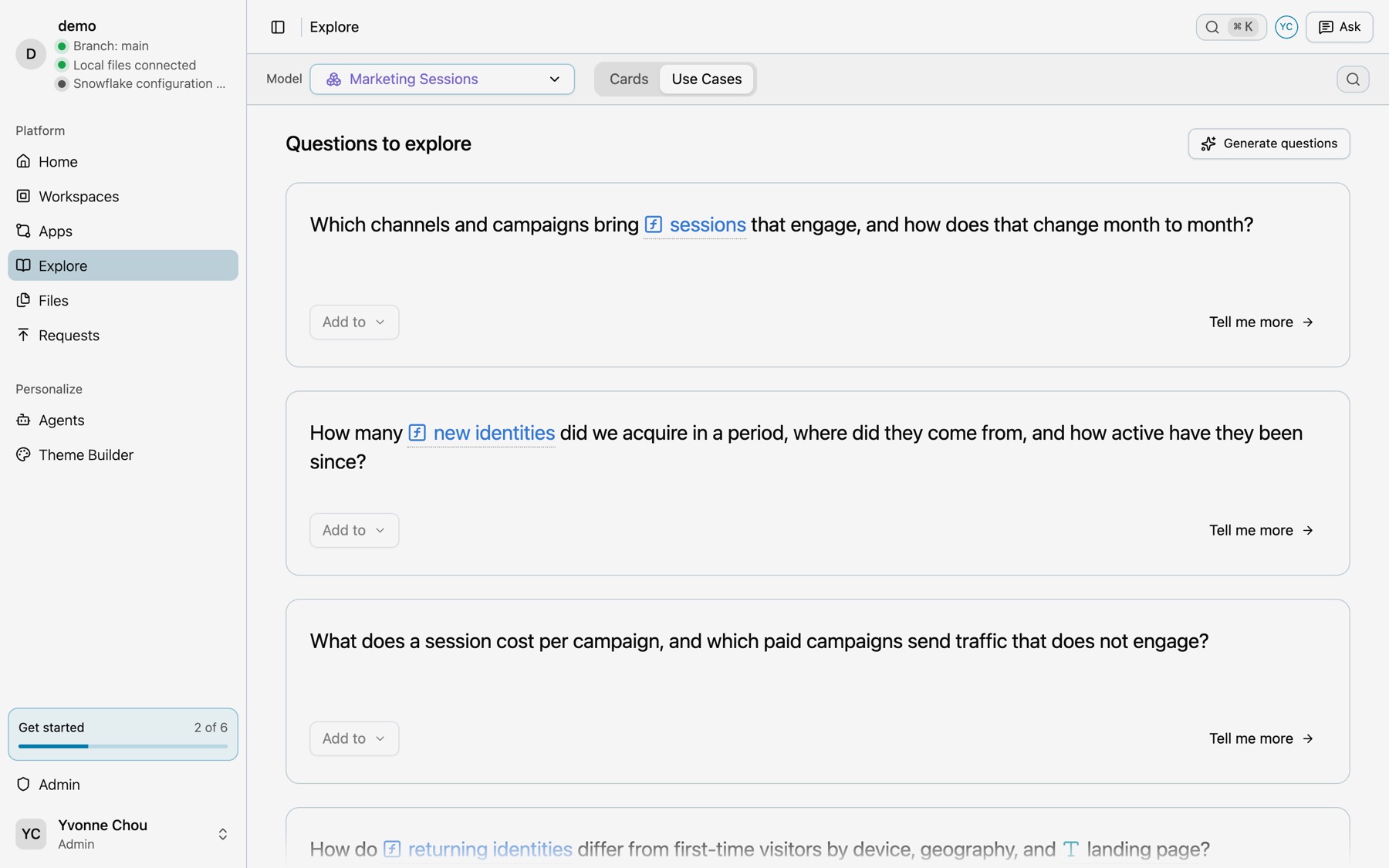
Open Use Cases.
Select the Use Cases tab. Use Search use cases to find use cases by question, or select Generate questions.
-
Plan a question.
Select a question. If it has no plan yet, select Plan this question. Kater selects the cards that answer it and checks their queries.
-
Work through the steps.
Each step has its queries, Refresh query, What the results show and Next questions. Select Add this query to keep a step’s query.
Add cards to a workspace
-
Select cards.
Select the cards you want to keep.
-
Select Add N Cards to Workspace.
The Add to workspace dialog lists each query with its state: Selected query, Required query or Already in workspace. Kater adds any supporting queries a card needs and reuses queries already there.
-
Select Confirm.
The cards become ordinary queries and charts in the workspace. Build on them in the editor. See Workspaces and queries.
Arrange the board
Select Edit to arrange the board. Add a New chart, select Keep on Explore to keep a card, or Remove from Explore to take one off. Changing the board needs edit access to the model’s Explore page.
Explore is one-way
Explore hands the shared layer into workspaces. Nothing flows back: a workspace’s queries never show on Explore, and Explore keeps no links to the workspaces that used its cards.
From the CLI or your agent
Ask your agent for the Tour my data starter, or use the CLI: kater explore tour lists a model’s cards, and kater explore card open opens a card’s query in the Sandbox.