Apps
Build an app with your agent
Describe the app you want, review the draft your agent builds, then refine it in the Toolkit.
See the Library for examples.
Build it
-
Open New app.
Select New app on Apps, or New › App on Home. The dialog opens on Prompt AI.
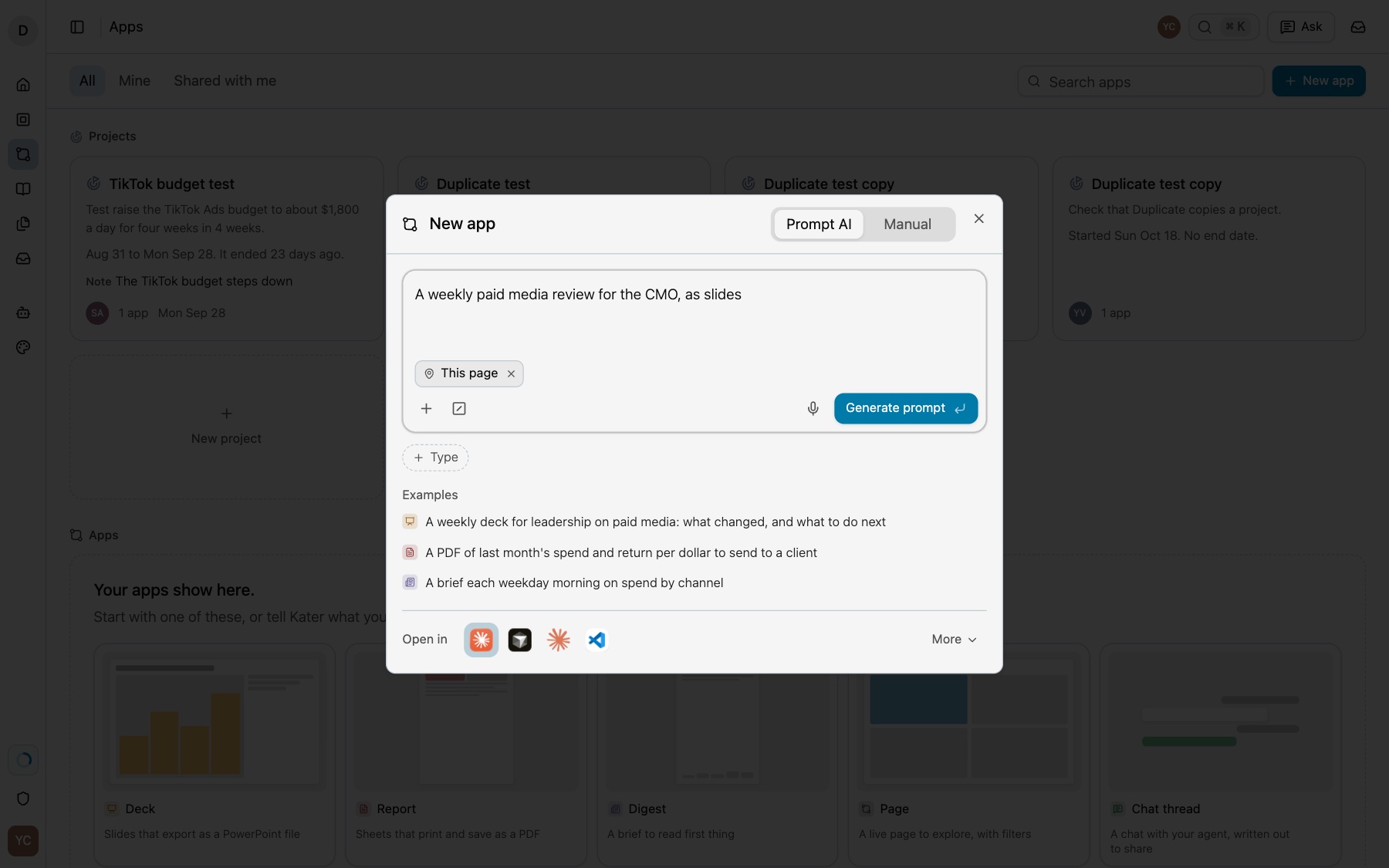
New app, Prompt AI tab. -
Describe the app.
Say what it shows, who reads it and which period. “Write a good app prompt” below shows how. Then select Generate prompt.
-
Open the prompt in your agent.
Under Open in, select your agent. Your app from Profile › AI app comes first, and your provider’s other apps show as icons. The other apps your organisation allows, and claude.ai, are under More. Kater copies the prompt first and fills it in, and the prompt tells the agent to use the
build-app-uiskill.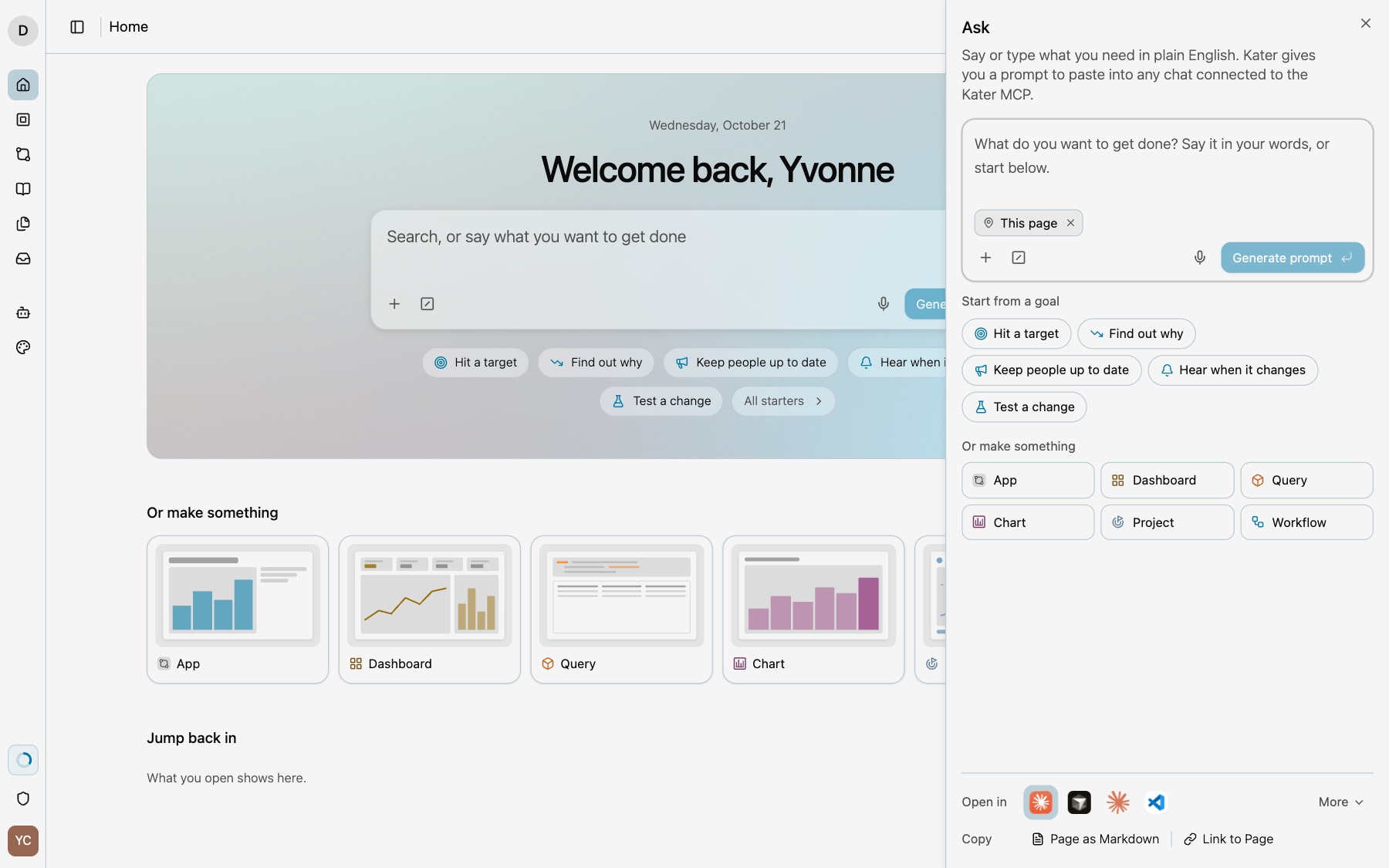
Ask writes the prompt. Your agent does the work. -
Let the agent draft.
The agent reads the app guide, selects the workspaces, and writes a draft in
brainstorm/<topic>/apps/<name>/. A query no workspace has yet is tried in a workspace copy. Nothing outside your brainstorm folder changes. -
Review the draft.
The agent shows the draft in the chat, or gives you its page in Kater. Ask for changes until it reads right.
-
Say yes to keep it.
After your yes, the agent moves the app to
users/<email>/apps/<name>/. In Kater, you can select Move to my apps on the draft’s page.
What stops a move
Every query must resolve and compile, and every tag must fit its query and read no sample rows. Each problem names its page and line. Nothing moves until every check passes.
Start from a workspace instead
On the Manual tab, select a workspace, fill in App label, App name and Description, and select Create. Kater writes a starter page for your agent to fill.
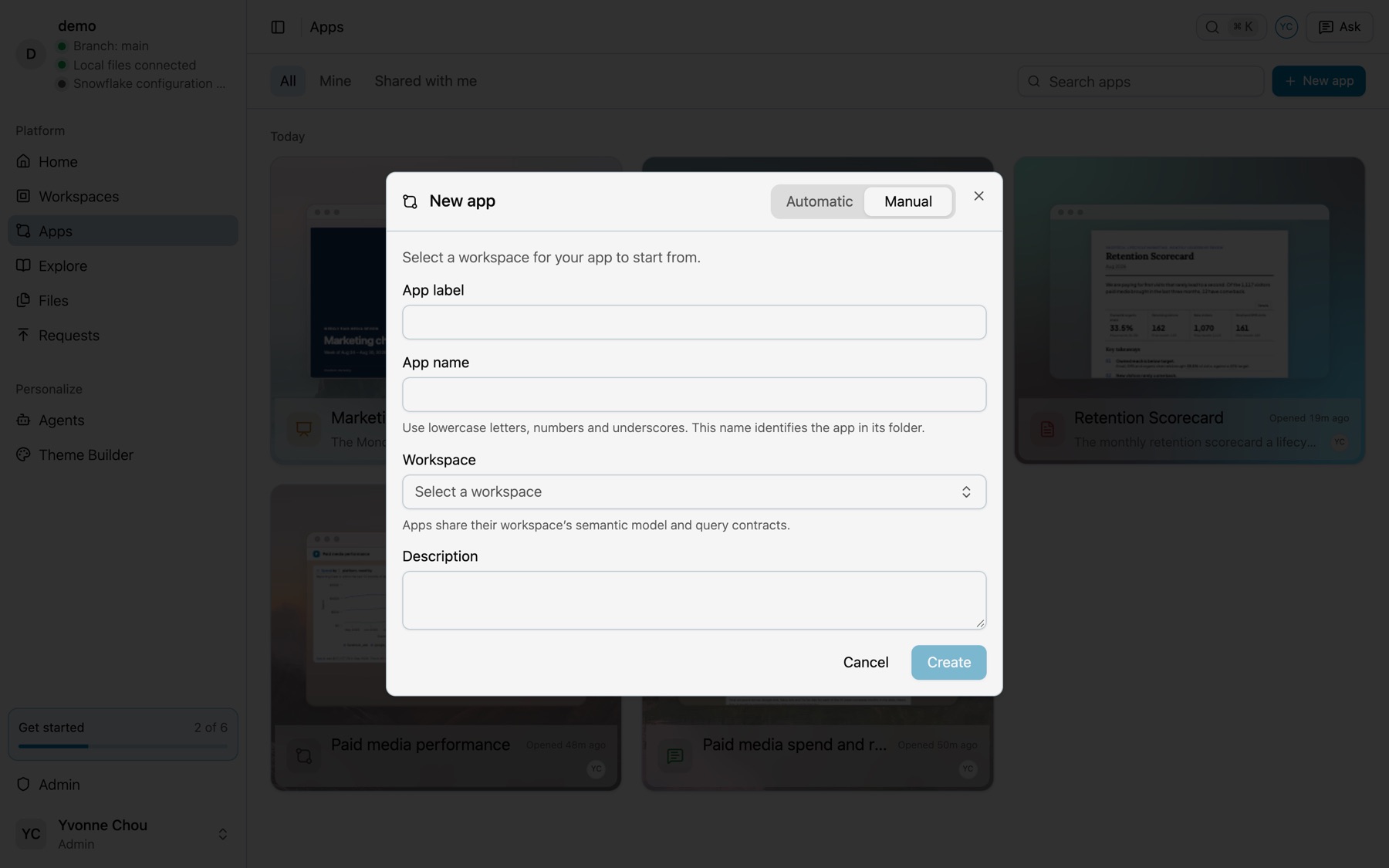
Refine it in the Toolkit
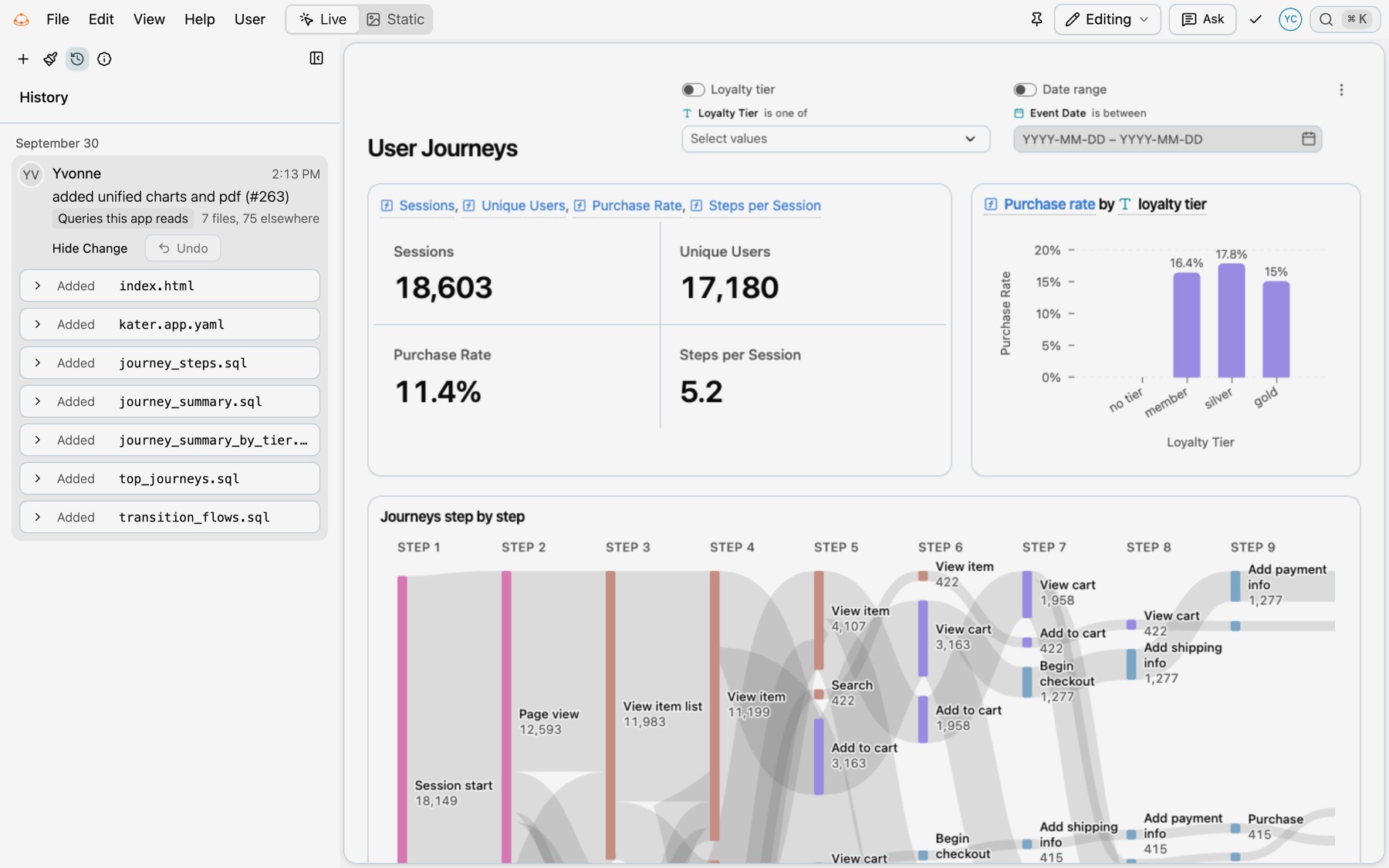
Open the app and select Editing from the menu at the right of the menu bar. The Toolkit opens.
| Panel | What it does |
|---|---|
| Add Content | Data lists In This App, with a dot on each query the page uses, and Everything Else. Hover a query or chart for Add to App, Go to and Preview. |
| Theme | The Theme Builder for this app. See Themes. |
| History | Every change to the app and the queries it reads, with Show Change and Undo. |
| App settings | App Label, Description, the card wallpaper, and Delete app under Danger zone. |
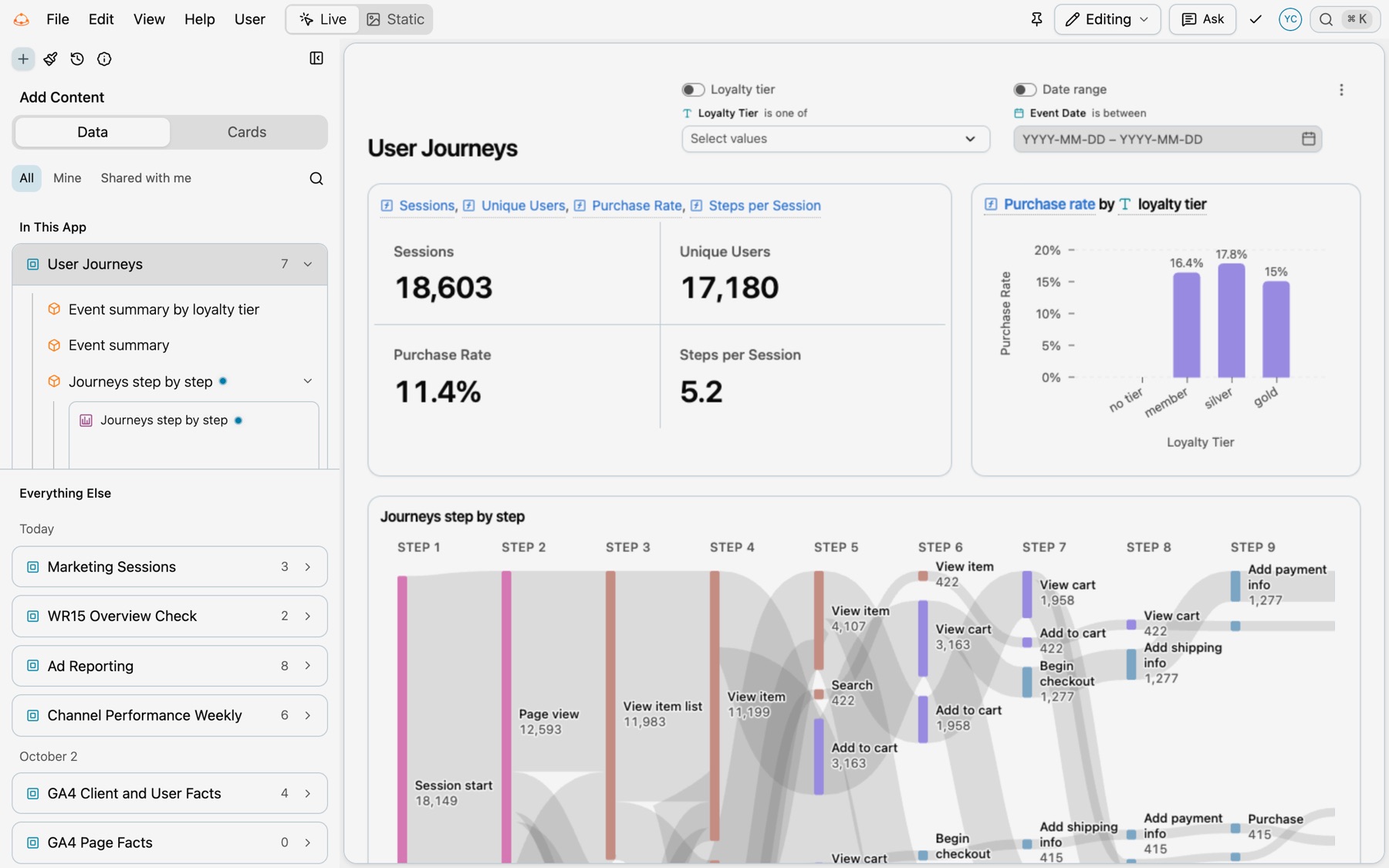
Add to App copies a prompt for your agent, which writes every change to the page. For other changes, select Ask with the app open, so the prompt names the page. A real request: “the september point on this chart is a partial month. end the trend at the last complete month”, then “Yes, apply it.”
Write a good app prompt
A good prompt reads like a short spec. Cover five parts. These examples come from the prompts behind the apps in the Library.
| Part | What to say | Example |
|---|---|---|
| Data | The data and the period | “from GA4 sessions and ad spend, always for the latest complete month in the data” |
| Layout | Pages, slides or sections, in order | “Page one: a one-line bottom line … four headline figures against the month before” |
| Logic | Targets, comparisons and scenarios | “owned and organic share month by month against a 40% target” |
| Interactions | Filters and what hover shows | “Put loyalty-tier and date-range filters in the header” |
| Style | Template, theme and reader | “use a navy corporate theme, and make it downloadable as PowerPoint” |
Vague and specific
| Vague | Specific | Why it works |
|---|---|---|
| “Show spend” | “a monthly line chart of spend by platform (Google Ads, Meta, TikTok) for the last 12 complete months” | Names the measure, the split and the window. |
| “Last month’s numbers” | “always for the latest complete month in the data” | The query finds the month from the rows, so the page stays current. |
| “Add a goal” | “against a 40% target” | The agent makes the target a parameter with a default of 40. |
| “Make a report” | “Build a printable monthly Retention Scorecard for leadership” | Names the template, the reader and the cadence. |
Start broad, then refine
The paid media chat thread grew from these five real prompts:
| Step | Prompt |
|---|---|
| Ask | “How has our paid media spend been trending over the last few months? Are we spending more or less than we were?” |
| Add detail | “Yes, chart the monthly trend. And dig into that August Google drop: which campaigns caused it?” |
| Widen | “Got it, thanks. Which platform gets the most back for what we spend on it?” |
| Keep it | “This is great. Document this in a chat thread so I can share it with the team.” |
| Adjust | “Can you keep that part about August?” |
Goals and example prompts
| Goal | Example prompt |
|---|---|
| Plan it first | “I want our CMO to have a weekly ROAS review she can read on Monday morning. Can you help me plan it?” |
| A slide deck | “Make a Monday-morning slide deck for our CMO called Marketing Channel Performance and Forecast…” Full prompt |
| A printable report | “Build a printable monthly Retention Scorecard for leadership…” Full prompt |
| An interactive page | “Build a User Journeys app from our GA4 events…” Full prompt |
Rules your agent follows
- Every figure is a tag. The agent never types a number or a date into the words. For a sentence such as “spend fell”, ask for a query that returns the change.
- Every figure is cited. The page’s sources list says where each figure came from. The agent never writes sources by hand.
- It asks before it uses a source outside Kater. See the next section.
- Reports and decks have no filters. Their queries find the period from the rows.
When Kater does not have the data
Your agent finds the data for each figure in this order:
- A Kater query that already has it. It searches the workspaces first, then the shared models.
- A new query on data Kater has. A new query over a shared model still gives its figures the shield.
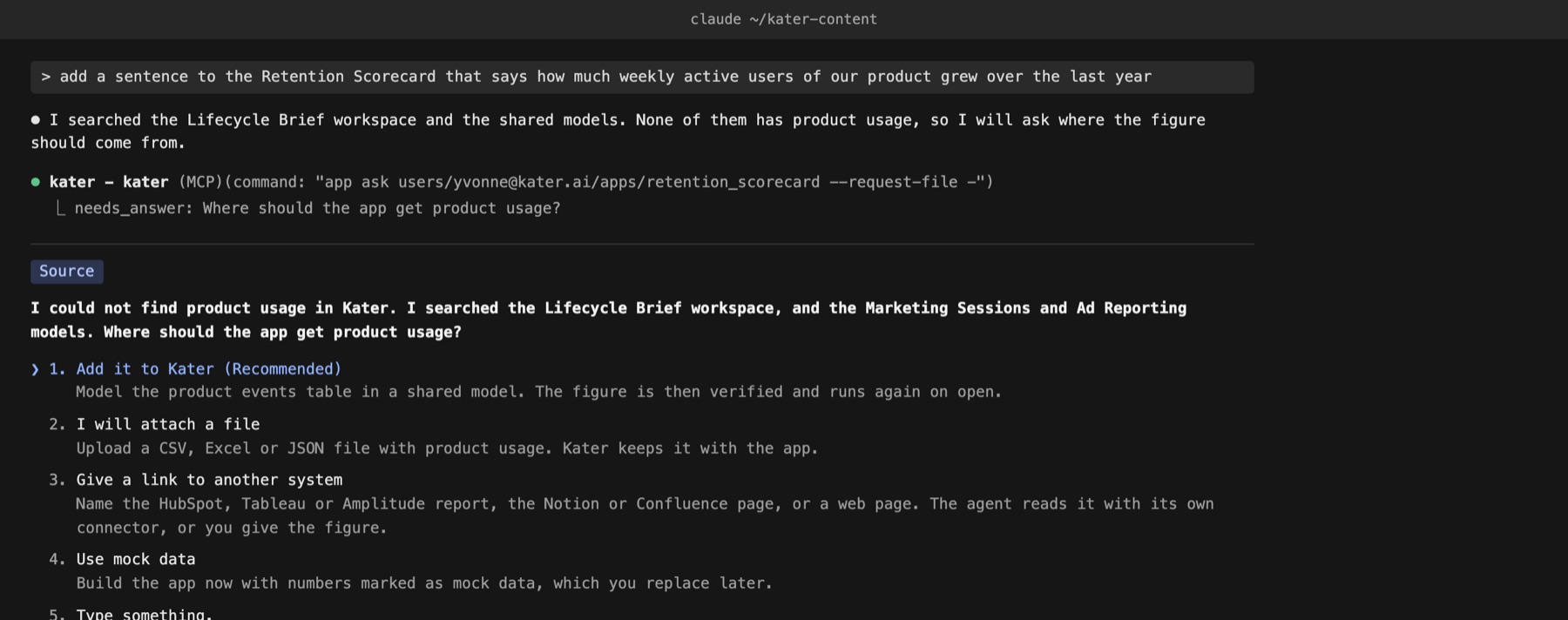
- Your answer. Only when no model in Kater has the data, it asks you. The question says what is missing and what it searched, and gives four options.
- The answer as the source. It writes your answer as the figure’s source, so the sources list says what you decided.
It never uses another source without your answer.
| Option | What the page gets |
|---|---|
| Add it to Kater (Recommended) | A query, after the table is modeled with your approval. Its figures get the shield when the model is in the shared layer. When Kater cannot read the warehouse yet, the option is Finish connecting Kater (Recommended). |
| I will attach a file | A figure from a CSV, Excel or JSON file that Kater keeps with the app. Add the file in Add Content › Files. |
| Give a link to another system | A figure from HubSpot, Tableau, Amplitude, Notion, Confluence or a web page, with its link, the date it was read and how the link was found. Your agent reads it with its own connector, or you give the figure. Kater does not read it. |
| Use mock data | A figure with the MOCK DATA badge. Its popover says what replaces it, the data it needs and what to ask the data team. |
The agent asks with the kater app ask command. In a chat that shows forms from the Kater MCP, you answer in a form. Other chats show the question with their own question UI.
If something looks wrong
- A card names an attribute instead of a chart. The query does not return a field that kind needs. Ask the agent to change the query or the kind.
- A card says Sample data. Ask the agent to point the tag at a query.
- A sheet or slide runs past its edge. Select Static, then ask the agent to move a block to the next sheet.