Analyze Workspaces
Charts
Draw any query as one of Kater's chart kinds, set it up in the chart panel, and place it on a dashboard or in an app.
Every chart in Kater is its query, drawn. Select a chart type, and Kater fills it from the query’s fields, or adds the fields the type needs. One chart component draws charts in the workspace editor, on dashboards and in apps, so a chart looks the same everywhere.
| If you want to… | Do this |
|---|---|
| Draw the query another way | Open the chart panel’s Chart tab |
| Change the title, the axes or the style | Open the Settings tab |
| Show the same rows two ways | Add a second chart with + under the plot |
| Put the chart on a dashboard or in an app | Select Add to in the query toolbar |
Try it
Select a chart type, or change the chart in Settings. The rows are sample data.
The chart in the editor
In the workspace editor, the chart sits under the rows. It shows its title and, at the right, the settings icon. Nothing else sits between you and the plot.
-
Open the panel.
Select the settings icon. The chart panel opens beside the chart, on its Chart tab, so the chart redraws in view as you change it. View › Chart settings opens it on Settings.
-
Select a tab.
Chart holds the chart types. Settings holds the title, the fields on the chart, calculations and style.
-
Close it.
Select the settings icon again, or × in the panel.
The address keeps the open panel and its tab, so a link or a reload opens the chart as you left it. A new query reads its workspace and has no fields yet. It opens on an empty sheet with its formula bar, and a field you select in the field picker adds its first column. The Chart tab still offers every type.
Select a chart type
The Chart tab sorts every type by what the query can draw now. The types are tiles. Hover one to see its name, and use the arrow keys to move between them.
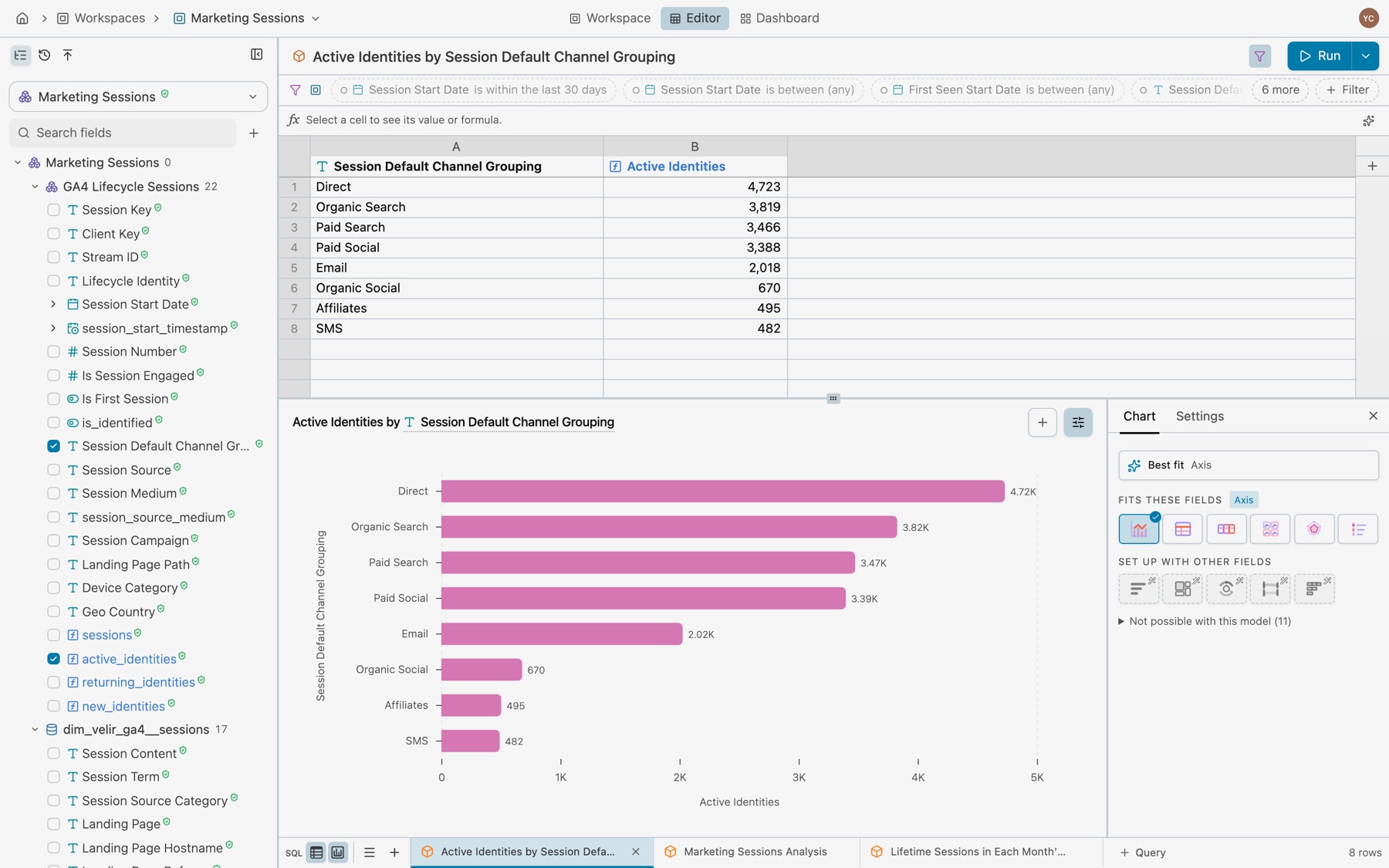
| Group | What it means |
|---|---|
| Best fit | Kater draws the type that fits the fields best, and names it, such as Best fit Bar. This is the default. |
| Fits these fields | Types the result can draw as it is. Selecting one switches at once. |
| Set up with other fields | Types that need a field change. Selecting one opens its setup form in the chart’s place and adds what it needs, such as a rank and a Top 10 for Ranked bars. |
| Not possible with this model | Types the model’s fields cannot fill, with their count. It starts folded. Each type says why. |
Chart types
Axis is one type for every chart drawn on x and y axes: bars, lines, areas, or bars and a line together. Kater draws it with the marks that fit the fields, and you restyle each measure in Settings.
| Type | Use it to show | What the query needs |
|---|---|---|
| Axis | Values across categories or over time | A measure by one or two dimensions. A line needs a date. Up to two measures, or four for bars and a line together. |
| Table | The rows themselves, as a report | Any columns |
| Stat cards | Headline figures as cards with trend badges | One or more measures, and a prior value for the trend |
| Metric row | A row of headline figures against the prior period | One or more measures, and a prior value |
| Part of whole | Each category’s share, as a pie or a donut | A dimension and a measure |
| Ranked bars | Which categories lead, as shares of the total | A text dimension and a measure |
| Breakdown | Ranked bars with a headline figure and an average or threshold marker | A label and a value |
| Small multiples | Measures in different units, one panel each | Two or more measures over one dimension |
| Treemap | Share of a total with a drill path | One or more dimensions, outermost first, and one measure |
| Sunburst | The same, read from the centre out | One or more dimensions and one measure |
| Flow | Movement between stages, as a Sankey | From and To columns, which must differ, and a measure for the width |
| Radar | Several measures across categories | A dimension and one or more measures |
| Movers | What rose and fell most between two periods | Each row’s value this period and last period side by side |
| Funnel | Conversion from step to step | One row per stage, with the stage’s order |
| Cohort grid | How each cohort holds up over time | A cohort date, the periods since it began, and a value. Setup adds the periods. |
| Peak bars | Which one is biggest, and how the rest compare | A dimension, a measure and a yes or no field that marks the peak rows |
| Radial | Shares, or one figure against a target | A target value to measure against |
| Progress | Completion stage by stage | A label, a value and a target value |
| Target | One figure against its goal, and whether it is on pace | A value and a target value |
| Status | Counts and shares by status | A status field and a value |
| Updates | Recent events as a list you can search | A headline for each row |
| Sentence | A sentence with live figures in it | A sentence template |
Types the builder cannot set up
Movers, Funnel, Peak bars, Radial, Progress, Target, Status, Updates and Sentence need a query of a special shape, such as a target column or a sentence template. Ask your agent to write that query, then select the type.
Change the chart in Settings
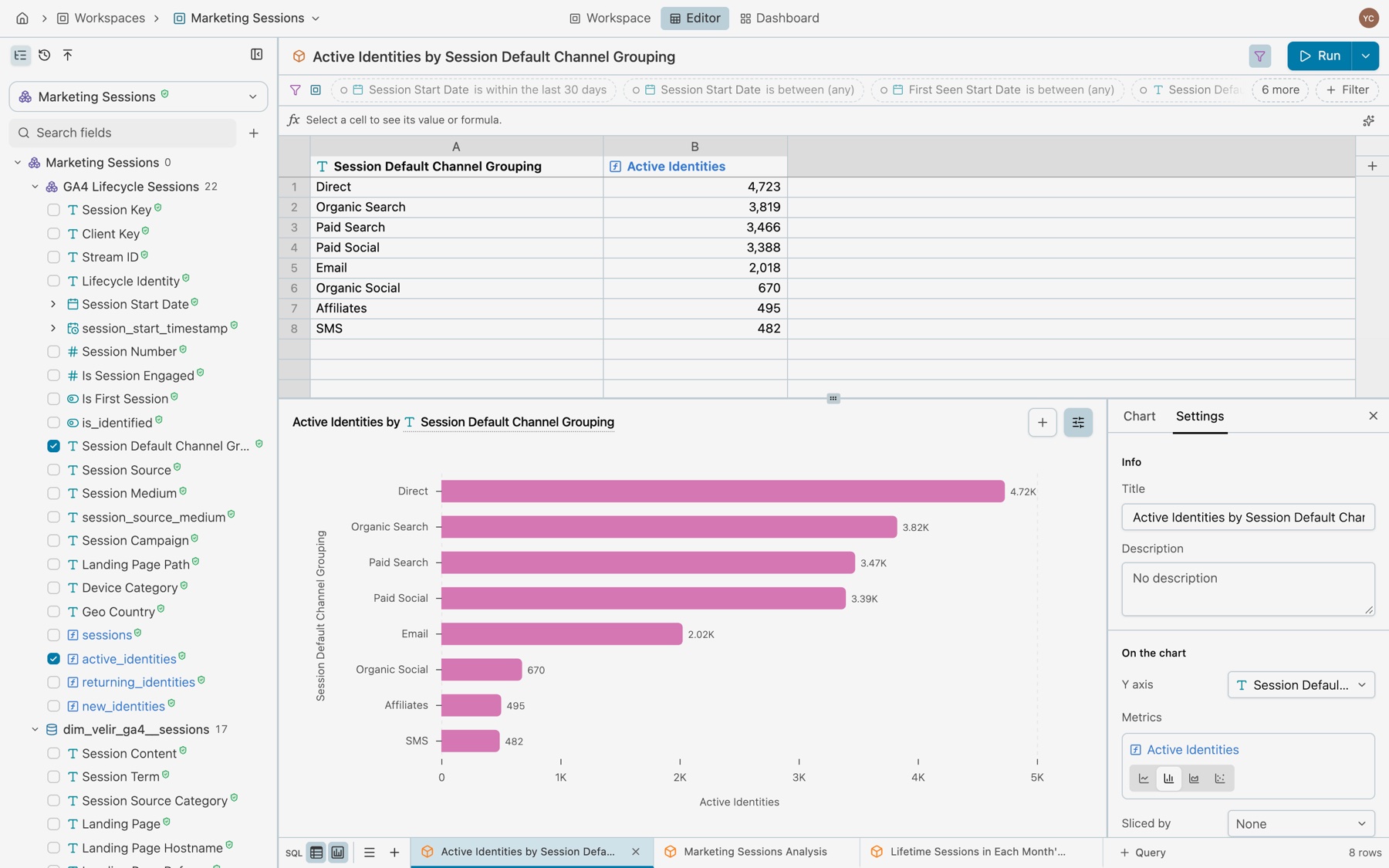
| Section | What you set |
|---|---|
| Title | Title and Description |
| On the chart | The field in each place, such as X axis, Metrics and Sliced by. For each metric, Drawn as Bars, Line or Area, and the Axis, Left or Right. Show another adds a metric. |
| Calculations | Moving average on a line, and Running total on an area. Only for types that have calculations. |
| Style | Bars Upright or Sideways, Slices Side by side or Stacked, Lines Straight, Smooth or Steps, Points, Value labels, Numbers Short or Full, Legend and Legend at, Axis titles, Grid lines, Label angle and Hover details |
Only the settings that apply to the chart’s type show. Every change shows at once and saves itself.
Tables
A chart whose type is Table draws the Report: quiet headings, hairline rows, figures right-aligned with a bar before the first two figures, and dates by their period, such as Sep 2025. It draws the same in the editor, on a dashboard tile and in an app, unless the chart names another layout.
A table has its own Settings tab:
| Section | What you set |
|---|---|
| Info | Title and Description |
| Layout | The layout that draws the rows. Each layout has a thumbnail. |
| Columns | Show the column or Hide the column for each column. In the Report, Show bars or Hide the bars on each figure. |
| Style | Rows Comfortable or Compact, Stripes, Rows per page All, 10, 25 or 50, Header stays on top, Freeze the first column, and Row numbers on Grid |
| Reader tools | Search, Sort by a heading, Select rows and Collapse groups |
| Totals | In the Report, Total row, Total column and the figures it Adds up |
A layout shows only the settings its table reads.
| Layout | How it draws the rows |
|---|---|
| Report | The default. Quiet headings, hairline rows and bars before the figures. |
| Grouped | Under a heading for each value of Group by. A reader can collapse each group. |
| Detail | Each row opens into a panel of its other columns. In the row sets the columns the row shows. |
| Grid | The spreadsheet grid, to browse many rows. |
| Ledger | A ruled list of records, with Tabs by a column, such as status. |
| Roster | A list that scrolls under its header. Each row starts with a Name, and an image when the rows have one. |
| Result | Search, filter, sort and pages. |
| Workbench | Filters by column, and a choice of columns to show. |
Selecting Grouped or Roster sets up its Group by or Name from the rows.
Totals
The warehouse works out every total. The table never adds up the rows on screen.
- Total row. Each figure’s total, under its column, stays in view at the bottom of the table. A ratio’s total is the ratio of the totals, such as a return per dollar, not a sum of the rows.
- One total row for each currency. A total keeps a dimension that its figure cannot be added across, such as currency. The table then shows one total row for each currency.
- Total column. On each row, the sum of the figures selected under Adds up, as a spreadsheet’s row total. It needs at least two figures, and it starts with the figures shown in the same format as the first one.
- No total row with a filter on a number, top rows or a row limit. A total counts every row, including the rows that the query leaves out. So a query that filters on a number, keeps only its top rows or has a row limit cannot show a total row, and a query with a total row cannot take any of them. Top rows and Row limit say so. A total column adds within each row, so it is always available.
- Other chart types leave out the totals. A column’s total holds one value on every row, and only the table’s total row draws it. The query keeps its totals, so when you select Table again, the total row comes back. The total column stays a figure of the chart.
Two charts in one query
A query can hold several charts over the same rows, such as bars by channel and a pie of each channel’s share.
- Add a chart. Select + under the plot. With one chart, + is all that shows there, and it says Chart when you hover it.
- Switch charts. With two or more, each chart has a tab under the plot, with its type’s mark and its title. Arrow keys step between the tabs.
- Chart menu. Right-click a chart’s tab for Add to dashboard, Duplicate chart, Open chart source and Delete chart. A query with one chart has no tab: right-click the chart’s title for the same menu.
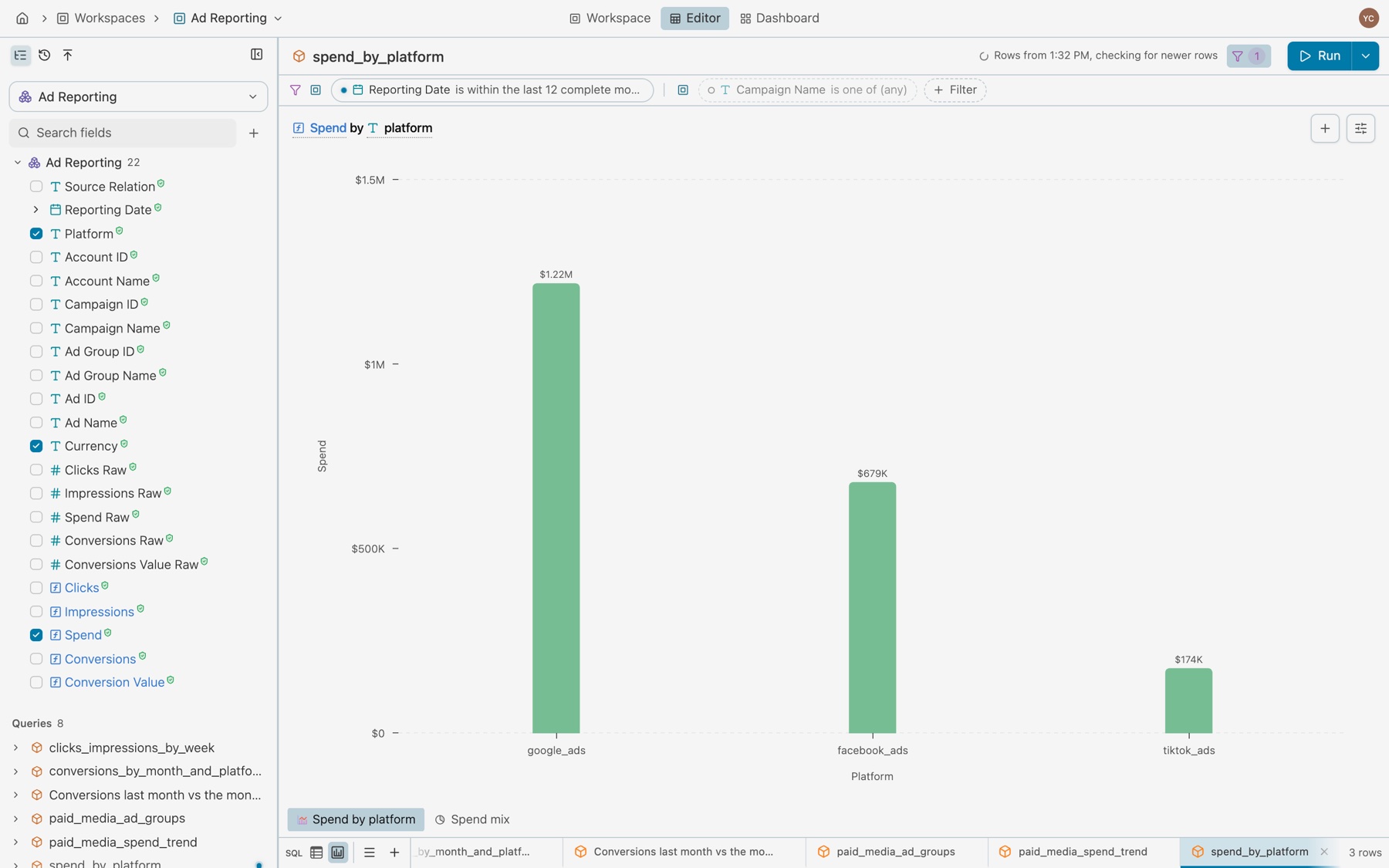
Save and place a chart
A workspace keeps its saved charts in its charts/ folder, each one reading one of the workspace’s queries. Select Add to in the query toolbar to place a chart:
- Workspace and its dashboard. Ticks this workspace’s dashboard when the chart is a tile there. Other workspaces on the same model add the query and its chart.
- Apps. Adds the chart to one of your apps, or New app makes an app with it.
- Play in Sandbox. Opens the chart’s query as a scratch file.
- Ask about this. Opens Ask with what the chart reads.
- Add as test. Saves the query’s answer as a test. See Tests.
See Queries for the whole Add to menu.
Charts on dashboards and in apps
On a dashboard or in an app, the same chart draws as a card. The card shows the title, the settings icon, Add to and a menu above the plot, and a finding under it, such as “Direct leads Active Identities with 4,621, 25.2% of the total.” The editor leaves the finding out, so the plot has the room. See Dashboards.
Apps draw the same types with Kater’s tags. A tag names a query by its workspace path and the query’s name, and its kind:
<kater-chart query="connections/snowflake_prod_connection/workspaces/ad_reporting/paid_media_spend_trend" kind="line" heading="Spend by platform, monthly"></kater-chart><kater-table query="connections/snowflake_prod_connection/workspaces/ad_reporting/paid_media_ad_groups" heading="Ad groups"></kater-table>A <kater-table> with no variant draws the Report. variant="grid" draws the spreadsheet grid, and a tag with group-by draws Grouped. The Report draws the totals of its query, each under its column. The settings icon of a table opens the same Settings as the editor: the layout, the columns and the reader tools. A change there is for that reader only, until the page reloads.
In an app, a chart’s own menu also has Download CSV and Copy as image. See Build an app with your agent.
If something looks wrong
- A type has a lock on it. The model’s fields cannot fill it. Hover it to see why.
- A line is not offered. A line needs a date dimension. Add one, or use bars.
- Running total is greyed out. The measure does not add up over time, as a distinct count or an average does not.
- “Needs a date along the x axis.” Moving average and Running total need a date on the x axis.
- “Add a field, or select a chart type in the Chart tab.” The query has no fields yet.
- An app shows a message in place of a chart. The tag names an attribute or field the kind does not take. The message says what it accepts.
Examples
Each chart type has a prompt that makes it. Copy one, give it to your agent, and replace the highlighted parts with your own fields.