On this page
Model Fields
Fields
Every field is a dimension, a measure or a custom calculation. Know which one you need, how to declare it and where to add it.
Every field in Kater is a dimension, a measure or a custom calculation. A dimension is a value to group or filter by. A measure is a recipe for a total, which each reader works out again at its own grouping. A custom calculation is a value worked out over a query’s result rows, such as a rank. Declare a field once, and every query, app and agent reads it by its name.
Three kinds of field
| Kind | What it is | Example | Where | Read more |
|---|---|---|---|---|
| Dimension | A value per row, to group or filter by. | Region, Order Month, Amount Band | Every model | Dimensions |
| Measure | A reusable aggregate. A reader totals it again from the source rows, at the reader’s own grouping. | Revenue, Orders, Customers | Datasets, semantic models, workspace roots, queries | Measures |
| Custom calculation | A value worked out over a query’s result rows, such as a rank or a running total. | Orders (Rank) | Queries, tests and the Sandbox | Custom calculations |
How the three kinds differ
This query of the sample shop has one field of each kind. Region is a dimension, Orders is a measure, and Orders (Rank) is a custom calculation:
SELECT shop.region, shop.count_distinct__order_id, CUSTOM_CALCULATION( 'rank__count_distinct__order_id', KATER__RANK(shop.count_distinct__order_id, 'desc') OVER () ) AS "Orders (Rank)"FROM workspace.shop AS shopGROUP BY shop.regionORDER BY 3| Region | Orders | Orders (Rank) |
|---|---|---|
| EMEA | 777 | 1 |
| LATAM | 760 | 2 |
| AMER | 728 | 3 |
| APAC | 671 | 4 |
| null | 64 | 5 |
Each kind behaves in its own way when another model reads this query:
- Region stays a value. A reader groups or filters by it.
- Orders stays a recipe. The query passes the measure through, so a reader that shows Orders with no grouping counts the orders again from the order rows. It never adds up these five rows.
- Orders (Rank) stays a finished value. The rank was worked out over these five rows. A reader gets 1 to 5 as they are, and cannot work the rank out again at its own grouping.
Which kind do you need?
| You want | Use | Example |
|---|---|---|
| A value to group or filter by | A dimension | Region, Order Month |
| A date by month, or the day of the week | A date grain or part | Order Month, Order Date Day Name |
| Values sorted into readable groups | A map, a bucket or a flag | Region Group, Amount Band |
| A total that stays right at any grouping | A measure | Revenue, Orders, Customers |
| A ratio that stays right at any grouping | A measure built from measures | Revenue per Customer |
| A grand total, another member or another period beside each row | A measure with EVAL | The share of all orders |
| A value that depends on the order or position of the result rows | A custom calculation | A rank, a running total, the row before |
| A comparison with another calendar period | A period comparison | Orders against the previous month |
The formula decides the kind, not the wrapper. A formula with no aggregate and no measure inside it is a dimension. A window is never a measure. A wrapper that disagrees with its formula gets a warning, and a fix that swaps it.
Declare a field
-- @description Order amount before discounts. -- @format currency(currency, 2) MEASURE('sum__amount', KATER__SUM(orders.amount), NOT_ADDITIVE_ACROSS(currency)) AS "Revenue",| Part | What it does | Example |
|---|---|---|
DIMENSION or MEASURE | The declaration. In a query, CUSTOM_CALCULATION too. | MEASURE(...) |
| First argument | The field name, and its identity. Other models read it by this name. By convention, lower snake case. | 'sum__amount' |
| Second argument | The formula. The formula decides the kind of field, not the wrapper. | KATER__SUM(orders.amount) |
NOT_ADDITIVE_ACROSS(...) | Measures only, last argument. The dimensions the measure cannot be added up across. See Measures you cannot add up. | NOT_ADDITIVE_ACROSS(currency) |
AS "Label" | The display label. Optional. Changing it changes nothing that reads the field. | AS "Revenue" |
-- @ directives above it | Description, format, AI context and more. See Formats, descriptions and AI context. | -- @format number(0) |
- Declarations are outermost. A
DIMENSION,MEASUREorCUSTOM_CALCULATIONsits in the final SELECT, never inside a CTE, a subquery or a union branch. - A new field needs a new name. It cannot take the name of any field in scope, from any model the SELECT reads, in any letter case.
- A field you read keeps its name.
shop.regionorshop.sum__amounton its own passes the source’s field through. See Pass through, evaluate or declare.
Names, labels and identity
- The name is the field’s identity. Queries, apps, tests and agents read a field by its name, so it never changes by accident.
- The label is for people. Change it freely. Nothing that reads the field changes.
- See how a field is computed. The Definitions view shows a card per field, and
kater model explain FIELD --relation semantic.shopprints it. - Find what reads a field.
kater references FIELD --relation semantic.shop. - Rename through the menu. Rename in the field menu updates references in the same model. A model elsewhere that reads the field blocks it.
Fields in the Shared models editor
In a semantic model or Kater dataset, you add, change and describe fields without writing SQL. Each change writes the SQL shown on these pages.
The field list
The Fields tab of the sidebar groups fields by the source they come from.
- A folder per source. Each shows the source’s label and alias, and how many of its fields are in the model. The base comes first and says Base. The order matches the workspace’s field picker for the same model.
- Ticks. A ticked field is in the model. Tick a field to pass it through, and untick it to take it out. ⌘Z undoes either.
- Made here. A field this model declares says Made here.
- Not in the model. Under each folder, the source’s other fields wait unticked.
- Measures are blue. Wherever a field is named, a measure’s name is blue. A dimension’s mark says what it is.
- Search and add. Search fields (/) finds a field. The + beside it makes a new field, and Add source after the folders adds a source.
In a Kater dataset, the table’s columns are locked in, and fields you add show under Made in this dataset. See Kater datasets.
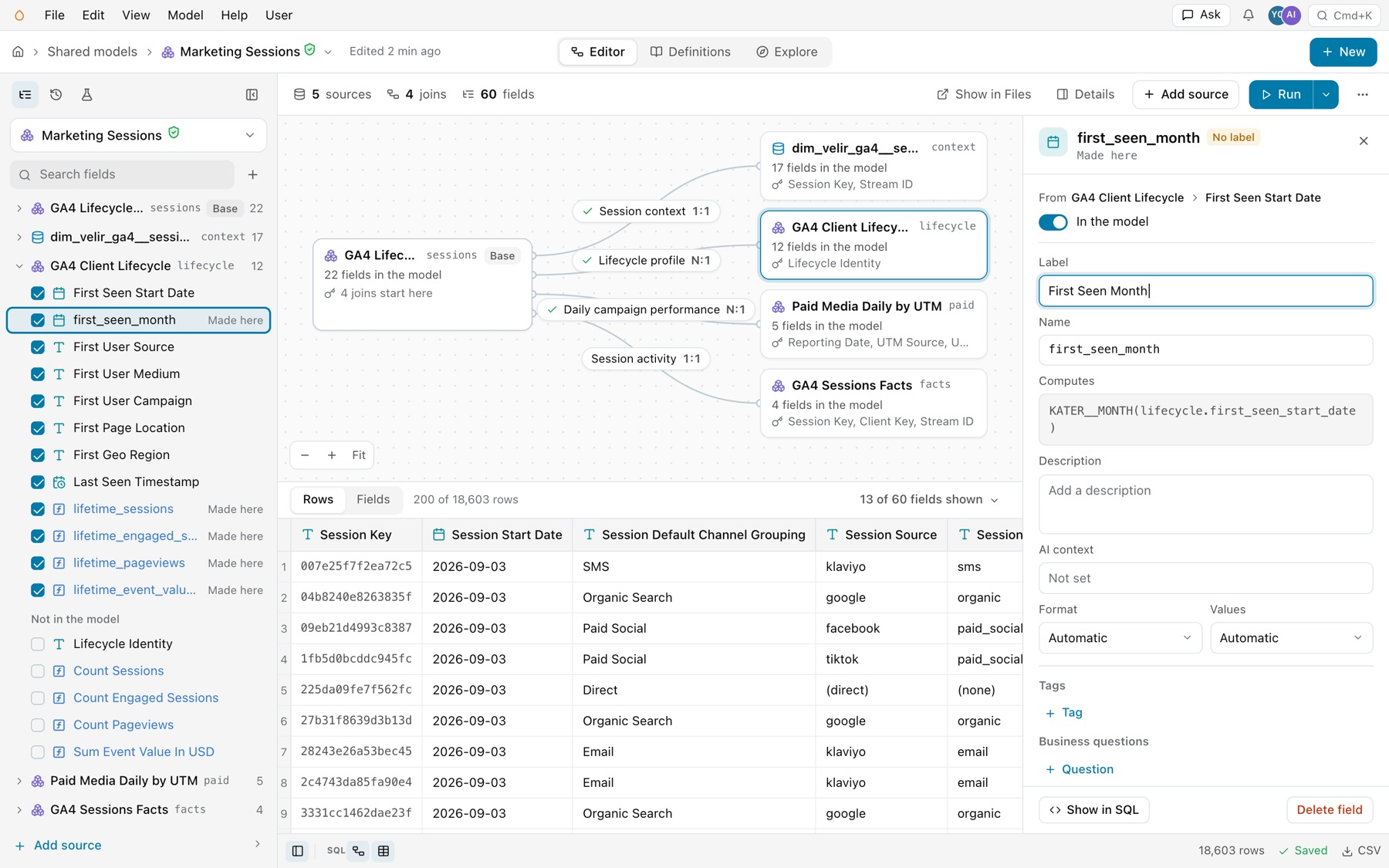
The field panel
Click a field to open its panel. It shows where the field comes from, the source and then the field, and an In the model switch. Then you edit:
- Label and Name. A field whose label is still its SQL name says No label.
- Computes, for a field made here: its formula.
- Description and AI context.
- Format and Values, each Automatic until you set it.
- Tags and Business questions.
Show in SQL opens the SQL pane at the field. Delete field removes a field made here. A field passed through from a source offers Take out of the model in its place.
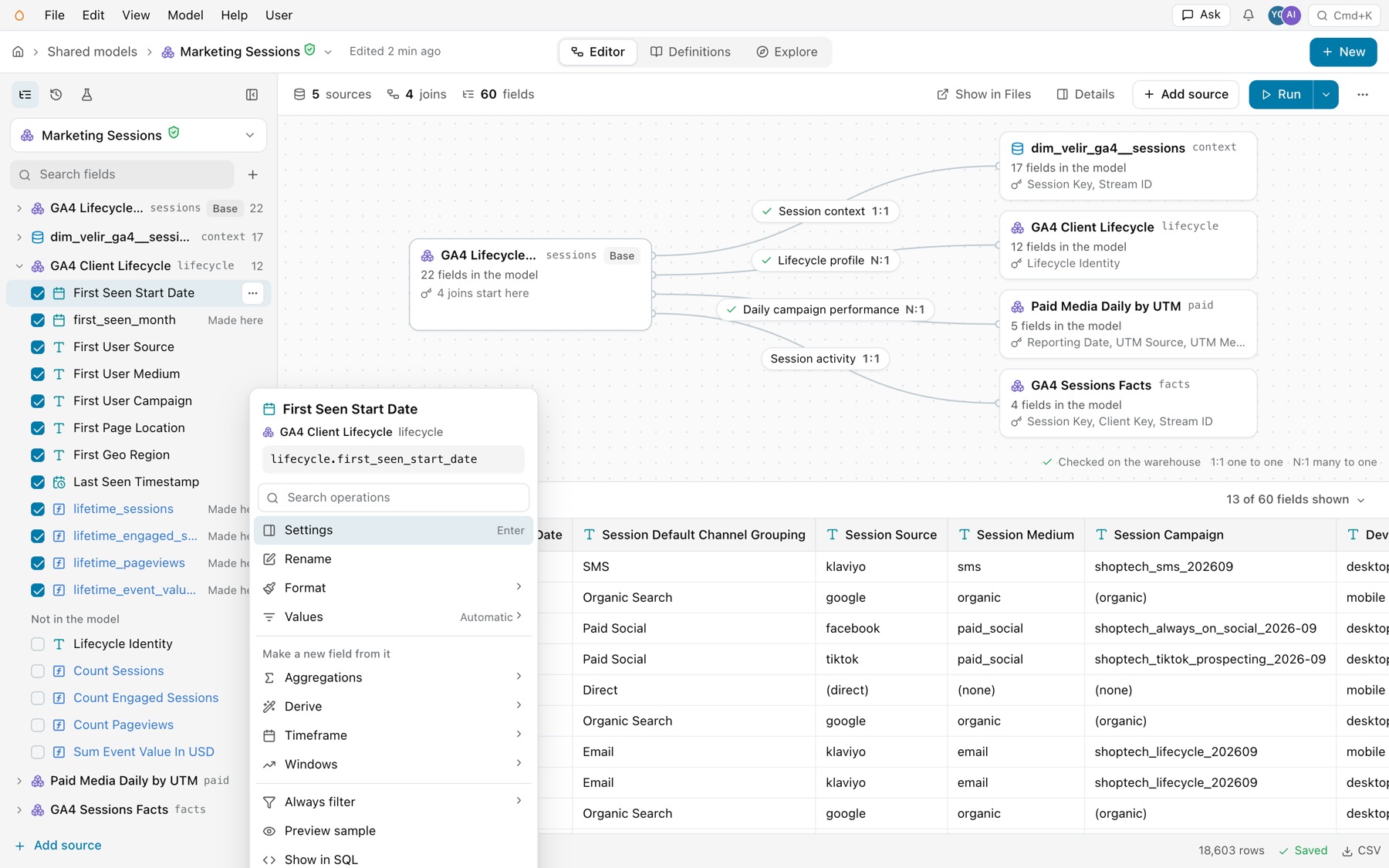
The field menu
Right-click a field in the list, or a column in Rows. The menu names the field, its source and its expression, with Search operations under them.
| Group | Items |
|---|---|
| The field | Settings (Enter) opens the field panel. Rename, Format and Values. |
| Make a new field from it | Aggregations, Derive, Timeframe and Windows. |
| The model | Always filter adds a filter that always applies. Preview sample, Show in SQL and Show in Files. |
| Last | Take out of the model. |
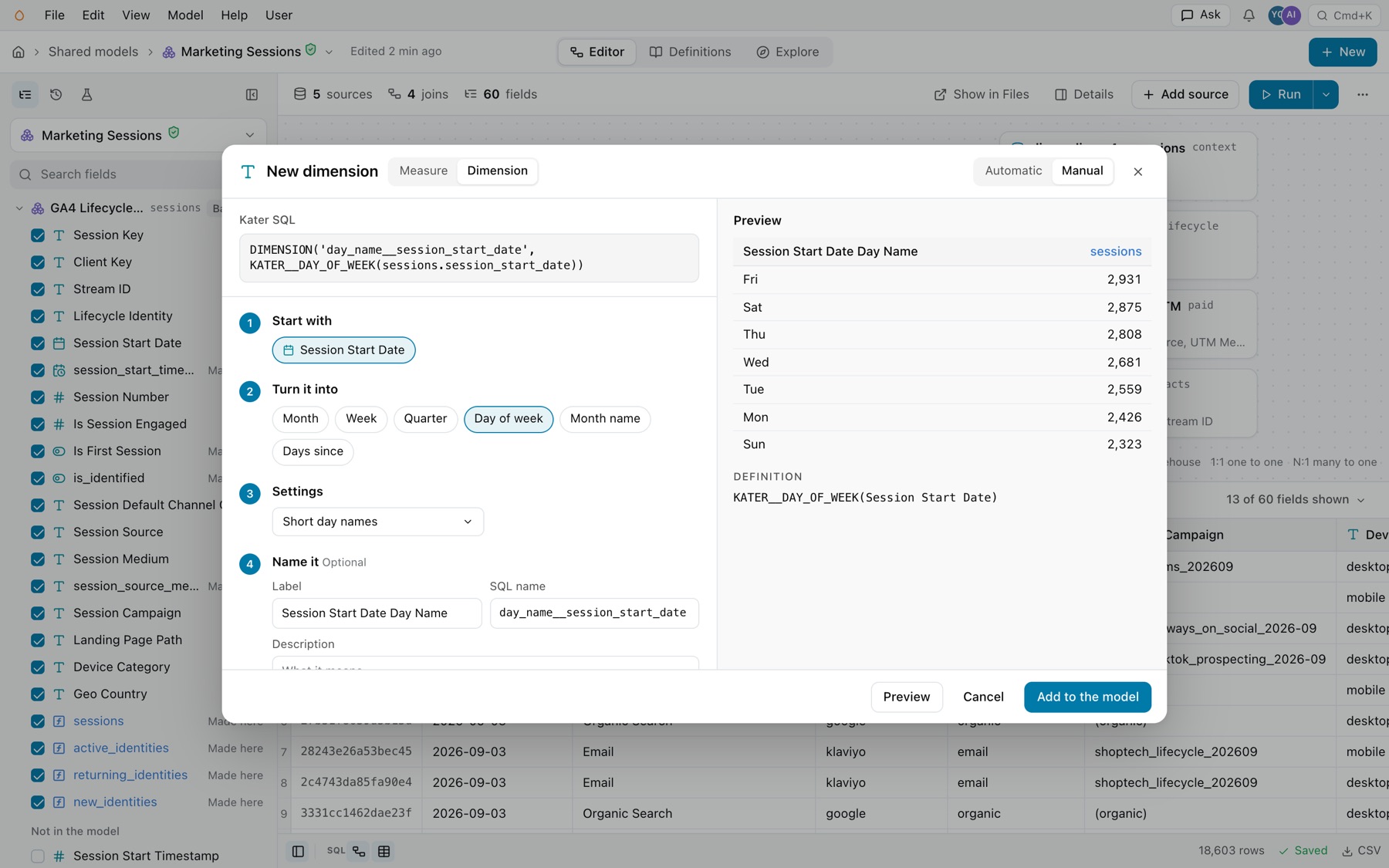
A new field from an operation
An operation under Make a new field from it, or the + beside Search fields, opens the new-field dialog. Select Measure or Dimension, and Prompt AI or Manual. On Manual:
- Start with. The field the new one reads, such as Session Start Date.
- Turn it into. What to make of it, such as Day of week.
- Settings. Options for that operation, when it has any.
- Name it. Optional: Name, SQL name and Description.
The dialog shows the Kater SQL it writes, a preview of the new field’s values and its definition. Select Add to the model.
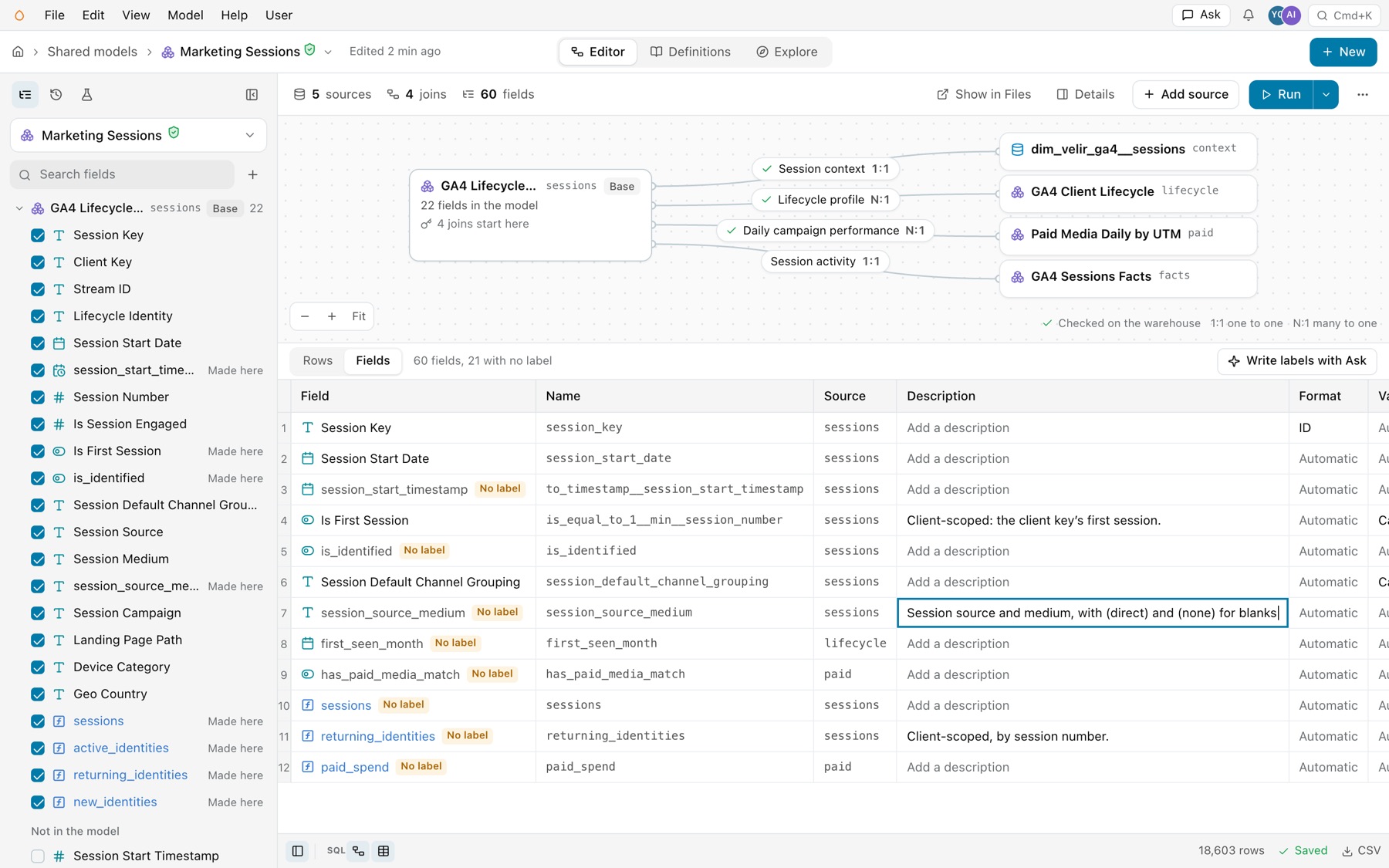
The Fields sheet
Select Fields above the grid. The sheet has one row per field: Field (its mark and label), Name, Source (the alias), Description, Format, Values and AI context. Click a cell to edit it in place. Paste a column, such as twelve descriptions, and it saves as one change. The header counts the fields with no label, and Write labels with Ask opens Ask with a prompt for your agent that lists them.
Add fields without writing SQL
- In a shared model. Use the field list, the field menu and the new-field dialog above. New › Field and Edit › Add field open the same dialog.
- In a workspace query. Right-click a field in the field list. Its categories are Filters, Sort, Aggregations, Windows, Compare with, Derive, Calculate at, Timeframe, Format and Edit. Each offers only what fits that field and that model. File › New › Field opens New measure, New dimension, New calculation or New filter. See Queries.
- The terminal.
kater new field --path QUERY.sqlwalks the same steps for a query.kater model editchanges any model. - Your agent. Ask in words. It shows you the field and saves it after your yes.
kater new field --path QUERY.sql --kind calculation --from sum__spend \ --make previous_period --set output=percent_change --writeOperations name what they add, such as sum__amount or count__status, with a label such as “Status (Count)”. They also write a format: a count gets number(0) and a share of total gets percent(1).
Common errors
These apply to every kind of field. Each kind’s page lists its own.
| Code | Cause | Fix |
|---|---|---|
field_name_in_scope | The new name is already a field in scope. | Pass the source field through, or rename the new one. |
measure_requires_aggregation_or_evaluation | A MEASURE aggregates nothing. | Aggregate it, or apply the fix that declares a DIMENSION. See Measures. |
measure_over_window | A MEASURE over a window, such as RANK() OVER (...). | Use CUSTOM_CALCULATION in a query, or DIMENSION in a shared model. See Custom calculations. |
unnamed_output | Hint. An output with no declaration, which no other model can read. | Apply the fix that names it. See Dimensions. |