Admin
Promotion requests
Review requests to move a field into a shared model, check the drafted change against the warehouse, and approve or deny it.
When people define the same field in several queries, or ask for a field to be shared, Kater drafts the change that moves it into the shared model. It proves the change keeps every number, then puts it in front of the data team. You decide with one click, and everyone’s answers then read one definition.
Where requests come from
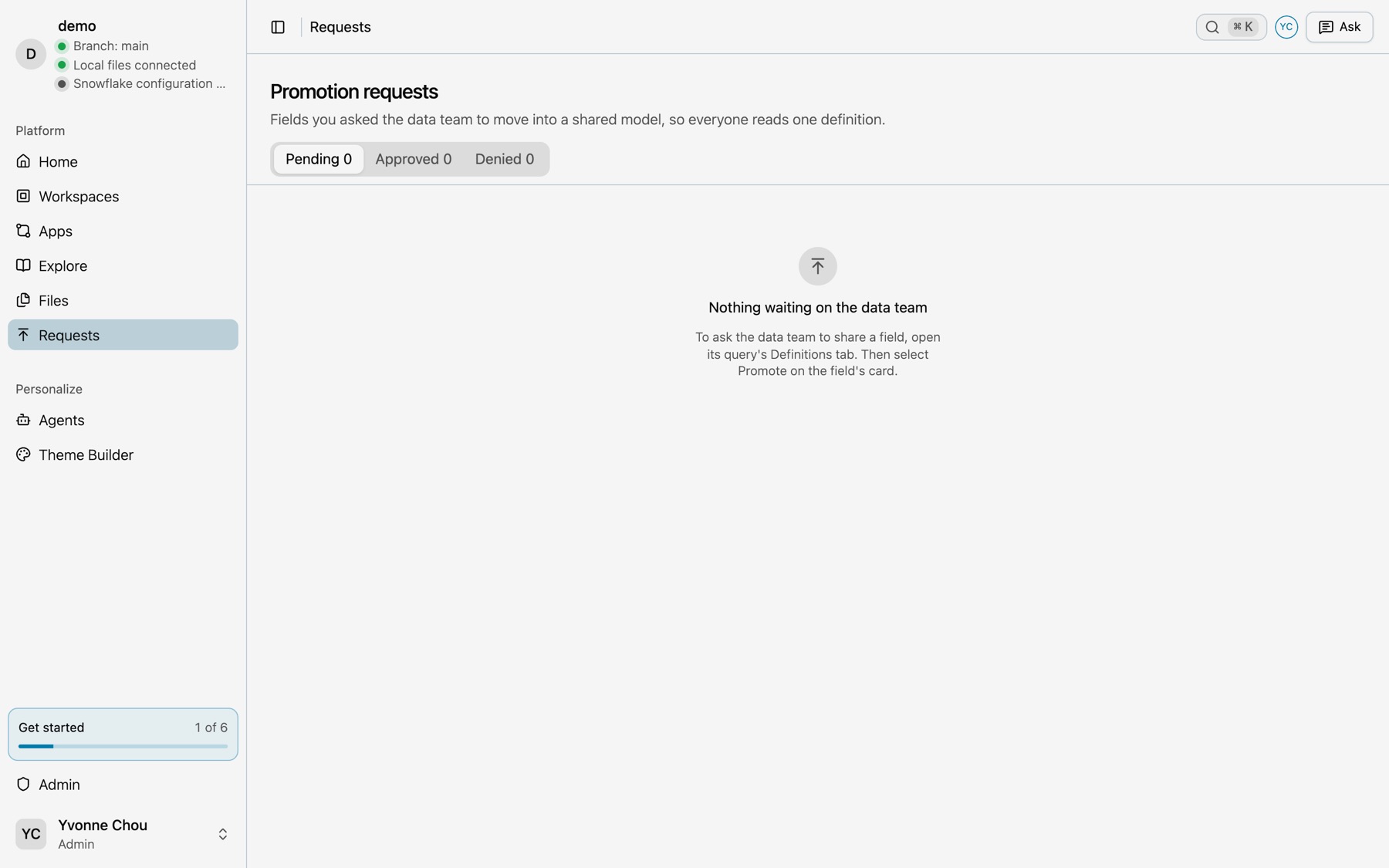
- People ask. Anyone can ask from a workspace’s Promote sidebar, or with
kater promotion request PATH FIELD --reason. They follow their requests on Requests, with Pending, Approved and Denied tabs. - The nightly scan. Each night, at 03:00 UTC by default, and whenever someone on the data team selects Run now, Kater looks for fields with more than one definition. It compiles every workspace on each connection and matches formulas by fingerprint, so different names for the same formula still match.
- Judged and drafted. A language model judges whether each promotion is worth doing and names the field. The compiler writes most drafts. A model drafts the rest. The details say which model judged and which drafted.
Open the Promotions tab
Open Admin › Objects and select Promotions. With models:write and no audit:read, Admin opens on the promotions alone. The requests that people sent come first, then the promotions that Kater found.
- Run now. Scans the connection again. The text beside it says when the last scan ran. With more than one connection, first select the connection.
- Source. Narrow the list to Recommended by Kater or Requested by people. Moved up by the data team shows only when the list has one.
- Show rejected. Shows what was turned down.
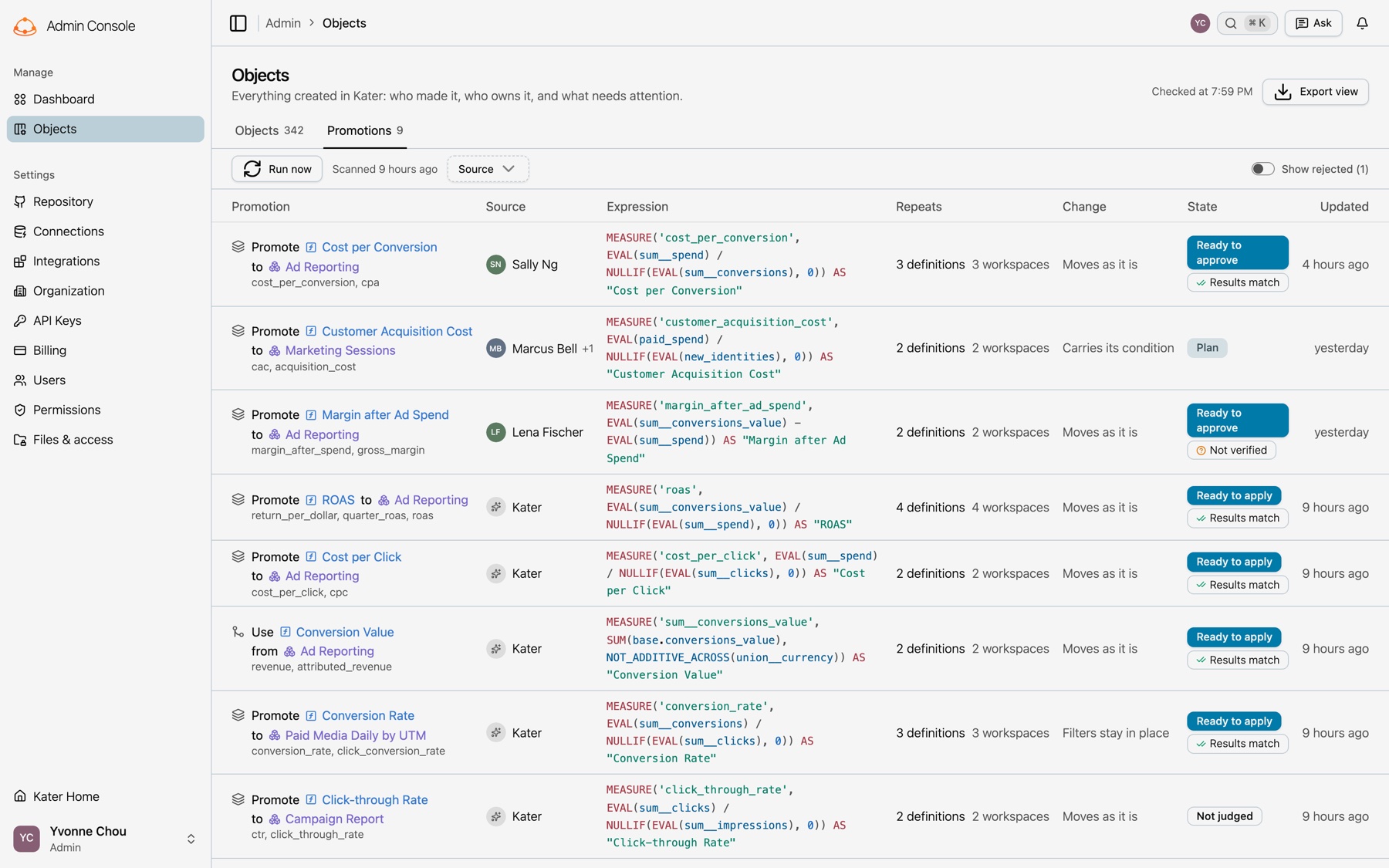
| Column | What it shows |
|---|---|
| Promotion | The field and the model it moves to. Under it, the name that each definition gives the field. |
| Source | Kater for a promotion that the scan found, the people who asked, or Data team for a field that the data team moved up |
| Expression | The field’s SQL as the draft writes it, or its current SQL when there is no draft. A long expression shows in full when you hover over it. |
| Repeats | How many definitions it replaces, and in how many workspaces or shared models |
| Change | Moves as it is, Filters stay in place, Carries its condition, or Needs a rewrite |
| State | Where it stands, with its result check |
| Updated | When it last changed |
States
| State | Meaning |
|---|---|
| Drafting | A draft is being written. |
| Plan | No draft has passed its checks yet. |
| Ready to approve | Someone asked, and a checked draft is ready. |
| Ready to apply | The scan recommends it, and a checked draft is ready. |
| Not judged | The judge has not looked yet. It counts as recommended. |
| Not worth it | The judge says promoting it adds nothing. |
| Approved or Applied | The change is in the shared model. |
| Denied or Dismissed | The data team turned it down. |
| Gone | The repeated field no longer exists. |
The two checks
- Fingerprint check. Every model the draft touches must compile. Each local definition of the field must keep its formula’s fingerprint, and every other output must keep its own. A draft that fails stays a Plan.
- Result check. Each local definition, and the queries downstream of the change, run on the warehouse as saved and as drafted, in one statement so both sides read the same data. The badge reads Results match, Results differ or Not verified. Select Check the numbers again to repeat it.
A draft whose results differ goes back to its writer once, with the differences. If they persist, it stays a Plan.
When a file changes after the draft
A draft is written against the files as they were at that moment. When someone changes one of those files, the draft is out of date and Kater cannot write it. Kater finds this when you open the list, and drafts that one promotion again. The card reads Drafting and names the file that changed. The new draft gets the two checks again, and its card says that it was drafted again and why.
If a file changes while you read a card and you select Approve or Apply, Kater writes nothing and drafts the change again. Approve or apply the new change when it is ready.
Kater tries one time for each change it finds. A promotion that has no draft shows the reason on its card. Select Promote to have Kater draft it and check the numbers. When the numbers stay the same, Kater applies it for you. When they change, the card shows why, and you decide. A promotion that people asked for has Draft again instead, or use kater promotion admin redraft <id> in a terminal. Run now stays for the full connection.
Decide
-
Open the details.
Select a row. Recommendation details show each definition, the drafted change, and the before and after results.
-
Approve or apply.
Approve a request, or Apply a recommendation, to write the change into the shared model. Every pending request on it is marked approved. When the result check could not verify the change, Kater asks first, with Approve anyway or Apply anyway.
-
Or deny it.
Deny… opens “Deny this request?”: “The field stays where it is. Nothing changes.” Write a Reason, or start from Already exists as…, Too specific to one team, or The definition needs work first. The people who asked read it. Select Deny request.
-
Dismiss or reopen.
Dismiss a recommendation nobody asked for. Reopen brings back a denied or dismissed item.