Model Fields
Excel formulas
Excel formulas become CUSTOM_CALCULATION field types in the Kater SQL. They are optionally promotable to Measure or Dimension.
Try it
Write one
-
Open a query.
Open it in the workspace editor, or open a statement in the Sandbox.
-
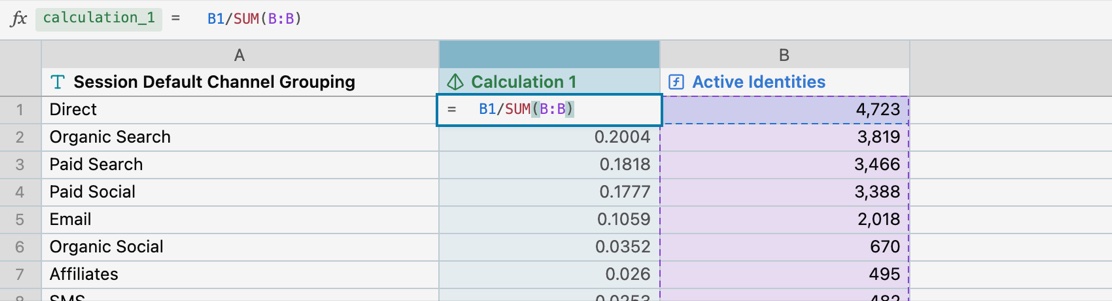
Add a formula column.
Select + after the last column, then Formula column. Or type
=on a field cell, or select Insert formula column left or right in a column’s menu. The new column is namedcalculation_1, labelled “Calculation 1”, with the custom calculation mark. Its editor opens in the cell on the row you were on. -
Write the formula.
Select a cell, a header or a range to write its reference, or type it. A click writes a reference only at a place for one: after
=,(,,,:, an operator, or a reference you just selected, which the new one replaces. Elsewhere, a click writes the formula and selects the cell. In Enter state, the arrow keys point too, and F4 changesB1toB$1and back. -
Read the preview.
The column shows its values at once, in muted text. The warehouse’s values replace them, and the column flashes.
-
Press Enter, or Tab.
Kater writes the column and selects the next cell down, or to the right. Nothing is written while the formula has an error: the error is marked in the text and said under the editor. Escape drops the formula, and on a new column’s first formula it removes the column.
-
Name and format it.
Double-click the column’s name, or select the name in the bar. Format in the column’s menu sets how its numbers show.
References
| In the bar, on row 5 | Stored in the file | Reads |
|---|---|---|
B5 | [@revenue] | This row’s value |
B4 | [@revenue:-1] | The row above. :+1 is the row below. |
B$1 | [@revenue:$1] | The first row’s value. $ anchors a row, as in Excel. |
B$1:B5 | [@revenue:$1]:[@revenue] | From the first row to this one |
B:B | [revenue] | Every row’s value |
B_TOTAL | [#total revenue] | The measure worked out over all rows at once |
The file stores field names, not letters, so moving or removing another column breaks nothing. A reference must be a named column the query returns: add the field, or give the column an alias, first. In a file, the field’s whole body is EXCEL('=…'), such as EXCEL('=[@revenue]-[@cost]'), inside the declaration its type calls for. EXCEL is never nested inside other SQL.
What a formula becomes
In a query grouped and sorted by month, with columns A Month, B Revenue and C Cost:
| Typed on row 5 | Becomes |
|---|---|
=B5-C5 | A custom calculation that reads this row only. It can be promoted as a dimension over row values, or as a measure over measures. |
=B5/SUM(B:B) | A custom calculation over all result rows. |
=B5-B4 | A custom calculation: the change from the row above, in the query’s sort order. |
=SUM(B$1:B5) | A custom calculation: a running sum, in the query’s sort order. |
=B5/B_TOTAL | The measure divided by its total, the right denominator for a ratio or a distinct count. |
Rows and sort order
- “The row above” means the row above on screen. A formula that reads another row follows the query’s
ORDER BY. Sort the query another way and its values change, as in Excel. - No sort, no row above. A query with no
ORDER BYhas no order, so Kater refuses such a formula withexcel_formula_needs_sort. The formula bar sorts the query by its first dimension in the same write. Other grouping fields break ties. - A range sees every row the query returns.
SUM(B:B)adds up all rows, not only those under the row limit. - A column cannot sort by itself. If the query is sorted by a column whose formula reads another row, Kater asks you to sort by another column.
Supported functions
| Family | Functions |
|---|---|
| Logic | IF, IFS, AND, OR, NOT, SWITCH, IFERROR, IFNA, ISBLANK |
| Math | ABS, CEILING, FLOOR, INT, MOD, POWER, ROUND, ROUNDDOWN, ROUNDUP, SIGN, SQRT, EXP, LN, LOG, LOG10, TRUNC |
| Text | CONCAT, CONCATENATE, EXACT, FIND, LEFT, LEN, LOWER, MID, PROPER, REPLACE, REPT, RIGHT, SEARCH, SUBSTITUTE, TEXT, TRIM, UPPER, VALUE |
| Date and time | DATE, DATEDIF, DAY, DAYS, EDATE, EOMONTH, HOUR, MINUTE, MONTH, NETWORKDAYS, NOW, SECOND, TODAY, WEEKDAY, WEEKNUM, YEAR |
| Over a range | SUM, AVERAGE, MIN, MAX, COUNT, COUNTA, MEDIAN, RANK, RANK.EQ, STDEV, STDEV.S, STDEV.P, VAR, VAR.S, VAR.P, SUMIF, SUMIFS, AVERAGEIF, AVERAGEIFS, COUNTIF, COUNTIFS, MINIFS, MAXIFS |
Operators are + - * / ^ &, %, and the comparisons = <> < > <= >=.
Not supported: lookups (VLOOKUP, HLOOKUP, XLOOKUP, LOOKUP, INDEX, MATCH, XMATCH), functions that fill several cells (FILTER, UNIQUE, SORT, SORTBY, SEQUENCE, TRANSPOSE), OFFSET, INDIRECT, LET, LAMBDA and regression statistics. TEXTJOIN, ISNUMBER, ISTEXT, XOR, RAND, RANDBETWEEN, PI, COUNTBLANK, LARGE, SMALL, SUMPRODUCT and RANK.AVG are not supported yet. For a lookup, bring the value into the query as a field.
The syntax is US Excel’s: a comma between arguments and a point as the decimal mark. The values are SQL’s: a division by zero is empty, and no cell shows #DIV/0!. Where a function differs from Excel, such as MOD taking the number’s sign, the bar’s description says so.
Preview values
While you type, the browser works out preview values from the rows already on screen, with the compiler’s own code. They are marked as pending, and the warehouse’s values replace them when its run returns. Preview values are never stored.
- No preview where the rows on screen cannot answer. A
_TOTALreference, or a range or another row’s value in a query with a row limit or a cut-short result, waits for the warehouse. - A preview can differ slightly. Rounding, dates and empty values can differ from your warehouse’s. The warehouse’s value is the true one.
Convert both ways
On a field made in the query, the column’s menu has Convert to Excel formula, or Convert to SQL when the column is already a formula. Convert to SQL also sits beside the formula bar. A converted field keeps its name, label and kind. Fields written in SQL show as an Excel formula wherever Kater can read them that way. Otherwise the bar shows Written in SQL: “This field has no Excel formula. Its SQL is in the SQL pane.” Fields from the shared layer are view only.
Where formulas live
- Queries, the Sandbox and the workspace root. A promoted formula lives on its workspace root. The shared layer never holds an Excel formula.
- Every formula column is a custom calculation. The file writes it as
CUSTOM_CALCULATION('name', EXCEL('=…')), and its header has the custom calculation mark. A column written before asDIMENSIONorMEASUREhas a warning, and its fix, Declare with CUSTOM_CALCULATION, writes it as a custom calculation. A change to its formula does the same. - Promotion offers what it can become. A formula that reads its own row has Promote as Measure (it reads measures or a total) or Promote as Dimension (it reads row values only) in its column’s menu. Promotion writes it on the workspace root as
MEASURE('name', EXCEL('=…'))orDIMENSION('name', EXCEL('=…')), and the query then reads that field. A formula that reads other rows, a range or a whole column stays in its query. From a terminal:kater model promote --promote-as measure. See Promotion and verification. - The selected cell is in the address. The page’s URL holds
column=<field name>androw=<number>, so a reload shows the same cell and the formula as it reads on that row. - Every write is an edit like any other. It shows at once, saves behind the screen, and ⌘Z undoes it.
- From a terminal.
kater new field --path QUERY.sql --excel "=B5-C5" --row 5.--rowsays which row the letters are read against. - Agents. An agent reads
EXCEL('…')as it reads any Kater SQL. It writes plain SQL unless you ask for an Excel formula, or the column already is one.