Analyze Workspaces
Excel formulas
Kater lets you analyze data using Excel, which Kater turns into SQL under the hood.
Try it
Supported functions
- Logic: IF, IFS, AND, OR, NOT, SWITCH, IFERROR
- Math and text: ROUND, ABS, MOD, LEFT, MID, CONCAT, SUBSTITUTE, TEXT
- Dates: DATE, YEAR, MONTH, TODAY, EOMONTH, DATEDIF, NETWORKDAYS
- Over a column: SUM, AVERAGE, MIN, MAX, COUNT, MEDIAN, RANK, SUMIF, COUNTIF and AVERAGEIF
The syntax is US Excel’s: a comma between arguments and a point as the decimal mark. The values follow SQL, so a division by zero is empty.
Not supported: VLOOKUP, XLOOKUP, INDEX and MATCH. Bring the value into the query as a field instead. Functions that fill several cells, OFFSET and LAMBDA are not supported either.
Write a formula
-
Open a query.
Open it in the workspace editor, or open a scratch file in the Sandbox. The formula bar sits over the rows. Columns have letters (A, B, C) and rows have numbers. With no cell selected, the bar says “Select a cell to see its value or formula.”
-
Add a formula column.
Select + after the last column, then Formula column. You can also select Insert formula column left or Insert formula column right in a column’s menu. The new column has the custom calculation mark and colour, and its empty cell in row 1 is selected. Type
=to start the formula, as in Excel. Backspace removes the=, and then a click selects the cell you click. You can also select a cell of a field column and type=: Kater adds a formula column beside it and starts the formula on that row. -
Point at cells.
Select a cell to write its reference, such as
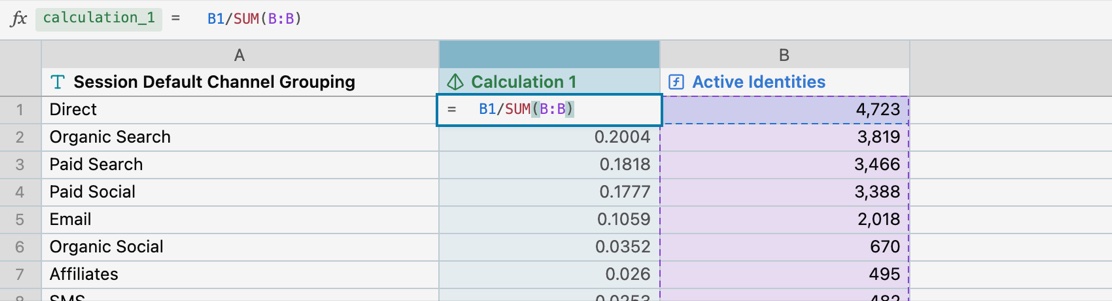
B2. Select another cell to replace it, if you selected the wrong one. Type an operator, such as/, then select the next cell. Select a column’s header to write the whole column, such asB:B. Drag over cells, or hold Shift and select a cell, to write a range in one column, such asB1:B4. The bar shows the same text as the cell, and you can type in either. -
Read the preview.
The column shows its values at once, in muted text. Your browser works them out from the rows on screen, and the warehouse’s values replace them. The column flashes when they arrive.
-
Press Enter.
Kater writes the column, and the next row’s cell is selected. The bar shows the formula as it reads on that row. If the formula has an error, nothing is written. The error is marked in the text and said under the editor. Press Escape to drop the formula. On a new column, Escape goes back to its empty cell, and a second Escape removes the column. The column also goes when you select a different cell before you write a formula in it.
-
Name it.
Double-click the column’s name, or select the name in the bar. Type a name, then press Enter. Escape keeps the old name.
To have your agent write the formula, select the columns it reads, then select the sparkles button at the right of the bar. Ask opens with a new formula column and the columns you selected. Say what the formula works out, then send the prompt to your agent. The agent adds the column to the query, and the worksheet shows it.
Promote a Custom Calculation
A formula column belongs to its query. To use it in other queries of the workspace, promote it to the workspace:
- Promote as Measure shows when the formula reads measures or a measure’s total on its own row, such as
=B5/C5over Revenue and Orders. - Promote as Dimension shows when the formula reads only row values on its own row, such as
=UPPER(B5). - Promote to workspace is greyed when the formula reads other rows, a range or a whole column. Such a formula depends on the query’s rows and sort, so only its query can hold it.
Kater checks the promotion first and shows what it writes. The workspace then keeps the formula as a measure or a dimension, and the query reads that field. From a terminal, kater model promote takes --promote-as measure or --promote-as dimension.
To change a formula, select a cell of its column and press Enter or F2, or double-click the cell.
References
| In the bar, on row 5 | Reads |
|---|---|
B5 | This row’s value in column B |
B4 | The row above. B6 is the row below. |
B$1 | The first row. $ anchors a row, as in Excel. |
B$1:B5 | The rows from the first one to this one |
B:B | Every row in column B |
B_TOTAL | Column B’s measure, worked out over all rows at once |
The bar shows a formula as it reads on the selected row, so =B5-B4 on row 5 is =B6-B5 on row 6. Kater stores field names, not letters, so a column that moves breaks nothing. You can refer only to columns that the query returns.
| Typed on row 5 | Gives |
|---|---|
=B5-C5 | Revenue minus cost on each row |
=B5/SUM(B:B) | Each row’s share of the values shown |
=B5/B_TOTAL | Each row’s share of the measure’s true total, the right one for a ratio or a distinct count |
=B5-B4 | The change from the row above |
=SUM(B$1:B5) | A running total |
Sort for the row above
- “The row above” is the row above on screen. A formula that reads another row follows the query’s sort. Sort the query another way, and the values change, as in Excel.
- No sort, no row above. When you press Enter on such a formula in a query with no sort, the bar sorts the query by its first dimension in the same change.
- A range reads every row.
SUM(B:B)adds up all the rows the query returns, not only those under the row limit. - Sort by another column. A column whose formula reads another row cannot be the column the query sorts by.
Convert to SQL and back
- Convert to SQL. Select a formula column, then Convert to SQL beside the bar or in the column menu. The field keeps its name, label and kind. A formula that read another row keeps its values and stops following the sort.
- Convert to Excel formula. A field made in the query in SQL has this in its column menu when Kater can read it as a formula. If Kater cannot, the bar says so.
Where you can use Excel
- Queries. On any query you can edit in the workspace editor.
- The Sandbox. On a scratch file’s statement. See Your agent’s brainstorm.
- Not in shared models. A formula that reads its own row can move to the workspace as a measure or a dimension. See Promote a Custom Calculation.
- With your agent. Your agent writes a formula when you ask for one.
Every function, the stored form and each rule are in the Excel formulas reference.