Analyze Workspaces
Overview
Workspaces are your home to build and analyze queries, charts, and a dashboard together over one shared semantic model or dataset.
Like Excel, a workspace is the home for every query that powers a dashboard, app, or workflow.
A workspace contains:
All queries in a workspace read one shared model and keeps its queries, charts, filters, dashboard and tests together, so anyone with access can open the work again and build on it.
Quickstart
Create a Workspace
Like everything in Kater, there are three ways to author queries:
Work in an Excel-like grid. Tick a field in the field list and it becomes a column. Columns are lettered and rows are numbered, and the formula bar takes formulas such as =B1/C1. Right-click a column to turn it into a share, a rank or a comparison. See Queries.
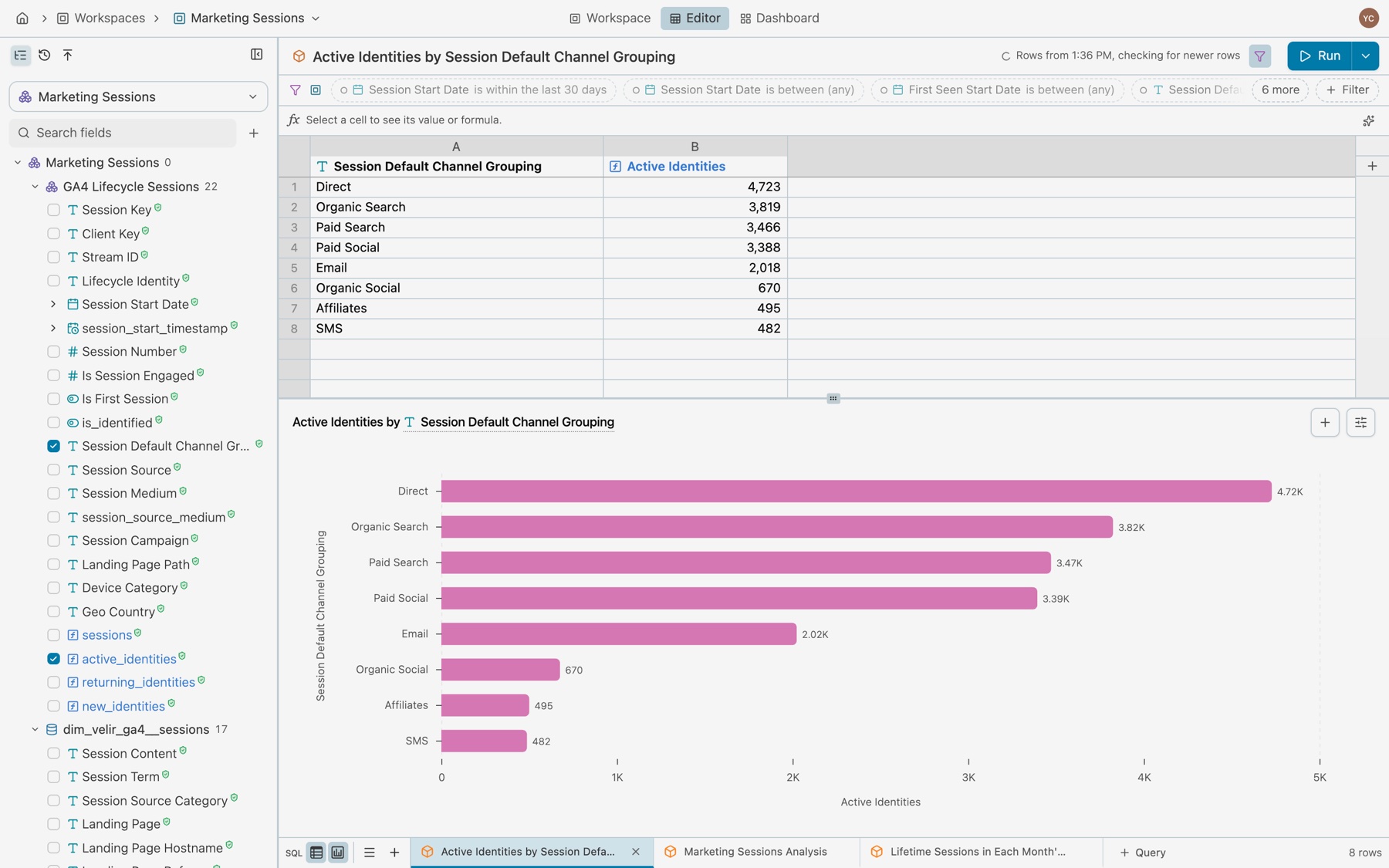
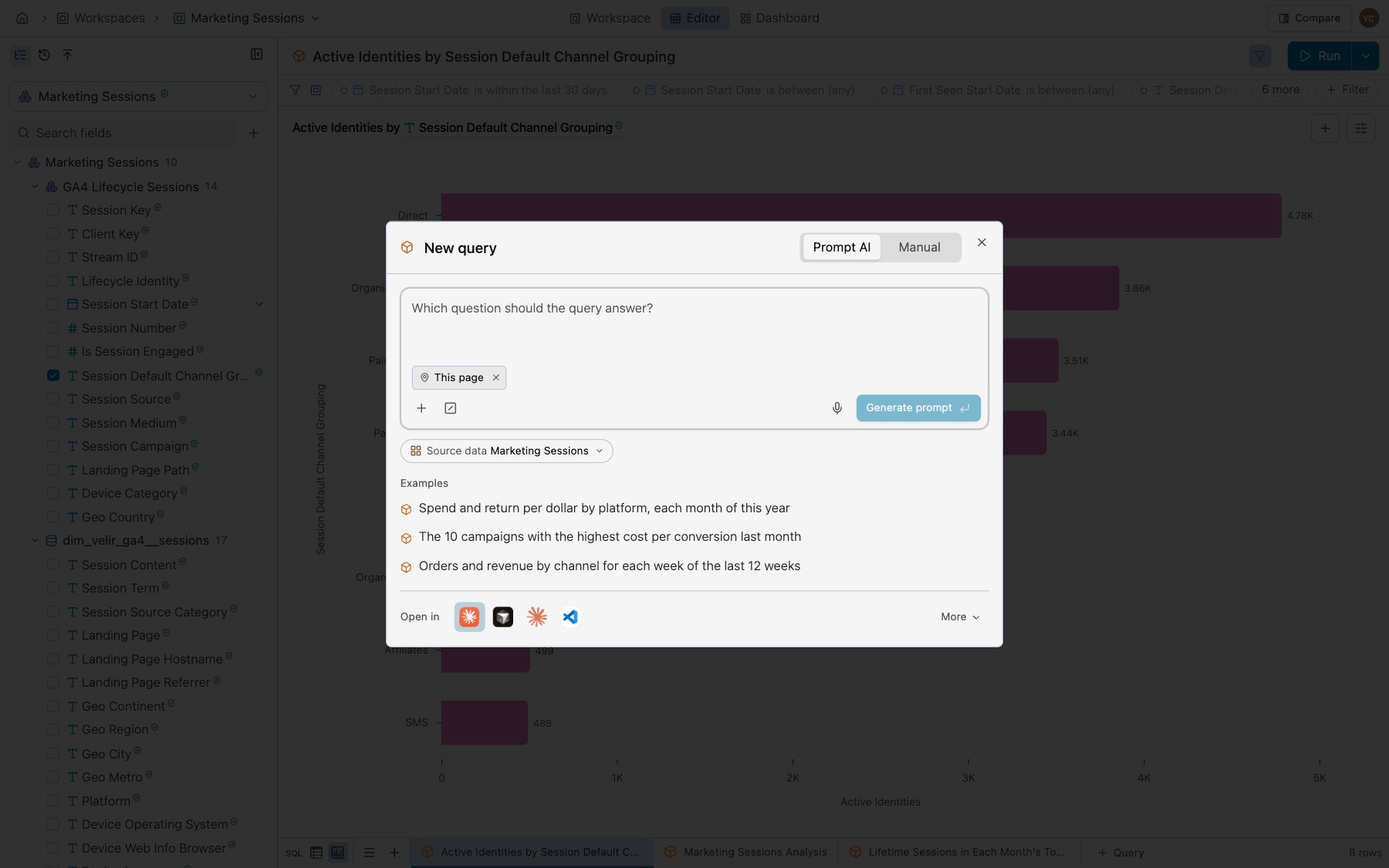
Describe the query in your own words to your agent, such as Claude or ChatGPT, connected to Kater. It knows which workspace you have open and writes the query there. Each change it makes is one entry in History, with Undo. In the workspace, you can also select File › New query in the workspace name’s menu and describe it on the Prompt AI tab. See Ask Kater MCP.
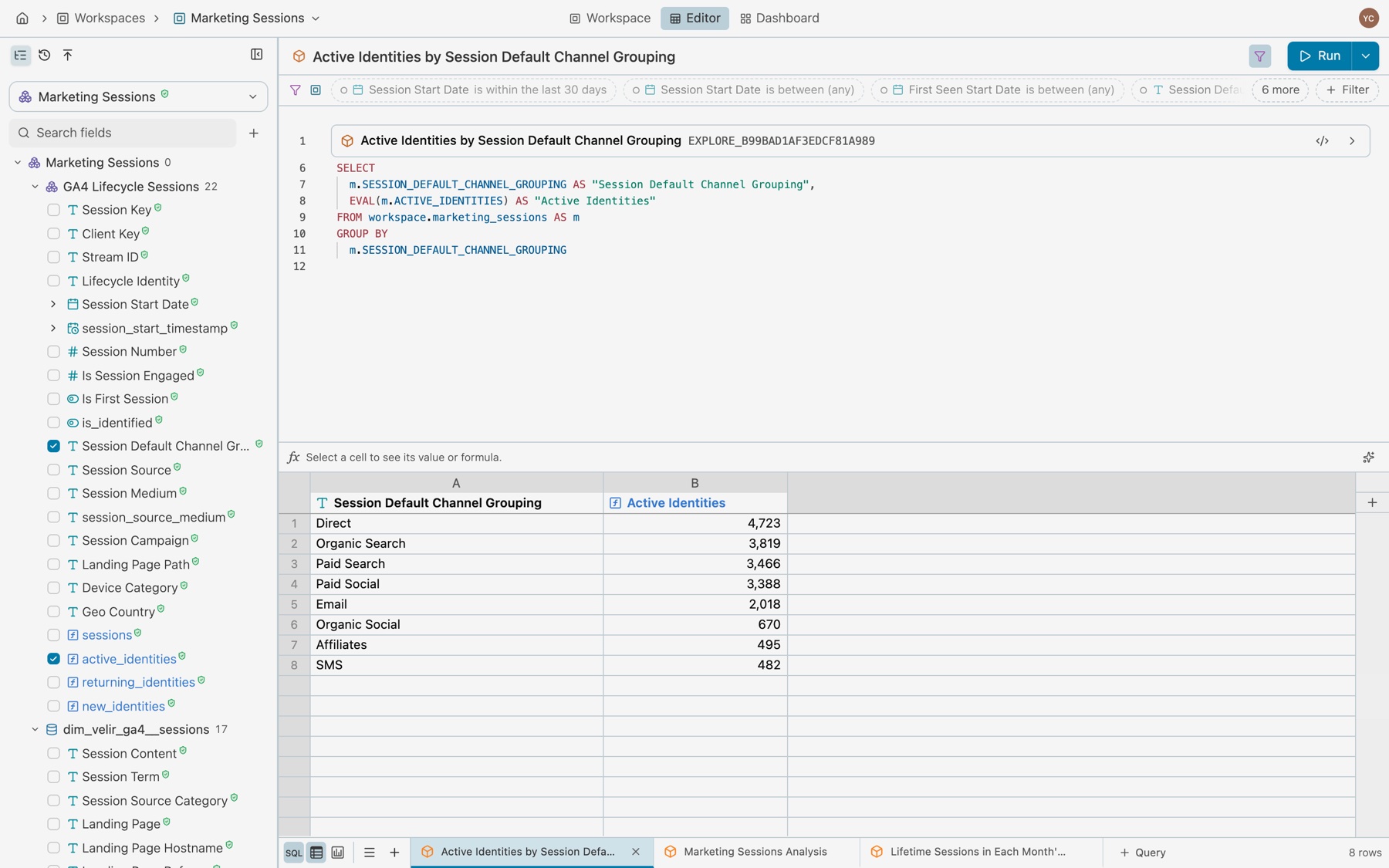
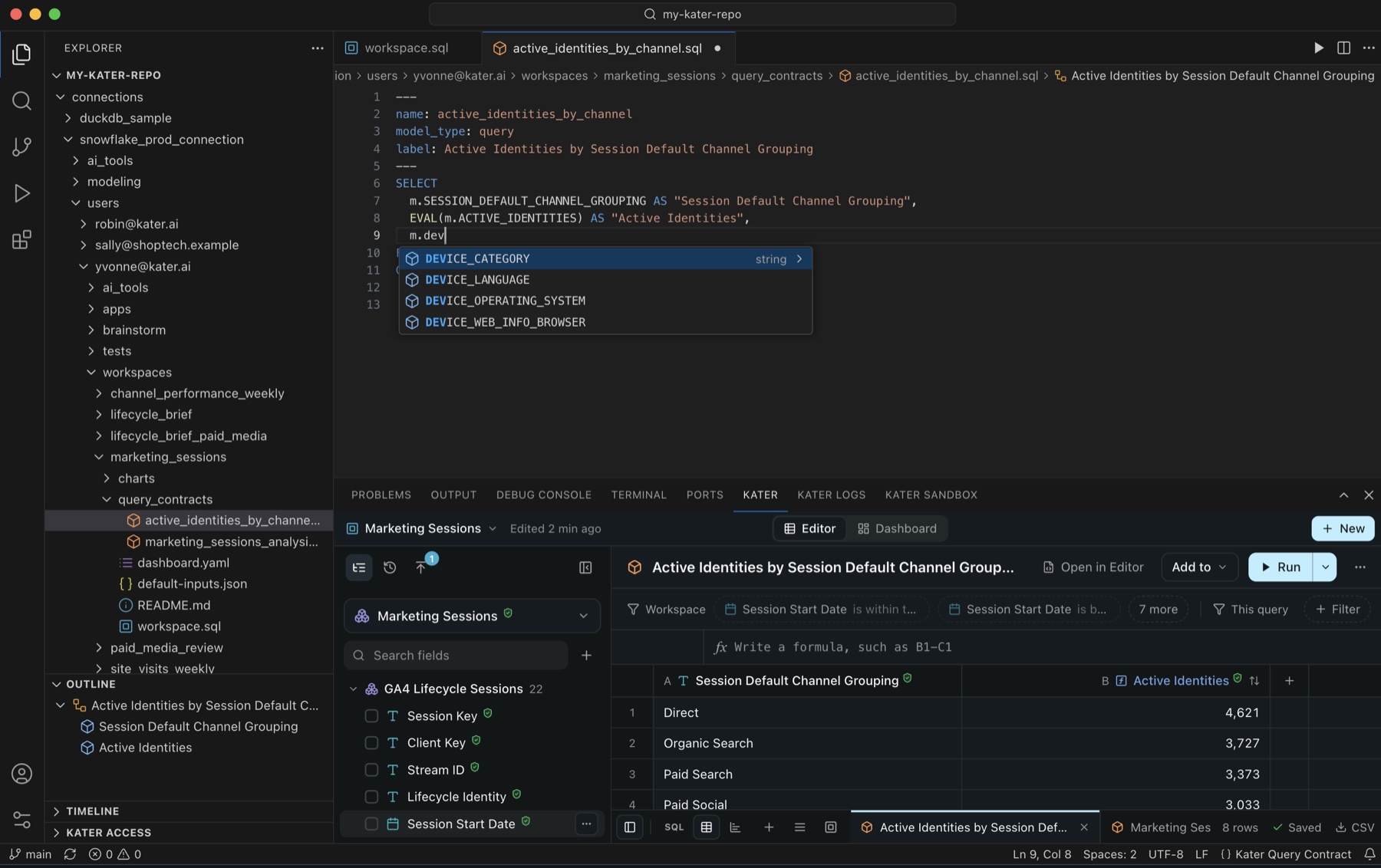
Write the query yourself in Kater SQL. In Kater, select SQL in the footer to open the editor over the rows. In VS Code, open the query’s .sql file with the Kater extension. It completes field names as you type, and its Kater panel shows the same workspace editor.
| If you want to… | Do this |
|---|---|
| Keep a question you will ask again | Save it as a query in a workspace. See Queries. |
| Work on your own first | Use a personal workspace |
| Share analysis with a team | Use a connection workspace |
| See what a workspace holds before you change it | Open its overview with Workspace in the header |
| Give every query the same filters | Add workspace filters on the overview |
| Try SQL before you select a workspace | Use the Sandbox |
Personal and connection workspaces
| Kind | Where it lives | Who can open it |
|---|---|---|
| Personal | connections/<c>/users/<email>/workspaces/<name>/ | You, admins, and whoever you share it with |
| Connection | connections/<c>/workspaces/<name>/ | Everyone its folder’s access allows |
The data team can mark a workspace it stands behind with the curated tag. A tag grants no access. A workspace is never verified: only a field from the shared layer is. The files a workspace holds are listed in Workspaces under Model.
Find a workspace
Select Workspaces in the sidebar. The tabs are All, Mine and Shared with me, plus Pinned once you pin one. Each row has Open dashboard, and View only where you cannot edit. Inside a workspace, select its name in the header, then File › Switch workspace.
- From Explore. New workspace and Make something new › Workspace on the Workspaces page open Explore, and so does File › New workspace in a workspace. Select a model and add cards to a new workspace.
- From a shared model. With a model open in Shared models, select File › Start a workspace from this model. The New workspace dialog opens on Manual, with the model filled in. New › Workspace opens it on Prompt AI, where you describe the workspace.
- With your agent. Run the Start a workspace starter: “Start a workspace for Q4 paid media.”
Open a workspace
Kater opens a workspace where you most likely want to be. The first rule that applies decides what opens:
- A link names it. A shared or bookmarked address opens exactly what it names.
- You were here before. It opens where you left off: the query, Editor or Dashboard, the SQL editor, the chart panel and its tab, and the sidebar tab. Kater keeps this place for each person and each workspace, so it follows you to another device.
- It is someone else’s workspace, and your first visit. It opens on its Dashboard when the dashboard has tiles. Without tiles, it opens the first query in tab order.
- It is your own workspace, and your first visit. It opens the first query in tab order.
- It has no model yet. It opens on the empty workspace start. A workspace with a model and no queries opens a blank query.
If the query you left is gone, the visit counts as a first visit. No message tells you that you are back: the page just opens as you left it.
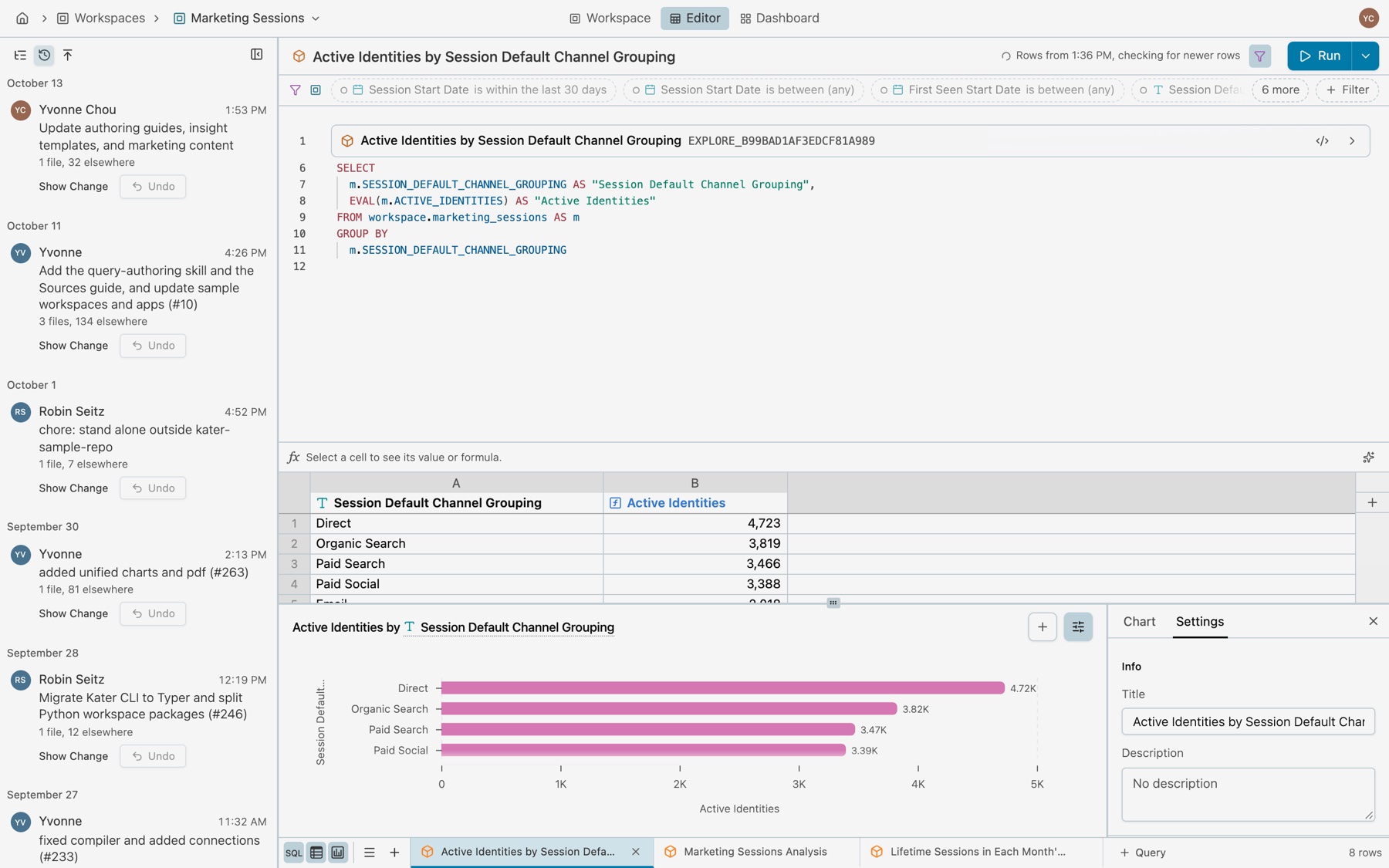
A first visit to someone else’s workspace with tiles opens on its dashboard. See Dashboards.
General Workspace Workflow
A new workspace has no model yet. It opens on a start page with the same search box as Home, and nothing is selected until you select it.
-
Search or ask.
“Select a semantic model or dataset to start your analysis.” sits over Search or ask anything, with Generate prompt. Under the box, pills show what you opened lately and the connection’s starters: models, questions, measures, fields and topics.
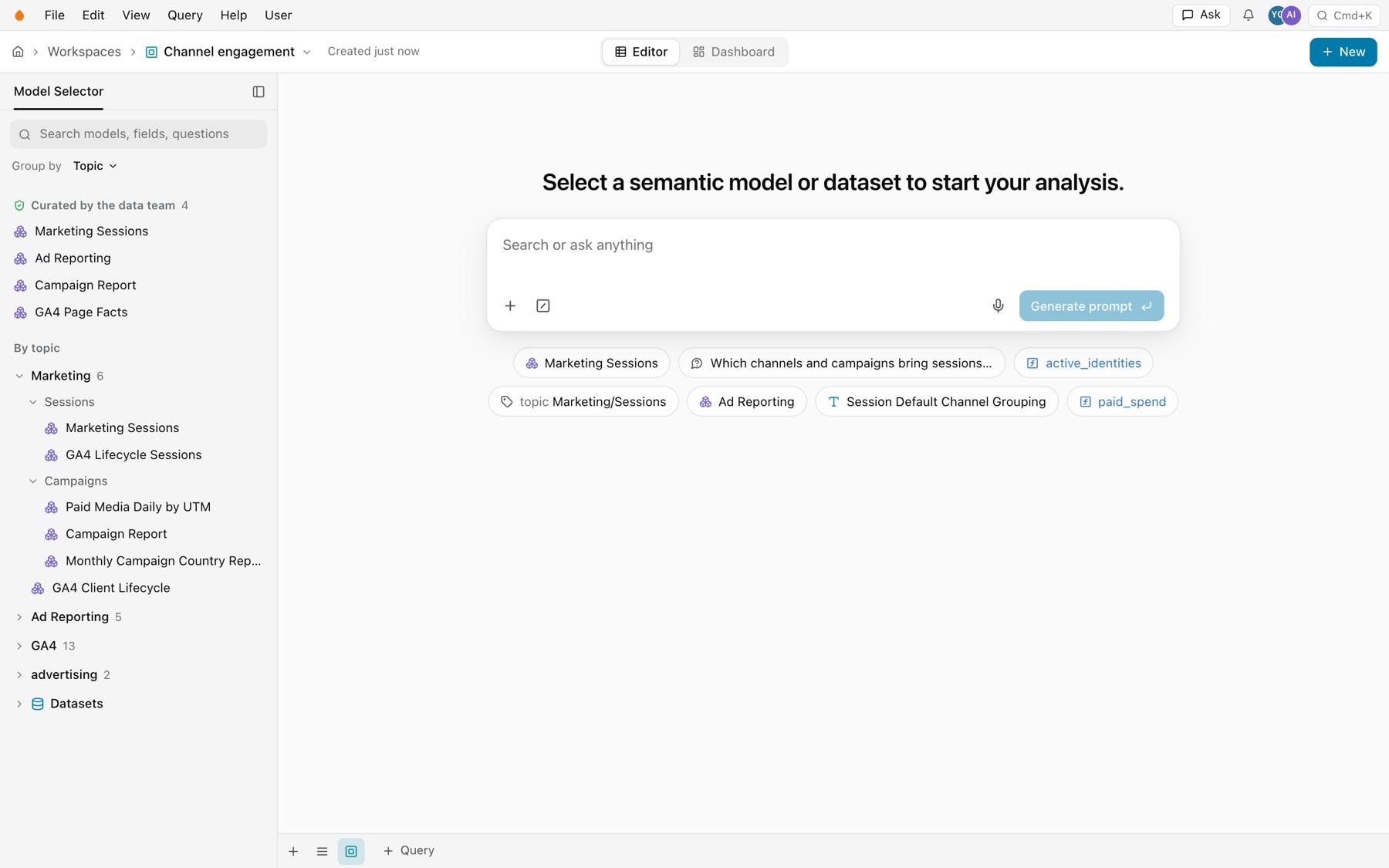
A new, empty workspace. -
Or browse the Model Selector.
The sidebar’s Model Selector searches models, fields and questions. Curated by the data team comes first. Group by sorts the rest by Topic, Team, Source or None, and Kater datasets sit under Datasets.
-
Type to search.
The list shows Ask about your words first, which writes a prompt from them and this workspace (⌘↵). Then come Questions models answer, Models and Fields, each with where it lives.
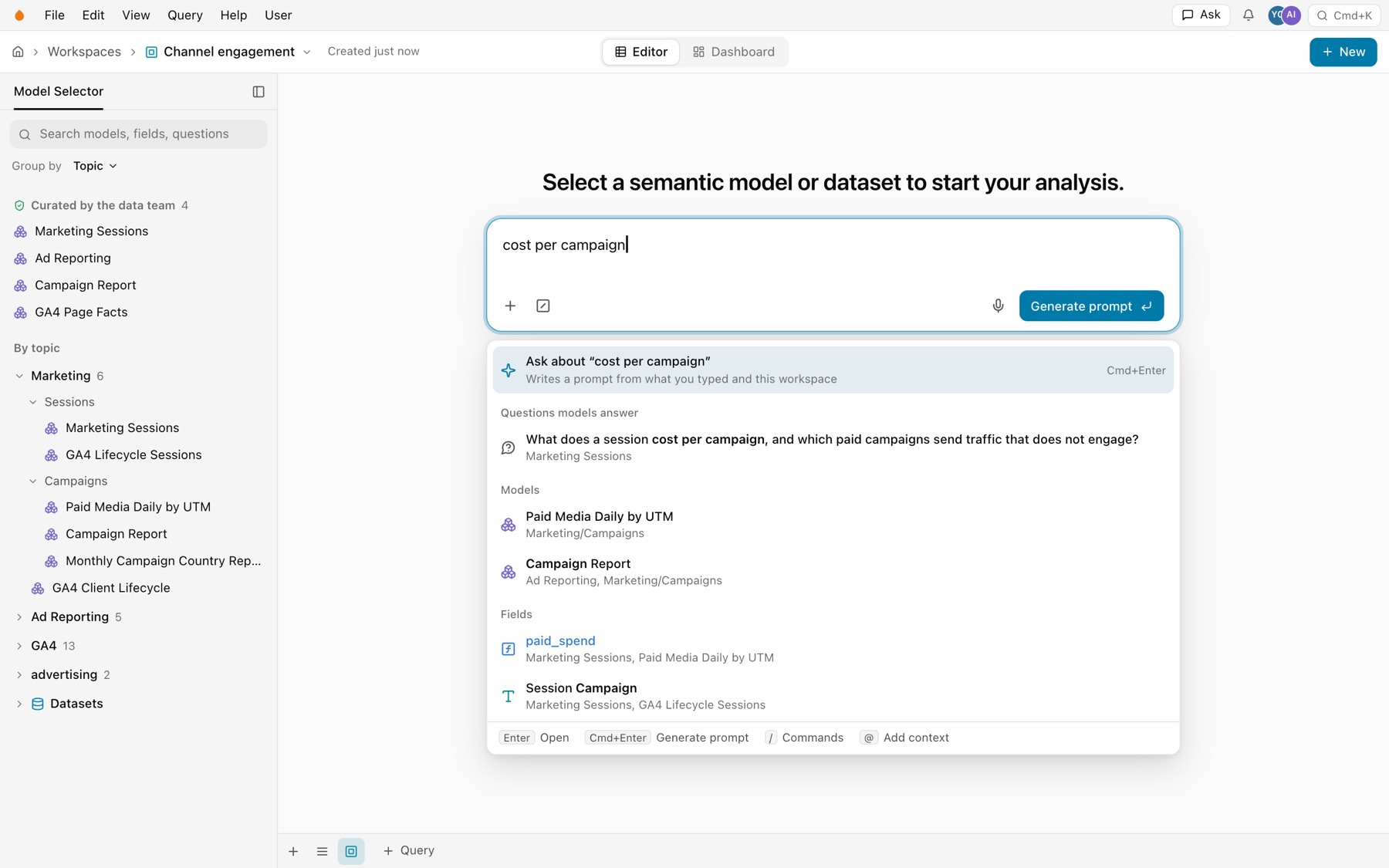
Searching from an empty workspace. -
Look at a model.
Select a question, a model or a field to preview its model. The preview shows its description and tags, its fields grouped by source with Search fields, Questions it answers, and a sample of its rows.
-
Select Start analyzing using.
The button at the bottom right of the preview names the model type and the model, such as Semantic model over Marketing Sessions. The workspace reads that model from now on, and a first query opens.
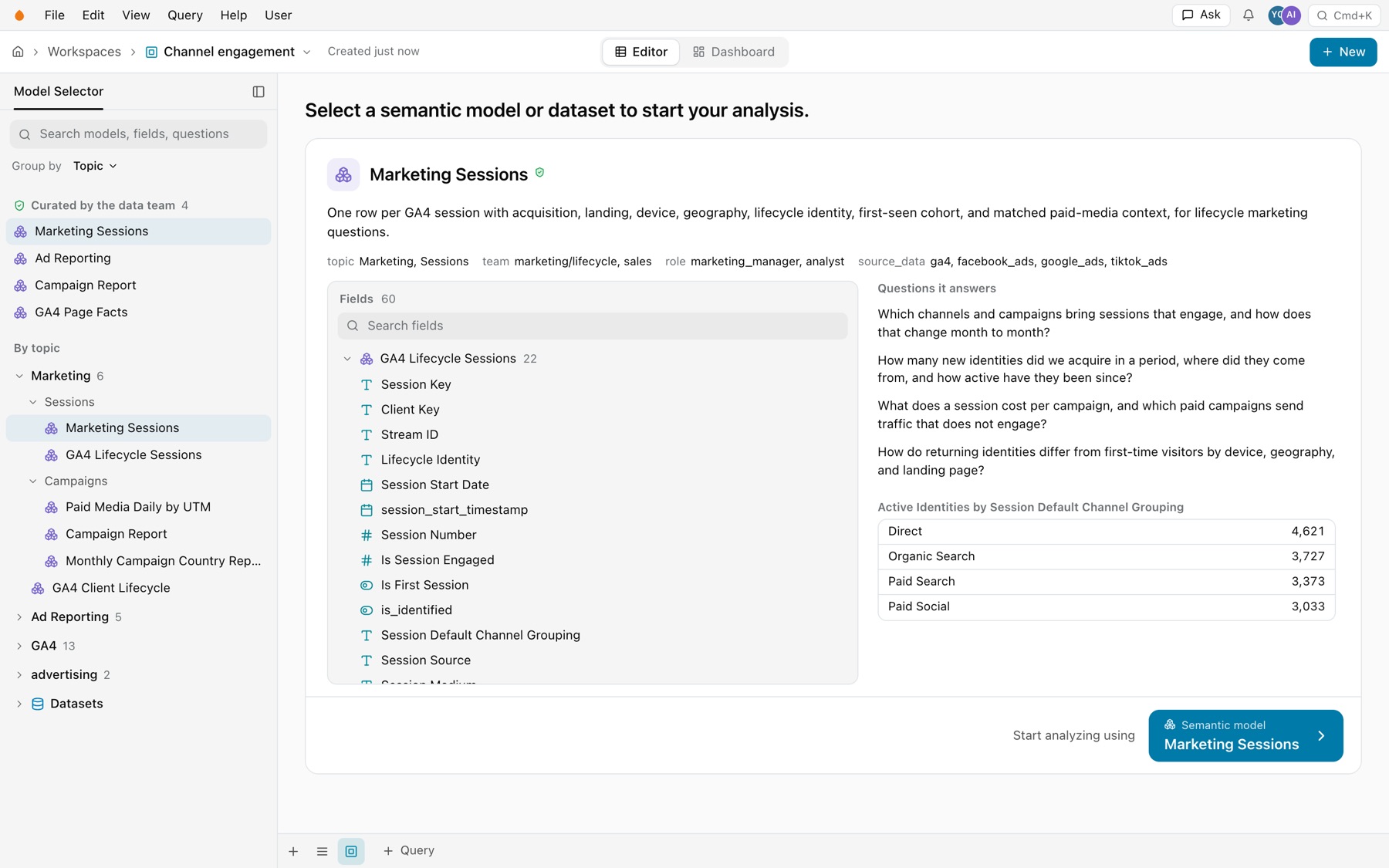
A model selected, with Start analyzing using at the bottom right.
Back steps from the preview to your search, and Esc does the same.
Overview page
The overview says what the workspace is, what it reads, and what was added to it. Select Workspace in the header to open it. The Files page and the VS Code extension show the same overview when you open a workspace’s workspace.sql.
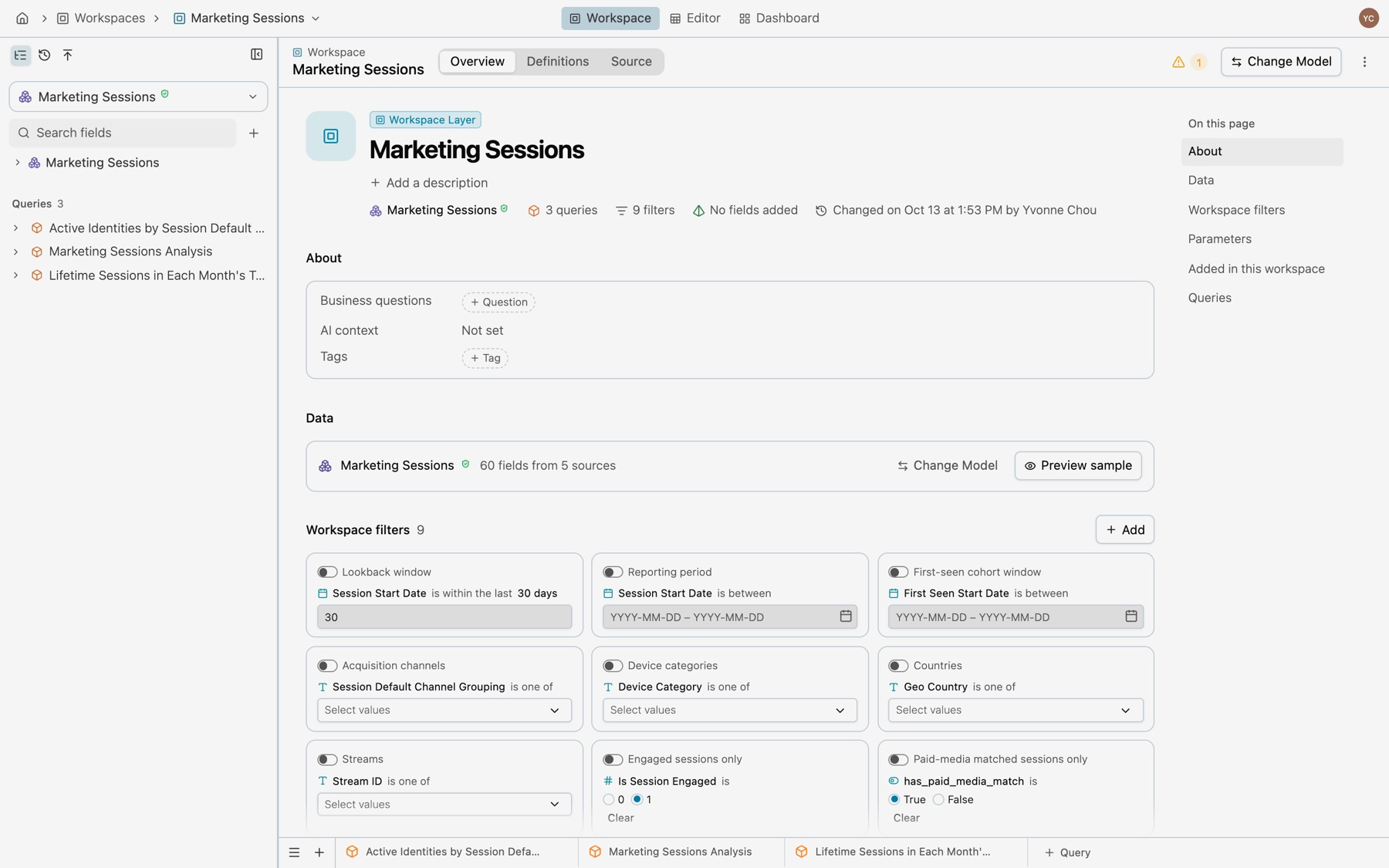
- The bar. The workspace’s name, the tabs Overview, Definitions and Source, then the problems mark when there are some, Change Model and More. More has Show SQL parameter names and Reset filters to defaults.
- The title block. The name, its description or Add a description, and its facts: the model it reads, how many queries and filters it has, how many fields were added, and who changed it last. Select the last change to open History.
- The sidebar. The field list without checkboxes, since no query is open, led by Added in this workspace.
| Section | What it shows |
|---|---|
| About | Business questions, AI context and tags. Select + Question or + Tag to add one. |
| Data | The model it reads, such as “60 fields from 5 sources”, and Preview sample |
| Workspace filters | One card for each filter, with its switch, condition and value. Add makes a new one. |
| Parameters | The parameters no filter reads, with their type, values, default and value |
| Added in this workspace | Each field the workspace adds, with its expression, how many queries use it, and its menu |
| Queries | Each query with its columns and when it last changed. Select one to open it. |
On this page at the right jumps to a section.
Definitions
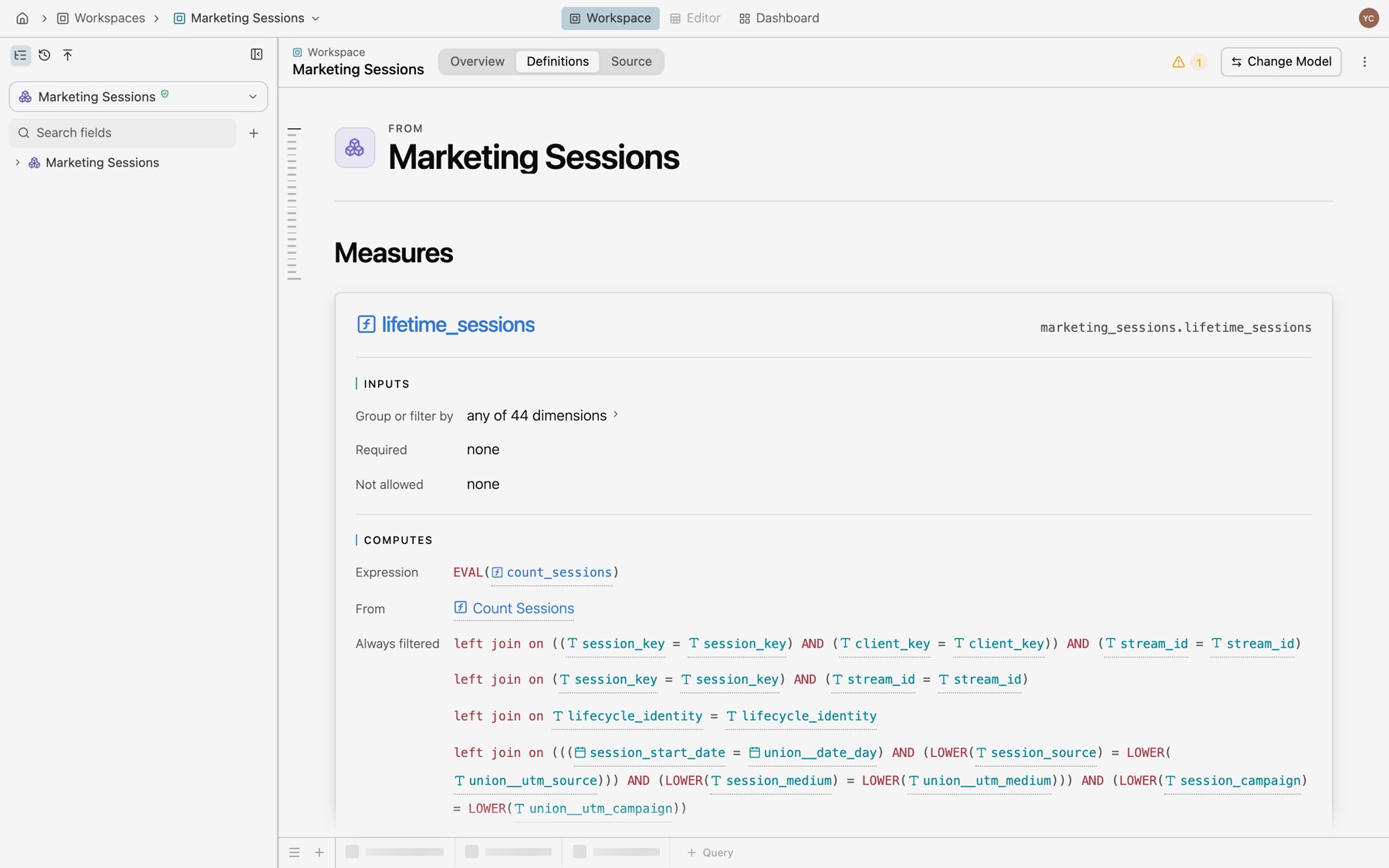
The Definitions tab lists every field the workspace offers, each as a card with its address, description and what it computes. Fields from the model come first, by measures and dimensions, then Created in this workspace. Open definition in any field menu, and View › Workspace definitions (⌥3), open this tab on the field’s card.
Source
The Source tab shows the workspace’s own Kater SQL, workspace.sql, and you can edit it there. See Workspaces for what the file holds.
Workspace filters and parameters
Workspace filters are the filters every query in the workspace can switch on. In the editor they sit in the filter bar, after the workspace mark. A filter that is off shows dashed and faded, with a ring. A filter that applies is solid, with a dot, and the rows follow it.
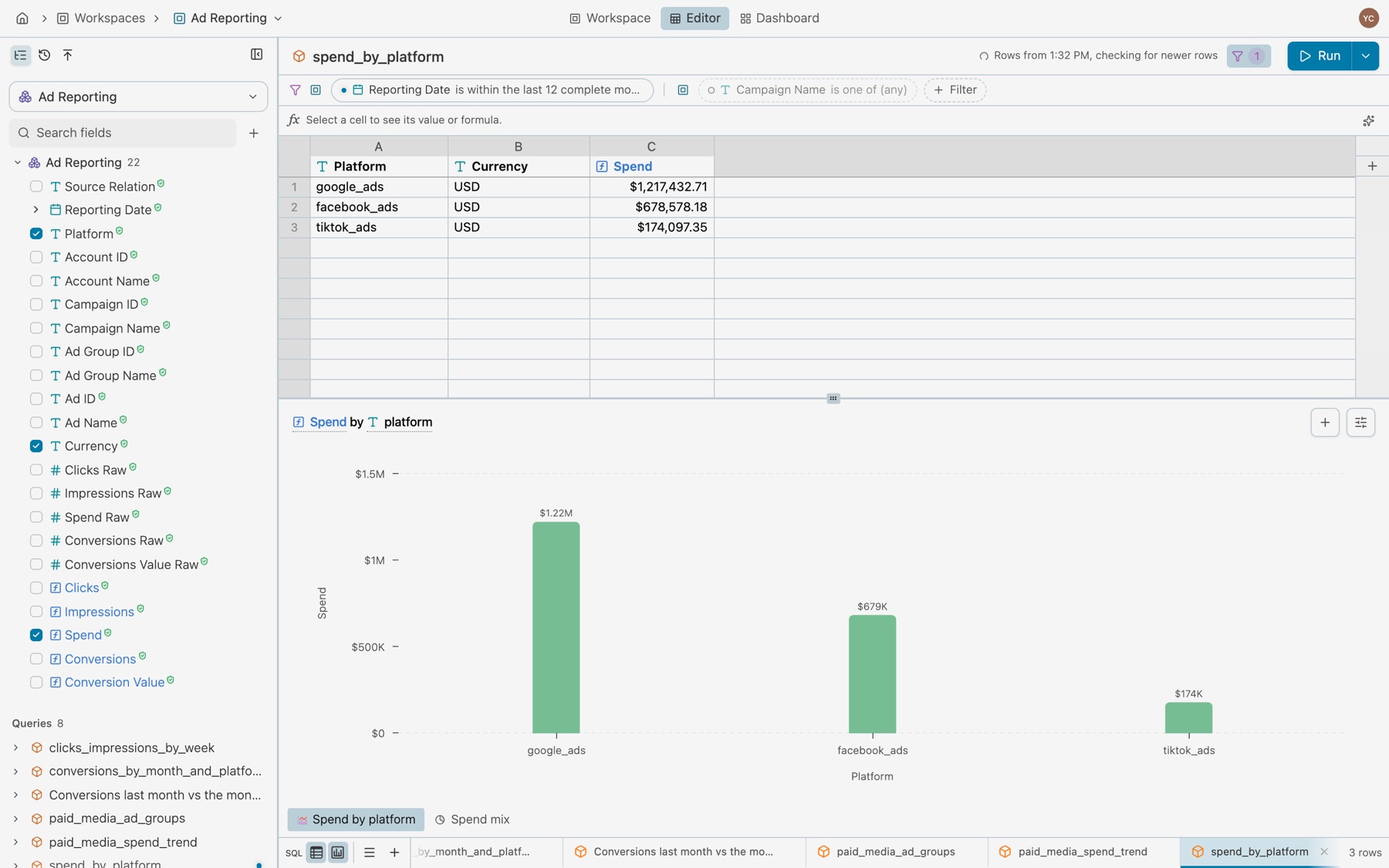
On the overview, each filter is a card. Its settings edit the filter and the parameter it reads together. A parameter that no filter reads is listed under Parameters. See Filters and parameters.
Change the model
A workspace reads one model. Change Model shows what each query and filter keeps before anything changes.
-
Open Change Model.
Select Change Model in the overview’s bar, or in the menu of the model button at the top of the field list.
-
Select a model.
The selector marks the model in use with In use. Select another model to see its preview.
-
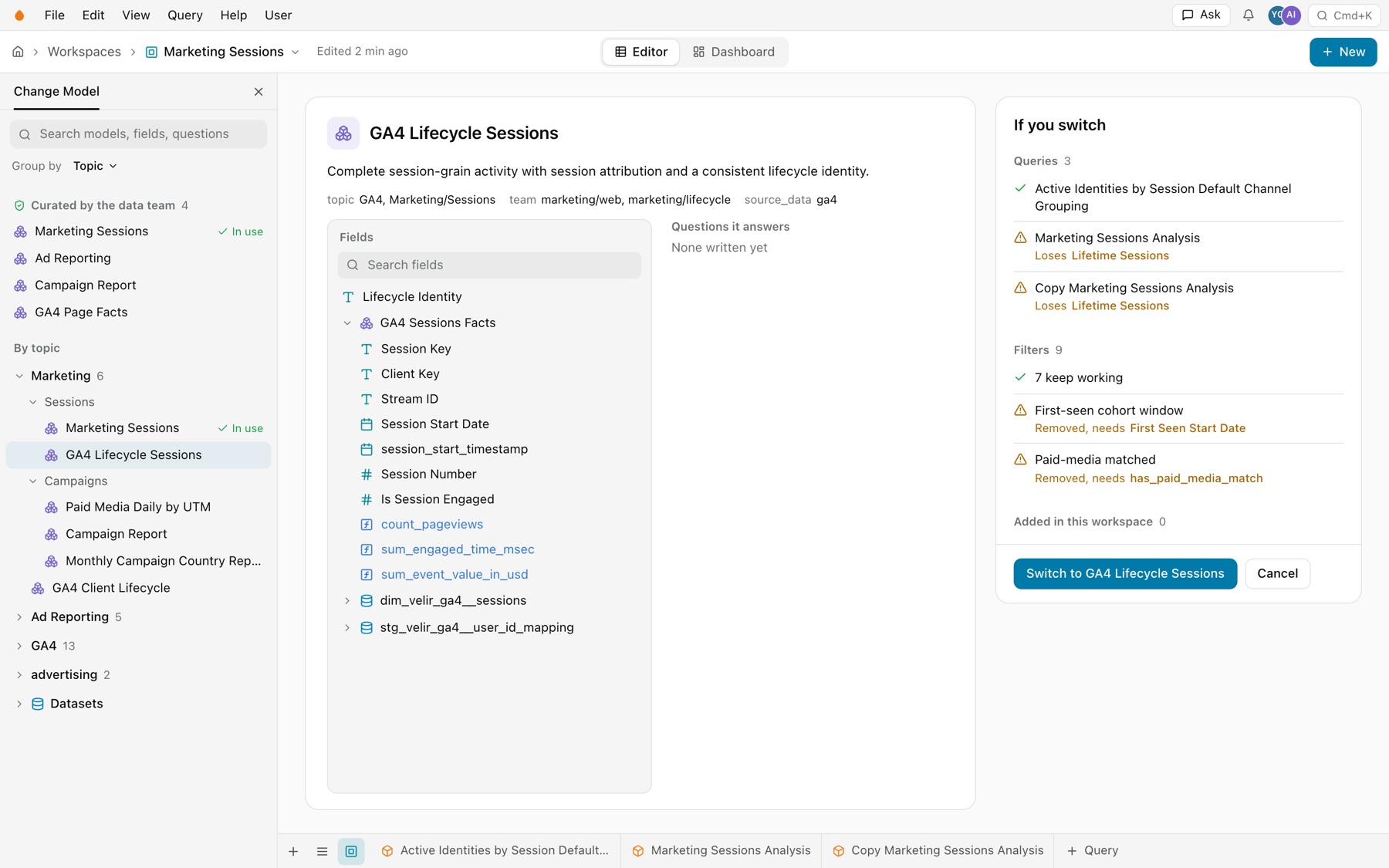
Read If you switch.
It lists each query and whether it loses a field, the filters that keep working, the filters that are removed with the field each needs, and the fields added in this workspace.
-
Switch or cancel.
Select Switch to and the model’s name, or Cancel.
After the switch:
- A message offers Undo. It says how many queries lost a field, such as “Switched to GA4 Lifecycle Sessions. 2 queries lost a field.”
- Broken queries are marked. Their tabs and their rows in Queries carry a warning mark.
- The missing field leads the list. A section such as Not in GA4 Lifecycle Sessions shows it struck through, with how many queries read it.
- The rows say why. A query that cannot run names the missing field and offers Replace with and Remove column.
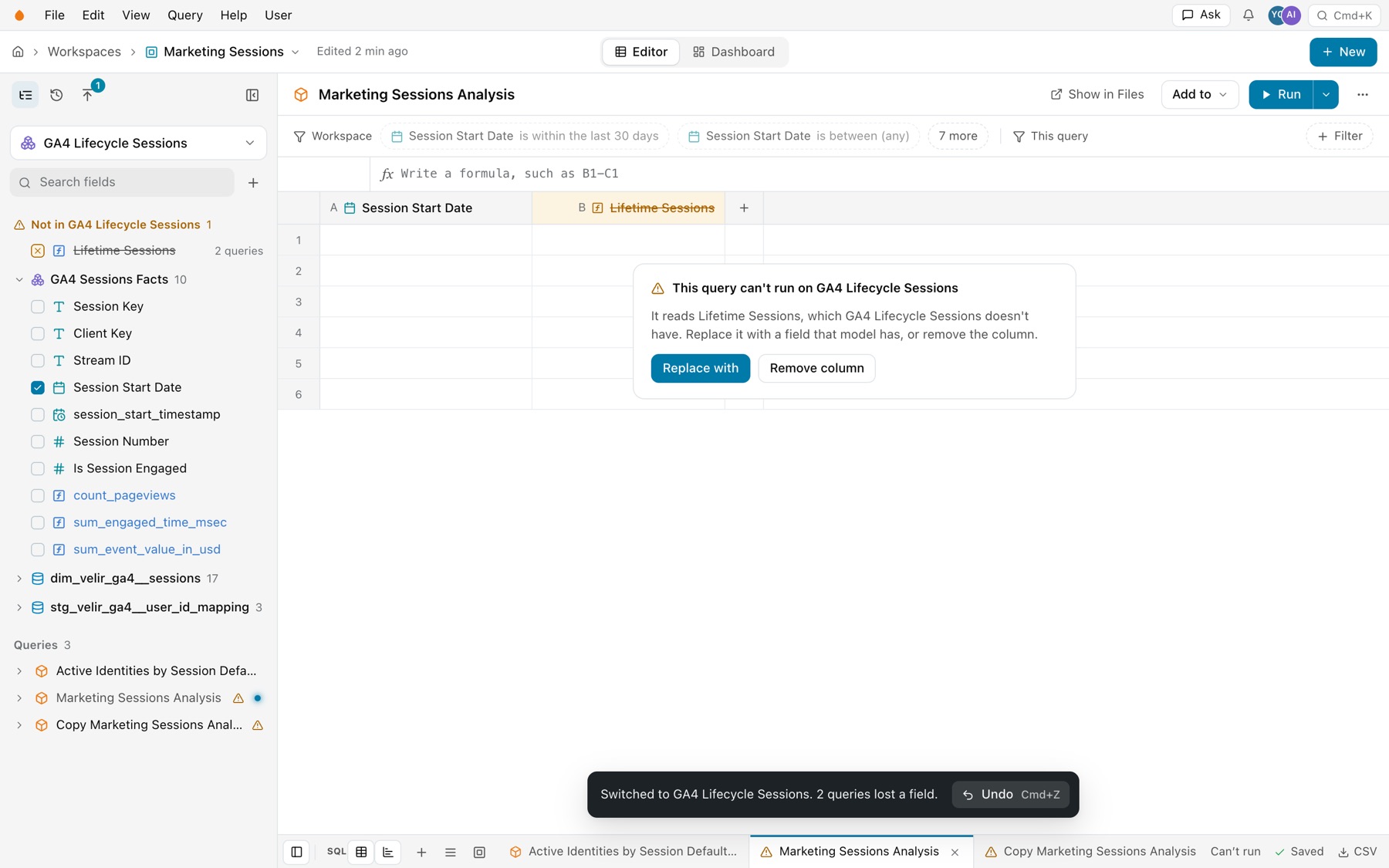
History
Every change to a workspace is in its history, whoever made it. Select the History tab in the sidebar, or the first row of the workspace name’s menu, such as Edited on Oct 13 by Yvonne. Hover the time to see who changed it, with which agent, and when.
- Changes are grouped by day. Each shows who made it and the agent they worked with, the time, a one-line summary and how many files it changed.
- Show Change lists each file with its diff.
- Undo reverses a change as a new change, and marks the old one Undone. Undo is greyed, with the reason on hover, while a later change must be undone first.
- Older changes loads earlier days.
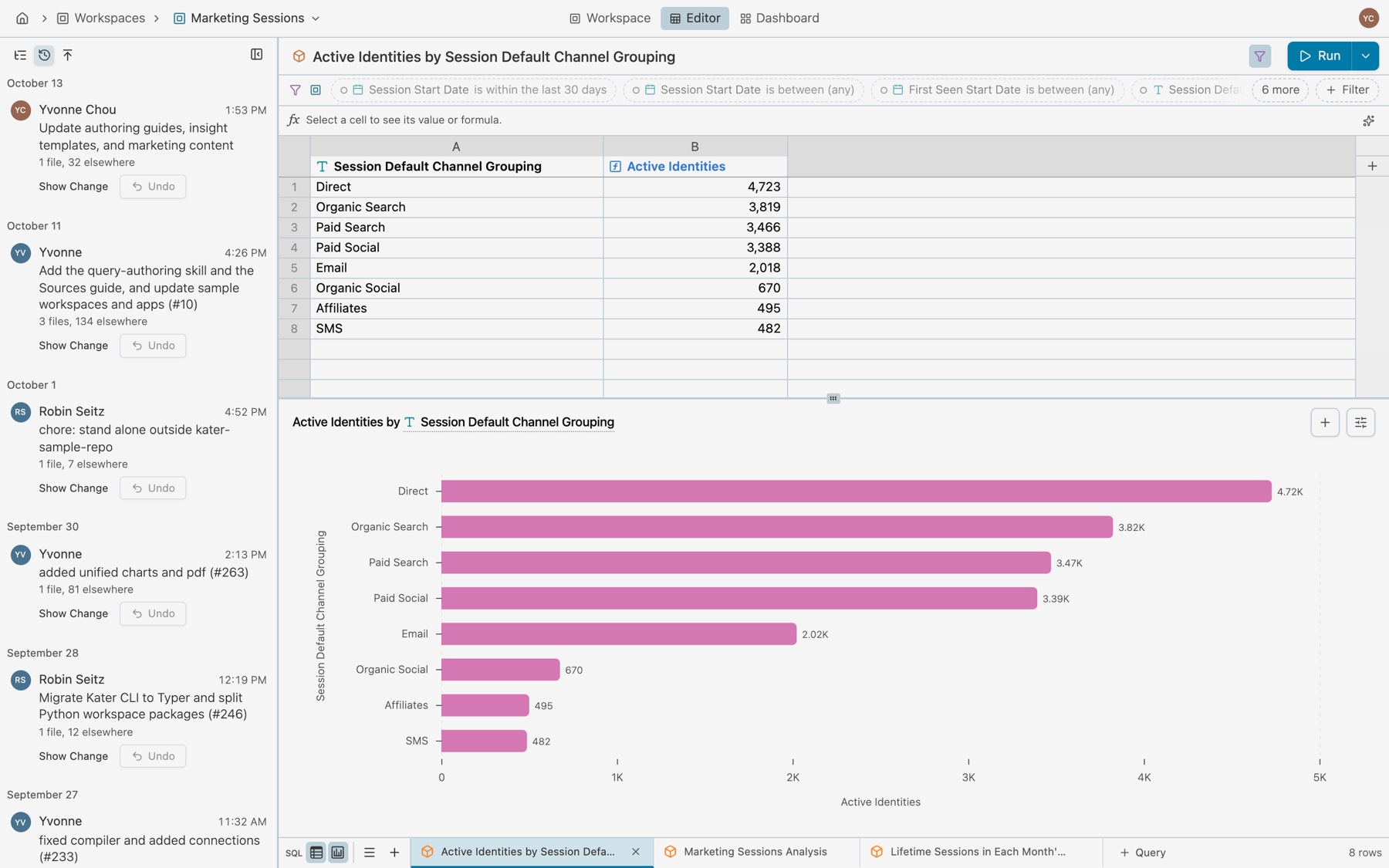
Share and link
- Share. File › Share in the workspace name’s menu opens the share dialog.
- Copy link. File › Copy link copies the address of exactly what you see. The address holds the open query, the view, the sidebar tab and the panels, so the link opens the same view.
- Pin. File › Pin.
- Place a chart elsewhere. Query › Add to puts a query’s chart on a dashboard, in another workspace or in an app. See Queries.
| Address key | Values | What it opens |
|---|---|---|
view | dashboard | The Dashboard view |
sidebar | history, promote, closed | The sidebar tab, or no sidebar |
panel | chart, settings | The chart panel and its tab |
ws | definitions, source | The overview’s tab |
def | A field’s name | That field’s card on the Definitions tab |
Next steps
- Queries: the editor in depth.
- Charts and Dashboards.
- Workspaces under Model: the files and the rules.