Integrations
VS Code extension
Install Kater's extension in VS Code, Cursor or Windsurf, sign in, and work on queries, models and scratch statements next to your other files.
Kater’s extension puts the workspace editor in VS Code, Cursor and Windsurf. Open a query file, and the Kater panel shows its fields, rows and chart. Open a model file, and it shows the model’s sources and joins. Each person signs in with their own Kater account, so the extension reads only what they can read.
Install and sign in
-
Install the extension.
In a terminal, run
kater vscode install. It installs the extension,kater.kater, in each of VS Code, Cursor and Windsurf that it finds on your PATH. VS Code gets it from the Visual Studio Marketplace, and Cursor and Windsurf get it from Open VSX.Terminal window kater vscode installWhen it finds no editor, install one, then run the command again. In an editor, you can also search the Extensions view for Kater SQL and select Install.
The extension starts Kater’s language server with the CLI that you installed, as
kater lsp. Sokatermust be on the PATH that your editor sees. -
Open your local copy.
In VS Code, select File › Open Folder… and open the folder that
kater git clonemade, such as~/kater. The extension uses the first open folder that holdsconnections/. To use a different folder, setkaterQuery.katerRootto its full path. -
Sign in.
Open the command palette and run Kater: Sign In. Your browser opens Kater’s sign-in page. When the page says “You’re signed in to Kater”, go back to VS Code. VS Code then says “Signed in to Kater as” and your email.
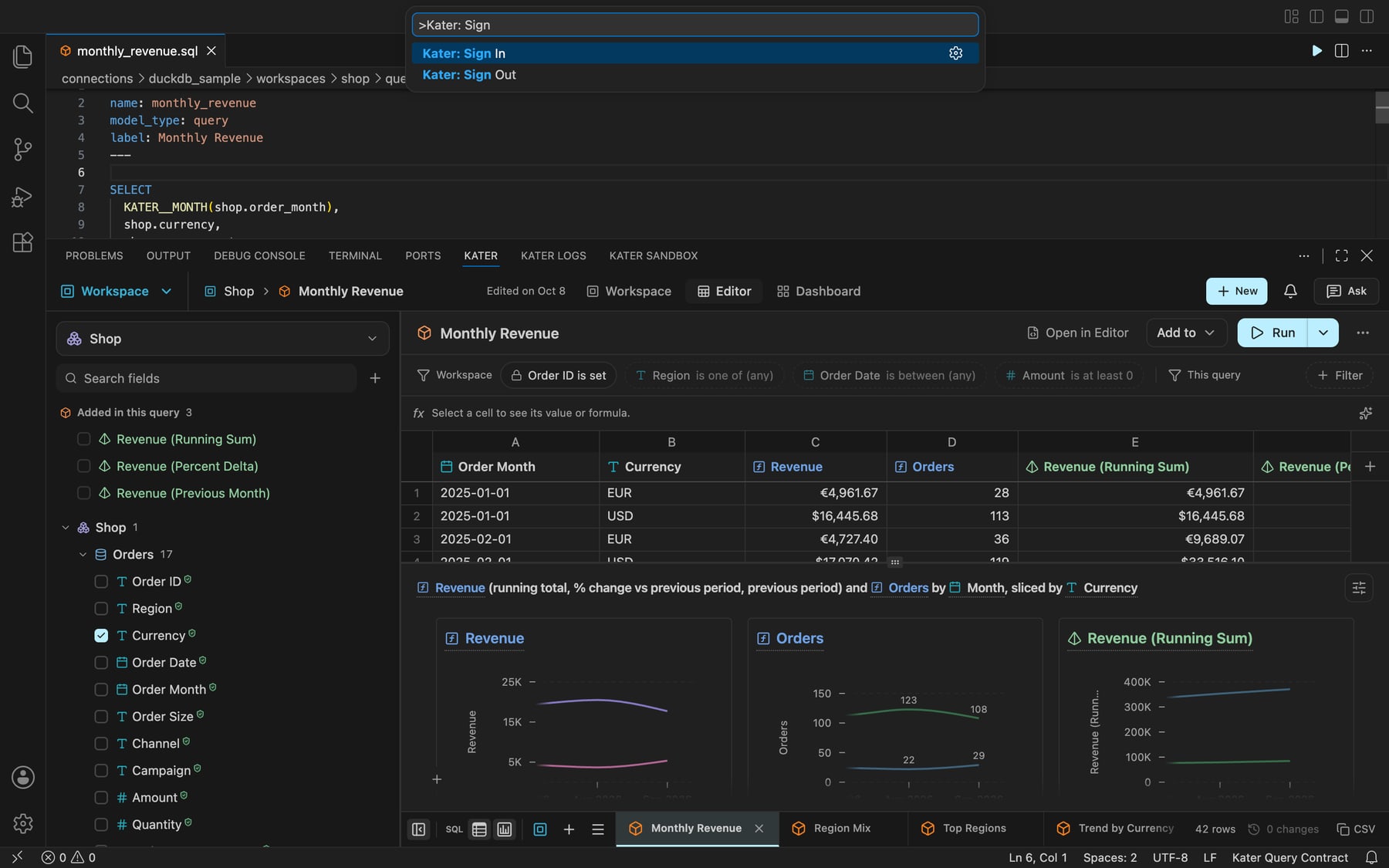
The extension signs in to the same Kater as kater login, at the address that kater login saved. To use a different address, set katerQuery.apiUrl. The extension keeps your sign-in in VS Code’s secret storage. Kater: Sign Out removes it.
Work on a query
Open a query file, in a workspace’s query_contracts/ folder. The Kater panel, at the bottom of the window, opens the same query. It shows the fields you can add, the filters, the rows and the chart. A change in the panel changes the file, and a change in the file shows in the panel.
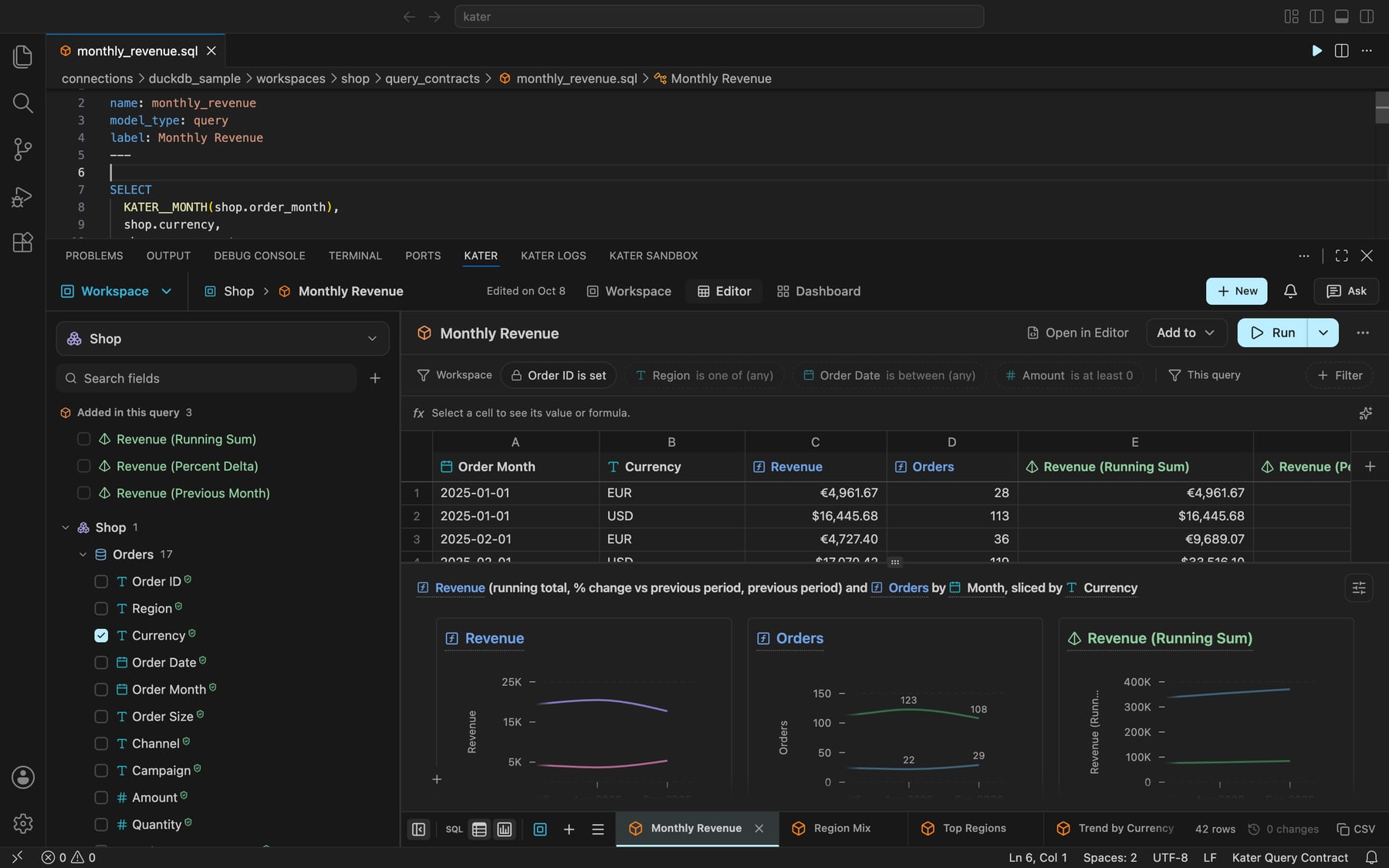
| Part of the panel | What it does |
|---|---|
| Layer picker, top left | Selects the Source Layer, the Shared Layer or one of your workspaces. |
| Workspace, Editor and Dashboard | Show the workspace’s overview, the open query, or the workspace’s dashboard. |
| Field picker | Adds a field to the query when you select its check box. |
| Run | Runs the query and shows the new rows and chart. |
| Query tabs, at the bottom | Open another query of the same workspace. |
Work on a shared model
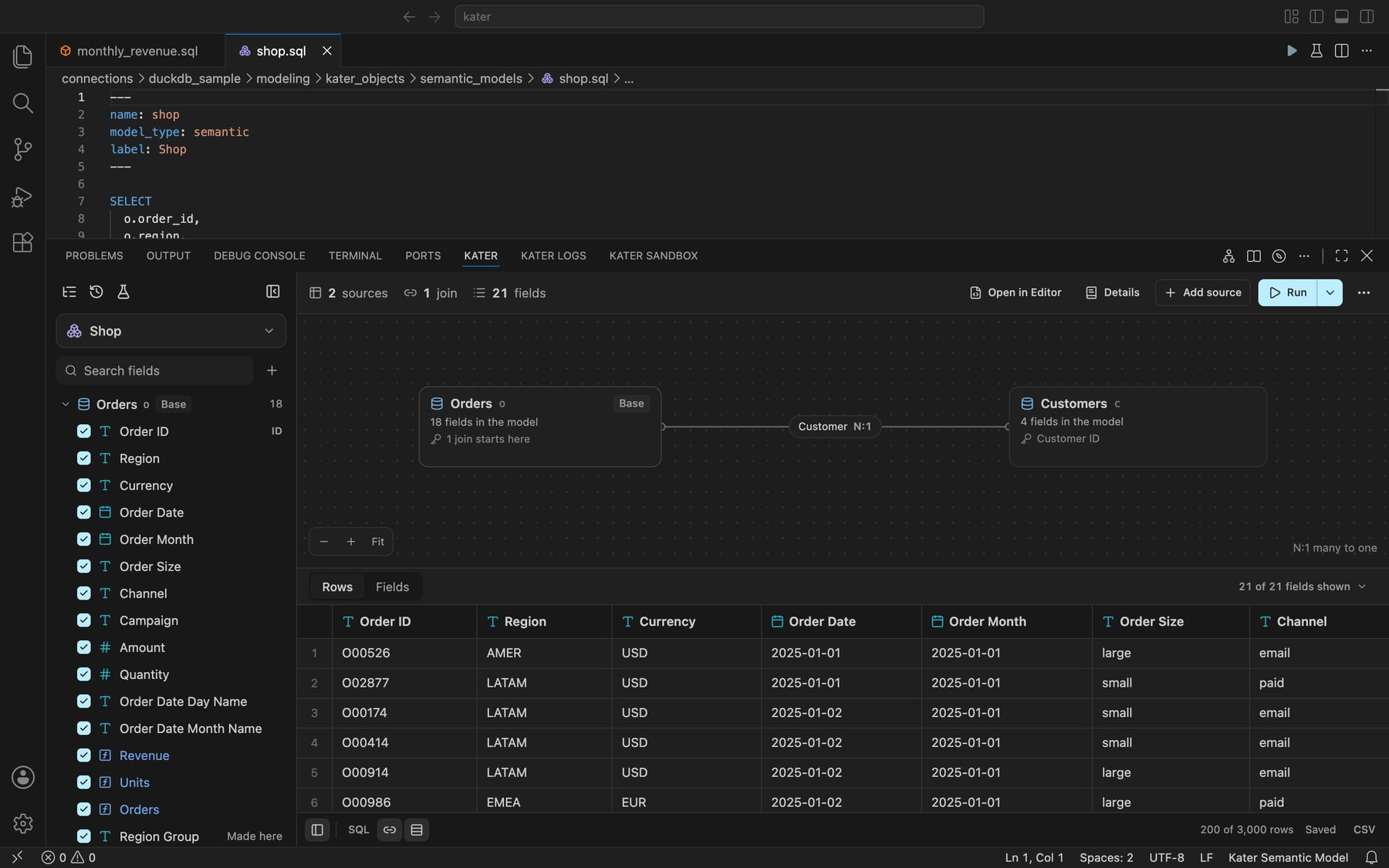
Open a model file, in modeling/kater_objects/semantic_models/. The Kater panel shows the model’s sources, its joins as a diagram, its fields and its first rows.
Try a statement in the Sandbox
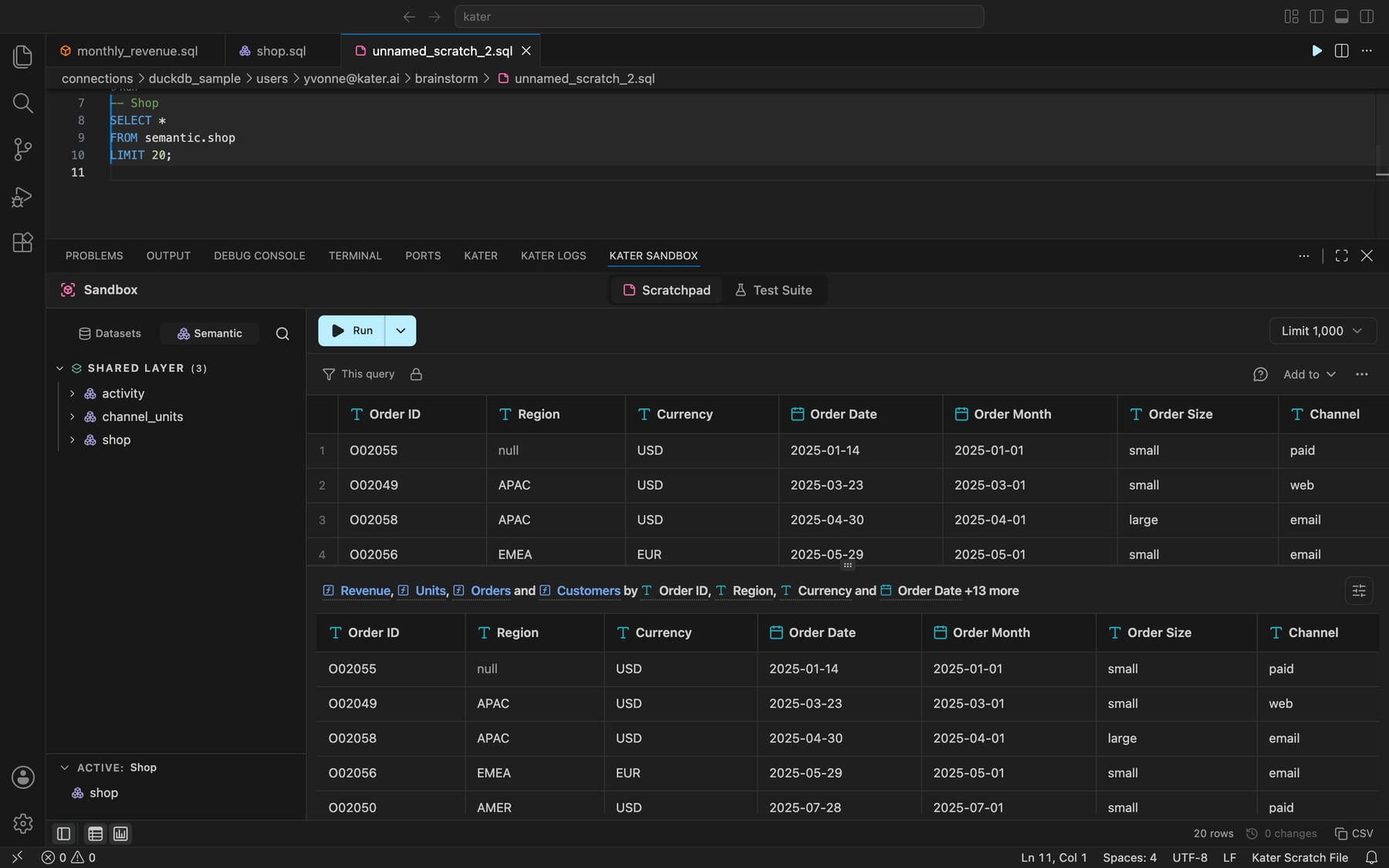
The Kater Sandbox panel runs scratch files. A scratch file is a SQL file in your brainstorm folder, connections/<connection>/users/<your email>/brainstorm/. Only you and the people you share it with can read it, and it is never versioned.
-
Make a scratch file.
Open a model and run Kater: Open in Sandbox. Kater makes a scratch file that reads the model’s first 20 rows. To start from an empty file, run Kater: New Scratch File.
-
Run it.
Select Run in the Sandbox. In the file, ⌘↵ runs the statement at the cursor and ⇧⌘↵ runs every statement. On Windows and Linux, use Ctrl in place of ⌘.
See who has access
The Kater Access view, in the Explorer, shows who has access to the file you have open. To see or change who has access to a folder, select the folder and run Kater: Manage Access…. Kater’s access rules apply here as they do in the portal. See Access.
Open Kater links in VS Code
In the portal, set Profile › Links › Open links in to VS Code. A link to a file then opens it in VS Code, at the line it names. When a link asks, you can also select Open in VS Code. Citation links in exported files open the same way.
If something does not work
| What you see | What to do |
|---|---|
| “No Kater server is set.” | Run kater login in a terminal, or set katerQuery.apiUrl. Then run Kater: Sign In again. |
| “Nothing answered at” an address | Check your network and katerQuery.apiUrl, then try again. |
| “Kater cannot keep this result. This computer ran it without your Kater API” | The extension’s kater is not signed in, or its profile names another Kater API. Run kater debug in a terminal and fix what it reports. Then run Developer: Reload Window. Warehouse settings never go in katerQuery.envFile. |
| The Kater panel does not show your file | Check that the folder you opened holds connections/, or set katerQuery.katerRoot. The Kater Logs panel shows the details. |
Next steps
- VS Code extension reference: every command, language and setting
- Work in a local copy
- GitHub