Model Shared layer
Semantic models
Join Kater datasets into one model in the Shared models editor, and publish the fields people and agents analyze.
A semantic model joins Kater datasets, and other semantic models, into one place to analyze. In the Shared models editor you select a base, add the sources that join to it, tick the fields people need and check each join on your warehouse. Most workspaces and Explore start from one.
Under the editor, a semantic model is a SELECT that keeps the fields it projects, joins its sources with RELATIONSHIP, and can add dimensions, measures and required filters. Everything you do in the editor writes that SQL.
When to use one
- Your question spans tables. Orders with their customers, or sessions with their paid media.
- You want a curated surface. Pass through only the fields people need, with descriptions and business questions, so agents select from one model.
- You need a measure over several datasets. Declare it here, once.
A semantic model is optional. If one Kater dataset answers the questions, a workspace can read it directly.
Example
---name: shopmodel_type: semanticlabel: Shop---
SELECT o.order_id, o.region, o.currency, o.order_date, ... c.country, c."loyalty tier", o.sum__amount, o.count_distinct__order_id, c.count_distinct__customer_id, DIMENSION( 'region_group', KATER__MAP(o.region, ('EMEA', 'Europe'), ('AMER', 'Americas'), default_label => 'Rest of World') ) AS "Region Group", DIMENSION('amount_band', KATER__BUCKET(o.amount, [25, 100])) AS "Amount Band"FROM kater_dataset.orders AS o-- @label CustomerLEFT JOIN RELATIONSHIP('customer', kater_dataset.customers AS c ON o.customer_id = c.customer_id, 'many_to_one')WHERE REQUIRED_FILTER('is_not_null__order_id', KATER__IS_NOT_NULL(o.order_id), label='Order ID is set')- Bare fields pass through.
o.regionkeeps the dataset’s field, ando.sum__amountstays the dataset’s Revenue measure, now with this model’s join and filter around it. Ticking a field in the editor writes a line like these. - New fields are declared.
region_groupandamount_bandbelong to this model. The Derive menu writes calls like these, and the editor marks them Made here. - The join is a relationship. Each order has one customer, so it is
many_to_one. If no field ofcis used, Kater leaves the join out. The joins diagram draws it as a line from orders to customers. - The required filter always applies. Every reader sees only orders with an order ID. Details lists it under Always filtered.
Keys and calls
| Key | What it does | Example |
|---|---|---|
name | The identity. Other models read it as semantic.<name>. | shop |
model_type | Always semantic. | semantic |
label, description | The display name, and one sentence for people. | label: Shop |
ai_context | Guidance for agents: the grain, what not to combine, known gaps. | See Formats, descriptions and AI context |
business_questions | The questions the model answers, as people ask them. Agents search them, and test generation uses them. | - Which accounts contribute the most spend? |
tags | Tags by facet, such as team, topic and source_data. | topic: [Ad Reporting] |
insights, chart_authoring | Optional settings for insight templates and chart authoring. | |
FROM kater_dataset.x AS a | The first source, which the editor calls the base. A semantic model reads Kater datasets and other semantic models. | FROM semantic.ga4_sessions AS sessions |
RELATIONSHIP(...) | Each joined source, with its keys and cardinality. | See Relationships and joins |
DIMENSION, MEASURE | New fields this model owns. | DIMENSION('amount_band', ...) |
REQUIRED_FILTER, WHERE KATER__… | Filters with fixed values that always apply. | REQUIRED_FILTER('is_not_null__order_id', ...) |
Rules
- It exposes only what it projects. A field you leave out of the SELECT is not in the model. In the editor, it is unticked, under Not in the model.
- Declare a new field only when the definition changes. Give it a new name.
MEASURE('revenue', EVAL(s.revenue))fails, becauserevenueis already in scope. - No parameters or optional filters. Readers narrow the data in their workspace. A shared model holds only filters with fixed values.
- A window here is a dimension. Such as each session’s step number.
CUSTOM_CALCULATIONis not allowed. - Joins sit on the root SELECT. Not inside CTEs, subqueries or union branches.
- Its GROUP BY, ORDER BY and LIMIT shape only its own run. A reader re-totals each measure from the source rows at the reader’s own grouping.
Make one
-
Open the New dialog.
In Shared models, select New › Semantic model, or the New semantic model card when no model is open. With a model open, File › New semantic model does the same.
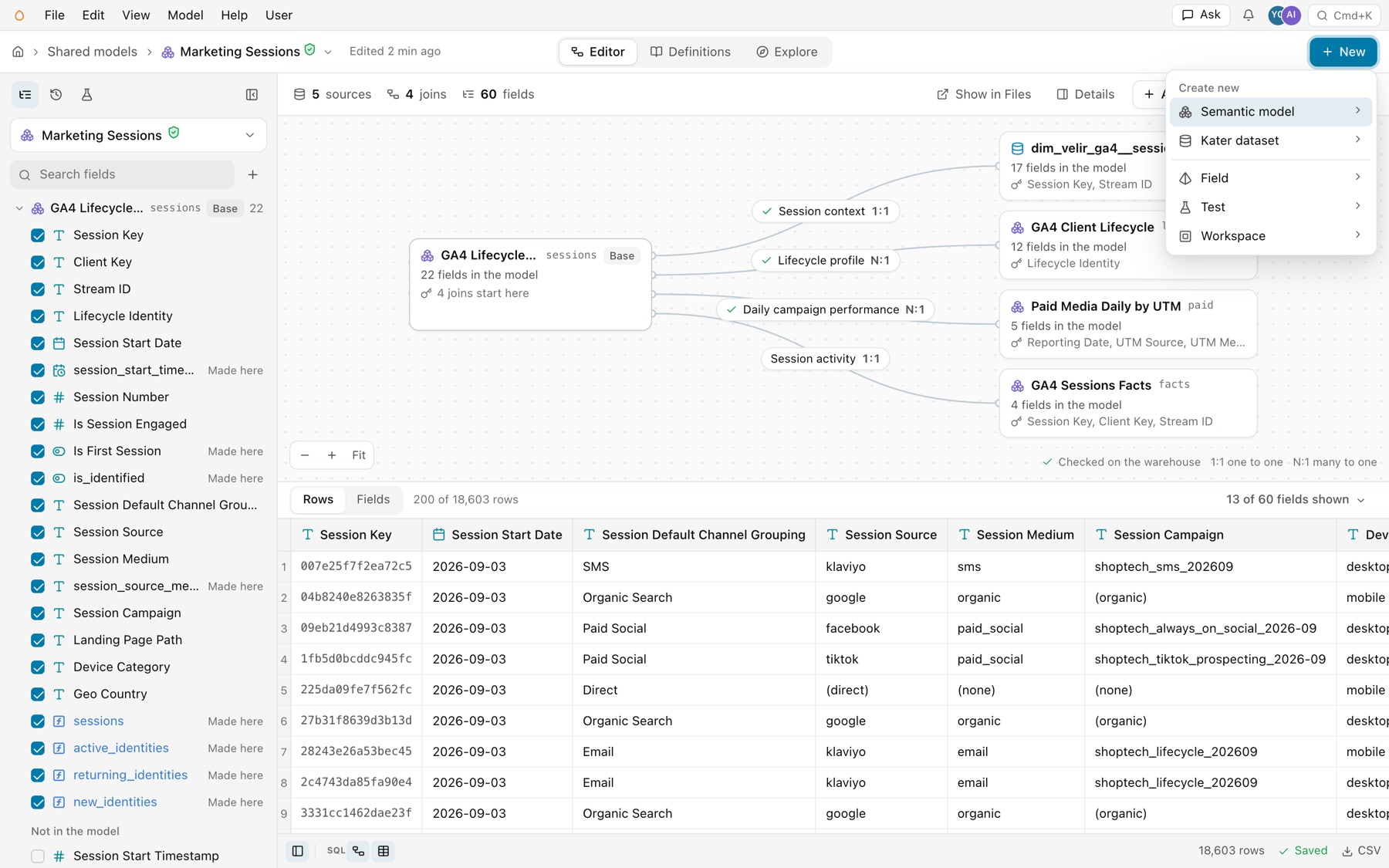
The New menu. -
Describe it, or fill in the form.
On Prompt AI, describe the model in your own words. The connection and folder go with it as context, and Start from a source offers sources to begin from. Select Generate prompt and select your agent under Open in, and your agent builds the model.
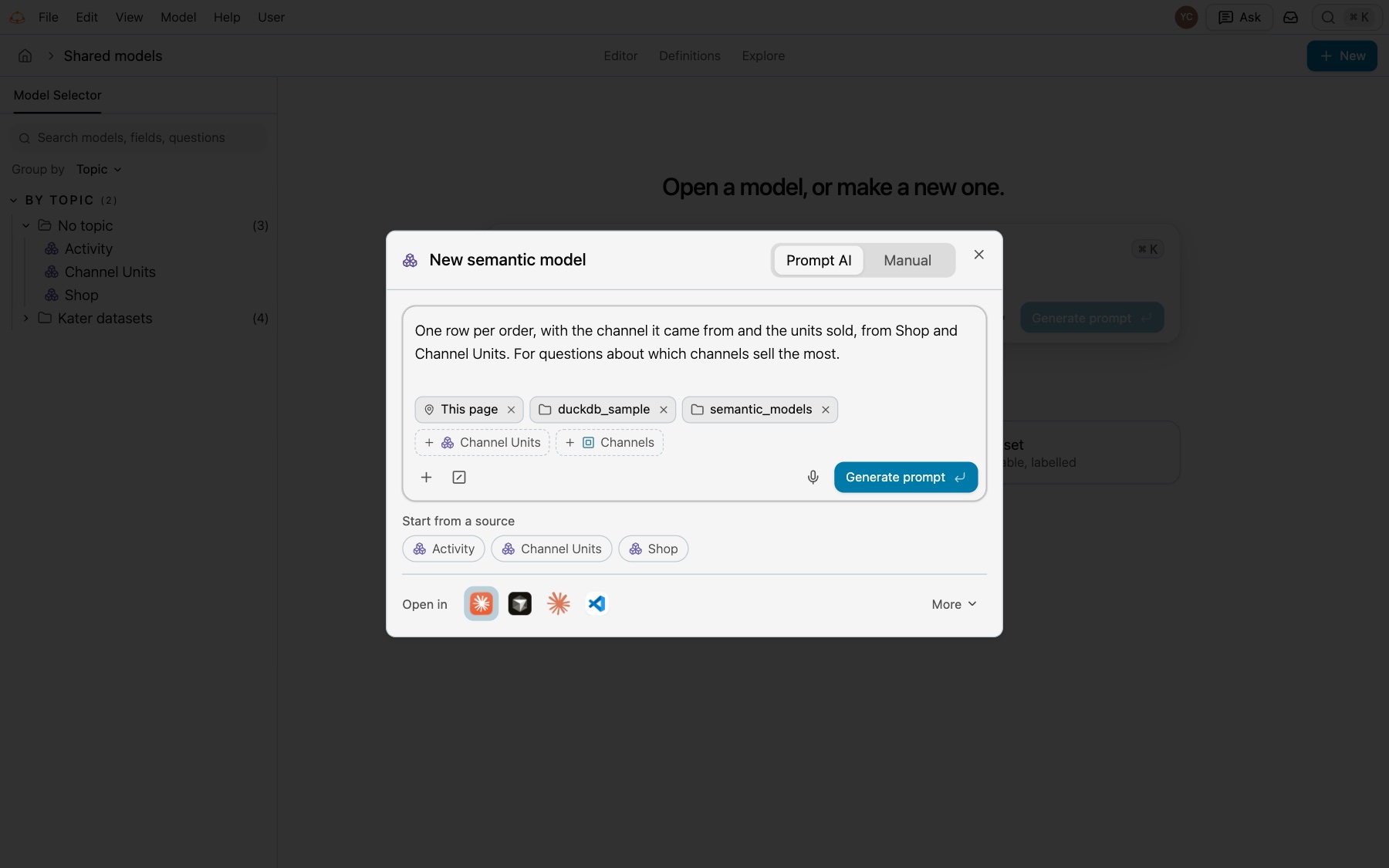
New semantic model, Prompt AI. On Manual, enter a Label and a Name. Select the Base, the source the model starts from. Sources are listed by topic, with their field counts. Select a Folder, check the file’s path, and select Create. Duplicate from starts from a copy of an existing model.
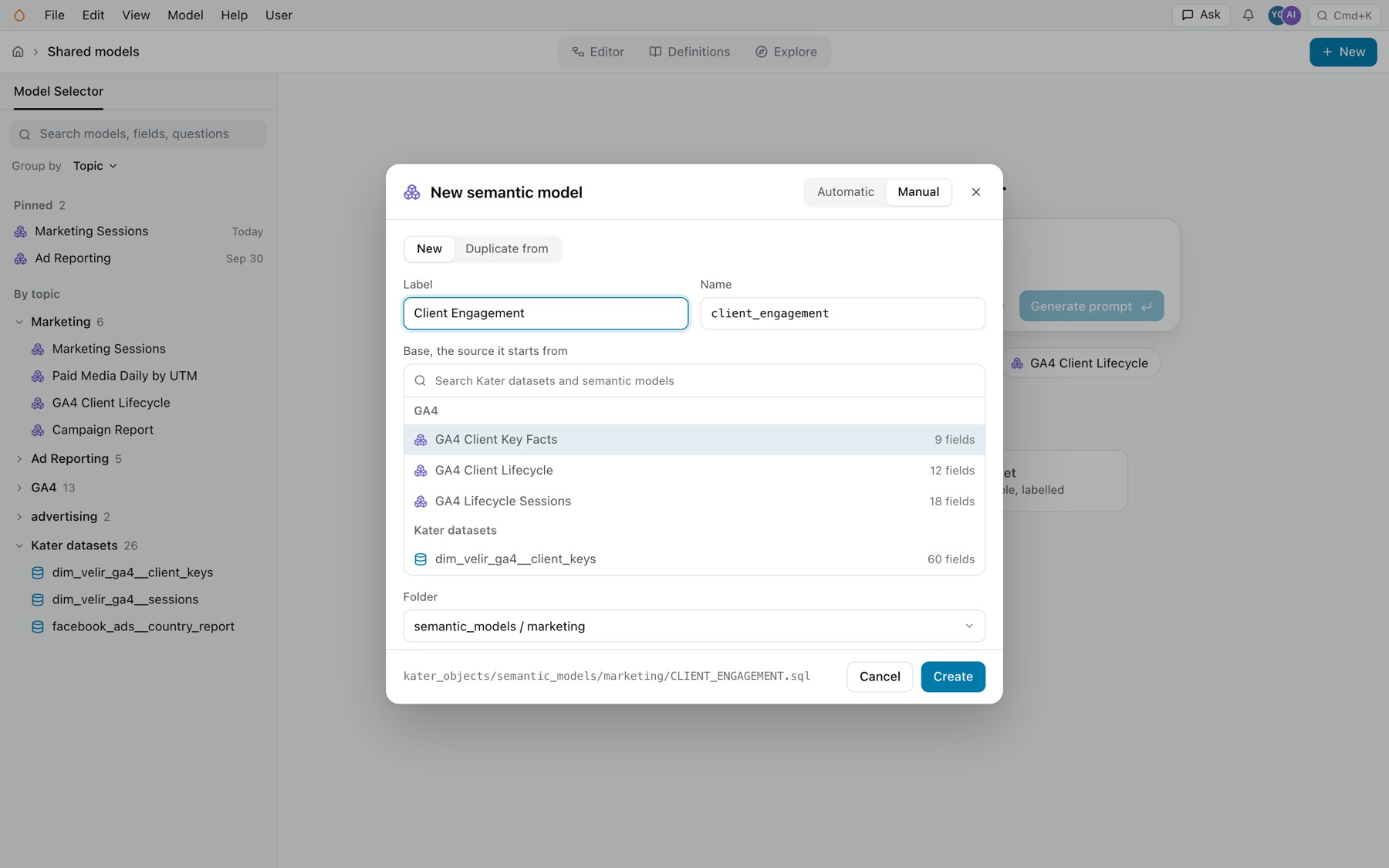
New semantic model, Manual. -
Join the sources it needs.
The new model opens with its base and every base field ticked. Sources that join on its keys wait at the right as dashed cards. Each card shows its keys and how rows match, such as One row per Client Key, and Join. Select Join to add one, or Add source for any other. See Relationships and joins.
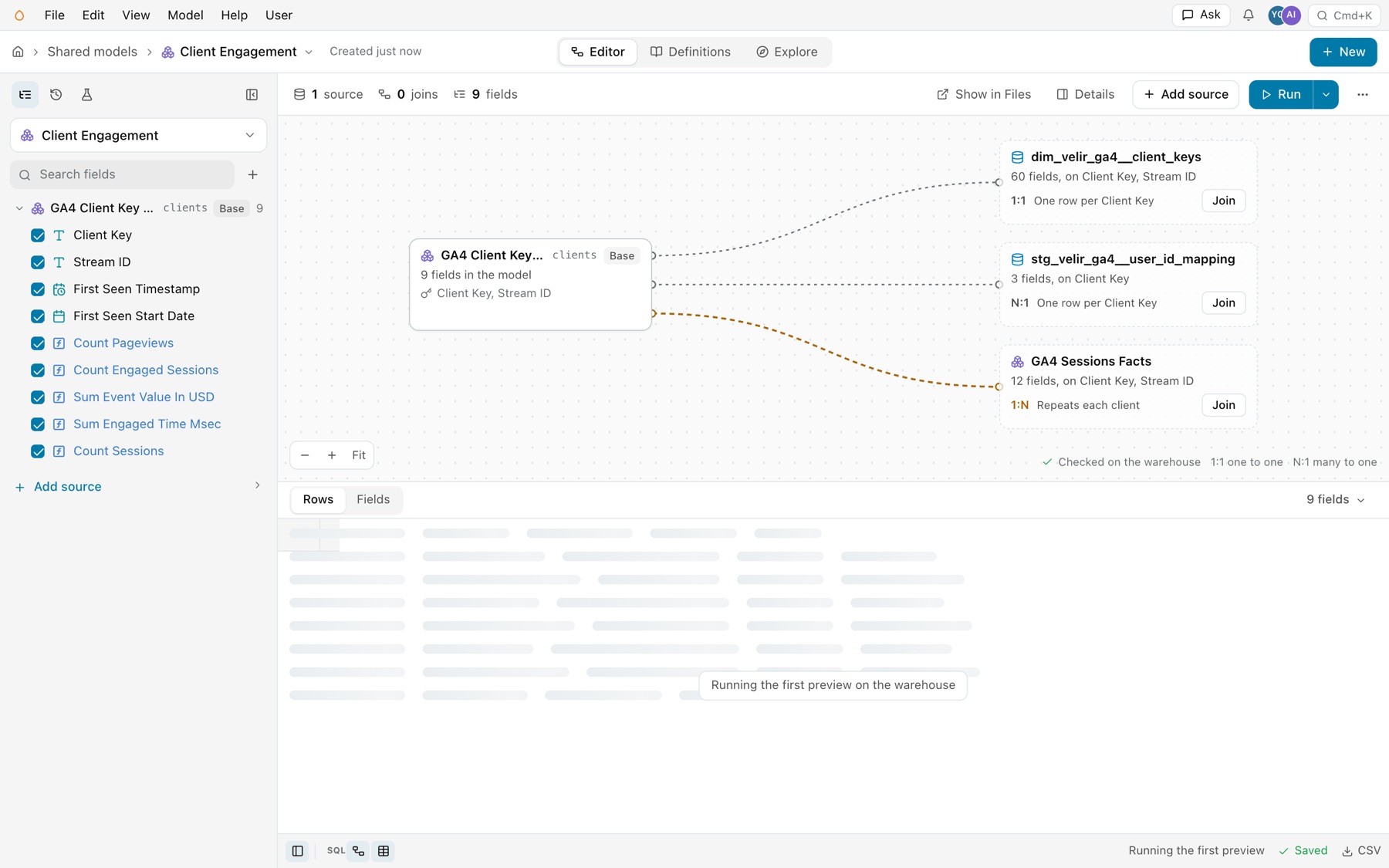
A new model, with the sources that join on its keys. -
Select the fields.
Tick the fields people need, untick the rest, and make new fields from the field menu. See Fields.
-
Describe it and test it.
The New dialog asks only what makes the file. Add the description, AI context, business questions and tags in Details. Then open the Tests tab and select Generate drafts. See Tests.
When your agent builds it
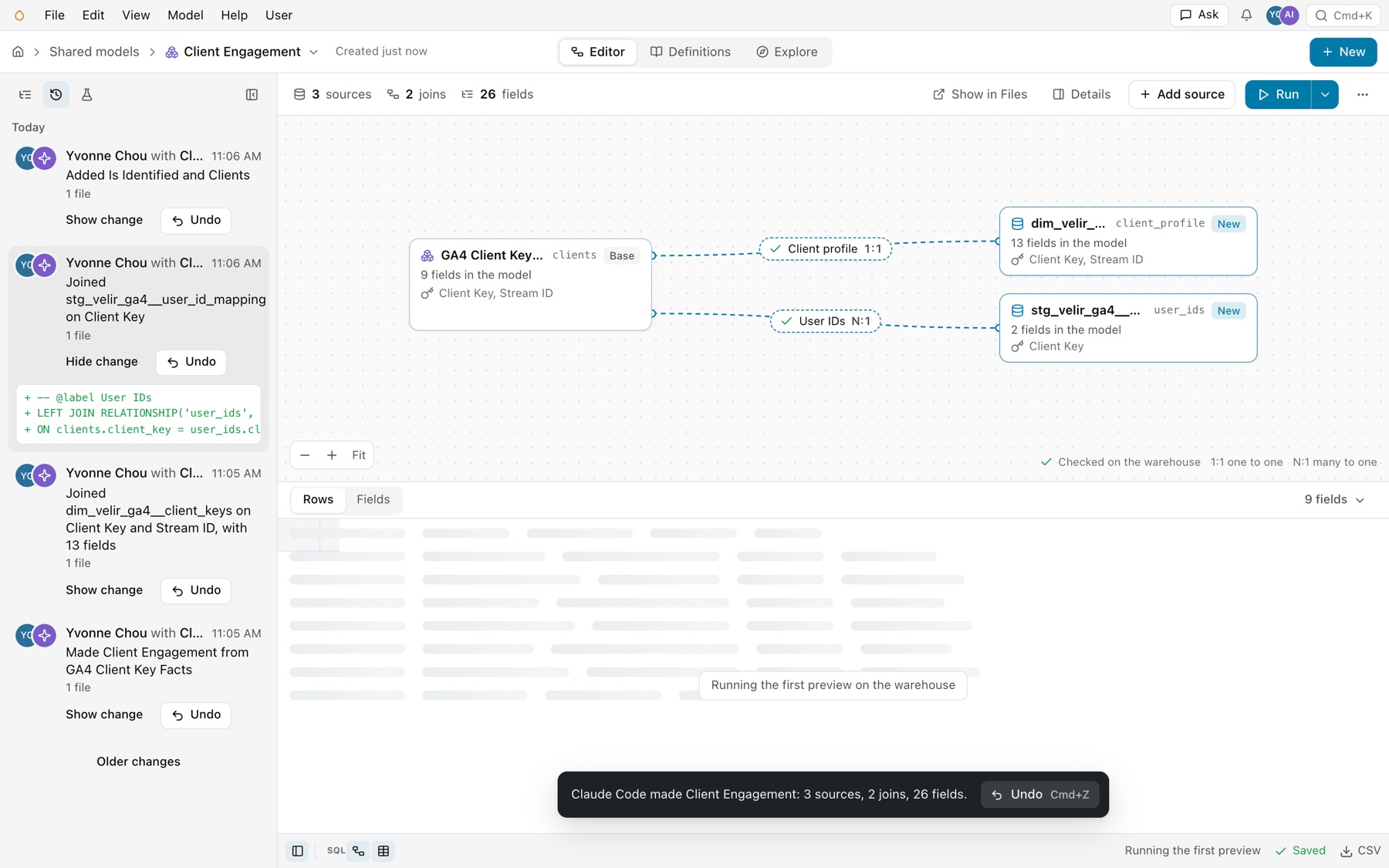
Your agent writes through the same operations, and you can watch the model fill in. Each source and join it adds is marked New until you open it. The History tab lists each of its changes, with Show change and Undo. A toast says what it made, such as “Claude Code made Client Engagement: 3 sources, 2 joins, 26 fields.”
The editor
Open a model from the Model Selector, from Files, or by its address. The editor has one sidebar, a toolbar, the joins, the grid and a footer.
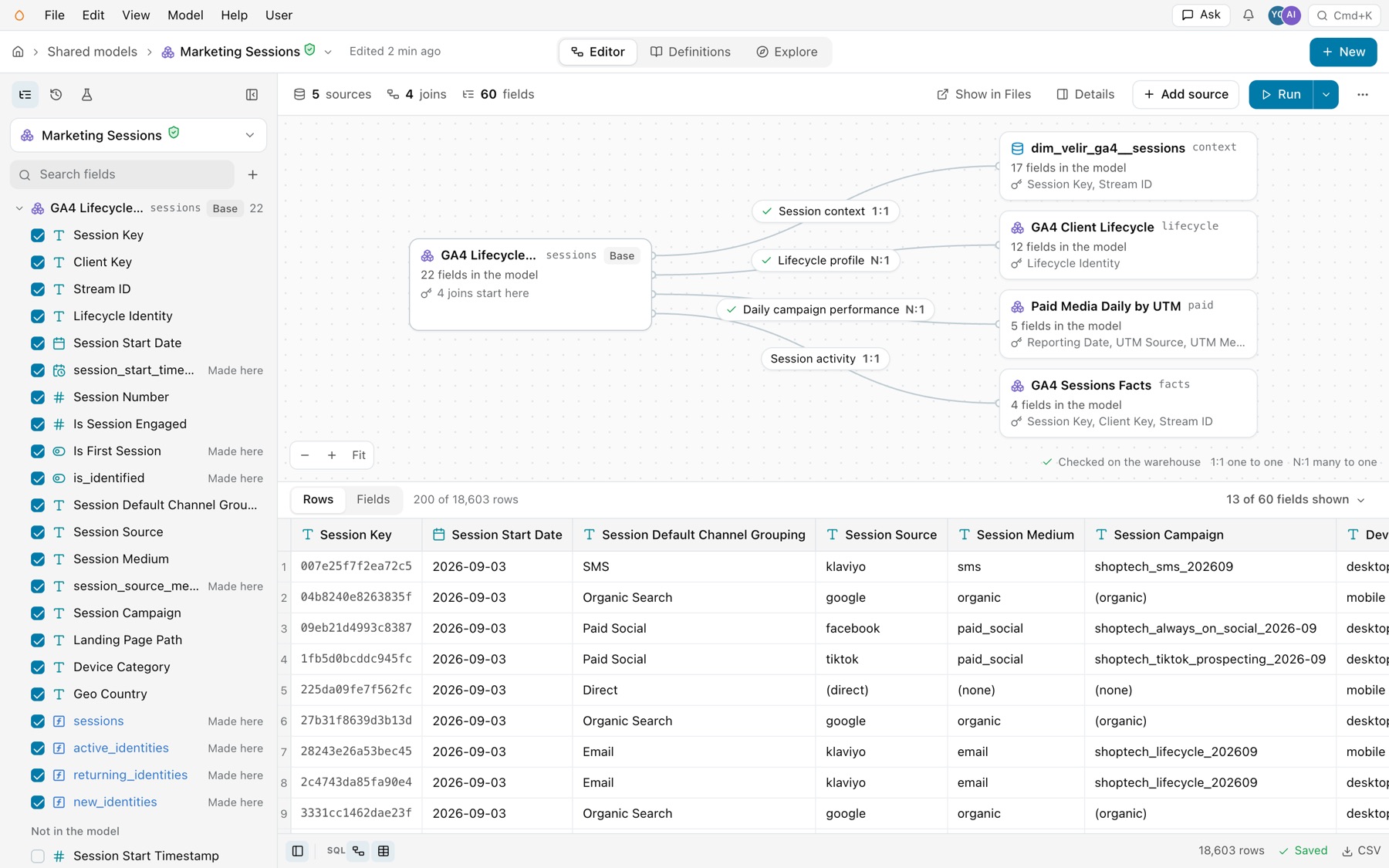
| Part | What it holds |
|---|---|
| Header | Shared models, then the model’s mark and name, with the verified mark when it is verified, and a menu. Edited 2 min ago (or Created just now) names who changed it and opens History. The views Editor, Definitions and Explore, and New. |
| Sidebar | Three tabs: Fields (the field list), History and Tests, then the button that collapses the sidebar. |
| Toolbar | The counts of sources, joins and fields. Show in Files opens the file in Files, in a new tab. Details opens Model details. Add source. Run, whose arrow has Run preview, Compile and Check every join. More (…) has Duplicate, Generate tests, Copy SQL, Show lineage, Show compiled SQL and Delete model. |
| Joins | The base at the left, a card per joined source at the right, and a chip on each join. See Relationships and joins. |
| Grid | Rows and Fields. |
| Side panel | Opens at the right for the join, source or field you select, or for Details. |
| Footer | Buttons that show or hide the field list, the SQL pane, the joins and the rows. Then the row count, Saving or Saved, and CSV. |
Everything saves itself. A tick, a join change or a label shows at once, and the footer says Saving 2 changes, then Saved. Edit › Undo takes back each change exactly.
Rows and Fields
- Rows shows the model’s sample at its grain, 200 rows at a time, with the total, such as 200 of 18,603 rows. A model you have not edited reads its kept sample, so opening it never runs it again. The menu at the right sets which fields show, such as 13 of 60 fields shown.
- Fields lists one row per field, to edit like a spreadsheet. See The Fields sheet.
The side panel
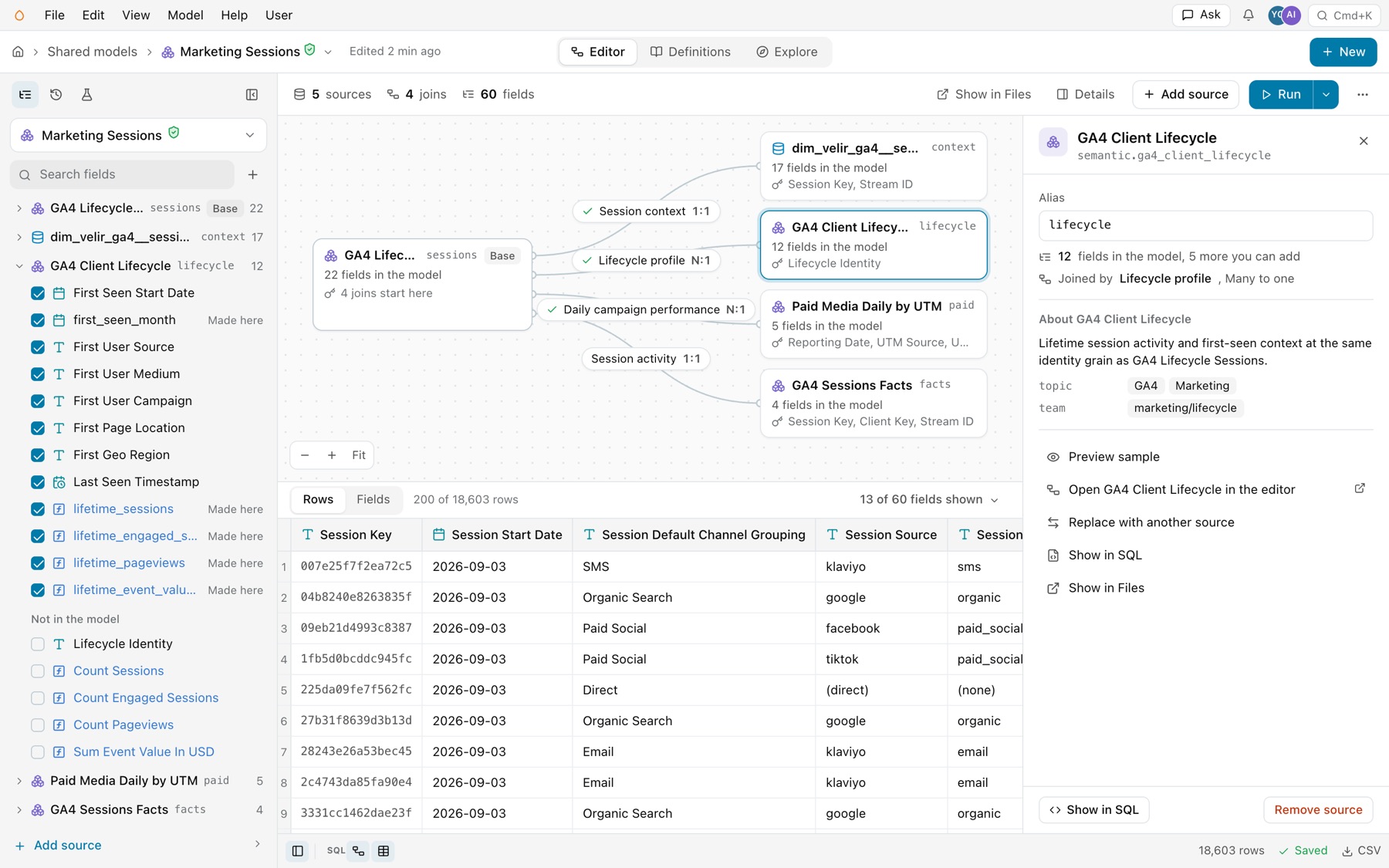
Select a join, a source or a field, and its panel opens at the right. The joins and the grid narrow to make room.
- A join. Its sources, keys, how rows match, the warehouse check, rows kept, measures and its description. See Relationships and joins.
- A source. Its address, Alias, how many of its fields are in the model and how many more you can add, the join that joins it, and its description and tags. Then Preview sample, an item that opens the source in the editor in a new tab, such as Open GA4 Client Lifecycle in the editor, Replace with another source, Show in SQL, Show in Files and Remove source.
- A field. Where it comes from, whether it is in the model, its label, name, formula, description, AI context, format, values, tags and business questions. See The field panel.
- Details. The model’s own label, description and more. See below.
Keyboard
| Keys | Does |
|---|---|
| ⌥1, ⌥2, ⌥3 | Editor, Definitions, Explore |
| ⌘Enter | Run preview |
| ⌘B | Hide or show the sidebar |
| / | Search fields |
| ⌘F | Find in rows |
| ⌘Z, ⇧⌘Z | Undo, Redo |
| ? | Keyboard shortcuts |
Model details
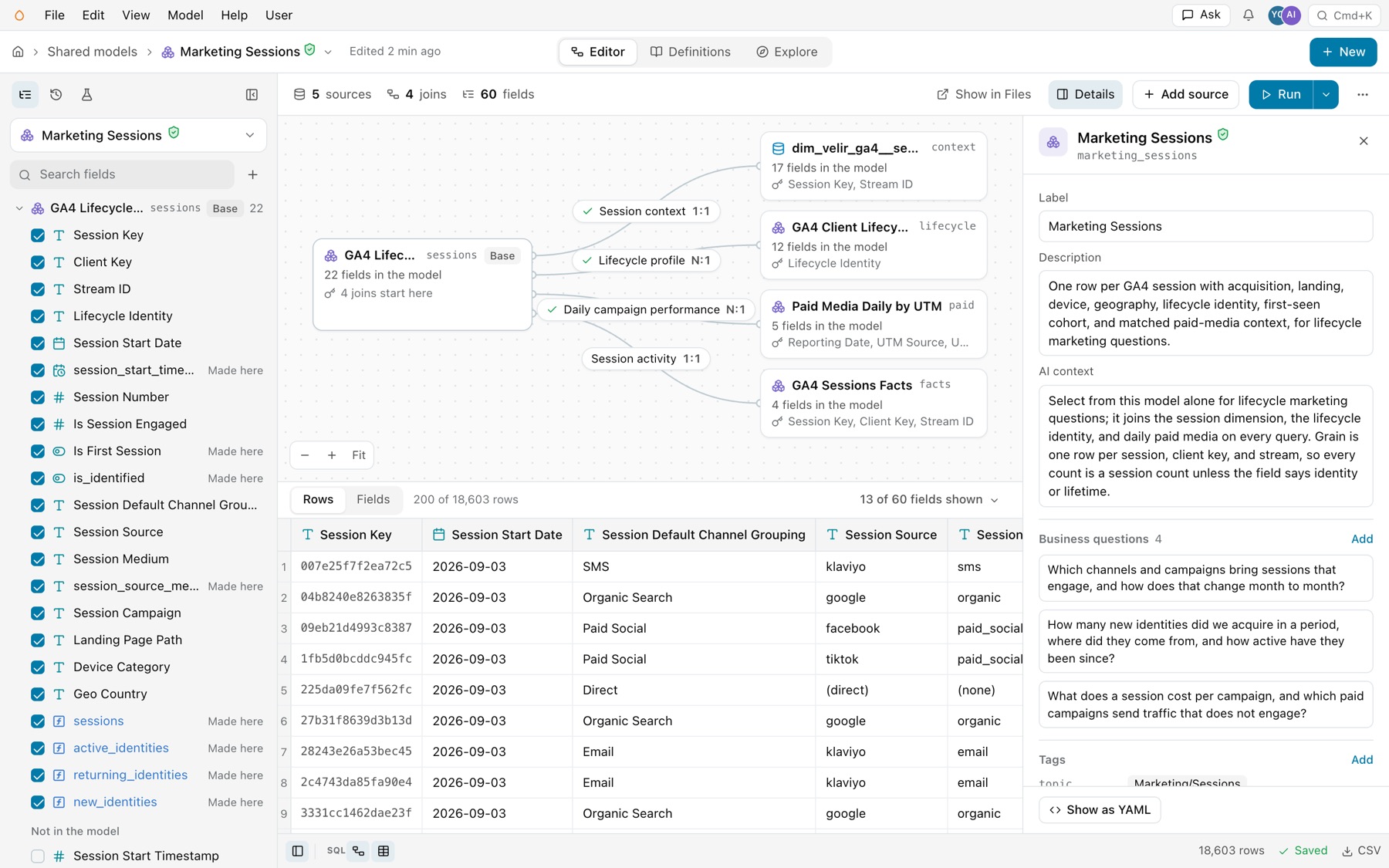
Select Details on the toolbar. The panel holds the model’s frontmatter: Label, Description, AI context, Business questions, Tags and Always filtered, each list with Add. Show as YAML shows the frontmatter as the file has it. See Formats, descriptions and AI context.
Definitions and Explore
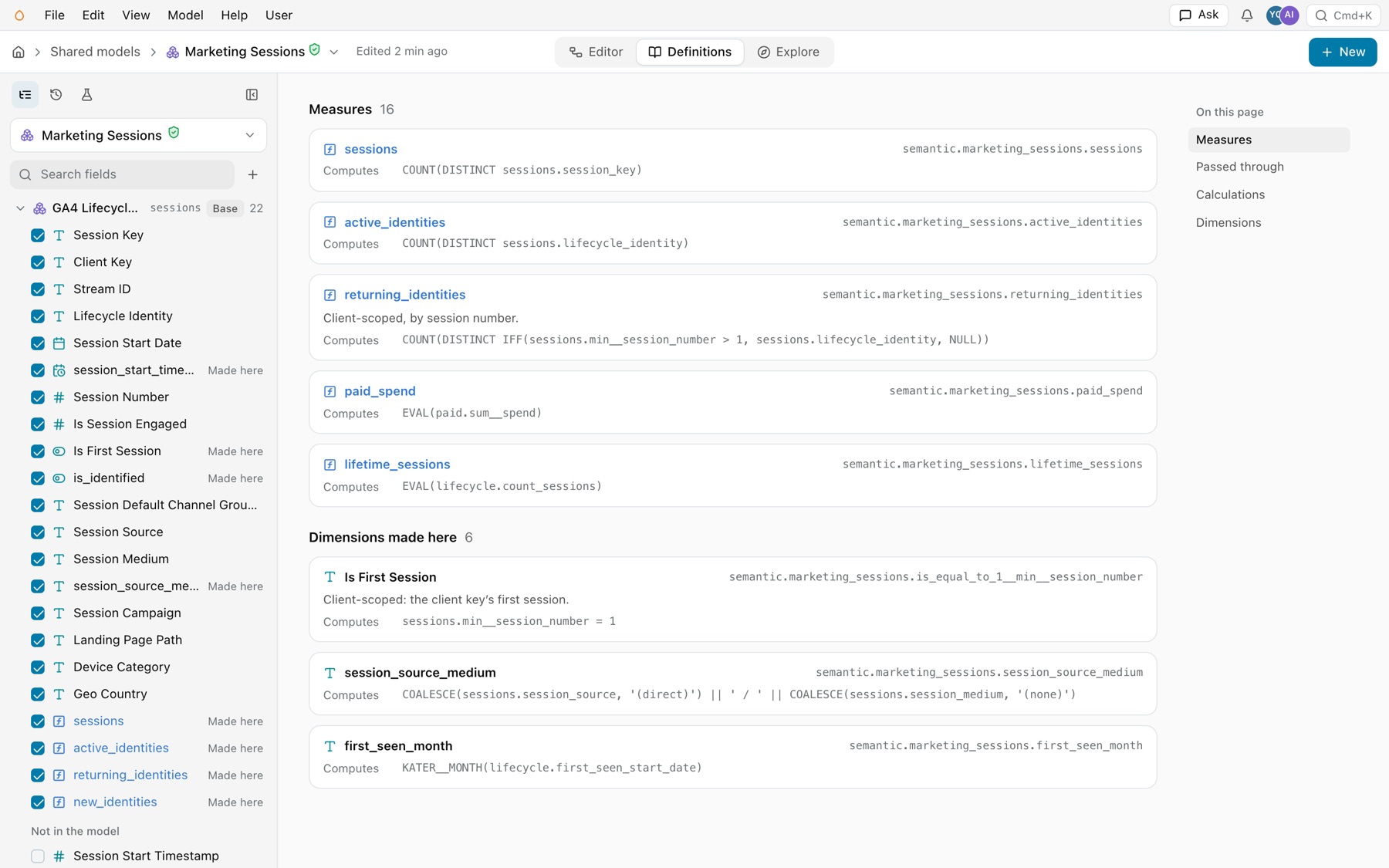
The header switches views. Definitions shows a card per field, by Measures and Dimensions made here: its address, its description and what it computes, with On this page at the right. Explore shows the starting analyses Explore offers for the model. View › Lineage, or More › Show lineage, traces each field to the columns it reads.
Explore’s settings for a model live beside it, in explore/semantic/<name>.explore.yaml in the model’s folder. See Explore.
History
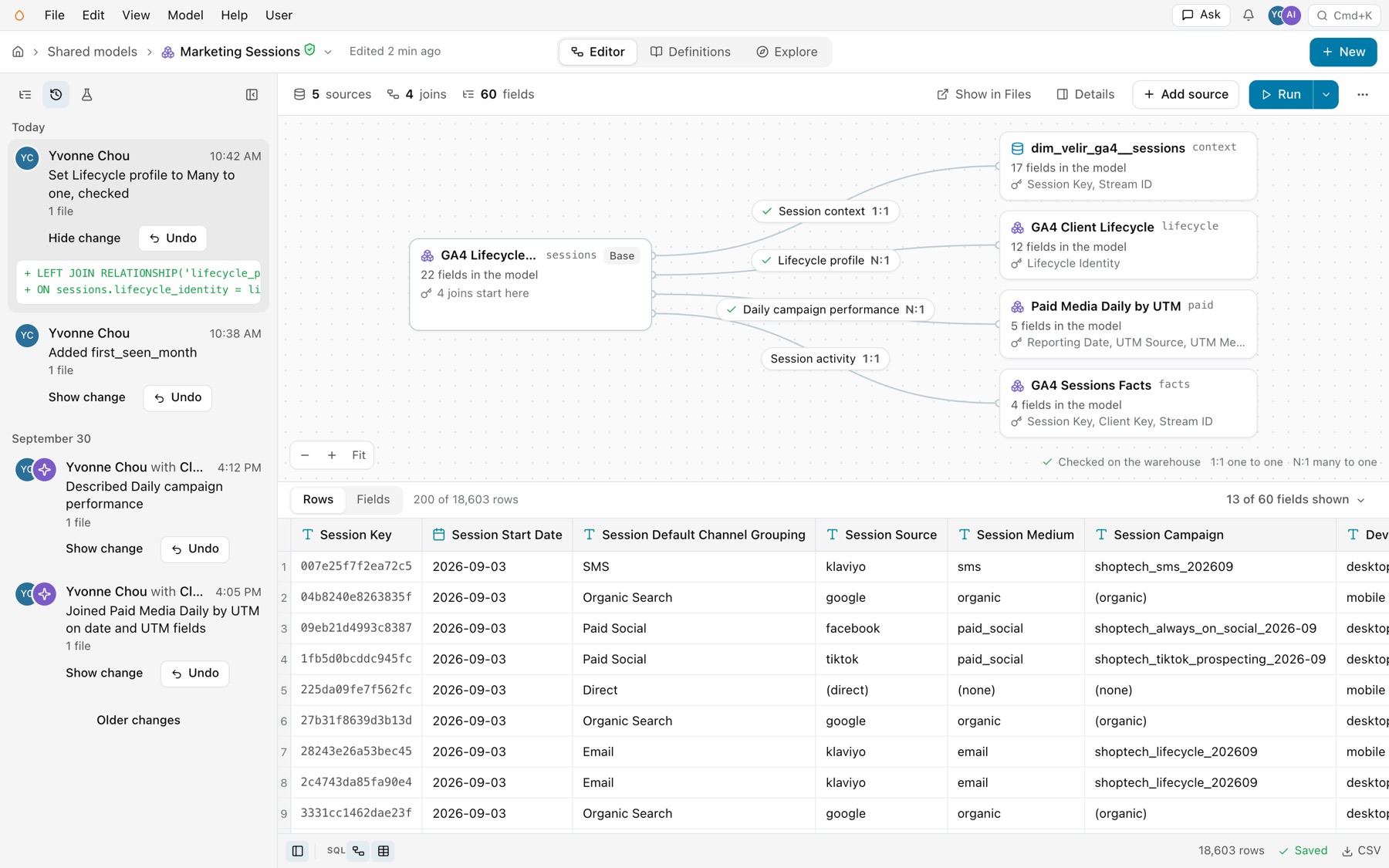
Select the History tab, or Edited 2 min ago in the header. History lists every change to the model’s file, by day: who made it and with which agent, a summary, Show change for its diff, and Undo. Older changes shows more.
The SQL pane
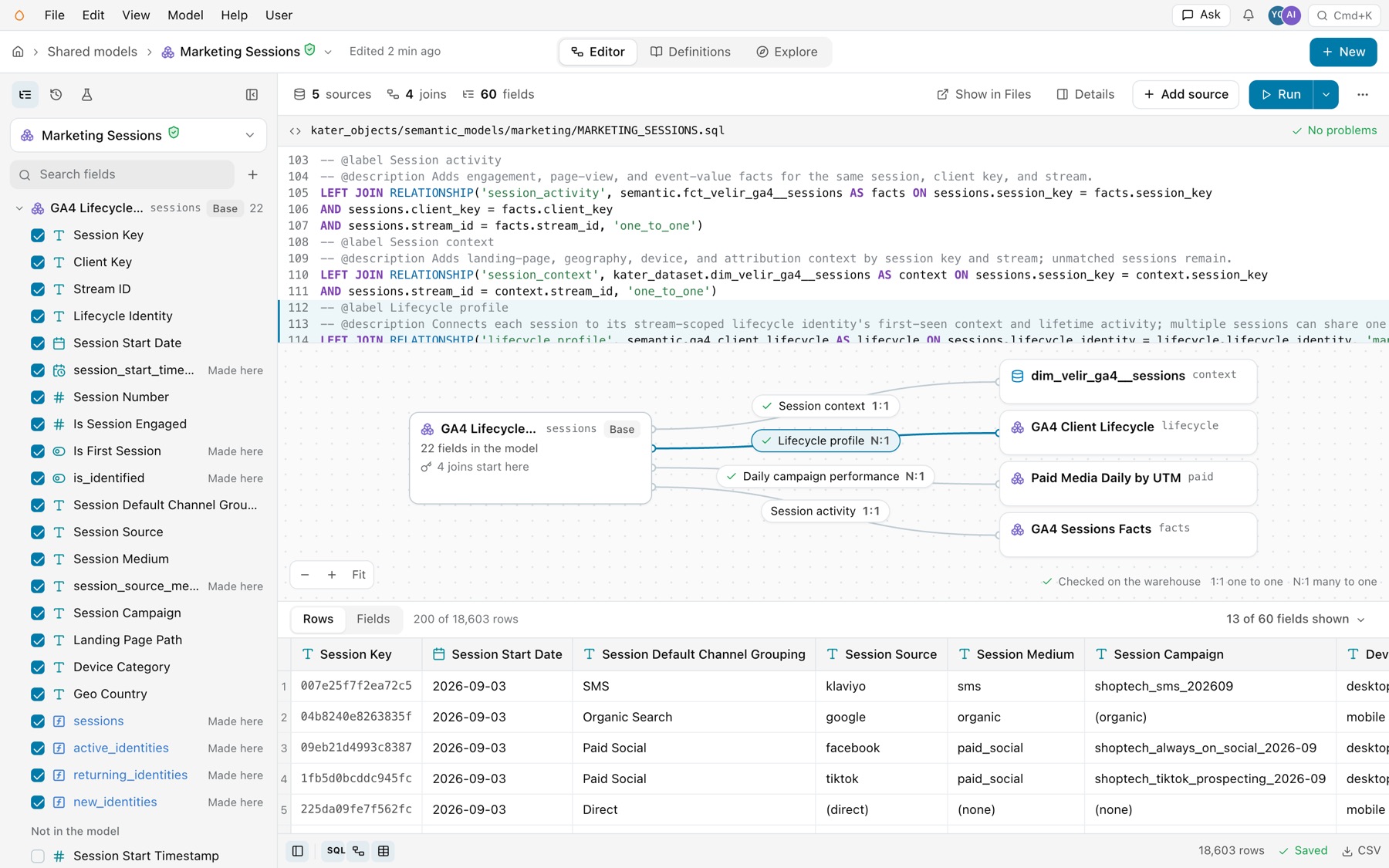
Select View › SQL editor, or SQL in the footer. The SQL pane opens above the joins, with the file’s path and its problems.
- The selected join is lit. Select a join, and its lines light up in the SQL. Click in a
RELATIONSHIP, and that join is selected. - Typing redraws the editor. After a pause, the joins and the field list redraw from what you typed. They keep the last drawing until the new one is ready.
- The usual help. Completions, hover and go to definition work as they do in Files and VS Code.
Menus
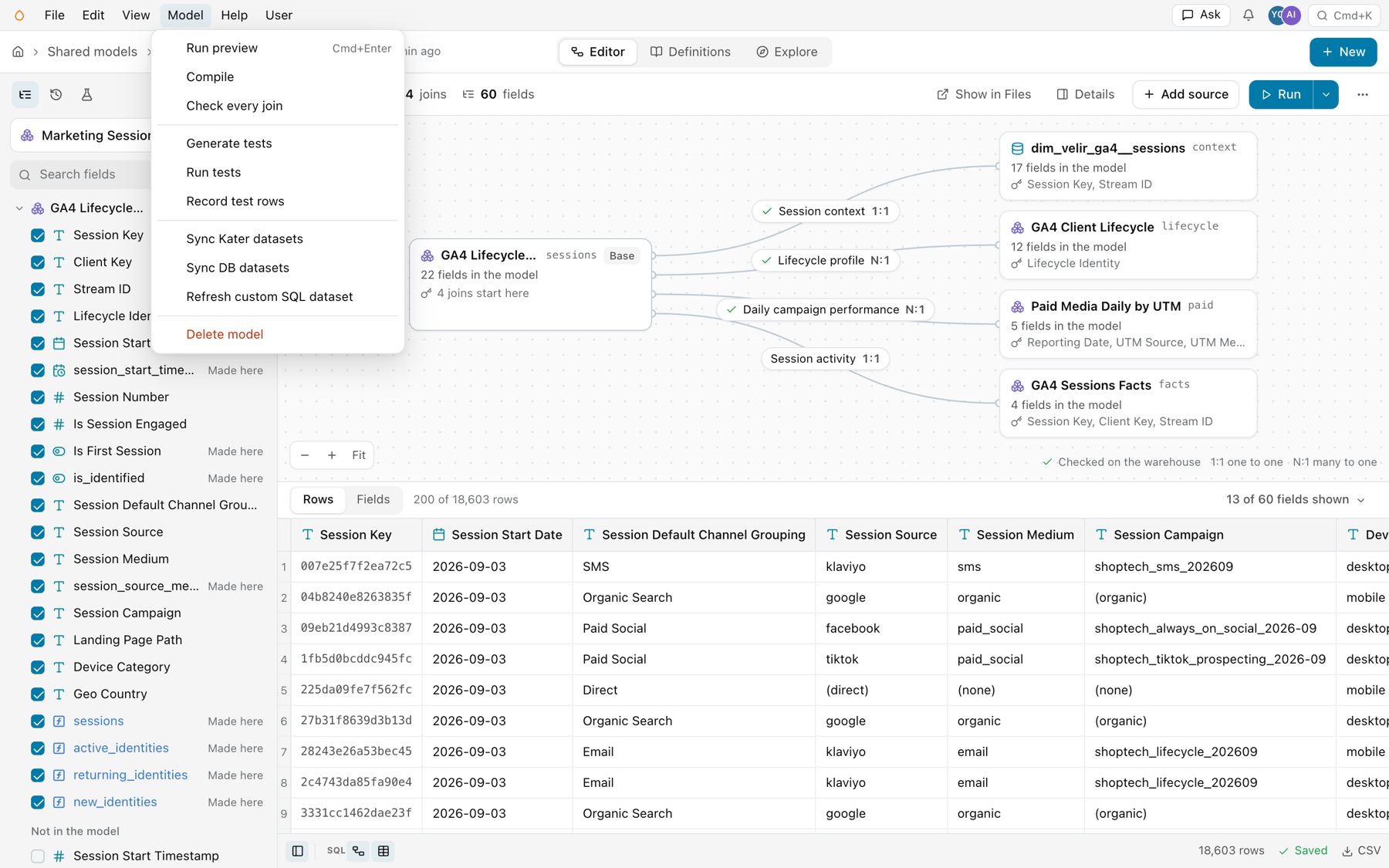
The Model menu holds what you do to the whole model.
| Item | What it does |
|---|---|
| Run preview | Runs the model and shows its rows. ⌘Enter. |
| Compile | Compiles the model and lists its problems. |
| Check every join | Checks each join on the warehouse. See Relationships and joins. |
| Generate tests, Run tests, Record test rows | Writes draft tests, runs the model’s tests, and records their rows. See Tests. |
| Sync Kater datasets, Sync DB datasets | Runs schema sync. See Connections and schema sync. |
| Refresh custom SQL dataset | Asks the warehouse for a custom SQL dataset’s columns again. |
| Delete model | Deletes the model’s file. |
- File. New semantic model, New Kater dataset and New. Duplicate, and Start a workspace from this model. Show in Files, Open in VS Code, and Open in Sandbox. Share, Copy link and Pin to Home. All shared models.
- Edit. Undo and Redo. Copy, and Copy rows as CSV. Add source, Add field, and Add a filter that always applies. Find in rows and Search fields.
- View. Editor, Definitions and Explore. The sidebar’s Fields, History and Tests, and Hide sidebar. SQL editor, Joins, Rows, Fields sheet, Details, Lineage, Compiled SQL and Problems. Theme.
- Help. Documentation, Modeling guide and Keyboard shortcuts.
Links open the same view
The page’s address holds what you see, so a reload or a shared link opens the same view, and an agent can read where you are. In Files, a model file keeps the same keys beside Files’ own.
| Key | What it does | Example |
|---|---|---|
| Path | The model open, by its connection and name. /shared-model alone is Shared models with nothing open. | /shared-model/snowflake_prod_connection/marketing_sessions |
view | The header view. Absent means Editor. | view=definitions |
sidebar | The sidebar’s tab: history, tests or closed. Absent means Fields. | sidebar=tests |
test | The test open in the main area, with sidebar=tests. | test=clicks_impressions_by_platform |
panel | The side panel: join:<name>, source:<alias>, field:<name> or details. | panel=join:lifecycle_profile |
grid | The grid’s tab. Absent means Rows. | grid=fields |
sql, compiled | The SQL pane, and the compiled SQL. | sql=open |
q | With no model open, the text in the search box. | q=sessions |
new, tab | The New dialog for semantic or dataset, on auto or manual. | new=semantic&tab=manual |
From a terminal
kater new semantic-model --name NAME --target-path PATH --sql-file BODY.sql --dry-run shows the file it would write. Run it again without --dry-run to write it. The Model a new table starter walks your agent through the same work.
Common errors
| Code | Cause | Fix |
|---|---|---|
field_name_in_scope | A new field takes a name a source already has. | Pass the source field through, or give the new one a new name. |
parameter_not_allowed, filter_not_allowed | A parameter or an OPTIONAL_FILTER in a shared model. | Move it to the workspace root. Keep only fixed-value filters here. |
custom_calculation_not_allowed | CUSTOM_CALCULATION in a shared model. | Apply the fix that declares it as a DIMENSION. |
relationship_pruned_row_effect | Warning. An unused join was left out, and it would have changed the rows. | Turn on Join even when no field from the source is in use in the join’s panel, or write REQUIRED_RELATIONSHIP, if that row effect is intended. |
not_additive_across | The model passes on a currency measure without its currency. | Select the dimension the rule names beside the measure. |