Analyze Your files
Your files
Everything in Kater is a file. Open, search and pin any file you can read, and know that your agent reads the same files.
Everything in Kater is a file: connections, the shared models, workspaces, queries, apps, themes, tests and your notes. The Files page opens any file you can read and takes you to the page where it lives. Your agent reads the same files through the Kater MCP, so you and your agent always see the same thing.
What is in your files
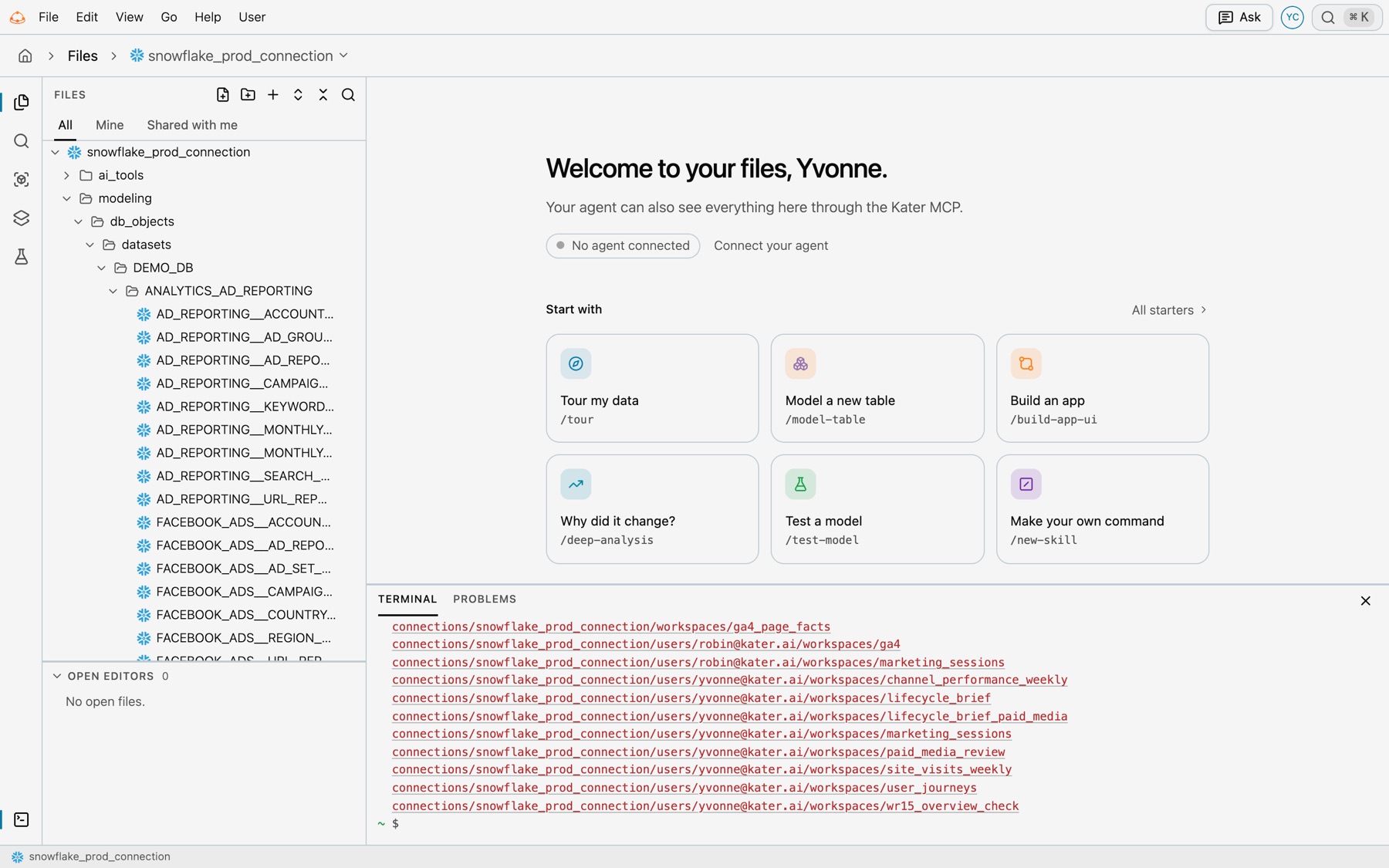
Each organisation’s content lives in Kater’s content store. Files shows one connection at a time as a folder tree. Select the connection’s name in the breadcrumb to switch.
| In a connection | What lives there |
|---|---|
connection.yaml | The warehouse connection’s settings |
connection_context.md | Facts about the data that every agent reads |
ai_tools/ | The team’s shared agents, skills and workflows |
modeling/db_objects/ | Database datasets: one file for each warehouse table, written by schema sync |
modeling/kater_objects/ | The shared layer: Kater datasets, semantic models and their tests |
workspaces/ | Connection workspaces, each with its queries, charts, dashboard and apps |
themes/ | The data team’s themes |
users/<your email>/ | Your Personal folder |
Your Personal folder shows as Yours in the breadcrumb:
| In your Personal folder | What lives there |
|---|---|
about.md | About you. Your agent reads it before every answer. |
workspaces/ | Your private workspaces |
apps/ | Your apps |
tests/ | Your own tests, one file for each model |
themes/ | Themes you saved |
ai_tools/ | Your own agents, skills and workflows |
brainstorm/ | Where your agent tries things: notes, scratch files, pages, workspace copies and draft apps |
The company’s about.md sits above the connections. Open it from AI Tools › About you.
What you can see
- Only what you can read. Files lists only the files and folders your access lets you read.
- Your folder is private. Only you, admins and the people you share with can read your Personal folder. It appears at your first sign-in, in each connection you can use.
- Only your connections. Files shows the connections an admin granted to you or to a group you are in.
- Can edit or View only. The status bar says which applies to the file in front.
- Share a file or folder. Right-click it and select Share…. It then shows under the other person’s Shared with me.
Admins set access on folders. See Files and access.
Find your way around
- The rail. Files, Search, Sandbox, Modeling and Tests, with Terminal at its foot. The View menu has the same items.
- The tree. Filter it with All, Mine and Shared with me, and Pinned once you pin something. Right-click a row for New file, New folder, Pin to Home, Share…, Rename, Duplicate, Move to…, Delete, Copy path and Copy link. Drag a file onto a folder to move it.
- Tabs. Each file opens in a tab. Open Editors, at the foot of the tree, lists them. The open tabs are in the page’s address, so a link or a reload opens the same ones.
- The start page. With no file open, it shows whether your agent is connected, six starters under Start with, New scratch file, New file, Go to file, Terminal, Run tests, Recent and Shared models.
- Search. Press ⇧⌘F. One box searches every file in the connection: files whose names match come first, then each matching line with its line number.
- Go to file. Press ⌘P to open a file by name.
How each file opens
| File | Opens as |
|---|---|
| Semantic model, Kater dataset or database dataset | The model editor: Editor, Definitions and Explore, with the tabs Table, SQL Editor and Lineage |
A workspace’s workspace.sql | The workspace’s overview |
| Query or chart | Its Kater SQL, with each header block as a card of properties. Go to workspace opens its page. |
| Scratch file | The Sandbox, with Run and the rows |
| Test file | Tests or Source |
| Markdown | View, Edit or Compare |
App manifest, theme, dashboard, connection.yaml, a copy’s copied-from.yaml | Form or Source. A dashboard has Go to dashboard, and an app’s files have Go to app. |
| HTML page | Page or Source |
| Anything else | Its text. A binary file shows its name and size. |
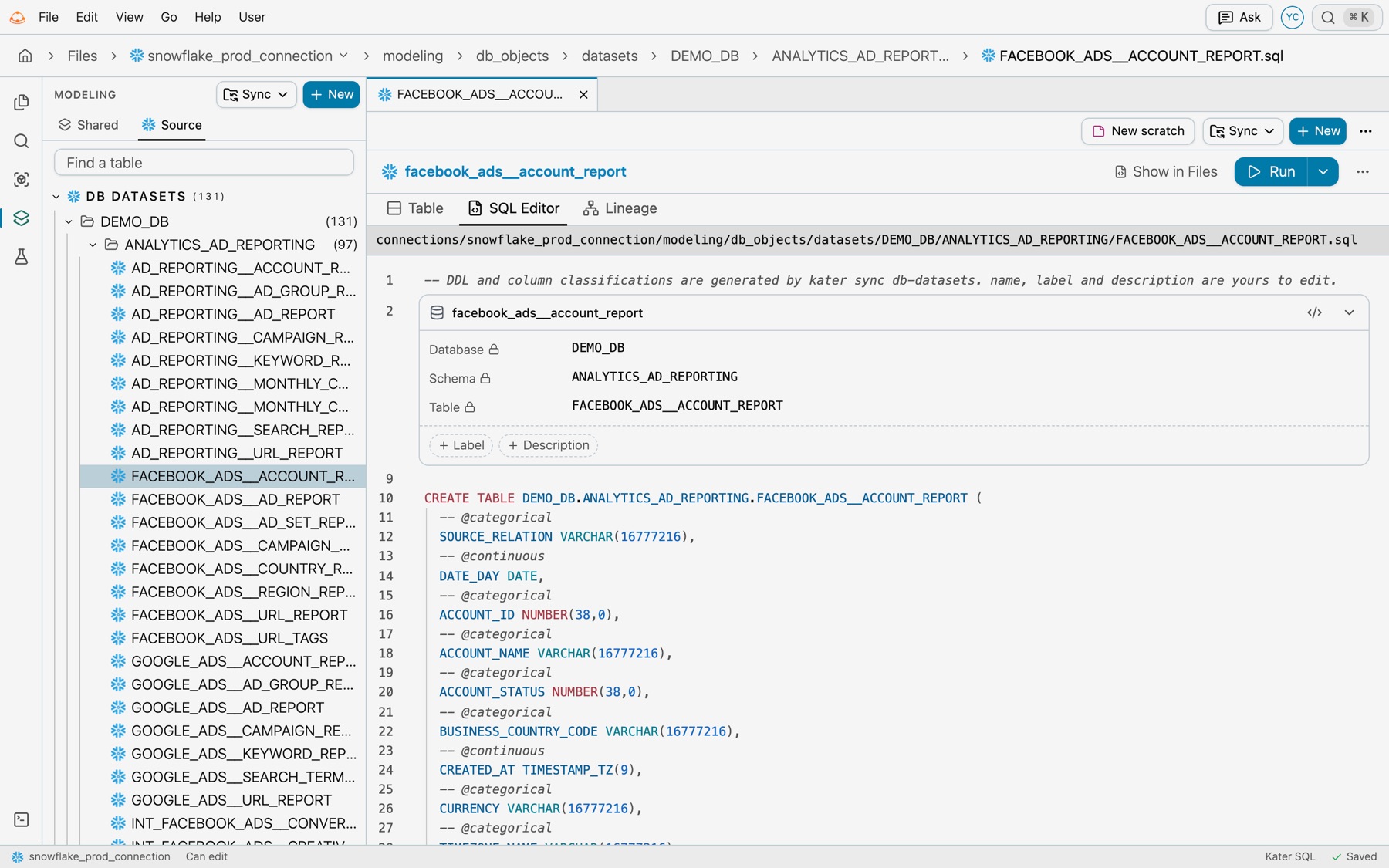
Files saves as you type. The status bar says Saving…, Saved or Not saved. After a failed save, the file keeps what you typed, and ⌘S tries again. More for this file, beside Saved, has Pin to Home, Share…, Show in Files, Copy path and Copy link.
Pin a file to Home
Select the pin on a row in the tree, or Pin to Home in its right-click menu or in More for this file. Pinned files show on Home under Pinned, and the tree gets a Pinned filter.
Show in Files from anywhere
- A query. On the workspace page, select File › Open in Files in the workspace name’s menu. The file opens in a new tab at the query’s line, with the workspace at the start of the breadcrumb.
- A field. Select Show in Files in its menu to open the file that defines it.
- A model. The model editor has Show in Files too.
- Search. In Search Kater (⌘K), results under Files and Folders open in Files.
How your agent sees the same files
The start page says it: “Your agent can also see everything here through the Kater MCP.” Your agent signs in as you, so it reads the files you can read, and no others.
| Tool | What it does |
|---|---|
glob | Finds files by path pattern |
grep | Searches file contents and Kater’s authoring guides |
read_file | Reads one file |
write_file | Creates or replaces a file. Kater SQL is compiled first, and a change that adds an error is refused. |
edit_file | Makes one exact replacement in a file |
delete_file | Deletes a file in your own folder |
kater | Runs one kater command as you. It writes only in your brainstorm folder. |
kater_apply | Runs a command that changes real content, after you say yes |
- The same reach as you. Your agent reads only what you can read, and writes only where you can write.
- Brainstorm first. Your agent tries things in your brainstorm folder without asking. Anything outside it waits for your yes. See Your agent’s brainstorm.
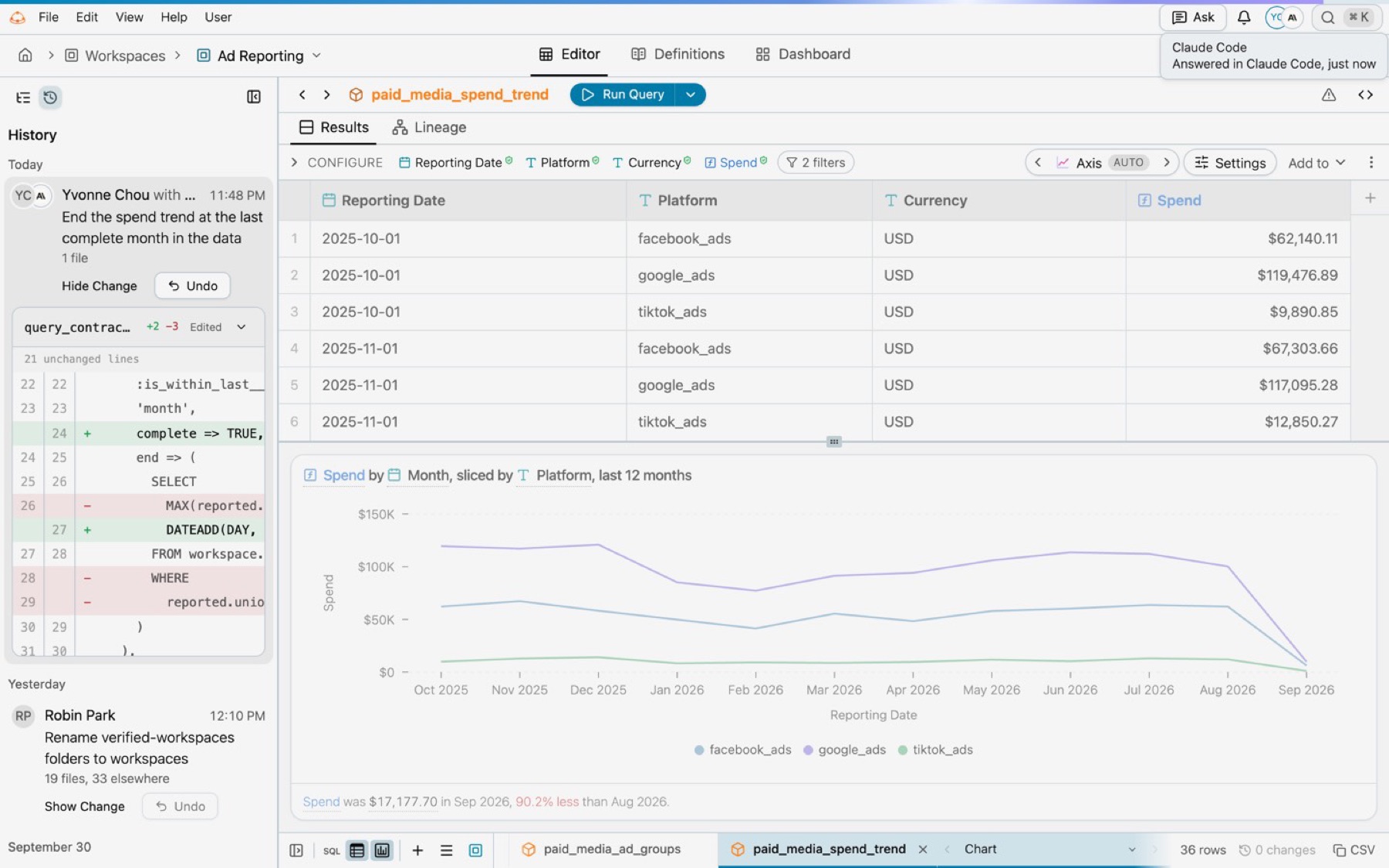
- History and Undo. Each change outside the brainstorm folder is one change, named with you and your agent and a one-line summary. History lists it with Undo, and your agent tells you the command that undoes it.
- Your open pages. Your agent can list the Kater pages you have open. Select Pause Sharing in your agent’s menu to stop it.