Apps
Themes
Set an app's colors, chart palette, fonts and shapes in the Theme Builder, and save themes for yourself or your team.
A theme sets how an app looks: its colors, chart palette, fonts, corner radius and shadows. Start from a preset, change only what you need, and apply it to one app or save it for your whole team.
Open the Theme Builder
- On its own. Select Theme Builder under Personalize in the left navigation.
- In an app. Select Editing, then Theme in the Toolkit, or Edit › Theme Builder.
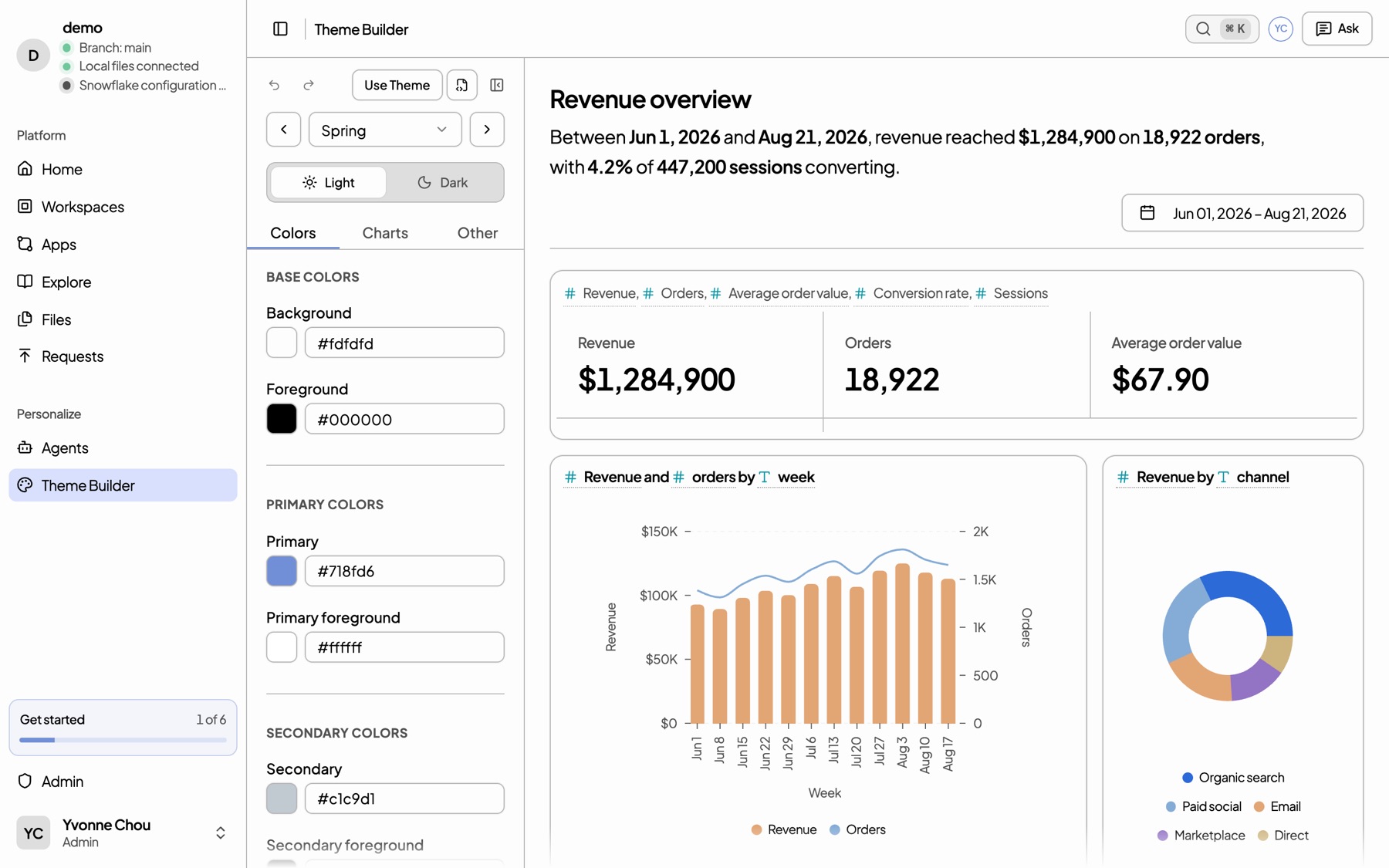
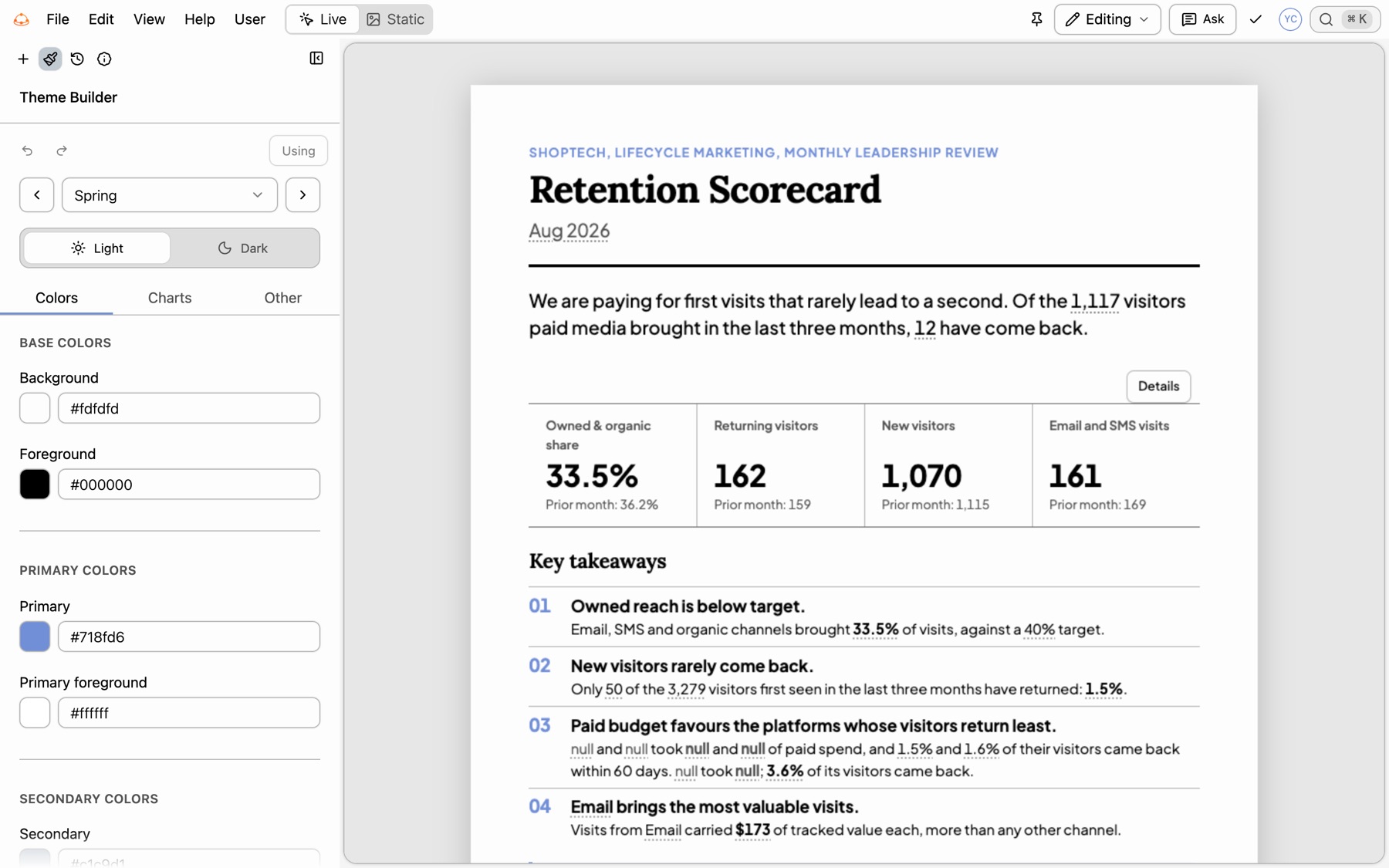
Build a theme
-
Select a preset.
Use the preset picker, or Previous preset and Next preset. Presets include kater, shadcn, claude, solar-dusk, modern-minimal, seagreen, caffeine, darkmatter, graphite, vercel, sage-garden, twitter, corporate, notebook, mono-currency, spring and journal.
-
Change colors.
The Colors tab has Base, Primary, Secondary, Accent, Card, Popover, Muted, Border & input, Destructive and Sidebar colors. Use Color mode to edit the light and dark palettes.
-
Set chart colors.
The Charts tab has Palette and Series.
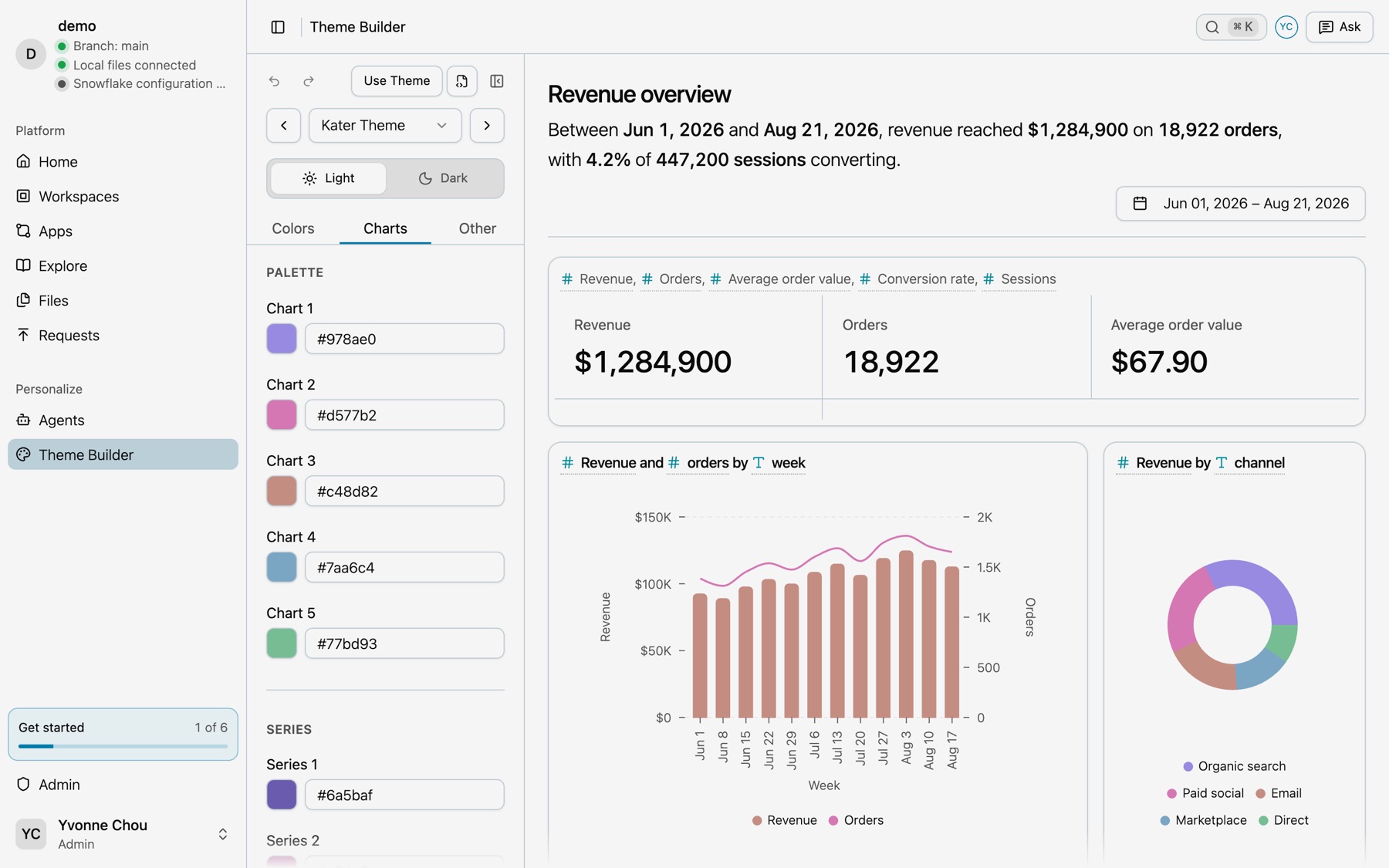
The Charts tab. -
Set type and shape.
The Other tab has Font family, Text, Shape and Shadow.
-
Use it or save it.
Use Theme applies the theme to apps you select, grouped as My Apps and All Apps. Inside an app, it applies to that app. Save theme asks for a Theme name and adds it to your library.
Undo, Redo and Revert theme changes step back. View theme code shows what the theme stores.
An app stores only what it changes
An app’s theme, application.theme in its manifest, never holds a full copy of a preset. It holds one of three things:
- A preset’s name. The Retention Scorecard says
theme: spring. - A team theme.
theme: team:<id>names a theme your data team saved for everyone. - A preset and the tokens it changes. The CMO deck builds on the kater preset and changes a few colors:
theme: preset: kater overrides: colors: light: primary: '#12305a' primaryForeground: '#ffffff' chart1: '#2563eb' chart2: '#0f9f8f' chartColors: light: positive: '#0f8a5f' negative: '#c2410c'Everything else comes from Kater’s presets when the app opens. So the app keeps getting fixes and new tokens, and a renamed token never breaks it. An app with no theme uses the kater preset.
Saved themes
| Theme | Where it lives | Who can use it |
|---|---|---|
| Yours | users/<email>/themes/<id>.yaml | You. No app changes until you use it. |
| Team | connections/<connection>/themes/<id>.yaml | Every app on the connection, as team:<id>. |
- Save for everyone. If you can save team themes, the save dialog has Save for everyone.
- Updating a team theme changes every app that uses it.
- A personal theme on a shared app. The app keeps its own copy of the changed tokens, because the people it is shared with cannot read your folder.
Light and dark
- Readers set the mode. View › Theme Mode sets Light, Dark or System for the app.
- Paper stays white. Reports and decks keep a light page whatever the reader’s mode.
Rules
- Pages use theme variables. An app styles with variables such as
var(--primary)andvar(--chart-1)tovar(--chart-5), never with literal colors or fonts. - Charts follow the theme. Charts read the chart tokens, so a theme change repaints every chart.
- Themes are checked. Kater accepts only known tokens, fonts from its catalog and values in range, and checks contrast.