AI
About you
Teach your agent who you are, the metrics you watch and how you like answers. It reads your about.md and the company's before every answer.
Your agent reads two short files before every answer: one about the company, and one about you. A good line in either one changes every answer after it. You do not repeat yourself in each chat, and two people who ask the same question each get an answer that fits them.
| File | Where it is | What it holds | Who can change it |
|---|---|---|---|
| About the company | about.md, at the root of your content | Facts for everyone, such as when the fiscal year starts | Admins |
| About you | connections/<connection>/users/<you>/about.md | Your role, the metrics you watch, the projects you follow, how you like answers, and who you work with | You, and your agent with your words |
What goes in it
Your about.md has five headings, in this order. Write plain sentences or a list under each one.
| Heading | What to write |
|---|---|
| Role | What you do and what you own |
| Metrics I watch | One item for each metric. Start it with its field in backticks, such as `ad_reporting.return_on_ad_spend`, then your own words. |
| Projects I follow | One item for each project: its title, then its id in backticks. Your Daily brief writes this list when you select your projects on its page. |
| How I like answers | How long, how plain, what first, and what to compare with |
| Who I work with | The teams and people you report to or work beside |
Here is a lifecycle marketer’s about.md:
## Role
Lifecycle marketer at ShopTech. I own email, SMS, and the welcome and win-back flows, and I report on retention to leadership every month.
## Metrics I watch
- `week_scorecard.owned_organic_share`: the share of visits that email, SMS and organic channels bring, against a 40% target- `week_scorecard.returning_visitors`: visitors who came back- `week_scorecard.email_value_per_visit`: tracked value per email visit- `week_scorecard.lifecycle_visits`: email and SMS visits- `win_back.not_returned`: new visitors from the last four weeks who have not come back
## Projects I follow
- TikTok budget test (`prj_52eb0d28ef8743789eb90038170c4aca`)
## How I like answers
Insight first, in plain words: what moved, why, and what to do about it. My weeks start on Monday. Compare a week with a usual week, not only with the week before, because email and SMS numbers are small week to week.
## Who I work with
The paid media lead on budget, the SEO and content team on organic search, and leadership, who get the monthly Retention Scorecard.- Name metrics by their field. A field in backticks is exact. Brief me and Monday Brief read this list to know what to brief you on, and the About you page shows each one by its label. When your Daily brief has Kater selects them from what I use off, it writes the figures you select on its page here too, each with its key at the end, and they read those.
- Write what is true for a long time. “My weeks start on Monday” belongs here. “Look at last week” belongs in the chat.
- Keep it short. Your agent reads it before every answer. A few lines under each heading is enough.
- Leave out what is private. No credentials, no rows of data, and nothing personal you would not tell a colleague.
How your agent uses it
When your agent connects, the Kater MCP sends it the company’s about.md and then yours, after the rules. Only the headings with words under them are sent, so an empty heading costs nothing. Your agent has them before you type a word.
- It fits the answer to you. It uses your words for a metric, leads the way you asked, and compares the way you said.
- It knows what you watch. “Brief me” needs no list, because the list is in your file.
- It learns as you talk. When you state a lasting fact in a chat, such as “I only care about paid channels”, your agent writes it under the right heading and says so in one line.
A change reaches your agent when it connects again
Your agent gets both files when it connects. After you change one, start a new chat or reconnect Kater in your agent.
Fill it in
Open AI Tools › About you. The page says: “Your agent reads this before every answer.”
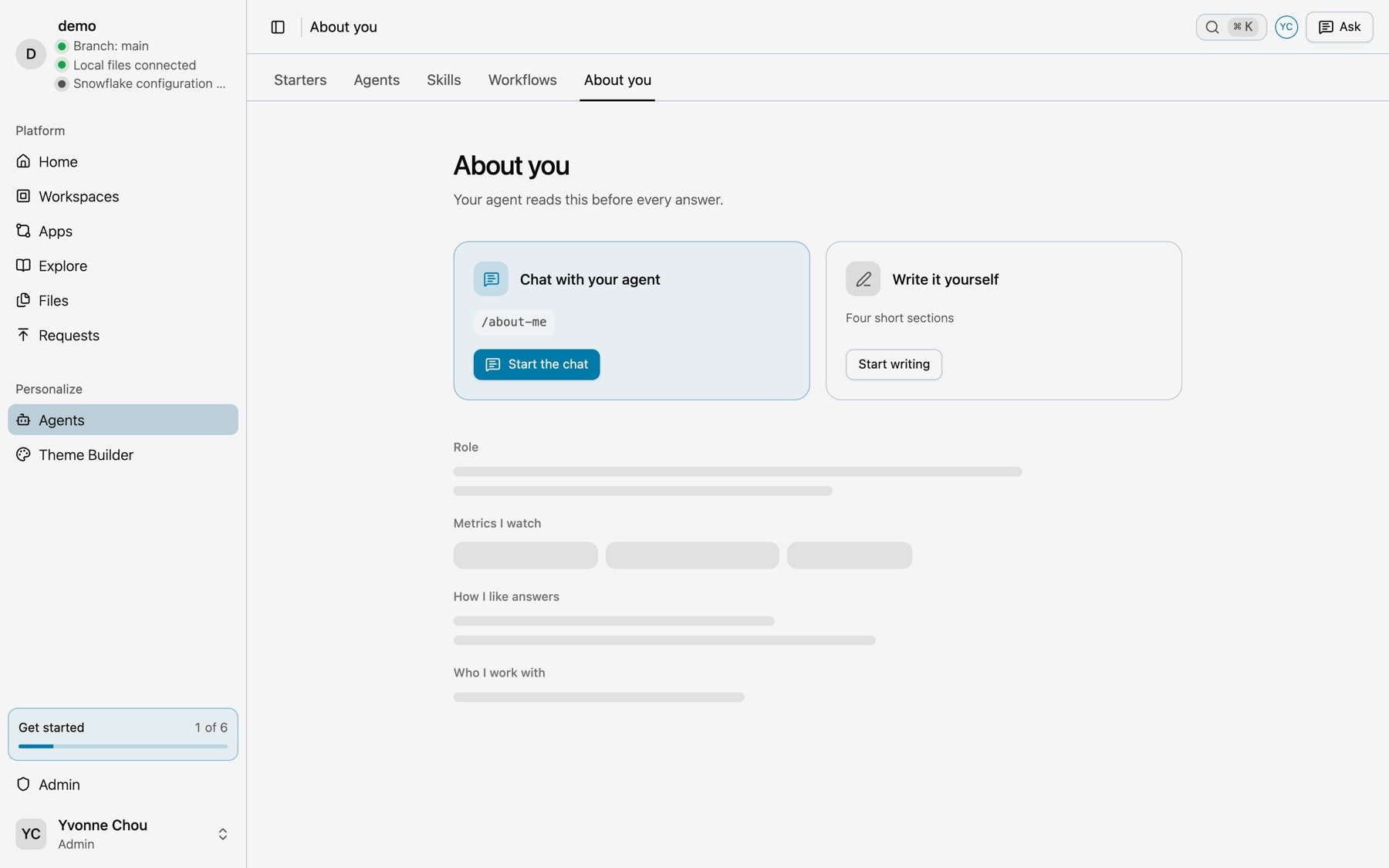
You have two ways to start:
- Chat with your agent. Select Start the chat. The Ask panel opens with
/about-me. Your agent asks a few questions and writes the answers for you. The Onboard me starter does the same as part of a first chat, and ends on one of your own numbers. - Write it yourself. Select Start writing. The editor opens with the five headings in place.
When your file has words in it, the page shows it with Edit and Update with your agent.
Learned from your chats
Beside your file, Learned from your chats lists the last five things your agent wrote to it, newest first, each in your words, such as “Weeks start on Monday”. Select a line to see exactly what changed. Select History for every change, with its difference and Undo.
If your agent wrote something wrong, fix it in Edit, or tell your agent: “That’s not right. I watch return on ad spend, not cost per click.” A new fact replaces the old one. Your agent never keeps both.
About the company
The About the company card on the same page opens the company’s about.md. It says “Shared with everyone”: every person’s agent reads it.
Only admins can change it. When your agent learns a fact that is true for everyone, such as when the fiscal year starts, it proposes the line and writes it only after a yes from someone who can.
The connection’s context
Your data team also writes connection_context.md in each connection. It says what the connection’s data holds, the business terms it uses, and the caveats that matter, such as a source that is a day late. Your agent reads it before it answers a question on that connection.
For context on one field, such as what a metric includes, your data team adds a description and AI context to the field itself. See Formats, descriptions and AI context.
Next steps
- Business teams, with About you in your first steps
- Make it yours, for your own commands
- Starters: Onboard me, Update About you and Brief me