Guides
Business teams
Start with what you want to do: ask about your numbers, find out why one moved, read your team's apps, build your own, or get a brief every week.
Your data team defines the metrics. You ask questions of them, in your own agent or in Kater, and every figure comes from your company’s data. You never write SQL.
Before you start
-
Sign in.
Open app.kater.ai and sign in. The Get started card in the sidebar tracks the steps on this page.
-
Connect your agent.
Open Profile › AI app from the account menu. Ask also takes you there with Connect in Profile until an agent is connected. Select the app to Open prompts in and do its one step, such as Add to Claude or Add to ChatGPT. The status names your app as connected, such as Claude connected, when it works. See Connect your agent.
-
Tell your agent about you.
Copy this prompt into your agent, with your own role and metrics. It writes your About you page, which your agent reads before every answer.
Prompt/onboard Set me up. I run paid social and watch ROAS and CAC.
Choose your starting point
| If you want to… | Start here |
|---|---|
| Get the figures for a question | Ask about your numbers |
| Know what made a number go up or down | Find out why a number changed |
| Read the apps and dashboards your team shares | Open your team’s apps and dashboards |
| Make a report, a deck or a page of your own | Build your own app |
| Read what moved, every Monday, without asking | Get a brief every week |
| Have other teams use a number you made | Share a definition with your data team |
Each use case below starts with a prompt for your agent. Its tabs show the other ways to do the same thing: Point and click in Kater, and Chat from where you are in Kater.
Ask about your numbers
-
Open Explore.
Select Explore in the sidebar, then select a model in the Model picker.
-
Select a question.
Select the Use Cases tab, then Tell me more on a question. If it has no plan yet, select Plan this question.
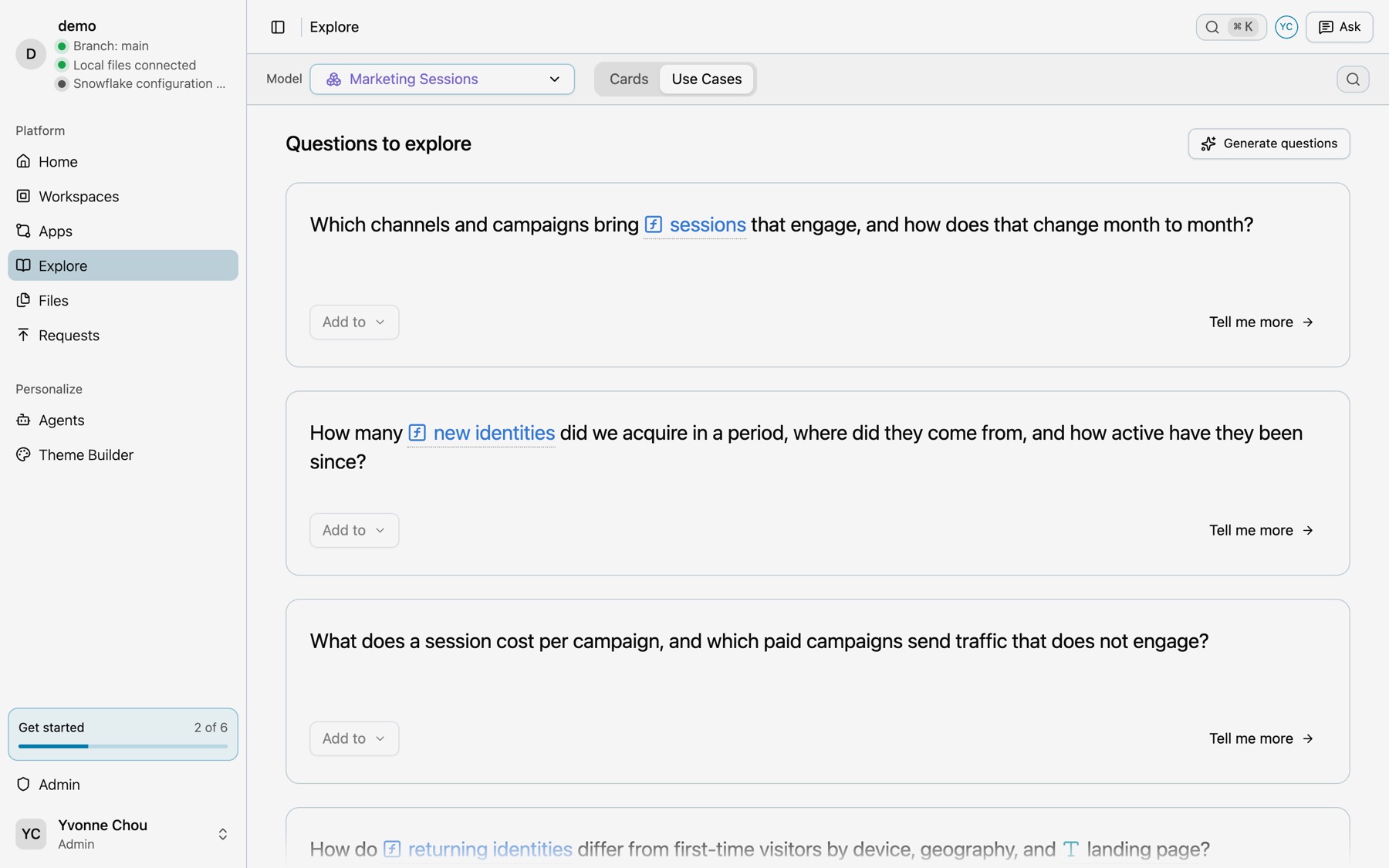
Use Cases lists the questions the model answers. -
Read the answer.
Each step shows its query, What the results show and Next questions.
See Explore.
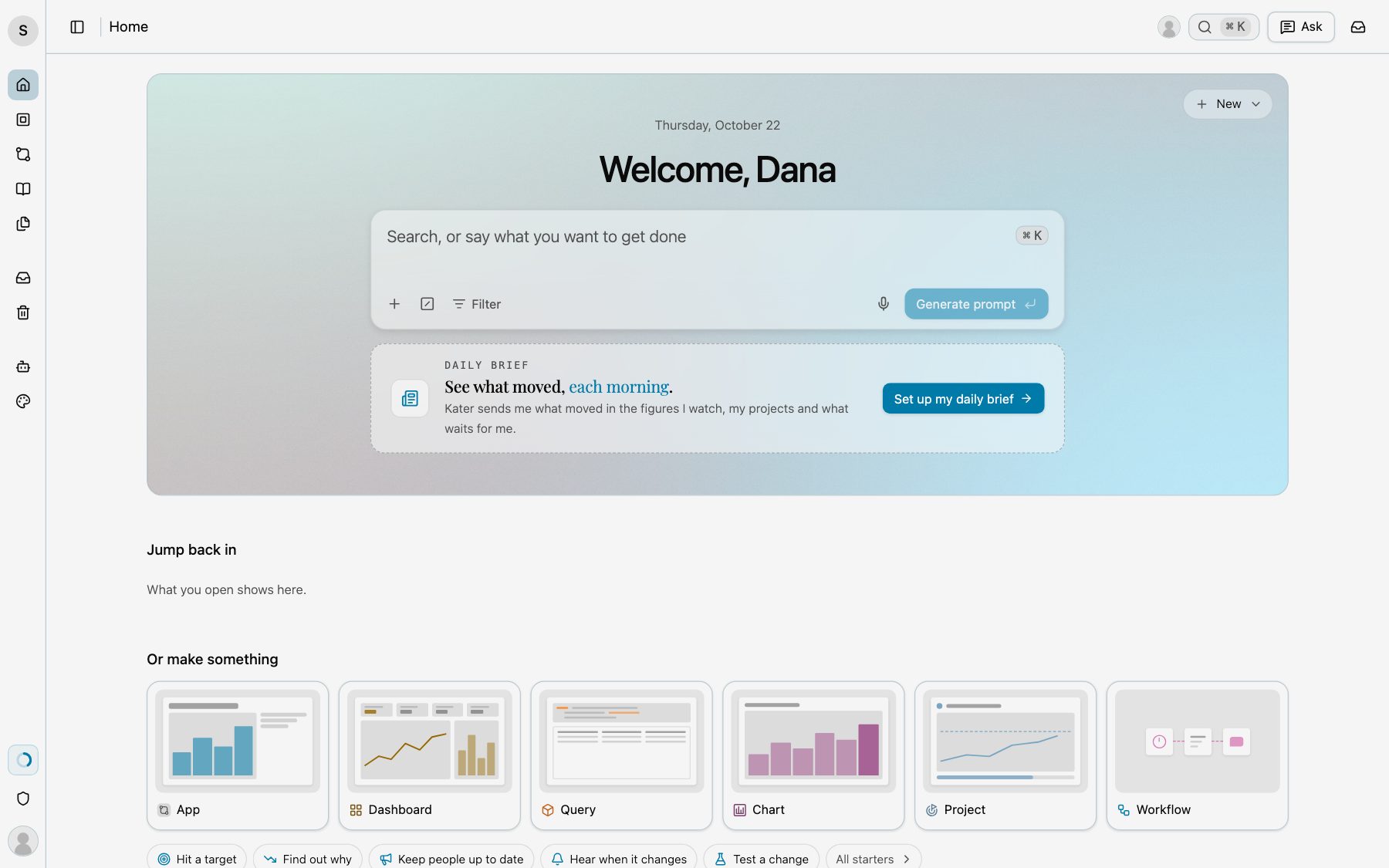
On Home, type your question in Search, or say what you want to get done and select Generate prompt (⌘↵). Kater writes a prompt that says where you are, copies it, and opens it in the agent you select under Open in.
Find out why a number changed
-
Open the dashboard.
Select Workspaces, then Open dashboard on a workspace.
-
Read the key takeaways.
Under the filters, Key takeaways says what went up or down, from when to when, and by how much. The figures that the sentence does not give, such as the change, show under it. When you change a filter, the takeaways change with it. Hover a field, a date or a value to see how it is defined.
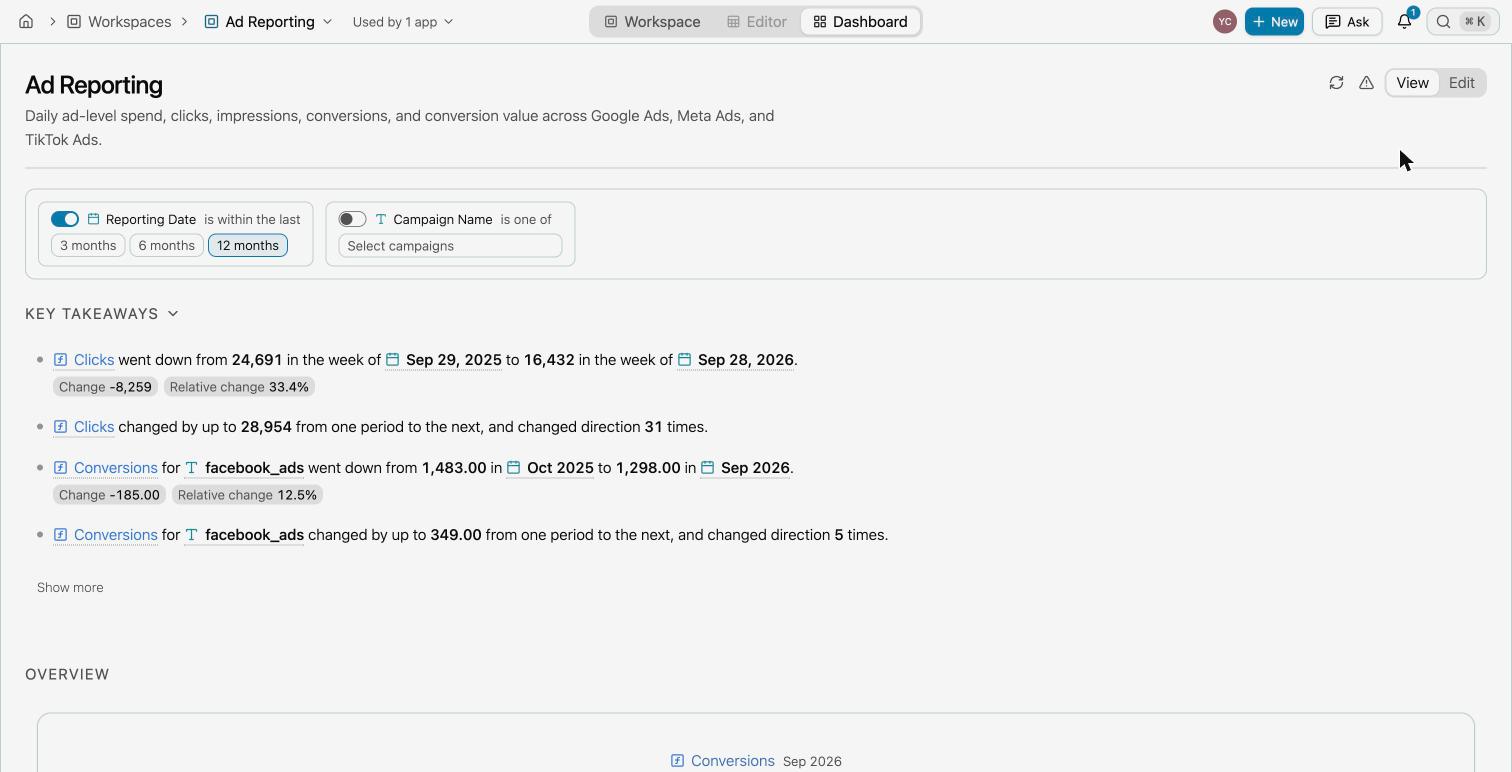
Key takeaways on a dashboard. -
Ask a follow-up.
Hover a takeaway and select its chat mark. Ask a follow-up opens with a prompt that names the takeaway and the page. Select Copy prompt and paste it into your agent.
On a dashboard tile, open its menu and select Ask about this. The prompt names the chart, so your agent knows what you are looking at.
To compare two periods, run the Compare two periods starter: /compare Compare this month with last month for return on ad spend.
Open your team’s apps and dashboards
-
Open an app.
Select Apps in the sidebar. The tabs are All, Mine and Shared with me. An app opens in Viewing mode.
-
Or open a dashboard.
Select Workspaces, then Open dashboard on a workspace.
-
Keep it close.
Select Pin on an app card, or File › Pin to Home in a workspace. Pinned items show at the top of Home.
-
Send it.
File › Share shares an app with people and groups. File › Export saves it as PowerPoint, PDF, Word, Markdown or Excel.
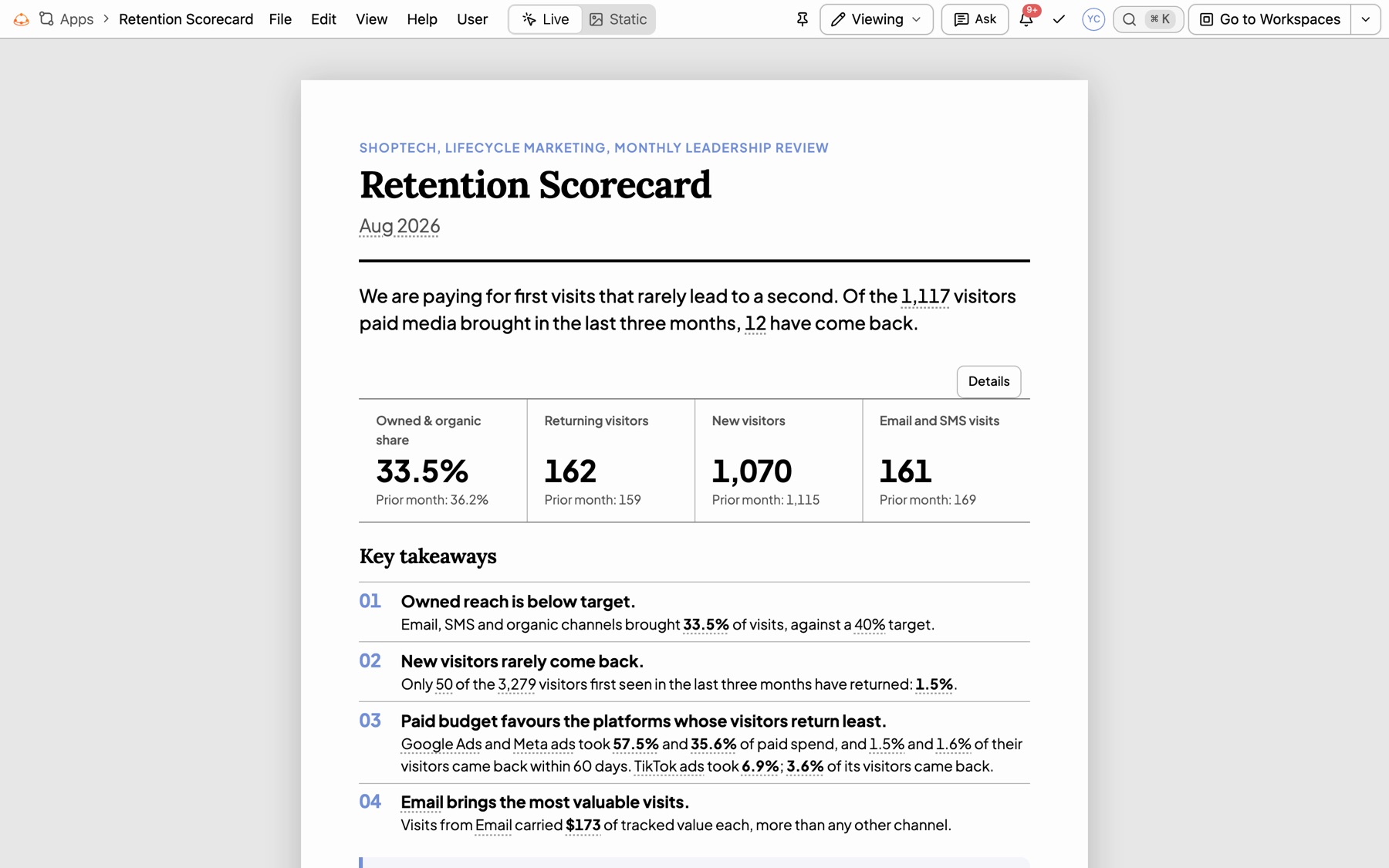
With an app or a dashboard open, select Ask in the top bar and type your question. The prompt names the page you have open. See Ask Kater MCP.
Build your own app
An app is a report, a deck or a page on your company’s live numbers. Every reader sees only what they can read.
-
Open New app.
Select New app on Apps, or New › App on Home, then select Manual.
-
Fill in the app.
Select a workspace, fill in App label, App name and Description, and select Create. Kater writes a starter page.
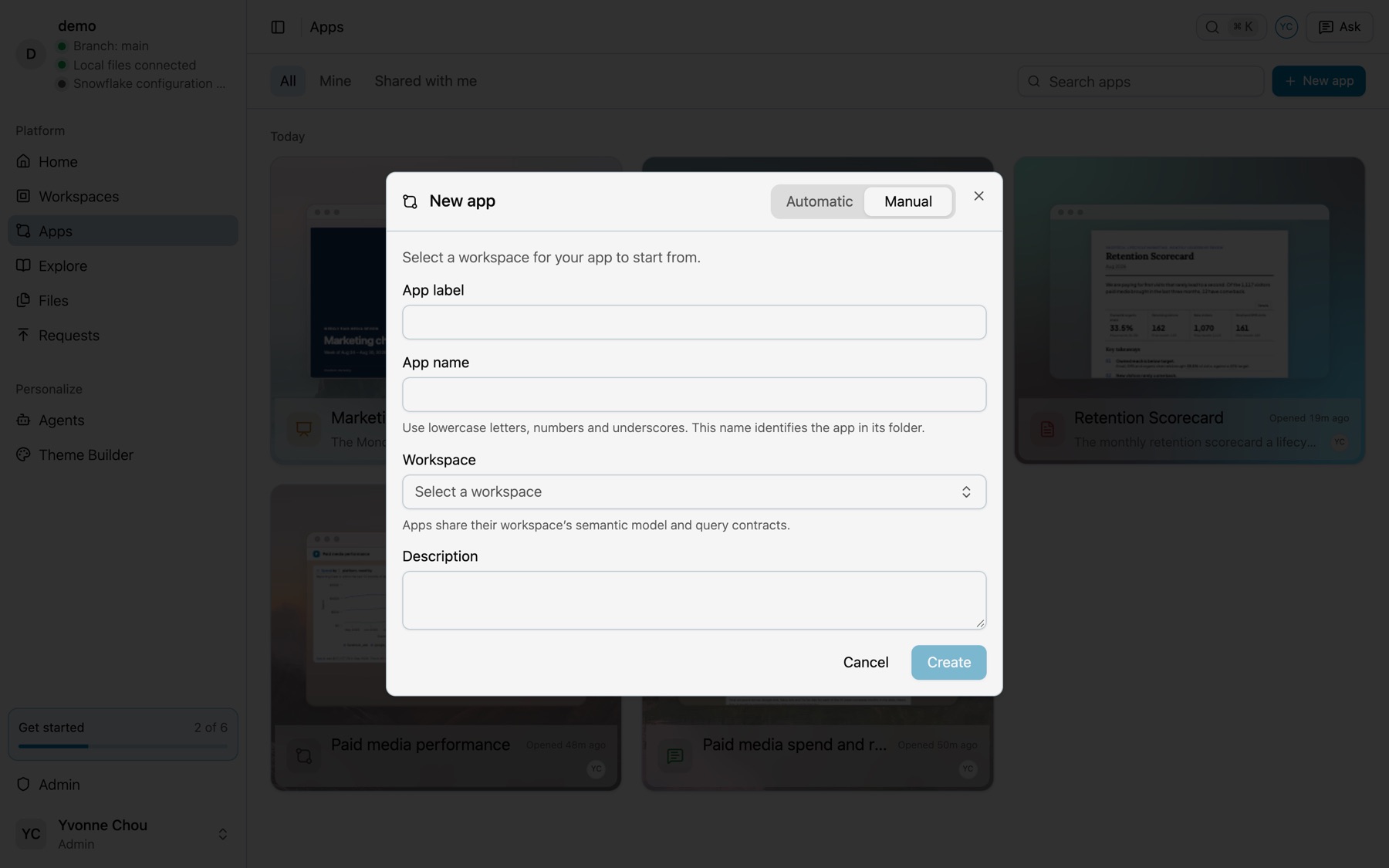
New app, Manual tab. -
Add content.
Open the app and select Editing from the menu at the right of the menu bar. In Add Content, hover a query or a chart and select Add to App.
-
Open New app.
Select New app on Apps, or New › App on Home. It opens on Prompt AI.
-
Describe the app.
Say what it shows, who reads it and which period. Then select Generate prompt and select your agent under Open in.
-
Say yes to keep it.
Your agent drafts the app in your brainstorm folder and shows it to you. After your yes, it moves the app to your apps.
To start from a finished example, copy an app from the Library, such as the Retention Scorecard. See Build an app with your agent.
Get a brief every week
Open AI Tools › Workflows and select a workflow. Select Schedule with AI, and your agent sets up the task in its own scheduler. Or select Copy prompt, paste it into your agent’s scheduler, and set the same schedule. Your agent must run tasks on a schedule, as Claude Cowork, Codex and Cursor do.
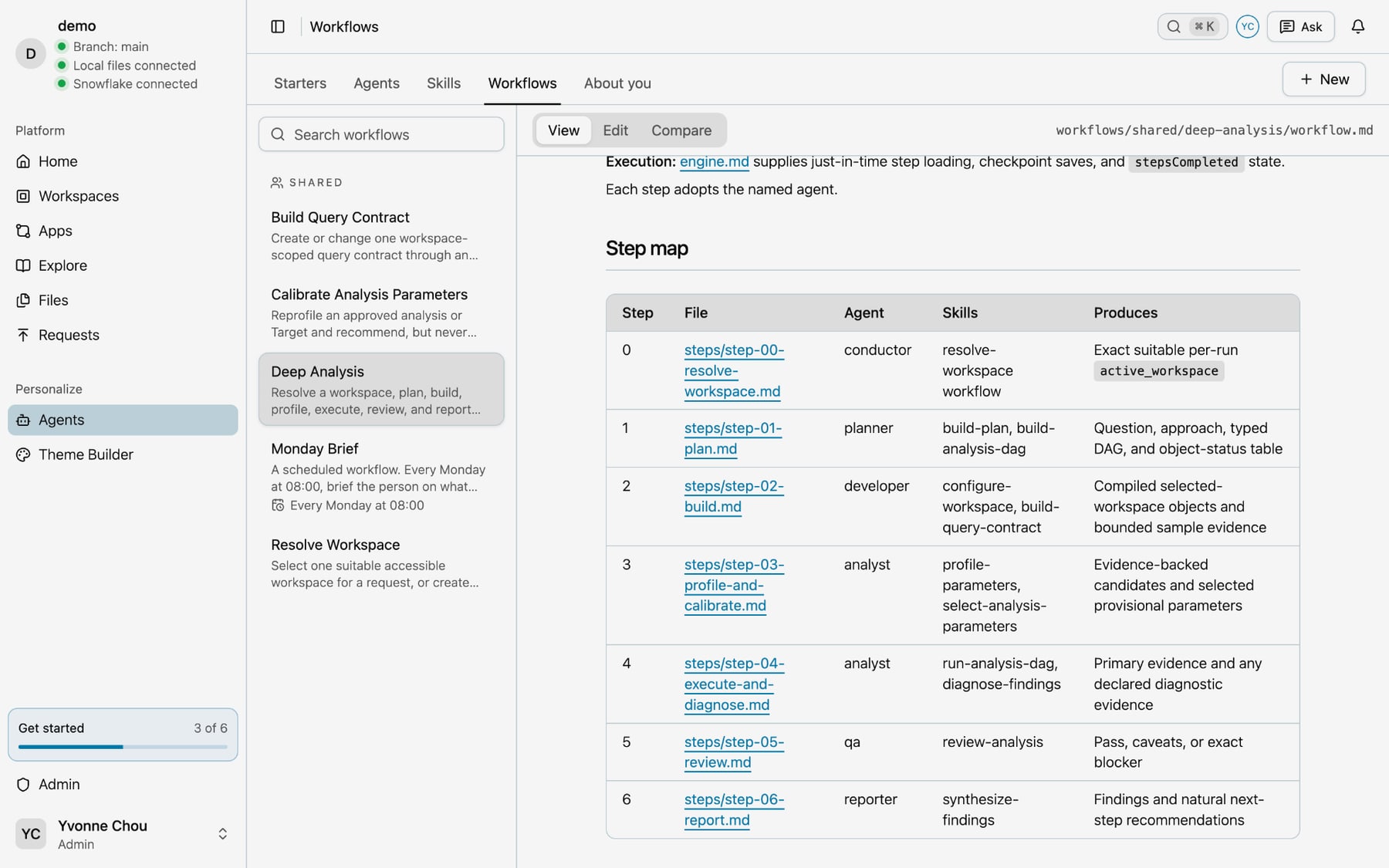
See Scheduled workflows.
For a brief now, run the Brief me starter: /brief-me Brief me on what moved since last Monday. To have your agent watch one number for you, run /watch Watch ROAS and tell me if it drops below 3.
Share a definition with your data team
Sometimes your agent defines a field in your workspace that other teams should use too, such as a cost per conversion. Ask your data team to add it to the shared layer.
-
Open Promote.
Open the workspace and select the Promote tab in the sidebar, or right-click the field’s column and select Promote to workspace.
-
Send the request.
On the A shared model tab, write your Reason and select Submit request.
-
Follow it.
Open Requests. Your request moves through the Pending, Approved and Denied tabs.
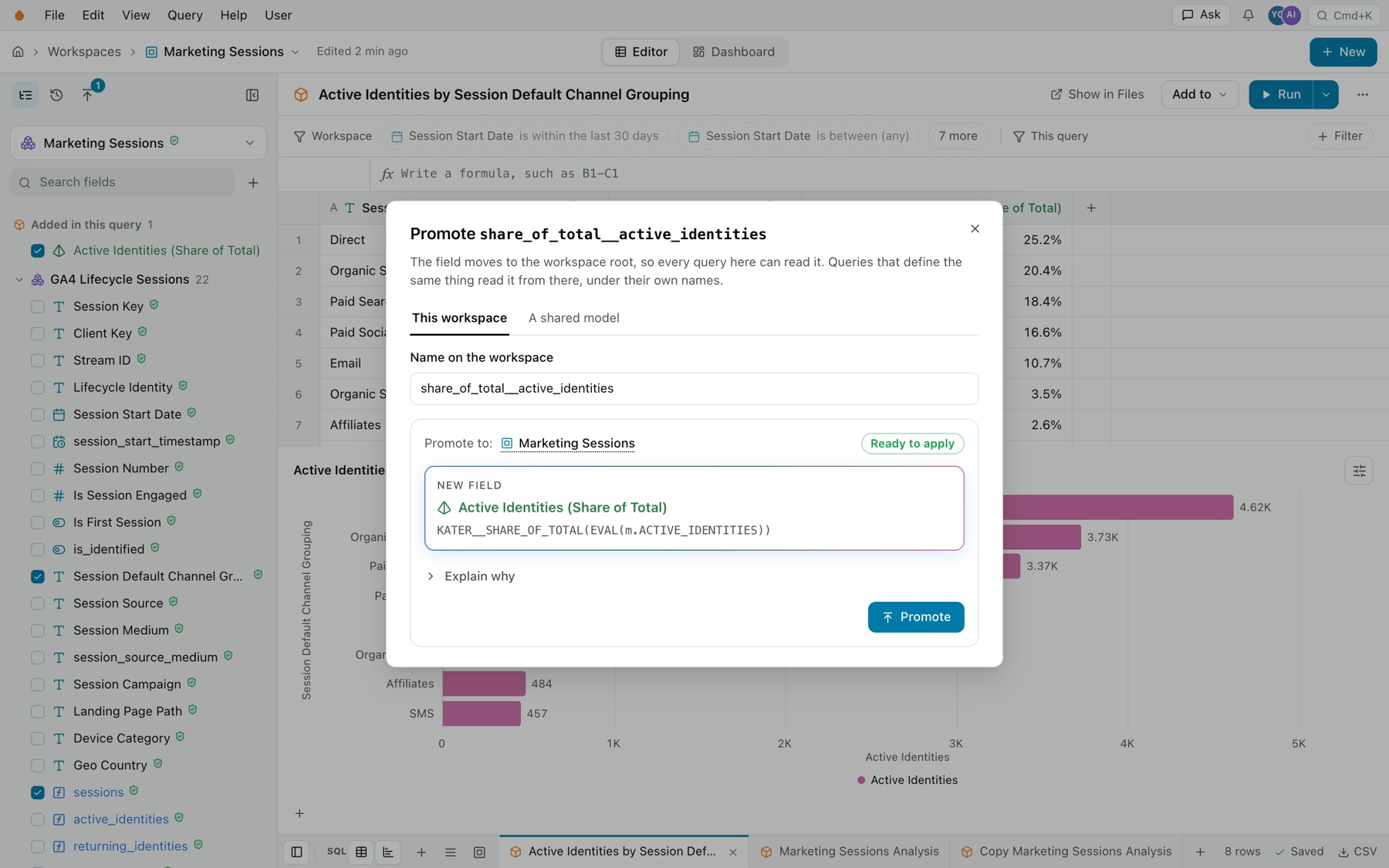
With the workspace open, select Ask in the top bar and ask to share the field. The prompt names the workspace you have open. See Promotion and verification.
What to expect from your agent
- Grounded answers. Figures come only from queries it runs. When a definition is missing, it says which one, instead of guessing.
- Your access, nothing more. It acts as you, so it reads only what you can read.
- It tries first, then asks. It drafts plans, checks and pages in your private brainstorm folder. It asks before it changes anything outside that folder, and every change it makes has History and Undo.
- It can see your open pages. In Profile › Agents, turn on Share my open pages with my agents. Then “fix the app I have open” works, because your agent knows which page you are on.
Next steps
- Starters for every ready-made prompt.
- The Library for apps, starters and scheduled workflows you can copy.
- Ask Kater MCP to ask your agent about what you have open.
- Apps and Dashboards to read and share results.