Model Trust
Promotion and verification
Move a useful field up a layer so everyone reads one definition, and see which fields are verified.
Good metrics often start in one person’s query. Promotion moves a field or a filter up one layer, so the models that defined it read it from there instead. Its meaning never changes, and Kater proves that before anything is written.
The path a field takes
| Step | From | To | Who does it |
|---|---|---|---|
| 1 | A query | The workspace root | Anyone who can edit the workspace |
| 2 | A workspace | A shared model | You ask. The data team approves. |
Promote a field to the workspace
-
Start the promotion.
In the workspace editor, select Promote to workspace at the top of the field’s column menu or its menu in the field list. You can also use the Promote tab in the sidebar, or Query › Promote a field.
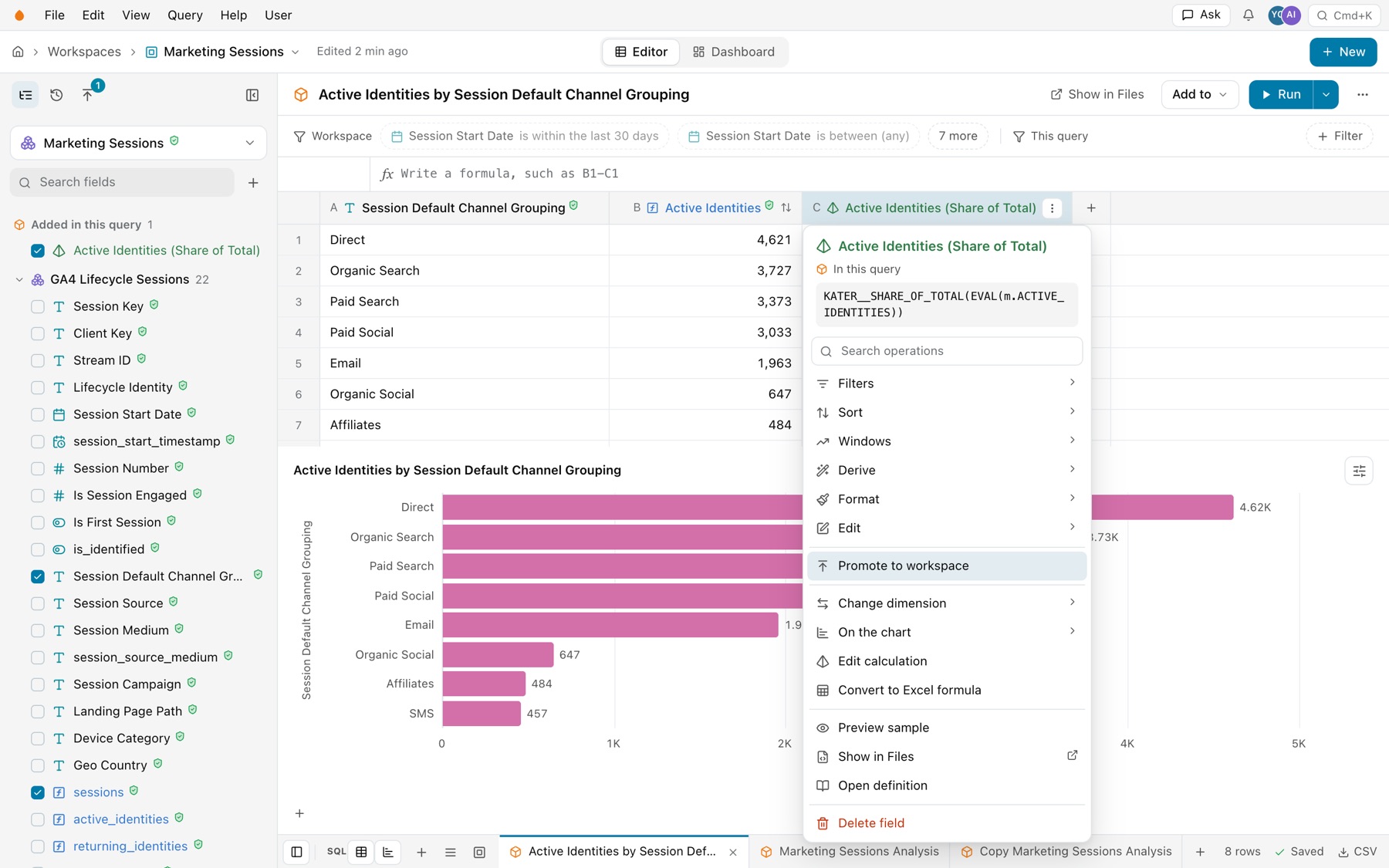
Promote from the column. -
Check the dialog.
The promotion dialog opens on This workspace. The field moves to the workspace root, so every query here can read it. Queries that define the same thing read it from there, under their own names.
-
Check the name.
Name on the workspace is checked as you type. Change it if another field already has the name.
-
Read the promotion card.
The card says where the field goes, such as Promote to: Marketing Sessions, and its status, such as Ready to apply. It shows the new field and its expression. Explain why says where it moves, and the rows compared for each query.
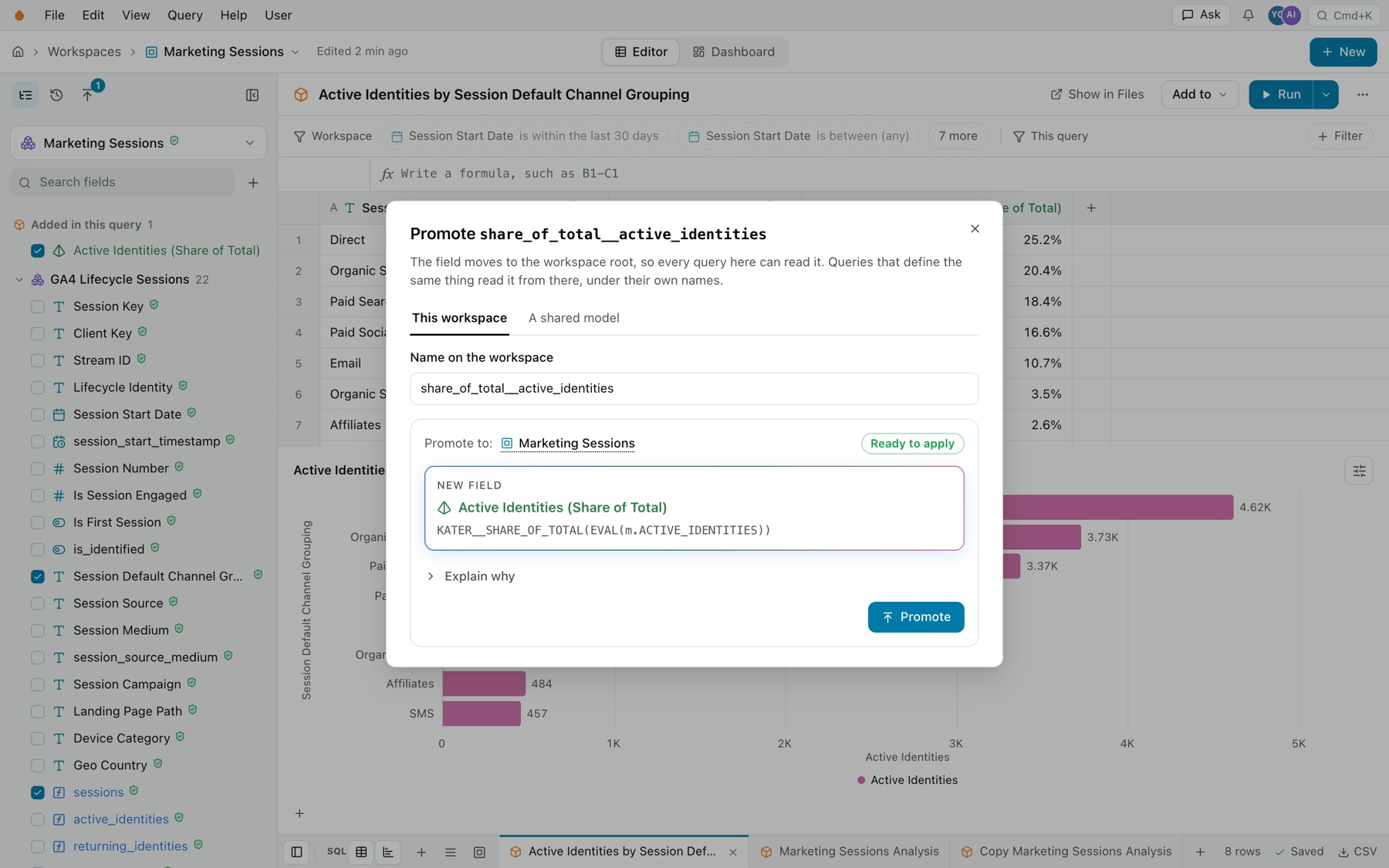
The promotion dialog. -
Select Promote.
The field moves from Added in this query to Added in this workspace, still ticked, and the query reads it from there. A message offers Undo.
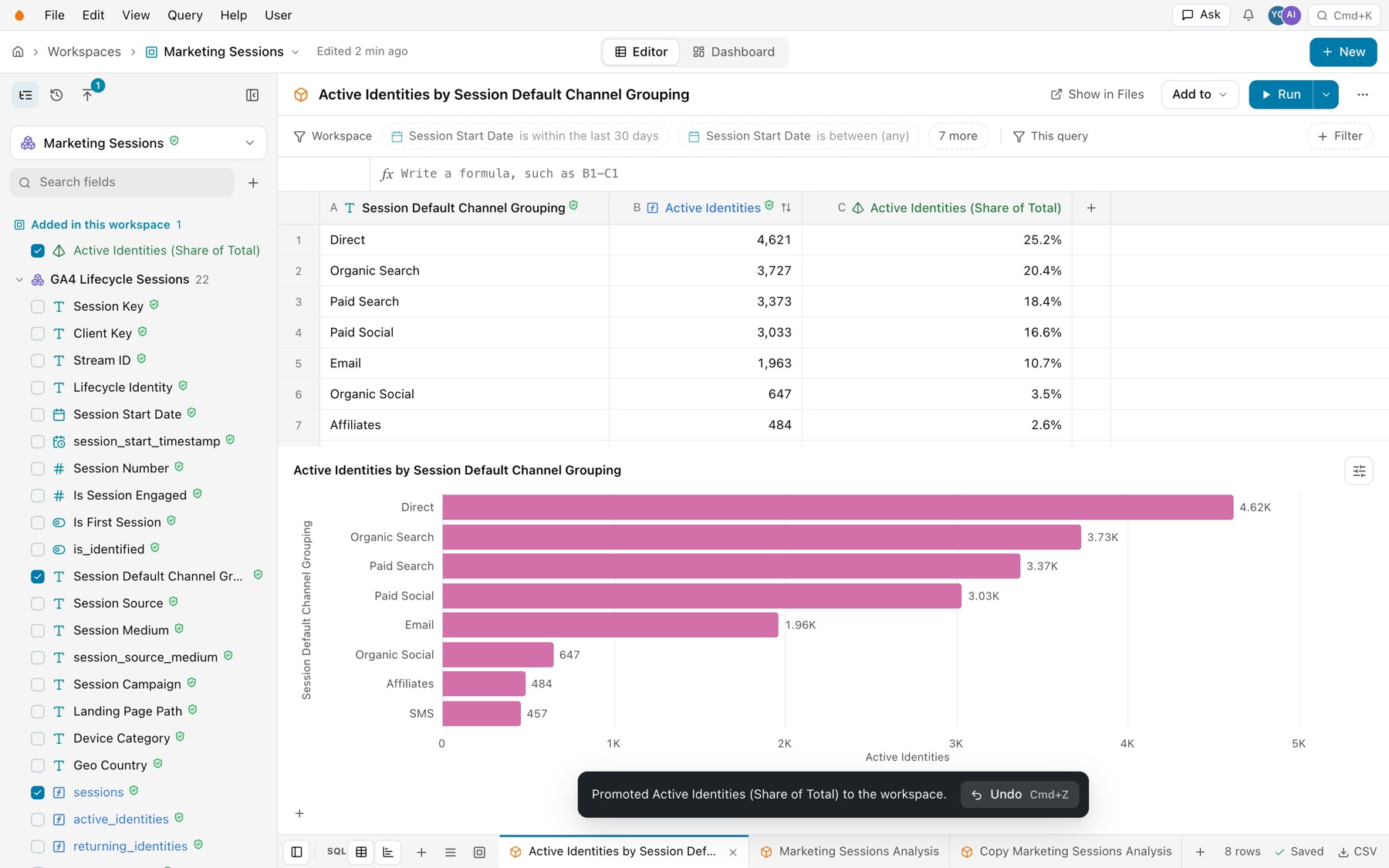
Promoted.
One compile of the whole workspace proves that each local definition keeps its formula. Fields over the same inputs that compute something else stay as they are, and Kater says why. A field that cannot move shows Promote to workspace greyed, with the reason on hover. From a terminal:
kater model promote revenue_per_customer --relation region_mix \ --scope connections/duckdb_sample/workspaces/shop --dry-runRun it again without --dry-run to write. Nothing is promoted from a brainstorm copy. Apply the copy with kater workspace apply first, then promote.
The Promote tab
The Promote tab in the sidebar counts what can move up a layer. Under To and the workspace’s name, it lists the fields the open query makes, marked “In this query”. Then it lists the fields Kater recommends for the workspace, each with what it computes and where it is defined, such as “Defined in 2 queries”. Each field has Promote, or Ask when the data team decides. Sent to the data team lists your requests for this workspace, or “None yet”.
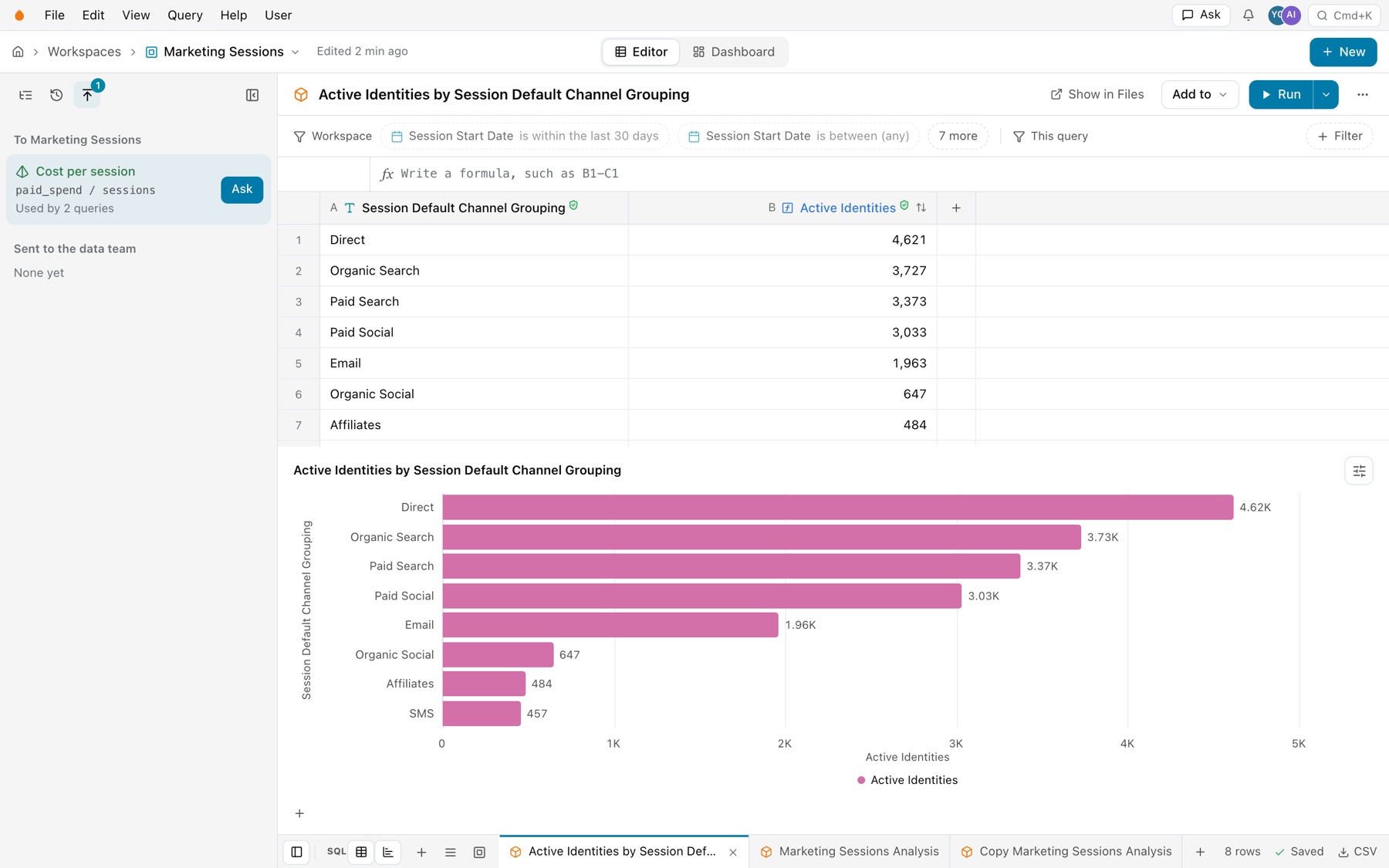
Ask to promote a field to a shared model
A field in the workspace can go one layer further, into the shared model everyone reads. The data team decides.
-
Open the request.
On a field added in the workspace, select Ask to add it to the model, at the top of its menu. Or select the A shared model tab in the promotion dialog.
-
Write your reason.
In Reason, say why everyone should read one definition. The data team reads it to decide.
-
Select Submit request.
The request shows in the Promote tab under Sent to the data team, as Waiting, Approved or Denied.
If the shared model already has the same formula, Kater sends nothing and names that field, so you can read it instead. From a terminal or through your agent:
kater promotion request connections/duckdb_sample/workspaces/shop/query_contracts/region_mix.sql \ revenue_per_customer --reason "Finance and marketing both report revenue per customer."kater promotion list --status pendingkater promotion show and kater promotion withdraw manage a request. In the portal, Requests lists your requests under Pending, Approved and Denied, with your reason and a timeline.
How the data team decides
Requests and Kater’s own recommendations meet in one list, under Admin › Objects on the Promotions tab. See Promotion requests.
- Kater finds repeats. A nightly scan compiles every workspace on the connection and finds the same formula defined in several models, by a fingerprint of the formula, not its text. A language model judges whether promoting it is worth it, and the same repeat is recommended once.
- Every draft is proved twice. The compiler checks that each local definition keeps its formula fingerprint. Then Kater runs each local definition on the warehouse as saved and as drafted, and compares the results.
- The data team approves or denies. Approving promotes the field: the shared model gets it, and your definition is replaced by a reference to the shared field, which the data team may rename. Denying leaves the field where it is, with a reason.
What can be promoted
- Fields and filters. Dimensions, measures and filters can move up one layer at a time.
- Custom calculations, only as a measure. A rank or running total depends on one query’s rows, so it stays in its query. When a measure gives the same numbers, such as a share of the total, Kater promotes that measure instead. It rewrites the calculation first, as
field.convert_to_measuredoes. See Custom calculations. - Excel formulas that read their own row. A formula column moves to the workspace root as a measure or a dimension: its menu has Promote as Measure or Promote as Dimension, whichever the formula can be, and the root keeps the formula. A formula over a range or another row stays in its query.
Verification
Only a field is verified. A field is verified when its definition comes from the shared layer. Kater’s server computes it, and nobody sets it by hand.
- The rule. A field is verified only when a model under
connections/<c>/modeling/last named it. A pass-through or anEVALkeeps it. A field named or computed in a workspace or query is not verified. - To verify a workspace field, request its promotion into a shared model.
- To recommend a model, a query or a workspace, add
curated: ["true"]to thetagsin its frontmatter. The Model Selector lists a curated model under Curated by the data team. The tag grants no access and verifies no field. See Structured model tags.
In the workspace editor, a verified field carries the verified mark in the field list, on its column header and in its menu. Unverified fields carry none. An agent can tell a person which fields in an answer are verified, because the server computes it, not the agent.