AI
How it runs
What your agent loads when it connects, how the Conductor routes a request, and how a workflow runs one step at a time with a checkpoint after each.
You ask your agent a question. Kater does not answer it. Your agent does, and it follows the files in ai_tools/ to do it. This page follows one request from the moment your agent connects to the note it leaves in your brainstorm folder.
Above is one run of Why did it change?, the deep-analysis workflow. Each agent does one step and writes its own section of one note. The note is the run’s whole record. A new chat can read it and carry on where the last one stopped.
What loads first
Your agent calls the tool kater_start first in every conversation. The result holds these:
- Kater’s rules. They apply to every request, such as “Ask before you change anything outside
brainstorm/”. They are the same for every organisation. - The object index, which says what you can ask for, the object that answers it, and the guide for that object.
- The context files that have content, as a list of paths. They are your organisation’s
rules.mdand the company’sabout.mdat the root of your content, each connection’sconnection_context.mdand query-authoring skill, and yourabout.md. - The warehouses you can query.
Then your agent reads each context file in the list, before it answers. Of the connections’ files, it reads only those of the connection it works in.
After you change one of these files, start a new conversation
Your agent reads these files at the start of each conversation. A change to rules.md or an about.md reaches your agent in the next conversation.
Kater’s rules win on grounding figures and on asking before a change. Your organisation’s rules.md wins on everything else. To see what kater_start returns, see The rules your agent reads first.
How a request is routed
Every workflow starts with the Conductor. It reads config.yaml and the rules, then checks your brainstorm folder for a run that is not done. Then it picks one route:
| You say | It goes to |
|---|---|
A starter by name, such as /brief-me | That skill or workflow, with the agent that owns it |
| A goal that takes more than one change, such as “Help me plan a weekly ROAS review” | The Planner, with the planning skill |
| “Run the plan” or “Carry on with the plan” | The plan’s phases, one at a time: the Developer builds each one, and QA checks it |
| “Why did spend fall?” or another question with many queries | The deep-analysis workflow |
| “Move my Monday brief to 9” | The Planner, with the schedule-workflow skill |
| Nothing clear | A short menu of what it can do |
When a run is still open, the Conductor offers to carry it on first. The Conductor never does the work itself. It picks the route, hands it over, and tells you in one line what came back.
How a workflow runs
A workflow is a folder: one workflow.md that maps its steps, and one file for each step. The engine, ai_tools/engine.md, runs every workflow the same way:
- One step at a time. Your agent loads only the step it is on. It never reads ahead, so it keeps its attention on the step.
- One agent for each step. Each step names an agent and the skills it uses. Your agent works as that agent until the step ends.
- One workspace. A workflow that needs a workspace finds one first, and every later step stays in it.
- A checkpoint after each step. Your agent writes the step’s result to the note and tells you what it found. You can correct it, steer it or stop it.
- It can carry on later. Your agent records each step it completes in
brainstorm/workflow-status.yaml. A new chat carries on from the first step that is not done.
| Step | Agent | What it does |
|---|---|---|
| 0 | Conductor | Finds the workspace that can answer the question |
| 1 | Planner | Plans each query and the order they run in |
| 2 | Developer | Builds the queries that are missing |
| 3 | Analyst | Profiles the data to set values such as a threshold |
| 4 | Analyst | Runs the plan, and any follow-up checks it declares |
| 5 | QA | Reviews the work in a fresh context: pass, pass with caveats, or blocked |
| 6 | Reporter | Writes the findings, each with the run it came from |
Interactive and autonomous runs
execution_mode in config.yaml sets how a run treats a decision, such as which threshold to use.
- Interactive, the default. The run stops at each decision and asks you.
- Autonomous. The run goes on under a policy you already approved, and marks each value it picks as provisional. A scheduled workflow runs this way, since nobody is there to answer.
In both modes, a write outside your brainstorm folder needs your yes first, and so does anything that runs on a schedule.
The brainstorm folder
Your agent does its work in your own brainstorm folder, users/<you>/brainstorm/. It needs no approval there. Each topic is one note, such as brainstorm/google_ads_drop.md, which opens with its title and a Status: line. The topic’s drafts and other files go in a folder of the same name beside it.
When the work should leave the brainstorm folder, such as a change to a shared workspace, your agent shows you the difference first. It writes the change only after your yes. See Try changes safely.
Starters in your agent
Each starter is also a prompt in your own agent, through the Kater MCP. In Claude Code, type /mcp__kater__ and its name, such as /mcp__kater__brief-me. In other agents, select it by its title. Its inputs, such as since for Brief me, become the prompt’s arguments.
The prompt carries the starter’s own text, with your email and your surface filled in. Your own starters are prompts for you alone, and a new one shows in your agent as soon as it is written. When two starters have the same name, yours wins.
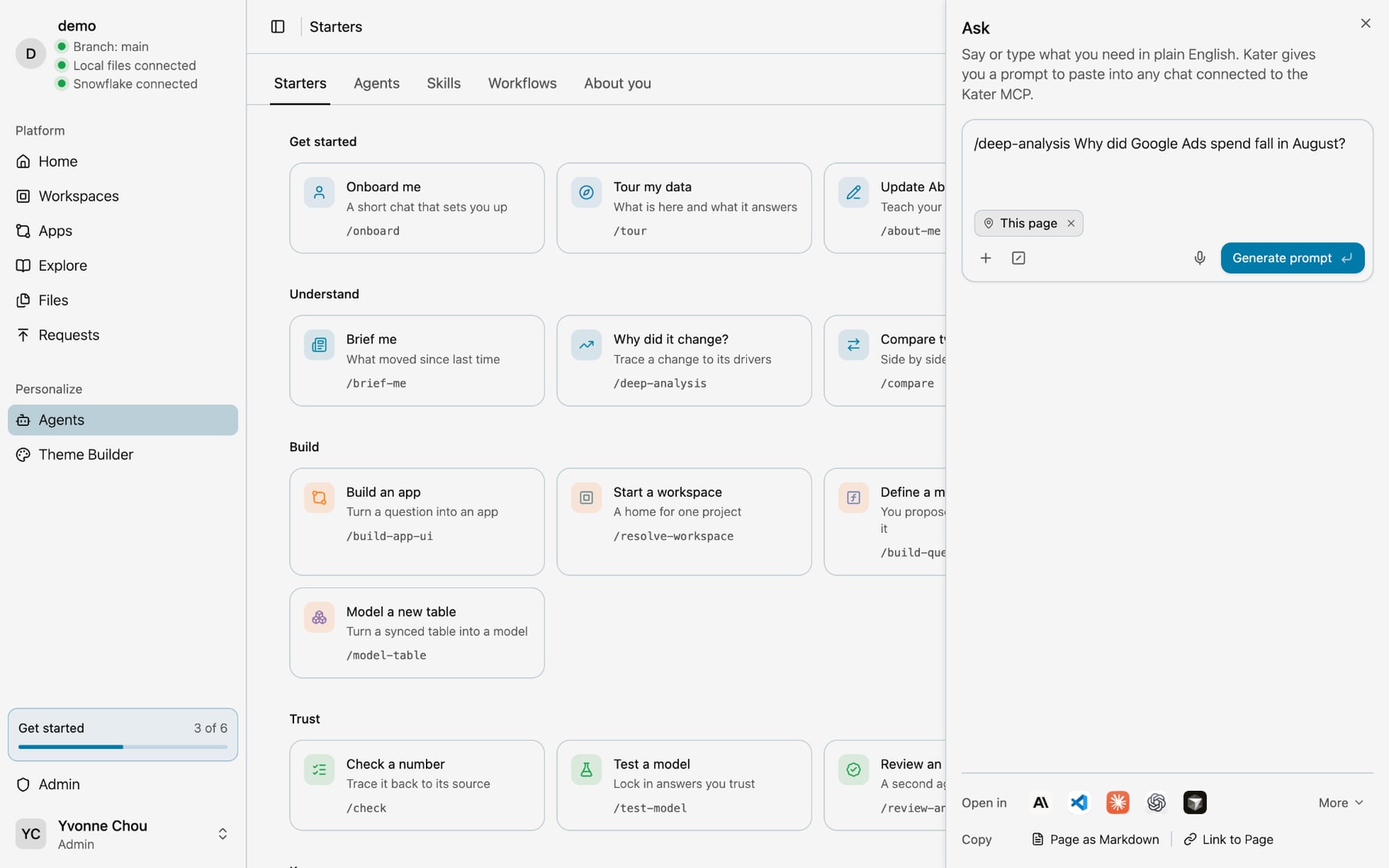
In Kater, select a starter on AI Tools › Starters or on Home. The Ask panel opens with its prompt. Finish the sentence, select Generate prompt, and open it in your agent.
Next steps
- Agents, the six roles in a run
- Skills and workflows, what each file holds
- Starters, every starter and how to run it
- MCP server and tools, every tool and prompt your agent gets