On this page
- The editor at a glance
- The name menu
- New
- The field list
- Add and remove fields
- Pick a date by its timeframe
- The list finds what you click
- The field menu
- Filters: Workspace or This query
- What each type offers
- Actions
- Add a field from an operation
- Remove a column
- Move a column
- The query toolbar
- Run
- Add to
- Refresh, copy and look deeper
- The filter bar
- Rows and the formula bar
- The SQL editor
- The chart
- The footer
- Promote a field from a query
- Keyboard shortcuts
- If something looks wrong
Analyze Workspaces
Queries
Build a query by clicking fields, shape it with field menus and filters, then run, chart and place it, all in the workspace editor.
A query is one saved question in a workspace: the fields it shows, how it groups and filters them, and its chart. The workspace editor builds it for you as you click fields, and writes the Kater SQL as you go. Everything saves itself.
| If you want to… | Do this |
|---|---|
| Add or remove a column | Click its field in the field list |
| Turn a field into a share, a rank or a comparison | Right-click it and select an operation |
| Narrow the rows | Use the filter bar, or a field’s Filters |
| Write a column in spreadsheet syntax | Use the formula bar. See Excel formulas. |
| Put the chart on a dashboard or in an app | Select Query › Add to in the workspace name’s menu |
| Let every query here read a field you made | Promote it to the workspace |
The editor at a glance
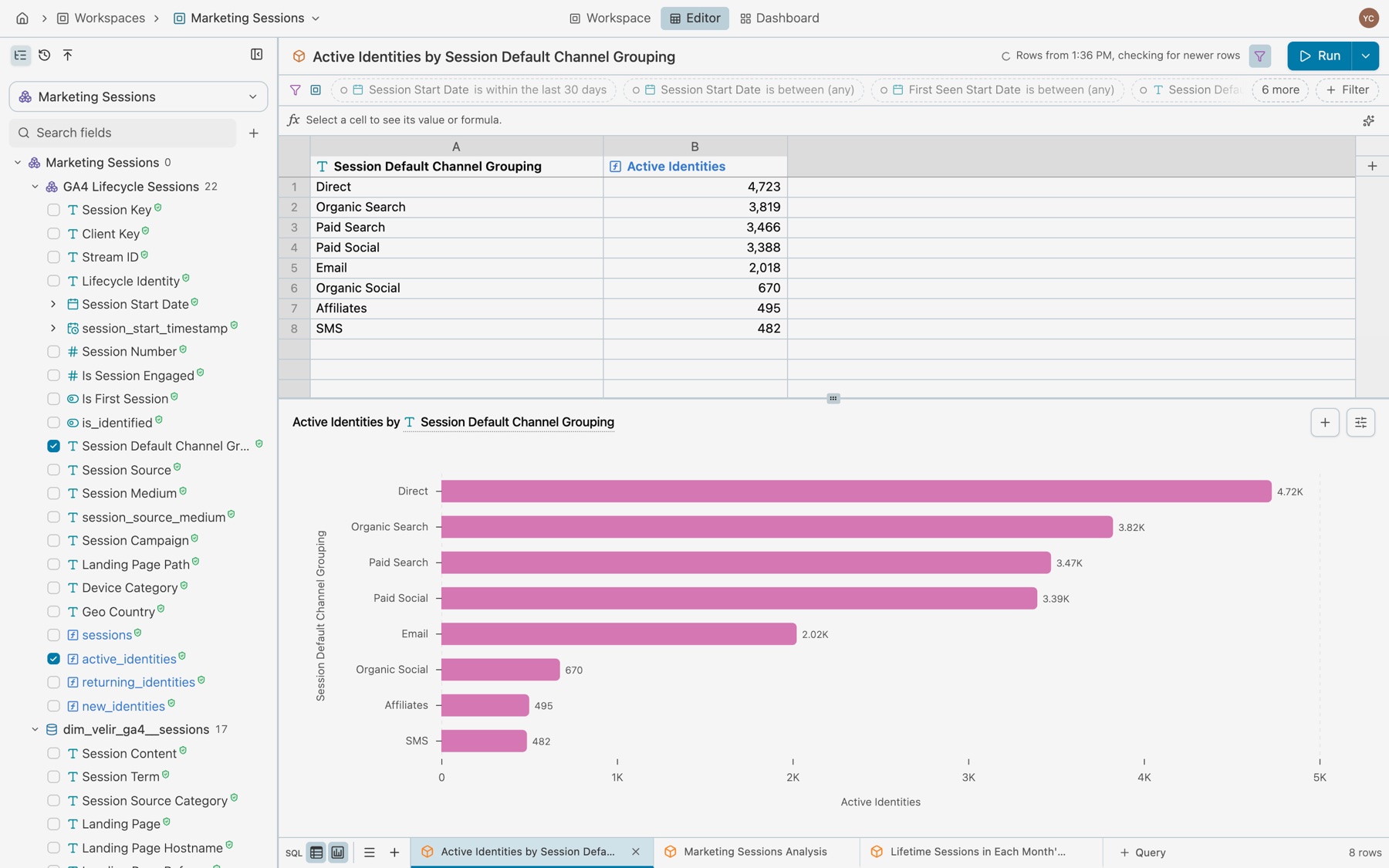
| Area | What it holds |
|---|---|
| Header | The workspace name, which opens its menu, then Workspace, Editor and Dashboard. At the right: the people on this page. |
| Name menu | When the workspace last changed, Search Kater (⌘K), Ask (⌘I), Notifications, then File, Edit, View, Query, Help and your user menu |
| Sidebar | The field list, with the History and Promote tabs |
| Query toolbar | The query’s title, Filters with the count of filters that change the rows, the problems mark when there are some, and Run |
| Filter bar | One row of pills: the workspace’s filters, then this query’s filters, N more and + Filter |
| Rows and chart | The formula bar, then the rows or the saved chart. The footer toggles show both. |
| Footer | The SQL, rows and chart toggles, the list of every query, + for a new query, the query tabs and the row count |
The toolbar holds only what you need on every query. Everything else is in the name menu or the field menu. A menu item that cannot run is greyed, with the reason on hover.
The name menu
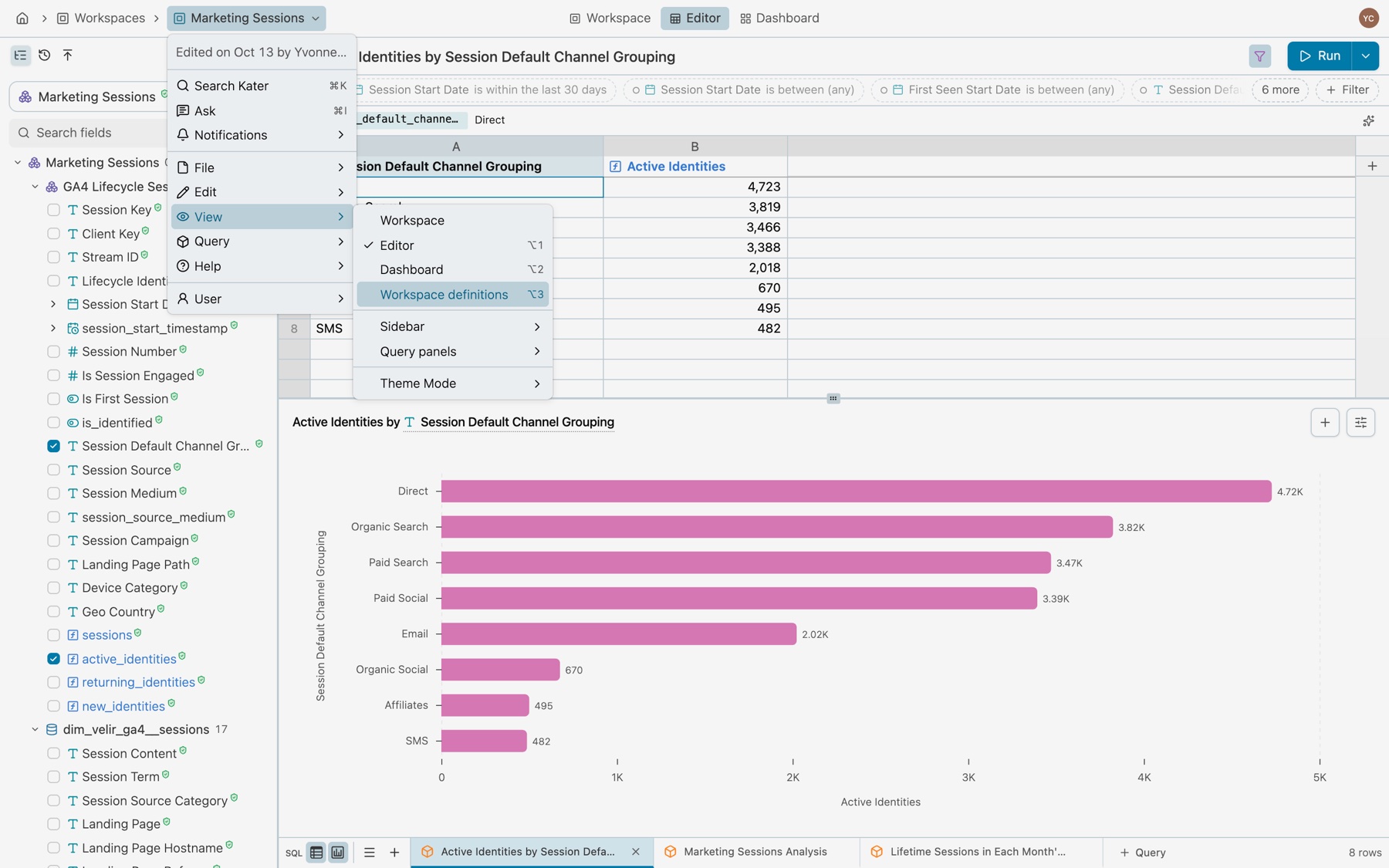
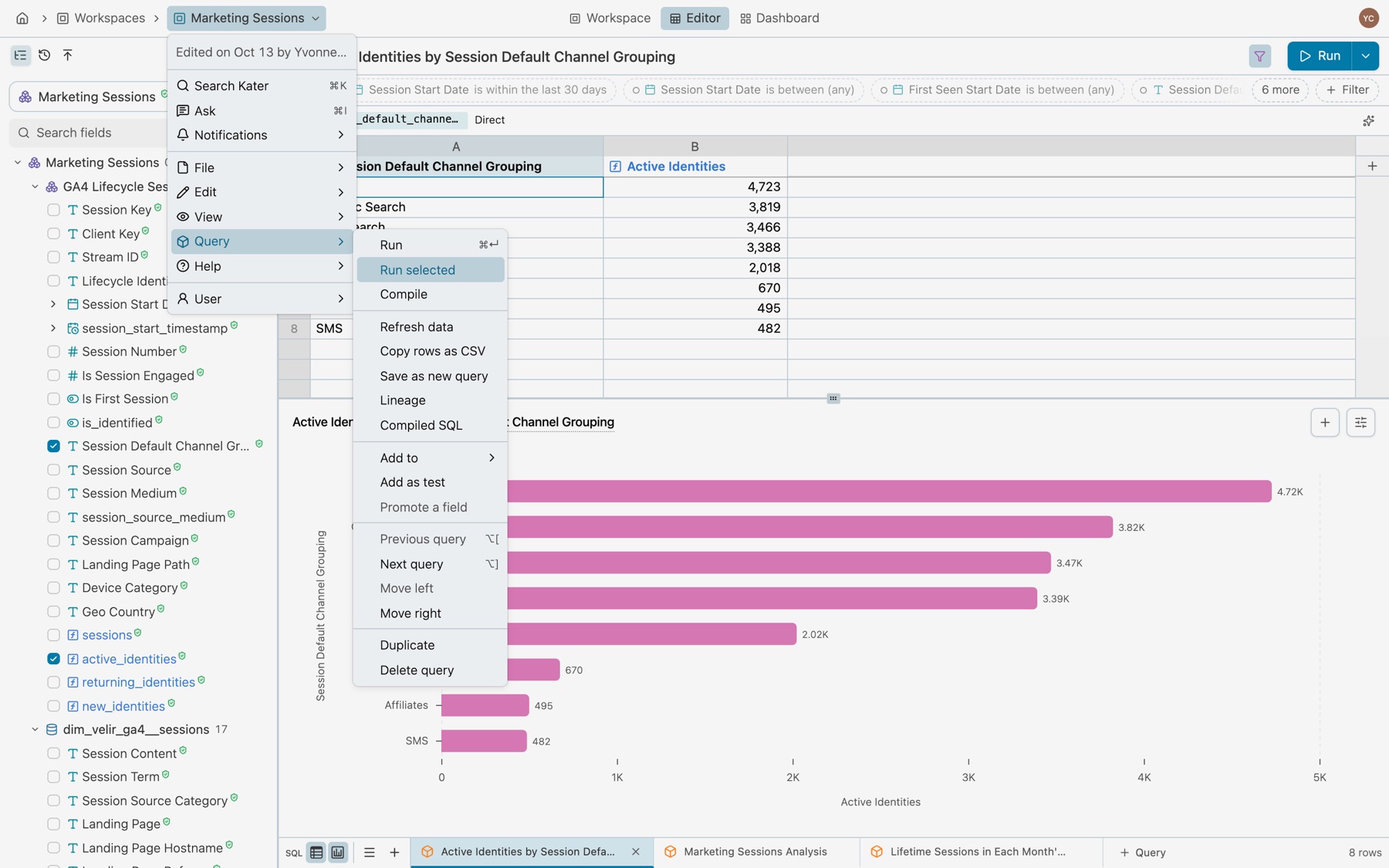
Select the workspace’s name in the header to open its menu. File, Edit, View, Query and Help each open their list beside it.
| Menu | Items |
|---|---|
| File | New query, New workspace, New (App, Chart, Field), Share, Copy link, Pin, Switch workspace, All workspaces, Open in Files, Open in Sandbox. There is no Save: everything saves itself. |
| Edit | Undo, Redo, Copy, Add field, Add filter, Top rows and row limit, Find in rows, Search fields |
| View | Workspace, Editor, Dashboard, Workspace definitions. Sidebar and Query panels, each with its own list. Theme Mode. |
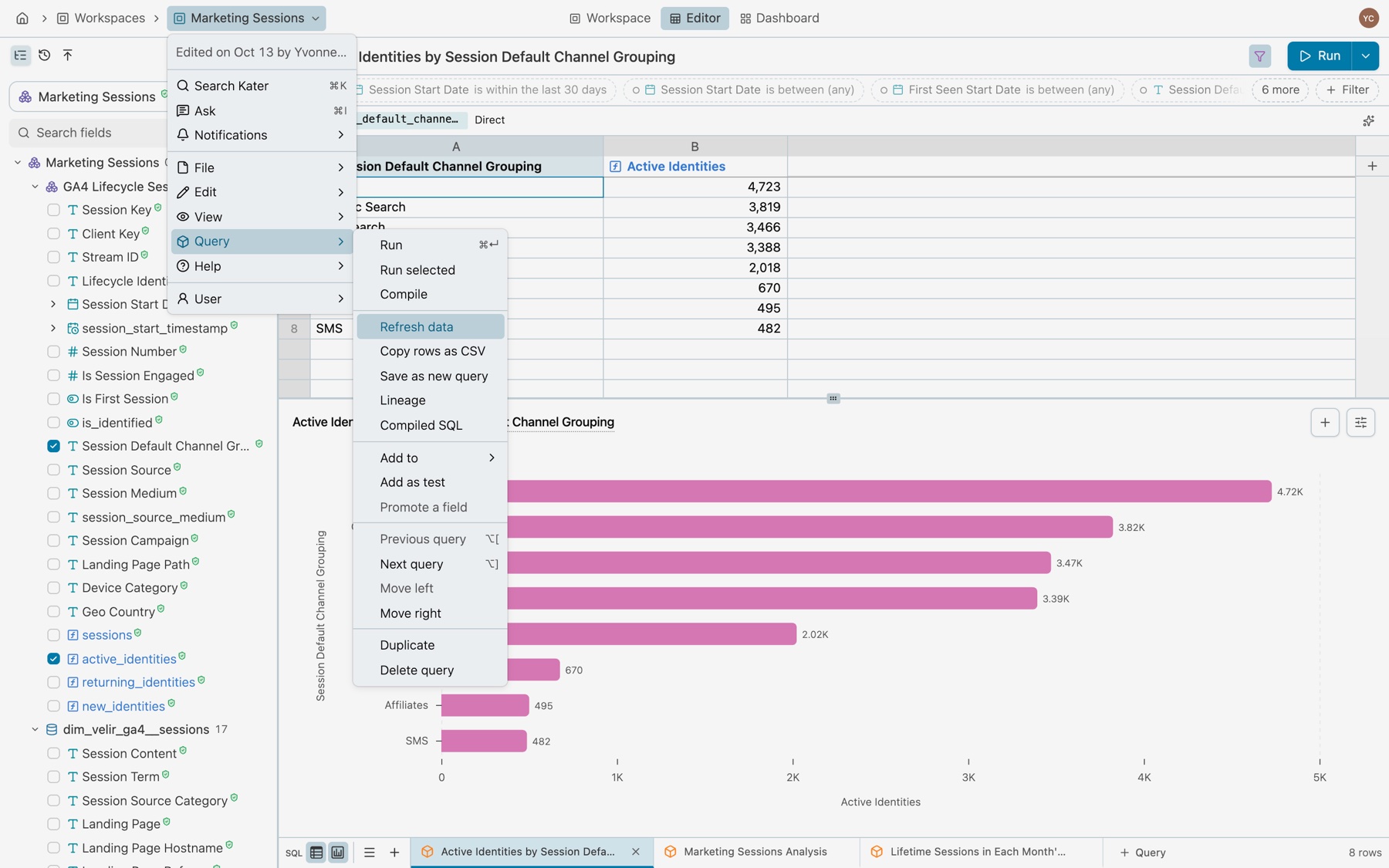
| Query | Run, Run selected, Compile. Refresh data, Copy rows as CSV, Save as new query, Lineage, Compiled SQL. Add to, Add as test, Promote a field. Previous query, Next query, Move left, Move right. Duplicate, Delete query. |
| Help | Report a bug, Your bug reports, Documentation, Keyboard shortcuts |
New
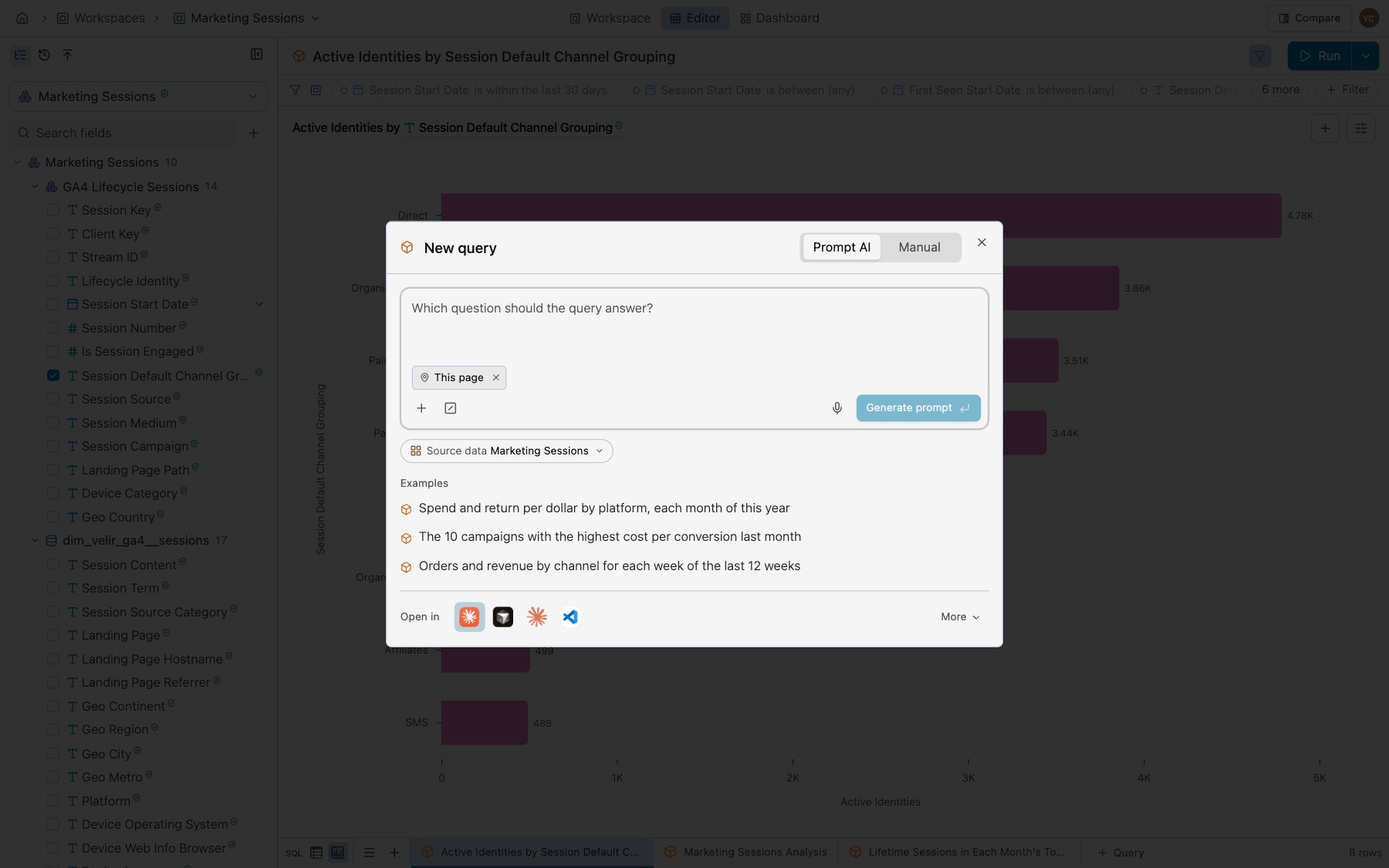
File › New query and File › New in the name menu make a query, an app, a chart or a field. Each opens Prompt AI, where you describe what you want, and Manual, a form with New and Duplicate from. + in the footer also makes a new query.
The field list
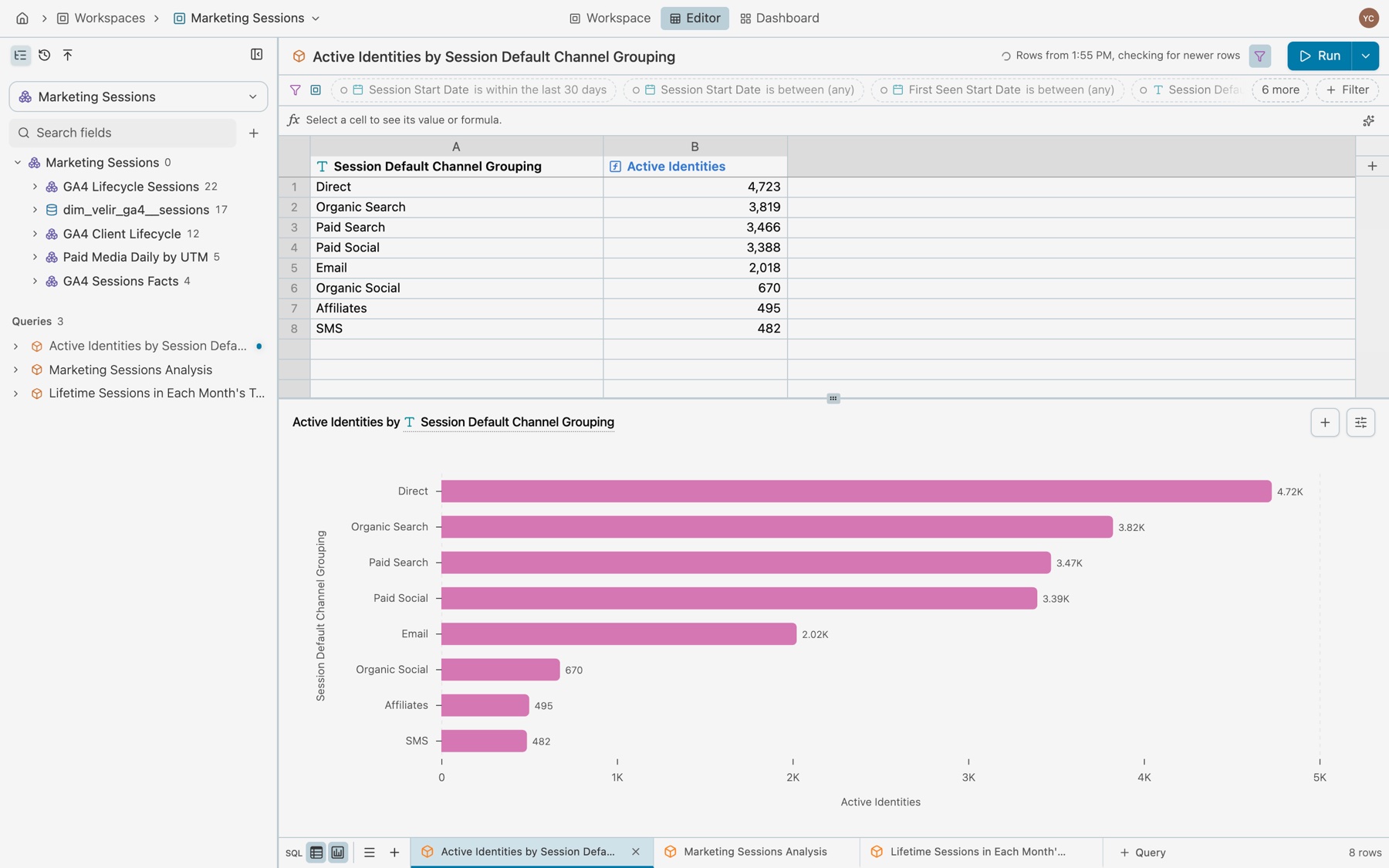
The field list is the workspace’s fields, grouped by where each comes from. Each column of the open query ticks one row: the field it shows, or the timeframe it shows a date by. A column with no name of its own that combines fields, such as spend / clicks, ticks its own row under the query. The row is named by the column’s place, such as Calculation 4, as the column’s header is.
- Tabs. Fields, History, and Promote, which counts the fields that can move up a layer. The last icon hides the sidebar (⌘B).
- The model button. The model’s name, its verified mark, and a menu: its description, Questions it answers, Change Model, Preview sample, Open in the editor, Open in Explore, Open definitions and Open in Files.
- Search fields. Always open. Press / to go there. + beside it has New measure, New calculation, New dimension, New filter, Duplicate from and Do it automatically. New calculation starts a formula in the formula bar.
- Added in this query. Fields the open query makes itself, such as one made with an operation. It shows only when there are some.
- Added in this workspace. Fields added to the workspace or promoted to it.
- Source folders. Fields grouped by the model or dataset they come from, each folder with its count.
- Queries. Every query in the workspace. Its chevron opens its columns, and a click opens it. The open query is dimmed, with a dot. A field made in another query shows only under that query until someone promotes it.
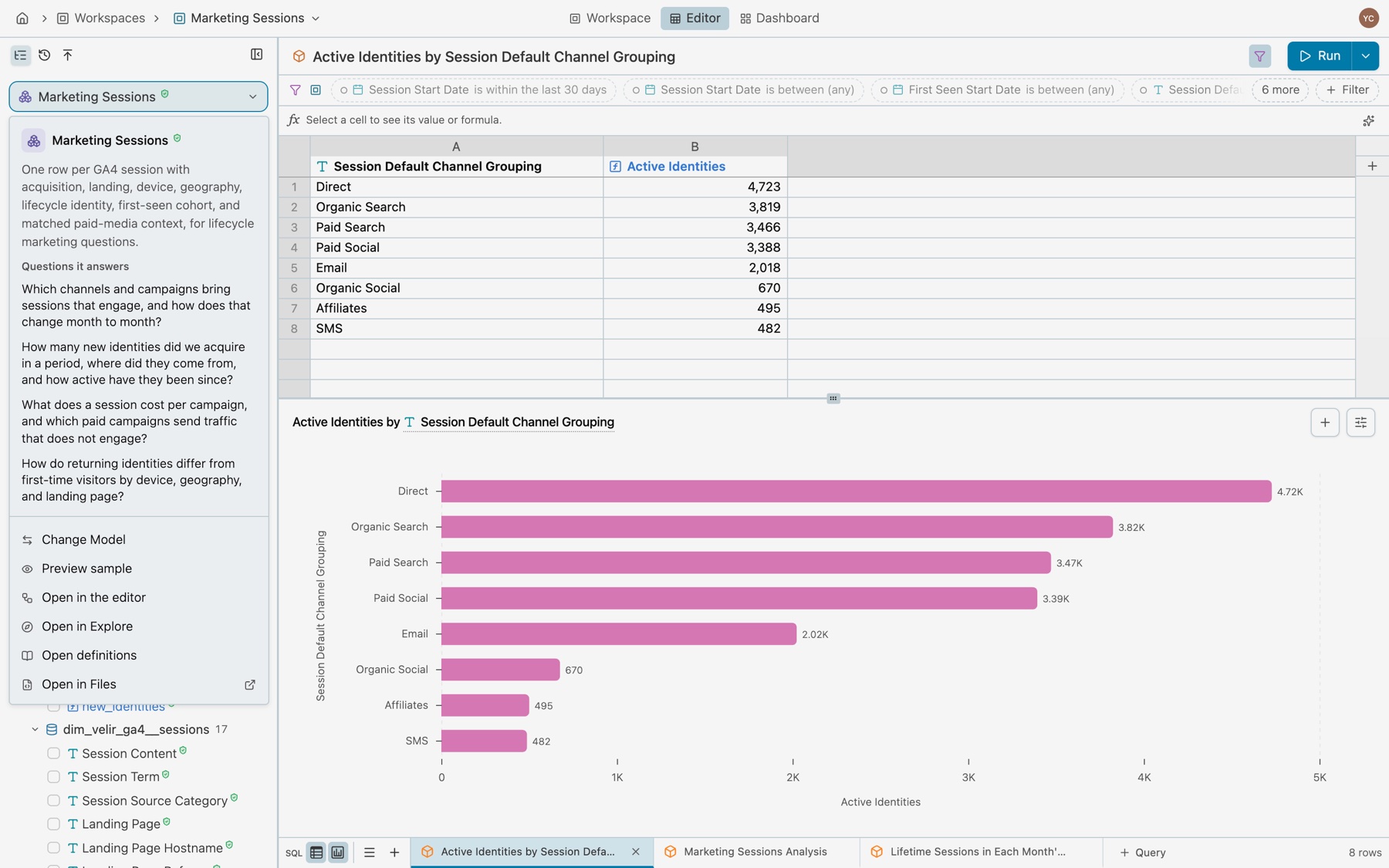
Each row shows a checkbox, the field’s type mark, its name and a verified mark when the shared layer defines it. A date shows a chevron in place of the checkbox, because its timeframes have the checkboxes. Measures are blue and custom calculations green. A dimension’s name keeps the text colour, and its mark says its type.
Add and remove fields
- Click to add. Click a field and its column appears at once. The rows fill in when the run returns.
- Click again to remove. Clicking a ticked field takes its column out.
- Undo. ⌘Z undoes the last edit at once, and ⇧⌘Z redoes it.
- See a field’s column. Hover a ticked field to light its column in the rows.
Pick a date by its timeframe
A date opens to its timeframes. Click the date to show them, and click it again to hide them. While it is closed, the date names the timeframes the query shows, such as Month.
- A date has Raw, Week, Month, Quarter and Year. Raw is the date as it is, so a date has no Day.
- A timestamp has Raw, Hour, Day, Week, Month, Quarter and Year.
- A field the model publishes by month has Raw, Quarter and Year.
Each timeframe has its own checkbox. Click Year to add the date by year, and click it again to take that column out. A query can show one date by two timeframes. The second gets its own name, such as Reporting Date (Year), because a query holds a field once. A search for “month” shows the Month row under each date. Minute, Second and the date parts, such as Day of Week, stay in the field menu.
A filter mark at the end of a timeframe’s row shows that a filter of the query reads the date by that timeframe. A filter that reads the date as it is, such as the last 15 complete months of data, marks Raw. Hover the mark to read the filter. A closed date shows the mark at its end too.
You never wait for an edit. Each one shows at once, and Kater writes them behind the screen. The footer says Saving 3 changes while it writes, then Saved. If the server refuses one edit, only that edit rolls back, and a message says why.
The list finds what you click
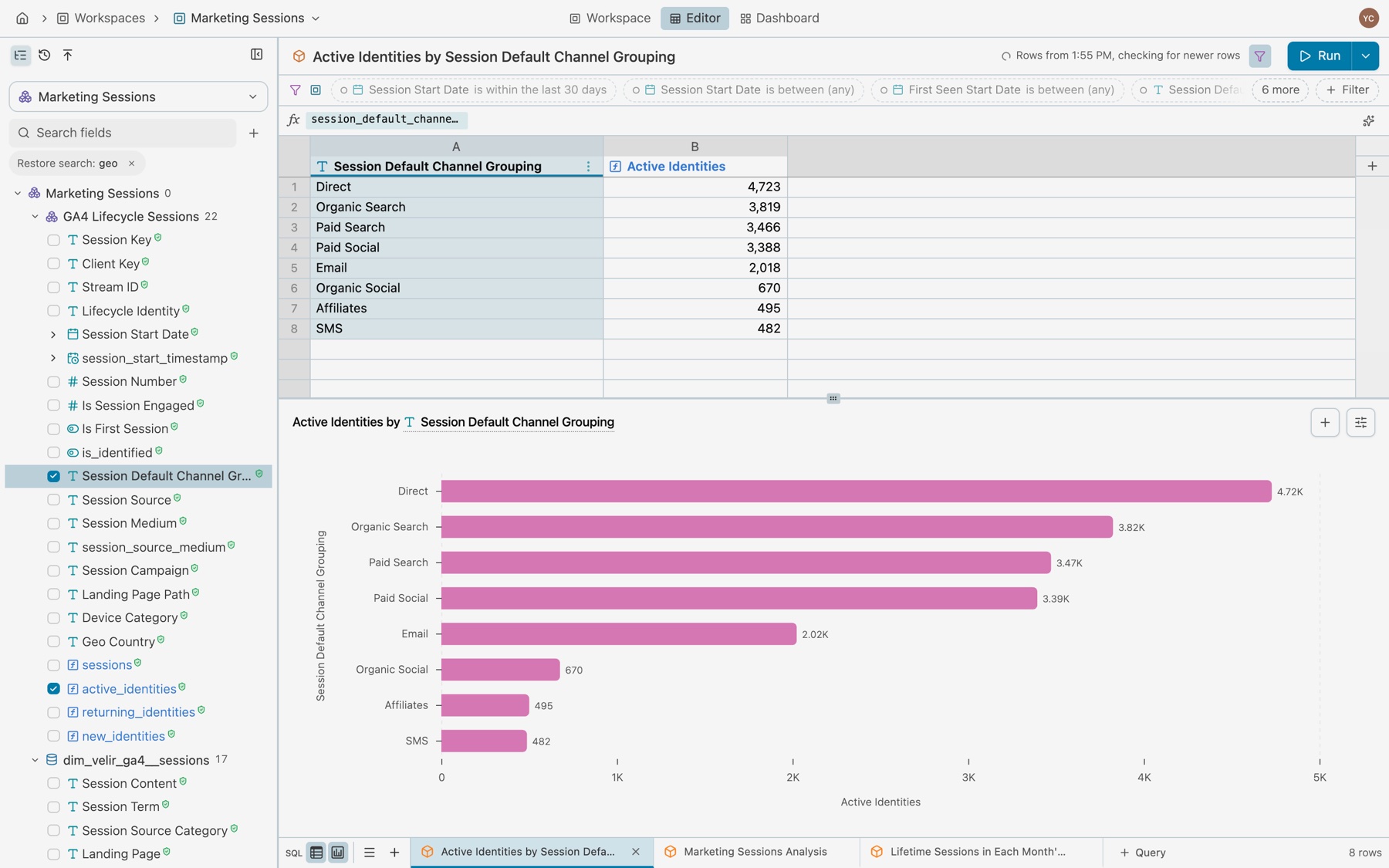
Click anything that names a field, and the list shows that field: a column header, a cell, the chart’s axis title or legend, a filter pill, or a name in the SQL editor. The folders down to it open, the list scrolls only when the row is out of view, and the row is ringed. If your search was hiding it, the search waits as Restore search, with × to clear it.
The field menu
Every field has one menu, wherever you meet it: a row in the field list, a column header or a cell. Right-click it, select its … button, or press ⇧F10. On a column, it opens under the header.
- The header names the field, where it comes from, and its expression, such as
sessions.session_start_date. Long expressions wrap to three lines, then scroll. - Search operations finds an operation by name.
- Categories each open a list of operations: Filters, Sort, Aggregations, Windows, Compare with, Derive, Calculate at, Timeframe, Format and Edit. Only the ones the field can use appear. Timeframe, Format and Edit appear only on columns.
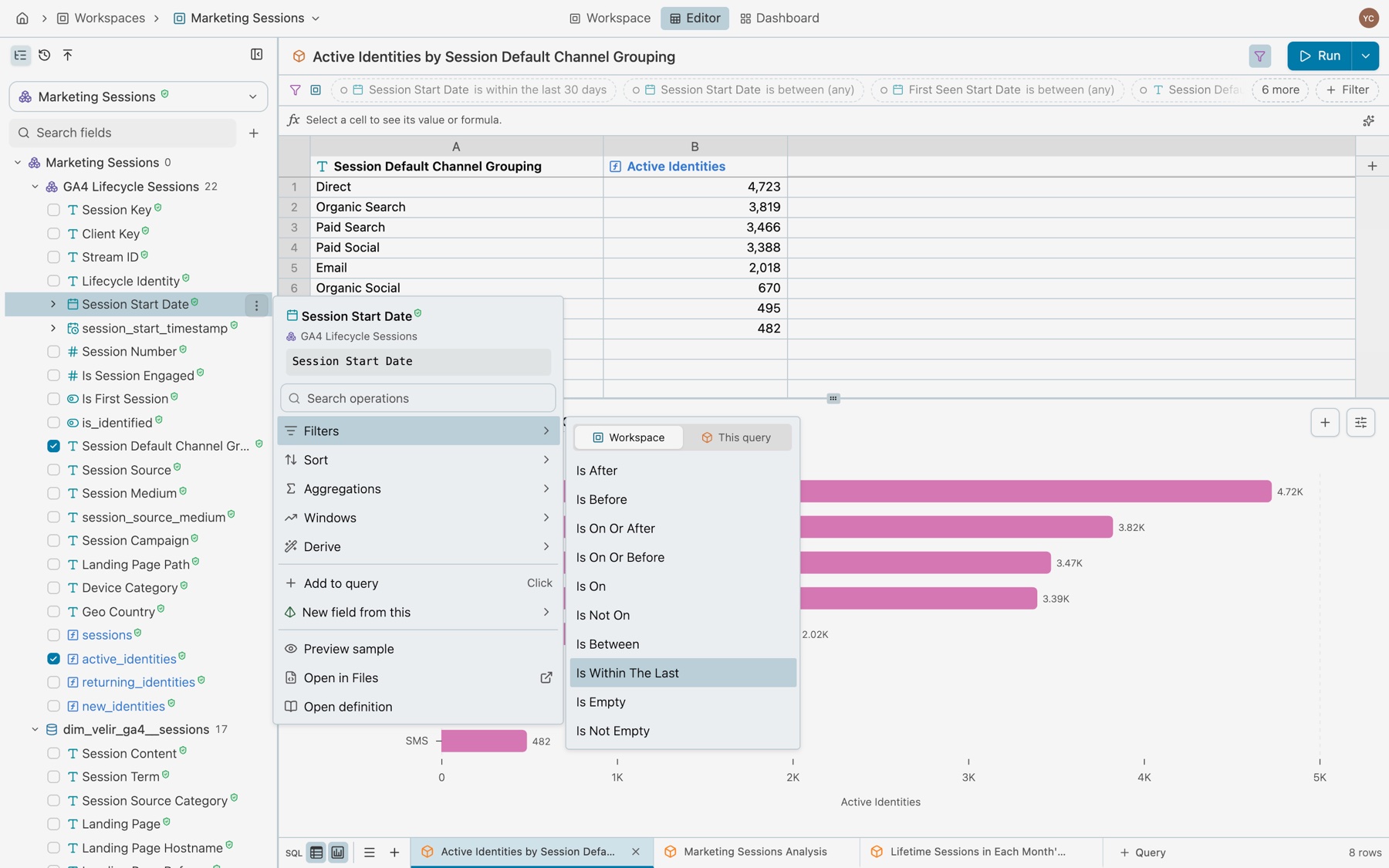
Filters: Workspace or This query
Filters opens with Workspace and This query at the top. Workspace comes first and is selected: it makes a filter every query in the workspace can switch on. This query adds the filter to the open query alone. A measure can filter only its own query, so it shows only its conditions. On a measure’s column, Is In The Top and Is In The Bottom come first.
What each type offers
| Type | Filters | Aggregations and windows | Derive and column only |
|---|---|---|---|
| Text | Is Equal To, Is Not Equal To, Is One Of, Is Not One Of, Contains, Does Not Contain, Is Empty, Is Not Empty | Count, Count Distinct, Min, Max, List. Lag, Lead, First Value, Last Value. | Derive: Is Equal To, Is One Of, Is Empty, Is Not Empty, Contains, Map. Format: Upper, Lower, Trim, Proper. |
| Date | Is Within The Last, Is Between, Is On, Is Not On, Is After, Is Before, Is On Or After, Is On Or Before, Is Empty, Is Not Empty | Count, Count Distinct, Min, Max, List. Lag, Lead, First Value, Last Value. | Derive: Is After, Is Before, Is Between, the calendar parts, Periods Since. Timeframe: Year, Quarter, Month, Week, Day. |
| Timestamp | As a date | As a date | As a date, plus Hour of Day and Minute of Hour. Timeframe adds Hour and Minute. |
| Number | Is Greater Than, Is At Least, Is Less Than, Is At Most, Is One Of, Is Not One Of, Is Equal To, Is Not Equal To, Is Empty, Is Not Empty | Count, Count Distinct, Min, Max, Sum, Average, List. Lag, Lead, First Value, Last Value. | Derive: Is Greater Than, Is Less Than, Is Between, Bucket. Format: Round, Thousands Separator, Percent. |
| True or false | Is Equal To, Is Not Equal To, Is Empty, Is Not Empty | Count True, Count False. Lag, Lead, First Value, Last Value. | Derive: Is Equal To, Is Empty, Is Not Empty, Map |
| Measure | The number filters. On a column, Is In The Top and Is In The Bottom first. | Window Aggregation, Lag, Lead, Delta, Percent Delta, Rank, Row Number, Share of Total | Compare with: Previous Period, Same Period Last Year, Same Weekday Last Week, Advanced Calendar Shift. Calculate at: Always By, Ignore Grouping By, Calculate Per. Format: Round, Thousands Separator, Percent. Edit: Change label, Classification, Display format, Not additive across. |
Every type also has Sort: Sort ascending, Sort descending, and Remove sort when sorted.
Actions
| Where | Actions under the categories |
|---|---|
| In the field list | Add to query or Remove from query, New field from this, Preview sample, Show in Files, Open definition |
| On a column | Change measure or Change dimension, On the chart, New field from this, Preview sample, Show in Files, Open definition, then the removal |
| A field made in the query | Leads with Promote to workspace. Has Edit calculation in place of New field from this. On a column, also Convert to Excel formula, or Convert to SQL when it is one. |
| A field added in the workspace | Leads with Ask to add it to the model, and has Edit calculation. In the list, it ends with Remove from workspace. |
Show in Files opens the Files page in a new tab, at the line that defines the field. Open definition opens the field’s card on the overview’s Definitions tab.
Add a field from an operation
An operation that makes a new field, such as a share of the total, opens the new-field dialog already filled in. Filters and sorts apply at once from the menu.
-
Select the operation.
Right-click the column, open a category, and select the operation. Here: Windows › Share of Total on Active Identities.
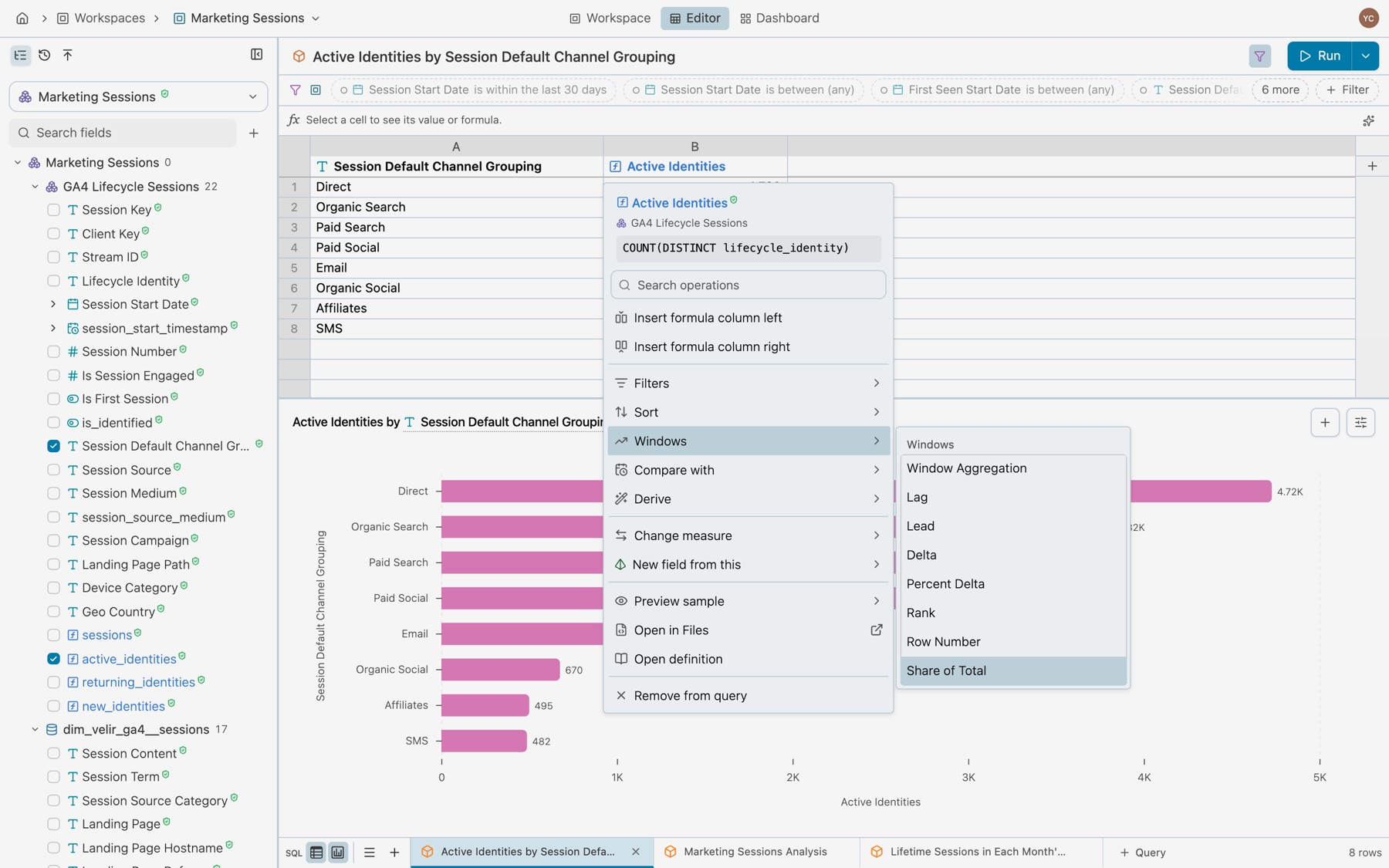
An operation that adds a field. -
Check the dialog.
It shows the Kater SQL, then Start with, Turn it into, Settings and Name it, beside a Preview of the rows and the definition. Change the name if you like.
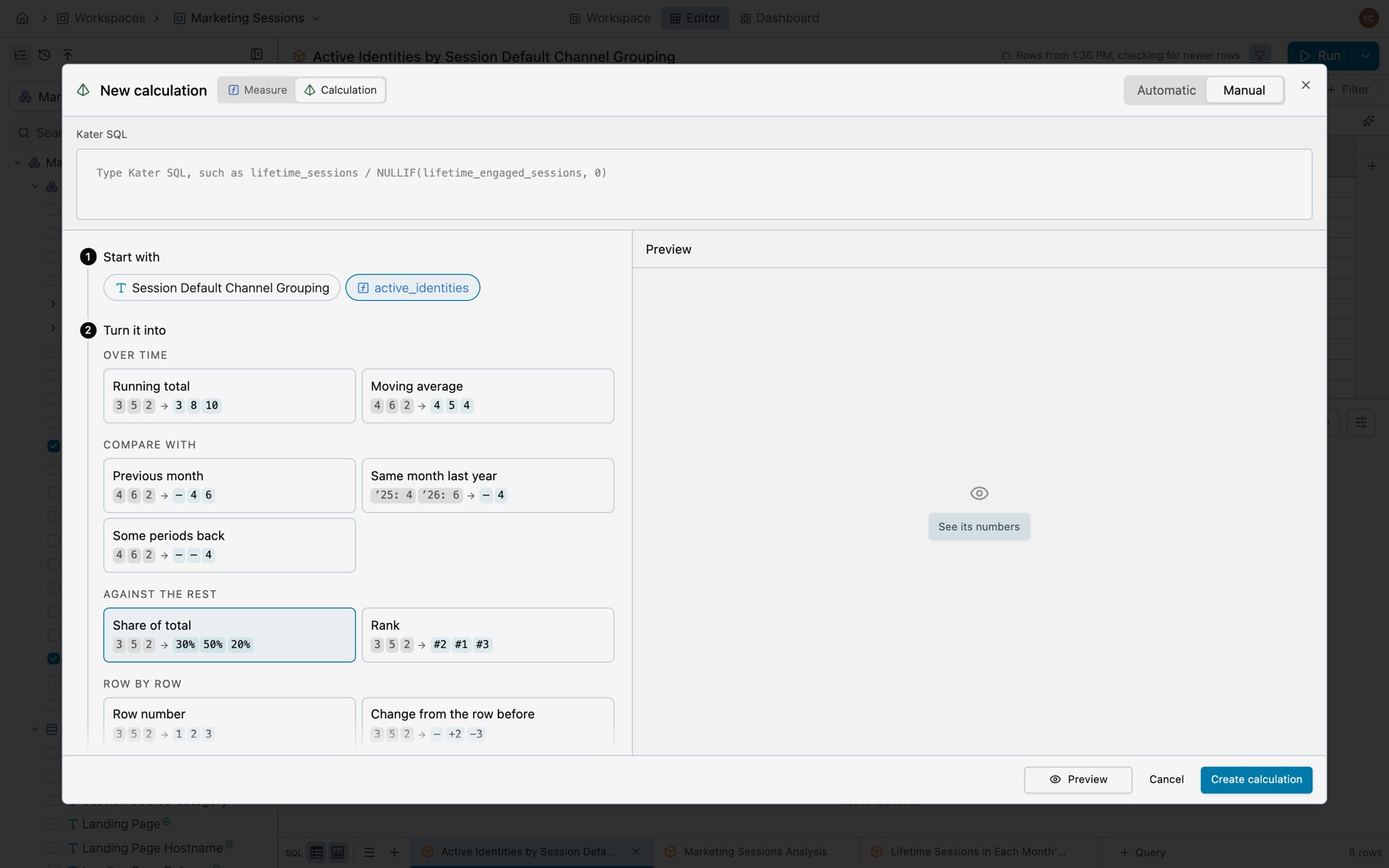
The new-field dialog, filled in. -
Select Create calculation.
The new column appears at once, in the calculation colour. The field leads the list under Added in this query, ticked. A message offers Undo.
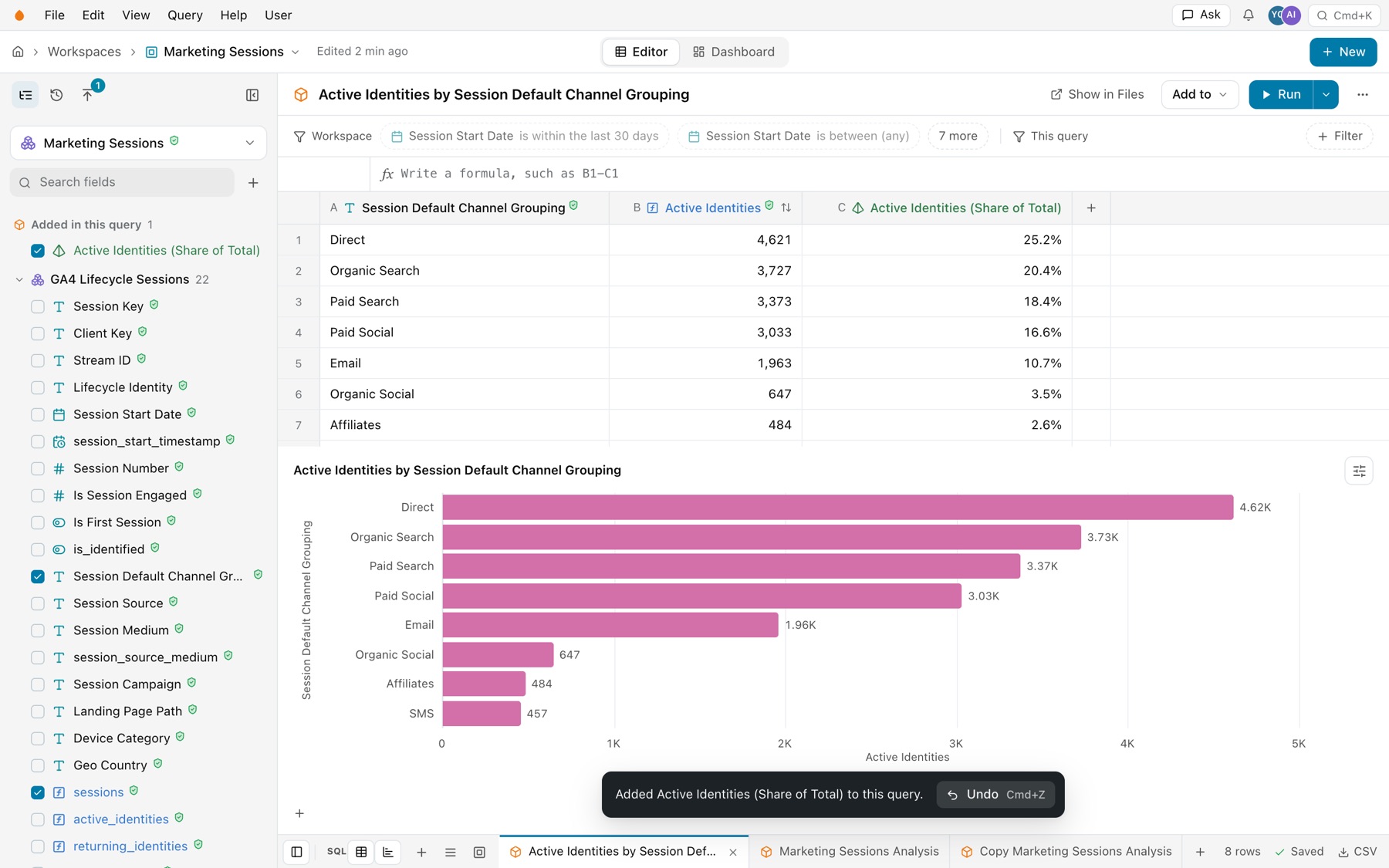
The new column, made in the query.
New field from this opens the same dialog with its other forms: Apply calculation, Custom measure, Aggregate as measure and Custom dimension.
Remove a column
The last item in a column’s menu says what removing it does:
- Remove from query. For a field from the model or the workspace. The column goes, and the field stays in the list, unticked.
- Delete field. In red, for a field made in the query. It deletes the field’s definition from the query. A message offers Undo.
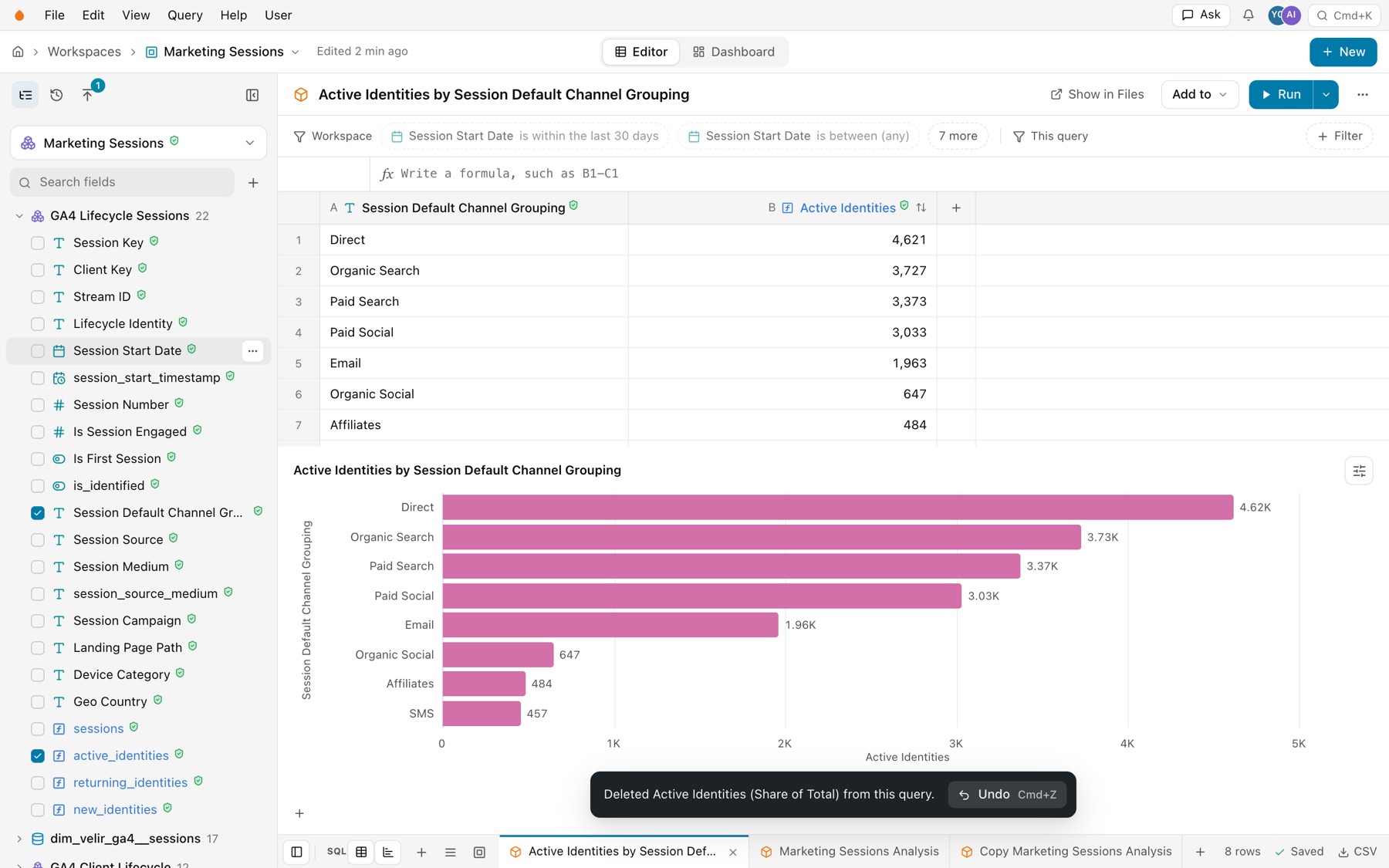
- Kept while another field reads it. When another column reads this one, Remove from query is greyed with a lock and says why, such as “Kept while Active Identities (Share of Total) reads it”. The next item removes both in one change, such as Remove Active Identities and Active Identities (Share of Total).
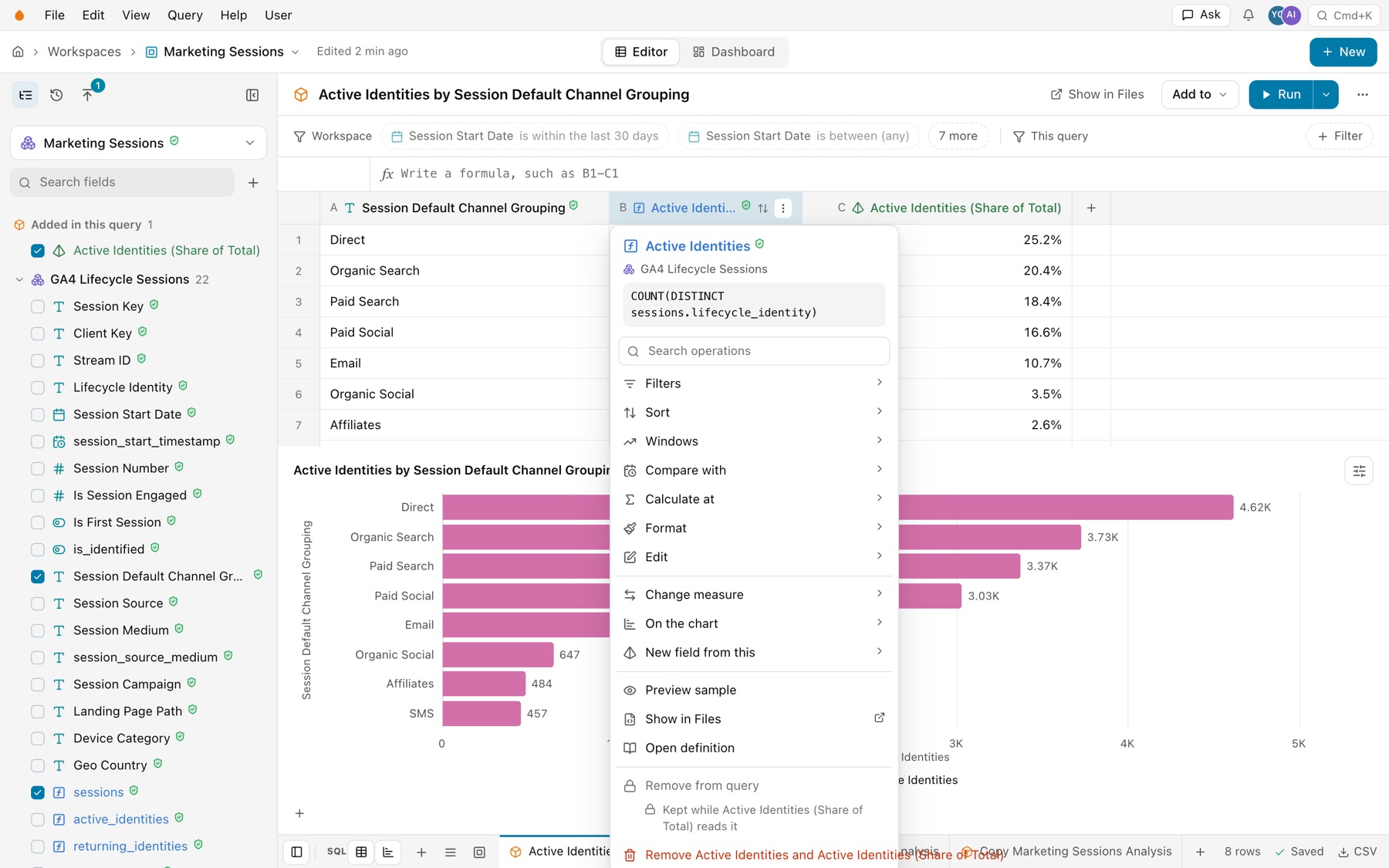
Move a column
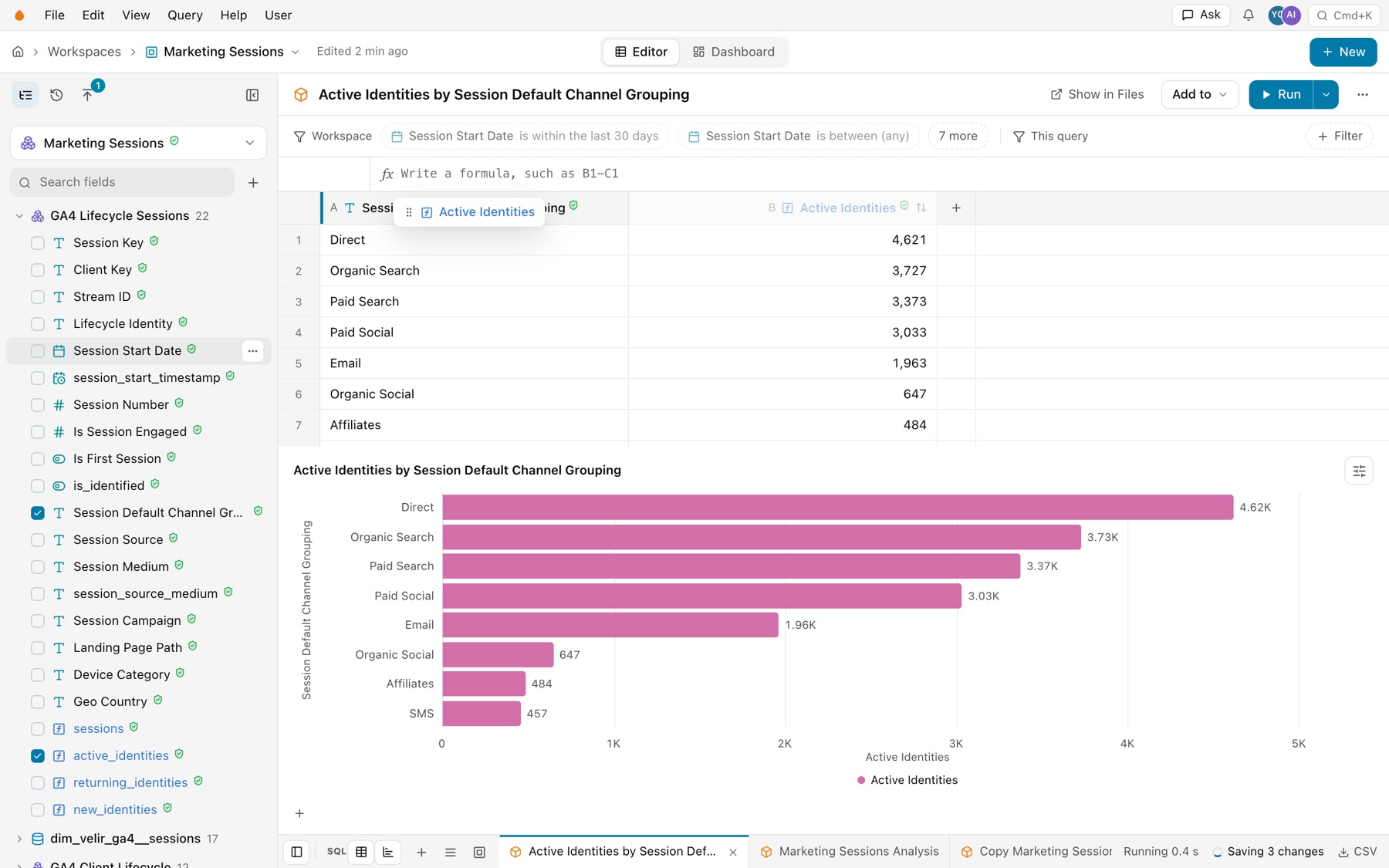
Drag a column’s header. A line shows where it lands. Like every edit, the move shows at once and saves behind the screen.
The query toolbar
- Title. The query’s name. Click it to rename the query. Badges show when they apply: Copy of, Stale, and a Lineage chip whose × takes you back to the rows.
- Status. A quiet line while the rows on screen come from this device, such as “Rows from 10:42 AM, checking for newer rows”.
- Filters. Shows or hides the filter bar. A count shows how many filters change the rows.
- Problems. A warning mark with a count shows only when there are problems. It turns red when one is an error. Select it to read them.
- Run, below. What the toolbar held before, Add to and More, is now in the name menu’s Query list.
Run
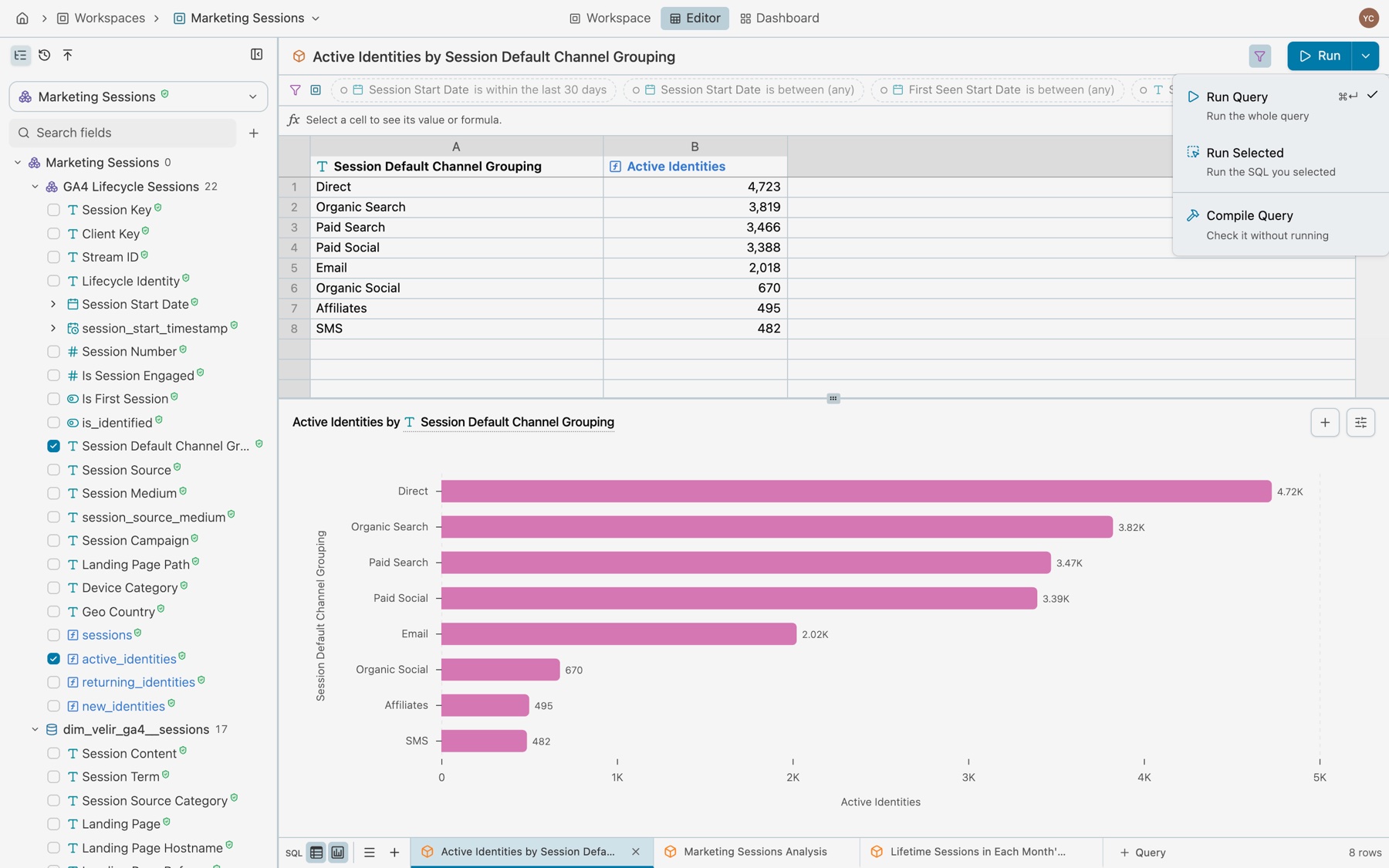
Run is the one primary button. Its menu sets what it does: Run Query (⌘↵) runs the whole query, Run Selected runs the SQL you selected, and Compile Query checks it without running. The button then says Run, Run selected or Compile. While a run is going, it shows the time and Stop.
Add to
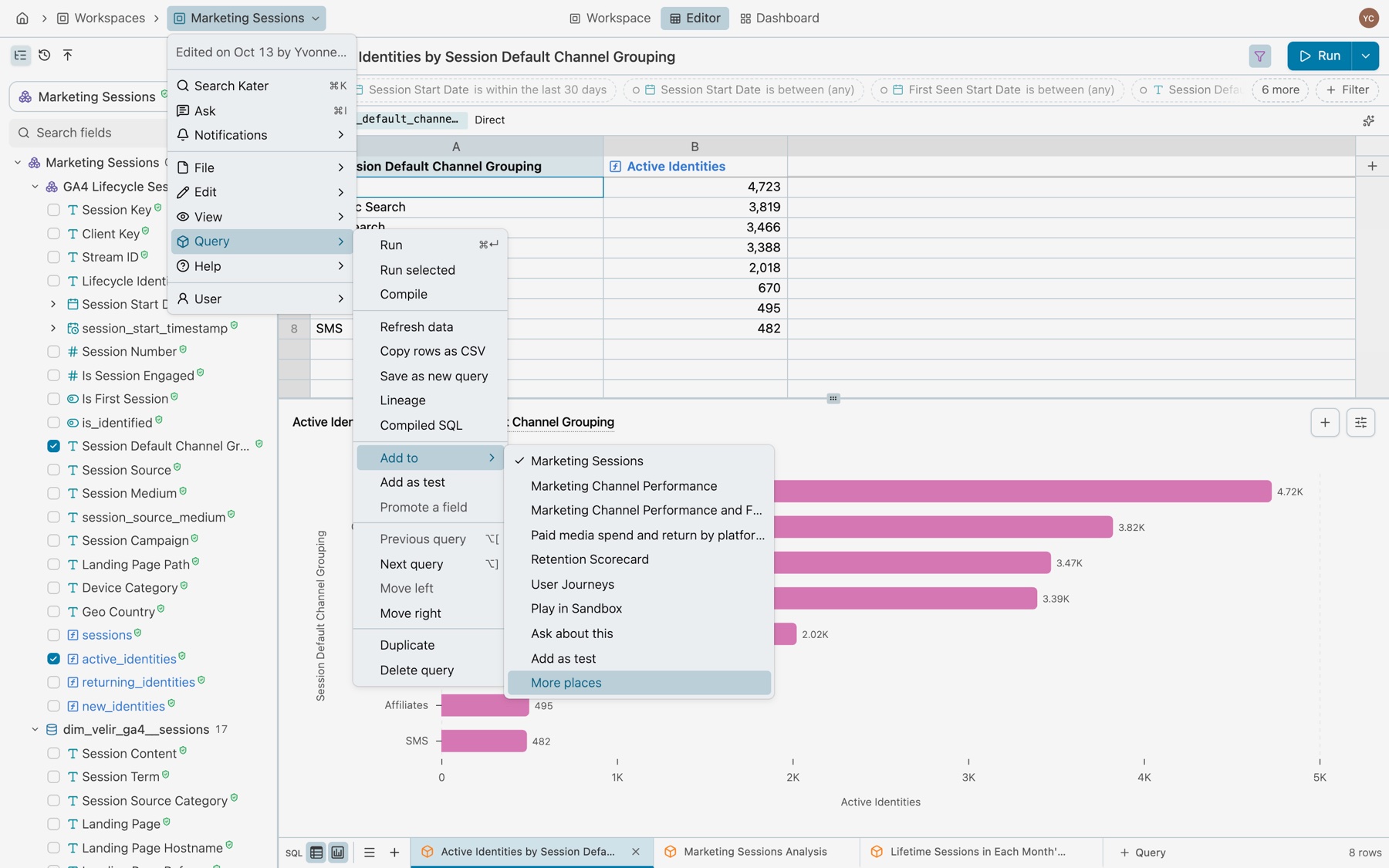
Query › Add to in the name menu places the query’s chart. A place that already shows it is ticked, and unticking it takes the chart off.
- This workspace and your apps. This workspace comes first, ticked when the chart is on its dashboard. Your apps follow.
- Play in Sandbox, Ask about this and Add as test come next. See the Sandbox and Tests.
- More places opens the whole list under the toolbar: other workspaces on the same model, every app, and New app.
Refresh, copy and look deeper
The name menu’s Query list also has Refresh data, which runs the query again for new data, Copy rows as CSV, Save as new query, Lineage and Compiled SQL.
The filter bar
The filter bar is one row under the toolbar. Filters in the toolbar hides it or shows it. It starts with the filter mark, then a group for each place a filter comes from, each led by its mark: the workspace’s filters and parameters, then this query’s filters, top rows and row limit.
- Pills. Click a pill to change it in place: its popover has the filter’s switch, its condition and its value. A filter that applies starts with a dot. A filter that is off is dashed and faded, and starts with a ring. Where you can switch a filter, click its dot or ring.
- Locked pills. A filter written in SQL shows a lock. Click it to open the SQL that writes it.
- N more. The pills that do not fit wait under N more, such as 6 more. Select it to see every filter in one list. The workspace part has Edit on the workspace tab.
- + Filter at the end: Filter by a field, Top rows by a measure, Row limit and Custom filter.
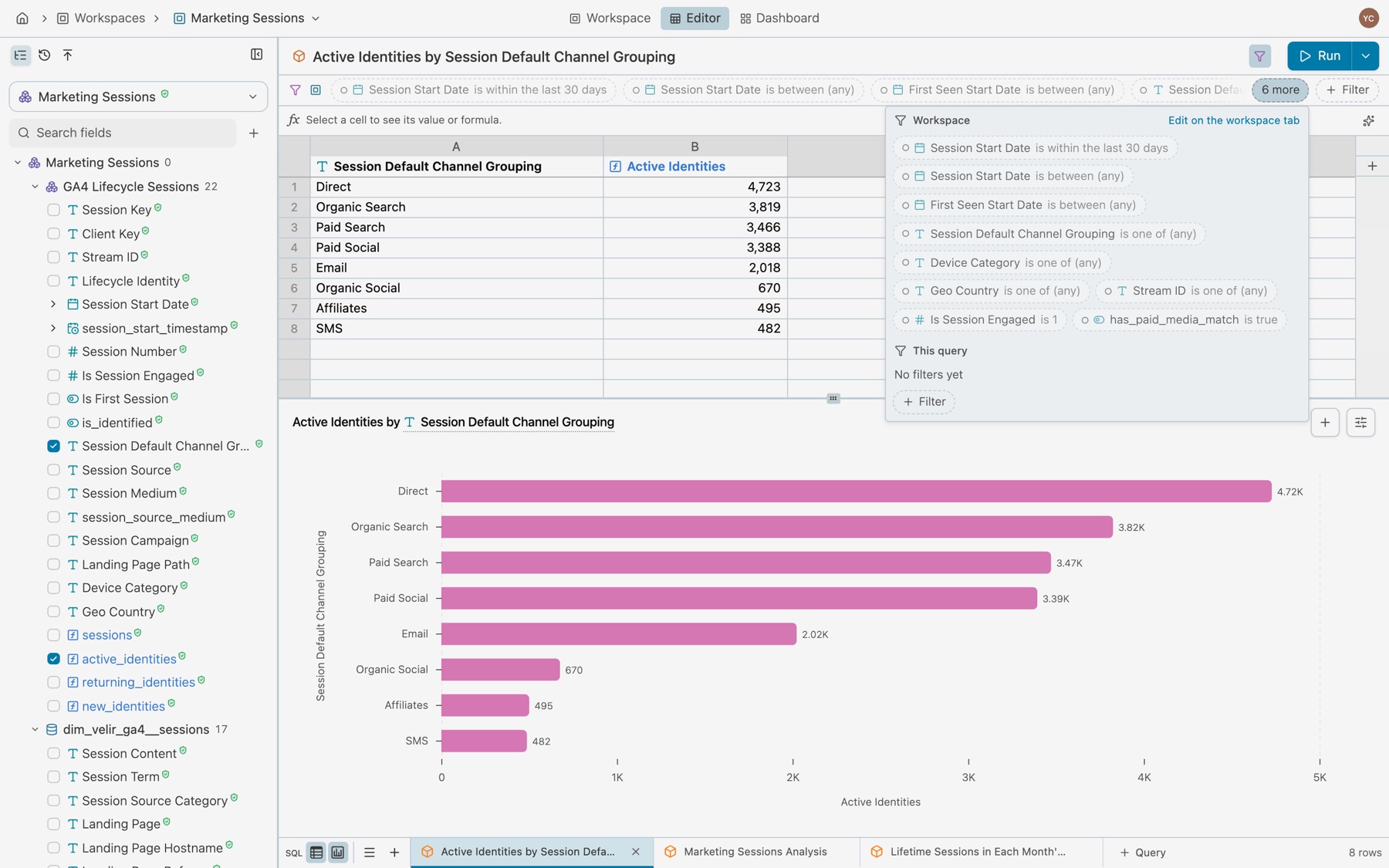
See Filters and parameters for how filters and parameters work.
Rows and the formula bar
- Columns are lettered A, B, C, and rows are numbered. Each header shows the field’s mark, name, verified mark and a sort mark when sorted.
- The + lane after the last column adds a column.
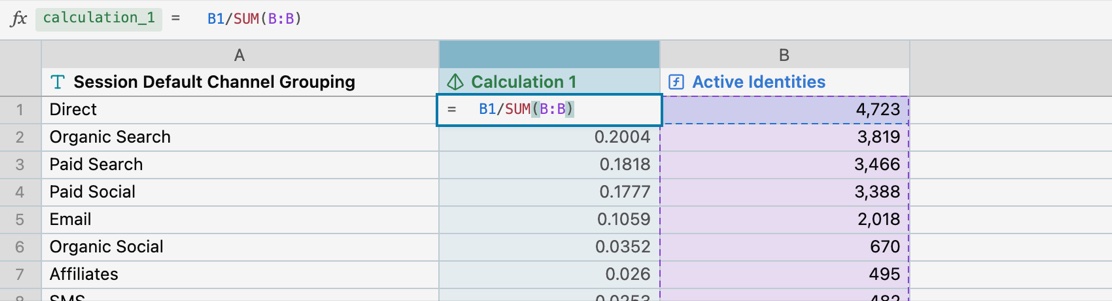
- The formula bar sits over the rows. It shows fx, the selected column’s name, then its value or formula. Type a formula such as
=B1/SUM(B:B)in a new formula column, and its values show as you type. Press Enter to keep it. See Excel formulas. - Long results load as you scroll. A line under the rows says, for example, “200 of 460 rows loaded. The next 200 load as you scroll.”
- Find in rows. Edit › Find in rows (⌘F).
The SQL editor
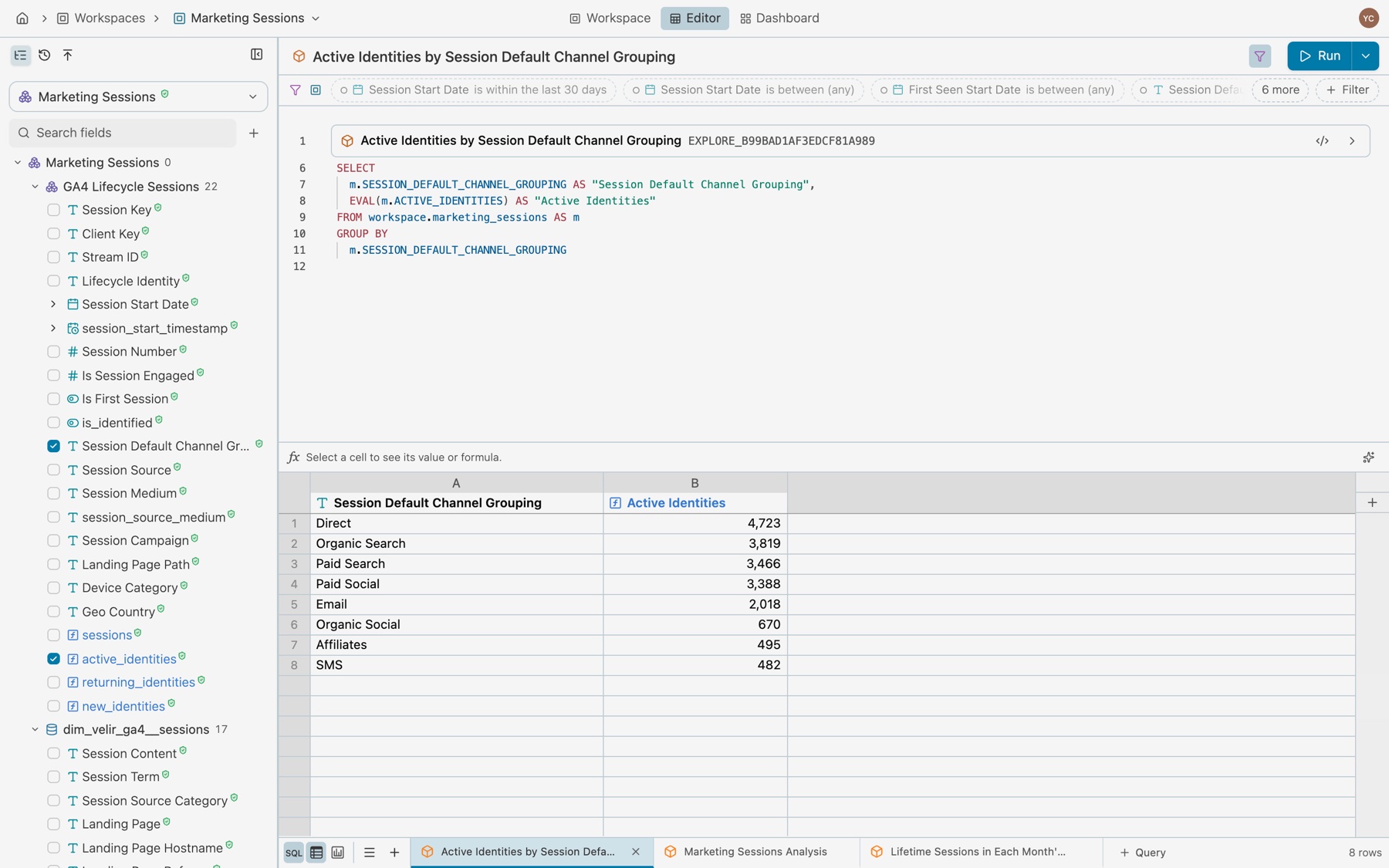
Select SQL in the footer. The editor opens over the rows. A card at its top shows the query’s label and name, folded to one line. Its chevron shows the query’s properties.
- It saves itself. Your SQL saves a second after you stop typing, and shows Saved. ⌘S saves at once.
- It compiles only when you ask. Nothing turns red while you type. Select Run or Compile Query to check the SQL and see its problems.
- Clicks still compile. A change you make in the field list, the rows or the chart compiles what it writes, with your typed SQL.
Query › Compiled SQL shows the warehouse SQL the query becomes. Query › Lineage traces each column back through the workspace and the shared model.
A query written in SQL keeps its field list in sight, as a list to read. While its SQL editor is shut, a card over the list says Written in SQL and offers Open SQL editor.
The chart
A query opens on its saved chart where it has one, and on its rows where it has none. The footer’s rows and chart toggles show one, the other or both, and that choice then holds on every query. The chart’s settings icon opens the chart panel, with the Chart and Settings tabs. A query can hold more than one chart. See Charts.
The footer
- Toggles show or hide the SQL editor, the rows and the chart.
- ≡ lists every query, with Duplicate, Move and Delete. + after it makes a new query.
- Query tabs. Drag a tab to reorder. Right-click it for Duplicate, Move left, Move right and Delete query. A deleted query offers Undo. + Query sits at the end.
- Save status. Saving N changes, then Saved. Select it to see today’s changes, with Undo last change.
- Rows. The row count at the far end.
Workspace in the header opens the workspace overview.
Promote a field from a query
A field you made in one query can move to the workspace, so every query here reads one definition. Select Promote to workspace at the top of its column menu, the Promote tab in the sidebar, or Query › Promote a field. The promotion dialog checks the name, shows what changes, and promotes. The field then moves from Added in this query to Added in this workspace.
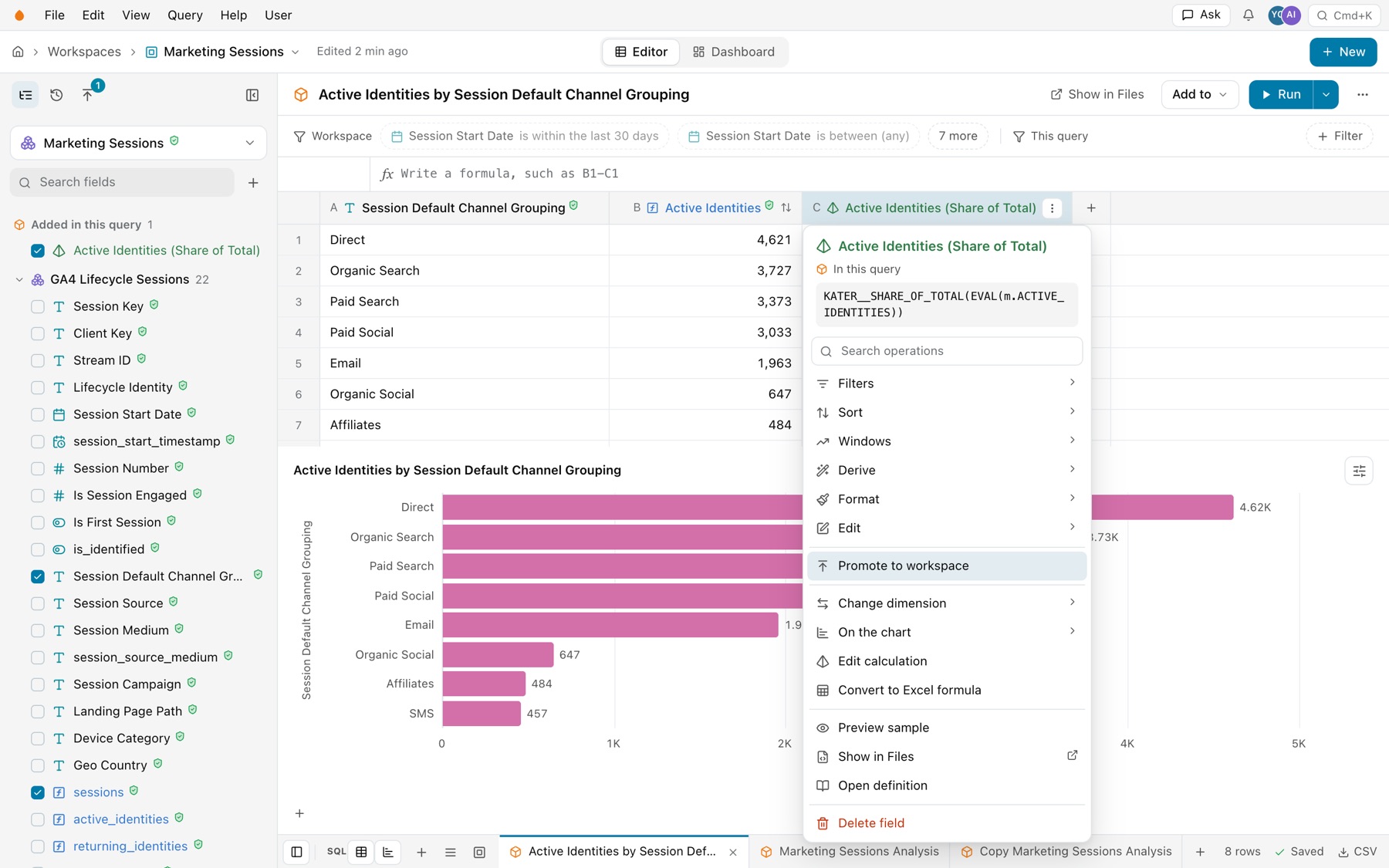
See Promotion and verification for the whole flow, and for asking the data team to add a field to a shared model.
Keyboard shortcuts
| Keys | Action |
|---|---|
| ⌘↵ | Run |
| ⌘Z and ⇧⌘Z | Undo and Redo |
| / | Search fields |
| ⌘F | Find in rows |
| ⌘S | Save the SQL editor at once |
| ⌘B | Show or hide the sidebar |
| ⌥1, ⌥2, ⌥3 | Editor, Dashboard, Workspace definitions |
| ⌥[ and ⌥] | Previous and next query |
| ⇧F10 | Open the field menu |
| ? | All keyboard shortcuts |
The view and query keys do nothing while the cursor is in a text field or the SQL editor. On Windows, use Alt for ⌥ and Ctrl for ⌘. In VS Code, the extension’s own keys win. See VS Code extension.
If something looks wrong
- A menu item is greyed. Hover it to see why. On the workspace tab, query items say “Open a query first.”
- The SQL editor shows no problems. It checks the SQL only when you select Run or Compile Query.
- Remove from query has a lock. Another column reads this one. Remove both with the next item, or remove the other column first.
- Promote to workspace is greyed. This field cannot move yet. Hover it to see the reason.
- An edit rolled back. The server refused it. The message says why, and your other edits still saved.
- “Rows from 10:42 AM, checking for newer”. The rows on screen come from this device while Kater checks for newer ones. Select Query › Refresh data in the name menu to run the query again.