AI
Starters
Run ready-made prompts for briefs, analyses, apps and checks by name, and make your own commands.
Starters are ready-made prompts for the work people do every week: a brief of what moved, a trace of why a number changed, a new app. Each is a slash command, such as /brief-me. Select one, and your agent follows a skill or workflow your data team wrote, on your governed data.
A starter runs when you start it. For work that runs on its own, such as a brief every Monday at 08:00, see Scheduled workflows.
Where to find them
- Home. The starter chips under the field, and All starters.
- AI Tools › Starters. Every starter, by group, with a search.
- Files. Start with on the Files start page.
- The Ask composer. Type / and the starter’s name.
- Your agent. Say the starter’s name, or in Claude Code type
/mcp__kater__and the name, such as/mcp__kater__brief-me.
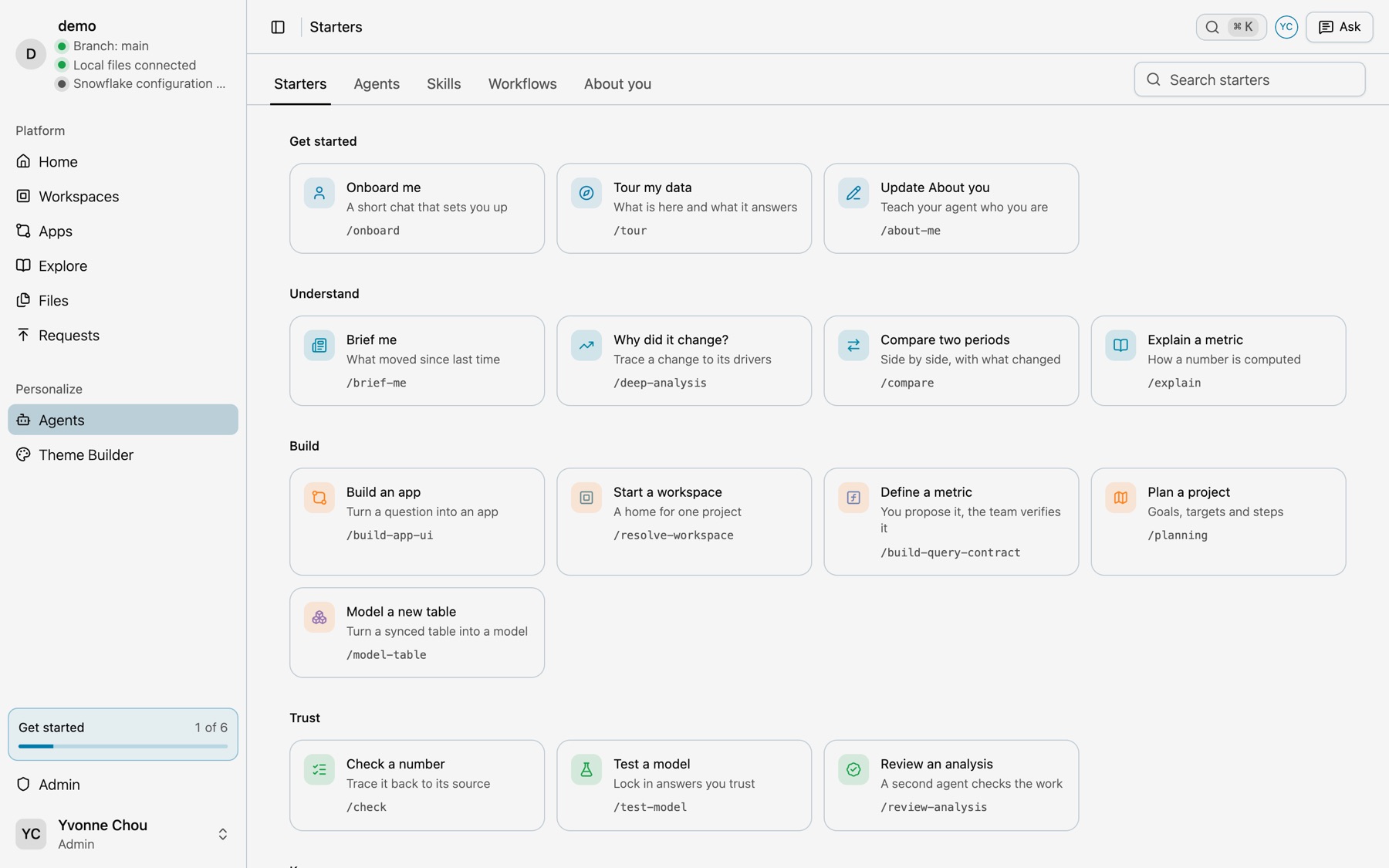
Every starter
| Group | Starter | What it does | Try |
|---|---|---|---|
| Get started | Onboard me | A short chat that sets you up | “Set me up. I run paid social and watch ROAS and CAC.” |
| Get started | Tour my data | What is here and what it answers | “Give me a tour of my data, starting with paid media.” |
| Get started | Update About you | Teach your agent who you are | “Remember that our weeks start on Monday.” |
| Understand | Brief me | What moved since last time | “Brief me on what moved since last Monday.” |
| Understand | Why did it change? | Trace a change to its drivers | “Why did Google Ads spend fall in August?” |
| Understand | Compare two periods | Side by side, with what changed | “Compare this month with last month for return on ad spend.” |
| Understand | Explain a metric | How a number is computed | “Explain how ROAS on the Monday deck is computed.” |
| Build | Build an app | Turn a question into an app | “Build me an app that shows weekly paid media for the CMO.” |
| Build | Start a workspace | A home for one project | “Start a workspace for Q4 paid media.” |
| Build | Define a metric | You propose it, the team verifies it | “Define a metric: cost per conversion by platform.” |
| Build | Plan a project | Goals, targets and steps | “I want our CMO to have a weekly ROAS review she can read on Monday morning. Can you help me plan it?” |
| Build | Model a new table | Turn a synced table into a model | “Help me model a new table: orders.” |
| Trust | Check a number | Trace it back to its source | “Check this number against its source: September spend on Ad Reporting.” |
| Trust | Test a model | Lock in answers you trust | “Help me test ad_reporting.” |
| Trust | Review an analysis | A second agent checks the work | “Review my analysis: brainstorm/roas_drop.md.” |
| Keep up | Weekly digest | Drafts a digest of your metrics, every Monday | “Set up a weekly digest every Monday at 8am.” |
| Keep up | Watch a metric | Drafts an alert for when a metric crosses a line | “Watch ROAS and tell me if it drops below 3.” |
| Keep up | Schedule a workflow | Runs a workflow on its own, or changes one | “Schedule my Monday brief for 9am.” |
| Yours | Make your own command | A skill of your own, started by name | “Help me make my own command that briefs me on paid media by platform.” |
The Library has a page for each starter, such as Brief me and Why did it change?.
Run a starter
-
Select the starter.
Select its chip on Home or its card on AI Tools › Starters. The Ask panel opens with the starter’s prompt.
-
Finish the sentence.
Some prompts end open, such as “Why did” or “Explain how this is computed:”. Add your question.
-
Open it in your agent.
Select Generate prompt, then your agent under Open in.
Your agent tries things in your private brainstorm folder first, and asks before it changes anything outside it. Why did it change? follows seven steps: it finds the workspace, plans, builds queries, profiles the data, runs and diagnoses, has a second agent review the work, and reports. The report is a note in your brainstorm folder.
Keep up starters draft, they do not send
Weekly digest and Watch a metric draft a digest or an alert and show you one issue. After your yes, your agent writes it as a scheduled workflow that your own agent runs, such as a scheduled task in Claude Cowork, or the draft becomes an app you open. Kater does not run the workflow or send the alert itself.
Skills, workflows and agents
Each starter is a Markdown file in your connection’s ai_tools/ folder: a skill for one task, a workflow for a process with steps, and an agent for a role, such as the analyst or the reviewer. A file becomes a starter when its header has a starter: block. A workflow whose header has a schedule: block is a scheduled workflow, which your agent runs on its own.
---label: Brief Mename: brief-medescription: Brief the person on what moved in the metrics their about.md names, from verified definitions, since a date they give or their last brief.starter: title: Brief me summary: What moved since last time group: Understand ask: Brief me on what moved in the metrics I watch since my last brief.---Open AI Tools to read and edit them. The tabs are Starters, Agents, Skills, Workflows and About you. Each list has a Personal part, in your own folder, and a Shared part, in the connection’s folder. A file opens in an editor with View, Edit and Compare.
For every skill and workflow, and what goes in each file, see Skills and workflows. For the six roles, see Agents.
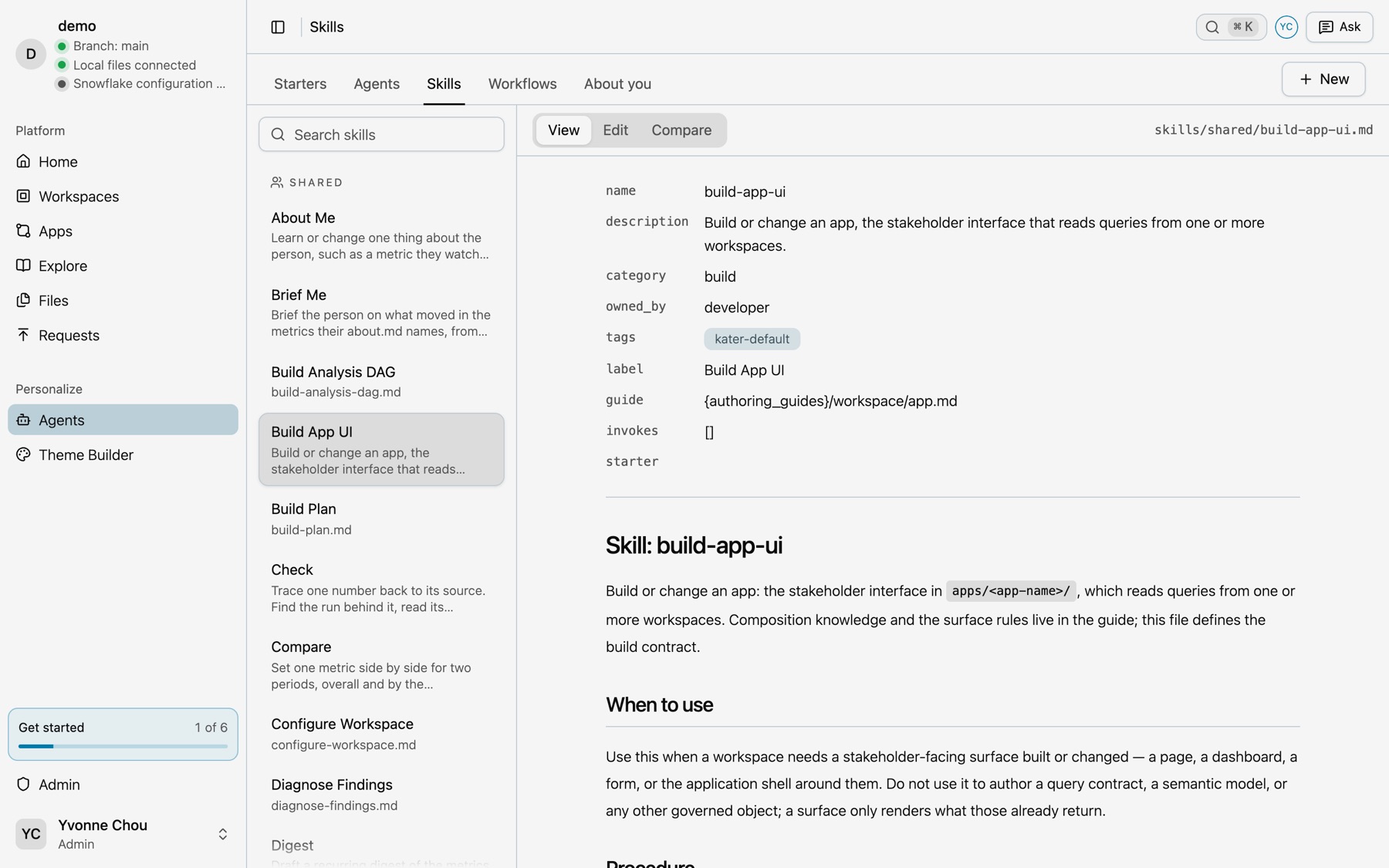
Make your own command
-
Start it.
Run the Make your own command starter, or select New skill on the Skills tab and then Do it automatically. To write it yourself, select Create.
-
Describe it.
For example: “Help me make my own command that briefs me on paid media by platform.”
-
Use it.
Your command shows under Yours on the Starters page, and your agent runs it by name.
To write it yourself, or to change a shared one, see Make it yours.
Next steps
- AI tools, how your agent uses these files
- Business teams, including About you
- Try changes safely, where starters do their work
- Scheduled workflows, which your agent runs on its own
- The Library of starters and scheduled workflows