Analyze Your files
Your agent's brainstorm
Your agent plans, tries and checks a change in your private brainstorm folder, then asks you once before anything leaves it.
Your brainstorm folder is where your agent works before it asks you anything. It writes a plan, tries the change on a copy, checks the numbers and shows you the result. Then it asks one question. Nothing leaves the folder until you say yes.
The folder
It is connections/<connection>/users/<your email>/brainstorm/, or Yours › brainstorm in Files.
- Private. Only you, admins and the people you share it with can read it.
- Free inside. Your agent creates and changes files here without asking.
- Ask to leave. A query in a workspace, a model change or a schedule waits for your yes.
- Not versioned. The folder has no History, and nothing outside it reads its files.
- No rows in files. A note says what ran and its result, never the rows.
| In the folder | What it is | Opens as |
|---|---|---|
<topic>.md | A note: the plan, what ran and the answer | Markdown, with View, Edit and Compare |
Any .sql file | A scratch file of SQL statements | The Sandbox |
<topic>/workspaces/<name>/ | A workspace copy | The workspace editor, with Compare and Apply |
<topic>/apps/<name>/ | A draft app | Its pages, with Move to my apps |
<topic>/pages/*.html | A page | The page, drawn |
The loop
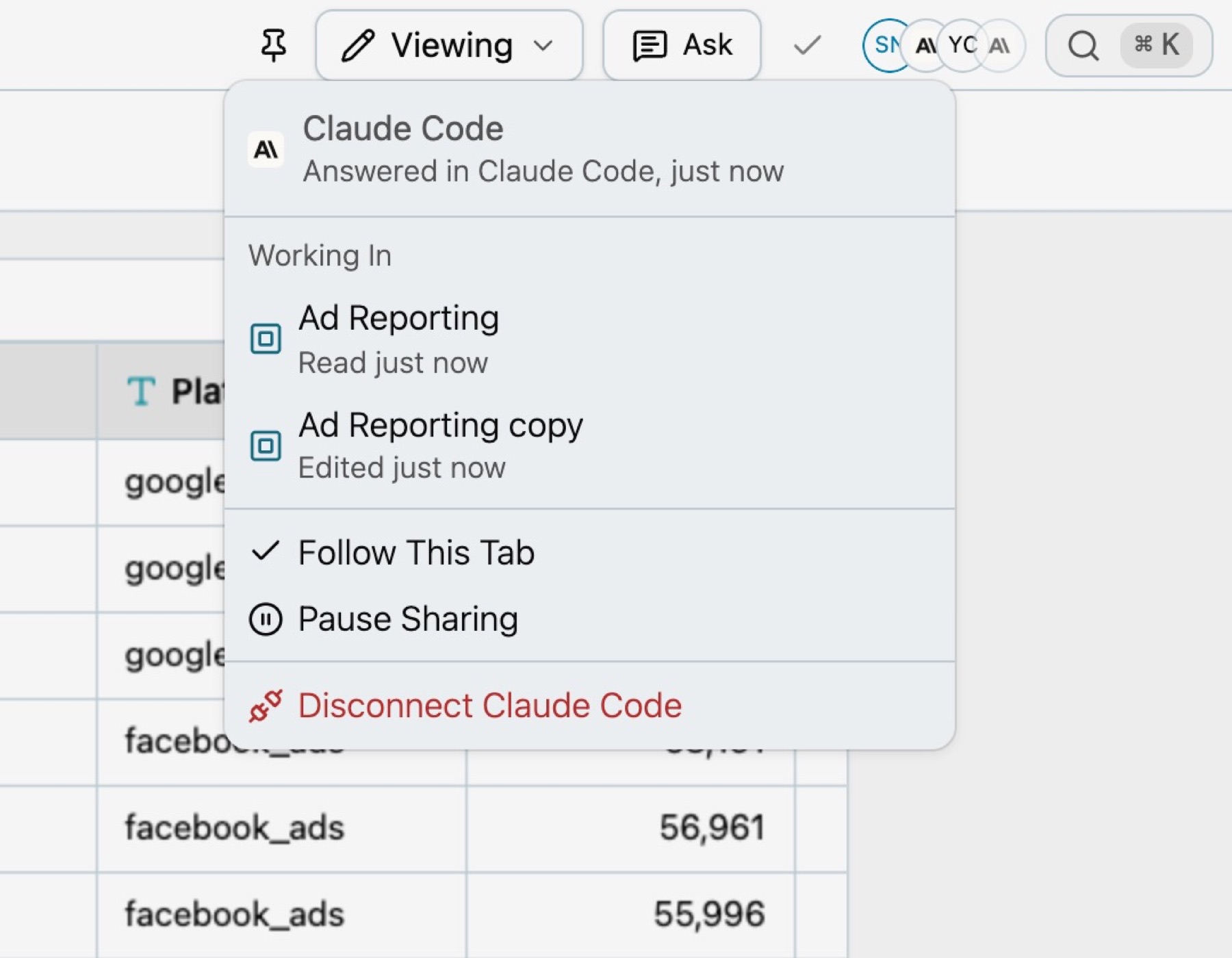
Plan, try, check, show, ask, apply. Your agent says one short line before each step, such as “Writing the plan in your brainstorm folder.”
-
Plan.
A note for the question, with its goal and what will answer it.
-
Try.
Scratch statements, a workspace copy, or a draft page or app.
-
Check.
It runs what answers the question.
kater comparesays whether two answers are the same. Your agent never decides that by reading rows. -
Show.
One line with the answer, then the run, card or page that shows it.
-
Ask.
One question: whether to apply it, and where.
-
Apply.
Only after your yes. Then your agent compares again and sets the note’s status.
Try a prompt such as “Can ROAS be one measure in Channel Performance Weekly without changing any numbers? Try it safely first.” A typical answer: “ROAS can be one measure. Same numbers in all 6 queries.”
Notes
Each question gets its own note, named for the question, such as brainstorm/promote_roas.md. It opens with a title, a Status line and a Kind line. This is a real note an agent wrote, shortened:
# Marketing Channel Performance project app
Status: applied, workspace copy and app moved to users/yvonne@kater.ai/apps/marketing_channel_performance; all tags draw
Kind: change
## Goal
One app, "Marketing Channel Performance", with three tabs:
1. **Weekly review**: the current Marketing Channel Performance and Forecast deck, unchanged.2. **Move budget to TikTok**: what happens if budget moves from Google and Meta to TikTok, with total spend unchanged.3. **Spend scenario**: what the spend-change scenario (15% by default) brings, with flat ROAS and with diminishing returns.
## Log
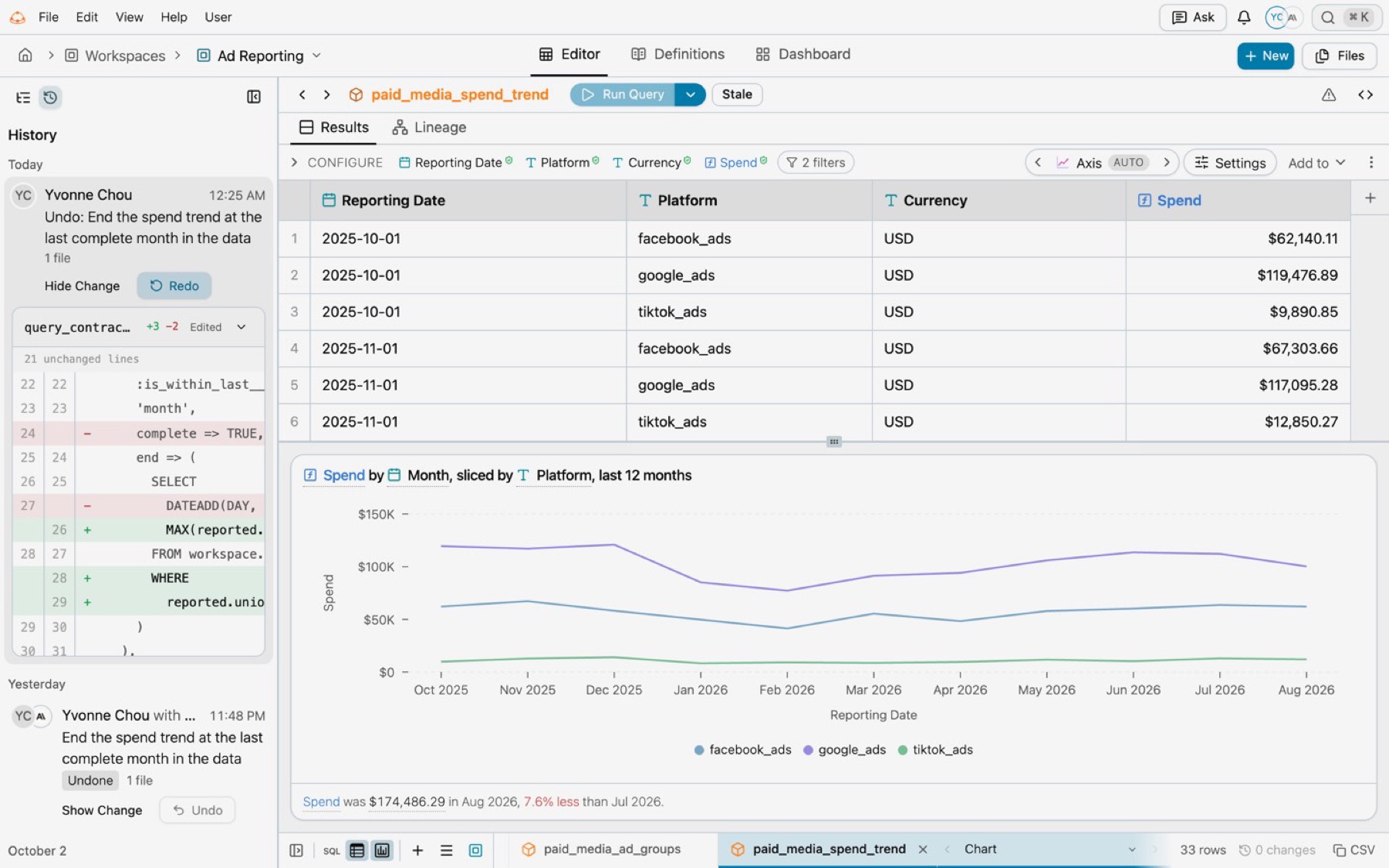
- `kater compare` original vs copy: 6 existing queries same, 5 added.- `kater brainstorm show` draft app: all tags draw on all three pages.- `kater workspace apply --dry-run`: 6 files ready (workspace.sql changed, 5 queries added); compiles with the original.| Status | Means |
|---|---|
open | The work is in progress |
answered | The answer is in the note, with its evidence |
applied | The change was applied after your yes |
dropped | You said no |
Kind is change for a topic that ends in an apply, or spike for one that asks whether something can work. Only a spike’s pages can show made-up sample rows, each marked Sample data. In Files, the tree marks each topic’s status, and a note shows it beside View, Edit and Compare.
Workspace copies
A copy is a real workspace inside a topic’s folder. Your agent changes the copy, and the original stays as it is.
-
Copy.
Any workspace you can read can be copied. The copy keeps the original’s name.
Terminal window kater brainstorm copy connections/snowflake_prod_connection/users/<email>/workspaces/channel_performance_weekly --topic marketing_channel_performance -
Change.
Open the copy in the workspace editor. Its banner says Copy of and the original’s name, when it was copied, and Compare and Apply.
-
Compare.
Select Compare. Kater runs each query in the copy and in the original, pairs them by name, and says for each pair: the same, different with the cells that differ, or refused with the reason.
-
Apply.
Select Apply. Kater shows each file the copy changed, its diff, and the rows as they are and as they will be. Confirm with Apply and the number of files. Your agent runs
kater workspace apply <copy> --dry-runto show you the same thing, and it writes nothing.
- Who can apply. Only someone who can edit the original.
- Someone changed the original. A file that changed in the original since the copy is refused, so nobody’s work is overwritten. Make a fresh copy and change that.
- It does not compile. Nothing is written. Fix the copy and compare again.
- It stays in the folder. Explore, Add to and the workspace pickers never offer a copy.
Kater writes copied-from.yaml at the copy’s root. It names the original and each file’s revision. Files shows it as a form, with Open the original:
workspace: connections/snowflake_prod_connection/users/yvonne@kater.ai/workspaces/channel_performance_weeklycopied_at: '2026-10-06T04:57:29Z'applied_at: '2026-10-06T05:37:24Z'files: query_contracts/scenario_baseline.sql: original: 85209c7506bc0c854e9ed706349cfc8090322923ba1268ea097aad1c5ba4f26d copy: 85209c7506bc0c854e9ed706349cfc8090322923ba1268ea097aad1c5ba4f26dDraft apps and pages
Your agent drafts an app, such as a deck or a report, in brainstorm/<topic>/apps/<name>/. It opens in the portal at /sandbox/brainstorm/<connection>/<email>/<topic>/apps/<name>/index.html, with its other pages. Only you and admins can open that address.
When you like it, select Move to my apps, or say yes to your agent. Kater checks the move first and writes nothing until every check passes. No tag can read sample rows, a copy it reads must be applied first, and every query must compile. Then the app moves to your apps/ folder, with you as its owner.
The Sandbox
A scratch file is any .sql file in your brainstorm folder. Use it for a quick answer before you select a workspace. Open it from View › Sandbox in Files, New › Scratch file on Home, or Make something new › Sandbox on Workspaces.
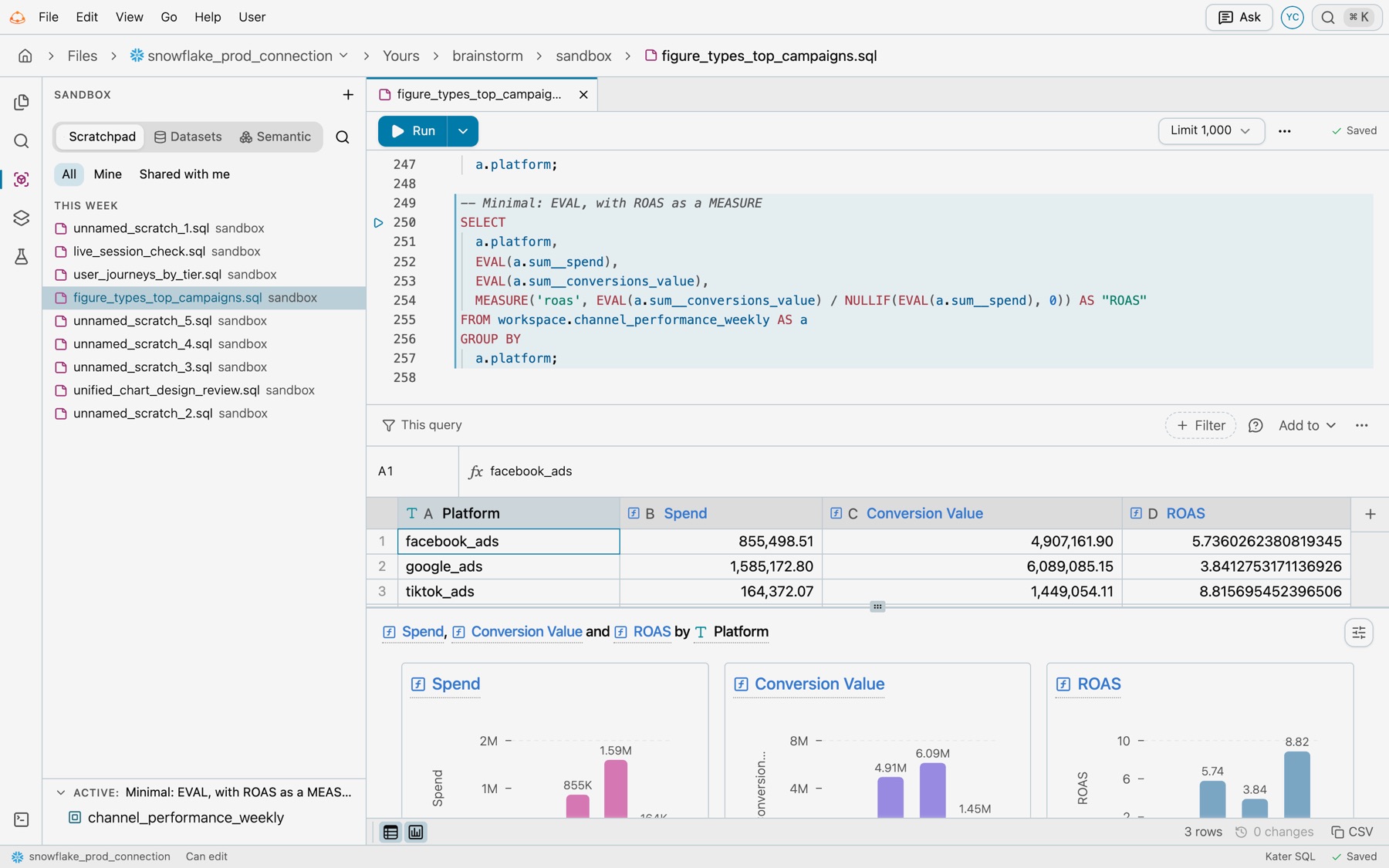
- Statements. Separate statements with semicolons. The comment above a statement is its title. Run (⌘↵) runs the statement at your cursor, and its menu has Run all statements.
- Formulas and charts. The rows have the same formula bar and chart as a query.
- Keep it. Add to saves a statement as a query in a workspace.
- Warehouse SQL. A statement over warehouse tables needs edit access to the shared models.
Nothing leaves without your yes
Your agent’s kater tool writes only in your brainstorm folder. A change anywhere else, made with kater_apply or a file tool, waits for your yes. Kater’s rules tell your agent to ask first, and your agent app can also ask you to allow each call. Your agent deletes nothing, your own topics included, unless you ask. A change you applied shows in History with Undo, which reverses it as a new change.