Integrations Slack
Set up Slack
Install Kater's Slack app once for your organisation, so people can ask from Slackbot and get DMs from Kater with their own Kater access.
Install Kater’s Slack app once, from Kater’s Admin Console. Kater can then DM people answers, scheduled figures and requests that wait on them, and Slackbot can answer questions from Kater. Each person always uses their own Kater access.
Set up with your agent or the CLI
Until the server is set up, turning on Slack in Settings › Integrations shows two tabs. Each one targets the Kater API for that portal.
- Ask your agent. Copy the prompt and paste it into Claude Code, Codex or Cursor. Your agent runs the Kater CLI and does the setup steps. It asks you for each value that only you can get, such as the Slack app’s secrets.
- CLI. Copy the command, sign in with the Kater CLI to that API, then run the command with a target that names it.
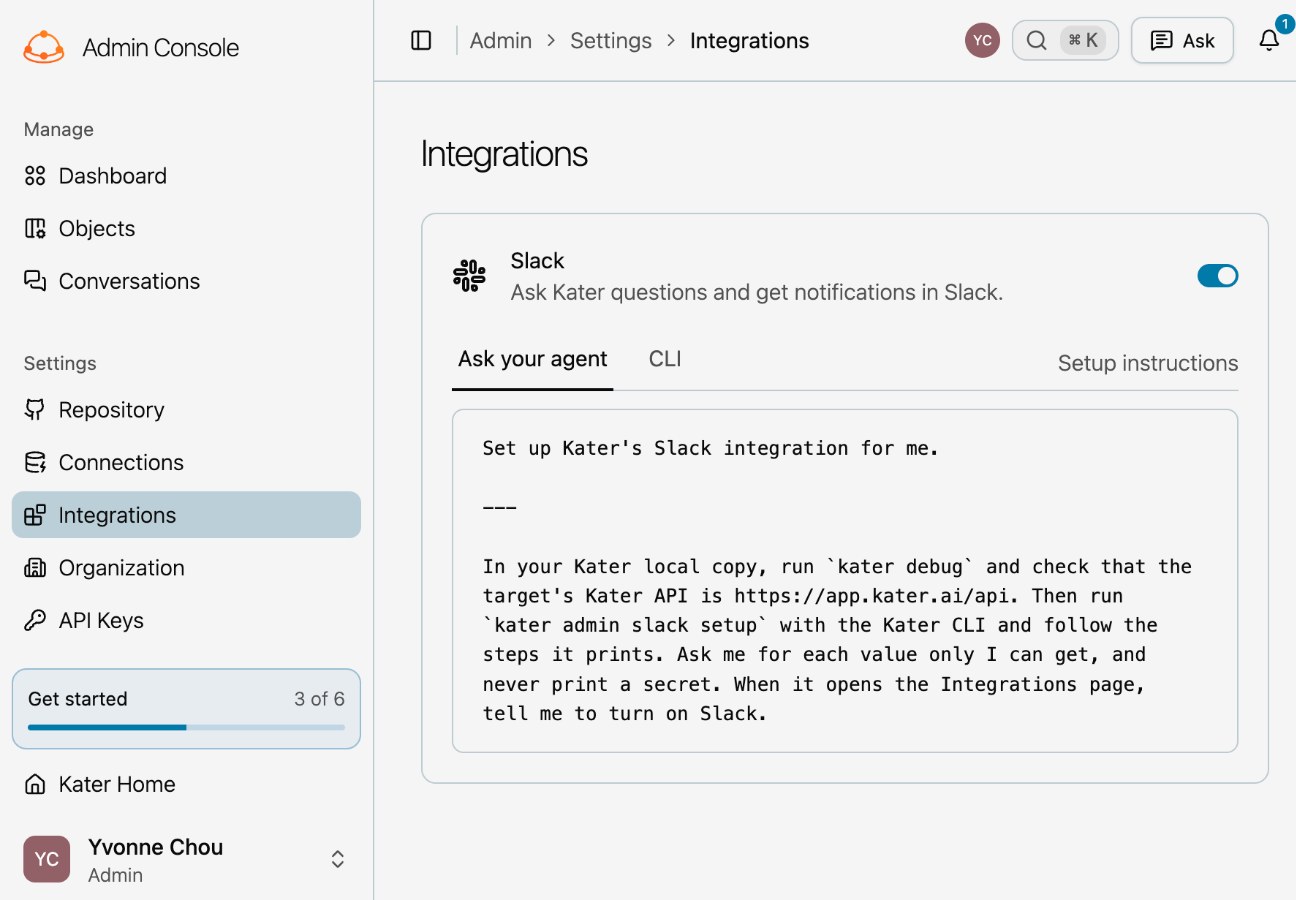
For the Kater API of your profile’s default target, the CLI commands are:
kater loginkater admin slack setupThe command checks the server and names any missing settings. When the server is ready, it opens Settings › Integrations. Turn on Slack, select your workspace, then select Allow in Slack. Approval stays in your browser so Kater can verify the install’s browser cookie.
Use --target NAME with both commands for the Kater API of a different target. kater debug shows which Kater API a target names. Use kater admin slack setup --no-browser to print the installation page without opening it. Use kater admin slack setup --guide to read the server setup steps without signing in.
If Kater needs server setup
Your Kater operator configures the shared Slack app once. An organisation admin then installs that app in their Slack workspace. The operator configures the API and worker together.
- Set the public addresses. The portal and API must use HTTPS on the same origin. Set
KATER_SLACK_PORTAL_URLto the portal base, such ashttps://portal.example.com. SetKATER_SLACK_PUBLIC_API_URLto the API base, including its mount, such ashttps://portal.example.com/api. SetKATER_MCP_SERVER_URLto the public MCP origin, such ashttps://mcp.example.com. - Create or update the Slack app. In the Kater API’s Python environment, with those settings loaded, run
python -m kater_api.slack.manifest > slack-manifest.json. Open Slack’s app settings and create an app from the manifest, or update the existing app’s manifest. See Slack’s manifest instructions. - Set the app credentials. Open Basic Information in Slack’s app settings. Copy the App ID, Client ID, Client Secret and Signing Secret into the settings below. Give the API and worker the same values in their private environment configuration.
| Setting | Value |
|---|---|
KATER_SLACK_APP_ID | The App ID from Slack. |
KATER_SLACK_CLIENT_ID | The Client ID from Slack. |
KATER_SLACK_CLIENT_SECRET | The Client Secret from Slack. |
KATER_SLACK_SIGNING_SECRET | The Signing Secret from Slack. |
KATER_SLACK_STATE_SECRET | A separate random secret of at least 32 characters. |
KATER_SLACK_PUBLIC_API_URL | The public API base set in step 1. |
KATER_SLACK_PORTAL_URL | The portal base set in step 1. |
- Configure token encryption. In production, set
KATER_CUSTOMER_SECRETS_BACKEND=aws,KATER_CUSTOMER_SECRETS_KEY_ID,KATER_CUSTOMER_SECRETS_KMS_ACCOUNTandKATER_CUSTOMER_SECRETS_KMS_REGION. Give the API and worker access to that KMS key. In development, useKATER_CUSTOMER_SECRETS_BACKEND=localandKATER_CUSTOMER_SECRETS_LOCAL_KEY. Both processes must use the same private 32-byte key file. Usekater_secrets.generate_local_keyto create one. Keep an existing key when one is already configured. - Apply migrations and restart. From the Kater checkout, with the server’s database settings loaded, run
pnpm --filter @kater/api db:migrate. Restart the API and worker with the updated settings. - Install for your organisation. Run
kater admin slack setupagain with the same API target. Complete the installation in Slack. For an existing install, select Update permissions when Kater requests it.
What the Slack app does
| It does | It does not |
|---|---|
| Send DMs to people in your organisation | Read Slack messages or channels |
| Bring Kater into Slackbot, so people can ask questions | Post in channels |
| Show a Home tab where each person connects their account | Take replies. People cannot send messages to the app |
| Use each person’s own Kater access | Use a shared account for a channel or a team |
The app’s name in Slack is Kater. People who use Claude or ChatGPT in Slack need one more step from your Claude or ChatGPT admin. See What each host needs.
Install Kater in Slack
-
Open the Slack settings.
Select Admin in the footer of the left sidebar. In the Admin Console, select Settings › Integrations.
-
Turn on Slack.
Slack opens. It shows the workspace Kater installs into and what Kater asks for.
-
Allow it.
Select Allow in Slack. Kater opens again, and the Slack row shows your workspace.
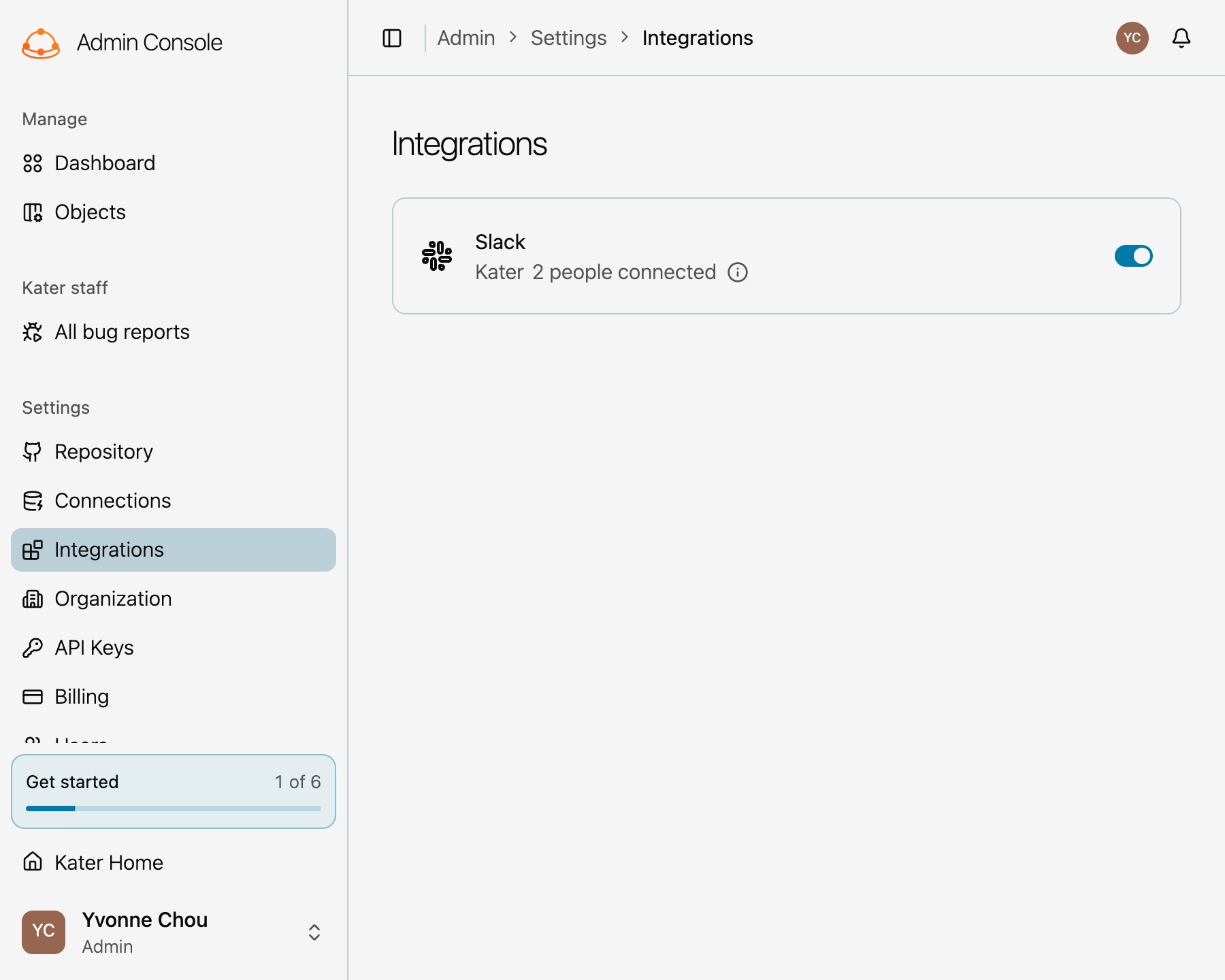
Each Kater organisation installs Kater in one Slack workspace.
What Kater asks Slack for
| Slack scope | What Kater uses it for |
|---|---|
chat:write | Post a DM |
im:write | Open a DM with a person |
users:read, users:read.email | Find a person’s Slack account from their Kater email |
files:write | Add the chart image to a DM |
mcp:connect | Let Slackbot call Kater with each person’s own sign-in |
No scope reads messages, channels or files.
How people connect
Kater has to know which Slack account belongs to which Kater account. There are two ways.
- Same email. When a person’s Slack email is their Kater email, they connect automatically. They do nothing.
- A different email. The person opens the Kater app in Slack and selects Connect on its Home tab. Kater opens in the browser and asks them to sign in. The Connect Slack page names both accounts. They select Connect.
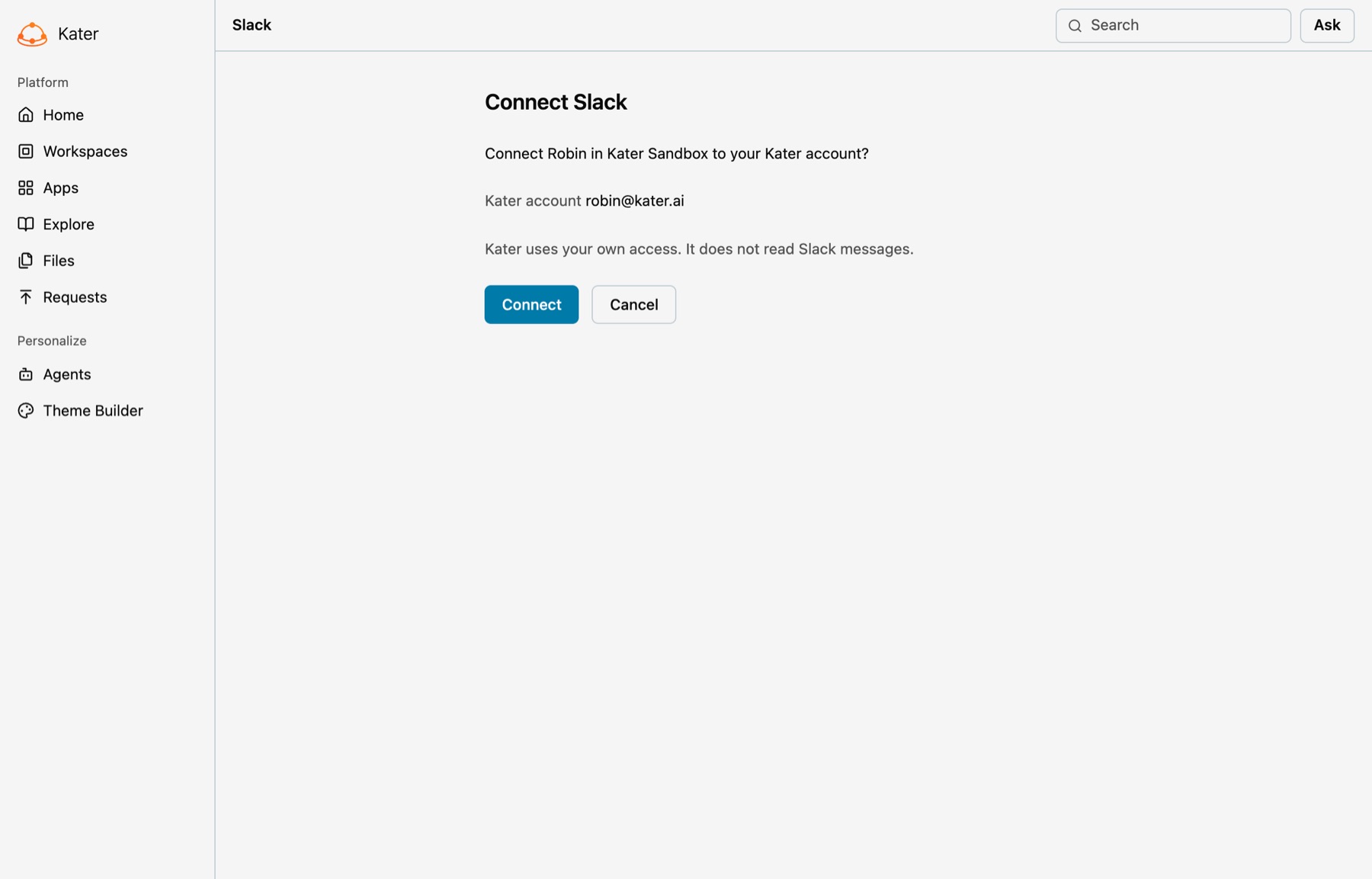
The Slack row in Settings › Integrations counts everyone who is connected.
The Home tab
Every person sees Kater’s Home tab in Slack. It says whether their account is connected.
| When the person is | The Home tab shows |
|---|---|
| Not connected | “Connect your Kater account to receive messages in Slack.” and Connect |
| Connected | “Your Slack account is connected to Kater.” with Open Kater and Manage connection |
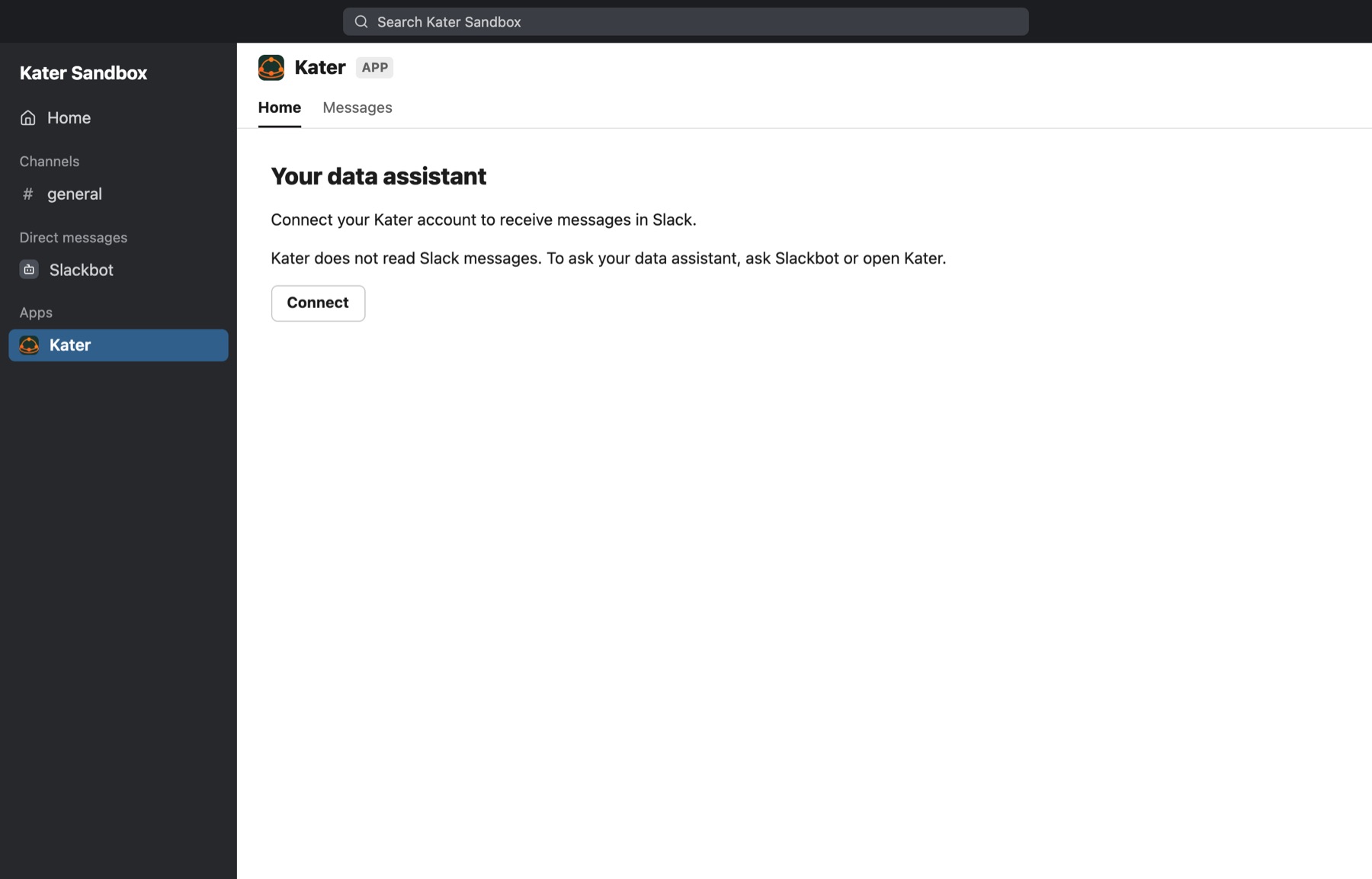
Manage connection opens Kater and names the Slack account the person is connected to. Disconnect removes the connection. After that, Kater does not connect them again by email. To connect again, they select Connect on the Home tab.
Uninstall
-
Turn off Slack.
In Settings › Integrations, turn off Slack. Kater names your workspace and says that this removes all Slack account connections for your organisation.
-
Confirm.
Select Uninstall. Kater removes the app from Slack, deletes its token and removes every connection.
Removing the app in Slack’s own settings does the same. Kater then deletes the token and every connection. To use Slack again, install Kater again. People with the same email connect again automatically.
What Kater stores
- The install. The Slack workspace, Kater’s bot account in it, the scopes it has, and who installed it and when.
- The bot token. Encrypted for your organisation. Another organisation cannot read it.
- Each connection. A person’s Kater account, their Slack account, and how they connected: by email or with Connect.
What Kater never does
- It never reads Slack messages. The app has no scope that reads messages, and it keeps no Slack message content.
- It never answers with a shared account. Every question uses the asker’s own Kater sign-in. A channel or a bot gets no Kater access of its own.
- It never sends what the recipient cannot read. Before every DM, Kater checks the recipient’s access, not the sender’s.
- It never holds a Claude or ChatGPT account. People use Claude or ChatGPT in Slack with their own accounts.
Check it worked
- The Slack row in Settings › Integrations is on and shows your workspace and how many people are connected.
- In Slack, Kater’s Home tab says “Your Slack account is connected to Kater.”
- Ask your agent “send me this” after an answer. The DM arrives from Kater.
If something looks wrong
- “Slack is not set up for your organization.” An admin sees this in Profile › Notifications before Slack is installed. Select Set up Slack to open Settings › Integrations.
- “Slack is not available. Contact your Kater administrator.” A person without the settings permission sees this before Slack is installed. Ask your Kater admin to set up Slack.
- “The Slack install was cancelled.” Turn on Slack again, and select Allow in Slack.
- A person gets no DMs. Their Slack email is probably different from their Kater email. Ask them to select Connect on Kater’s Home tab.
- A person disconnected and still gets nothing. Kater does not connect them again by email. They select Connect on the Home tab.
Next steps
- Ask from Slack, to share with business teams
- Messages from Kater
- Admin console