Analyze Workspaces
Dashboards
Every workspace has a dashboard. Read it with filters, open any tile in place, and arrange its charts in Edit mode.
Every workspace comes with a dashboard: its saved charts in sections, under one filter bar. Business teams read it every week. Anyone who can edit the workspace can arrange it.
| If you want… | Use |
|---|---|
| A live view of one workspace’s charts, with filters | A dashboard |
| A report, a deck or a page that reads several workspaces | An app |
| A file to send, such as a PDF or a PowerPoint deck | An app with a template |
Open a dashboard
- From Workspaces. Select Open dashboard on a workspace’s row.
- From the editor. Select Dashboard in the header, or press ⌥2. Dashboard is greyed until the workspace reads a model.
- By address.
/workspace/connections/snowflake_prod_connection/workspaces/ad_reporting?view=dashboard
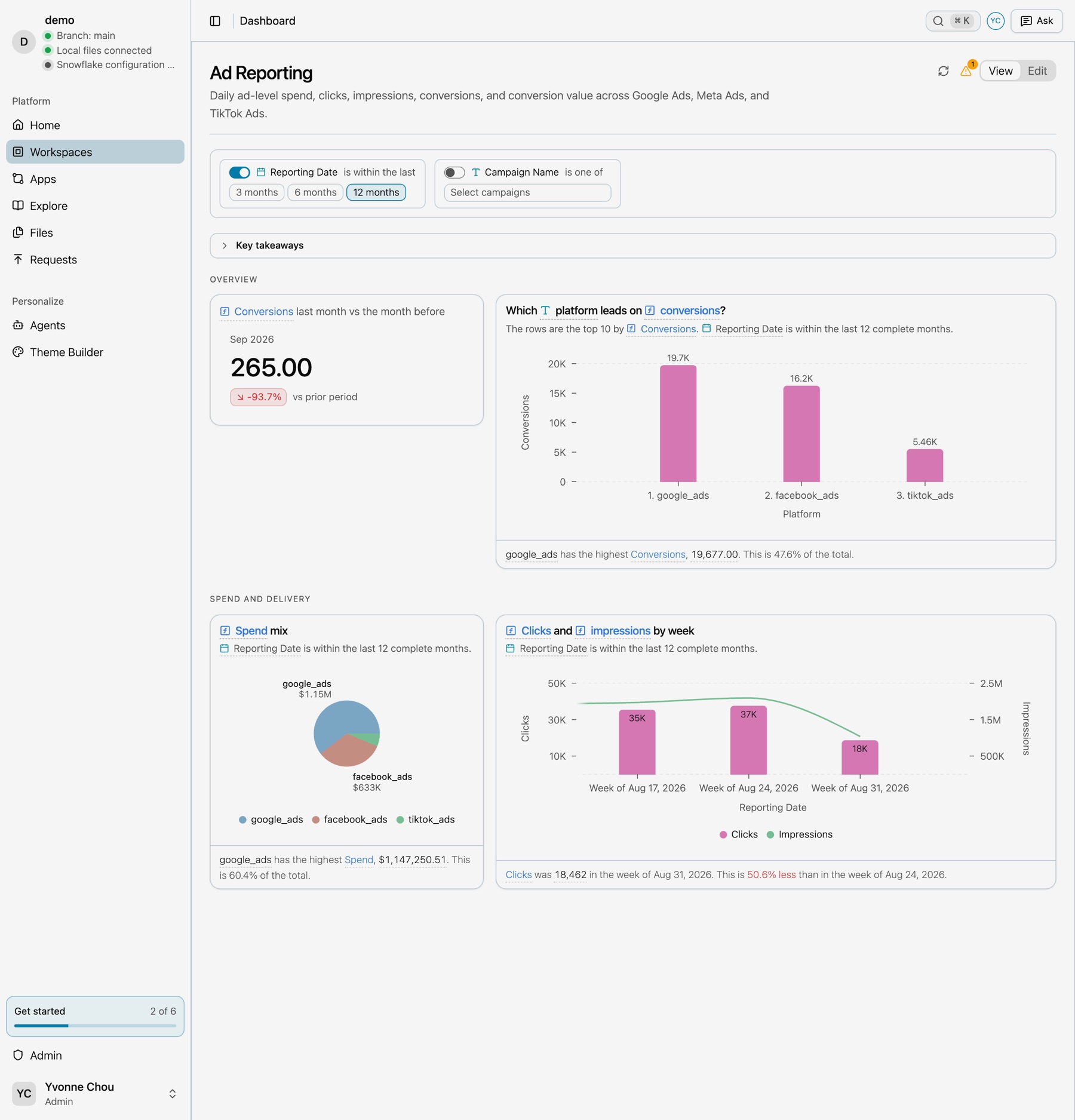
When a workspace opens on its dashboard
The first time you open someone else’s workspace, Kater opens its dashboard when it has tiles. The dashboard is the answer its owner chose to show. Without tiles, the workspace opens on its first query. Your own workspace opens on its first query. After your first visit, a workspace opens where you left off. See Workspaces for every rule.
Read it
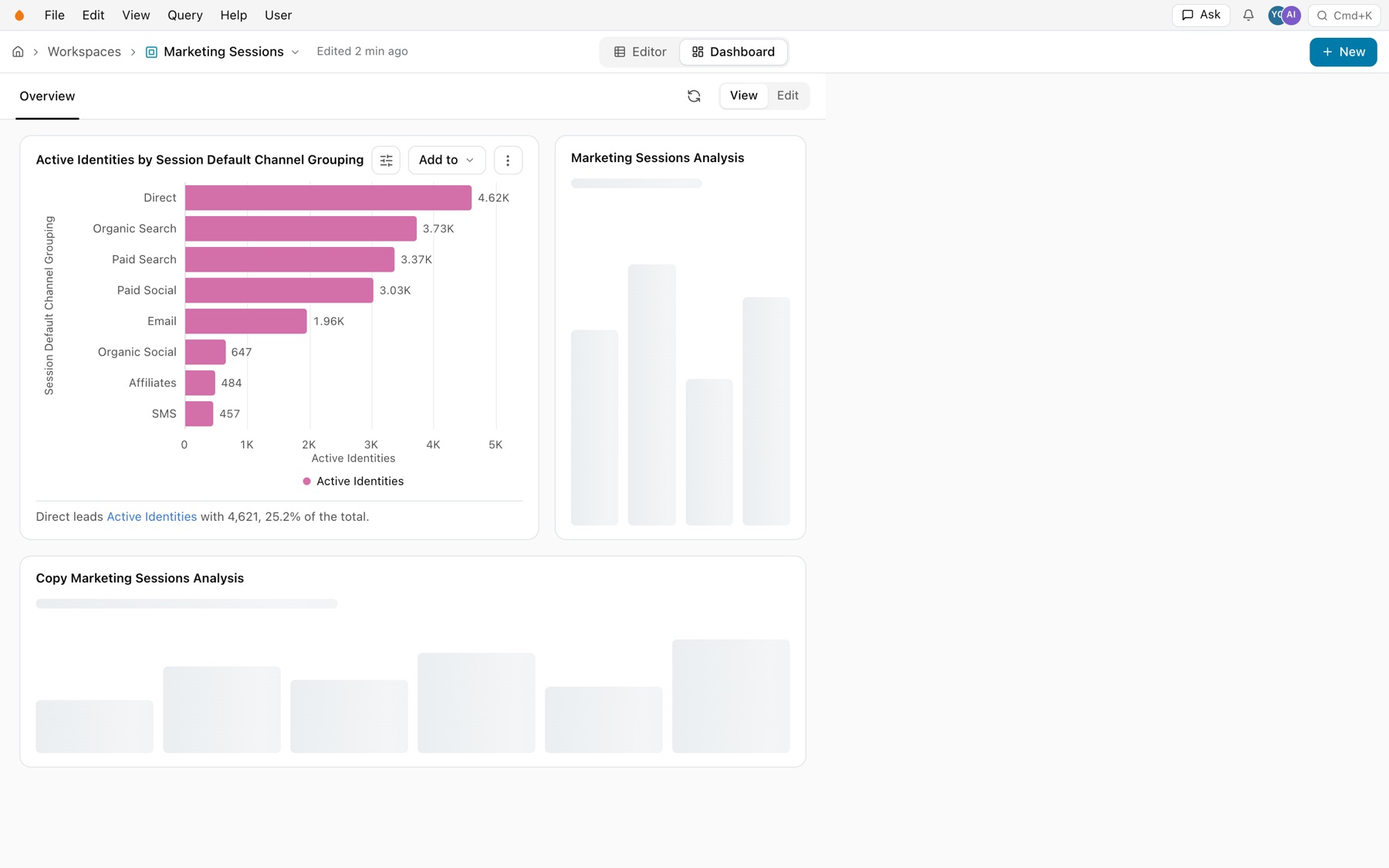
- Filter bar. The workspace’s filters, which apply to every tile. On Ad Reporting, Reporting Date keeps the last 12 complete months unless you change it. The address keeps your values, such as
param.reporting_date=6for the last 6 complete months. - Key takeaways. Sentences written from a query’s rows, such as each channel against the average.
- Sections. Groups of tiles, as one page or as tabs.
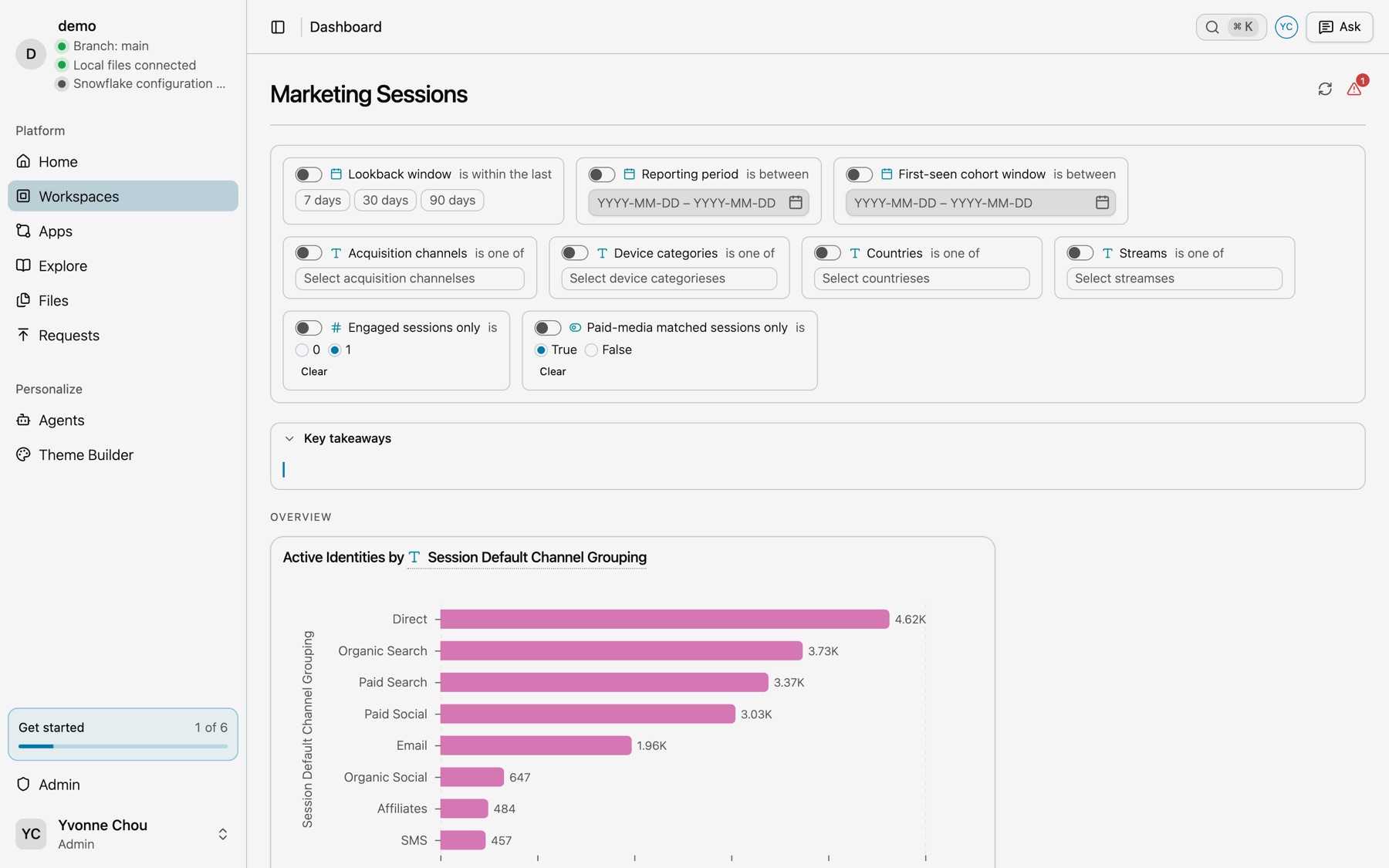
- A tile. Each chart shows its title, the settings icon, Add to and a menu above the plot, and its finding under it, such as “Direct leads Active Identities with 4,621, 25.2% of the total.” Select a tile to open it in place. Its menu has Add to, Copy CSV, Play in Sandbox, Open its query and Ask about this.
Edit a dashboard
-
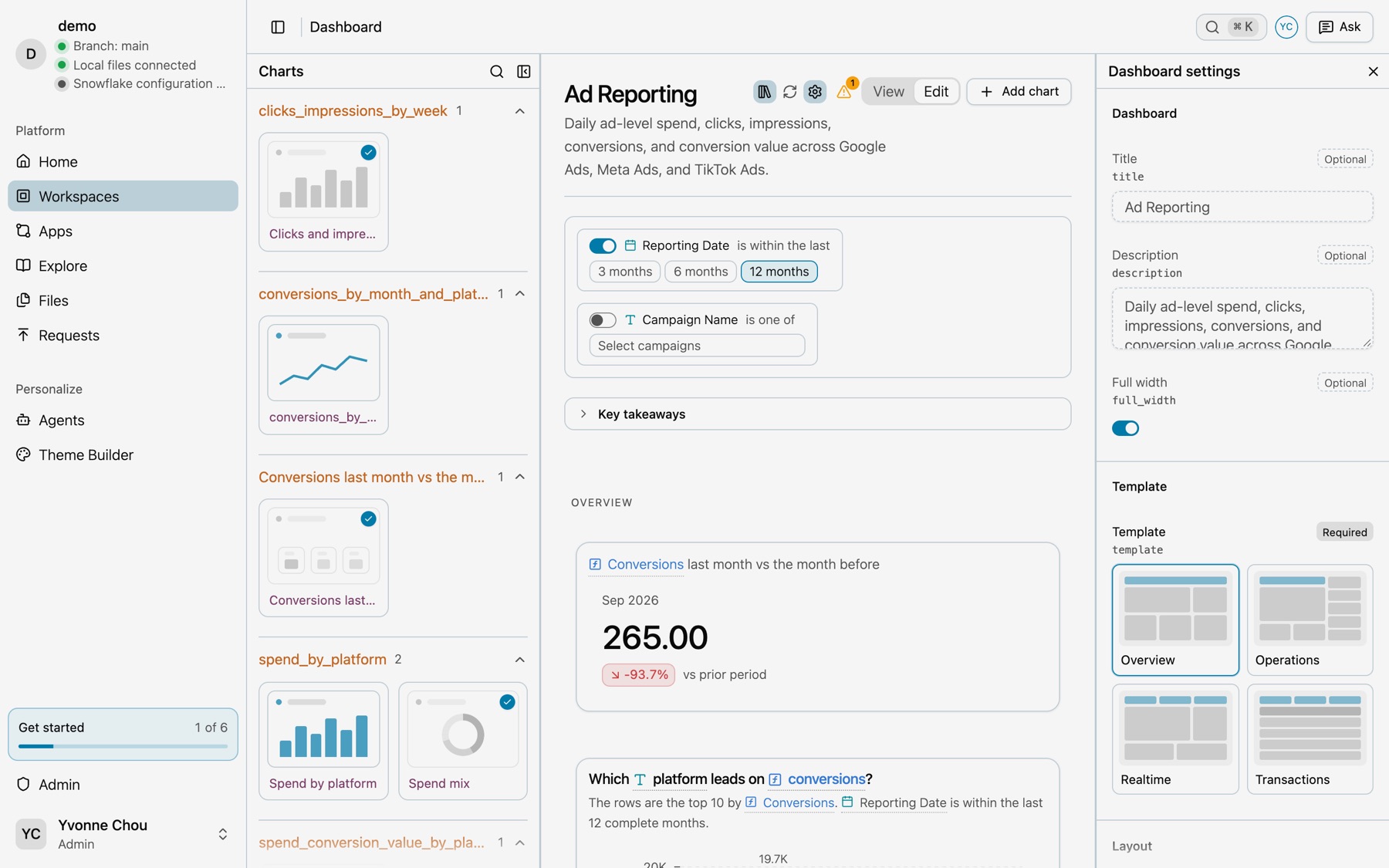
Select Edit.
Switch the mode from View to Edit.
-
Add charts.
Select Saved charts to open the Charts panel, search it, and drag a chart onto the board. Add chart adds a new one.
-
Arrange tiles.
Drag tiles by their grip, and drag tabs to reorder them. Remove from dashboard in a tile’s menu takes it off.
-
Set up the page.
Select Dashboard settings. Under Template, select Overview, Operations, Realtime or Transactions, and a Rail width. Under Layout, select Tabs or One page, and + Tab to add a tab. Refresh sets how often the queries run again: Off, Every minute, Every 5 minutes, Every 15 minutes or Every hour.
Refresh dashboard runs every tile’s query again for new data. A mark in the header shows any tile with a problem.
You can also place a chart from the workspace editor: Add to in the query toolbar ticks the workspace’s dashboard when the chart is a tile there. See Queries.
The dashboard file
A dashboard is the workspace’s dashboard.yaml: its filters, sections and tiles. Each tile names a saved chart.
filters:- reporting_datesections: overview: label: Overview index: 0 spend_and_delivery: label: Spend and delivery index: 1tiles:- chart: conversions_last_month_vs_the_month_before section: overview x: 0 span: 4 height: 176- chart: spend_mix section: spend_and_delivery x: 0 span: 4 height: 368See the Ad Reporting dashboard in the Library for the prompt that builds it.
If something looks wrong
- “This dashboard has no tiles yet.” Select Edit, then Saved charts, and drag a chart onto the board. If the panel is empty, save a chart in the workspace first with Add to.
- You cannot select Edit. You can only view this workspace. Ask its owner for edit access, or add its charts to a workspace of your own with Add to.
- A tile shows a problem. Select Open its query in the tile’s menu and run the query to see the error.
- The numbers look old. Select Refresh dashboard to run the queries again for new data.
- A workspace opened on its dashboard, not the editor. It is your first visit to someone else’s workspace. Select Editor in the header, or press ⌥1. Next time it opens where you left off.