Apps
Share and export
Share an app with people and groups, export it as a file, pin it to Home and send links that open the same view.
Share an app so your team reads the same live numbers, or export it as a file for people outside Kater. Kater checks that everyone you share with can read every query the app names, so no one opens an app with holes in it.
When to use this
| If you want to… | Do this |
|---|---|
| Let colleagues open the app | File › Share |
| Send a file | File › Export |
| See the page as the file will look | Static |
| Keep it one click away | Pin to Home |
| Send a link to this exact view | Copy the address, or Copy link in the share dialog |
Share an app
-
Open the share dialog.
Open the app and select File › Share. The dialog, Share ‘<app name>’, shows the app’s folder under its title.
-
Read the sharing check.
Under Reads, Kater lists each workspace the app reads and the queries it names. If the app cannot be shared, the dialog says “You cannot share this app yet.” and lists each problem.
-
Add people or groups.
Type a name in Add people or groups, select a level, then select Share.
-
Check general access.
Inherits access means anyone with access to the parent folder can open it. Restricted means only the people listed and organisation admins.
-
Copy the link.
Select Copy link. Only people with access can open it. Select Done.
What the sharing check refuses
- A broken query. A tag names a query that does not exist, does not compile, or is in another connection.
- A reader who cannot read it. Someone who can open the app cannot read a workspace or query it names. An app in a connection workspace is open to everyone by default, so it cannot read a personal workspace.
- Typed figures. A figure typed into the page, such as $1,204, is flagged but does not block sharing.
Fix "cannot read"
Share the workspace with the same people, or ask your agent to read the figures from a workspace they can already read.
Access levels
| Level | What it allows |
|---|---|
| Viewer | Can view |
| Editor | Can view, change and delete |
| Manager | Can also change who has access |
| Execute only | Can run saved queries and get their results, without reading the files |
Organisation admins always have full access. See Files and access.
Export a file
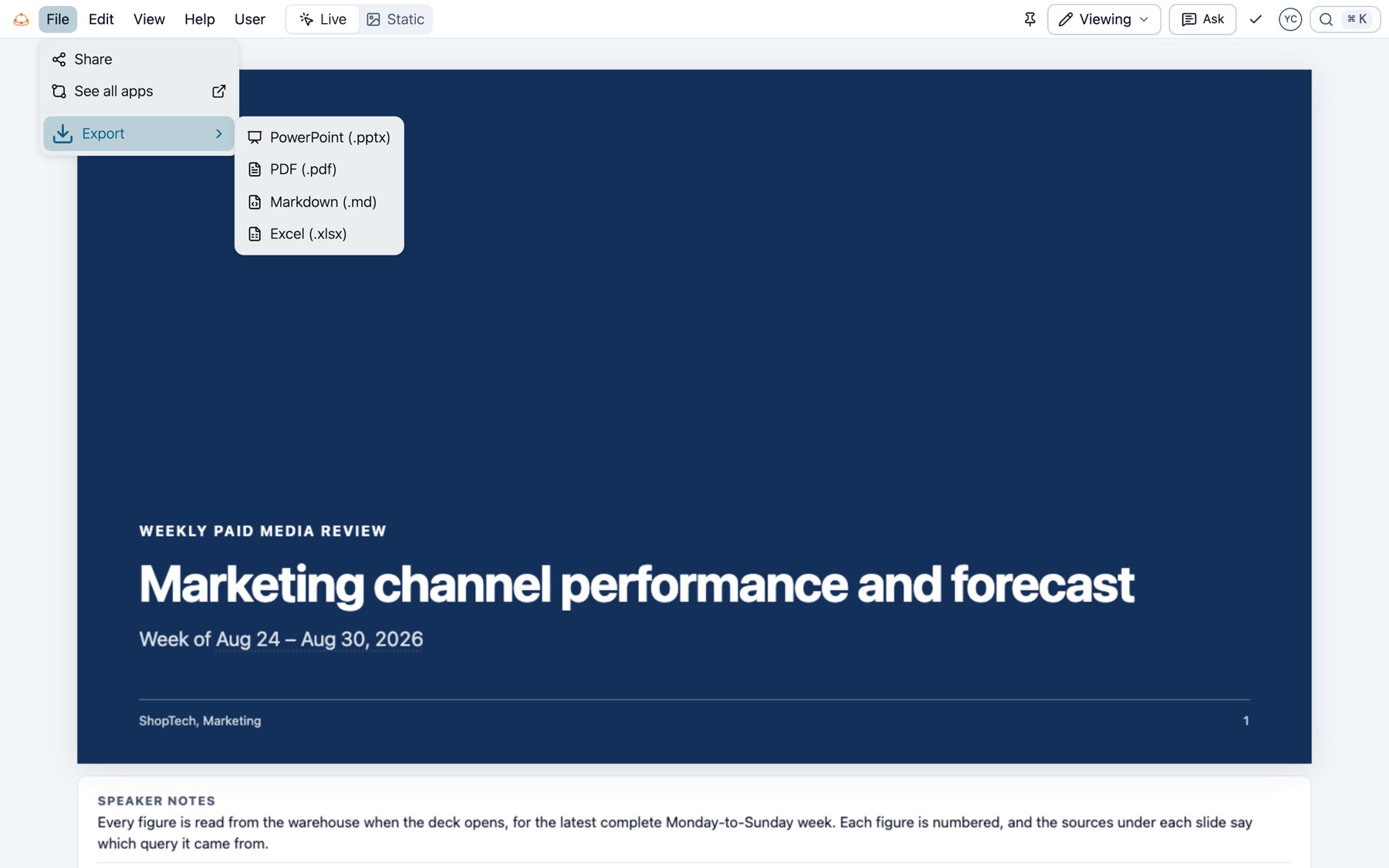
Select File › Export and a format. Export waits for every figure, then writes a snapshot.
| Page | Formats |
|---|---|
Report (pdf template) | PDF (.pdf), Word (.docx), Markdown (.md), Excel (.xlsx) |
Deck (powerpoint template) | PowerPoint (.pptx), PDF (.pdf), Markdown (.md), Excel (.xlsx) |
Chat thread (chat template) | PDF (.pdf), Word (.docx), Markdown (.md), Excel (.xlsx) |
| Any other page | PDF (.pdf), Markdown (.md), Excel (.xlsx) |
- PDF opens your browser’s print dialog.
- Excel holds the data behind the page.
- Every file says when it was made and which filters were on.
- Sources. Word, Markdown and the PowerPoint notes list where each figure came from, in the groups the page’s sources list uses. A figure from the shared layer has “(Verified)” after it, since a file has no room for the shield. Excel lists them on a Sources sheet, one row for each figure, so you can sort and filter them. A report’s PDF prints the sources list on its last sheet.
- Mock data. A report or deck export of a page with mock data asks first. Export a page with mock data? says how many figures are mock data. Select Export to save the file, or Cancel. The file marks each one: “(Mock data)” after the figure in Word and Markdown, MOCK DATA on a slide and on paper, and “Mock data” in the figure’s row on Excel’s Sources sheet. Copy as Markdown does not ask, since it saves no file, and the copy keeps each “(Mock data)”.
- Sample data. A page that reads sample rows cannot be exported. Its export items read “Not available for pages with sample data”.
For a quick copy, Edit › Copy as Markdown copies the page as text for a chat or a ticket.
Check it in Static view
Select Static at the right of the menu bar to see the page as a file will show it. Select Show Citations or Hide Citations to set whether figures carry their source numbers. What you choose holds for every export. Hide Citations never hides the MOCK DATA badge.
Pin to Home
Select Pin to Home. The app appears under Pinned on Home. Select Unpin from Home to take it off.
Links
- The address is the view. An app’s address holds the page, the mode, the filters and Static, such as
/app/<id>/viewing?view=static. Anyone with access who opens it sees the same view. - Links in files. Each citation number in an export links to its source. A query’s link is
https://app.kater.ai/open?path=<query file>&line=<n>. It opens the query in Kater, or in VS Code for a reader who set Profile › Links › Open links in to VS Code. A file kept with the app opens in Kater, and a link to another system opens at its own address. - From Ask. The Ask panel’s Copy row has Page as Markdown and Link to Page.