On this page
- What it feels like
- See it in action
- Sally asks about her chart
- Yvonne joins
- The fix shows everywhere
- History and Undo
- How it works
- The URL is the state
- Your open tabs
- What your agent can do
- Who is on the page
- Every change has History and Undo
- You stay in control
- Connect your agent
- Start from Kater with Ask
- Things to ask
- If something looks wrong
- Next steps
Analyze
Ask Kater MCP
Ask Claude, ChatGPT, Claude Code, Codex or Cursor about the Kater page you are looking at, without pasting anything.
Ask your own agent about what you see in Kater, in the words you would use with a colleague. You paste nothing: your agent already knows which Kater pages you have open, how each one is set up, and which rows each chart shows.
This works in Claude, ChatGPT, Claude Code, Codex and Cursor. Business teams ask about an app or a dashboard. Data teams use the same connection to fix the query behind it.
End the spend trend at the last complete month in the data

What it feels like
Ask “Why did spend drop on this chart?” Your agent knows which chart you mean. You send no link, screenshot or table.
- It knows where you are. It sees your open Kater tabs and how each one is set up.
- It reads what you see. It reads the rows on your screen, as you, and does not run the query again.
- It can move you. It opens a Kater page in your tab, and Back returns you.
- It shows up on the page. Its icon sits beside your avatar while it works.
- You can undo every change. Each change is one entry in History, with Undo.
See it in action
Sally works in marketing at ShopTech. Yvonne is on the data team. Both use Claude Code in these screenshots. The Claude app shows as Claude in the same places.
Sally asks about her chart
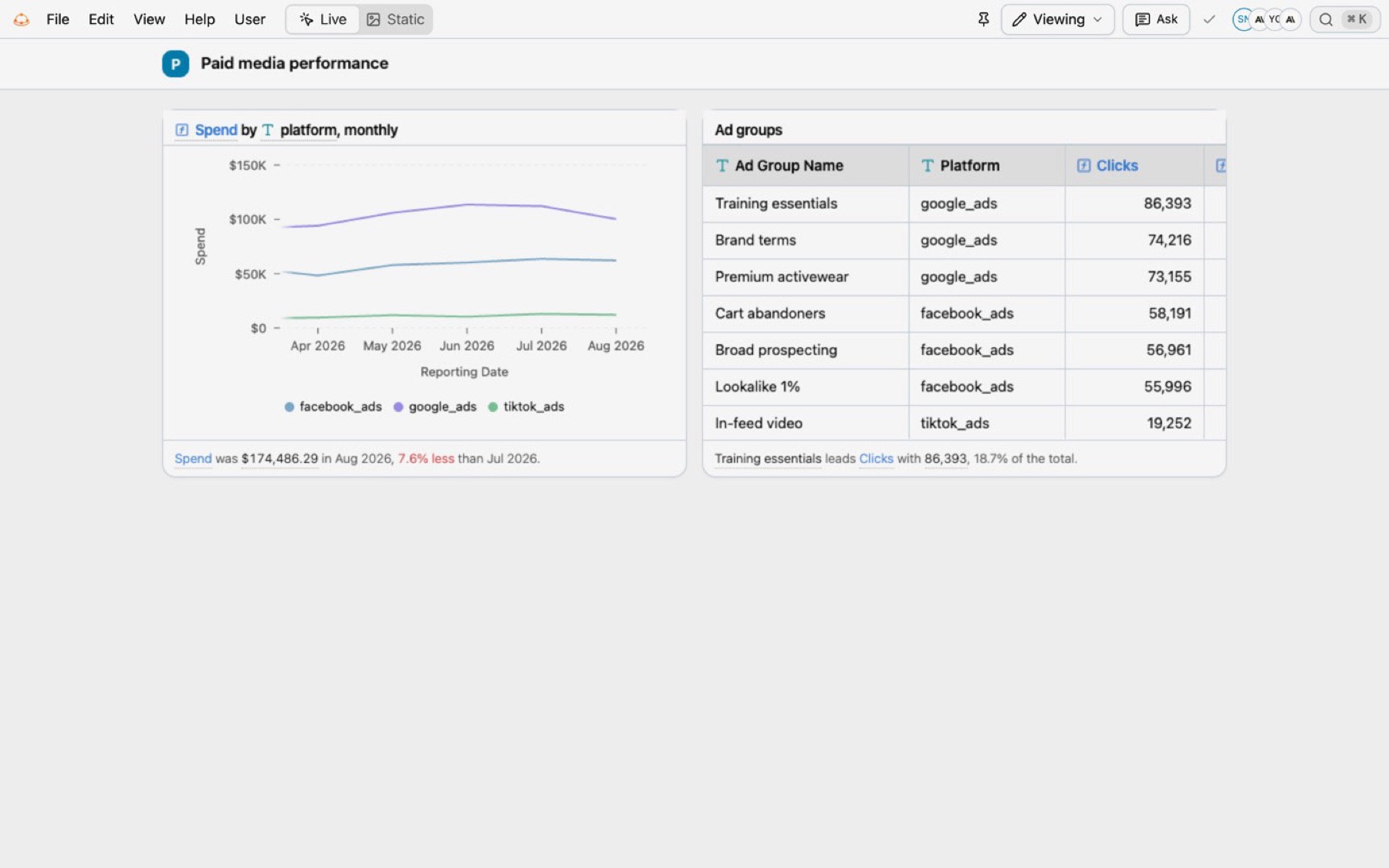
Sally opens the Paid media performance app. Spend by platform falls to almost nothing in September 2026. Her own avatar is in the header.
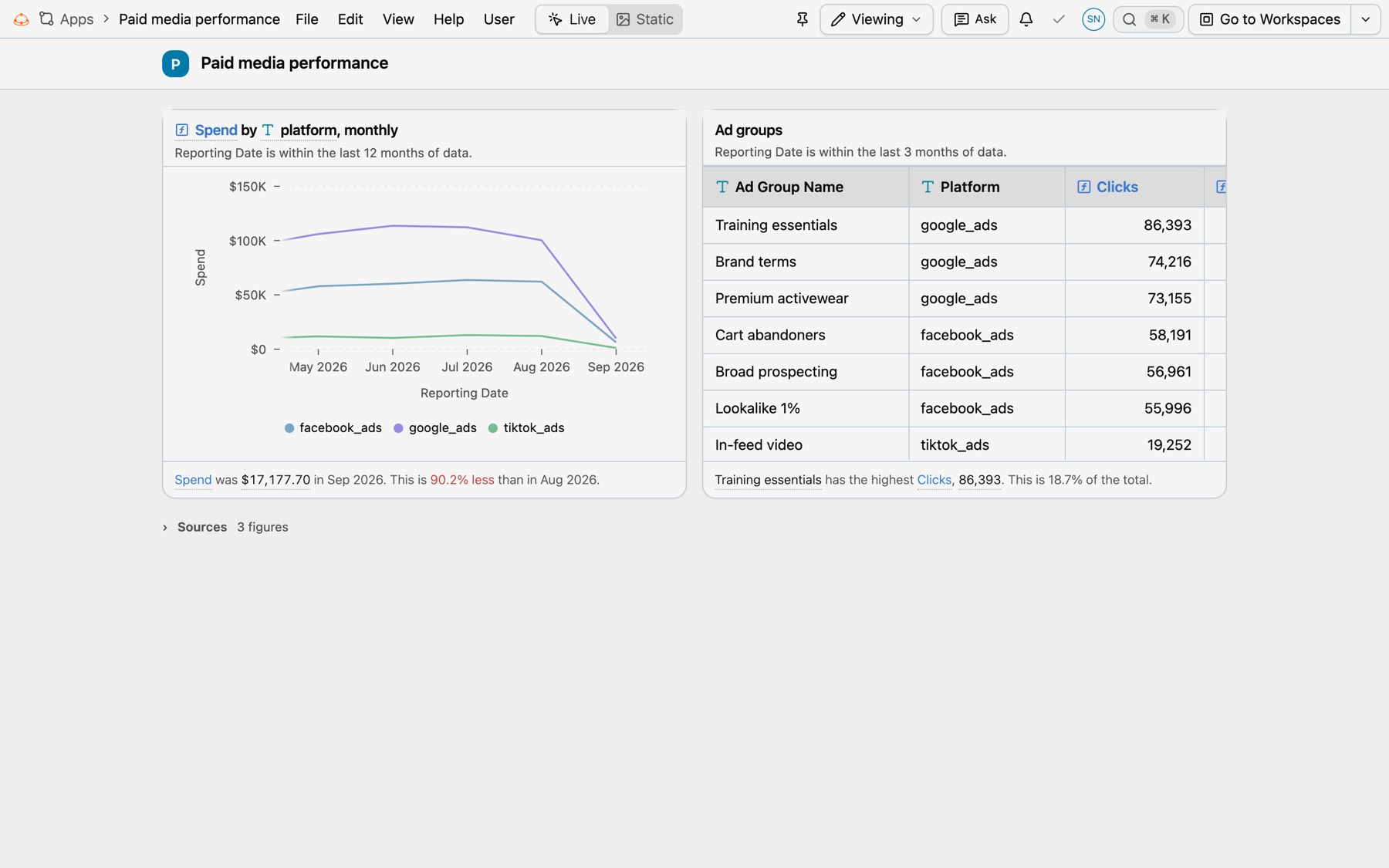
She goes to her agent and types “Why did spend crash in September on this chart?” She pastes nothing. Her agent reads her open tab, finds the chart and the query behind it, and reads the chart’s rows from her screen. Then it runs one check of its own in her brainstorm folder: how much of September is loaded.
The answer: spend did not drop. Only September 1 to 3 are loaded so far, and those three days ran $5,726 a day, against $5,629 a day in August.
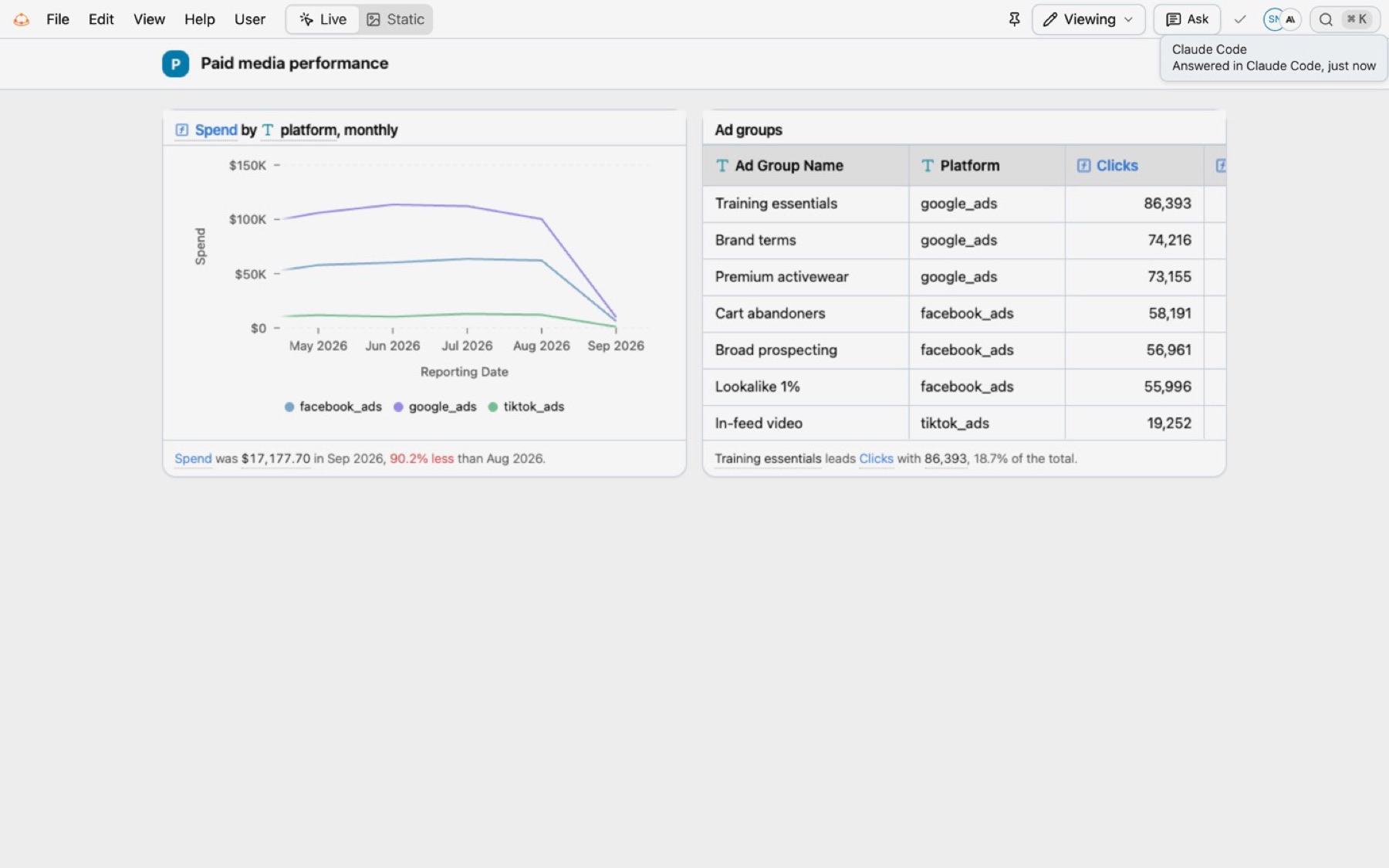
Yvonne joins
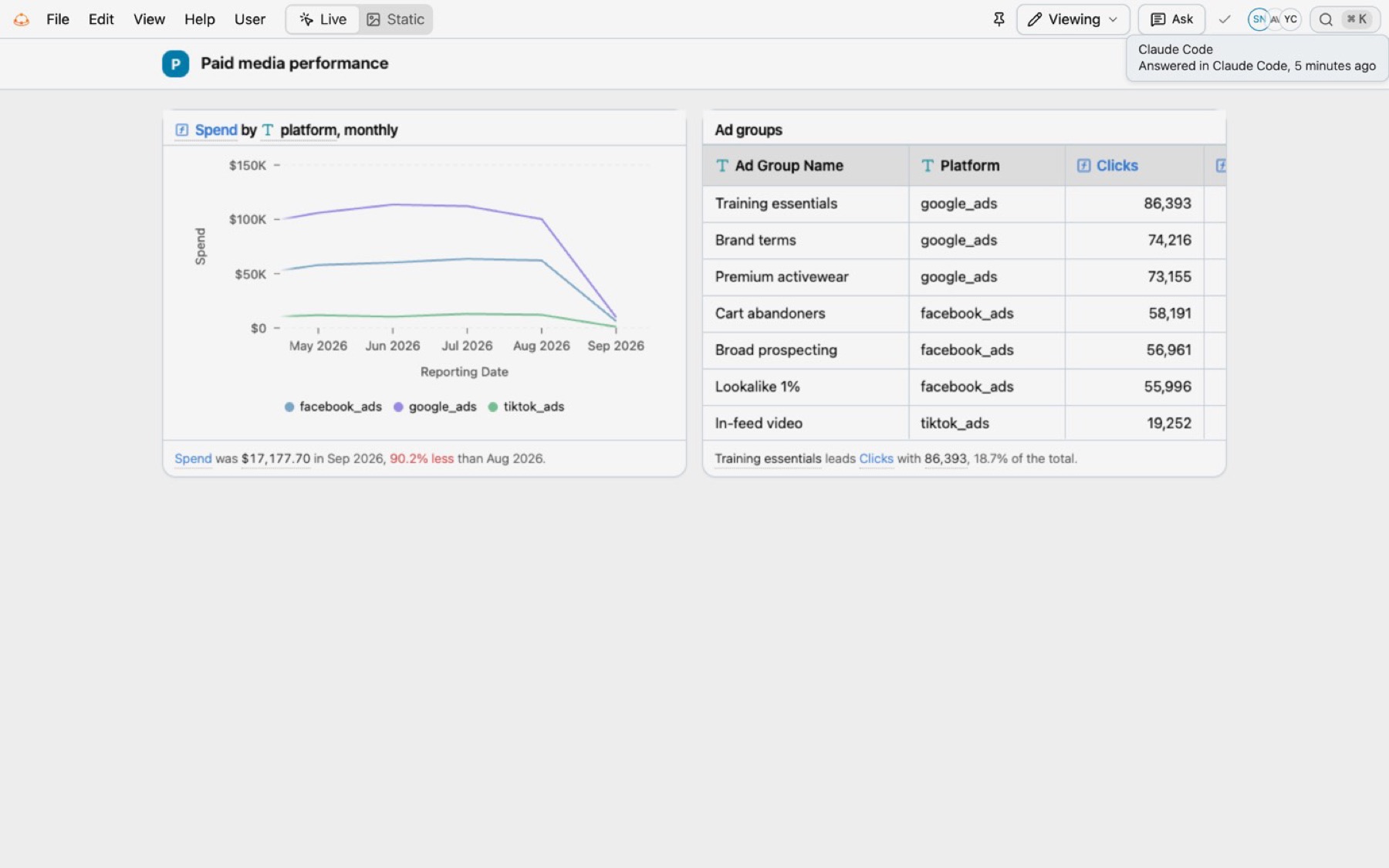
Sally sends Yvonne the app’s link. Yvonne’s avatar appears in Sally’s header. Sally’s agent has faded, because it has been idle for five minutes.
Yvonne selects Open query on the chart’s menu. The query opens in a new tab on the Ad Reporting workspace page. She asks Claude Code to end the trend at the last complete month in the data.
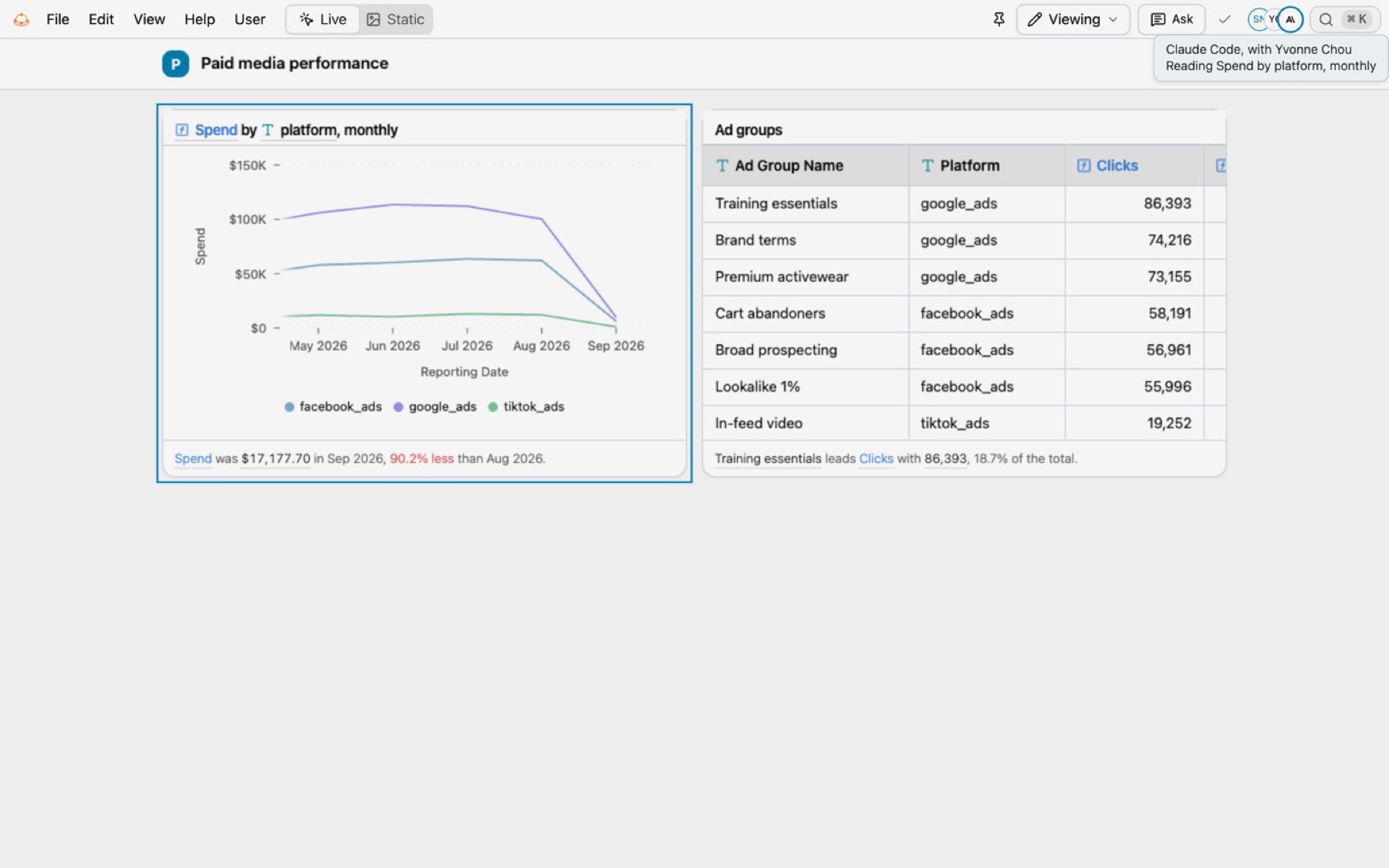
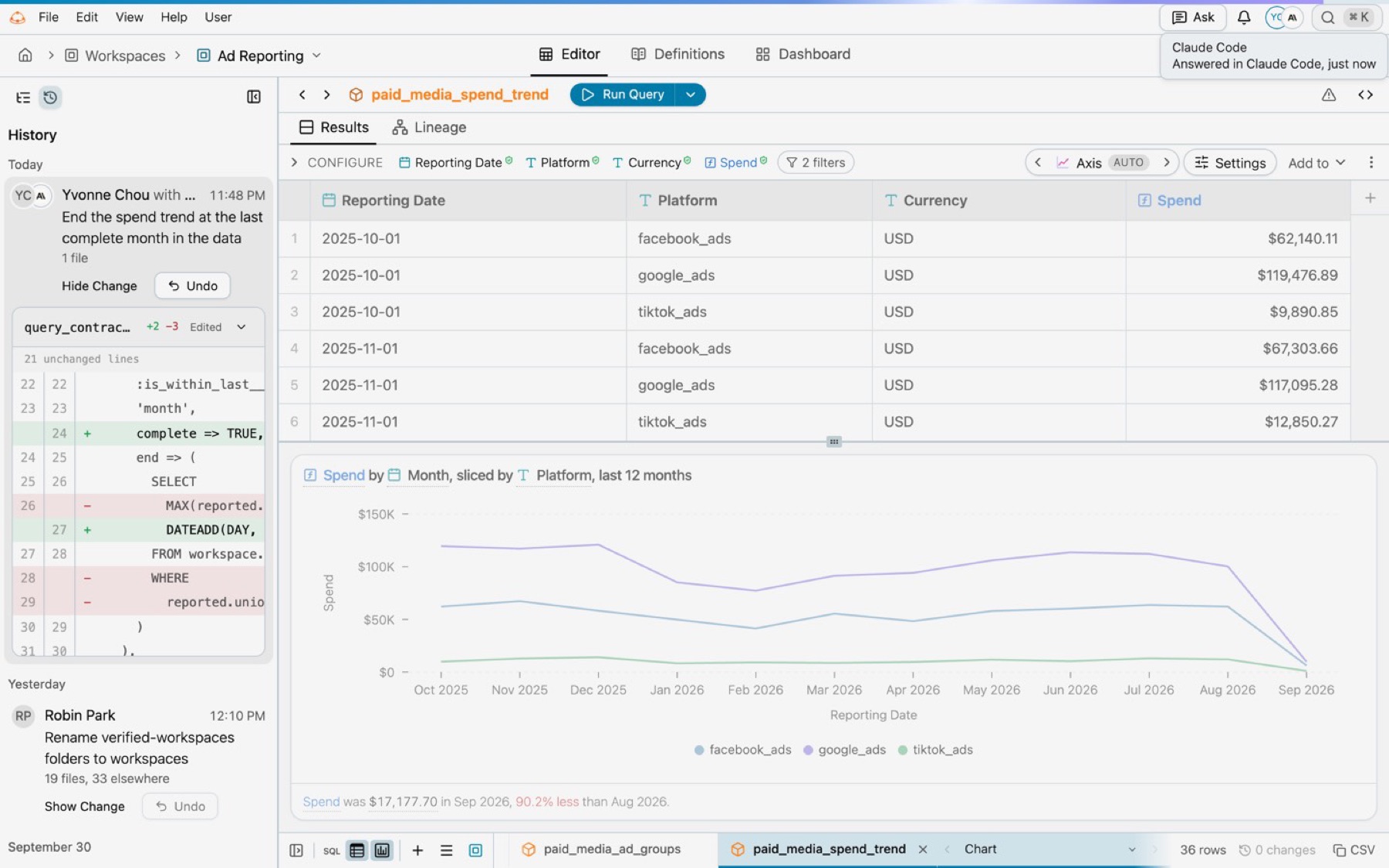
Her agent knows which query she means, because it is in her front tab. It copies the workspace into her brainstorm folder, makes the change there, and runs it: twelve whole months. While it reads the chart’s rows, Sally sees Yvonne’s agent on her page too, with the chart it reads outlined.
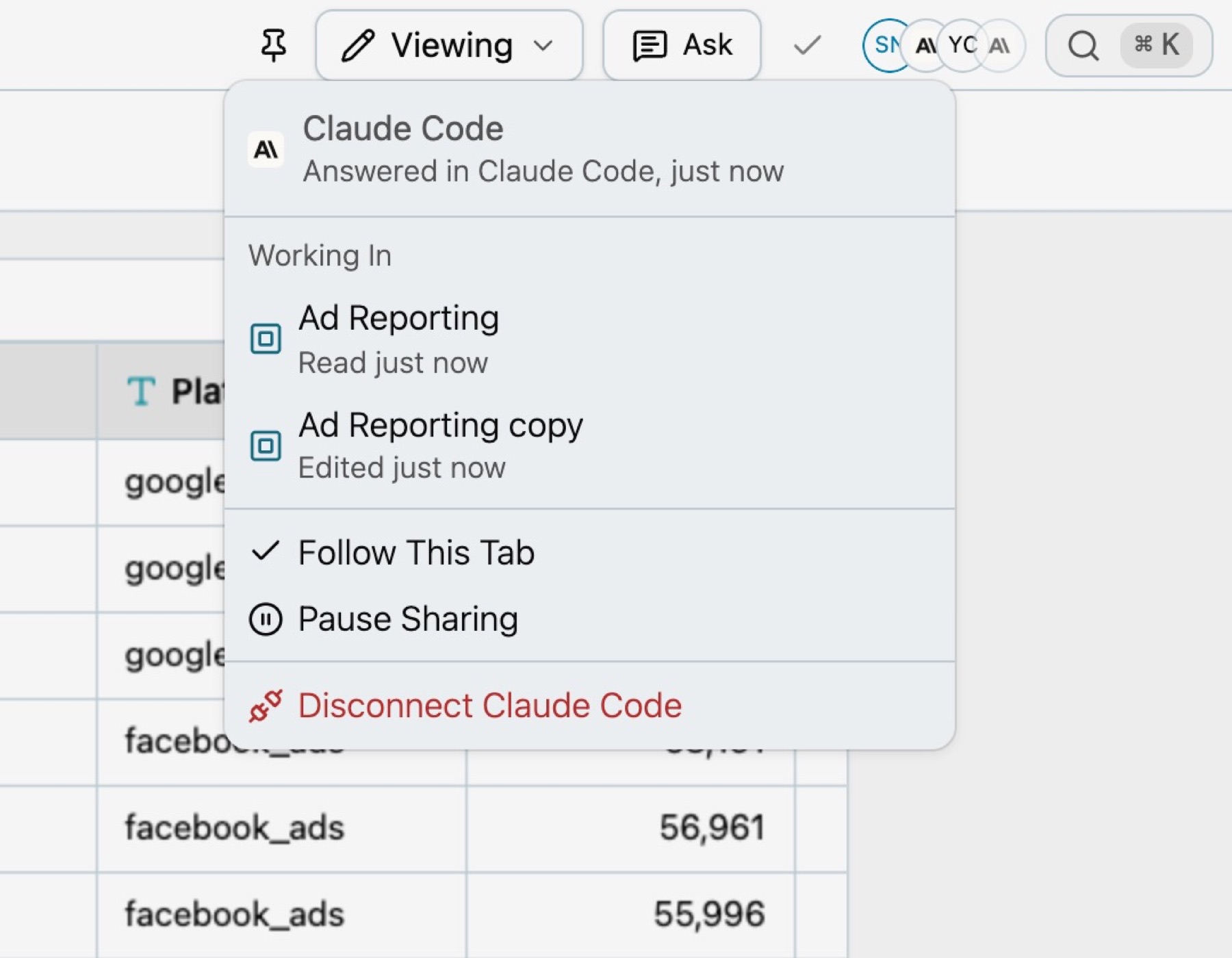
Yvonne selects her agent’s icon. Its menu lists every place it is working: the Ad Reporting workspace it read, and the copy it edited. Each place is a link.
The fix shows everywhere
Claude Code shows Yvonne the result and asks before it changes the shared query. She says yes. The agent saves the change with a one-line summary: “End the spend trend at the last complete month in the data.”
On Sally’s screen, the chart redraws with whole months only. Nobody reloads anything.
History and Undo
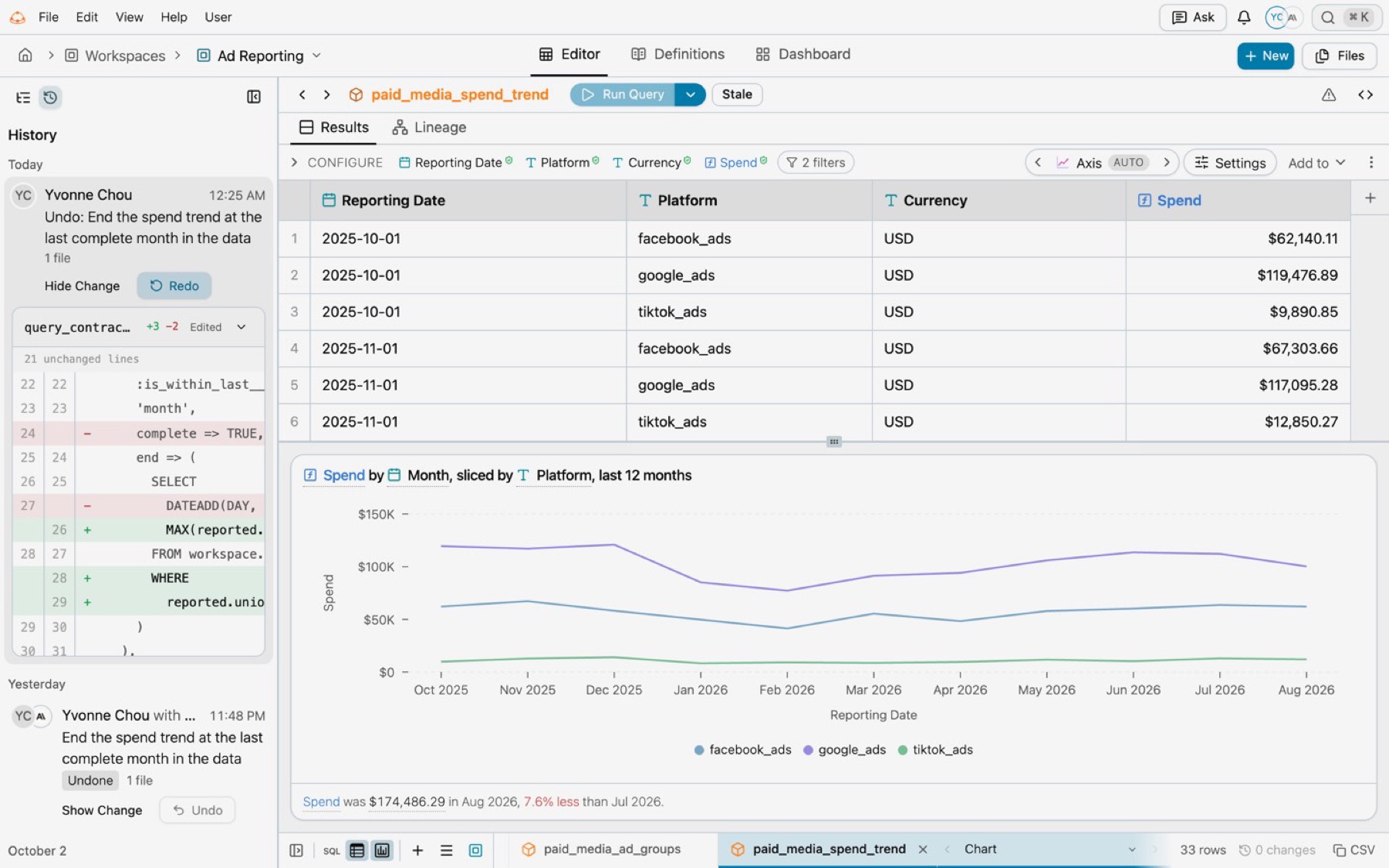
Yvonne opens History in the workspace’s sidebar. The change is on top, with her name, her agent, its summary and its diff.
She asks her agent to show her the app. It opens the app in the same tab. The browser’s Back returns her to History, with the change still open.
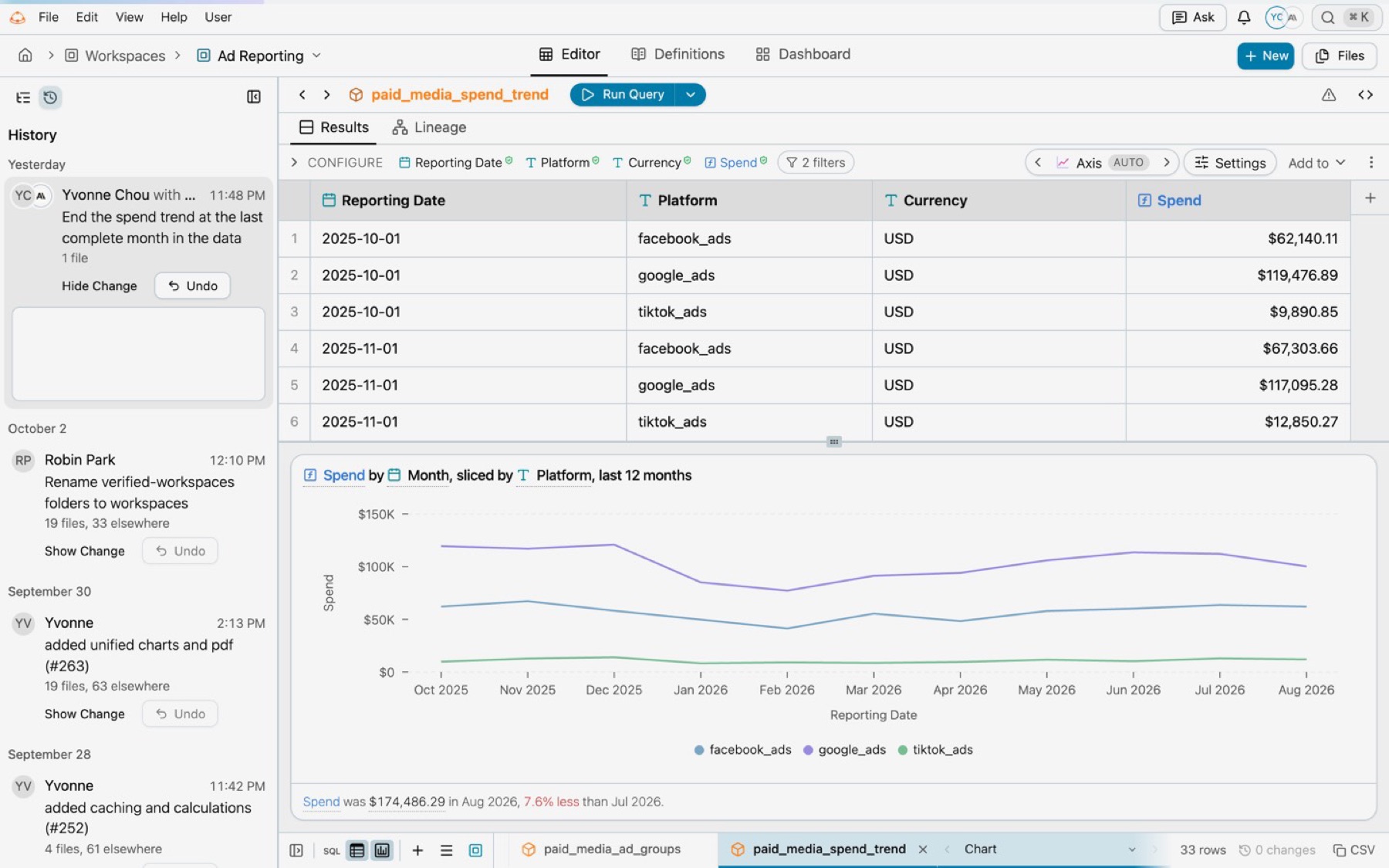
She selects Undo. Kater writes a new change, “Undo: End the spend trend at the last complete month in the data”, with Redo. The first change is marked Undone. Sally’s app shows September again, with no reload.
How it works
The URL is the state
Every Kater page keeps what is on screen in its URL: the object that is open, the tab, the panels, the mode, the chart and the filters. Reload the page or send the link, and the same view opens.
/workspace/connections/snowflake_prod_connection/workspaces/ad_reporting?file=query_contracts/spend_by_platform.sql&chart=spend_mix&panel=chart| Part of the URL | What it says |
|---|---|
/workspace/…/ad_reporting | The Ad Reporting workspace is open. |
file=query_contracts/spend_by_platform.sql | The spend_by_platform query is in front. |
chart=spend_mix | Its spend_mix chart shows. |
panel=chart | The chart panel is open on its Chart tab. |
Your agent reads the url the same way, and finds the files behind the page: the app, the queries its charts read, and the chart that shows.
Your open tabs
- Every Kater tab joins. Each tab you open in Kater gets a short name, such as t1 or t2. A reload keeps its name. A tab leaves when you close it.
- Kater keeps very little. For each tab: its address, whether it is in front, whether it has unsaved edits, and which answers its charts and tables show. It never keeps the rows.
- The front tab is “this”. Your front tab is the Kater tab you looked at last. A Kater window on a second screen stays in front while you type to your agent.
- Your agent asks when it is not sure. If two tabs could fit your words, it names both and asks which one you mean.
- It hears about changes. The first step of every conversation gives your agent your front tab. After that, it hears again only when the front tab changes.
What your agent can do
You never type these commands. Your agent runs them through the Kater MCP. Data teams can read them in the agent’s steps.
| Your agent can | What happens | Command |
|---|---|---|
| See where you are | It lists your open tabs, front first, with what each shows, how it is set up and the files behind it. | kater here |
| Open a page for you | It moves your tab to a Kater page, or opens a new tab. Back returns. | kater open |
| Read the rows on screen | It reads exactly the rows a chart or table shows, as you, and says when they were read. Nothing runs on the warehouse. | kater answer |
| Read any Kater link | It says what a link shows, such as one a colleague sent you. | kater place |
| See what changed | It lists the changes to a workspace, app or file. | kater history |
| Undo a change | It writes a new change that reverses one change. | kater undo |
- It opens only Kater pages. Nothing your agent reads can send your tab to another site.
- It never moves a tab with unsaved edits. It gives you the link in the chat instead.
- It tries a change in private first. Kater’s rules have your agent prove a change in your private brainstorm folder, show you the result, and ask before it changes anything else. Your agent can also ask through its own permission prompt.
Data teams
kater here and kater open also work in the Files terminal, where they read and move your own tabs.
Who is on the page
The header of every page shows who has it open, and which agents work there. You come first, then your agents, then other people in the order they came, each followed by their agents. Four show, and a count holds the rest. Hover over an avatar to see who it is and what they are doing.
| You see | It means |
|---|---|
| A person’s avatar | Someone else has this page open, such as “Yvonne Chou, Viewing this app” or “Editing” when they are changing it. |
| An agent’s icon after a person | An agent working with that person touched something this page shows. It shows here even when that person is somewhere else. |
| A ring around the icon | It is working here now, such as “Reading Spend by platform, monthly” or “Editing paid_media_spend_trend”. A chart it reads is outlined. |
| A still icon | It finished, such as “Read a query this app reads, 1 minute ago” or “Answered in Claude Code, just now”. |
| A faded icon | It has been idle for five minutes. It leaves after fifteen. |
| A pause mark on your agent | You paused sharing. It cannot see your pages until you resume. |
Select your own agent’s icon to open its menu:
- Working In. Every place it works now, with what it did there (Read, Ran, Edited or Opened) and when. Each one opens in a new tab.
- Pause Sharing. Stop sharing your open pages. Resume Sharing turns it back on.
- Disconnect. Kater refuses this agent’s calls, such as Disconnect Claude Code.
Every change has History and Undo
- One change, one line. Every change, by a person or an agent, is saved in Kater’s content store with a one-line summary. History names the person and the agent beside them, such as “Yvonne Chou with Claude Code”.
- Pages redraw on their own. When a change touches what a page shows, the page redraws for everyone who has it open, with no reload. An undo does the same.
- Anyone who can read it sees it. In a workspace, select History in the sidebar beside the field picker. In an app, select Edit › History. An app’s History also lists changes to the queries its page reads.
- Show Change. Opens the diff of each file the change touched.
- Undo. Writes a new change that reverses the change, with Redo. It never rewrites History. Kater refuses an undo, and says why, when a later change touched the same lines or the files moved.
- Undo from the chat. Your agent ends a change with how to undo it. Ask “undo that”, and it does. In chats that show Kater’s cards, the change also arrives as a card with Undo and Open in Kater.
Anyone who can edit every file a change touched can undo it.
You stay in control
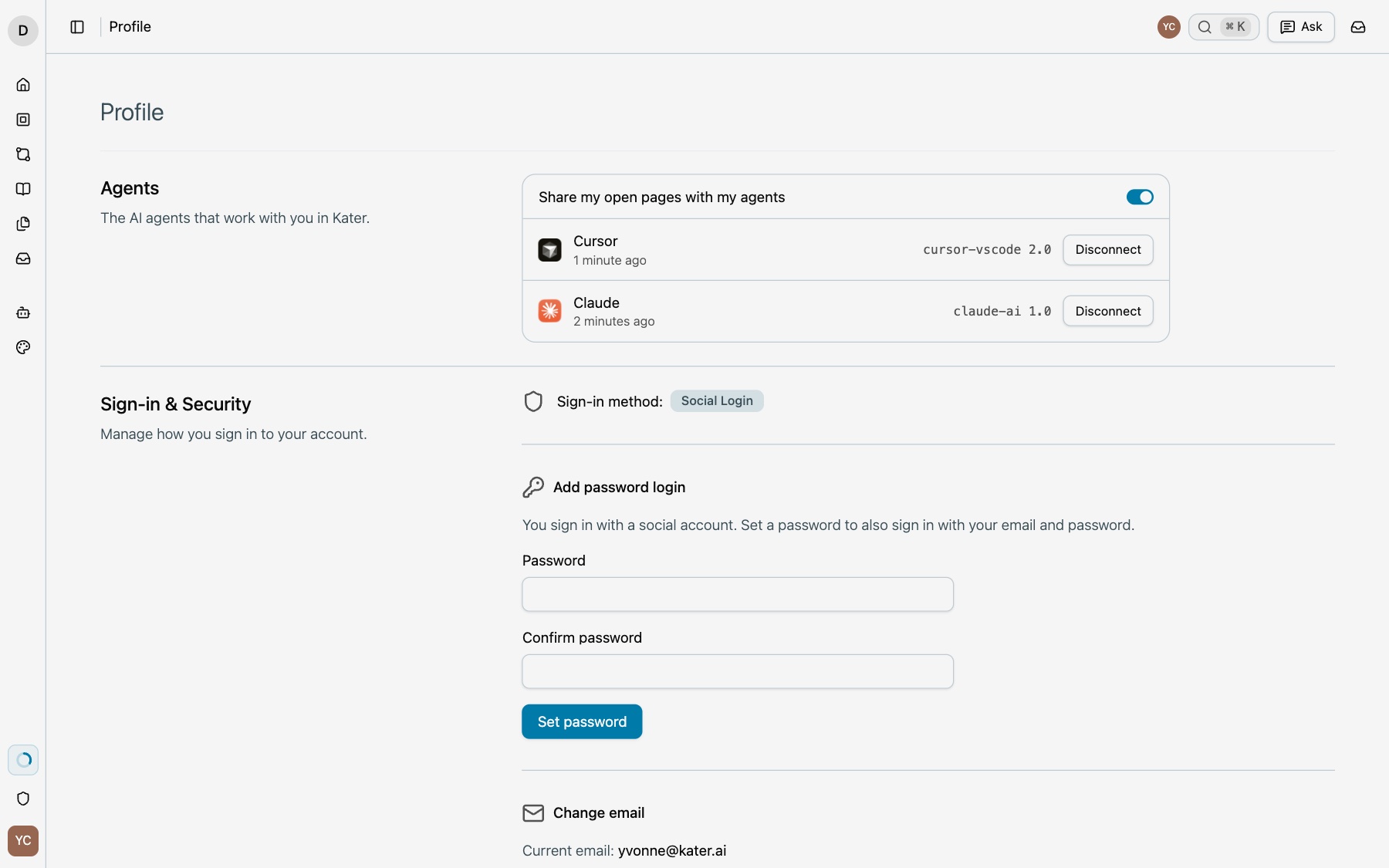
- Share my open pages with my agents. This switch in Profile › Agents is on unless you turn it off. While it is off, your agent cannot see or move your tabs, and it tells you that sharing is paused.
- Disconnect. In Profile › Agents, select Disconnect next to an agent. Kater refuses its calls until you select Reconnect.
- Your AI app. In Profile › AI app, select your AI provider and the app to Open prompts in. Open in shows that app first, and Run with AI opens it. See Change your AI app.
- Only your own tabs. Your agent sees your tabs and never anyone else’s.
- Others see only what they can read. Your agent shows on a page only to people who can read that page. Work in your brainstorm folder shows to you alone. Pausing hides your tabs, not your agent’s work on shared pages.
- Your access, always. Your agent reads rows as you, with your access. Every conversation is an audit thread that admins can review.
Connect your agent
Connect your agent to your organisation’s Kater MCP once, in Profile › AI app. It takes about a minute. Until an agent is connected, Ask covers its box with Connect your agent. Select Connect in Profile to connect one. See Connect your agent.
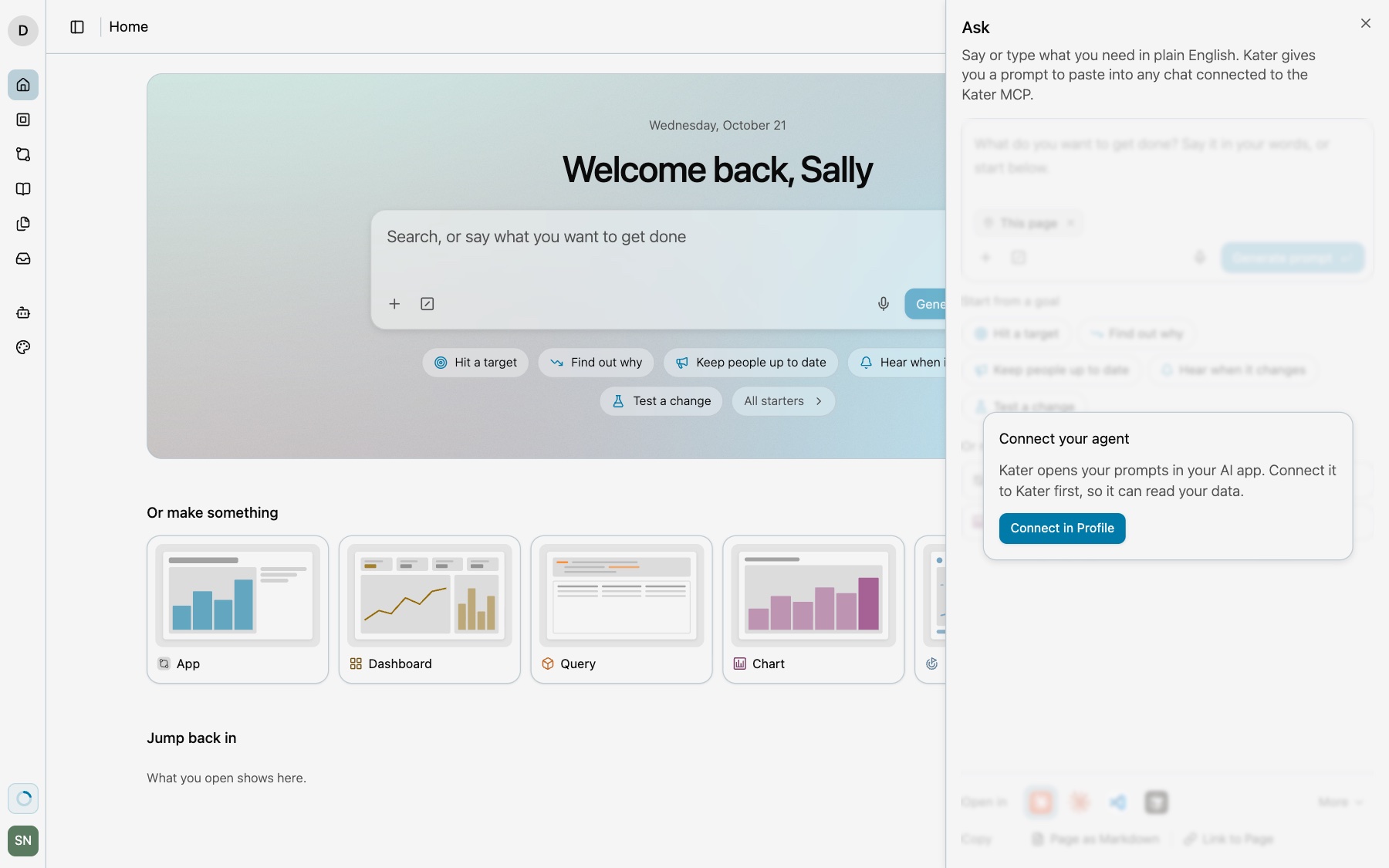
Sign in to Kater with the same account in your agent and in your browser. That is how Kater knows your tabs and your agent belong together. Data teams connect Claude Code, Codex or Cursor to the same Kater MCP that business teams use, so both get the same experience.
Start from Kater with Ask
You can also start from the page you are on.
-
Open Ask.
Select Ask in the header, or press ⌘I.
-
Say what you need.
Type or dictate it. The This page chip adds where you are.
-
Select Generate prompt.
Kater writes the prompt. It includes “Where I am in Kater” with the page’s address, so your agent knows where you started even while sharing is paused.
-
Select your agent under Open in.
Kater copies the prompt and opens the app with the prompt filled in. You send it. Open in shows only the apps your organisation allows. Your app from Profile › AI app comes first, and it is marked. Your provider’s apps and Cursor show as icons, and the other provider’s apps are under More. If you select an app before you type, Kater puts the cursor in the box and shows “Describe what you want in the box. Then select Claude again.”, with the app you selected.
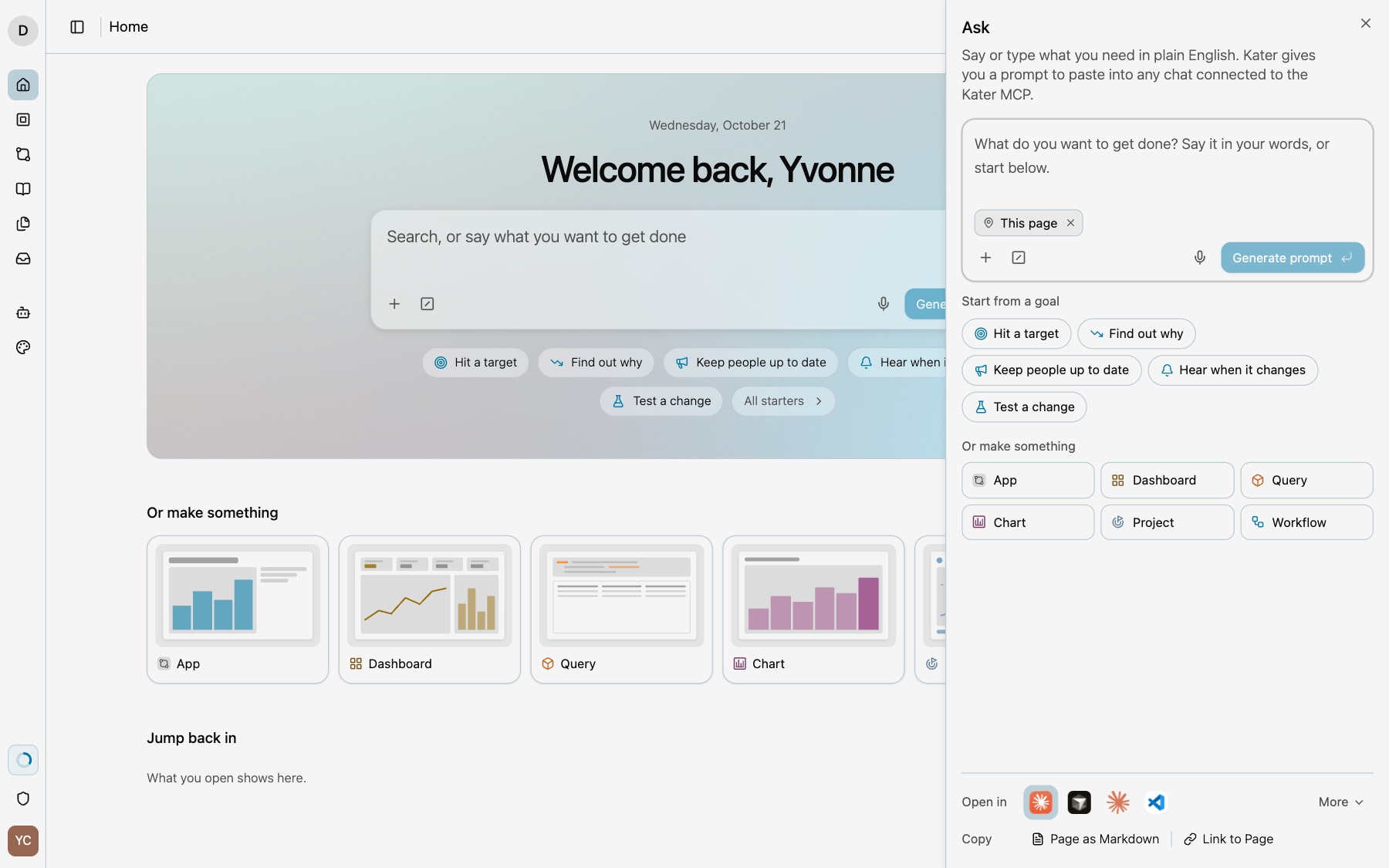
Add to › Ask about this on any chart opens Ask with that chart. For the Home field and the starters, see Home and search.
Things to ask
Each of these works because your agent knows which page you have open.
| Ask | What your agent does |
|---|---|
| “What am I looking at?” | Names your front tab, how it is set up, and the files behind it. |
| “Why did spend drop on the chart I’m looking at?” | Reads the chart’s rows from your screen, then runs only the checks it still needs. |
| “Open the query behind this chart.” | Opens the query on its workspace page, in your tab. |
| “Show me this for last quarter.” | Runs the same query for the new window, or sets the page’s filter for you. |
| “Summarize the table on my screen for my manager.” | Reads exactly the rows you see, and says when they were read. |
| “Fix the app I have open.” | Finds the app’s page and its queries, proves the fix in your brainstorm folder, then asks. |
| “What changed in this workspace this week, and who changed it?” | Reads the workspace’s History. |
| “Undo your last change.” | Writes a new change that reverses it. Your open pages redraw. |
If something looks wrong
- Your agent says it cannot see your pages. Open Kater in your browser, signed in with the same account as your agent. In Profile › Agents, make sure Share my open pages with my agents is on.
- Your agent says sharing is paused. Select Resume Sharing in your agent’s menu, or turn the switch on in Profile › Agents.
- Your agent gives you a link instead of opening the page. The tab it follows has unsaved edits. Save them, or select the link.
- Your agent asks which tab you mean. Two open tabs fit your words. Name the one you mean, or close the other.
- Your agent’s calls are refused. You disconnected it. Select Reconnect in Profile › Agents.
- “Your organisation does not allow Codex with Kater.” Your organisation does not allow that app’s AI provider. Ask an admin to allow it on Admin › MCP, or select an allowed app in Profile › AI app.
- Undo is refused. A later change touched the same lines, or the files moved. Kater says why under the change.
Next steps
- Connect your agent
- Starters
- Try changes safely: brainstorm and the Sandbox
- MCP server and tools, for every tool your agent gets