Guides
Connect your agent
Add your organisation's Kater MCP to Claude, ChatGPT, Claude Code, Codex or Cursor, so your agent answers from your data.
Connect the agent you already use to your organisation’s Kater MCP. It then answers from your company’s governed data, as you, with your access. It takes about a minute.
| If you mostly work in… | Connect |
|---|---|
| The Claude desktop app or claude.ai | Claude |
| ChatGPT | ChatGPT |
| A terminal, or VS Code with Claude Code | Claude Code |
| Codex | Codex |
| Cursor | Cursor |
Before you start
In a Claude organisation or a ChatGPT workspace, an admin adds Kater for everyone first, in that provider’s own admin settings. Then each person only connects and signs in. See Set up the Kater MCP. On a plan of your own, you add Kater yourself with the address that Kater copies for you.
Your organisation also decides which AI providers you can use. Ask shows only the apps that your organisation allows.
Open Connect your agent
Connect your agent is in Profile › AI app. Open your profile from the account menu, or go to /profile#ai. You connect each agent one time.
Until an agent is connected, Ask covers its box with Connect your agent. Select Connect in Profile to open the setting. The Get started card and Profile › Agents open it too.
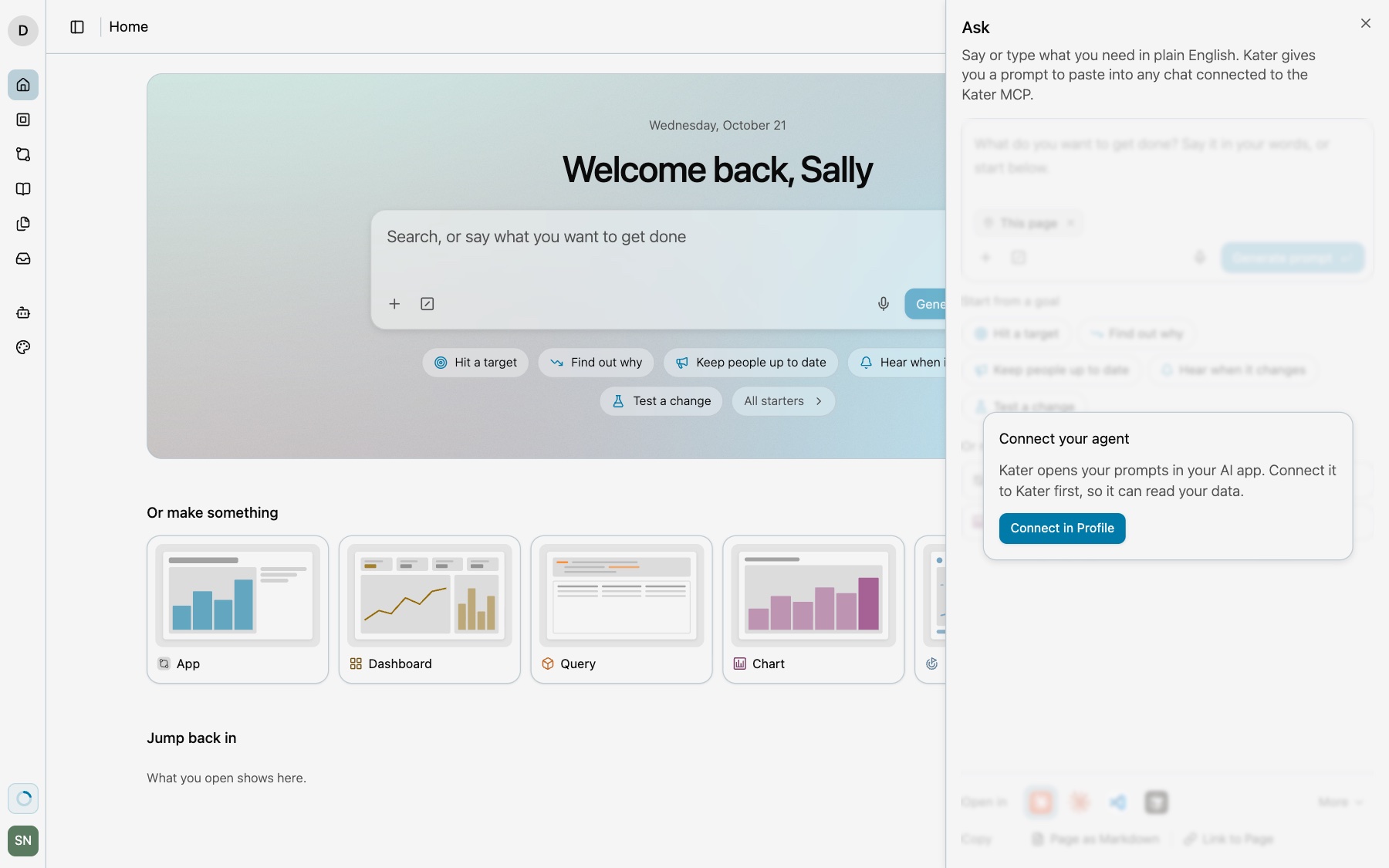
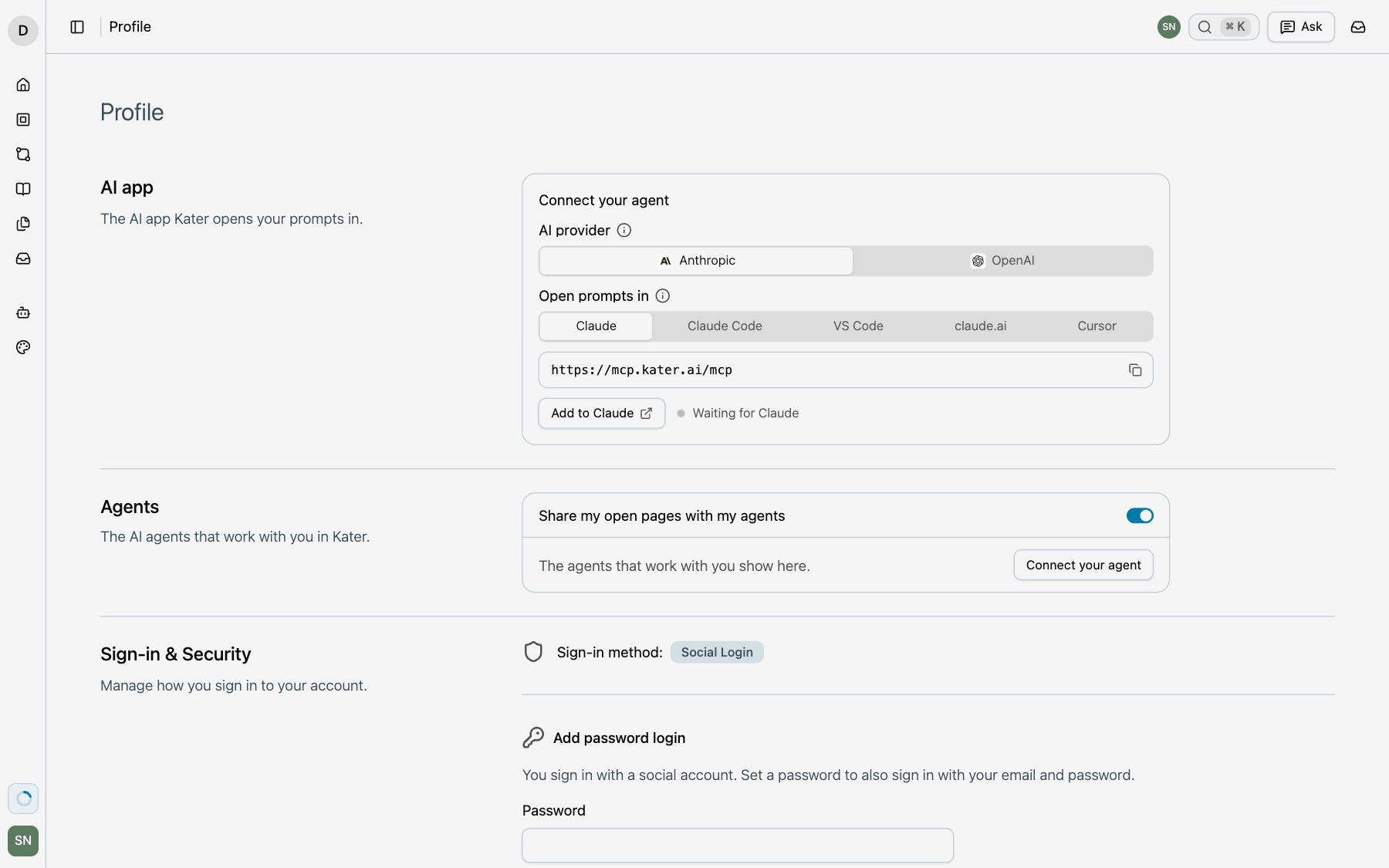
Connect your agent asks two things. Each selection saves at once, and you can change it later. See Change your AI app.
- AI provider. Anthropic or OpenAI. It shows only when your organisation allows more than one provider.
- Open prompts in. The app that Kater opens your prompts in, from your provider’s apps and the other apps your organisation allows, such as Cursor.
Kater then shows your organisation’s address, that app’s own button or command, and Waiting for the app, such as Waiting for Claude, until the app signs in.
Add it to your agent
-
Select Claude.
Under Open prompts in, select Claude or claude.ai. The desktop app and claude.ai share one account’s connectors, so you connect them one time.
-
Select Add to Claude.
Kater copies the address and opens Claude’s connectors, in Customize › Connectors.
-
Select Connect on Kater.
Select Connect on Kater and sign in to Kater with your own account. If Kater is not there, ask your admin to add it, or on a plan of your own add a custom connector and paste the address.
-
Select ChatGPT.
Under AI provider, select OpenAI when Kater asks. Under Open prompts in, select ChatGPT.
-
Select Add to ChatGPT.
Kater copies the address and opens ChatGPT’s Plugins.
-
Select Kater and connect.
Sign in to Kater with your own account when ChatGPT asks. If Kater is not there, ask your admin to add it, or on a plan of your own add a custom MCP server and paste the address. You do not need to turn on Developer mode first.
ChatGPT allows custom MCP servers on its Business, Enterprise and Edu plans, on the web only. On a Pro plan, ChatGPT uses only the tools that read.
-
Copy the command.
Under Open prompts in, select Claude Code or VS Code, and copy the command.
Terminal window claude mcp add --transport http kater <address> -
Run it in a terminal.
Then run
/mcpin Claude Code to sign in. Claude Code in VS Code reads the same setting.
When you sign in to Claude Code with a Claude Team or Enterprise account, Claude Code also gets your organisation’s Kater connector. Its tools are named mcp__claude_ai_Kater__<tool>. The tools of the Kater that you add with the command are named mcp__kater__<tool>.
-
Copy the command.
Under AI provider, select OpenAI when Kater asks. Under Open prompts in, select Codex and copy the command.
Terminal window codex mcp add kater --url <address> -
Run it in a terminal.
If Codex does not ask you to sign in, run
codex mcp login kater.
The Codex CLI, the Codex IDE extension and Codex in the ChatGPT desktop app share one settings file, ~/.codex/config.toml, so you add Kater one time for all three.
-
Select Cursor.
Under Open prompts in, select Cursor. It shows when your organisation allows Cursor.
-
Select Add to Cursor.
Cursor opens and adds the Kater MCP. Sign in when asked.
Check it worked
- The status in Profile › AI app goes from Waiting for your app to your app’s name and connected, such as Claude Code connected.
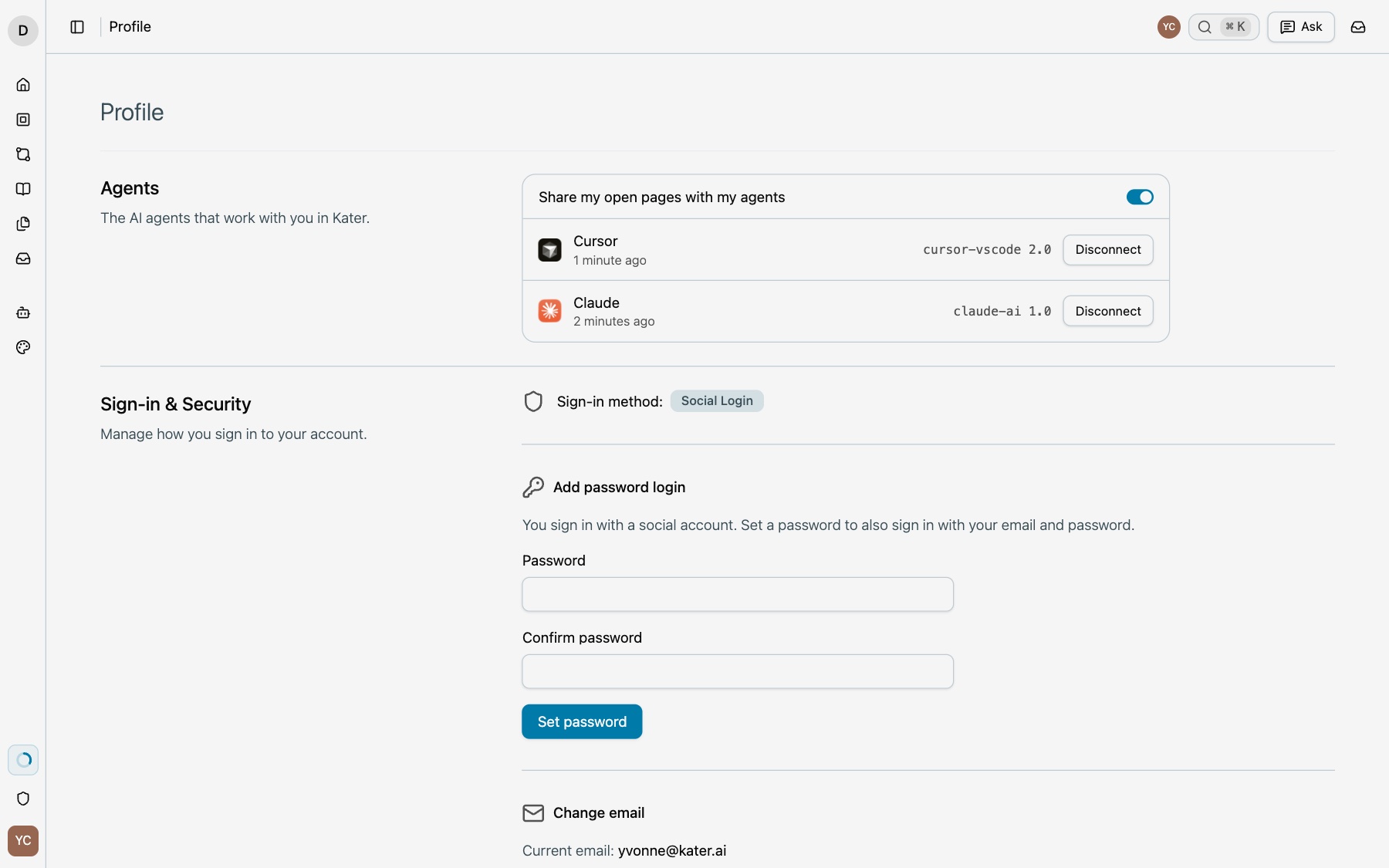
- Profile › Agents lists your agent as connected.
- Ask opens with its box, not with Connect your agent.
- Your agent answers “Give me a tour of my data” with figures from your data.
Change your AI app
Open Profile › AI app, or go to /profile#ai. Connect your agent has two fields:
- AI provider. The AI provider whose apps you use. Your organisation selects which providers you can use and a default, which you use until you select one. When your organisation allows only one provider, you cannot change it.
- Open prompts in. The app Kater opens your prompts in. Each app in the list says where it opens, such as Claude’s desktop app or Claude Code in a new terminal window. Open in shows this app first, and Run with AI opens it. Kater also copies the prompt, so you can paste it where you want.
Each change saves at once. When you select a different provider, Kater keeps your app when the new provider can use it, such as Cursor, and else selects the provider’s first app. When you select a different app, Kater shows that app’s address, its own button or command, and its status, so you can connect it too.
Send a prompt from Kater
From any page, open Ask and describe what you need. Then select an app under Open in. Kater writes the prompt with the page you are on, copies it, and opens the app with the prompt filled in. You send it. Kater says “Opening Claude. Kater also copied the prompt.”, with the app you selected, so you can paste the prompt if the app does not open. See Ask Kater MCP.
- Only the apps your organisation allows. Your app from Profile › AI app comes first, and it is marked.
- Icons and More. Your provider’s apps and Cursor show as icons. The other provider’s apps, and claude.ai, are under More.
- An empty box. When you select an app before you type, Kater puts the cursor in the box and shows “Describe what you want in the box. Then select Claude again.”, with the app you selected.
Use starters as commands
Every starter is a prompt your agent can run. Say its name, such as “Brief me”, or in Claude Code type /mcp__kater__brief-me. See Starters. An agent that runs tasks on a schedule, such as Claude Cowork, can also run a Kater workflow on its own. See Scheduled workflows.
Let your agent see your open pages
In Profile › Agents, make sure Share my open pages with my agents is on. Your agent can then tell which Kater pages you have open, open a page for you, and read the rows on your screen. Requests like “fix the app I have open” then work.
What your agent can do
| Your agent can | Your agent cannot |
|---|---|
| Read the files, models and guides you can read | Read anything you cannot |
| Run queries as you, on Kater’s server | See the warehouse credential |
| Write freely in your private brainstorm folder | Change anything outside it before you say yes |
| Make a change after you agree, with an undo for it | Make a change that leaves no History |
Every conversation is recorded as an audit thread that admins can review.
Disconnect an agent
In Profile › Agents, select Disconnect next to the agent. Kater then refuses its calls. Select Reconnect to allow it again.
If something looks wrong
- Ask shows Connect your agent. None of your agents is connected to Kater, or none has worked with you in the last 30 days. Select Connect in Profile and connect one. When your agent already has Kater, open it and start a chat. Ask opens its box as soon as Kater sees your agent.
- “This Kater has no MCP address set up yet.” Your organisation’s MCP is not set up. Ask your admin.
- Kater is not in your Claude connectors or ChatGPT plugins. Your admin has not added Kater for everyone yet. Ask them, and see Set up the Kater MCP. On a plan of your own, add a custom connector or a custom MCP server and paste the address.
- “Your organisation does not allow Codex with Kater.” Your organisation does not allow that app’s AI provider. Ask an admin to allow the provider on Admin › MCP, or select an allowed app in Profile › AI app.
- Codex does not ask you to sign in. Run
codex mcp login kater. - Claude Code does not list Kater’s tools. Run
/mcpin Claude Code and sign in. - “You disconnected Claude from Kater.” Reconnect it in Profile › Agents.
- The agent says a definition is missing. Ask your data team, or ask for a field to be shared from your workspace’s Promote sidebar.
Next steps
- Business teams
- Starters
- Scheduled workflows
- Build an app with your agent
- MCP server and tools, for the full tool list