Guides
Data teams
Start with what you want to do: answer a question, make a workspace, a dashboard or an app. Copy a prompt for your agent, or do it yourself.
Work in Kater, with your agent
We recommend the Kater web app with your agent connected through the Kater MCP. Kater is built and tuned for this way of working, and it needs no git and no editor. A local copy in VS Code is optional.
Before you start
-
Sign in.
Open app.kater.ai and sign in. Your admin connects the warehouse and syncs its schemas with
kater init. If you are the admin, start with Platform admin. -
Connect your agent.
Open Profile › AI app from the account menu. Ask also takes you there with Connect in Profile until an agent is connected. Select the app to Open prompts in and do its one step, such as Add to Claude. The status names your app as connected, such as Claude Code connected, when it works. See Connect your agent.
Choose your starting point
| If you want to… | Start here |
|---|---|
| Get the figures for one question now | Answer your first business question |
| Keep queries and charts that your team can run again | Create your first workspace |
| Show a workspace’s charts on one page, under one filter bar | Create your first dashboard |
| Give people a report, a deck or a page that reads several workspaces | Create your first app |
| Define a metric that every answer uses | Model the shared layer |
Each use case below starts with a prompt for your agent. Its tabs show the other ways to do the same thing: Point and click in Kater, Chat from where you are in Kater, and Code.
Answer your first business question
-
Open Explore.
Select Explore in the sidebar, then select a model in the Model picker.
-
Select a question.
Select the Use Cases tab, then Tell me more on a question. If it has no plan yet, select Plan this question.
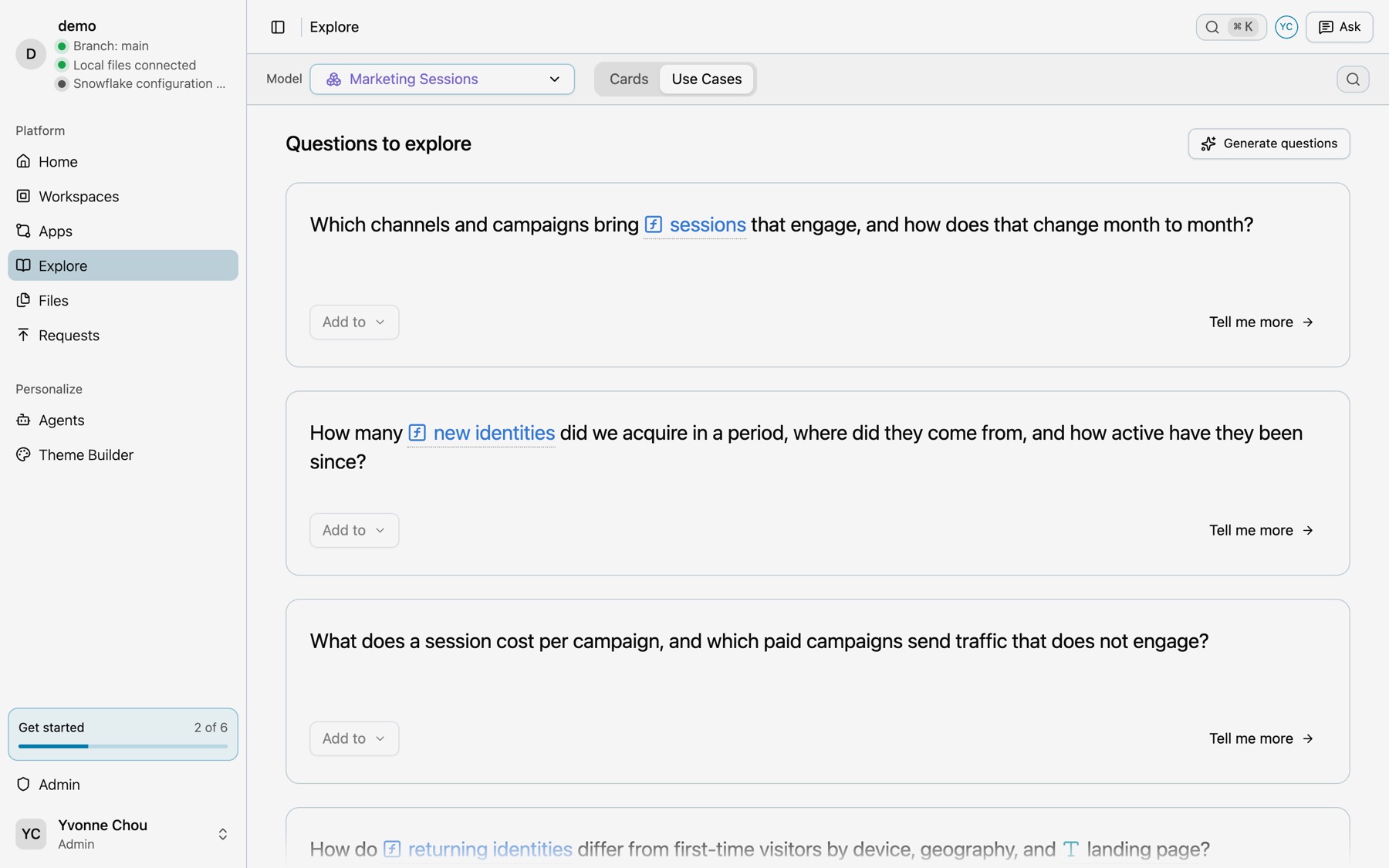
Use Cases lists the questions the model answers. -
Keep the answer.
Each step shows its query and What the results show. Select Add this query to keep it in a workspace.
See Explore.
On Home, type your question in Search, or say what you want to get done and select Generate prompt (⌘↵). Kater writes a prompt that says where you are, copies it, and opens it in the agent you select under Open in.
For a first look at your data, run the Tour my data starter: /tour Give me a tour of my data, starting with paid media.
Select New › Scratch file on Home to open the Sandbox. Write a statement over a shared model and select Run (⌘↵). Add to saves it as a query in a workspace.
-- Spend by platformSELECT ad_reporting.platform_name, EVAL(ad_reporting.sum__spend)FROM semantic.ad_reporting AS ad_reportingGROUP BY ad_reporting.platform_nameSee The Sandbox.
Create your first workspace
A workspace keeps queries, charts and a dashboard together over one shared model, so your team can open the work again and build on it.
-
Open the model.
Open the shared model in Shared models, such as Marketing Sessions in the Model Selector.
-
Select File › Start a workspace from this model.
The New workspace dialog opens on Manual, with the Source model filled in. Fill in Name, and Label if you want to, then select Create.
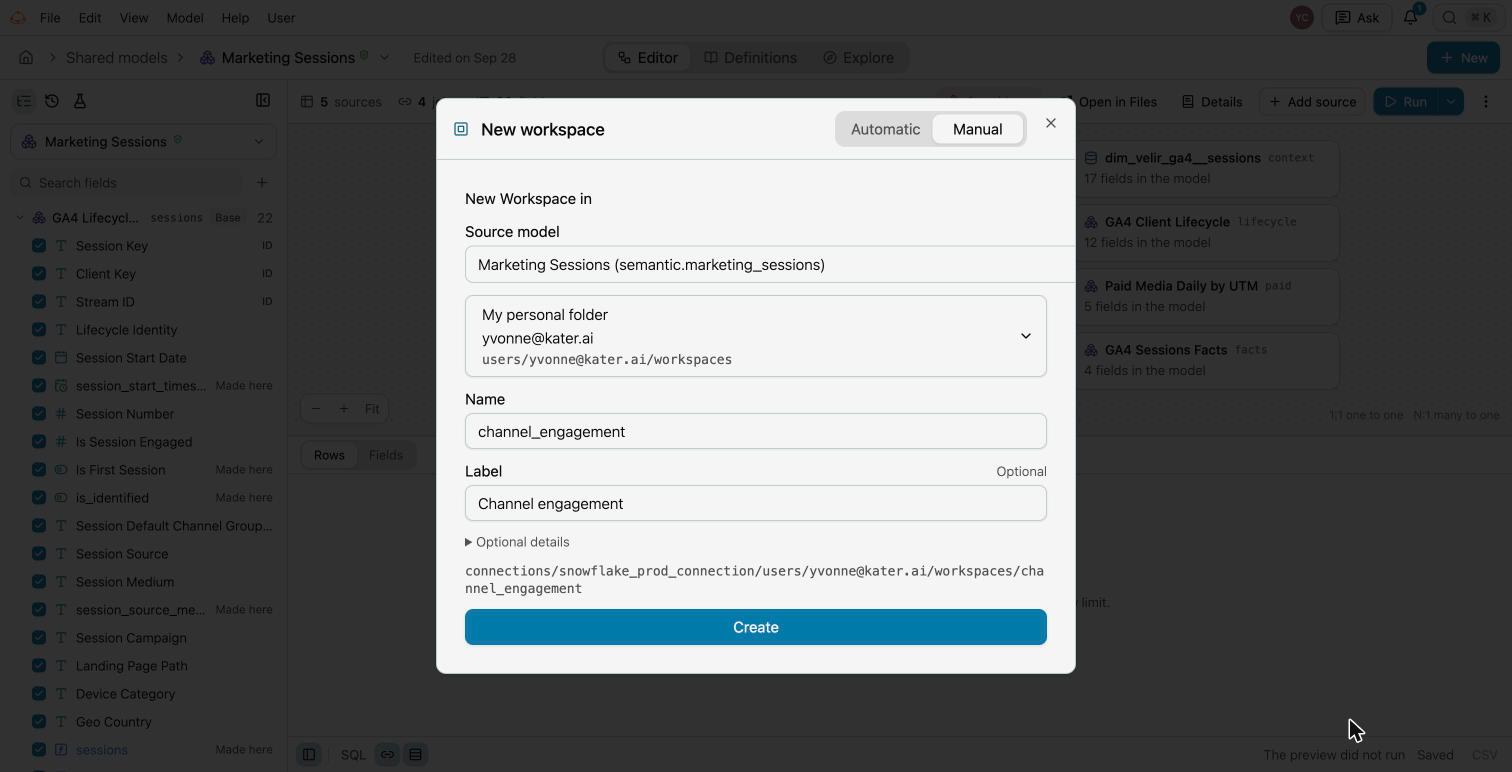
New workspace, Manual tab. -
Add a first query.
Tick fields in the field list. Each field becomes a column, and the query runs.
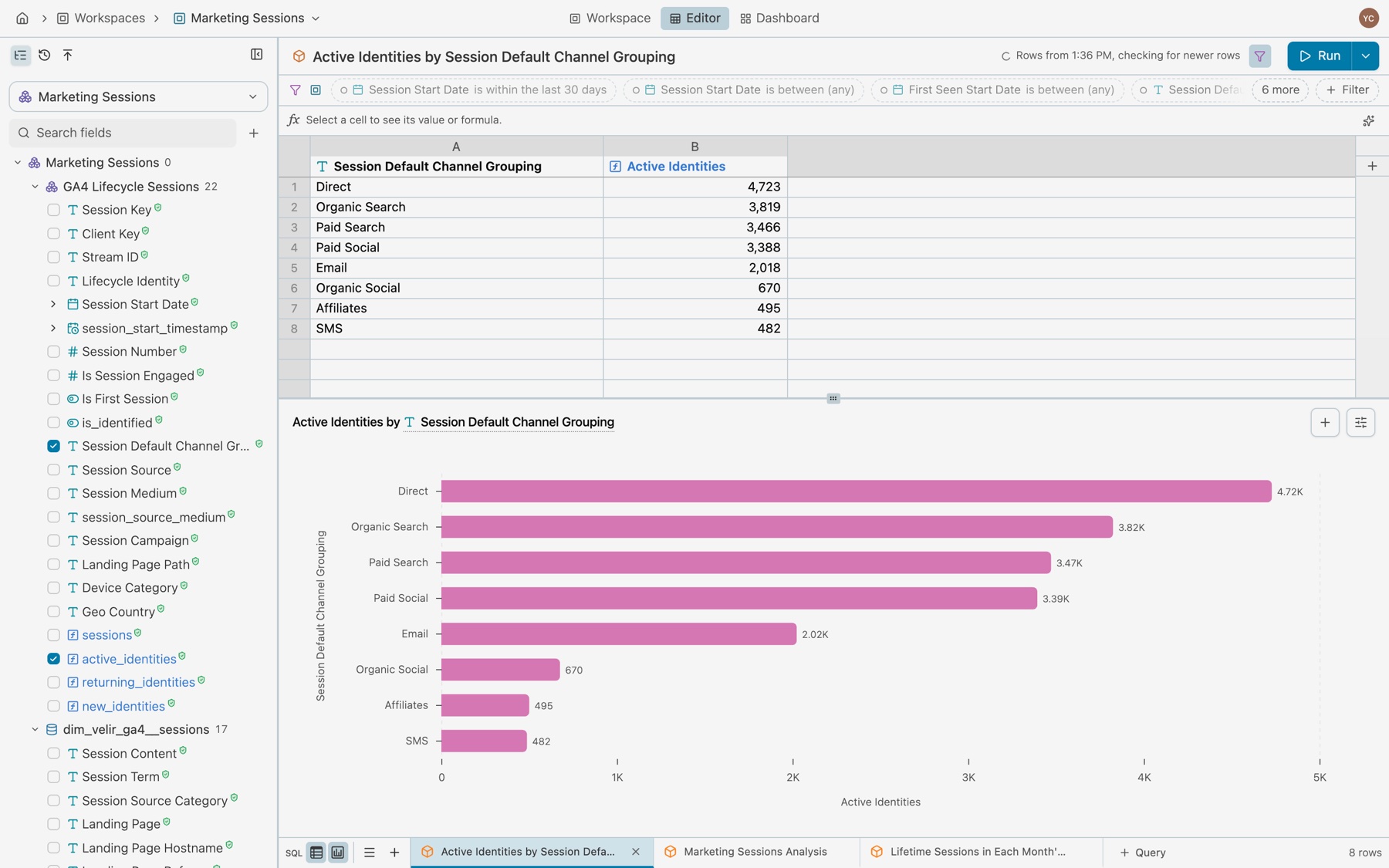
Each field you tick becomes a column.
See Workspaces and Queries.
With a model open in Shared models, select New › Workspace. On Prompt AI, describe what the workspace is for.
Or run the Start a workspace starter: /resolve-workspace Start a workspace for Q4 paid media.
Create the workspace from a terminal with the Kater CLI:
kater new workspace paid_media_review \ --connection snowflake_prod_connection \ --from-model semantic.ad_reportingA workspace is a folder. Its root, workspace.sql, reads one shared model, and each query is a .sql file in query_contracts/. In Kater, select SQL in the footer to write a query in Kater SQL.
See Workspaces and Queries under Model.
Create your first dashboard
Every workspace has a dashboard: its saved charts in sections, under one filter bar.
-
Open the dashboard.
Open the workspace and select Dashboard in the header, or press ⌥2.
-
Select Edit.
Switch the mode from View to Edit.
-
Add charts.
Select Saved charts and drag a chart onto the board. If the panel is empty, save a chart first with Add to in the query toolbar.
-
Set up the page.
Select Dashboard settings to select a template, tabs or one page, and how often the queries run again.
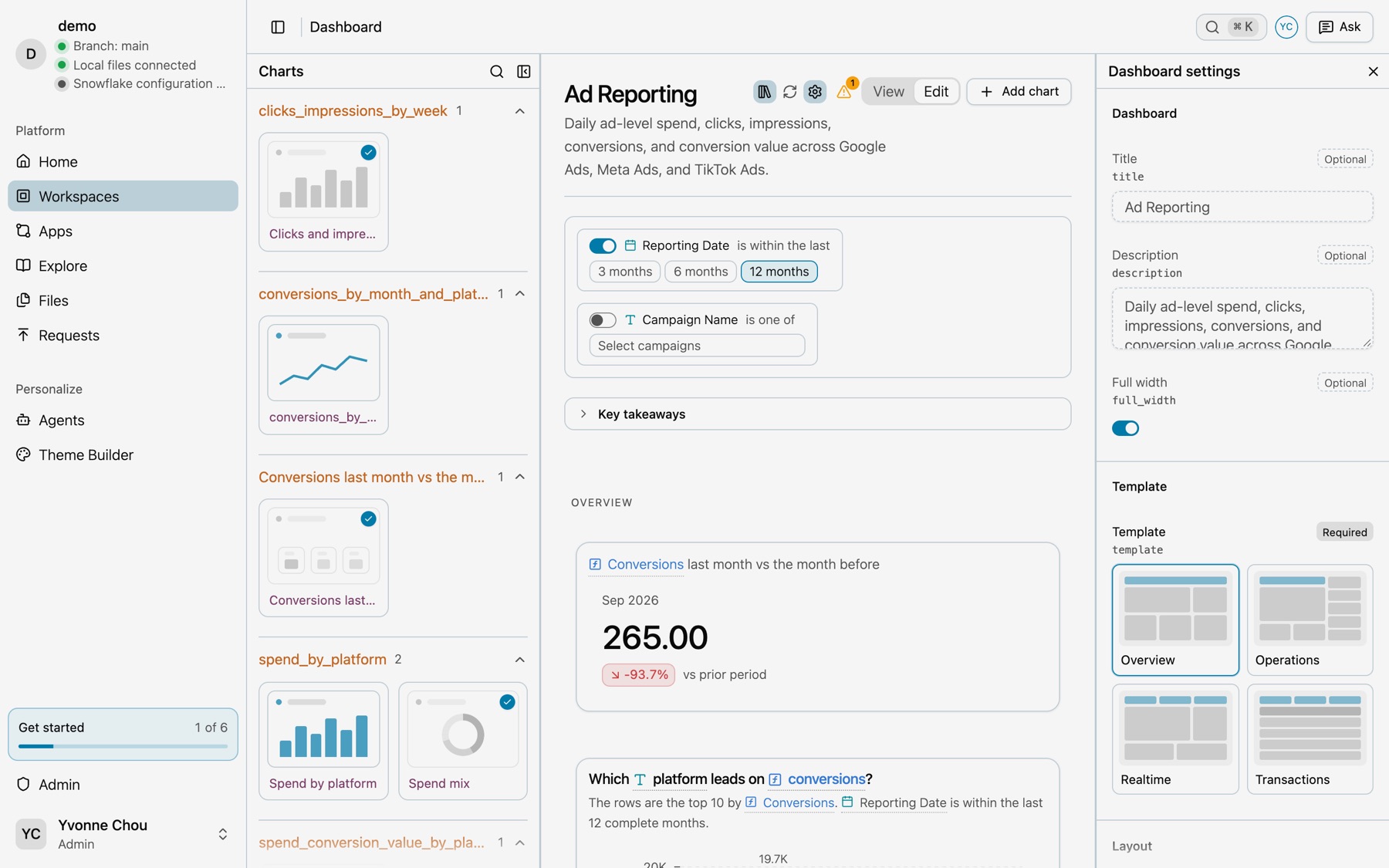
Edit mode, with Saved charts and Dashboard settings.
See Dashboards.
Open the workspace, select Ask in the top bar, and describe the dashboard you want. The prompt names the workspace you have open.
For a full example, copy the Ad Reporting dashboard prompt from the Library.
A dashboard is the workspace’s dashboard.yaml: its filters, sections and tiles. Each tile names a saved chart.
filters:- reporting_datesections: overview: label: Overview index: 0tiles:- chart: spend_mix section: overview x: 0 span: 4 height: 368See The dashboard file.
Create your first app
An app is a report, a deck or a page that reads the queries in your workspaces. Every reader sees live figures, and only what they can read.
-
Open New app.
Select New app on Apps, or New › App on Home, then select Manual.
-
Fill in the app.
Select a workspace, fill in App label, App name and Description, and select Create. Kater writes a starter page.
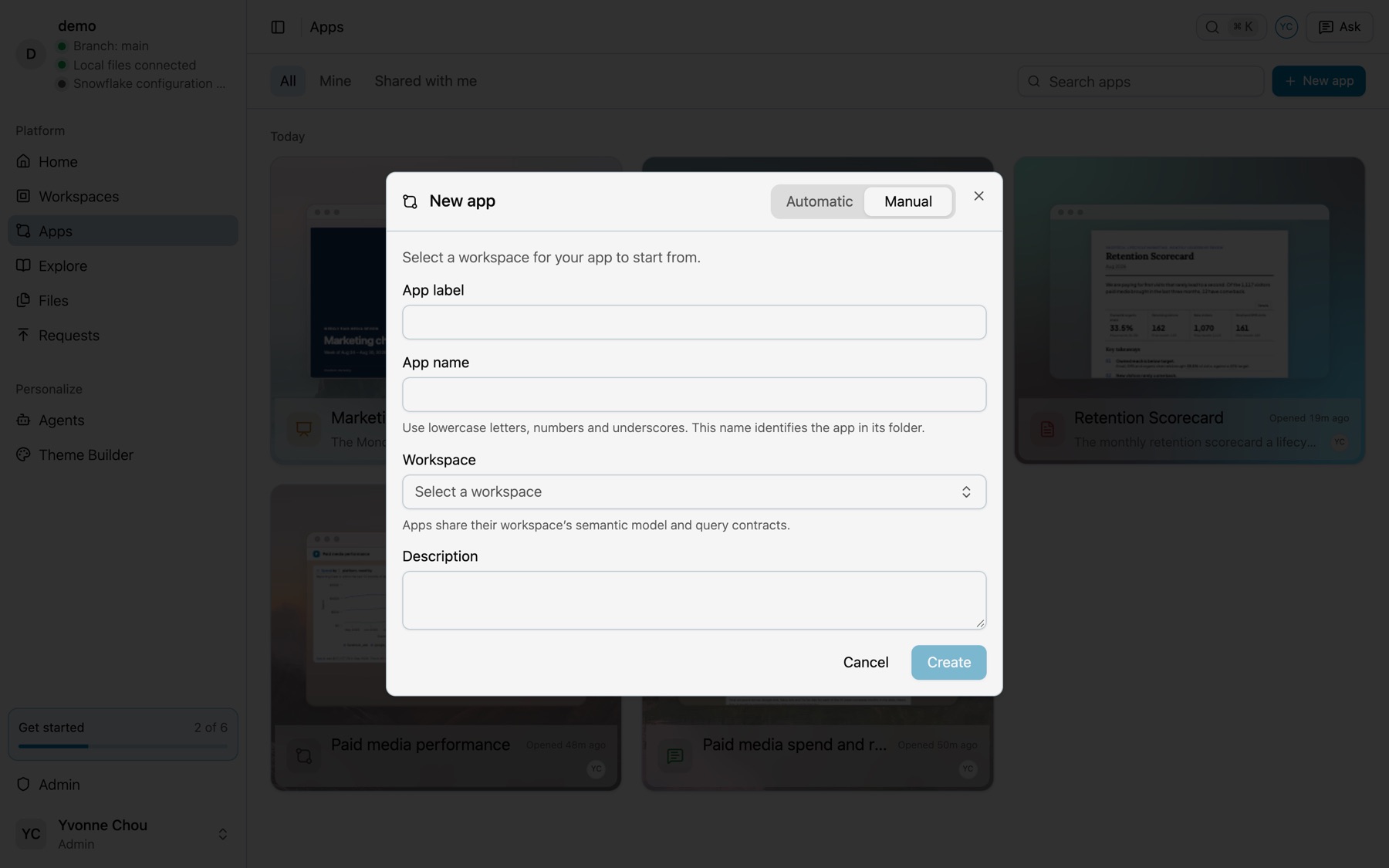
New app, Manual tab. -
Add content.
Open the app and select Editing from the menu at the right of the menu bar. In Add Content, hover a query or a chart and select Add to App.
Select New app on Apps. On Prompt AI, say what the app shows, who reads it and which period, then select Generate prompt and select your agent under Open in.
Your agent drafts the app in your brainstorm folder and shows it to you. After your yes, it moves the app to your apps. See Build an app with your agent.
An app is a folder with a page, index.html, and a manifest, kater.app.yaml. Each figure is a Kater tag that names a saved query.
<main> <kater-chart query="connections/snowflake_prod_connection/workspaces/ad_reporting/paid_media_spend_trend" kind="line" heading="Spend by platform, monthly"></kater-chart> <kater-table query="connections/snowflake_prod_connection/workspaces/ad_reporting/paid_media_ad_groups" heading="Ad groups"></kater-table></main>See What an app is.
Model the shared layer
The shared layer holds the datasets and semantic models that every answer reads. Each task below starts with a starter prompt.
| If you want to… | Copy this prompt | Learn more |
|---|---|---|
| Model a table that the sync wrote | /model-table Help me model a new table: orders. | Semantic models |
| Define a metric | /build-query-contract Define a metric: cost per conversion by platform. | Queries |
| Lock in an answer with a test | /test-model Help me test ad_reporting. | Tests |
| Tell agents what your data holds | Describe this connection in connection_context.md: what the data holds and the caveats that matter. | Formats, descriptions and AI context |
| Check a number against its source | /check Check this number against its source: September spend on Ad Reporting. | Starters |
When people define the same field in several workspaces, or ask for a field to be shared, Kater drafts the change for you to approve. See Promotion requests.
Work in a local copy
Optional. A local copy is for people who prefer files, git and their own editor. It holds only what you can read, and kater git push publishes what you change. Everything else on this page works without it.
kater git clone ~/katerkater vscode installSee Local copy and VS Code.
Next steps
- Key concepts for the words, such as connection, workspace and semantic model.
- Starters for every ready-made prompt.
- The Library for apps, dashboards and workflows you can copy.
- Scheduled jobs to run syncs and tests on a schedule.