Guides
Organisation setup (Platform admins)
Install the CLI, set up the organisation, connect your warehouse, invite your team, set access and write back to GitHub.
One person, two hats
In smaller teams, one person may own both platform admin and data team work. The guides are organised by responsibility, not job title.
Set up your organisation
The quickest way is one prompt to your agent, which does these steps with you in one chat: see Set up Kater. This page shows each step in detail. Follow its sections in order. Each one does one thing and ends with a result you can see.
- Install the CLI and sign in. Get the
katercommand and sign in to your organisation. - Set up the organisation. Run
kater initto make your content store and describe your company. - Connect your warehouse. Make a connection, then sync its schemas.
- Invite your team. Add people with the right role, one by one or from a CSV file.
- Set who can read what. Restrict folders and grant them to people and groups.
- Write back to GitHub. Optional. Publish the shared layer to your own repository.
- Tell business teams to connect their agents. Each person connects their own agent from Ask.
To learn the words first, such as organisation, connection, role and access level, read Key concepts. What each role may do is in Users and roles.
Install the CLI and sign in
Every admin task on this page starts from the Kater CLI. Install it and sign in one time.
-
Install the CLI.
On macOS or Linux, the install script installs the CLI and adds it to your PATH. Open a new terminal after it. To install it with pipx, see Install and sign in.
Terminal window curl -fsSL https://landing.kater.ai/install.sh | sh -
Sign in.
kater loginopens your browser to sign in, and saves the credential only in your OS keychain.Terminal window kater login -
Check who you are signed in as.
kater auth statusnever shows a token. Itsstatusisauthenticatedwhen Kater accepts your sign-in.Terminal window kater auth status
For automation, give your profile’s target an api_url and a token that reads the environment, such as token: "{{ env_var('KATER_CI_TOKEN') }}", instead of signing in. The token is never saved, and it expires, so it suits a short job that a person starts. See Install and sign in.
Check it worked
kater --versionprints the version.kater auth statusreportsauthenticated.kater debugchecks the profile, the project, the sign-in and each warehouse, and ends withAll checks passed!. Run it in a local copy, which holdskater_project.yml. Untilkater initorkater git clonemakes one, its Project check fails.
Set up the organisation
kater init walks you through the setup of your organisation. It saves its progress on the server, so you can stop at any time and run it again to continue. Your agent does the same steps from kater init guide, with one command for each step.
-
Start the onboarding.
Make a folder for your local work, then start it there.
Terminal window mkdir kater-setupcd kater-setupkater init -
Set up the project.
The first step makes your content store and its starting folders. Kater keeps your content there, in a git repository that nobody clones directly.
-
Connect the warehouse, sync it and run a first query.
Steps 2 to 4 test and store the Snowflake connection, sync the schemas you select, and read 5 rows from one synced Kater dataset. Connect your warehouse shows the connection and the sync in detail.
-
Connect the Kater MCP.
Step 5 adds the hosted Kater MCP to your agent, for every folder:
kater init mcp --harness clauderunsclaude mcp addfor Claude Code. Start your agent again and sign in to Kater. Kater completes the step when it sees your agent list the Kater MCP’s tools. Kater works through your agent, so this step is required. -
Describe your company.
Step 6 asks for your company’s name, what the business does, who uses its data, and the questions or metrics that matter most. It writes them to the company
about.md, which every agent reads before every answer. You can change it later in AI Tools › About you › About the company. -
Follow the other steps, or come back to them.
The onboarding goes on with the steps in the table below. The other guides do each one too, so you can skip a step here and do it there.
| # | Step | What it does | Required | Its guide |
|---|---|---|---|---|
| 1 | Set up the project | Makes your content store and its starting folders | Yes | This page |
| 2 | Connect your warehouse | Tests and stores the Snowflake connection | Yes | New connection |
| 3 | Sync schemas | Writes the DB datasets and the Kater datasets | Yes | Schema sync |
| 4 | Run a first query | Reads 5 rows from one synced Kater dataset | Yes | |
| 5 | Connect the Kater MCP | Adds the hosted Kater MCP to your agent, for every folder. Kater completes it when it sees your agent list its tools. | Yes | Connect your agent |
| 6 | Describe your company | Writes the company about.md that every agent reads | No | This page |
| 7 | Invite your team | Invites people, a CSV file, SSO or SCIM | No | Invite your team |
| 8 | Make a local copy here | Runs kater git clone | No | Data teams |
| 9 | Install the editor extension | Runs kater vscode install | No | Data teams |
| 10 | Write back to GitHub | Runs kater admin write-back connect | No | Write back to GitHub |
| 11 | Give your agent the local copy | Writes the local Kater MCP into the local copy, which reads the copy’s files, and names the first skill to follow. It starts no agent. | No | Data teams |
Only admins can run the onboarding, and one admin at a time. --takeover continues a run that another admin started. --reset clears the progress only, and removes nothing that you set up. The Get started card in the portal’s sidebar shows the same steps under Organization setup (Admin), first until the setup is complete. A connection that you make in Settings › Connections, or an invitation that you send from Manage users, also marks its step.
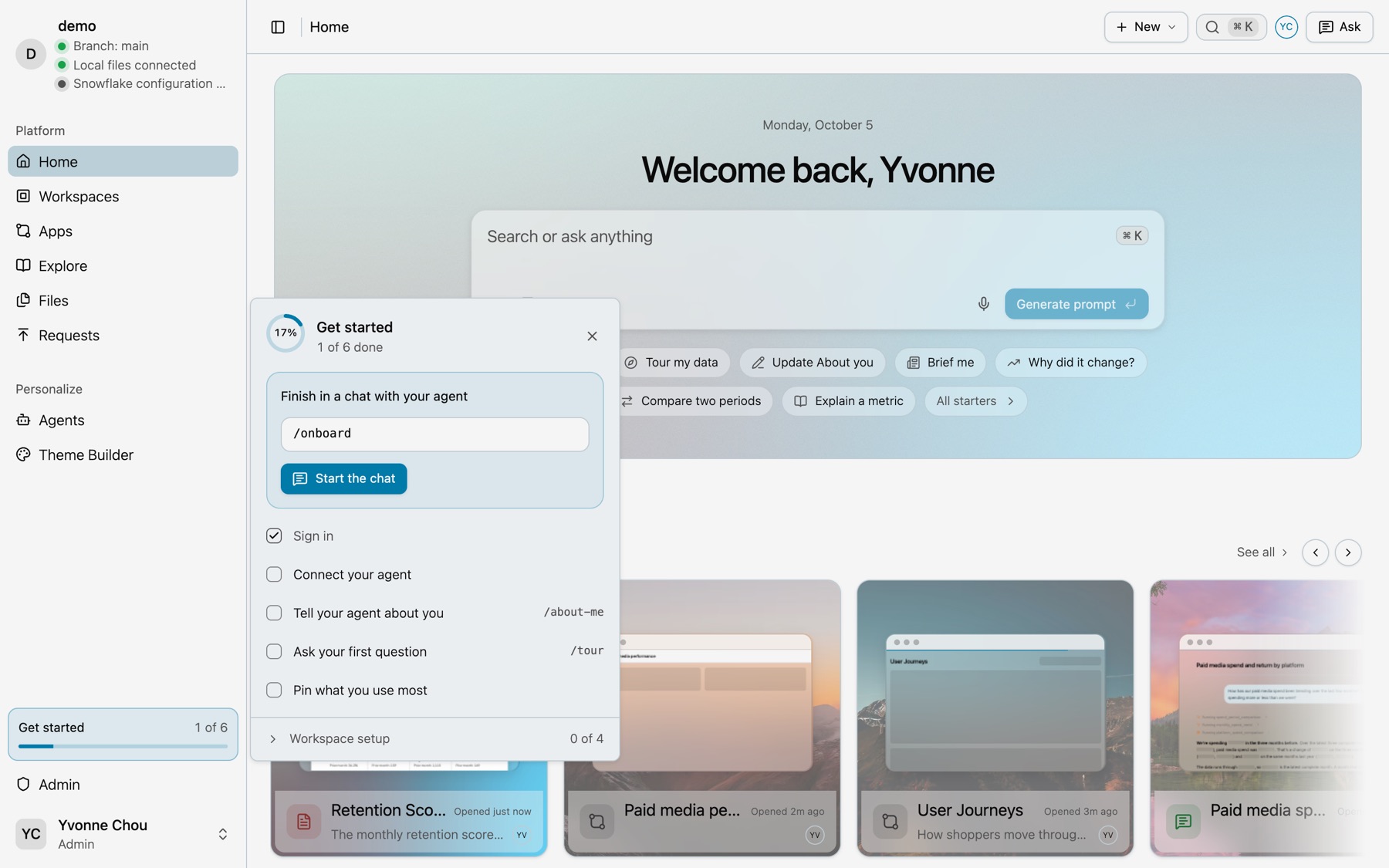
Check it worked
- When every step is done, the onboarding prints: “Kater is set up. Open app.kater.ai to see your data, or run kater agent to keep modelling.”
- AI Tools › About you › About the company shows what you wrote about your company.
Invite your team
Add the people who use Kater, each with one role. Viewer is the default, the role with the fewest permissions.
Each person has one role: Admin, Developer or Viewer. A data team member who changes the shared layer needs Developer. See what each role may do in Users and roles.
-
Select New user.
In the admin console, open Settings › Users and select New user.
-
Fill in the person, the role and the connections.
Enter the email, and the name if you want to. Select the role. For a Viewer or a Developer, select at least one connection: they see no data without one. The first connection you select is their default.
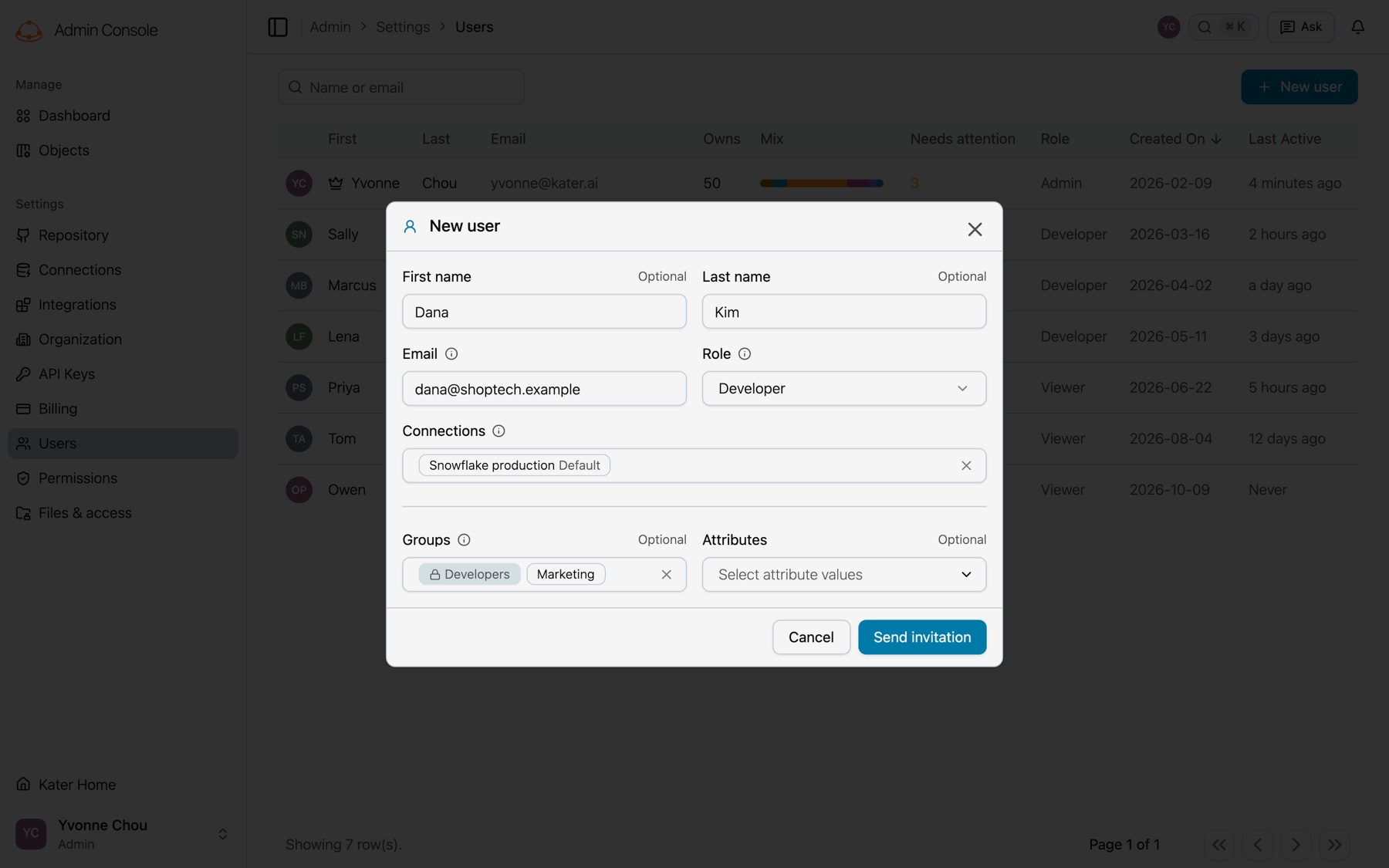
New user, filled in. -
Select Send invitation.
Kater sends an invitation email. The person selects their own password when they accept it, and their personal folder appears in each connection they can use at their first sign-in.
See Manage users.
-
Invite people by email.
Terminal window kater admin team invite sam@example.com lee@example.com --role developer --group Marketing -
Or invite from a CSV file.
Terminal window kater admin team invite --csv people.csvpeople.csv email,name,role,groups,attributessam@example.com,Sam Lee,viewer,Marketing;Leadership,department=Marketing
Anyone already invited or already a member is skipped. kater init offers the same in its Invite your team step.
Single sign-on and SCIM
kater admin sso linkmakes a 7-day link that your IT team uses to connect your identity provider.kater admin scim requestasks Kater to switch on SCIM provisioning for your organisation.
See Users and roles.
Check it worked
- Settings › Users lists each person with the right role.
- Each person is in the right groups. See Permissions and groups.
Set who can read what
Access works like a shared drive. A new organisation starts with Everyone as Viewer, with execute, on the whole content store, except connections/: a connection is open only to the people and groups granted it. Limit only the folders that need it.
Each person’s personal folder is private to them, and admins always keep full access. A folder you restrict keeps out everyone it does not list. You then grant people or groups a level: Viewer, Editor or Manager. See Files and access for every rule.
-
Open the folder’s access.
In the admin console, open Files & access, select the folder, then select Manage access.
-
Restrict it.
Under general access, select Restricted.
-
Grant it.
Type in Add people or groups, select a level, then select Share.
-
See who has access.
Terminal window kater admin access show connections/snowflake_prod_connection/workspaces/ad_reporting -
Restrict the folder.
Terminal window kater admin access restrict connections/snowflake_prod_connection/workspaces/ad_reporting -
Grant it.
Terminal window kater admin access grant connections/snowflake_prod_connection/workspaces/ad_reporting --level editor --group Marketing
Run kater admin access in your own terminal. Agents and the Files terminal refuse it.
Check it worked
- Files & access marks the folder Restricted.
kater admin access show PATHlists the grants you gave, and Organisation admins.
Write back to GitHub
Write-back publishes each connection’s modeling/ folder, the shared layer and the DB datasets it reads, to a GitHub repository. It is one-way: Kater never reads anything back from GitHub.
-
Connect a repository.
Kater asks you to authorize its GitHub App, then for the repository, the folder and the schedule.
on_publishwrites back about a minute after each publish.Terminal window kater admin write-back connect --path-prefix kater/ --schedule on_publish -
Check it.
kater admin write-back statusshows the repository, its folder and schedule, the last run and the open pull request.Terminal window kater admin write-back status -
Merge the pull request.
Each run pushes the branch
kater/sharedas one commit, and opens or updates one pull request into main, titled “Kater: shared layer”.
Change the shared layer in Kater, not in GitHub. The next pull request undoes an edit made directly in the repository’s kater/ folder. If you disconnect, what is already in GitHub stays. Run kater admin write-back in your own terminal. See Content store and GitHub write-back.
Check it worked
kater admin write-back statusnames your repository and its schedule.- A pull request into main opens about a minute after a publish.
Readiness checklist
Before your team begins, confirm:
kater initreports that Kater is set up.- The Snowflake role reads only the databases and schemas Kater should model, with USAGE on one warehouse.
connection.yamllists only the intended databases and schemas, and itsidis unchanged.kater sync --checkexits 0.- If you want nightly syncs, the sync job is enabled and the cron line is installed.
- Your team is invited with the right roles and groups.
- Restricted folders have the right grants, and personal folders stay private.
- If you use write-back, a pull request into main opens after a publish.
- Profile › AI app shows your organisation’s MCP address, in Connect your agent.
Next steps
- Tour the Admin console.
- Hand over to your data team with Data teams.
- Schedule syncs and tests in Scheduled jobs.