
Until this week, an agent working on your Kater content worked blind. You described what was on screen, pasted SQL into a chat, and copied the answer back. Kater also ran a chat of its own, separate from the agent you already use.
Today we are shipping three things that close that gap:
- Files, a browser IDE for every file you can read in Kater.
- Ask, a button on every page that turns a request into a prompt for your own agent.
- Live sessions, which let that agent see your open Kater tabs, move them, and change what they show, with History and Undo for every change.
Files
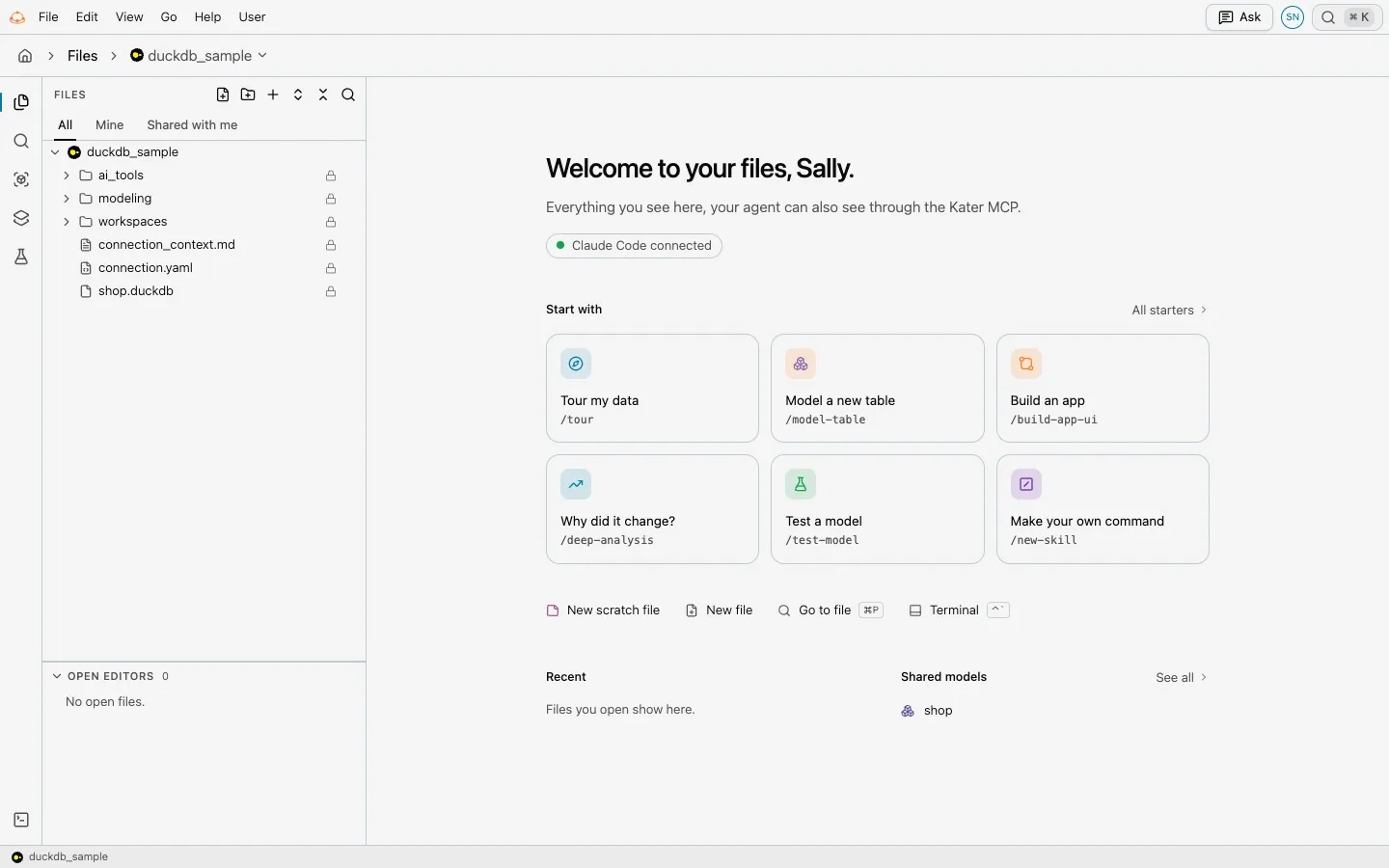
Files lives at /files/. It opens on everything you can read in your organization’s Kater content: the shared models, your workspaces, apps, tests, and your own folder.
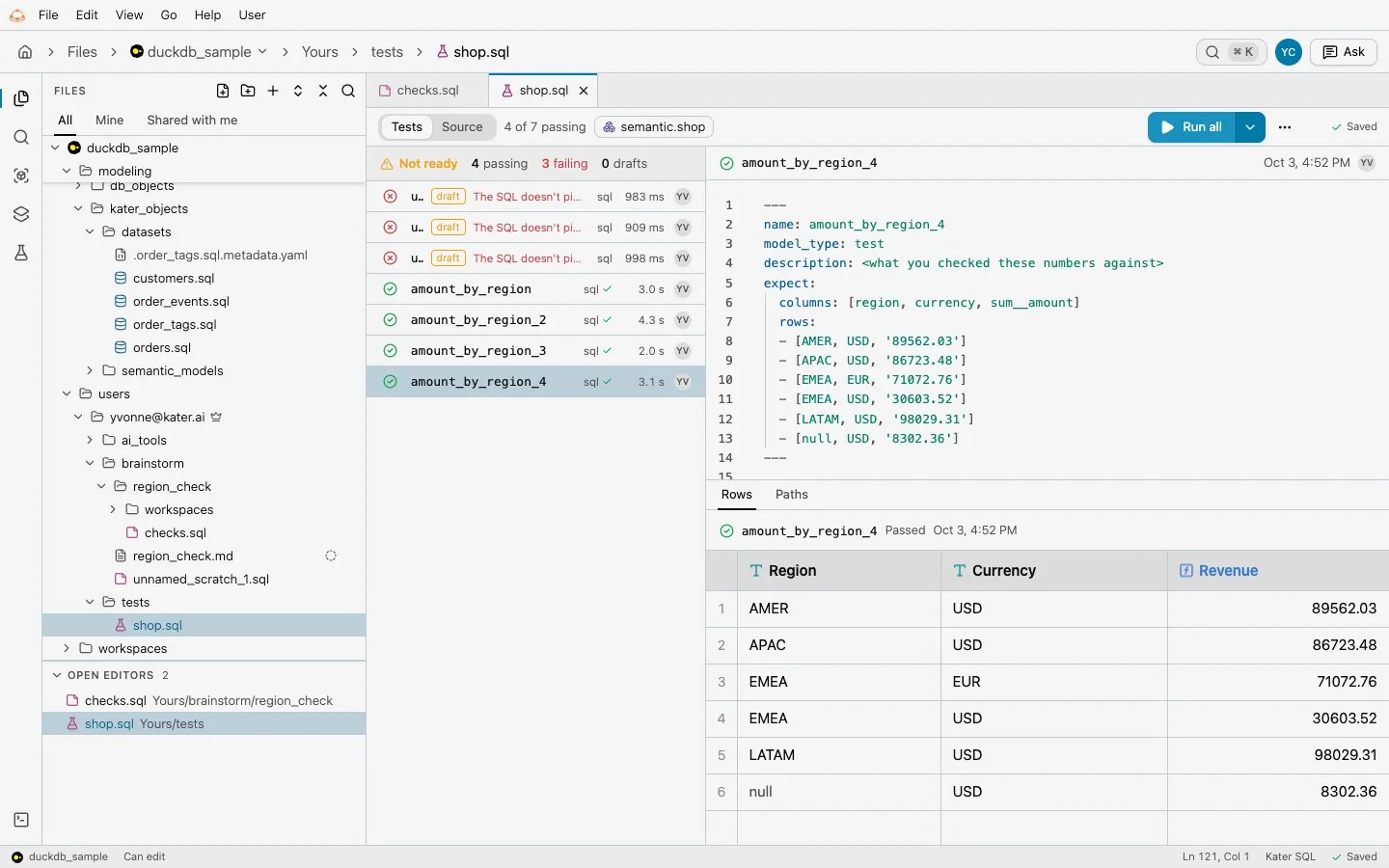
The left rail has five views: Files, Search, Sandbox, Modeling and Tests. The tree filters by All, Pinned, Mine and Shared with me. Files open in tabs, in an editor with grammars for Kater SQL, YAML and Markdown. Problems from the compiler show in a Problems panel, and Add to sends a query or a chart to a workspace, an app or the Sandbox.
The Terminal runs kater commands as you. It is not a shell. It runs one kater command line at a time, with the same commands your agent uses through the Kater MCP, so anything you can do in the terminal, your agent can do too.
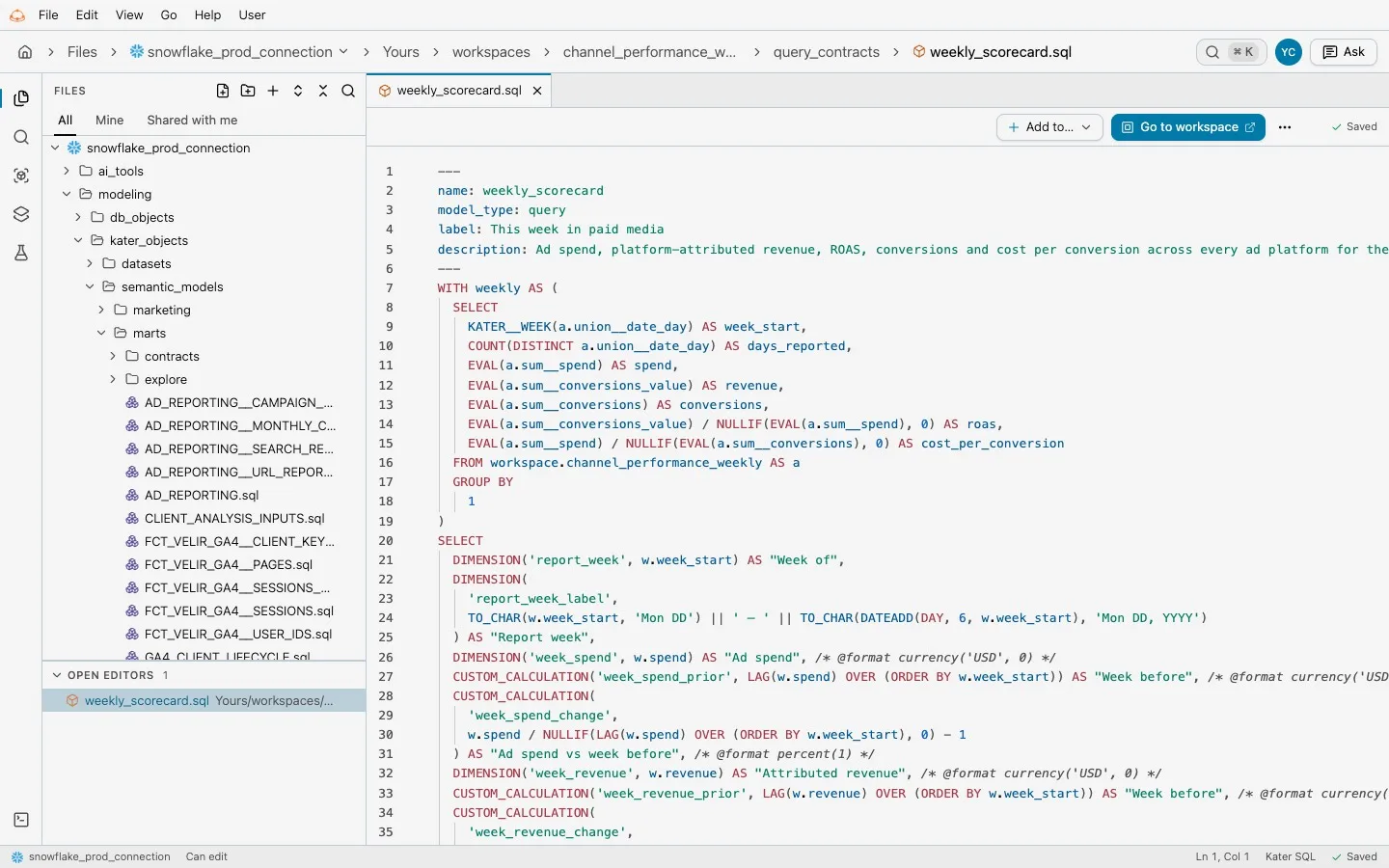
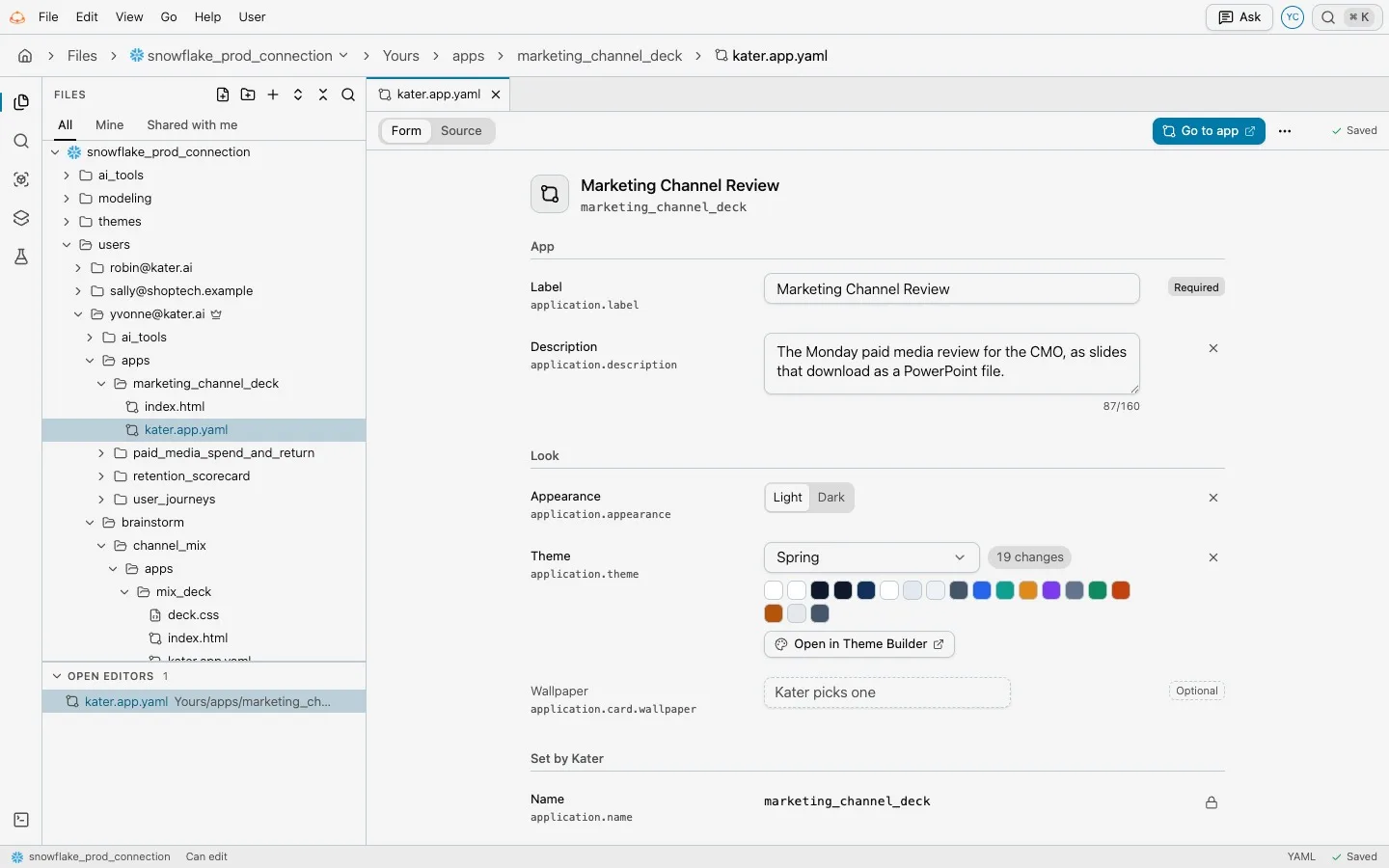
Files also draws Kater files as what they are. An app’s kater.app.yaml opens as a settings form, SQL frontmatter opens as property cards, and an HTML file opens as the page it renders. Source is one tab away.
Ask
Every page header has an Ask button. Say or type what you want. Ask writes a prompt for your agent with the page you are on attached, so the agent starts where you are.
@adds context: an app, a workspace, a query or a model./adds a skill from your connection’s library, such as/planning.- Generate prompt writes the prompt and copies it.
- Open in sends it to Claude, Claude Code, VS Code, Codex, ChatGPT, Cursor or claude.ai.
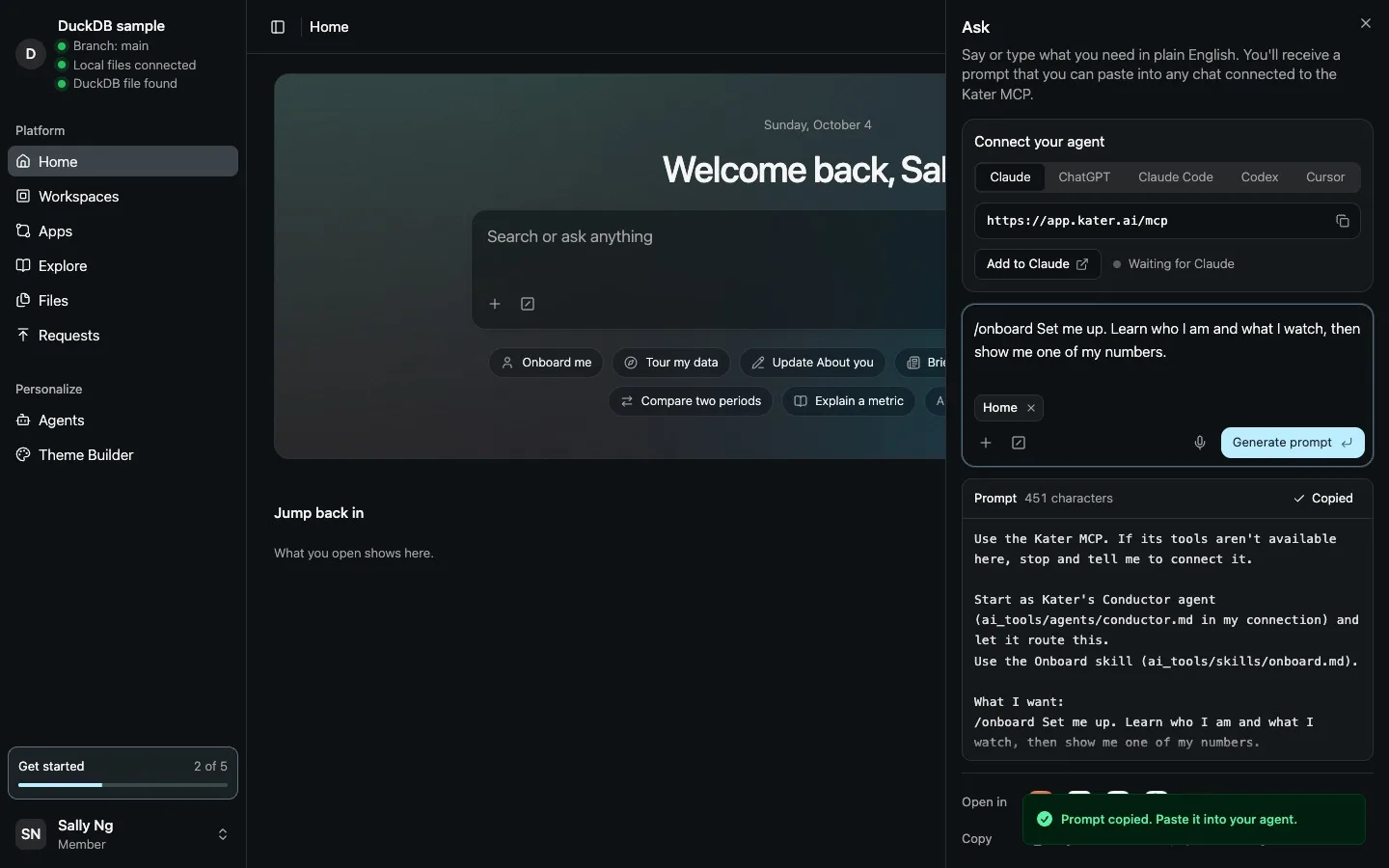
Until an agent is connected, Ask opens with Connect your agent and the Kater MCP address to copy. ⌘K opens search on every page.
Every form that makes something now has two tabs. Automatic describes the new object to your agent. Manual is the form.
Kater no longer runs its own chat. Your agent, with your tools and your context, does the work.
Live sessions
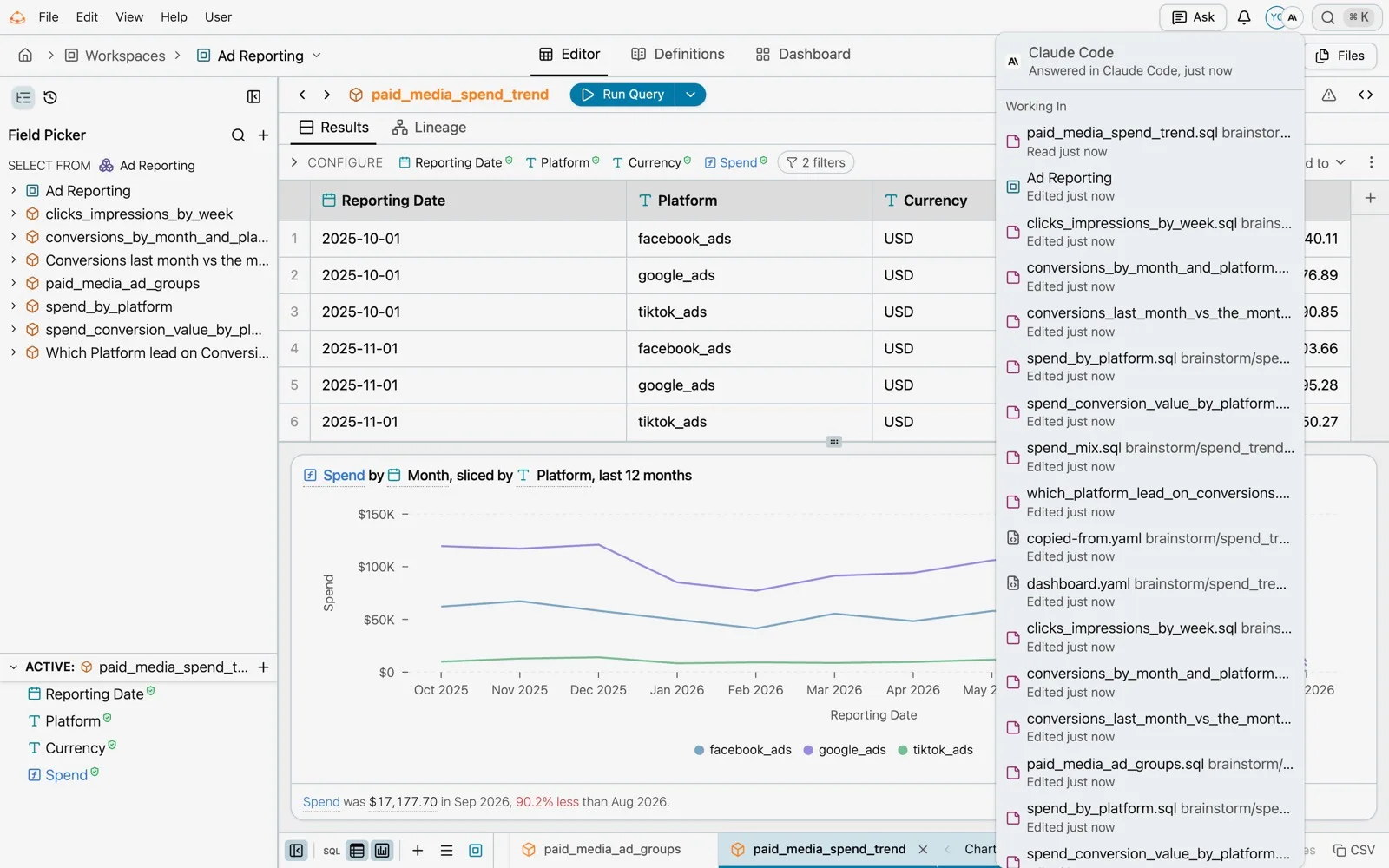
When your agent connects to the Kater MCP, it can see the Kater tabs you have open. Three commands carry this:
kater here # your Kater tabs, front firstkater open /workspace/<path> --set tab=chartkater answer <result-id> # the rows a page shows, without running the query againThis works because every Kater page keeps its state in its URL: the object that is open, the tab, the panels, the mode and the filters. An agent can read “the query open in the editor with its chart tab showing” from the address alone, and open the same view in another tab.
The agent’s avatar shows in the header of each page it works on. Its menu lists the files it read and changed, with Follow This Tab and Pause Sharing. Disconnect is under Profile, Agents. When the agent changes what a page shows, the page redraws.
History and Undo
Every change to a workspace, an app or a file is a commit with the person and the agent that made it. An agent’s commit carries a one-line summary of what it did.
History lists changes newest first, with a diff for each. Undo reverses any one of them as a new change, so the record stays complete.
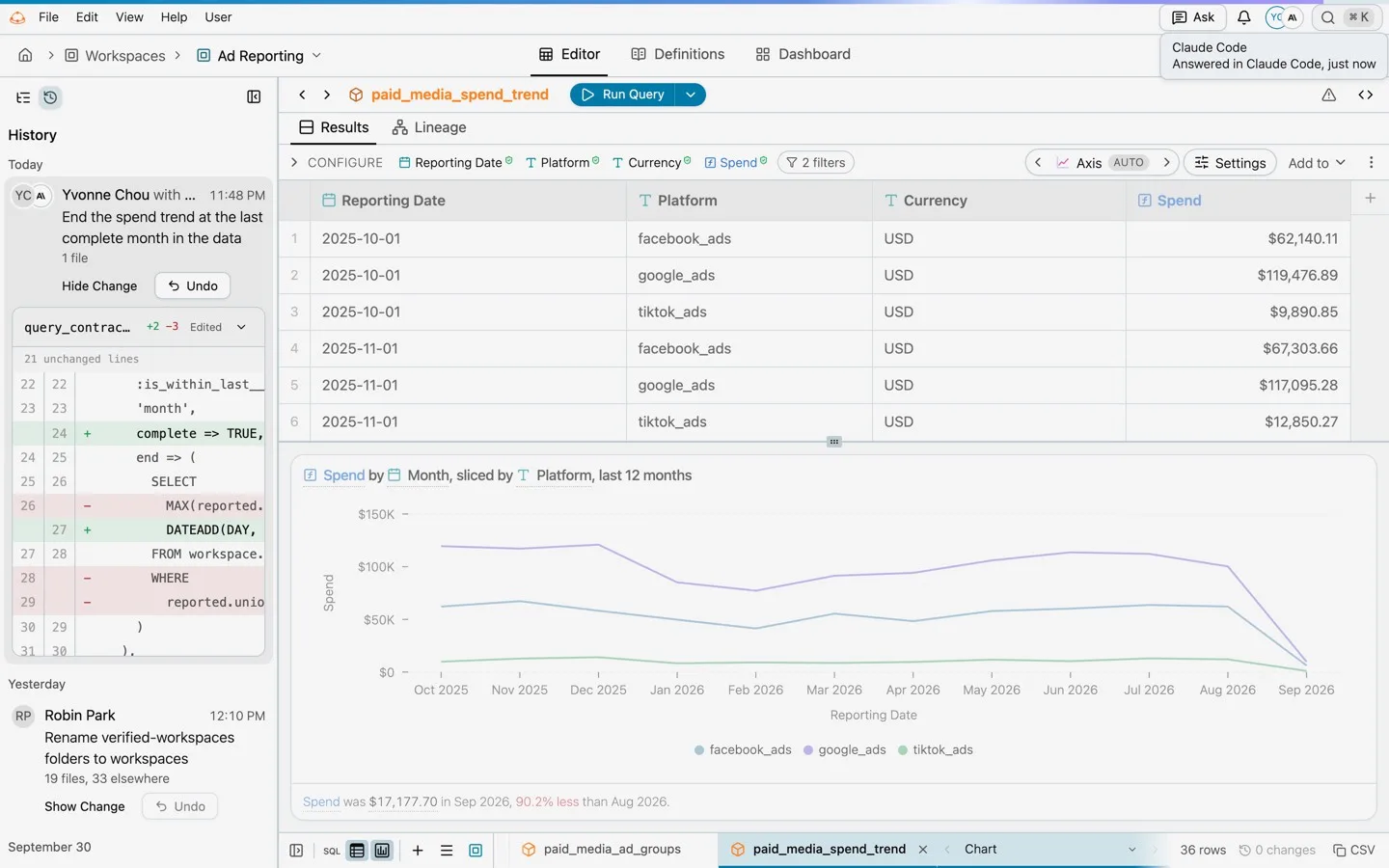
The same works from a terminal or from your agent:
kater history connections/<connection>/workspaces/<workspace>kater undo <change-id>Current limits
- Live sessions work in the web portal. VS Code is not included yet.
- The Files terminal runs
katercommands only. - You cannot rename or move queries, charts, models, workspaces or apps in Files yet.
- Undo is refused when a later edit conflicts with it, or when the change touched more than 200 files.
- The agent’s avatar shows what the agent reports about itself. It is not a security boundary. Access is decided by your Kater permissions.
Get started
Open Files from the sidebar. To connect an agent, select Ask on any page and follow Connect your agent, or select Connect your agent in the Get started list.